Become a part of the AdGuard team | Free license key | AdGuard (original) (raw)
Translate AdGuard
Help make AdGuard more accessible by translating it to your language. Join our community on Crowdin and get rewarded with licenses
How to translate
Join us in improving our Knowledge base
Help users understand complex topics by adding information or translating articles. As a token of our gratitude, we'll reward you with licenses
How to update the Knowledge base
Help maintain our filters
Contribute to AdGuard's open-source project on GitHub by writing filtering rules. Make a difference, whether experienced or new to development
How to contribute to filters
Test AdGuard products
Join our testing community to help make AdGuard even better. Share your feedback by reporting bugs on GitHub and get rewarded in return.
How to become a beta tester
Write about AdGuard
Help your followers discover ad-free browsing and get rewarded with a license
What the article should look like
Request a license for developers
Get a license as a thank you for your contributions to the community. We also offer licenses to software developers who want to test their products with AdGuard
Who may request a license
What people say
- Cooperating with AdGuard to get their applications and services into my own language has been a great pleasure. It feels good to have the chance to do something useful for AdGuard's Norwegian users. The translation team is an open and welcoming, and a warm and enjoyable environment to work in. This is the right place for those who enjoy translating and helping their own people!
- I came across AdGuard when looking for an ad filtering application, loadable with the OS and with that removing the need for browser add-ons. AdGuard filled that need. Localization might perhaps not being considered vital in countries where English is spoken freely, as in my country. However I do not agree as knowledge in Technical English is mastered only by the few, thus the need for translated interfaces. Translating the AdGuard interface and the web pages shows a company with both dedication and openness. Collaboration with AdGuard representatives is professional, swift and very friendly. I see it as an honour being a part of the translation team.
- Collaboration is said to take place when two individuals or a group of people work together towards achieving a common goal by sharing their ideas and skills. These are the reasons for me to collaborate. I identified myself with the idea of creating an open source software to help others see how the internet should be (clean and safe) and this is main reason I collaborate and recommend it to others. Anyway, it is a great honor for me to collaborate with AdGuard community to make your mission a reality.
- I have a natural interest for technology and like to get down to the nitty-gritty of things. Almost every app I use, I look for opportunities to go one step further, and AdGuard offers exactly that. Happy to be on Nightly and provide feedback for AdGuard, its a win-win situation for both parties.
- I had the pleasure of working with AdGuard on the development of filters for their ad-blocking software. As a developer, I was impressed by their commitment to producing high-quality software and ensuring that their filters were accurate and effective. The team was always available to answer my questions and provide guidance when needed. I would highly recommend AdGuard to anyone looking for a reliable partner in the software development industry.
- As a beta tester for AdGuard, I had a great experience working with the team. They were always responsive to my feedback and worked diligently to ensure that their software was user-friendly and effective. The beta testing process was well-organized and easy to follow, and the team was always available to answer my questions and address any concerns.
Downloading AdGuard To install AdGuard, click the file indicated by the arrow Select "Open" and click "OK", then wait for the file to be downloaded. In the opened window, drag the AdGuard icon to the "Applications" folder. Thank you for choosing AdGuard! Select "Open" and click "OK", then wait for the file to be downloaded. In the opened window, click "Install". Thank you for choosing AdGuard!
Install AdGuard on your mobile device
Installation
AdGuard for Android is available in the following app stores:
AdGuard can’t be published on Google Play. For more details, check out our blog. If you’re using Google Play, follow these instructions to manually install AdGuard for Android.
1. Allow downloading
If your browser displays a warning, allow downloading adguard.apk.
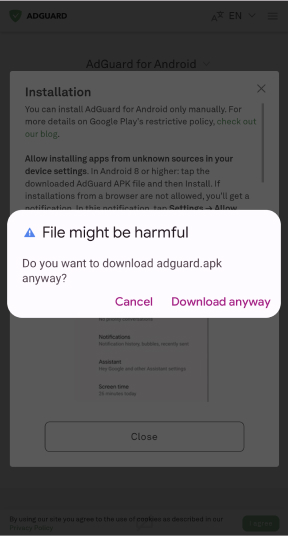
Installation permissions
If installations from your browser are not allowed, you’ll get a notification. In this notification, tap Settings → Allow from this source.
Note for Samsung users with One UI 6 (Android 14) and newer
On some Samsung devices, the Auto Blocker feature may prevent APK installations. To install the app:
Open your device settings.
Go to Security and privacy.
Scroll down and tap Auto Blocker.
Disable the setting.
You can re-enable this feature after the installation.
2. Install the app
In the pop-up dialog, tap Install.
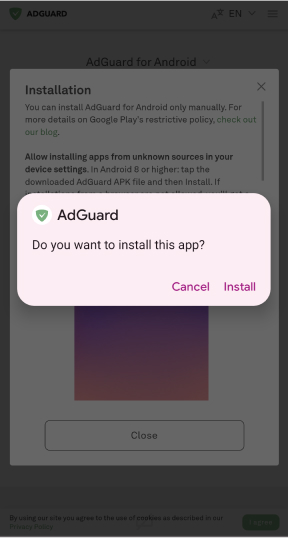
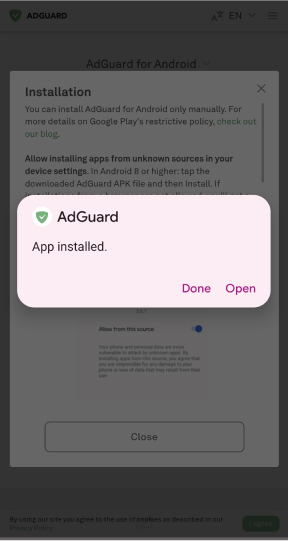
3. Launch the app
Wait for the installation to complete and tap Open. All done!
Scan to download
Use any QR-code reader available on your device
Scan to download
Use any QR-code reader available on your device

Download an older AdGuard version?
This OS version isn’t supported. You can use an older version of AdGuard, but it won't receive updates