Contact Us | AdGuard (original) (raw)
About
Who we are
Adguard Software Limited is a company incorporated on June 1, 2009. It develops AdGuard Ad Blocker, AdGuard VPN, and AdGuard DNS — the products that protect users’ privacy and security. We are the team of experienced specialists, not just creators of AdGuard, but rather Jedi of the light side of the Internet.
What we do
To date, we have made a real breakthrough in the field of internet advertising blocking. Our flagship product AdGuard enjoys wide popularity — we help millions of regular users worldwide. Considering the wishes of our customers, we are constantly engaged in improving our products, and therefore developed a whole range of software, which includes a multifunctional AdGuard ad blocking desktop programs, mobile apps and browser extensions. Our solutions are not just an ad blocker; they protect from online threats, prevent tracking, and filter obscene materials. This comprehensive approach provides high-quality filtering, making AdGuard an essential tool for every internet user. Our mission is to make our users' web surfing most comfortable and safe.
Where we are
Awards









Downloading AdGuard To install AdGuard, click the file indicated by the arrow Select "Open" and click "OK", then wait for the file to be downloaded. In the opened window, drag the AdGuard icon to the "Applications" folder. Thank you for choosing AdGuard! Select "Open" and click "OK", then wait for the file to be downloaded. In the opened window, click "Install". Thank you for choosing AdGuard!
Install AdGuard on your mobile device
Installation
AdGuard for Android is available in the following app stores:
AdGuard can’t be published on Google Play. For more details, check out our blog. If you’re using Google Play, follow these instructions to manually install AdGuard for Android.
1. Allow downloading
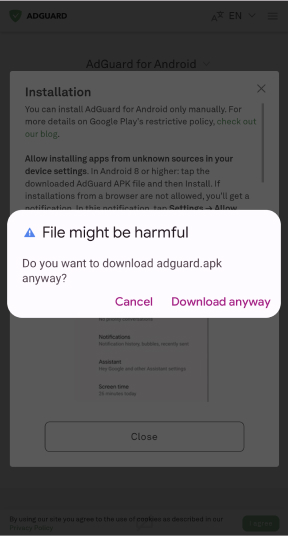
If your browser displays a warning, allow downloading adguard.apk.
Installation permissions
If installations from your browser are not allowed, you’ll get a notification. In this notification, tap Settings → Allow from this source.
Note for Samsung users with One UI 6 (Android 14) and newer
On some Samsung devices, the Auto Blocker feature may prevent APK installations. To install the app:
Open your device settings.
Go to Security and privacy.
Scroll down and tap Auto Blocker.
Disable the setting.
You can re-enable this feature after the installation.
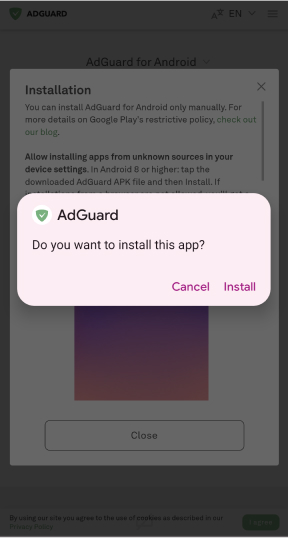
2. Install the app
In the pop-up dialog, tap Install.
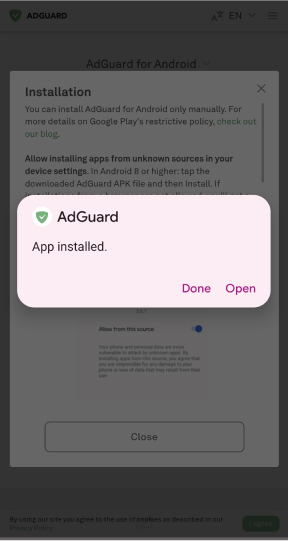
3. Launch the app
Wait for the installation to complete and tap Open. All done!
Scan to download
Use any QR-code reader available on your device
Scan to download
Use any QR-code reader available on your device

Download an older AdGuard version?
This OS version isn’t supported. You can use an older version of AdGuard, but it won't receive updates