電腦使用 (original) (raw)
開始使用
模型
核心功能
工具和代理程式
Live API
指南
資源
政策
電腦使用
您可以使用 Gemini 2.5 電腦使用搶先體驗版模型和工具,建構可與瀏覽器互動並自動執行工作的瀏覽器控制代理。電腦使用模型可透過螢幕截圖「查看」電腦畫面,並透過產生特定 UI 動作 (例如滑鼠點擊和鍵盤輸入)「執行動作」。與函式呼叫類似,您需要編寫用戶端應用程式程式碼,才能接收及執行電腦使用動作。
透過電腦使用功能,您可以建構可執行下列操作的代理程式:
- 自動在網站上輸入重複資料或填寫表單。
- 對網頁應用程式和使用者流程執行自動化測試
- 在各種網站上進行研究 (例如從電子商務網站收集產品資訊、價格和評論,做為購買決策的依據)
如要測試 Gemini Computer Use 模型,最簡單的方法是透過參考實作或 Browserbase 試用環境。
電腦使用時間的運作方式
如要使用 Computer Use 模型建構瀏覽器控制代理程式,請實作代理程式迴圈,執行下列操作:
- 向模型傳送要求
- 在 API 要求中新增「電腦使用」工具,並視需要新增任何自訂使用者定義函式或排除的函式。
- 使用者的要求會做為提示,傳送給電腦使用模型。
- 接收模型回應
- 電腦使用模型會分析使用者要求和螢幕截圖,並生成回應,包括代表 UI 動作的建議
function_call(例如「click at coordinate (x,y)」或「type 'text'」)。如要瞭解電腦使用模型支援的所有 UI 動作,請參閱「支援的動作」。 - API 回應也可能包含內部安全系統的
safety_decision,用於檢查模型建議的動作。這會將動作分類為:safety_decision
* 一般 / 允許:系統將動作視為安全。這也可能以沒有safety_decision的形式呈現。
* 需要確認 (require_confirmation):模型即將執行可能具有風險的動作 (例如點選「接受 Cookie 通知」)。
- 電腦使用模型會分析使用者要求和螢幕截圖,並生成回應,包括代表 UI 動作的建議
- 執行收到的動作
- 您的用戶端程式碼會收到
function_call和任何隨附的safety_decision。
* 正常 / 允許:如果safety_decision指出正常/允許 (或沒有safety_decision),用戶端程式碼即可在目標環境 (例如網頁瀏覽器) 中執行指定的function_call。
* 需要確認:如果safety_decision指出需要確認,應用程式必須先提示使用者確認,才能執行function_call。如果使用者確認,請繼續執行動作。如果使用者拒絕,請勿執行動作。
- 您的用戶端程式碼會收到
- 擷取新環境狀態
- 如果動作已執行,用戶端會擷取 GUI 和目前網址的新螢幕截圖,並做為
function_response的一部分傳回電腦使用模型。 - 如果安全系統封鎖某項動作,或使用者拒絕確認,應用程式可能會將不同形式的回饋傳送給模型,或終止互動。
- 如果動作已執行,用戶端會擷取 GUI 和目前網址的新螢幕截圖,並做為
這個程序會從步驟 2 開始重複執行,使用新的螢幕截圖和持續進行的目標,透過電腦使用模型建議下一個動作。這個迴圈會持續執行,直到工作完成、發生錯誤或程序終止 (例如,由於「封鎖」安全回應或使用者決定)。
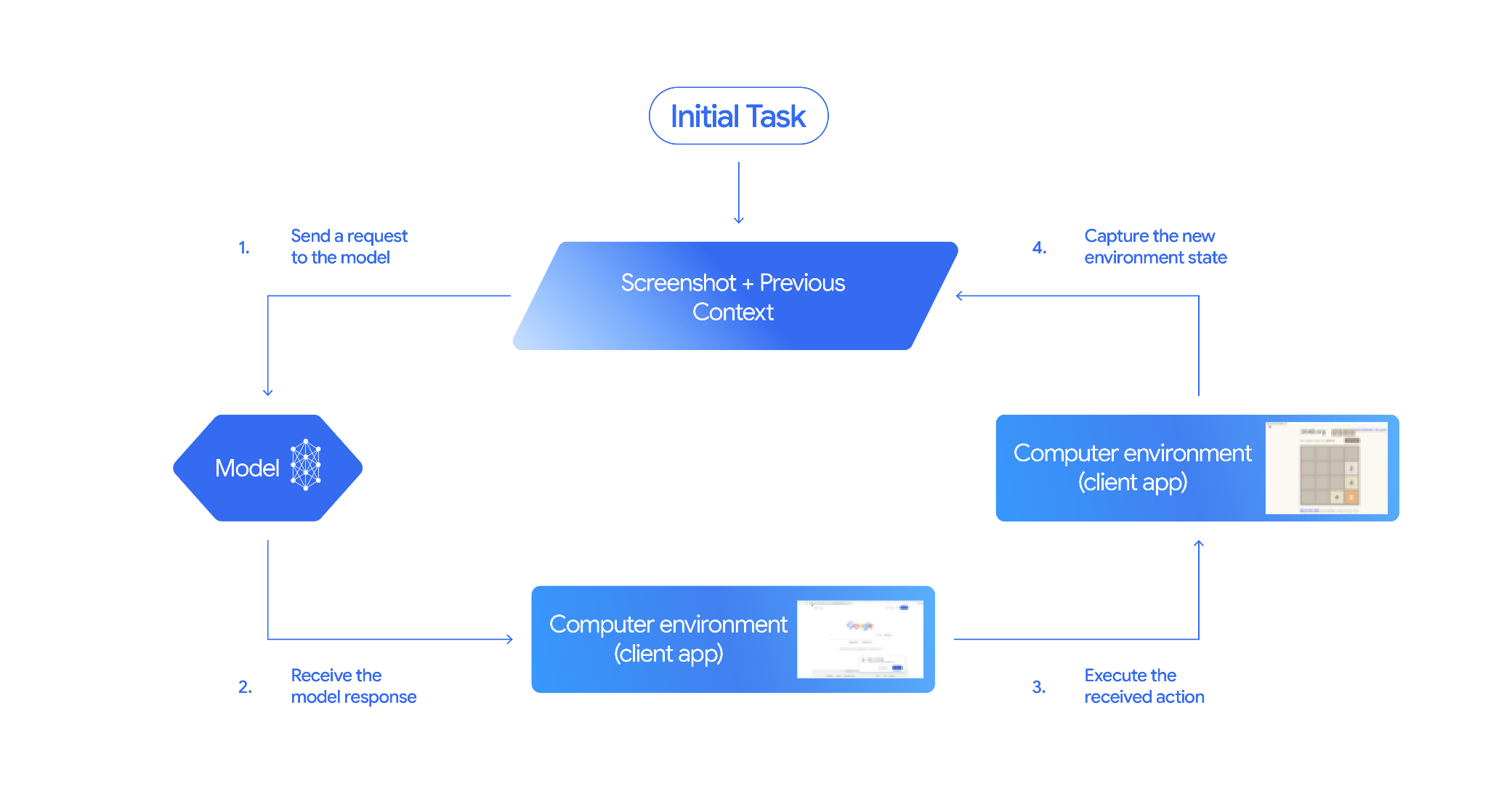
如何實作電腦使用
使用電腦使用模型和工具建構內容前,您需要設定下列項目:
- 安全執行環境:基於安全考量,您應在安全受控的環境中執行電腦使用代理程式,例如沙箱虛擬機器、容器,或權限受限的專用瀏覽器設定檔。
- 用戶端動作處理常式:您需要實作用戶端邏輯,執行模型產生的動作,並在每個動作後擷取環境的螢幕截圖。
本節的範例使用瀏覽器做為執行環境,並以 Playwright 做為用戶端動作處理常式。如要執行這些範例,您必須安裝必要的依附元件,並初始化 Playwright 瀏覽器執行個體。
安裝 Playwright
pip install google-genai playwright
playwright install chromium
初始化 Playwright 瀏覽器執行個體
from playwright.sync_api import sync_playwright

# 1. Configure screen dimensions for the target environment
SCREEN_WIDTH = 1440
SCREEN_HEIGHT = 900

# 2. Start the Playwright browser
# In production, utilize a sandboxed environment.
playwright = sync_playwright().start()
# Set headless=False to see the actions performed on your screen
browser = playwright.chromium.launch(headless=False)

# 3. Create a context and page with the specified dimensions
context = browser.new_context(
    viewport={"width": SCREEN_WIDTH, "height": SCREEN_HEIGHT}
)
page = context.new_page()

# 4. Navigate to an initial page to start the task
page.goto("https://www.google.com")

# The 'page', 'SCREEN_WIDTH', and 'SCREEN_HEIGHT' variables
# will be used in the steps below.「使用自訂使用者定義函式」一節包含擴充至 Android 環境的程式碼範例。
1. 向模型傳送要求
在 API 要求中加入電腦使用工具,並將包含使用者目標的提示傳送至電腦使用模型。您必須使用 Gemini Computer Use 模型,gemini-2.5-computer-use-preview-10-2025。如果嘗試使用其他模型搭配電腦使用工具,系統會顯示錯誤訊息。
您也可以視需要加入下列參數:
- 排除的動作:如果清單中有任何支援的 UI 動作,您不希望模型執行這些動作,請將這些動作指定為
excluded_predefined_functions。 - 使用者定義函式:除了電腦使用工具,您可能還想加入自訂使用者定義函式。
請注意,發出要求時不必指定螢幕大小;模型會預測像素座標,並根據螢幕高度和寬度進行縮放。
Python
from google import genai
from google.genai import types
from google.genai.types import Content, Part

client = genai.Client()

# Specify predefined functions to exclude (optional)
excluded_functions = ["drag_and_drop"]

generate_content_config = genai.types.GenerateContentConfig(
    tools=[
        # 1. Computer Use tool with browser environment
        types.Tool(
            computer_use=types.ComputerUse(
                environment=types.Environment.ENVIRONMENT_BROWSER,
                # Optional: Exclude specific predefined functions
                excluded_predefined_functions=excluded_functions
                )
              ),
        # 2. Optional: Custom user-defined functions
        #types.Tool(
          # function_declarations=custom_functions
          #   )
          ],
  )

# Create the content with user message
contents=[
    Content(
        role="user",
        parts=[
            Part(text="Search for highly rated smart fridges with touchscreen, 2 doors, around 25 cu ft, priced below 4000 dollars on Google Shopping. Create a bulleted list of the 3 cheapest options in the format of name, description, price in an easy-to-read layout."),
        ],
    )
]

# Generate content with the configured settings
response = client.models.generate_content(
    model='gemini-2.5-computer-use-preview-10-2025',
    contents=contents,
    config=generate_content_config,
)

# Print the response output
print(response)
如需自訂函式的範例,請參閱「使用自訂使用者定義函式」。
2. 接收模型回覆
如果「電腦使用」模型判斷需要 UI 動作才能完成工作,就會傳回一或多個 FunctionCalls。電腦用途支援平行函式呼叫,也就是說,模型可以在單一回合中傳回多個動作。
以下是模型回覆範例。
{
  "content": {
    "parts": [
      {
        "text": "I will type the search query into the search bar. The search bar is in the center of the page."
      },
      {
        "function_call": {
          "name": "type_text_at",
          "args": {
            "x": 371,
            "y": 470,
            "text": "highly rated smart fridges with touchscreen, 2 doors, around 25 cu ft, priced below 4000 dollars on Google Shopping",
            "press_enter": true
          }
        }
      }
    ]
  }
}
3. 執行收到的動作
應用程式程式碼需要剖析模型回應、執行動作,並收集結果。
下方程式碼範例會從電腦使用模型的回應中擷取函式呼叫,並將其轉換為可透過 Playwright 執行的動作。無論輸入圖片的尺寸為何,模型都會輸出正規化座標 (0 到 999),因此轉換步驟的一部分是將這些正規化座標轉換回實際像素值。
建議使用 (1440, 900) 的螢幕尺寸,搭配「電腦使用」模型。模型可處理任何解析度,但結果品質可能會受到影響。
請注意,這個範例只包含 3 項最常見的 UI 動作實作:open_web_browser、click_at 和 type_text_at。如要用於正式版,您必須實作「支援的動作」清單中的所有其他 UI 動作,除非您明確將這些動作新增為 excluded_predefined_functions。
Python
from typing import Any, List, Tuple
import time

def denormalize_x(x: int, screen_width: int) -> int:
    """Convert normalized x coordinate (0-1000) to actual pixel coordinate."""
    return int(x / 1000 * screen_width)

def denormalize_y(y: int, screen_height: int) -> int:
    """Convert normalized y coordinate (0-1000) to actual pixel coordinate."""
    return int(y / 1000 * screen_height)

def execute_function_calls(candidate, page, screen_width, screen_height):
    results = []
    function_calls = []
    for part in candidate.content.parts:
        if part.function_call:
            function_calls.append(part.function_call)

    for function_call in function_calls:
        action_result = {}
        fname = function_call.name
        args = function_call.args
        print(f"  -> Executing: {fname}")

        try:
            if fname == "open_web_browser":
                pass # Already open
            elif fname == "click_at":
                actual_x = denormalize_x(args["x"], screen_width)
                actual_y = denormalize_y(args["y"], screen_height)
                page.mouse.click(actual_x, actual_y)
            elif fname == "type_text_at":
                actual_x = denormalize_x(args["x"], screen_width)
                actual_y = denormalize_y(args["y"], screen_height)
                text = args["text"]
                press_enter = args.get("press_enter", False)

                page.mouse.click(actual_x, actual_y)
                # Simple clear (Command+A, Backspace for Mac)
                page.keyboard.press("Meta+A")
                page.keyboard.press("Backspace")
                page.keyboard.type(text)
                if press_enter:
                    page.keyboard.press("Enter")
            else:
                print(f"Warning: Unimplemented or custom function {fname}")

            # Wait for potential navigations/renders
            page.wait_for_load_state(timeout=5000)
            time.sleep(1)

        except Exception as e:
            print(f"Error executing {fname}: {e}")
            action_result = {"error": str(e)}

        results.append((fname, action_result))

    return results
4. 擷取新環境狀態
執行動作後,將函式執行結果傳回模型,模型就能使用這項資訊生成下一個動作。如果執行多個動作 (平行呼叫),您必須在後續使用者回合中,為每個動作傳送 FunctionResponse。
Python
def get_function_responses(page, results):
    screenshot_bytes = page.screenshot(type="png")
    current_url = page.url
    function_responses = []
    for name, result in results:
        response_data = {"url": current_url}
        response_data.update(result)
        function_responses.append(
            types.FunctionResponse(
                name=name,
                response=response_data,
                parts=[types.FunctionResponsePart(
                        inline_data=types.FunctionResponseBlob(
                            mime_type="image/png",
                            data=screenshot_bytes))
                ]
            )
        )
    return function_responses
建構代理程式迴圈
如要啟用多步驟互動,請將「如何實作電腦使用」一節中的四個步驟合併成一個迴圈。請記得附加模型回應和函式回應,正確管理對話記錄。
如要執行這個程式碼範例,請完成下列步驟:
- 安裝必要的 Playwright 依附元件。
- 定義步驟 (3) 執行收到的動作和 (4) 擷取新的環境狀態中的輔助函式。
Python
import time
from typing import Any, List, Tuple
from playwright.sync_api import sync_playwright

from google import genai
from google.genai import types
from google.genai.types import Content, Part

client = genai.Client()

# Constants for screen dimensions
SCREEN_WIDTH = 1440
SCREEN_HEIGHT = 900

# Setup Playwright
print("Initializing browser...")
playwright = sync_playwright().start()
browser = playwright.chromium.launch(headless=False)
context = browser.new_context(viewport={"width": SCREEN_WIDTH, "height": SCREEN_HEIGHT})
page = context.new_page()

# Define helper functions. Copy/paste from steps 3 and 4
# def denormalize_x(...)
# def denormalize_y(...)
# def execute_function_calls(...)
# def get_function_responses(...)

try:
    # Go to initial page
    page.goto("https://ai.google.dev/gemini-api/docs")

    # Configure the model (From Step 1)
    config = types.GenerateContentConfig(
        tools=[types.Tool(computer_use=types.ComputerUse(
            environment=types.Environment.ENVIRONMENT_BROWSER
        ))],
        thinking_config=types.ThinkingConfig(include_thoughts=True),
    )

    # Initialize history
    initial_screenshot = page.screenshot(type="png")
    USER_PROMPT = "Go to ai.google.dev/gemini-api/docs and search for pricing."
    print(f"Goal: {USER_PROMPT}")

    contents = [
        Content(role="user", parts=[
            Part(text=USER_PROMPT),
            Part.from_bytes(data=initial_screenshot, mime_type='image/png')
        ])
    ]

    # Agent Loop
    turn_limit = 5
    for i in range(turn_limit):
        print(f"\n--- Turn {i+1} ---")
        print("Thinking...")
        response = client.models.generate_content(
            model='gemini-2.5-computer-use-preview-10-2025',
            contents=contents,
            config=config,
        )

        candidate = response.candidates[0]
        contents.append(candidate.content)

        has_function_calls = any(part.function_call for part in candidate.content.parts)
        if not has_function_calls:
            text_response = " ".join([part.text for part in candidate.content.parts if part.text])
            print("Agent finished:", text_response)
            break

        print("Executing actions...")
        results = execute_function_calls(candidate, page, SCREEN_WIDTH, SCREEN_HEIGHT)

        print("Capturing state...")
        function_responses = get_function_responses(page, results)

        contents.append(
            Content(role="user", parts=[Part(function_response=fr) for fr in function_responses])
        )

finally:
    # Cleanup
    print("\nClosing browser...")
    browser.close()
    playwright.stop()
使用自訂使用者定義函式
您也可以視需要將自訂使用者定義函式納入要求,藉此擴充模型的功能。下例會納入使用者自訂動作 (例如 open_app、long_press_at 和 go_home),並排除瀏覽器專屬動作,以調整電腦使用模型和工具,適用於行動裝置用途。模型可以智慧地呼叫這些自訂函式和標準 UI 動作,在非瀏覽器環境中完成工作。
Python
from typing import Optional, Dict, Any

from google import genai
from google.genai import types
from google.genai.types import Content, Part

client = genai.Client()

SYSTEM_PROMPT = """You are operating an Android phone. Today's date is October 15, 2023, so ignore any other date provided.
* To provide an answer to the user, *do not use any tools* and output your answer on a separate line. IMPORTANT: Do not add any formatting or additional punctuation/text, just output the answer by itself after two empty lines.
* Make sure you scroll down to see everything before deciding something isn't available.
* You can open an app from anywhere. The icon doesn't have to currently be on screen.
* Unless explicitly told otherwise, make sure to save any changes you make.
* If text is cut off or incomplete, scroll or click into the element to get the full text before providing an answer.
* IMPORTANT: Complete the given task EXACTLY as stated. DO NOT make any assumptions that completing a similar task is correct.  If you can't find what you're looking for, SCROLL to find it.
* If you want to edit some text, ONLY USE THE `type` tool. Do not use the onscreen keyboard.
* Quick settings shouldn't be used to change settings. Use the Settings app instead.
* The given task may already be completed. If so, there is no need to do anything.
"""

def open_app(app_name: str, intent: Optional[str] = None) -> Dict[str, Any]:
    """Opens an app by name.

    Args:
        app_name: Name of the app to open (any string).
        intent: Optional deep-link or action to pass when launching, if the app supports it.

    Returns:
        JSON payload acknowledging the request (app name and optional intent).
    """
    return {"status": "requested_open", "app_name": app_name, "intent": intent}

def long_press_at(x: int, y: int) -> Dict[str, int]:
    """Long-press at a specific screen coordinate.

    Args:
        x: X coordinate (absolute), scaled to the device screen width (pixels).
        y: Y coordinate (absolute), scaled to the device screen height (pixels).

    Returns:
        Object with the coordinates pressed and the duration used.
    """
    return {"x": x, "y": y}

def go_home() -> Dict[str, str]:
    """Navigates to the device home screen.

    Returns:
        A small acknowledgment payload.
    """
    return {"status": "home_requested"}

#  Build function declarations
CUSTOM_FUNCTION_DECLARATIONS = [
    types.FunctionDeclaration.from_callable(client=client, callable=open_app),
    types.FunctionDeclaration.from_callable(client=client, callable=long_press_at),
    types.FunctionDeclaration.from_callable(client=client, callable=go_home),
]

#Exclude browser functions
EXCLUDED_PREDEFINED_FUNCTIONS = [
    "open_web_browser",
    "search",
    "navigate",
    "hover_at",
    "scroll_document",
    "go_forward",
    "key_combination",
    "drag_and_drop",
]

#Utility function to construct a GenerateContentConfig
def make_generate_content_config() -> genai.types.GenerateContentConfig:
    """Return a fixed GenerateContentConfig with Computer Use + custom functions."""
    return genai.types.GenerateContentConfig(
        system_instruction=SYSTEM_PROMPT,
        tools=[
            types.Tool(
                computer_use=types.ComputerUse(
                    environment=types.Environment.ENVIRONMENT_BROWSER,
                    excluded_predefined_functions=EXCLUDED_PREDEFINED_FUNCTIONS,
                )
            ),
            types.Tool(function_declarations=CUSTOM_FUNCTION_DECLARATIONS),
        ],
    )

# Create the content with user message
contents: list[Content] = [
    Content(
        role="user",
        parts=[
            # text instruction
            Part(text="Open Chrome, then long-press at 200,400."),
        ],
    )
]

# Build your fixed config (from helper)
config = make_generate_content_config()

# Generate content with the configured settings
response = client.models.generate_content(
        model='gemini-2.5-computer-use-preview-10-2025',
        contents=contents,
        config=config,
    )

print(response)
支援的 UI 動作
電腦使用模型可以透過 FunctionCall 要求下列 UI 動作。用戶端程式碼必須實作這些動作的執行邏輯。如需範例,請參閱參考實作。
| 指令名稱 | 說明 | 引數 (在函式呼叫中) | 函式呼叫範例 |
|---|---|---|---|
| open_web_browser | 開啟網路瀏覽器。 | 無 | {"name": "open_web_browser", "args": {}} |
| wait_5_seconds | 暫停執行 5 秒,讓動態內容載入或動畫完成。 | 無 | {"name": "wait_5_seconds", "args": {}} |
| go_back | 前往瀏覽器記錄中的上一頁。 | 無 | {"name": "go_back", "args": {}} |
| go_forward | 前往瀏覽器記錄中的下一頁。 | 無 | {"name": "go_forward", "args": {}} |
| search | 前往預設搜尋引擎的首頁 (例如 Google),適合用來開始新的搜尋工作。 | 無 | {"name": "search", "args": {}} |
| navigate | 直接將瀏覽器導向指定網址。 | url:str | {"name": "navigate", "args": {"url": "https://www.wikipedia.org"}} |
| click_at | 點選網頁上的特定座標。x 和 y 值是以 1000x1000 格線為準,並會縮放至螢幕尺寸。 | y:int (0 到 999),x:int (0 到 999) | {"name": "click_at", "args": {"y": 300, "x": 500}} |
| hover_at | 將滑鼠懸停在網頁上的特定座標。可用於顯示子選單。x 和 y 是以 1000x1000 格線為準。 | y: int (0-999) x: int (0-999) | {"name": "hover_at", "args": {"y": 150, "x": 250}} |
| type_text_at | 在特定座標輸入文字,預設會先清除欄位,然後在輸入完畢後按下 ENTER 鍵,但這些動作可以停用。x 和 y 座標是以 1000x1000 的格線為準。 | y:int (0-999)、x:int (0-999)、text:str、press_enter:bool (選用,預設為 True)、clear_before_typing:bool (選用,預設為 True) | {"name": "type_text_at", "args": {"y": 250, "x": 400, "text": "search query", "press_enter": false}} |
| key_combination | 按下鍵盤按鍵或組合鍵,例如「Ctrl+C」或「Enter」。可用於觸發動作 (例如使用「Enter」鍵提交表單) 或剪貼簿作業。 | keys:字串 (例如「enter」、「control+c」)。 | {"name": "key_combination", "args": {"keys": "Control+A"}} |
| scroll_document | 將整個網頁「向上」、「向下」、「向左」或「向右」捲動。 | direction:字串 (「up」、「down」、「left」或「right」) | {"name": "scroll_document", "args": {"direction": "down"}} |
| scroll_at | 在指定方向上,將特定元素或區域捲動特定幅度,座標為 (x, y)。座標和量值 (預設為 800) 是以 1000x1000 格線為準。 | y:int (0-999)、x:int (0-999)、direction:str ("up"、"down"、"left"、"right")、magnitude:int (0-999,選用,預設為 800) | {"name": "scroll_at", "args": {"y": 500, "x": 500, "direction": "down", "magnitude": 400}} |
| drag_and_drop | 從起始座標 (x, y) 拖曳元素,並在目的地座標 (destination_x, destination_y) 放開。所有座標都是以 1000x1000 的格線為準。 | y:int (0-999)、x:int (0-999)、destination_y:int (0-999)、destination_x:int (0-999) | {"name": "drag_and_drop", "args": {"y": 100, "x": 100, "destination_y": 500, "destination_x": 500}} |
安全與安全性
確認安全裁決
視動作而定,模型回覆也可能包含來自內部安全系統的 safety_decision,該系統會檢查模型建議的動作。
{
  "content": {
    "parts": [
      {
        "text": "I have evaluated step 2. It seems Google detected unusual traffic and is asking me to verify I'm not a robot. I need to click the 'I'm not a robot' checkbox located near the top left (y=98, x=95).",
      },
      {
        "function_call": {
          "name": "click_at",
          "args": {
            "x": 60,
            "y": 100,
            "safety_decision": {
              "explanation": "I have encountered a CAPTCHA challenge that requires interaction. I need you to complete the challenge by clicking the 'I'm not a robot' checkbox and any subsequent verification steps.",
              "decision": "require_confirmation"
            }
          }
        }
      }
    ]
  }
}
如果 safety_decision 為 require_confirmation,您必須先請使用者確認,才能繼續執行動作。根據服務條款,您不得略過要求人工確認的步驟。
這個程式碼範例會先提示使用者確認,再執行動作。如果使用者未確認動作,迴圈就會終止。如果使用者確認動作,系統就會執行動作,並將 safety_acknowledgement 欄位標示為 True。
Python
import termcolor

def get_safety_confirmation(safety_decision):
    """Prompt user for confirmation when safety check is triggered."""
    termcolor.cprint("Safety service requires explicit confirmation!", color="red")
    print(safety_decision["explanation"])

    decision = ""
    while decision.lower() not in ("y", "n", "ye", "yes", "no"):
        decision = input("Do you wish to proceed? [Y]es/[N]o\n")

    if decision.lower() in ("n", "no"):
        return "TERMINATE"
    return "CONTINUE"

def execute_function_calls(candidate, page, screen_width, screen_height):

    # ... Extract function calls from response ...

    for function_call in function_calls:
        extra_fr_fields = {}

        # Check for safety decision
        if 'safety_decision' in function_call.args:
            decision = get_safety_confirmation(function_call.args['safety_decision'])
            if decision == "TERMINATE":
                print("Terminating agent loop")
                break
            extra_fr_fields["safety_acknowledgement"] = "true" # Safety acknowledgement

        # ... Execute function call and append to results ...
如果使用者確認,您必須在 FunctionResponse 中加入安全確認聲明。
Python
function_response_parts.append(
    FunctionResponse(
        name=name,
        response={"url": current_url,
                  **extra_fr_fields},  # Include safety acknowledgement
        parts=[
            types.FunctionResponsePart(
                inline_data=types.FunctionResponseBlob(
                    mime_type="image/png", data=screenshot
                )
             )
           ]
         )
       )
安全性最佳做法
電腦使用 API 是新穎的 API,會帶來開發人員應注意的新風險:
- 不可信的內容和詐騙:模型會嘗試達成使用者的目標,因此可能會依賴不可信的資訊來源和畫面上的指示。舉例來說,如果使用者的目標是購買 Pixel 手機,而模型遇到「完成問卷調查即可免費獲得 Pixel」的詐騙訊息,模型可能會完成問卷調查。
- 偶爾會發生非預期的動作:模型可能會誤解使用者的目標或網頁內容,導致採取錯誤動作,例如點選錯誤的按鈕或填寫錯誤的表單。這可能會導致工作失敗或資料外洩。
- 違反政策:無論是蓄意或無意,API 的功能都可能用於違反 Google 政策的活動 (《生成式 AI 使用限制政策》和《Gemini API 附加服務條款》)。包括可能干擾系統完整性、危害安全性、規避安全措施、控制醫療器材等行為。
為因應這些風險,您可以採取下列安全措施和最佳做法:
- 人機迴圈 (HITL):
- 實作使用者確認:當安全回應指出
require_confirmation時,您必須先實作使用者確認,才能執行操作。如需範例程式碼,請參閱「確認安全決策」。 - 提供自訂安全指示:除了內建的使用者確認檢查外,開發人員也可以選擇新增自訂系統指示,強制執行自己的安全政策,禁止特定模型動作,或要求使用者先確認,模型才能執行特定高風險的不可逆動作。以下是與模型互動時可加入的自訂安全系統指令範例。
安全操作指南範例
將自訂安全規則設為系統指令:
## RULE 1: Seek User Confirmation (USER_CONFIRMATION)
This is your first and most important check. If the next required action falls
into any of the following categories, you MUST stop immediately, and seek the
user's explicit permission.
Procedure for Seeking Confirmation: * For Consequential Actions:
Perform all preparatory steps (e.g., navigating, filling out forms, typing a
message). You will ask for confirmation AFTER all necessary information is
entered on the screen, but BEFORE you perform the final, irreversible action
(e.g., before clicking "Send", "Submit", "Confirm Purchase", "Share"). * For
Prohibited Actions: If the action is strictly forbidden (e.g., accepting legal
terms, solving a CAPTCHA), you must first inform the user about the required
action and ask for their confirmation to proceed.
USER_CONFIRMATION Categories:
* Consent and Agreements: You are FORBIDDEN from accepting, selecting, or
agreeing to any of the following on the user's behalf. You must ask the
user to confirm before performing these actions.
* Terms of Service
* Privacy Policies
* Cookie consent banners
* End User License Agreements (EULAs)
* Any other legally significant contracts or agreements.
* Robot Detection: You MUST NEVER attempt to solve or bypass the
following. You must ask the user to confirm before performing these actions.
* CAPTCHAs (of any kind)
* Any other anti-robot or human-verification mechanisms, even if you are
capable.
* Financial Transactions:
* Completing any purchase.
* Managing or moving money (e.g., transfers, payments).
* Purchasing regulated goods or participating in gambling.
* Sending Communications:
* Sending emails.
* Sending messages on any platform (e.g., social media, chat apps).
* Posting content on social media or forums.
* Accessing or Modifying Sensitive Information:
* Health, financial, or government records (e.g., medical history, tax
forms, passport status).
* Revealing or modifying sensitive personal identifiers (e.g., SSN, bank
account number, credit card number).
* User Data Management:
* Accessing, downloading, or saving files from the web.
* Sharing or sending files/data to any third party.
* Transferring user data between systems.
* Browser Data Usage:
* Accessing or managing Chrome browsing history, bookmarks, autofill data,
or saved passwords.
* Security and Identity:
* Logging into any user account.
* Any action that involves misrepresentation or impersonation (e.g.,
creating a fan account, posting as someone else).
* Insurmountable Obstacles: If you are technically unable to interact with
a user interface element or are stuck in a loop you cannot resolve, ask the
user to take over.
---
## RULE 2: Default Behavior (ACTUATE)
If an action does NOT fall under the conditions forUSER_CONFIRMATION,
your default behavior is to Actuate.
Actuation Means: You MUST proactively perform all necessary steps to move
the user's request forward. Continue to actuate until you either complete the
non-consequential task or encounter a condition defined in Rule 1.
* Example 1: If asked to send money, you will navigate to the payment
portal, enter the recipient's details, and enter the amount. You will then
STOP as per Rule 1 and ask for confirmation before clicking the final
"Send" button.
* Example 2: If asked to post a message, you will navigate to the site,
open the post composition window, and write the full message. You will then
STOP as per Rule 1 and ask for confirmation before clicking the final
"Post" button.
After the user has confirmed, remember to get the user's latest screen
before continuing to perform actions.
# Final Response Guidelines:
Write final response to the user in the following cases:
- User confirmation
- When the task is complete or you have enough information to respond to the user - 實作使用者確認:當安全回應指出
- 安全執行環境:在安全沙箱環境中執行代理程式,限制潛在影響 (例如沙箱虛擬機器 (VM)、容器 (例如 Docker),或是權限受限的專用瀏覽器設定檔。
- 輸入內容清理:清理提示中的所有使用者生成文字,降低出現非預期指令或提示注入的風險。這層安全防護很有幫助,但無法取代安全執行環境。
- 內容防護機制:使用防護機制和內容安全 API 評估使用者輸入內容、工具輸入和輸出內容、代理程式回覆是否適當、提示詞注入和越獄偵測。
- 許可清單和封鎖清單:導入篩選機制,控管模型可前往的位置和可執行的動作。禁止存取的網站封鎖清單是不錯的起點,而限制更嚴格的許可清單則更加安全。
- 可觀測性和記錄:維護詳細記錄,以利偵錯、稽核及事件應變。客戶應記錄提示、螢幕截圖、模型建議的動作 (function_call)、安全回應,以及客戶最終執行的所有動作。
- 環境管理:確保 GUI 環境一致。如果出現非預期的彈出式視窗、通知或版面配置變更,模型可能會感到困惑。盡可能從已知且乾淨的狀態開始執行每項新工作。
模型版本
| 屬性 | 說明 |
|---|---|
| 模型代碼 | Gemini API gemini-2.5-computer-use-preview-10-2025 |
| 支援的資料類型 | 輸入功率 圖片、文字 輸出內容 文字 |
| 代幣限制[*] | 輸入權杖限制 128,000 輸出詞元限制 64,000 |
| 個版本 | 如要瞭解詳情,請參閱模型版本模式。 預覽:gemini-2.5-computer-use-preview-10-2025 |
| 最新更新 | 2025 年 10 月 |
後續步驟
- 在 Browserbase 試用版環境中,體驗電腦使用功能。
- 如需程式碼範例,請參閱參考實作。
- 瞭解其他 Gemini API 工具:
除非另有註明,否則本頁面中的內容是採用創用 CC 姓名標示 4.0 授權,程式碼範例則為阿帕契 2.0 授權。詳情請參閱《Google Developers 網站政策》。Java 是 Oracle 和/或其關聯企業的註冊商標。
上次更新時間:2025-10-24 (世界標準時間)。