How to Use ChatGPT at Work: Expert Techniques for Beginners (original) (raw)
Want to know how to use ChatGPT?
It really isn’t complicated. Just start typing.
Even a half-formed, typo-riddled prompt will usually get you a decent answer.
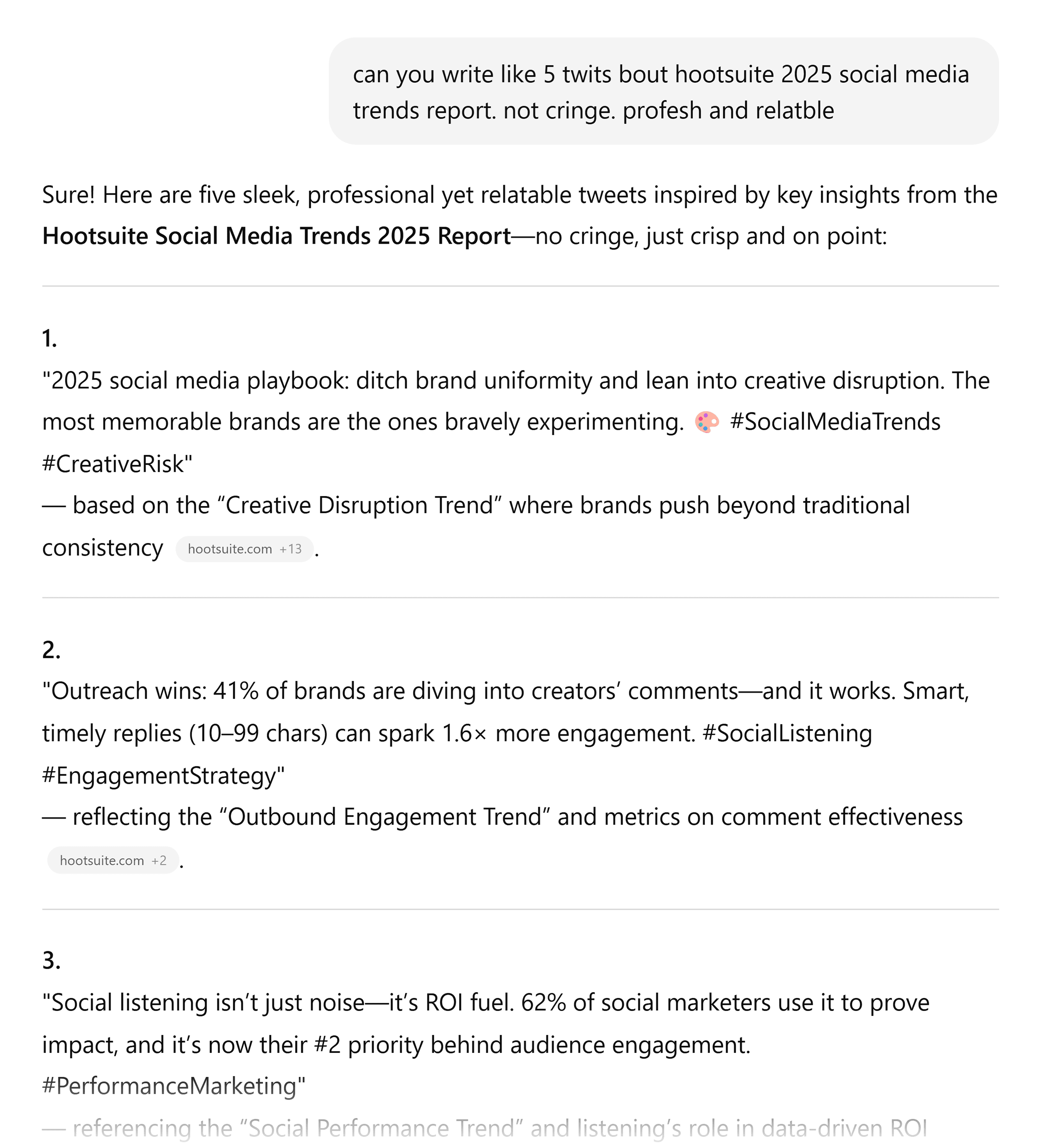
But if you want great results, you’ll need to learn how to use ChatGPT as more than just a Q&A tool.
This guide will show you how to do that. You’ll learn:
- The four-part prompt formula that instantly improves results
- How to use built-in tools that most beginners miss
- How to personalize ChatGPT so it adapts to your style
What Is ChatGPT (And What Can It Do?)
ChatGPT is an AI assistant you can use in your browser or install on your computer, phone, or tablet.
It works through a chat interface. You type a question or request…
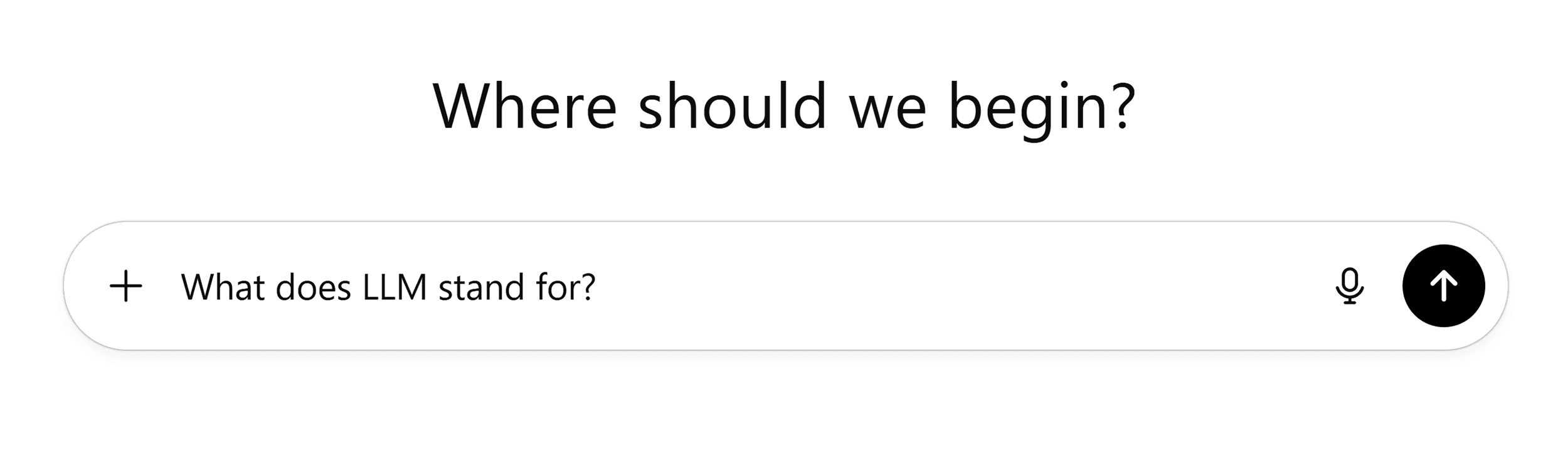
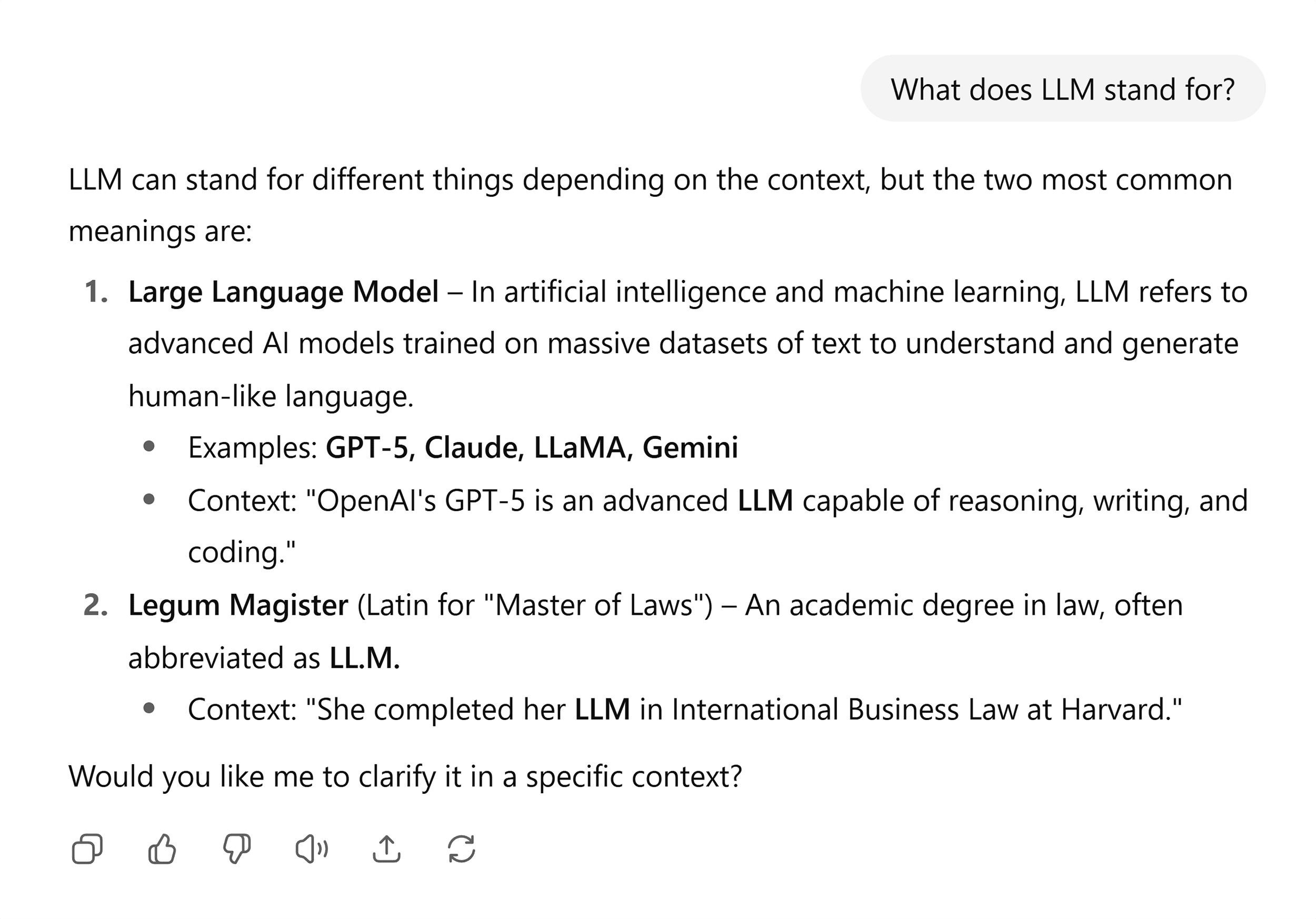
…and get an answer:
Behind that simplicity, it can take on different roles depending on what you need — researcher, copywriter, analyst, strategist, or just about anything else.
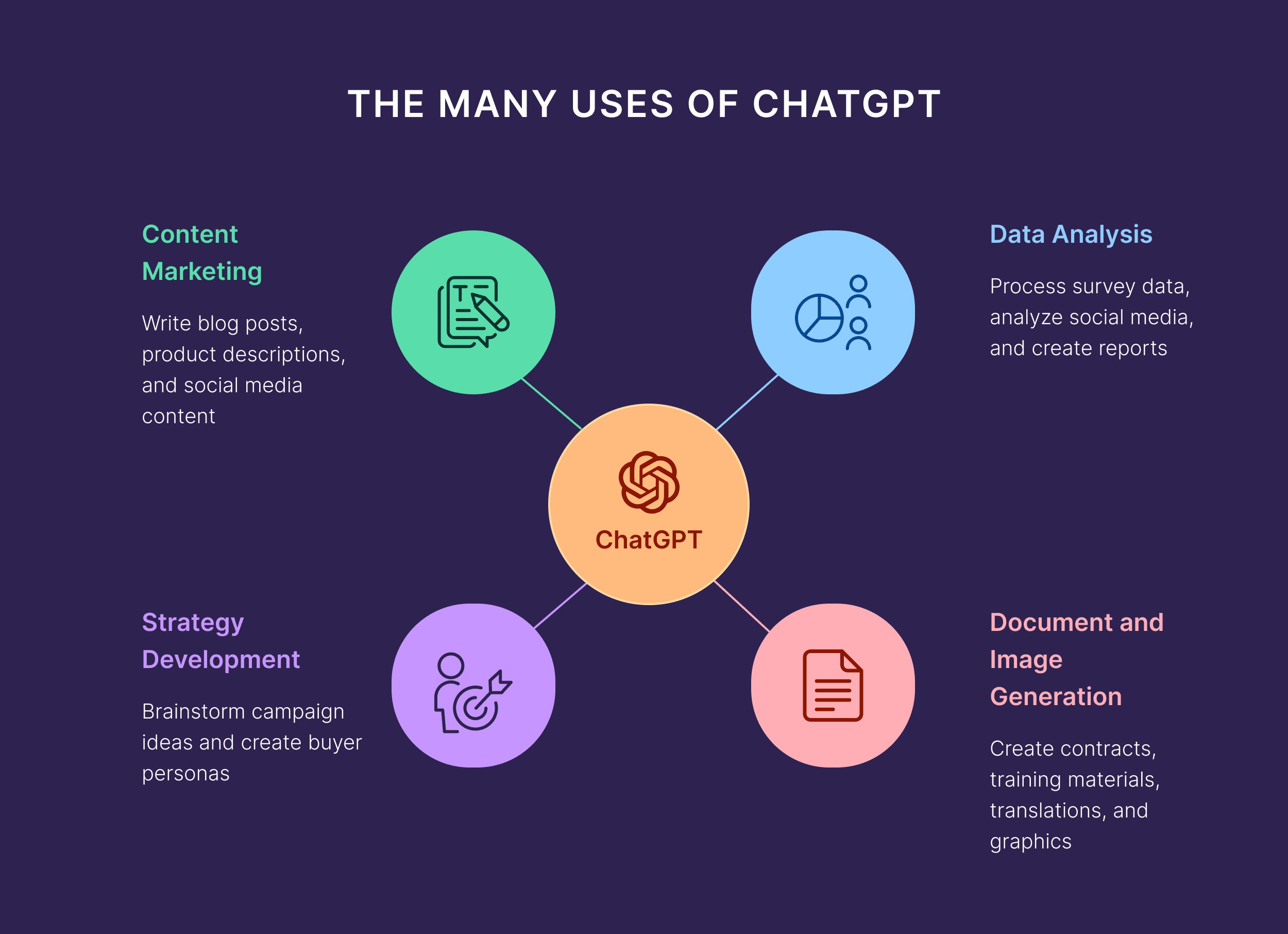
It can help you with:
- Content marketing: Write blog posts, ad copy, product descriptions, and social media updates
- Strategy development: Brainstorm marketing campaigns, create buyer personas, and map customer journeys
- Data analysis: Process survey data, review analytics, and find insights in social performance
- Document and image generation: Create training materials, translate documents, or generate images from descriptions
How does it do this?
It’s trained on a huge amount of data.
Books, articles, websites, code. Your LinkedIn humblebrags and your Reddit rants.
And based on that, it recognizes patterns in language and information. This is how it generates responses and connects ideas.
(See our other guide on how generative AI works for more of the technical details.)
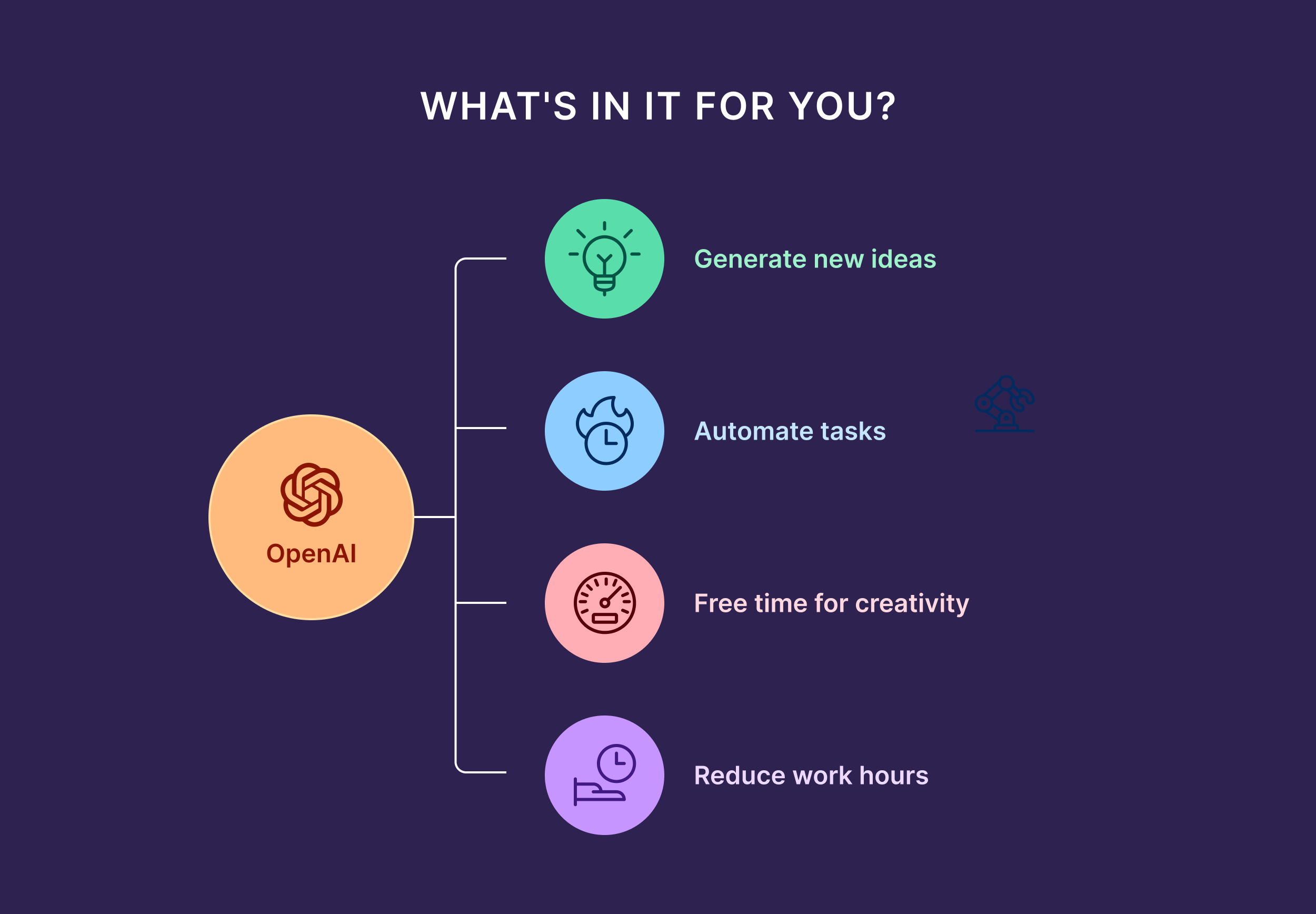
So, what’s in it for you?
Hours of work cut down to minutes.
Ideas you might never have considered, now at your fingertips.
And the tedious jobs, such as copying, pasting, and sorting through lines of data, are no longer yours to deal with.
Which leaves you with more time and headspace for higher-value work.
The best part?
You don’t need to be tech-savvy. If you can describe what you need, ChatGPT can help you work toward it.
(And if you’re a little skeptical, that’s healthy. We’ll get to safety and limitations later.)
How to Use ChatGPT: Step-by-Step Beginner’s Guide
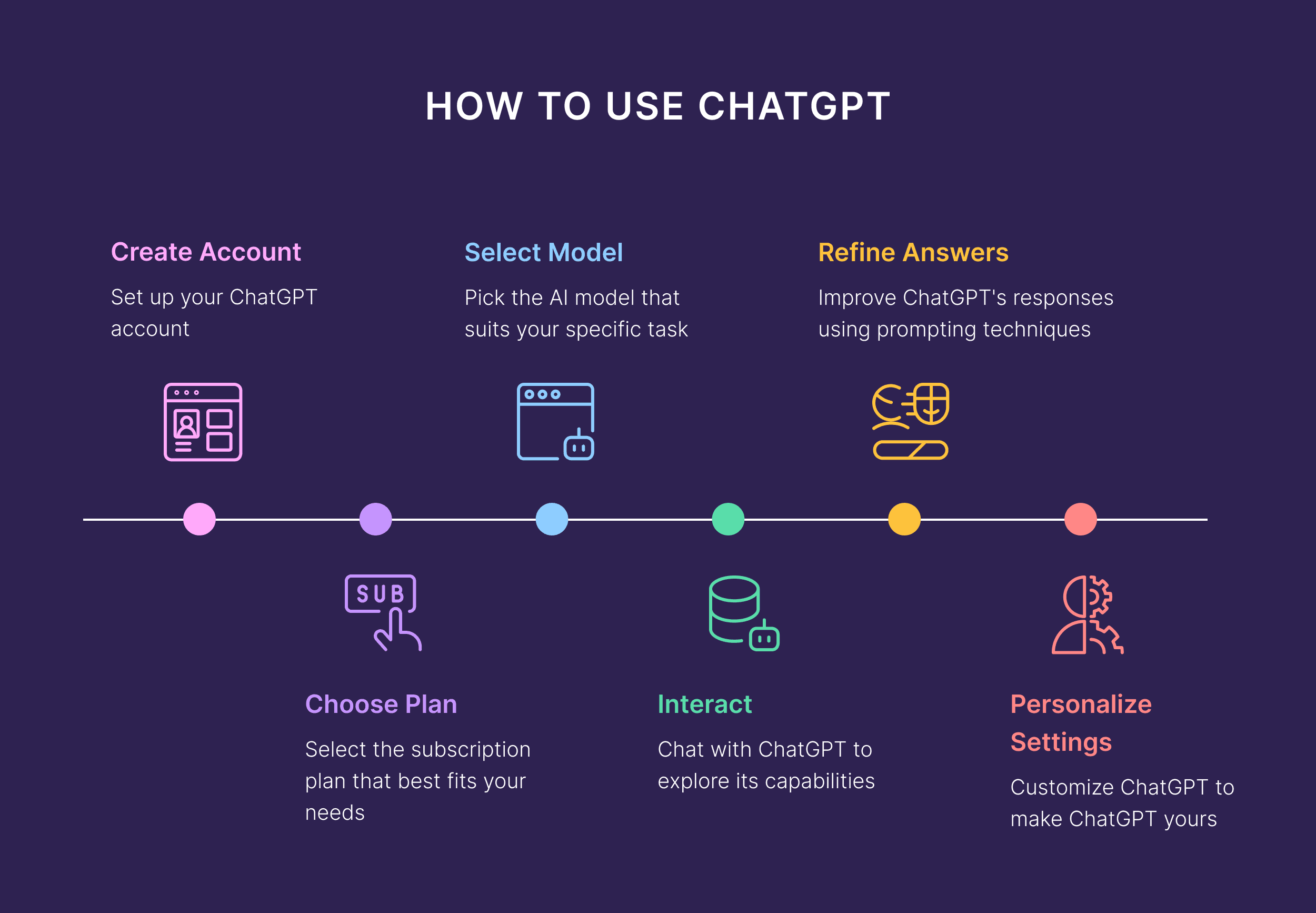
Getting ChatGPT working for your business takes six simple steps.
Step 1: Create Your ChatGPT Account
You can start using ChatGPT without signing up.
Just go to chatgpt.com, click the “x” icon in the pop-up window, and start typing.
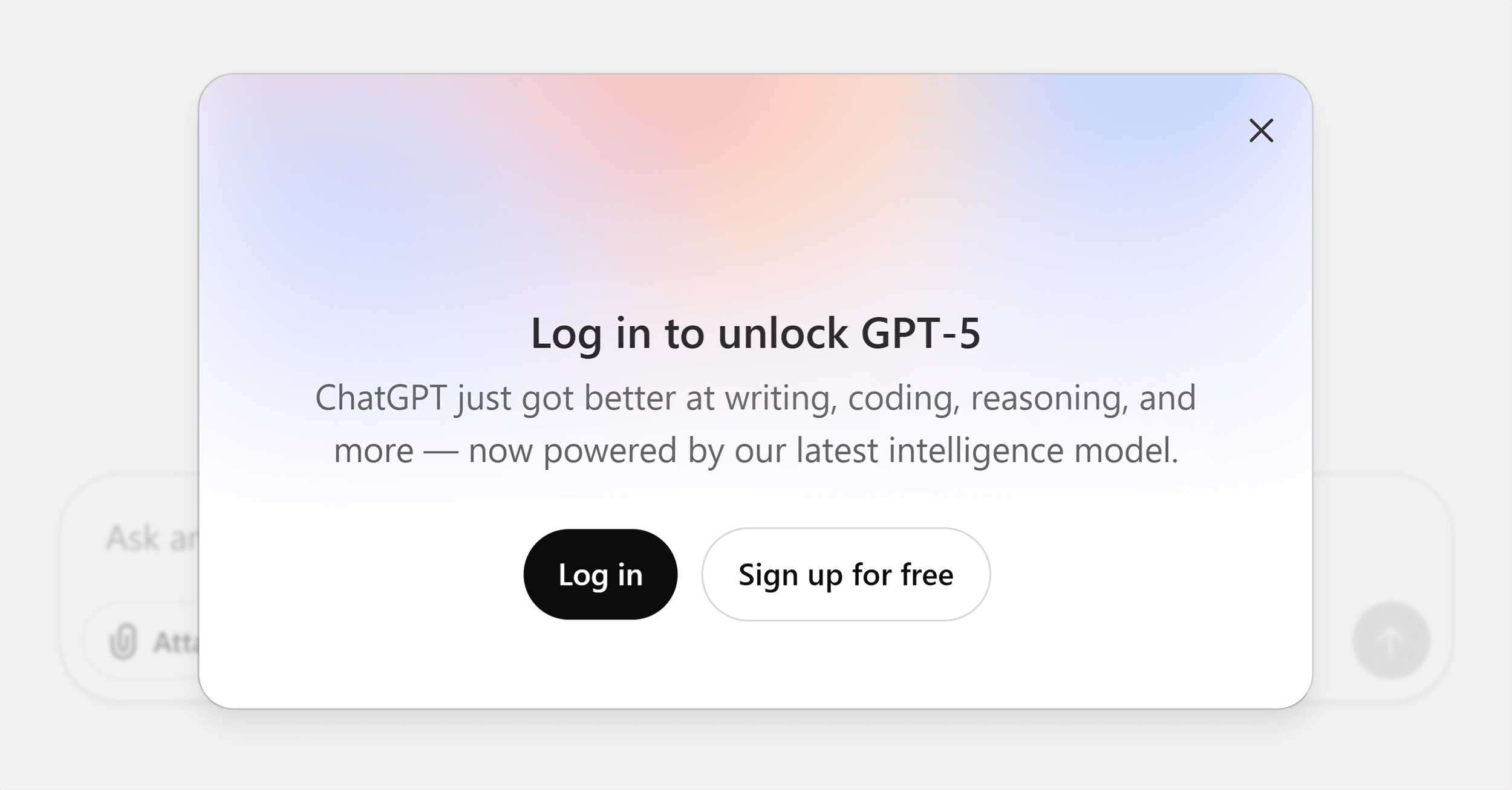
This guest access is perfect for quick tests or one-off questions, but it’s limited.
You only get a few chats within a five-hour window, your conversations don’t get saved, and your chats may be used to train the AI.
(You can’t turn this off in guest mode.)
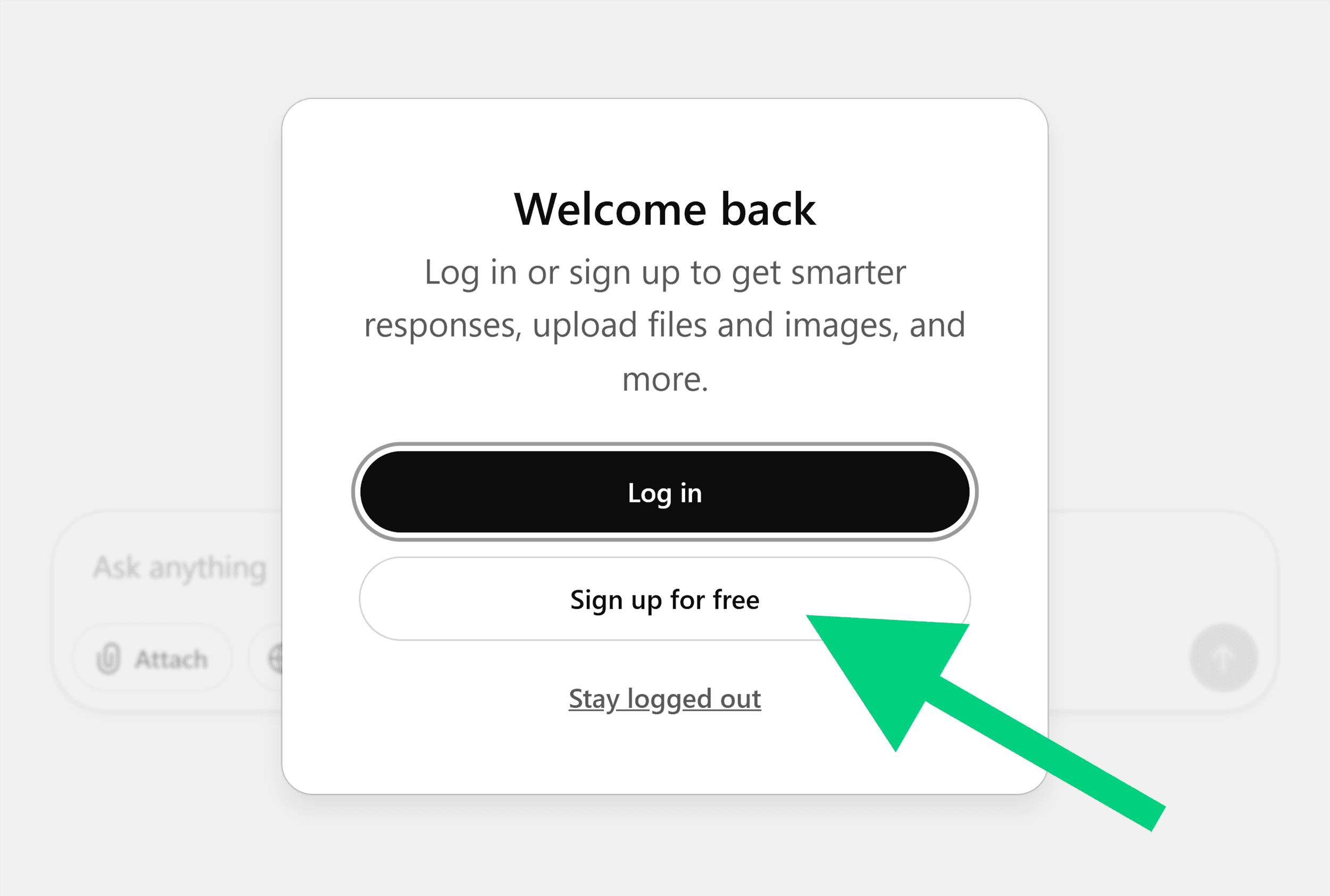
If you want ChatGPT to remember your chats and adapt to your style, you’ll need to create an account.
Simply click “Sign-up for free” and follow the steps.
Heads up:
During sign-up, you’ll be asked whether you want to enable memory.
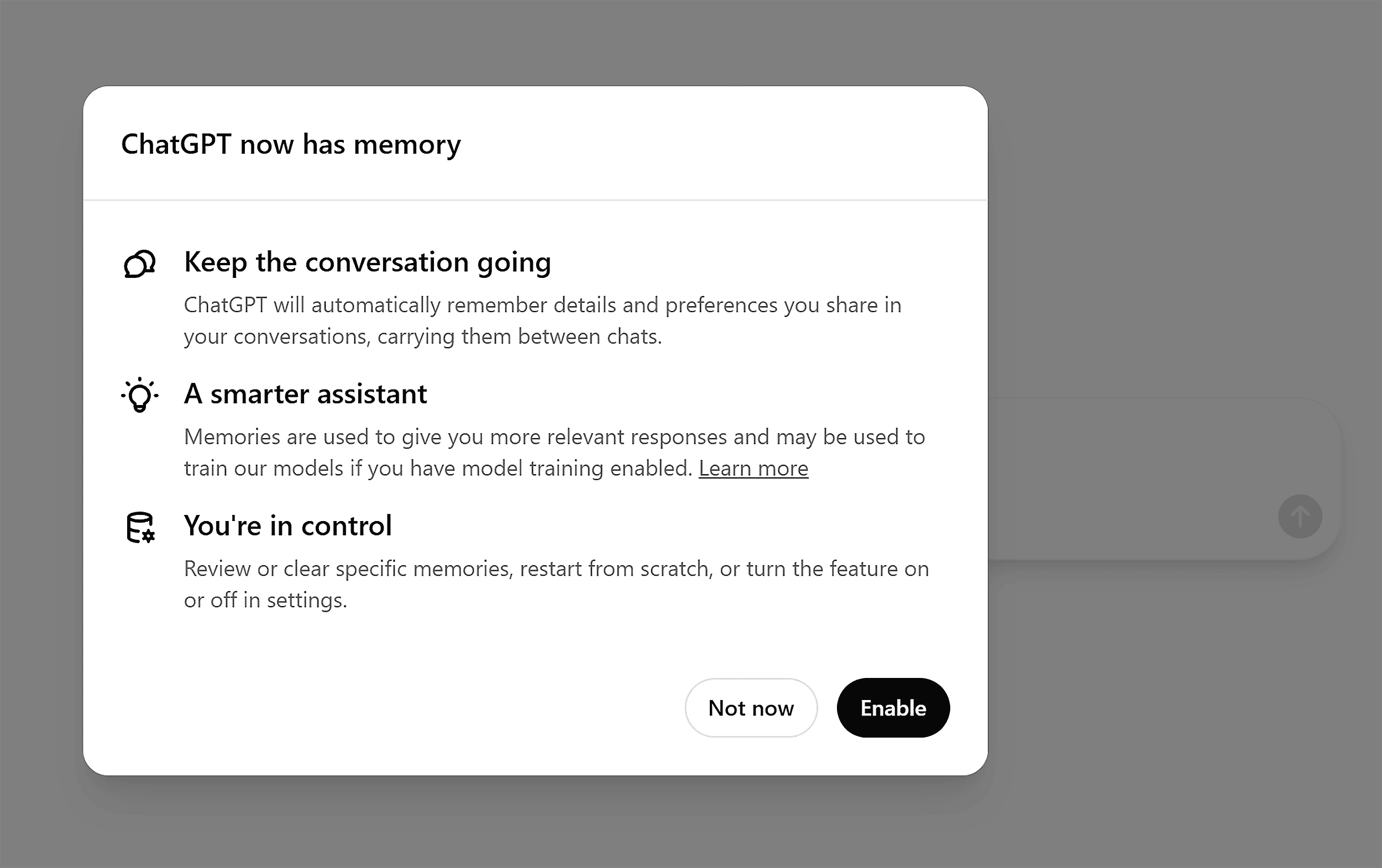
If you enable it, ChatGPT can remember details like your preferences, brand voice, customer type, and past projects.
This helps the AI tailor its responses, so you don’t have to repeat yourself every time.
If Memory is off, ChatGPT forgets everything after each session, unless you’re still in the same conversation.
(You can also change this anytime via “Settings” > “Personalization” > “Memory”.)
Step 2. Choose Your ChatGPT Plan (Free vs. Paid)
The free ChatGPT plan comes with generous features.
So, you might wonder: Why pay?
It really depends on how often — and how seriously — you use it.
Here’s a quick overview to help you decide.
| Plan | Best for | Key features |
|---|---|---|
| Free | Occasional or casual use | Access to GPT-5 and core features; capped usage; slower during peak hours |
| Plus ($20/month) | Regular personal or business use | Extended access to GPT-5; extended limits to core features like file uploads, deep research, and voice mode; access to ChatGPT agent; priority at peak times |
| Pro ($200/month) | Advanced high-demand users like medical researchers or businesses automating operations and delivering AI services at scale | Everything in Plus; unlimited access; extended ChatGPT agent access; priority performance |
| Team ($25–$30/user per month) | Small teams and departments | Shared workspaces; centralized memory and settings; admin controls |
| Enterprise (Custom) | Large organizations | Everything in Team; enterprise-grade security; unlimited usage and users; dedicated admin tools |
Step 3: Get Acquainted With the ChatGPT AI Models
ChatGPT automatically picks the right model for your job based on your prompt. This wasn’t always the case, but was introduced with GPT-5.
But knowing what’s available helps you fine-tune results and troubleshoot when an answer isn’t quite right.
In the drop-down menu at the top of the chat window, you get a few choices:
- Auto: The tool decides the best approach for the task
- Fast: You get instant answers
- Thinking: The AI “thinks” for longer for more complex tasks
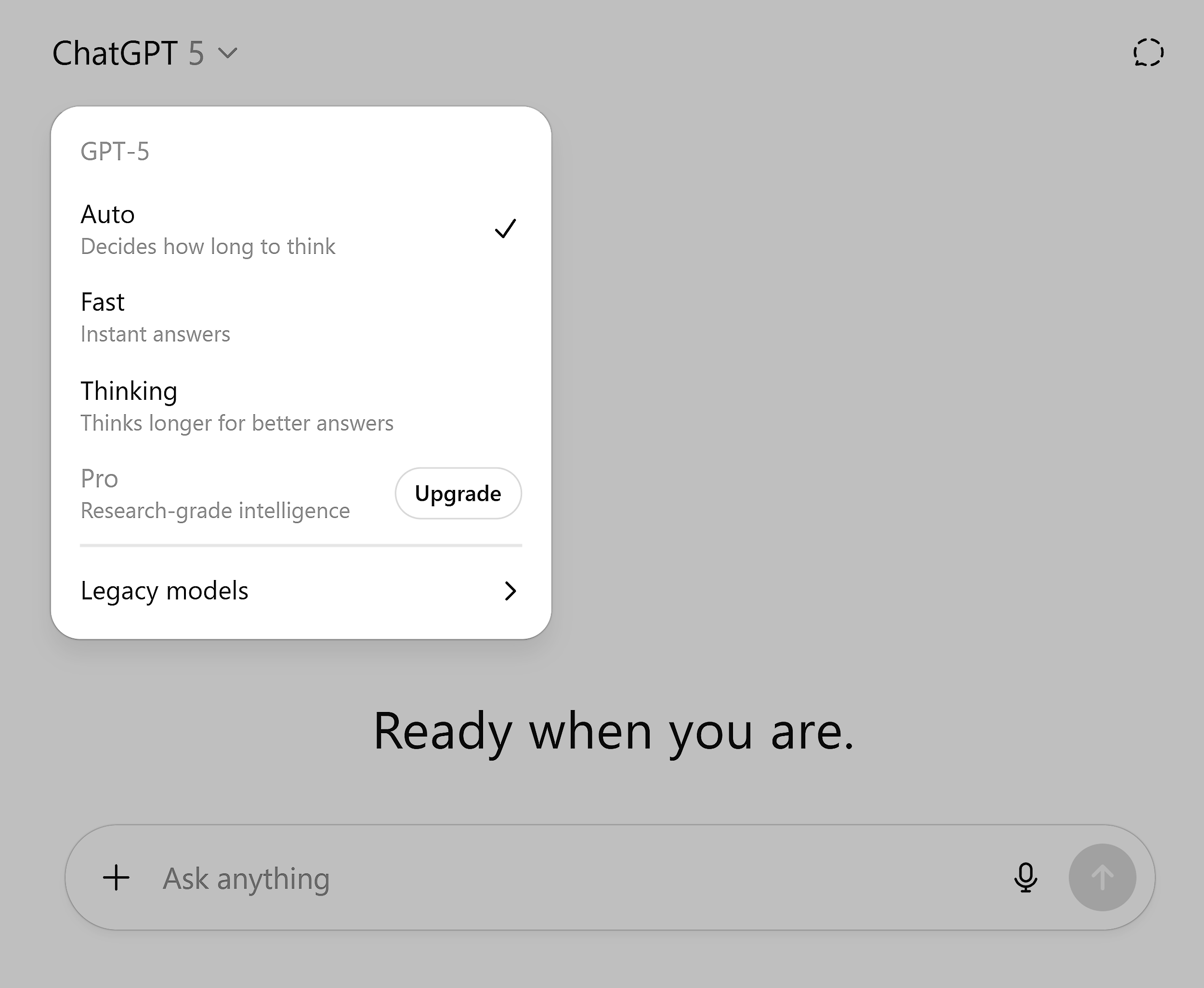
You can also click the “Legacy models” option to use older models like GPT-4o. If you’re new to ChatGPT, you can pretty much ignore all of these and stick with “Auto.”
Step 4: Master ChatGPT Conversation Basics
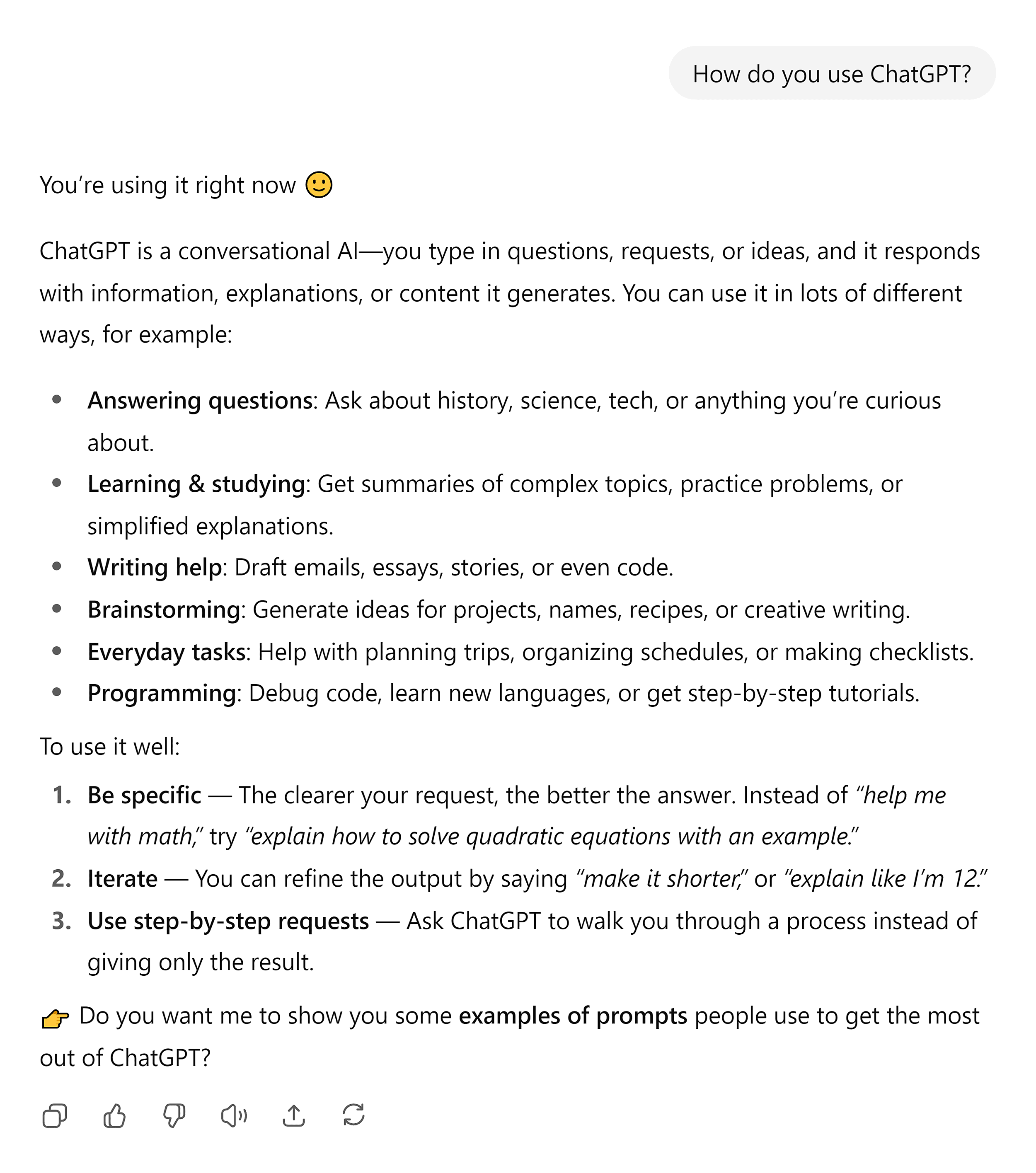
Talking to your AI assistant works just like having a normal conversation.
You say what you need. It responds.
If it does the job well, you move on. If not, you ask it to try again.
That’s the classic ChatGPT experience, and it’s where we all start.
But here’s the thing:
You can get much better answers if you structure your request properly.
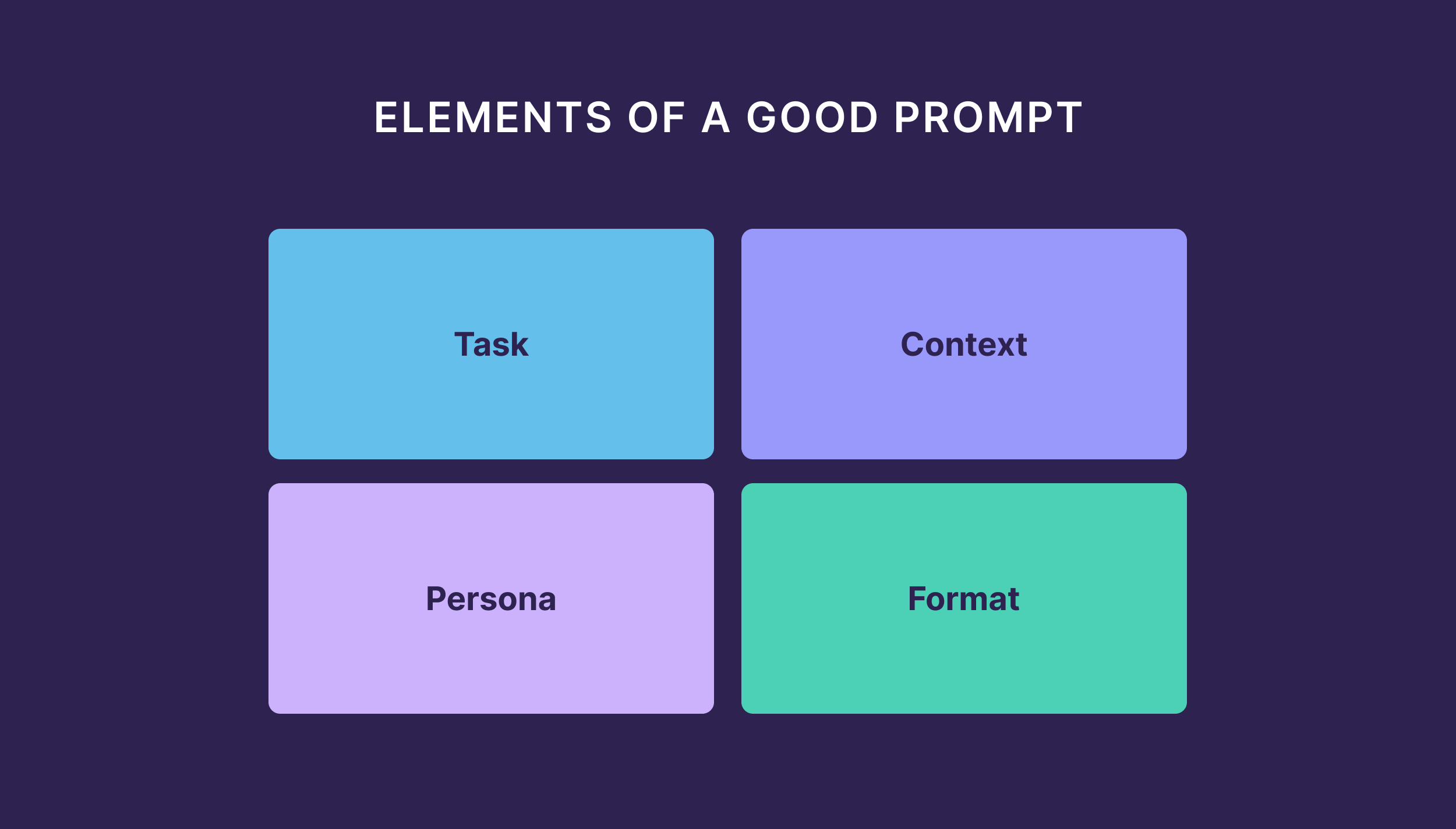
According to Google’s prompting guide, that means adding the four prompt elements:
- Persona (aka role): Who should ChatGPT pretend to be? (e.g., an expert, teacher, or consultant)
- Context: What’s the situation? Any background info it should know? Give examples if possible.
- Task: What do you want ChatGPT to do? Explain, analyze, compare?
- Format (aka output): How should the response be structured? A step-by-step list? Bullet points? Examples?
Most people use one or two of these.
But if you use all four, the quality of the answer becomes so much better.
Let’s go through an example to illustrate this.
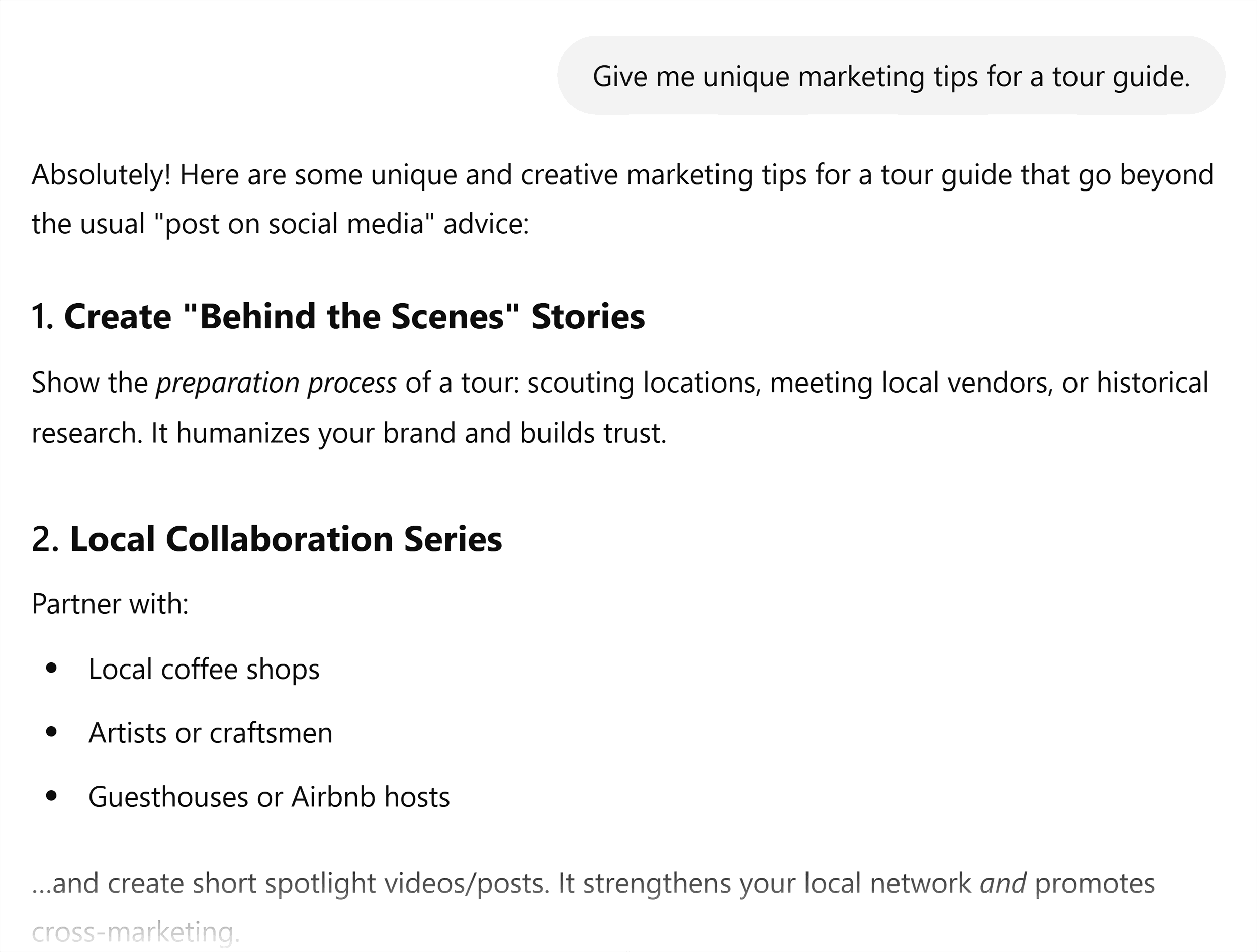
Give it a basic prompt like this:
And what you’ll get is a generic list that can work for any tour guide anywhere in the world:
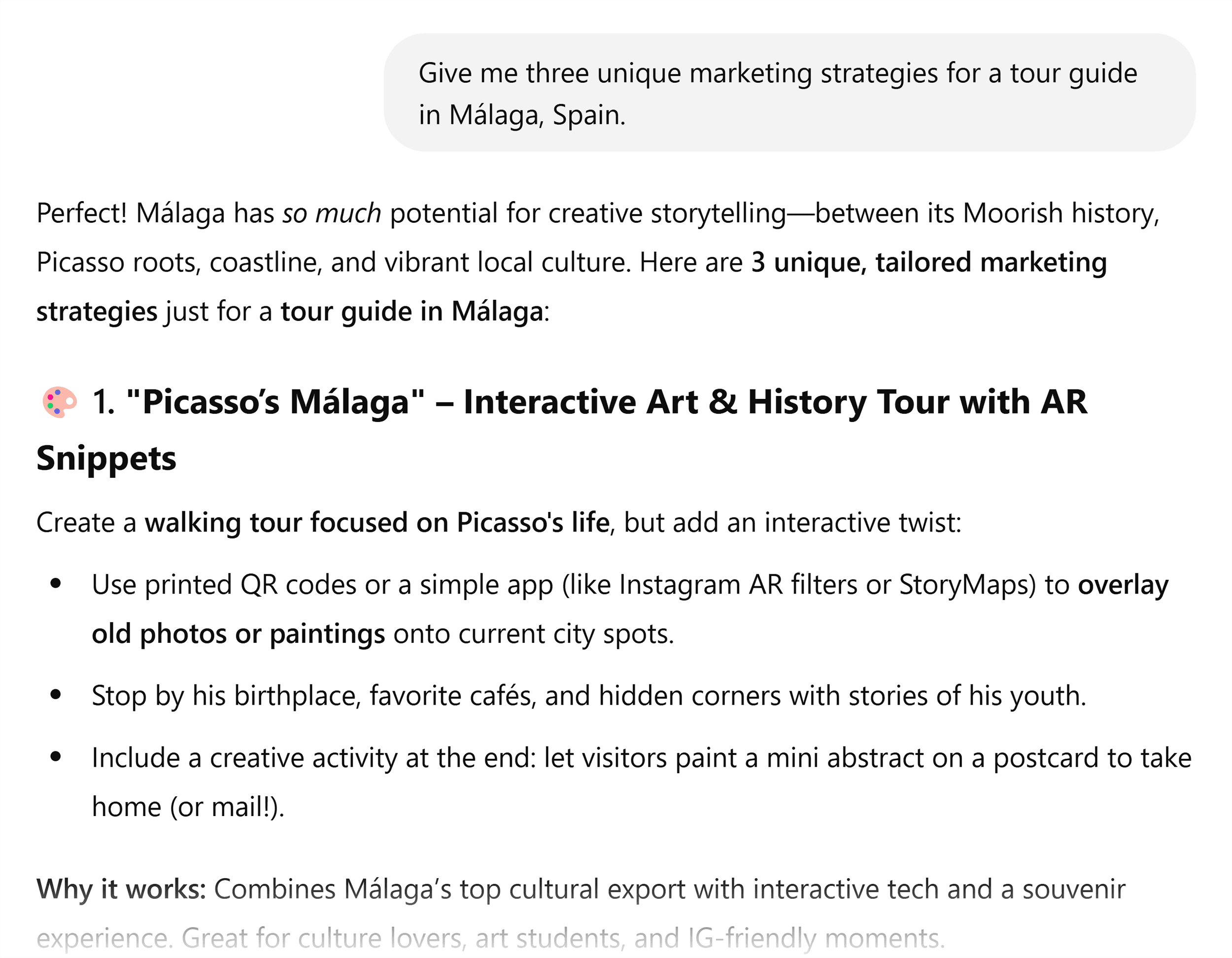
Now, add the task along with a bit more context.
And you get a much better response:
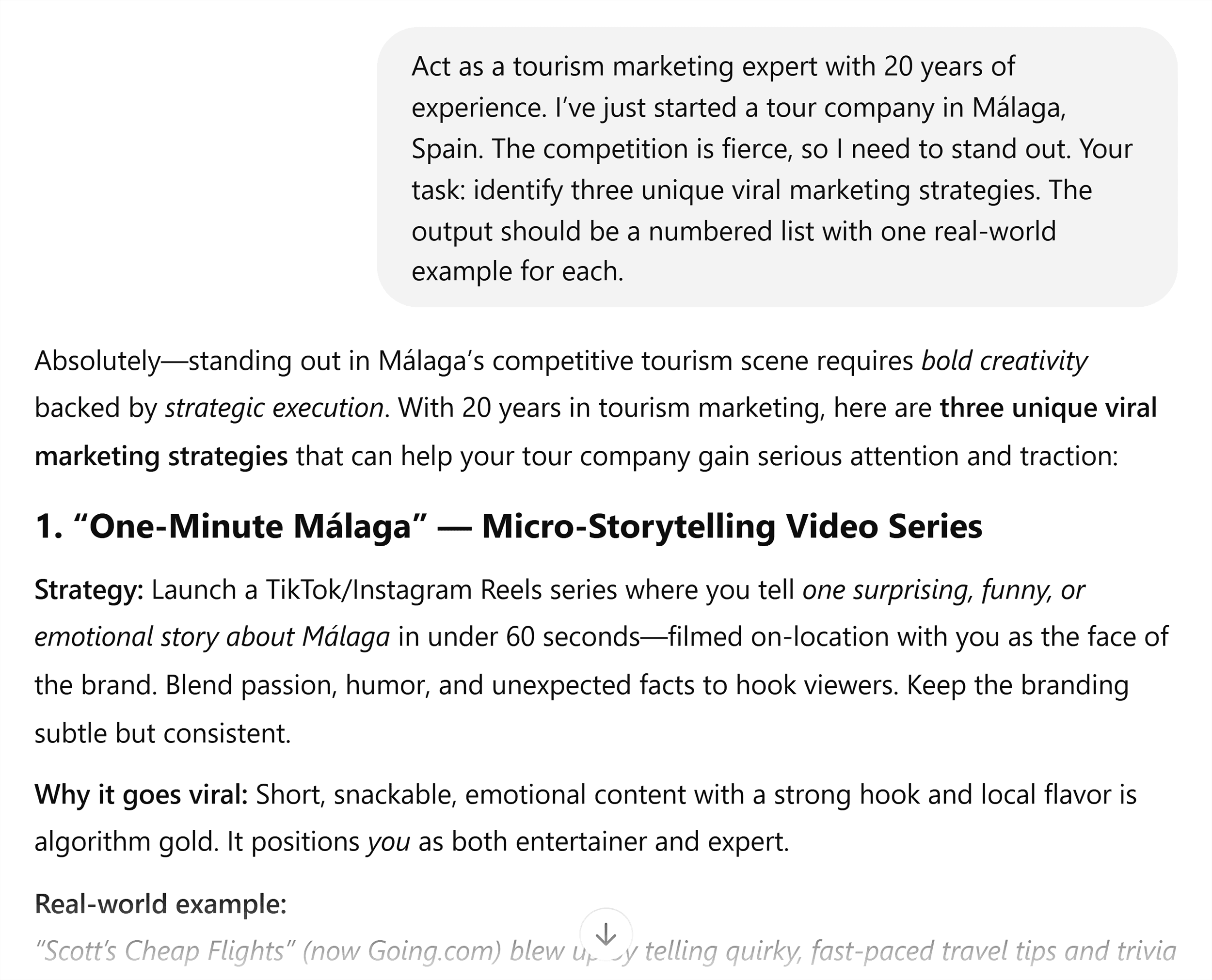
But we can still crank this up further by using all four elements:
Now we’re talking.
That level of detail in your prompt gets you a hyper-specific answer:
Want to go even deeper?
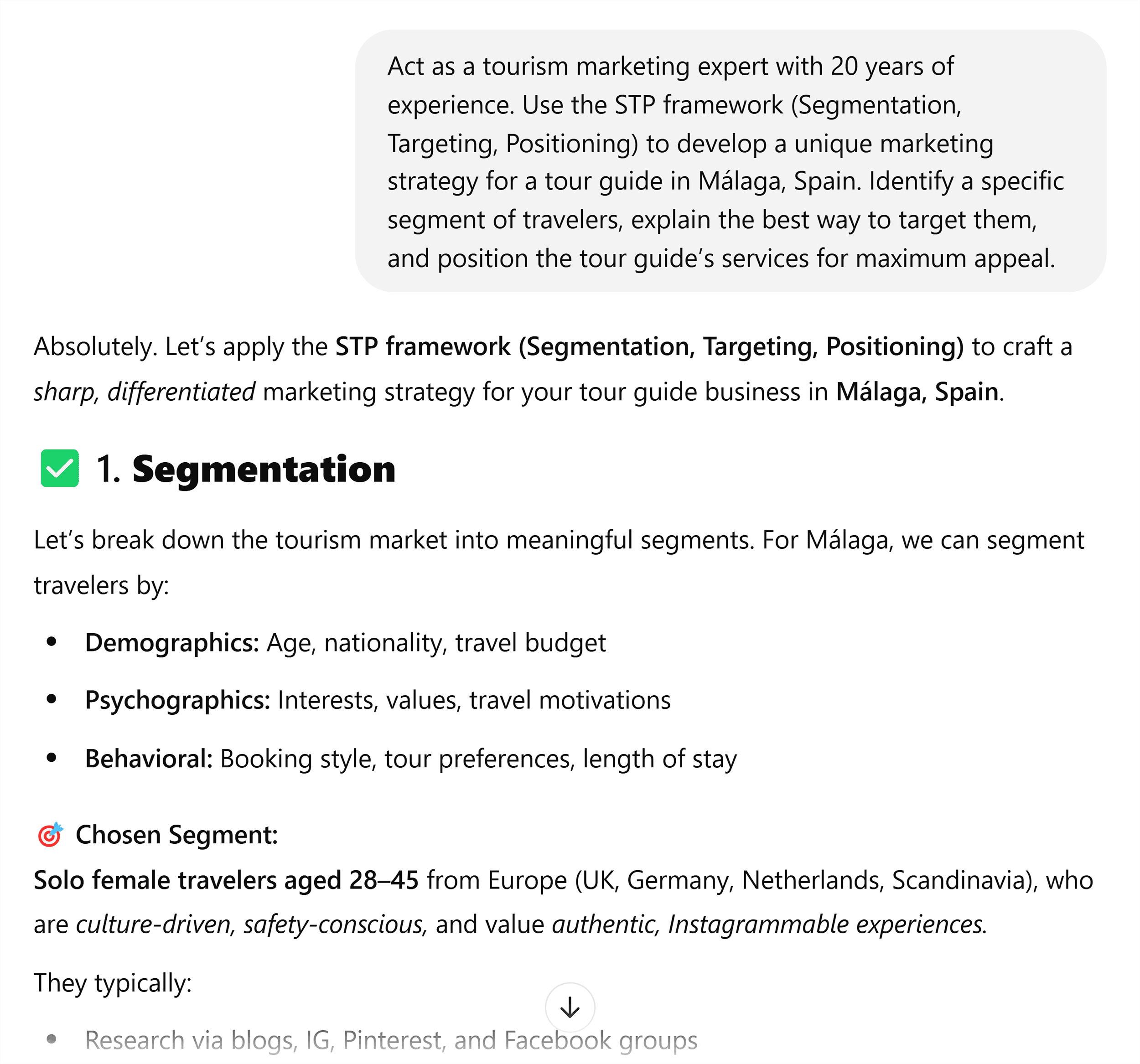
Add a framework.
For example, you can specify the STP framework (Segmentation, Targeting, Positioning) in your prompt.
Like this:
ChatGPT’s answer will be much better and way more actionable.
But what if you don’t know any frameworks?
No problem. Just ask the AI.
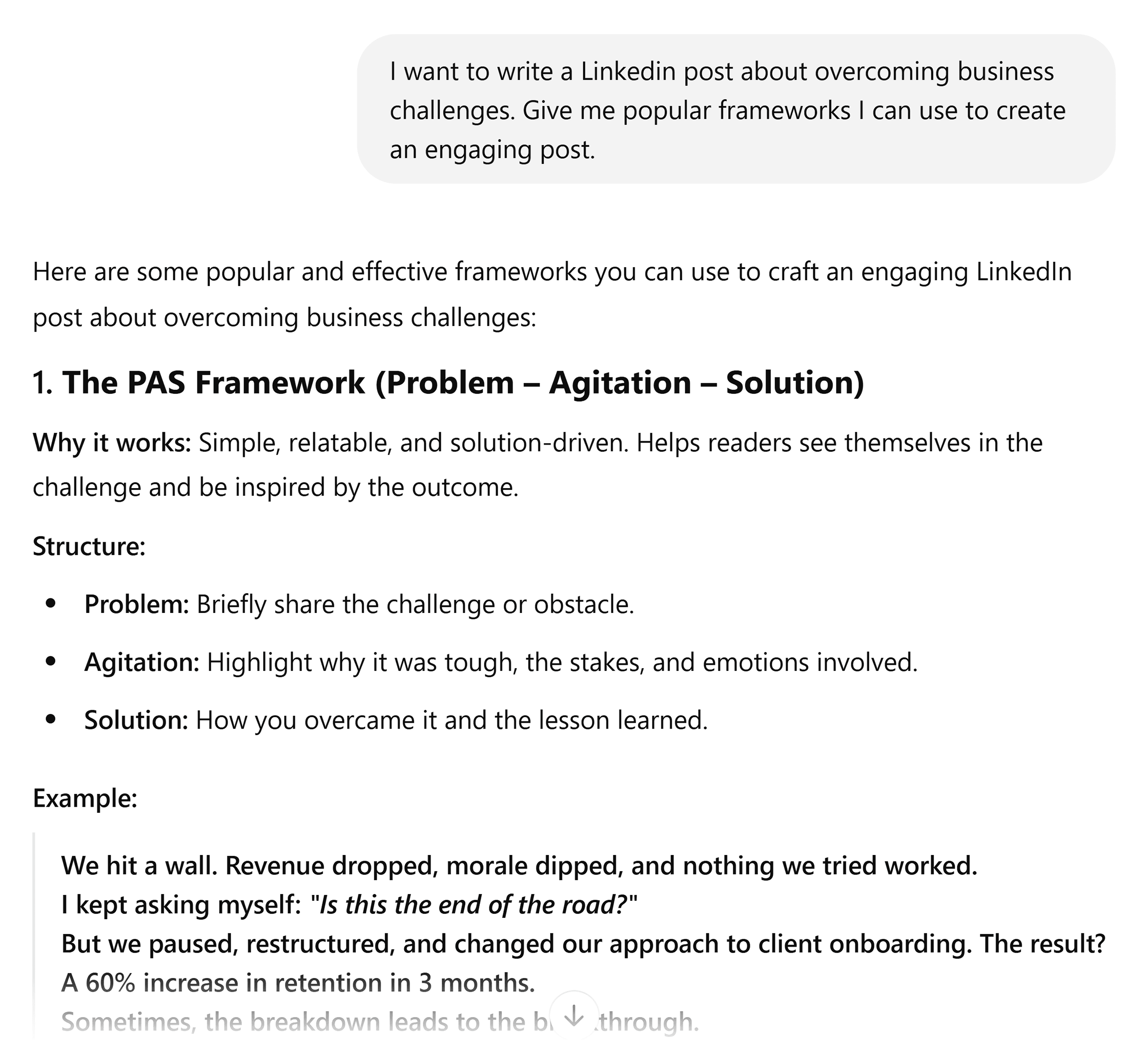
That’s the great thing about working with a tool like ChatGPT: if you’re unsure how to get the most out of it, you can always just ask the tool.
Step 5: Refine ChatGPT’s Answers
ChatGPT’s first response isn’t always its best.
But it is a great starting point that you can improve with follow-up questions.
You can:
- Ask for alternative angles or reworded versions of text
- Request a different format (like a table or a checklist)
- Drill into one part and go deeper
- Ask it to elaborate, simplify, or reframe
- Ask for multiple variants
- Request real-world examples
- Ask for pros and cons or trade-offs
For example:
Imagine you’re a social media manager launching a smart water bottle that reminds users to drink.
Your first prompt might be:
You’ll get a decent list.
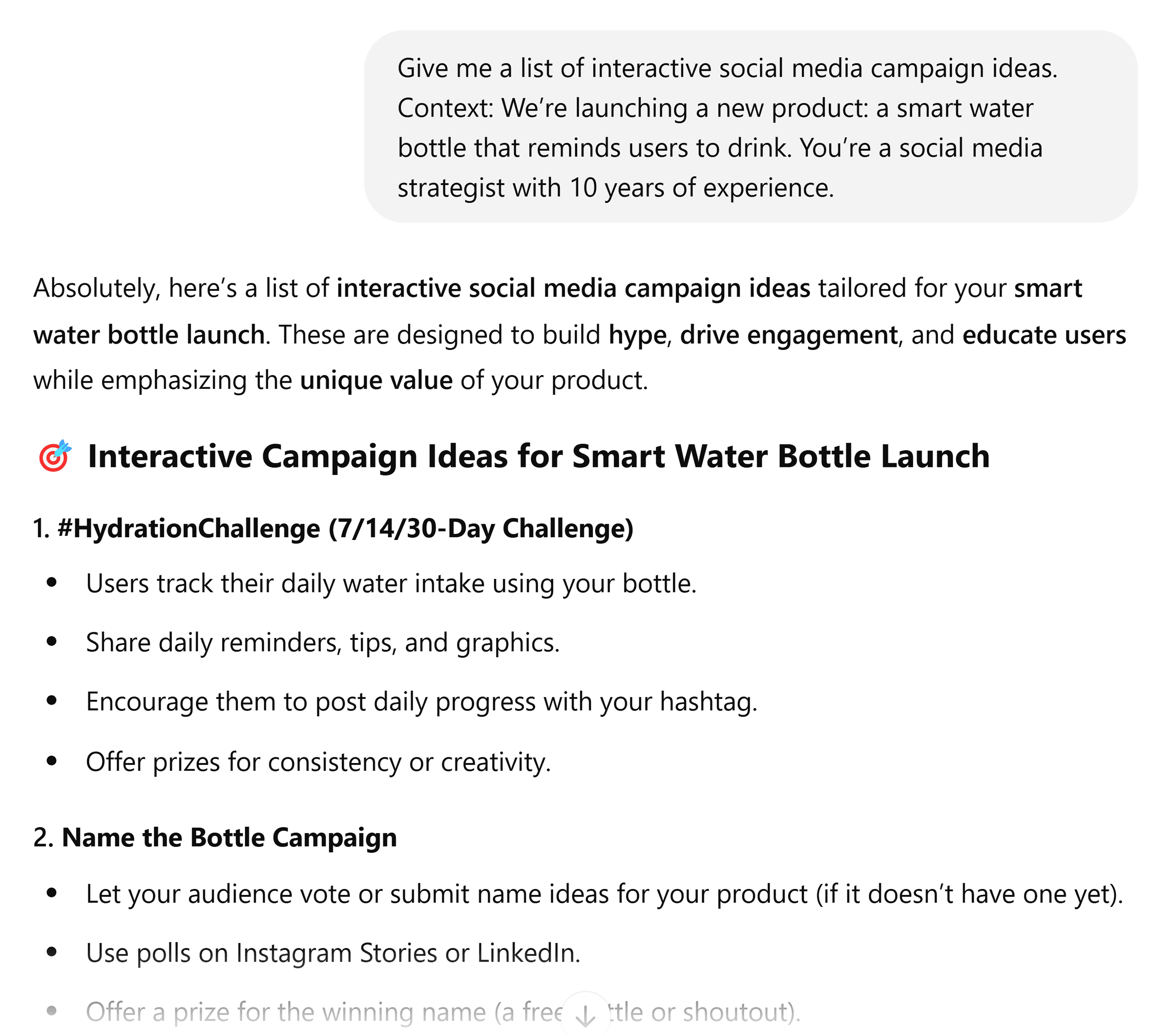
And that’s a good start.
But it’s not enough to give you a clear launch strategy.
So you’ll want to dig deeper:
- If the reply is too generic, ask for more details
- If the answer is too theoretical, ask for clear, actionable steps
Or you can focus on one item in the list and request more details. Like this:
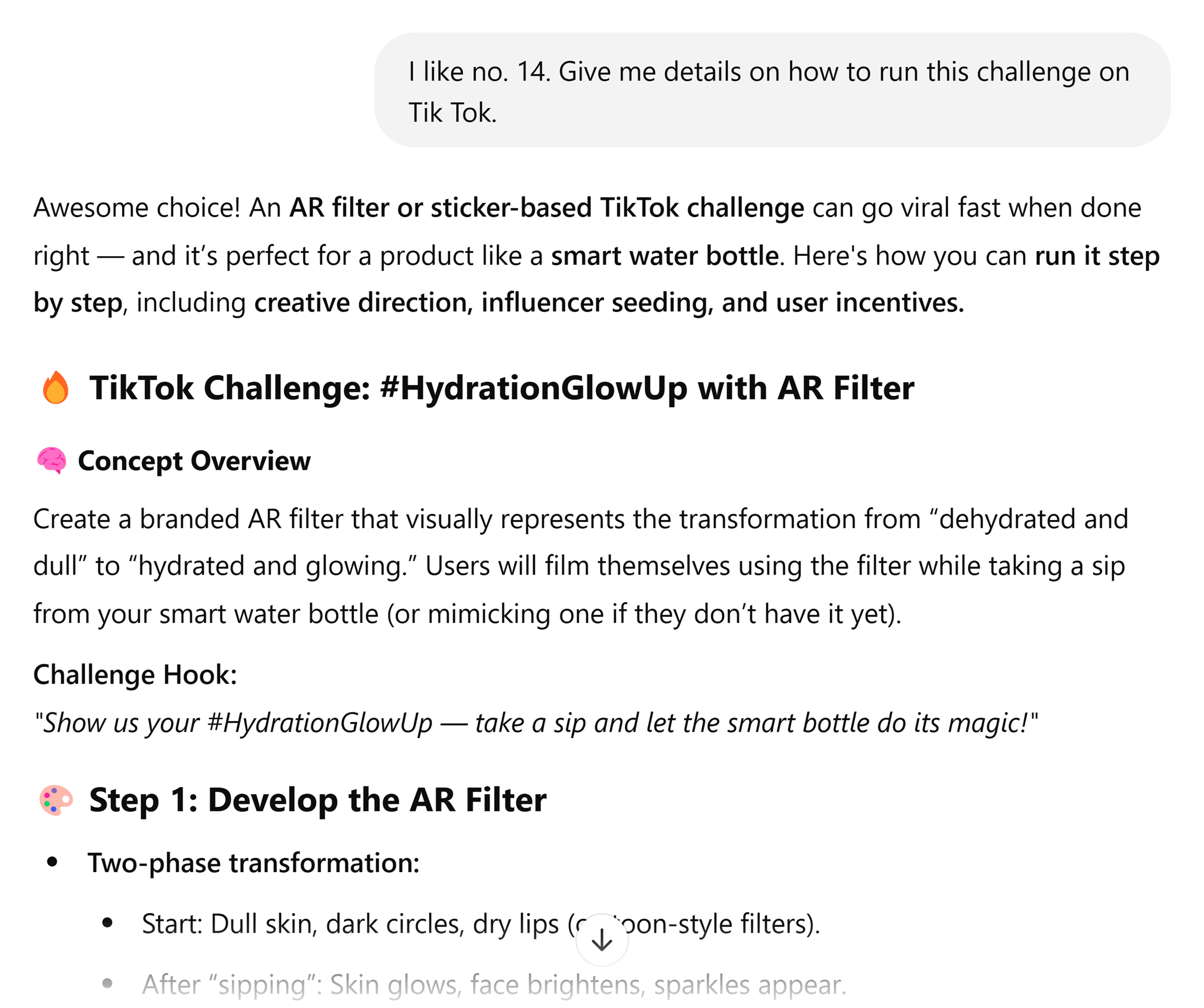
Keep refining your questions until you have everything you need.
By doing this, ChatGPT becomes more of a collaborative partner. You’re not leaning on it to do all the work.
Plus, you get a final output that’s a blend of AI and your knowledge and topical expertise.
Now, you’re probably wondering:
Why not just pack everything into one prompt?
You could, and sometimes it works great. Generally for pretty straightforward tasks.

But for more complex tasks, refining step by step gives you more control.
You can direct the responses as you go, tweaking, steering, and layering in details. This is almost essential for longer or more complex tasks, like drafting written content or analyzing data.
Step 6: Use Built-In ChatGPT Tools
There’s more to ChatGPT than just “chat,” which many people overlook.
These tools turn it from a chatbot to a work partner.
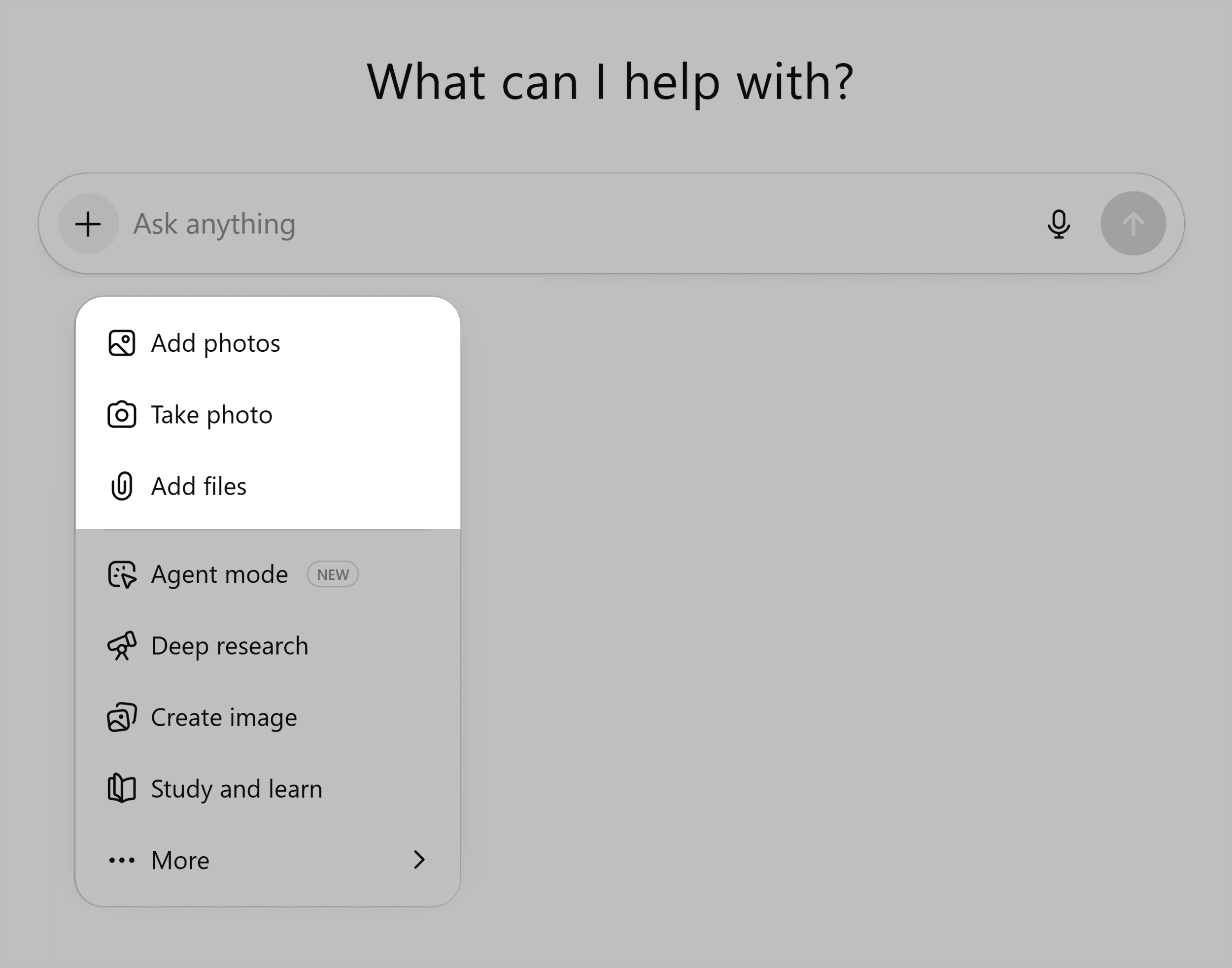
You’ll find them in the menu at the bottom of the chat window or by typing “/” in the message box.
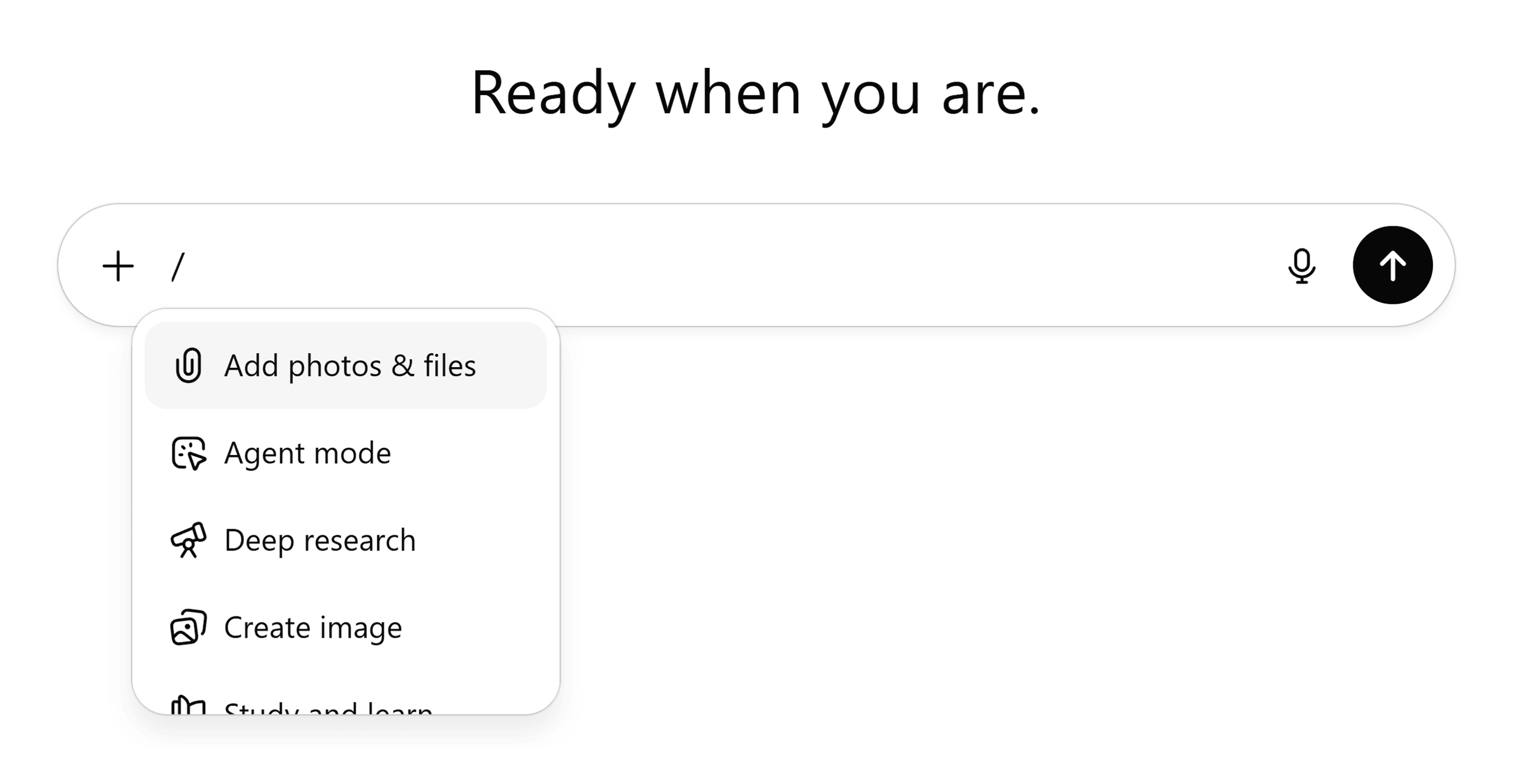
Let’s go through them.
ChatGPT Search
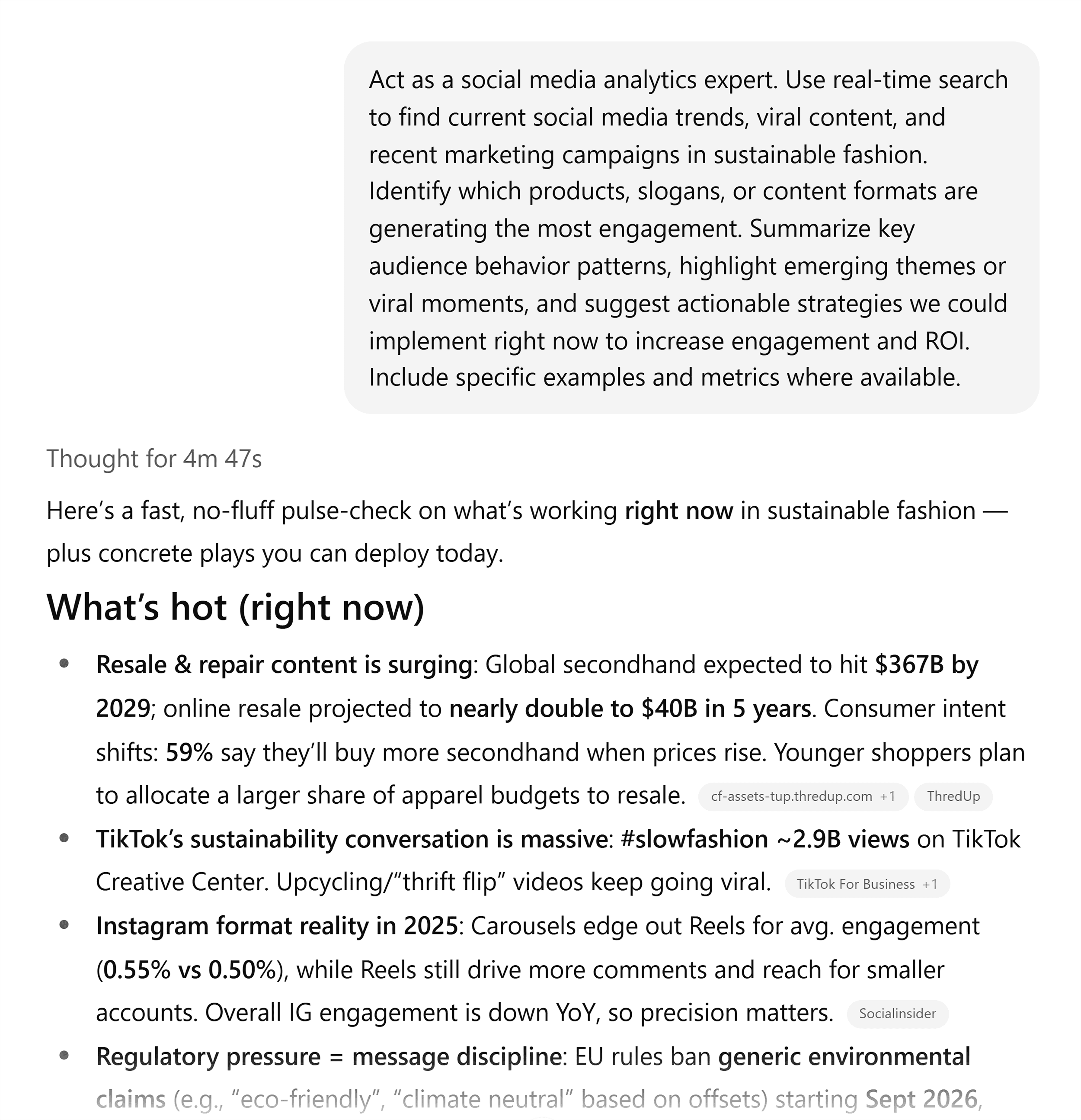
ChatGPT search works like a traditional search engine. But instead of scrolling through a wall of search results, you get a summarized answer.
It’s great for identifying trends, checking real-time info, or verifying claims.
For example, I used it to look up social media trends around sustainable fashion.
It gave me a very useful summary, with sources that I could verify.
Deep Research
Deep research is Search on steroids.
Instead of a quick scan, it runs dozens of searches, reads all sources, analyzes the results, and uses advanced reasoning to put together an in-depth report.
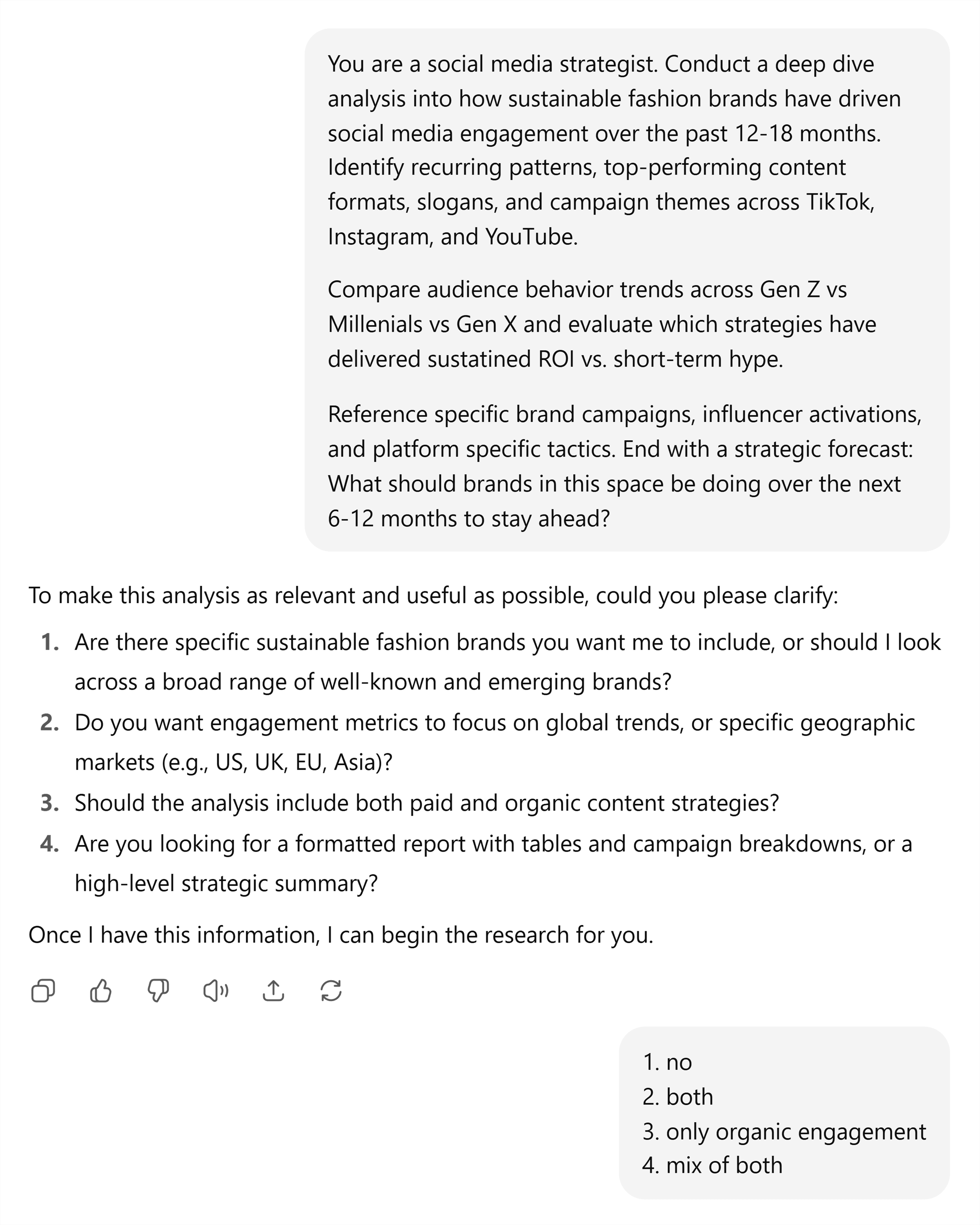
For example, building on the sustainable fashion query above, I used deep research to:
- Show how trends have changed over time
- Compare insights across platforms and campaigns
- Identify recurring patterns
(Notice how this combines several unique tasks in a single prompt.)
When I pressed enter, it asked a few follow-up questions to clarify details:
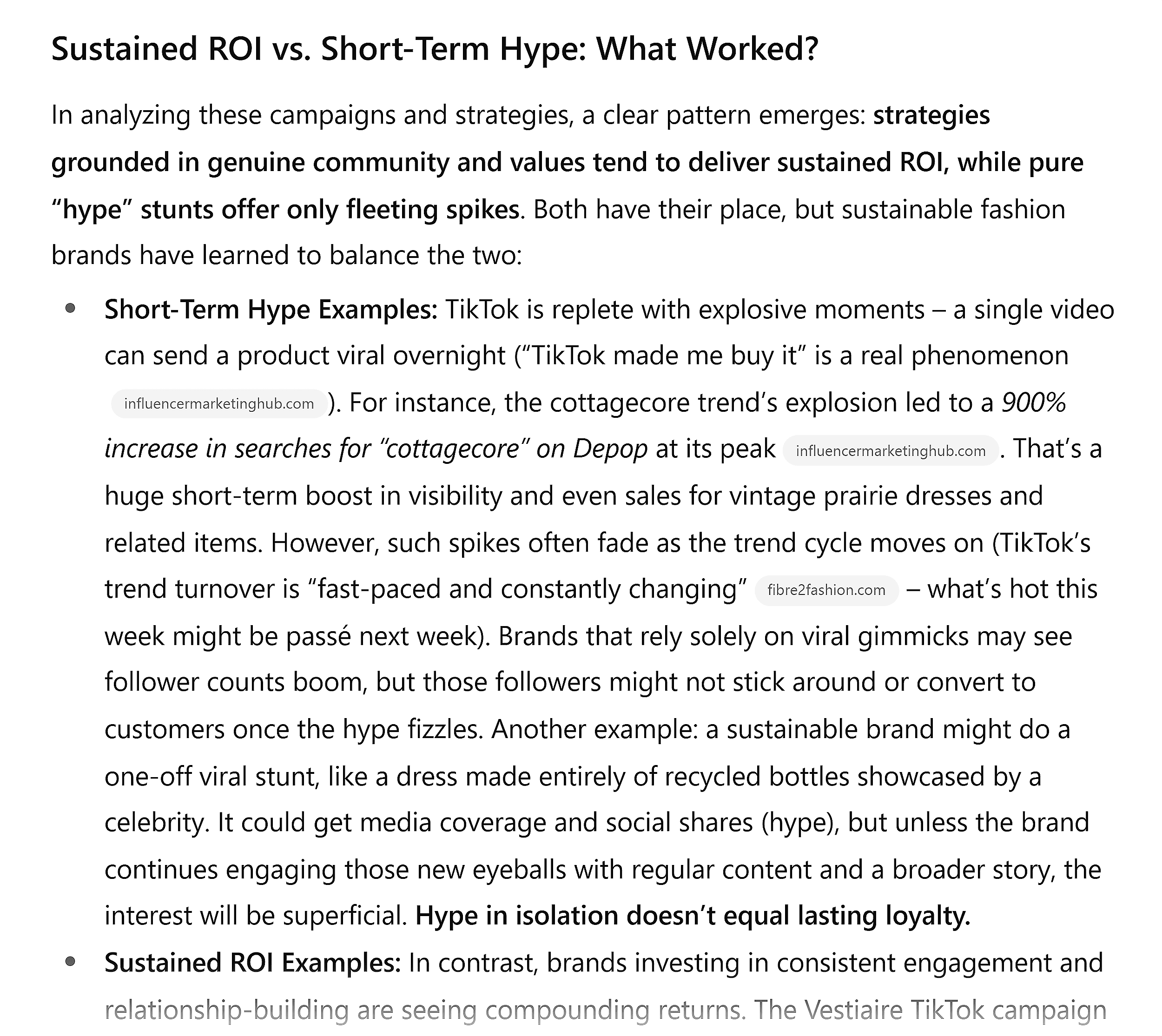
Eight minutes later, I had an uber-thorough report.
All ready for me to use.
Agent Mode
One of ChatGPT’s newest features is “Agent mode.”
It can do actions on your behalf, such as:
- Visiting websites
- Filling in forms
- Logging in to services
- Creating ready-to-use reports and presentations
Agent is still fairly new, and I’m still exploring what it can do. But I’m already blown away.
Here’s one task I ran:
I asked it to research my target audience’s pain points, generate a detailed spreadsheet of the findings, AND create a slide deck of the report.
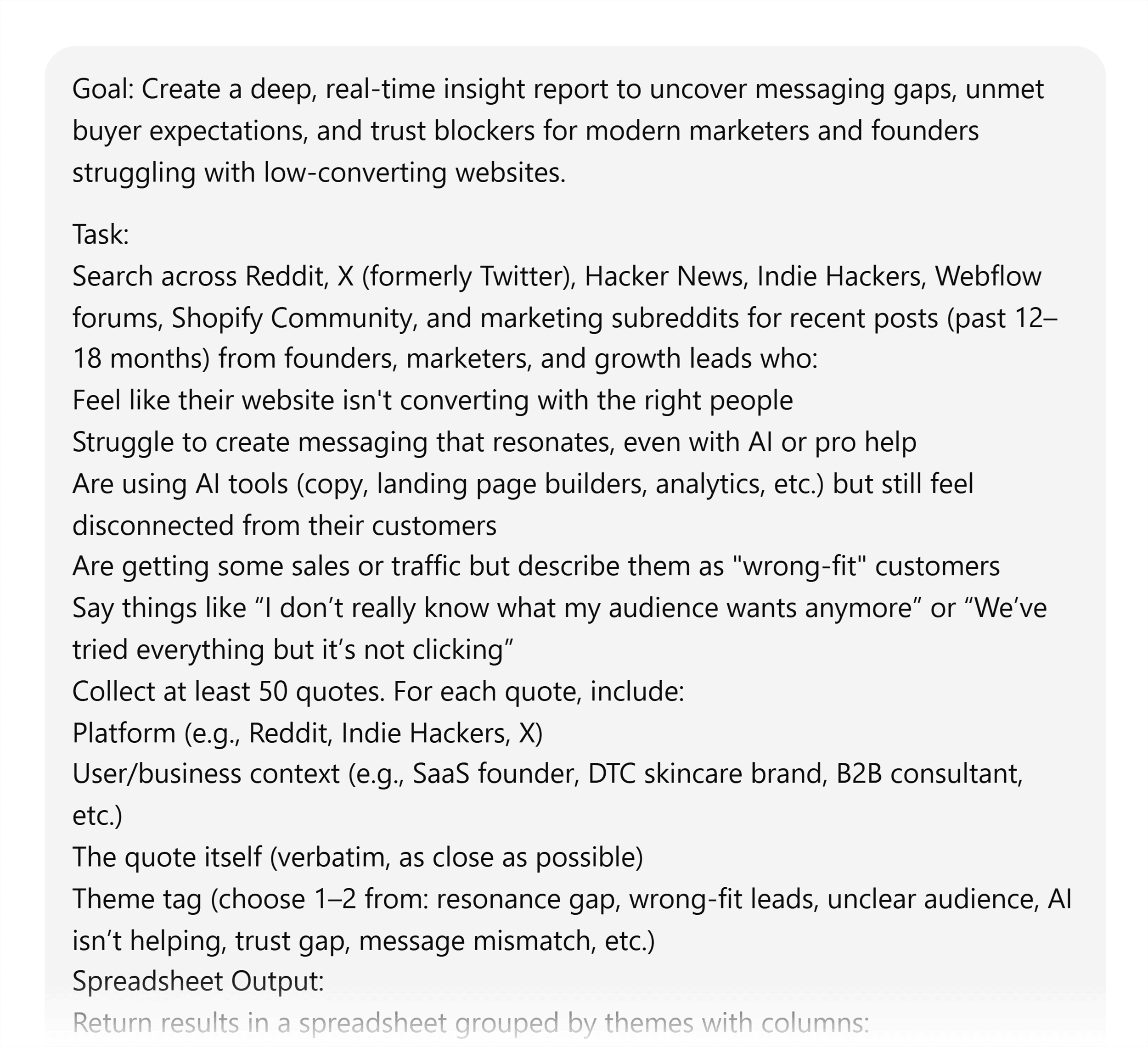
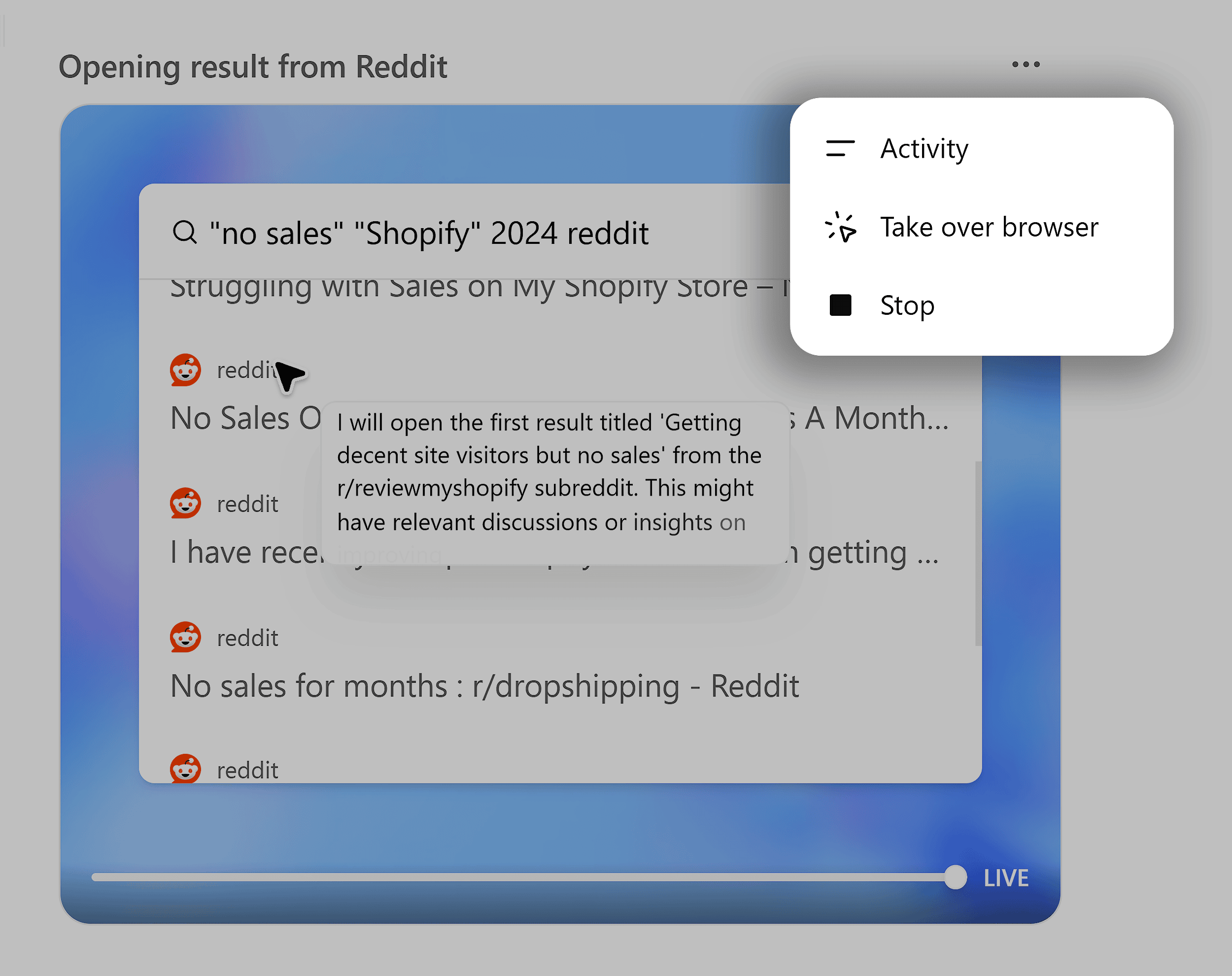
The agent went to work right away using its own virtual computer.
I could see navigating the web as it ran live searches. And showed me its thought process as it worked.
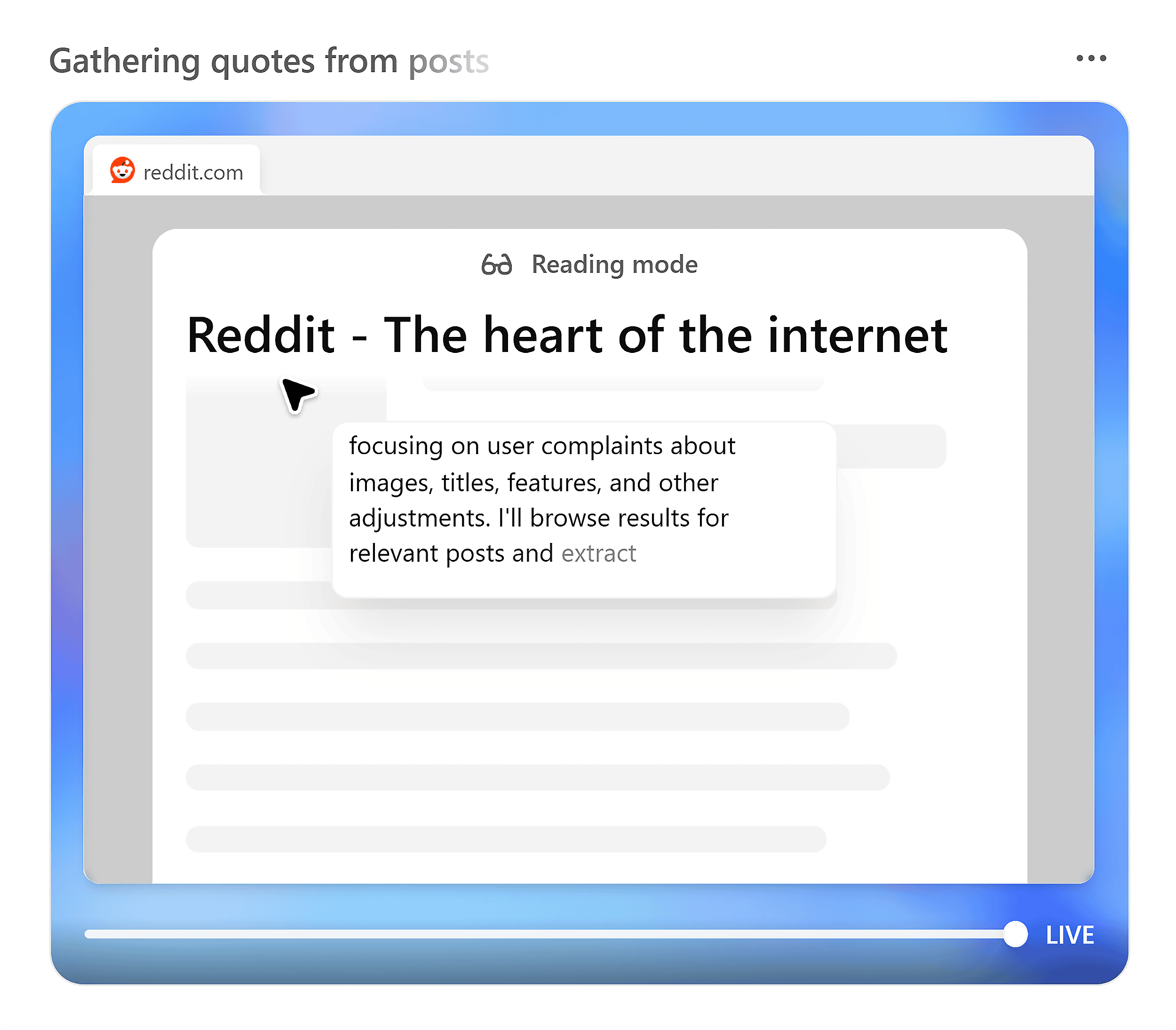
Pretty surreal.
File Upload & Analysis
You can upload spreadsheets, PDFs, videos, and images to ChatGPT.
Once they’re uploaded, ChatGPT can:
- Extract quotes or stats
- Summarize hundred-page PDFs
- Analyze data for trends and patterns
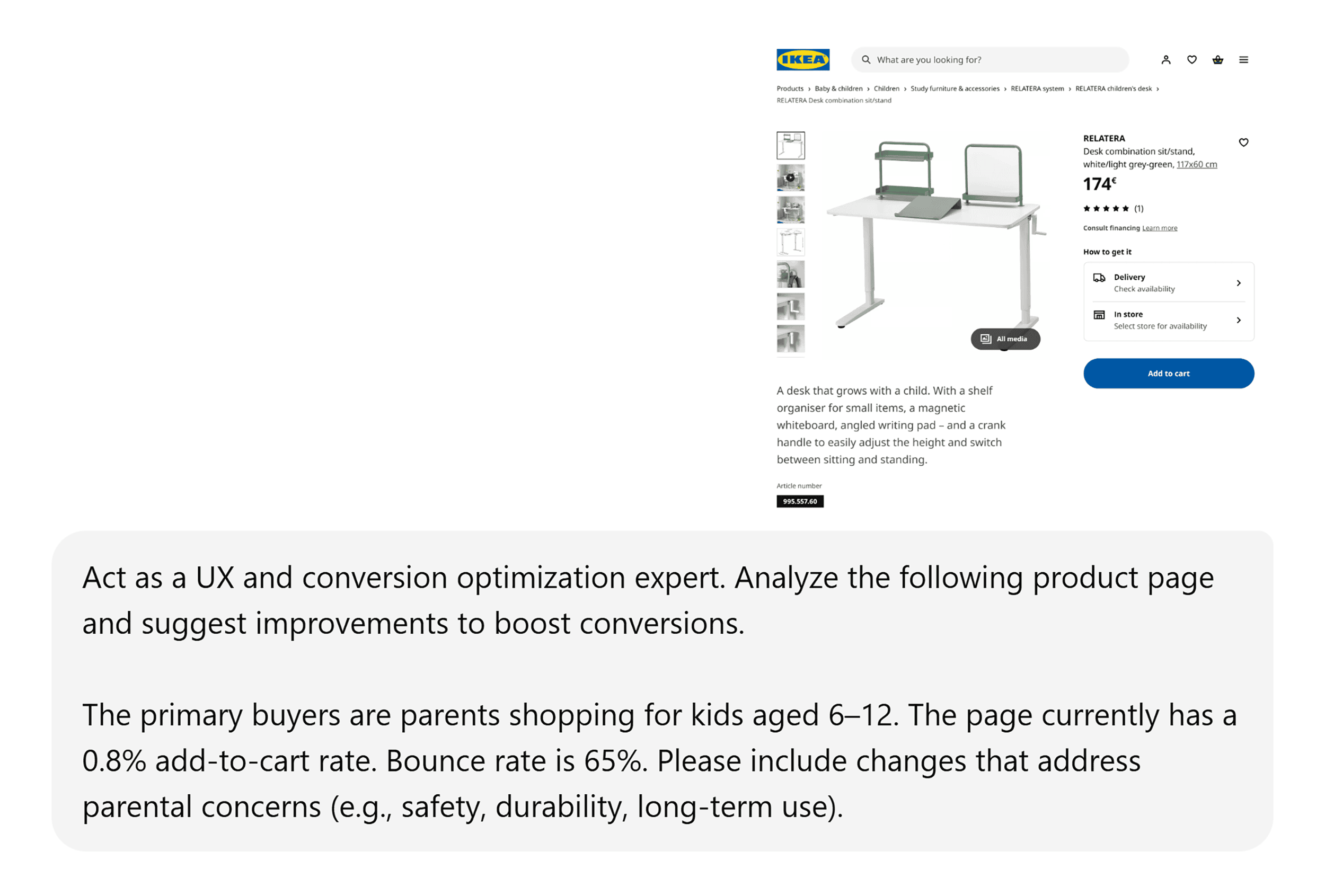
For example, you could upload a screenshot of your product page, and ChatGPT can give you recommendations on ways to improve conversions.
Step 7: Use Essential ChatGPT Features That Make You More Productive
Once you’ve got the basics down, there are other ChatGPT features that really turn it up for business use.
Here are my favorites:
Dictate Tool & ChatGPT Voice
You don’t always need to type.
In the lower-right corner of the chat window, you’ll see two ways to talk to ChatGPT.
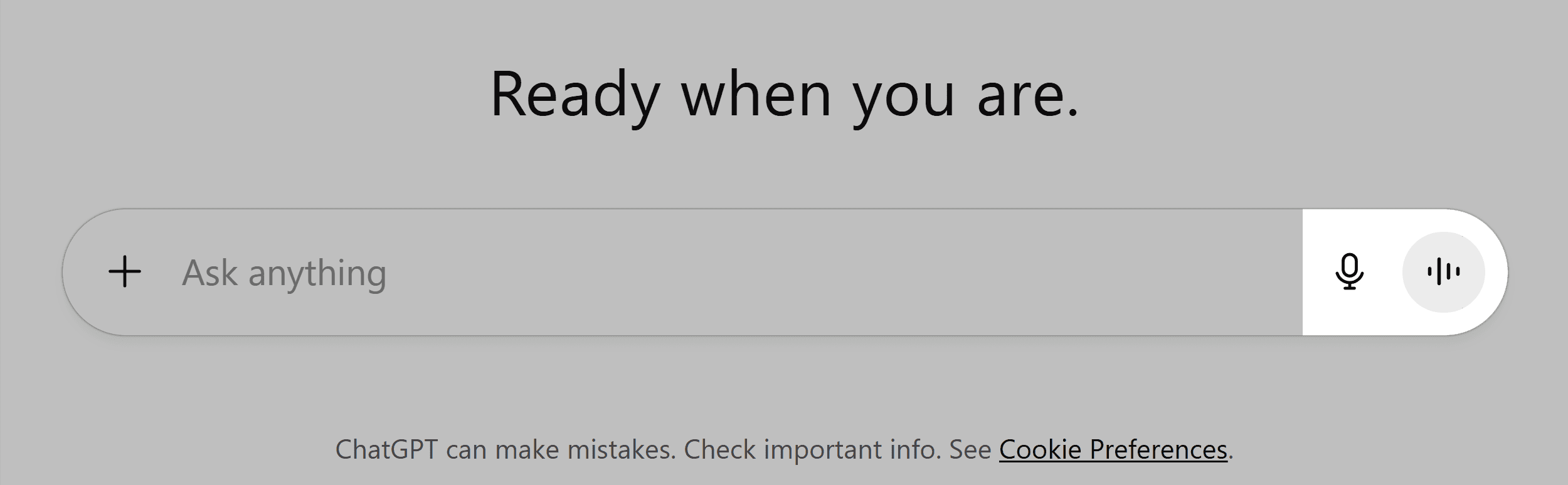
First, there’s Dictate (mic icon), where you speak and ChatGPT replies in text.
It’s perfect for stream-of-consciousness thinking or quickly capturing ideas.
Then, there’s ChatGPT voice mode (vertical bars), for real-time conversations with ChatGPT.
You talk, it talks back. And you also get a transcript of the chat for reference.
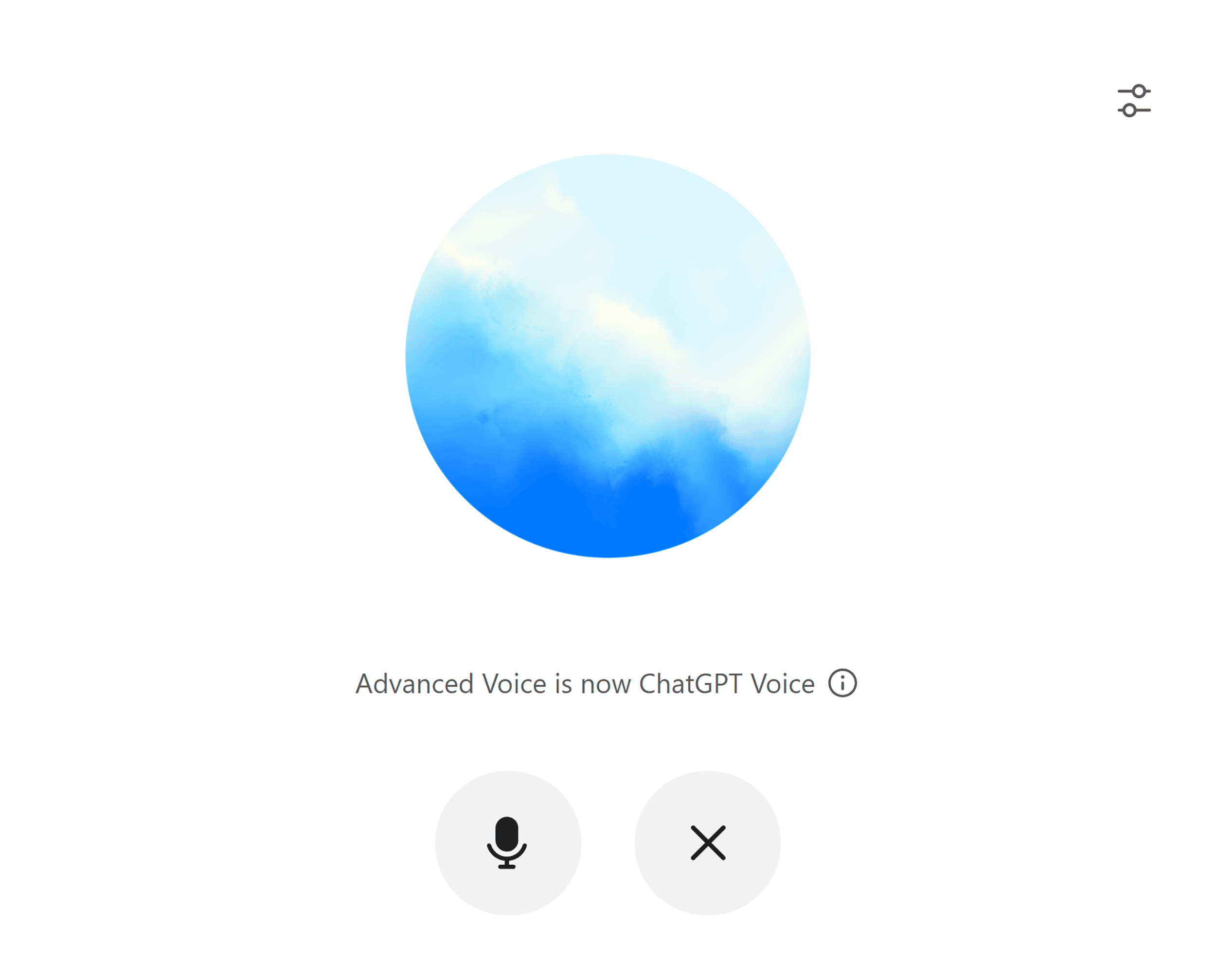
Both options are super useful when you’re on the move or just want a break from the keyboard.
ChatGPT Projects
Projects are dedicated workspaces. They’re like self-contained folders with their own context.
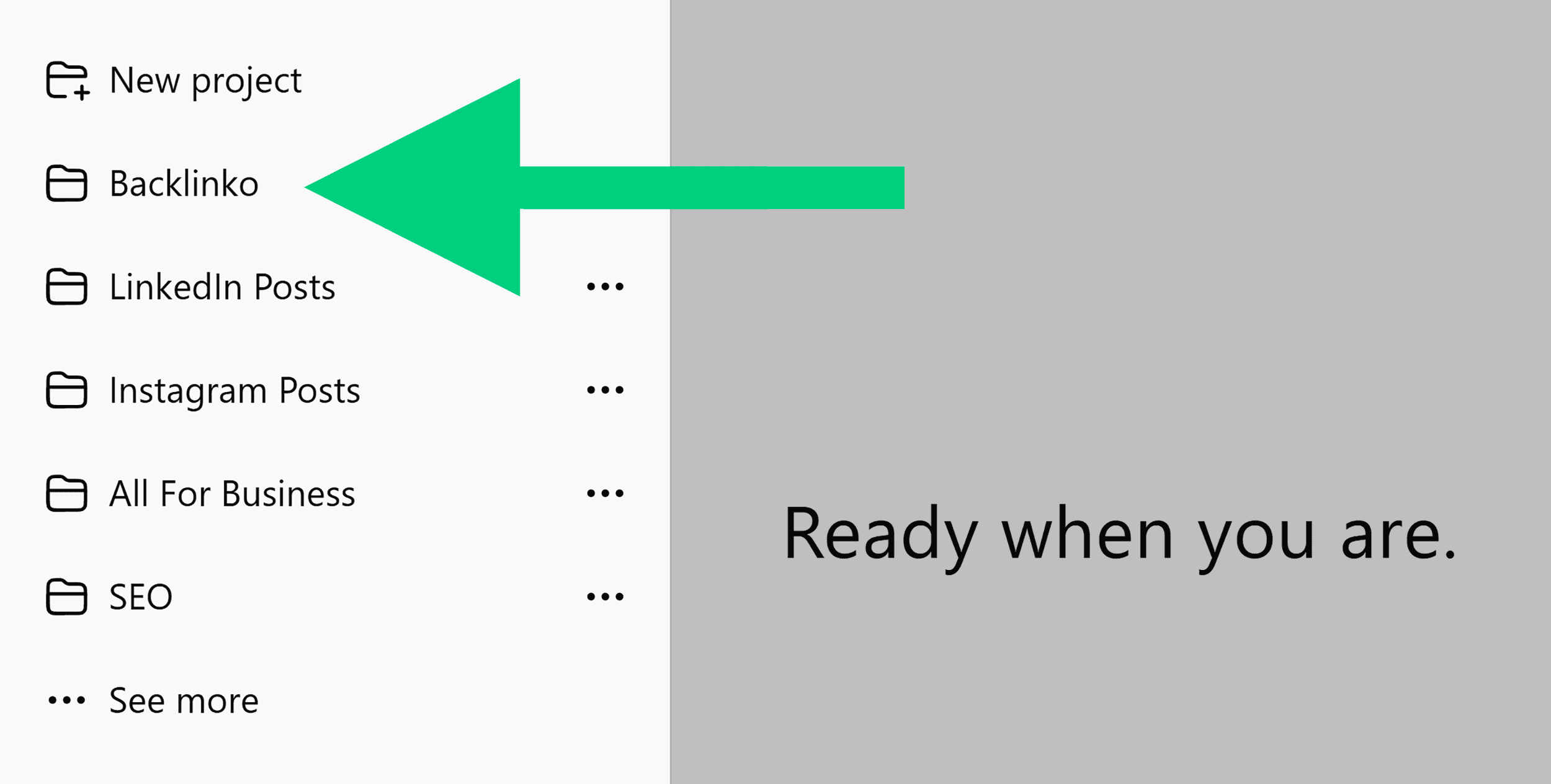
You can upload files or set custom instructions for each project.
Any conversation you have inside it will automatically use the project’s stored context.
Say you’re managing SEO content for three brands.
You can create a project for each one with its own guidelines and materials.
Then, ChatGPT will follow the rules in each project without you having to repeat them.
For example, I have a “Backlinko (BKO)” project that includes our brand guidelines, XML sitemap, and sample articles.
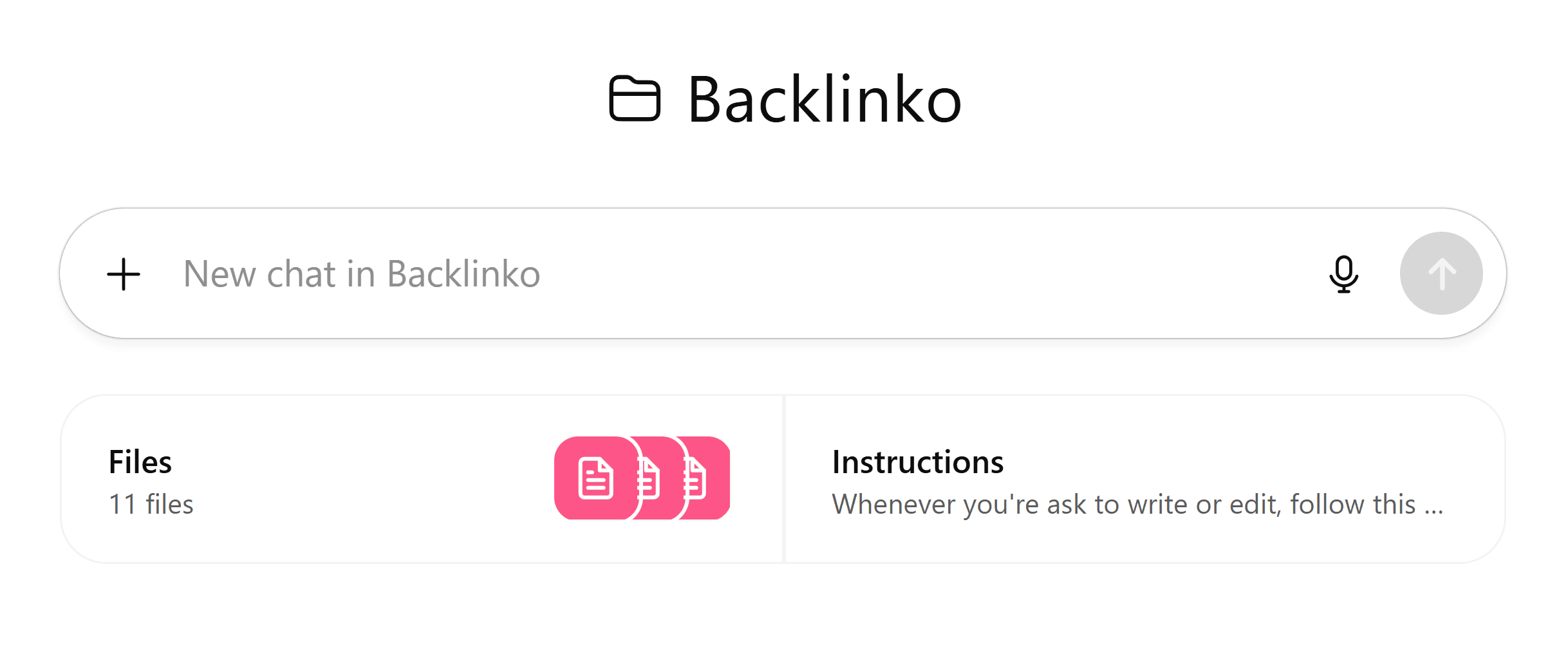
When I chat inside that project, ChatGPT uses those files, so I can reference guidelines without needing to explain them every time.
Some other ways you can use projects include:
- Market research: Centralize insights, notes, and competitor analysis
- Meeting notes: Track discussions, action items, and decisions over time
- Event planning: Store timelines, budgets, and vendor details
You can also create projects for non-work-related tasks, such as meal planning or tracking workouts.
This keeps lifestyle-related data separate from your professional content.
ChatGPT Canvas
Canvas is a side-by-side, split-screen workspace for writing, editing, and coding.
You can activate it by clicking the “**+**” icon in the chat window and choosing Canvas.
Or by typing a request like “Open a canvas to write a blog post about…”
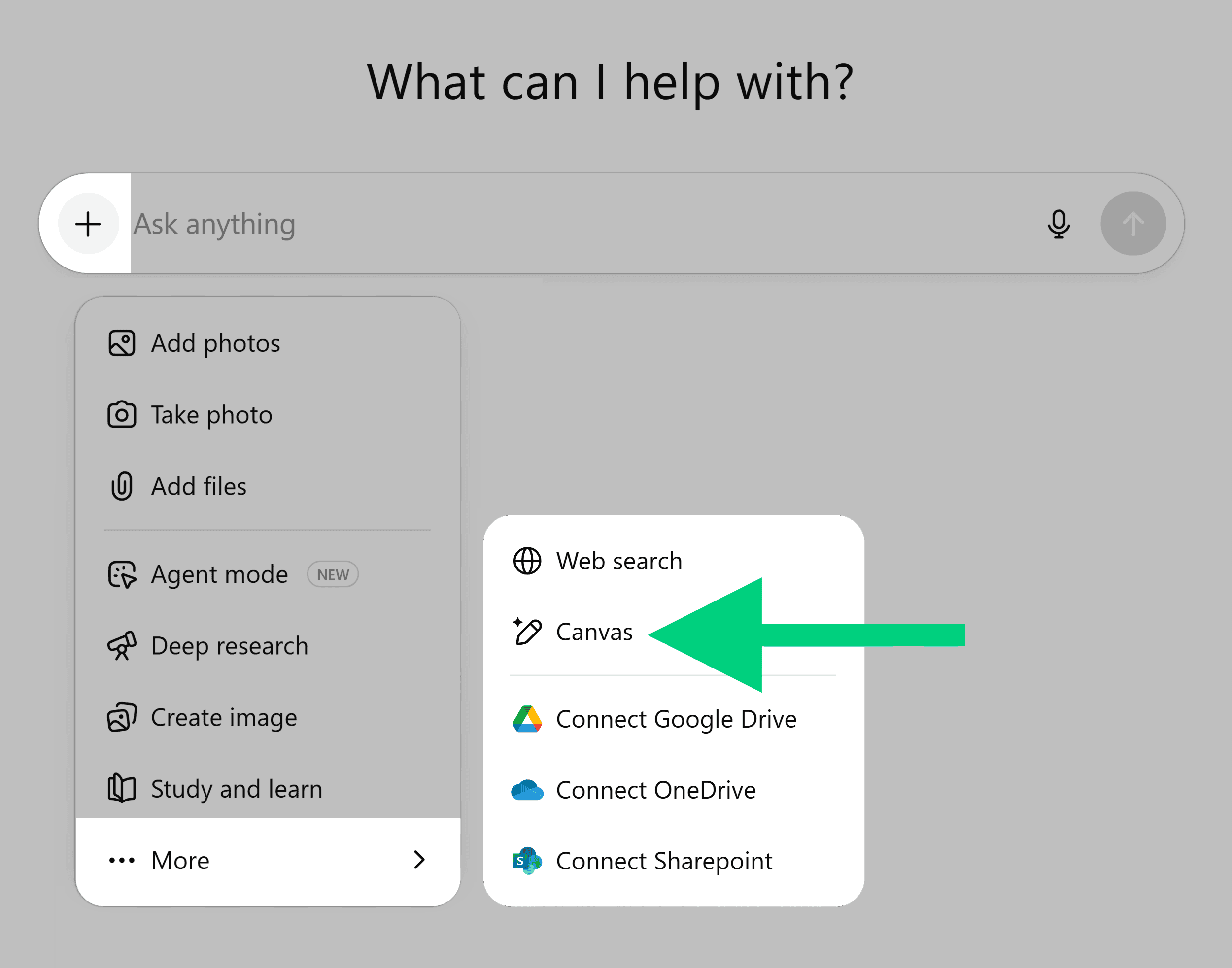
ChatGPT may also automatically open it if it detects you’re working on a relevant task.
On the left, you chat with ChatGPT.
On the right, you have a live, editable document or code editor — the canvas — where you can work directly.
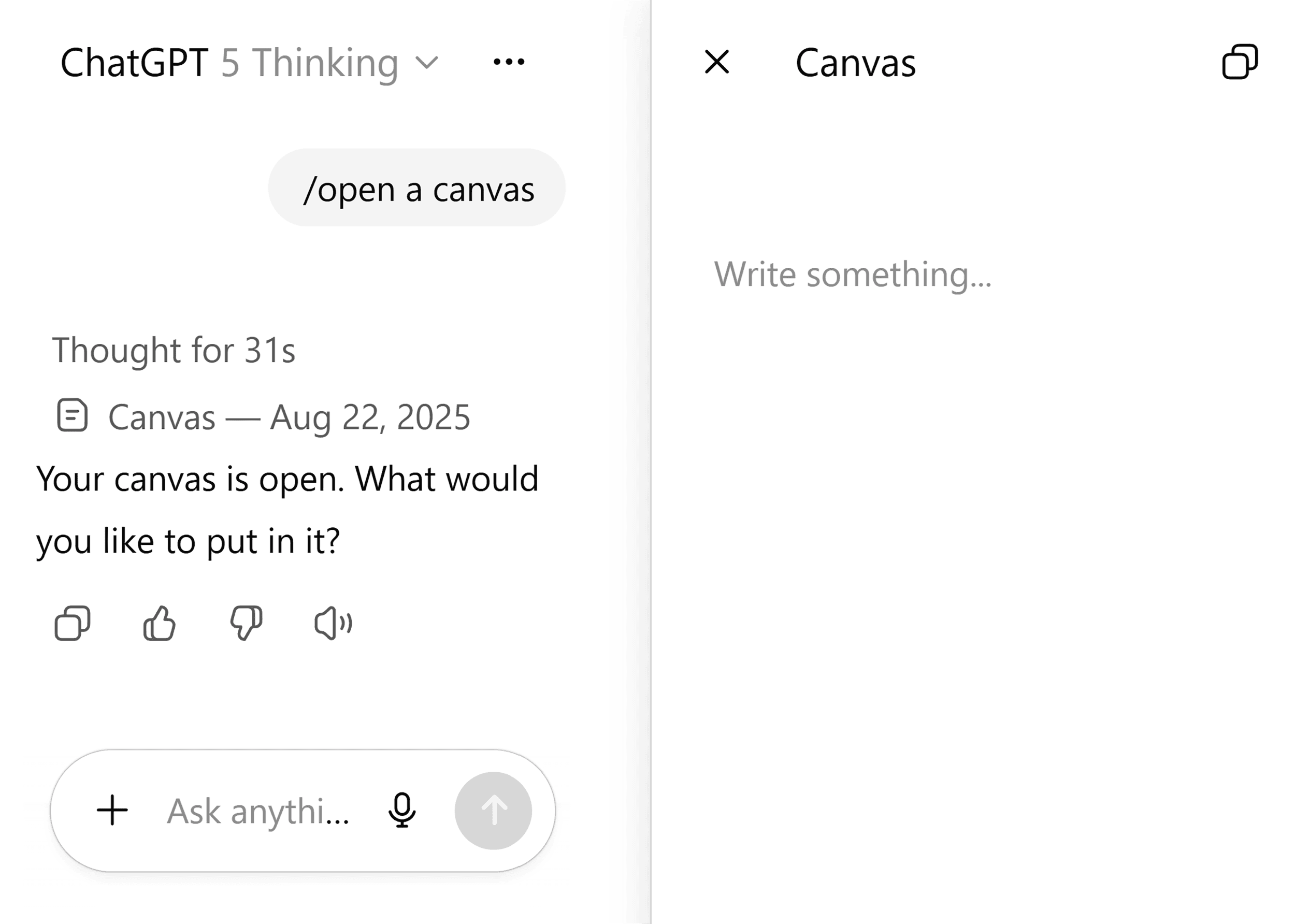
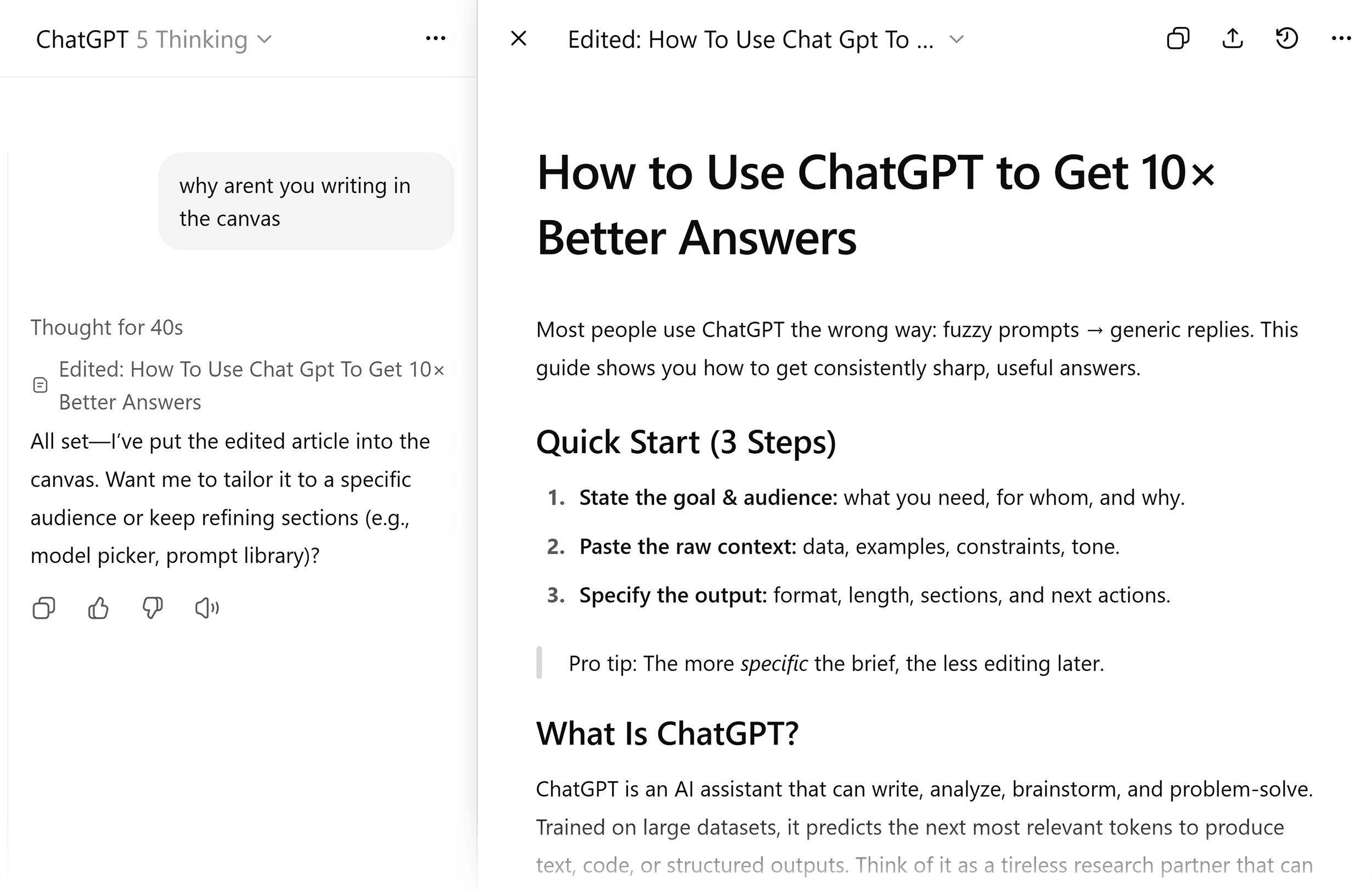
To use Canvas, type your prompt in the chat as usual.
Then, ChatGPT’s answers will appear in the canvas instead of the chat history.
(If it doesn’t, I just say, “answer in Canvas.”)
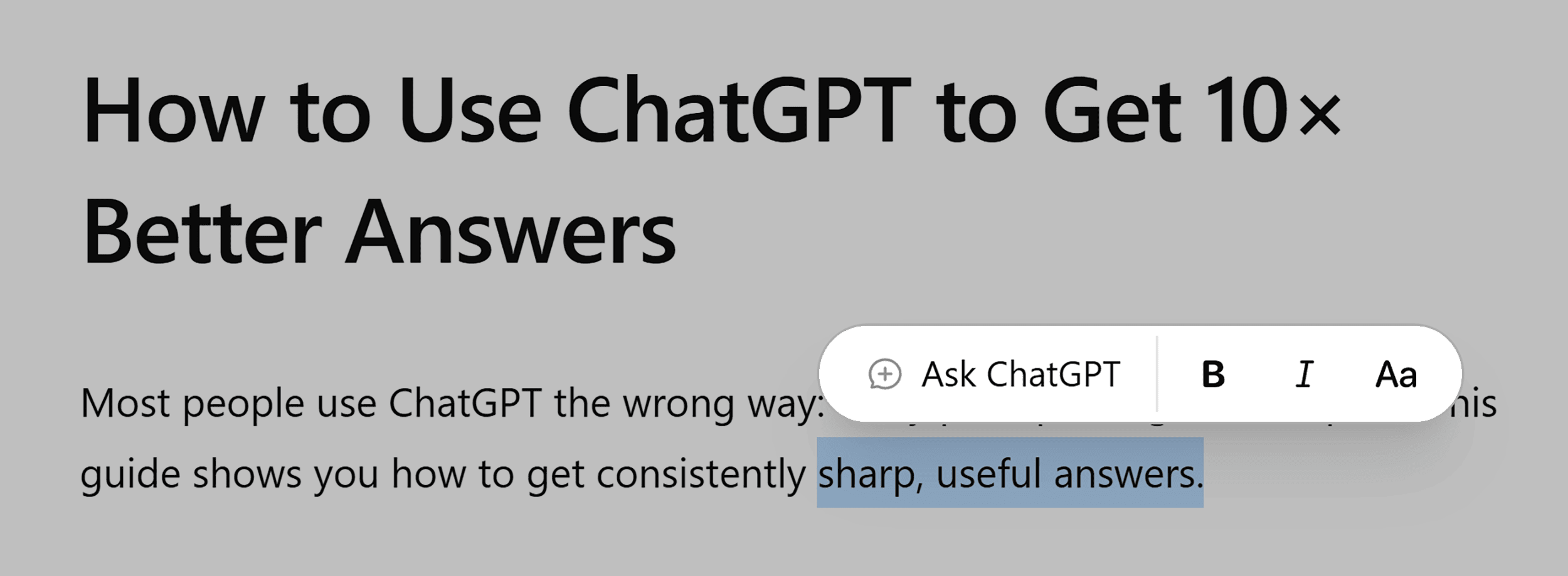
You can edit the content in the canvas, and ChatGPT will adapt to your changes.
Simply highlight a word, sentence, or block of code.
Then click “Ask ChatGPT” and write your changes or requests.
It’s much like a Google Docs or code editor with an AI co-author.
GPTsc
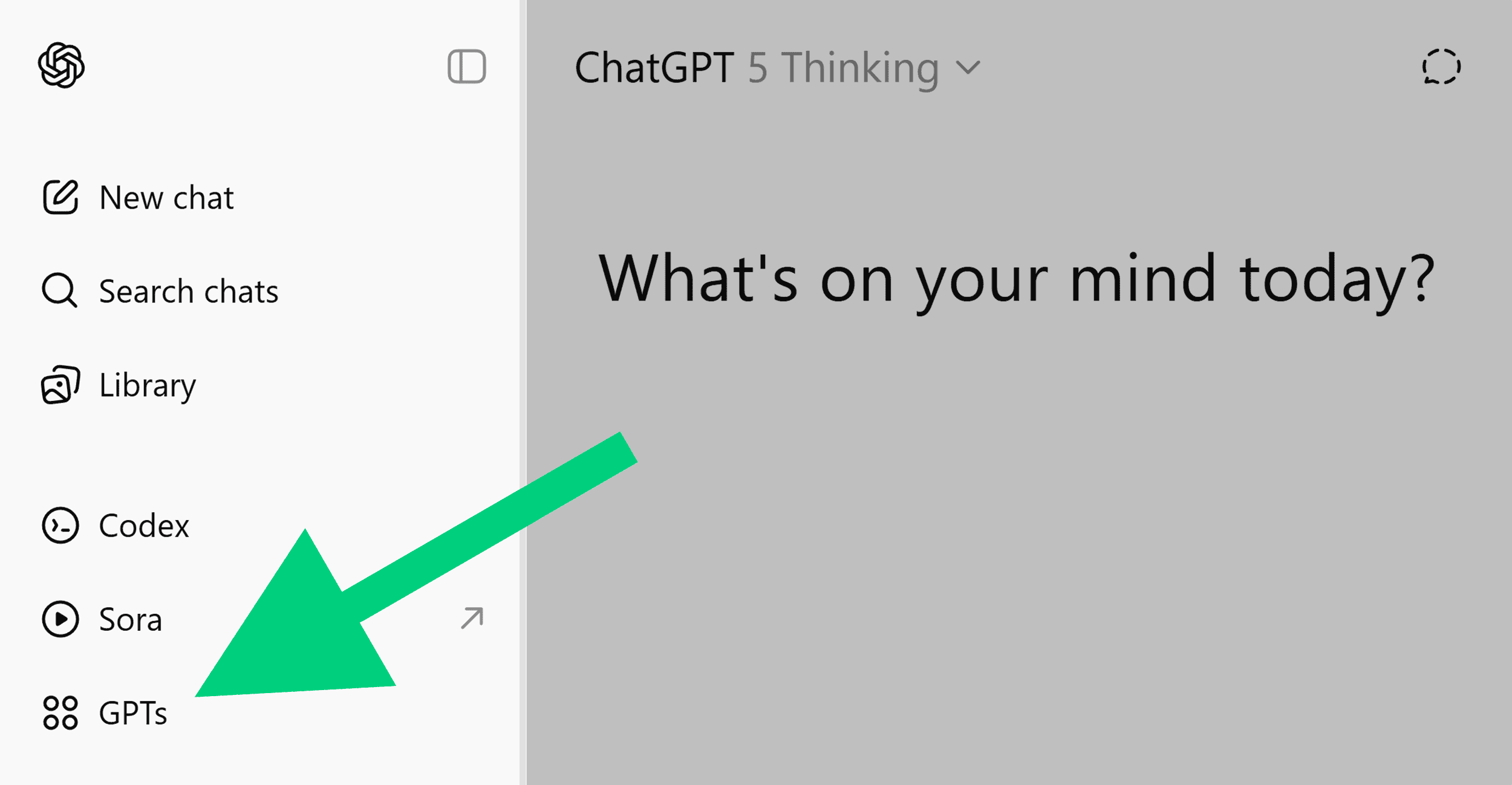
GPTs are custom AI assistants you can use to automate repetitive tasks.
Access them via the “GPTs” button in the sidebar.
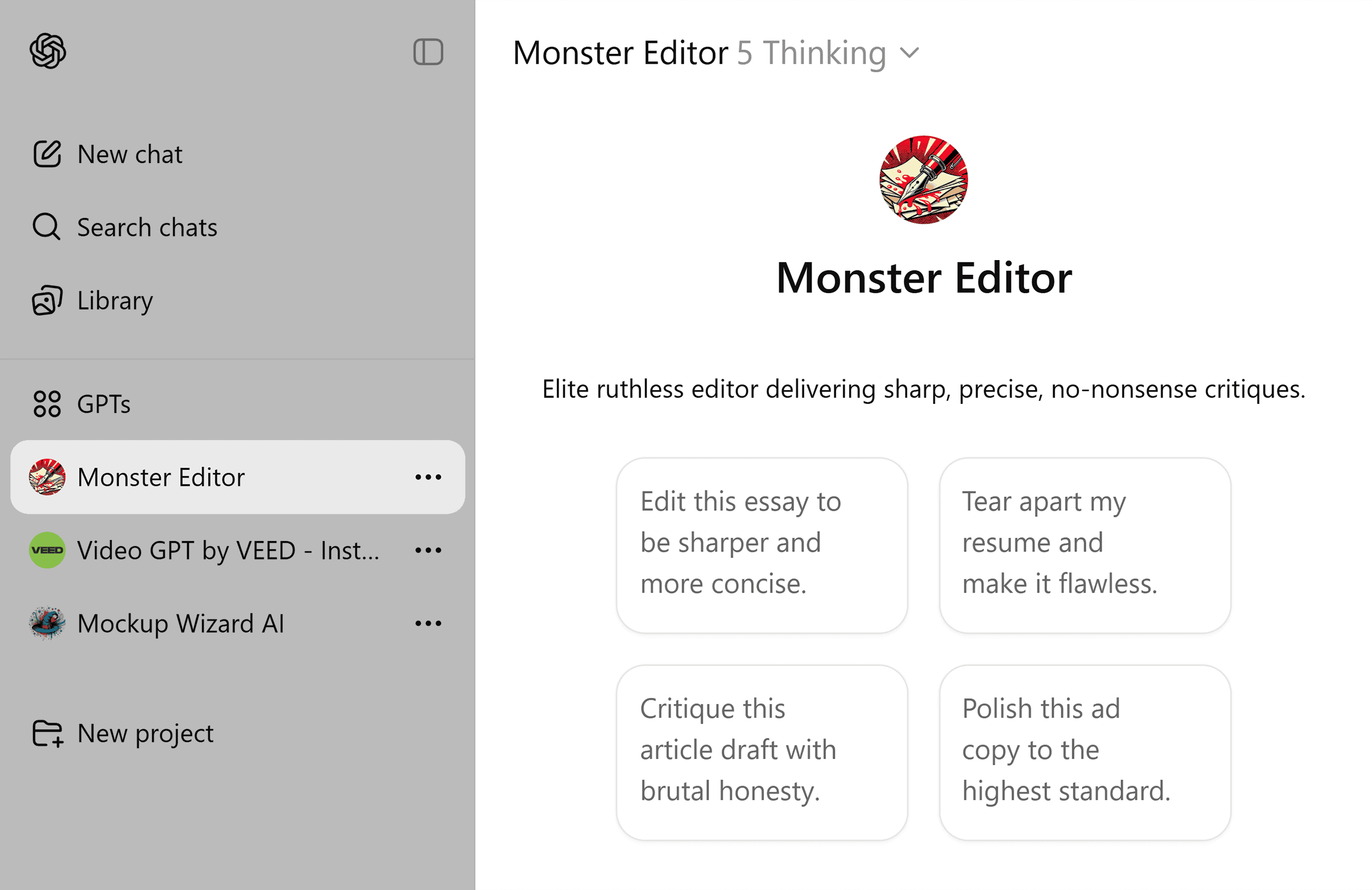
GPTs follow preset instructions, so you don’t have to repeat yourself every time.
For example, I built a GPT called “Monster Editor” — a ruthless editor I use when I want brutally honest feedback.
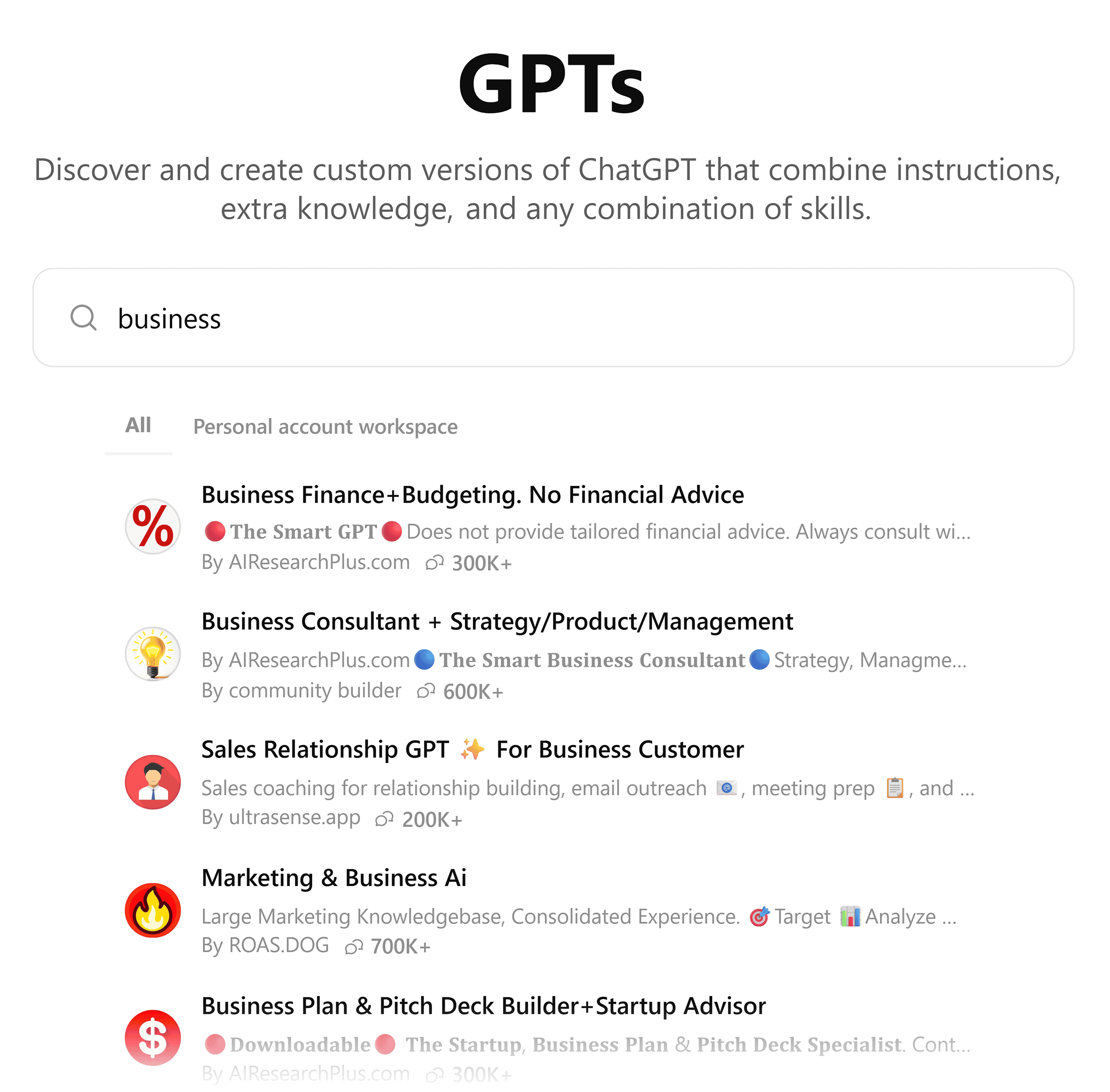
If you’re on a paid plan, you can build your own GPTs with specific rules and functions.
Free users can’t build GPTs.
But you can still use many pre-built GPTs from the GPT library.
Step 8: Customize Your ChatGPT
ChatGPT works great out of the box, but you can make a few tweaks to make it work better for you.
Here are two of my favorites:
Use Custom ChatGPT Instructions
ChatGPT doesn’t have to sound the same for everyone.
You can teach it to talk “your way.”
Just go to “Profile” > “Customize ChatGPT”:
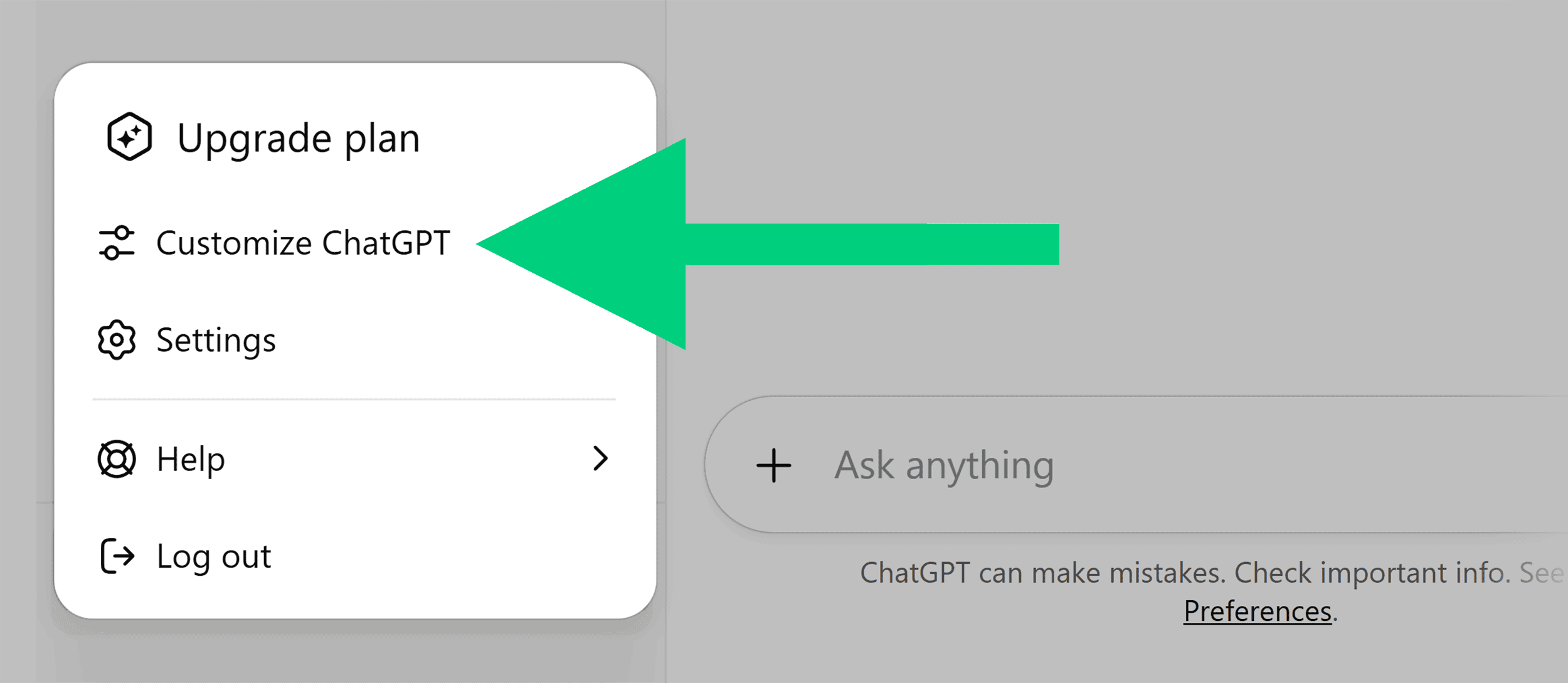
Then, enter basic details like your name and profession.
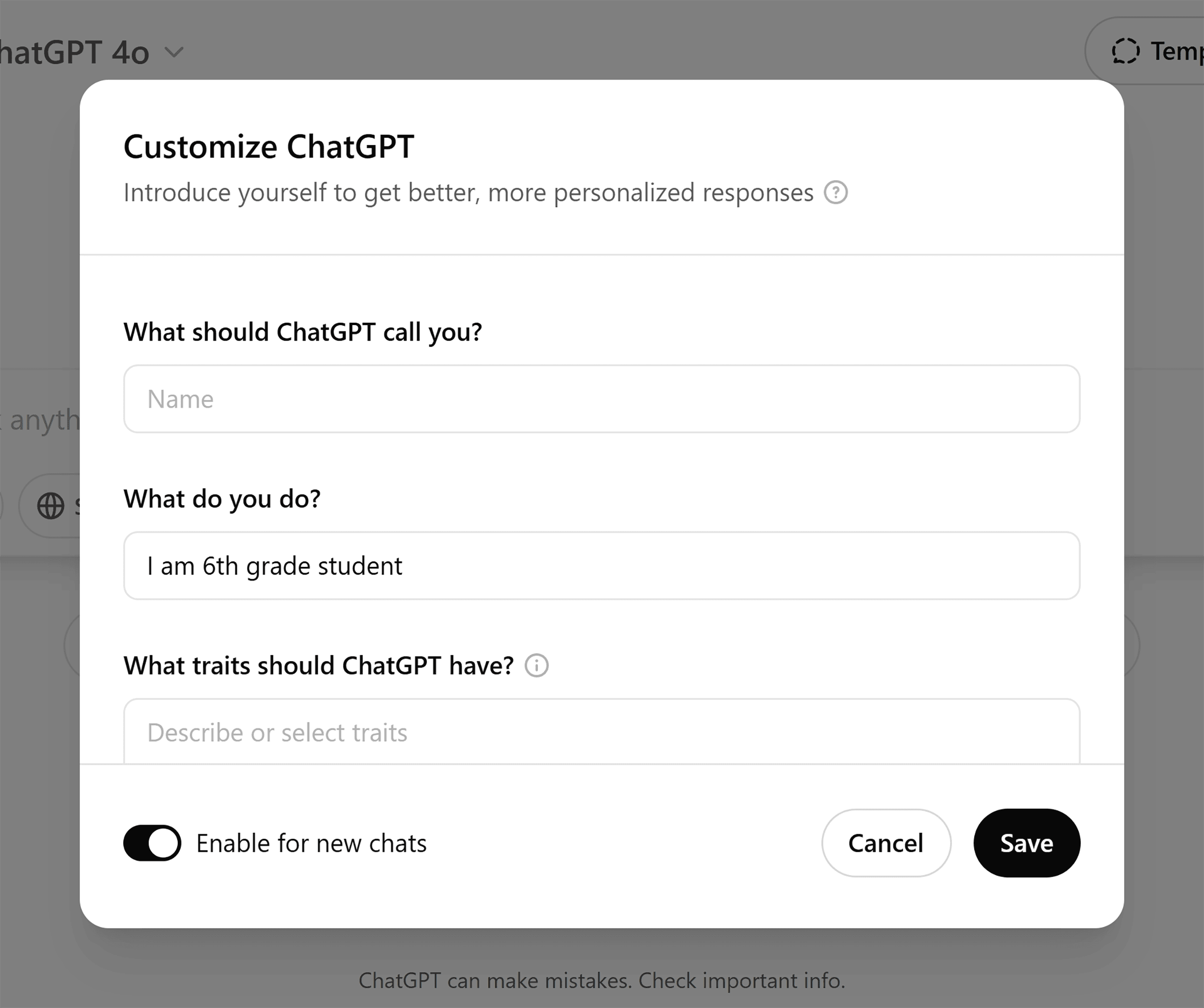
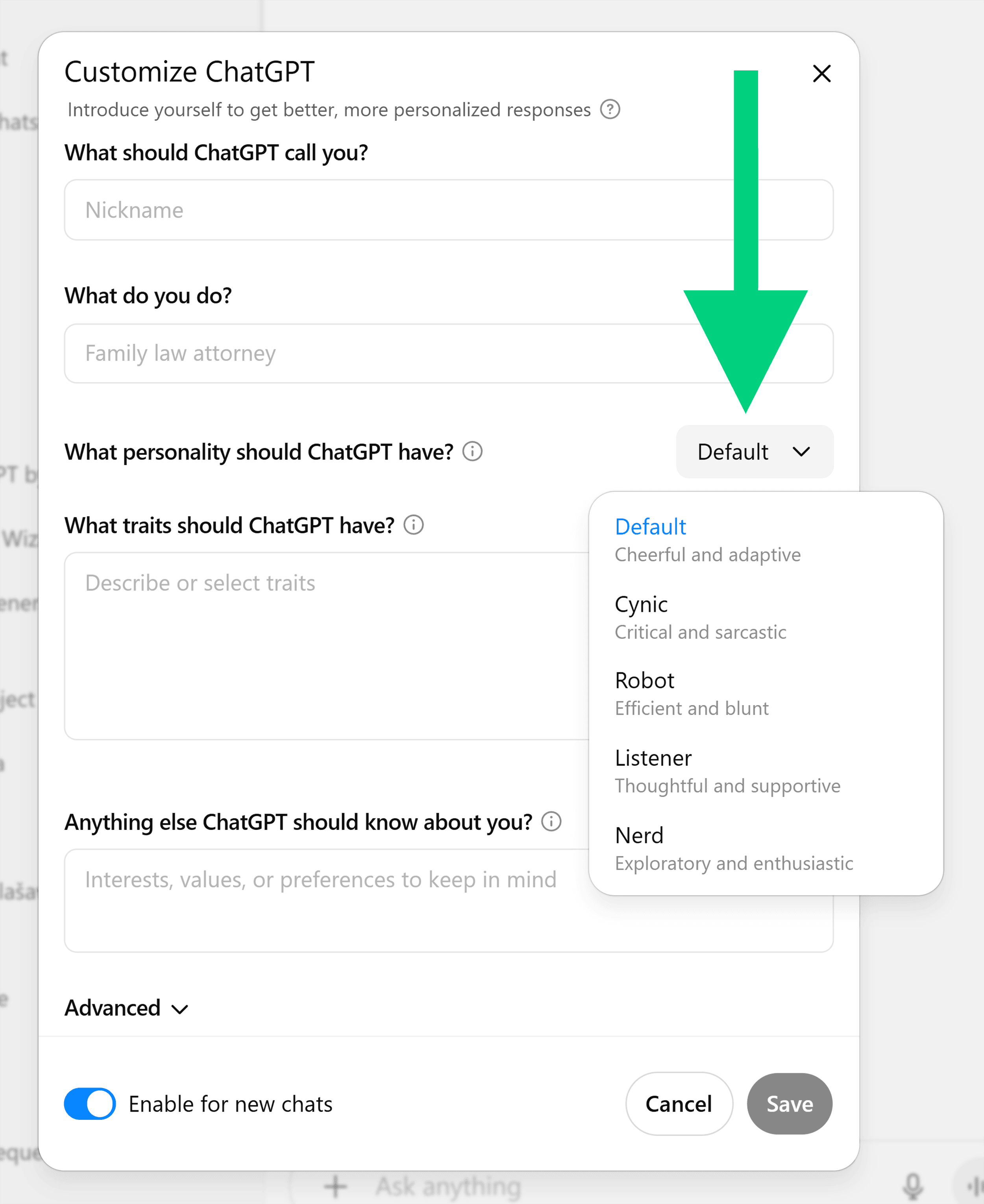
Next, choose ChatGPT’s personality.
You can (currently) choose from default, Cynic, Robot, Listener, or Nerd.
Then add more details on which traits ChatGPT should have:
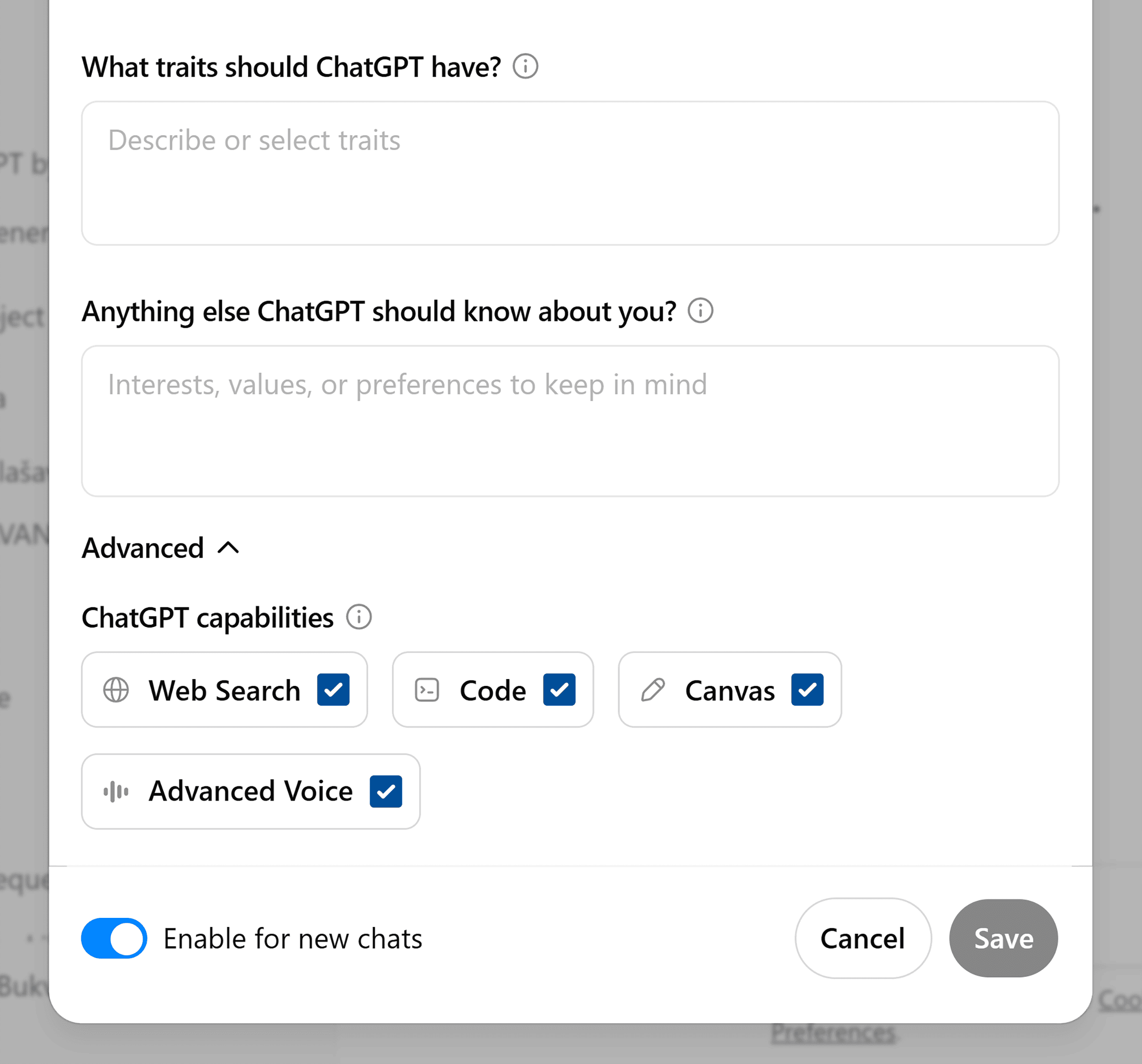
You can specify:
- Tone: Friendly, casual, or professional?
- Response length: Brief and direct or in-depth?
- Persona: Strategist, teacher, or something else?
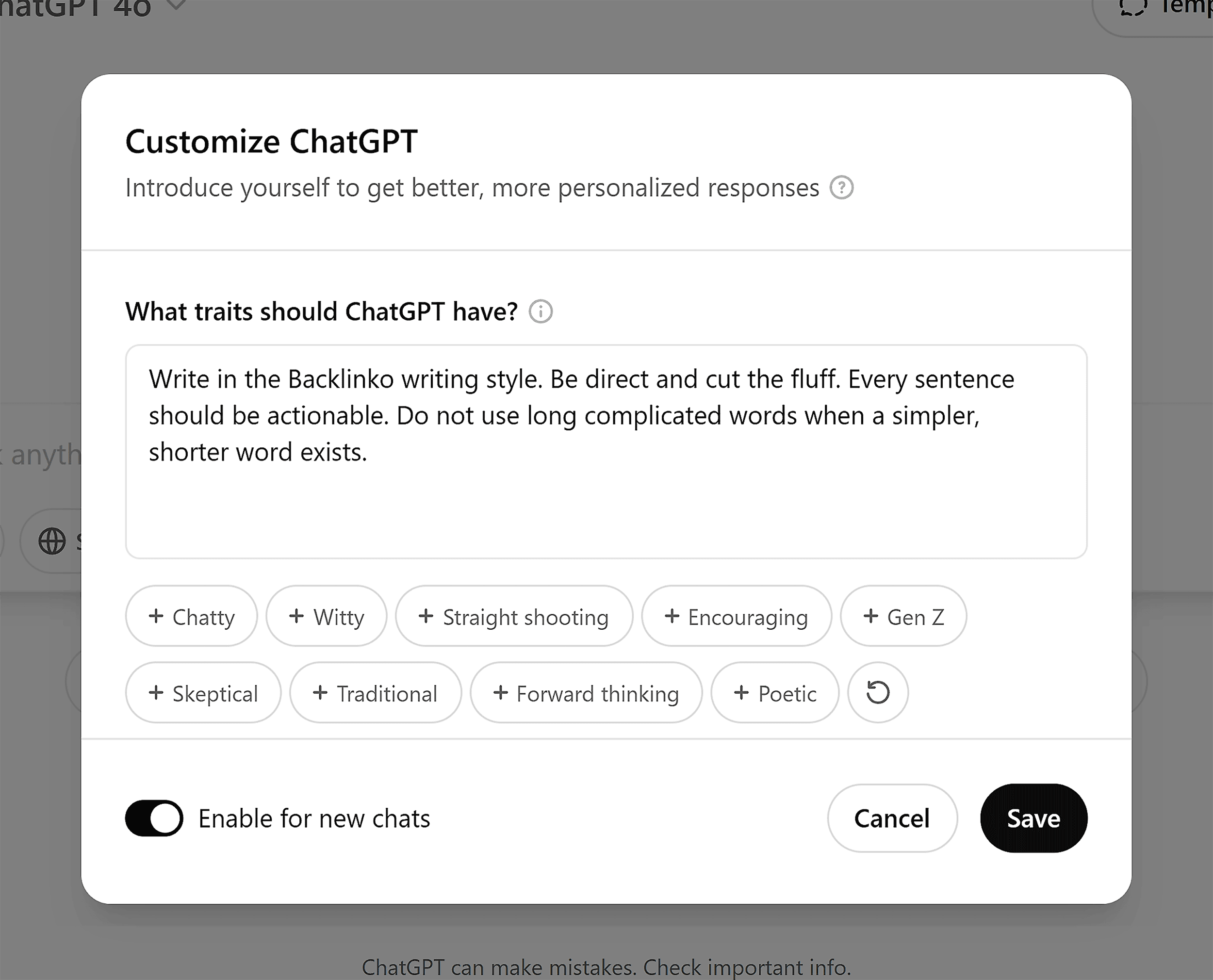
For example, if you want it to match Backlinko’s style, you can say:
The final section in customization is “What should ChatGPT know about you?”
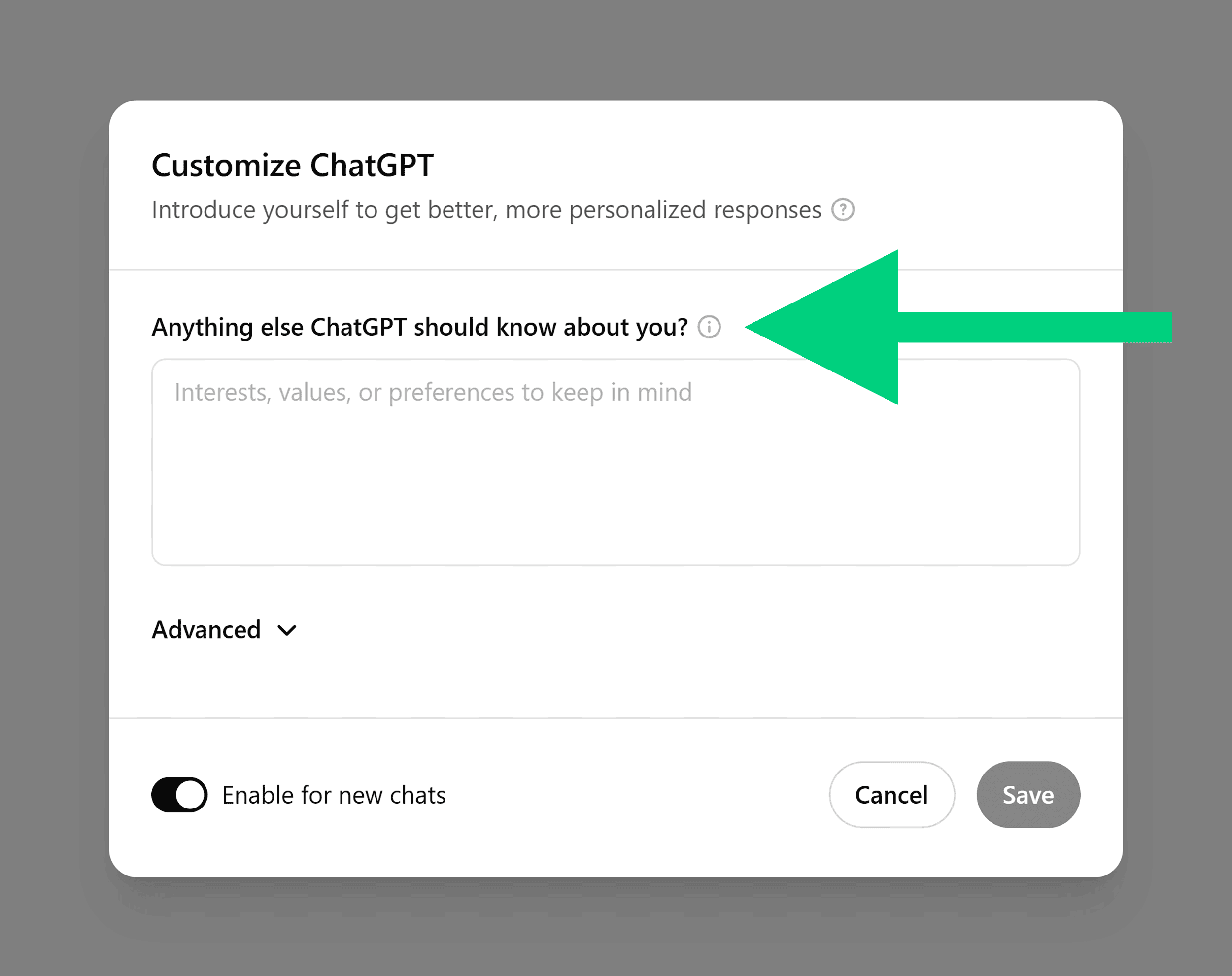
Here, you can add useful context about yourself and your business.
What should you include?
Think about how you’ll be using ChatGPT, then add relevant instructions.
For example, imagine you run an ecommerce store.
You could say:
After you add these customizations, test ChatGPT with a few questions and see how well it adjusts based on your customizations. Still not customized the way you want it? Go back to the settings and keep refining.
Control Your Privacy
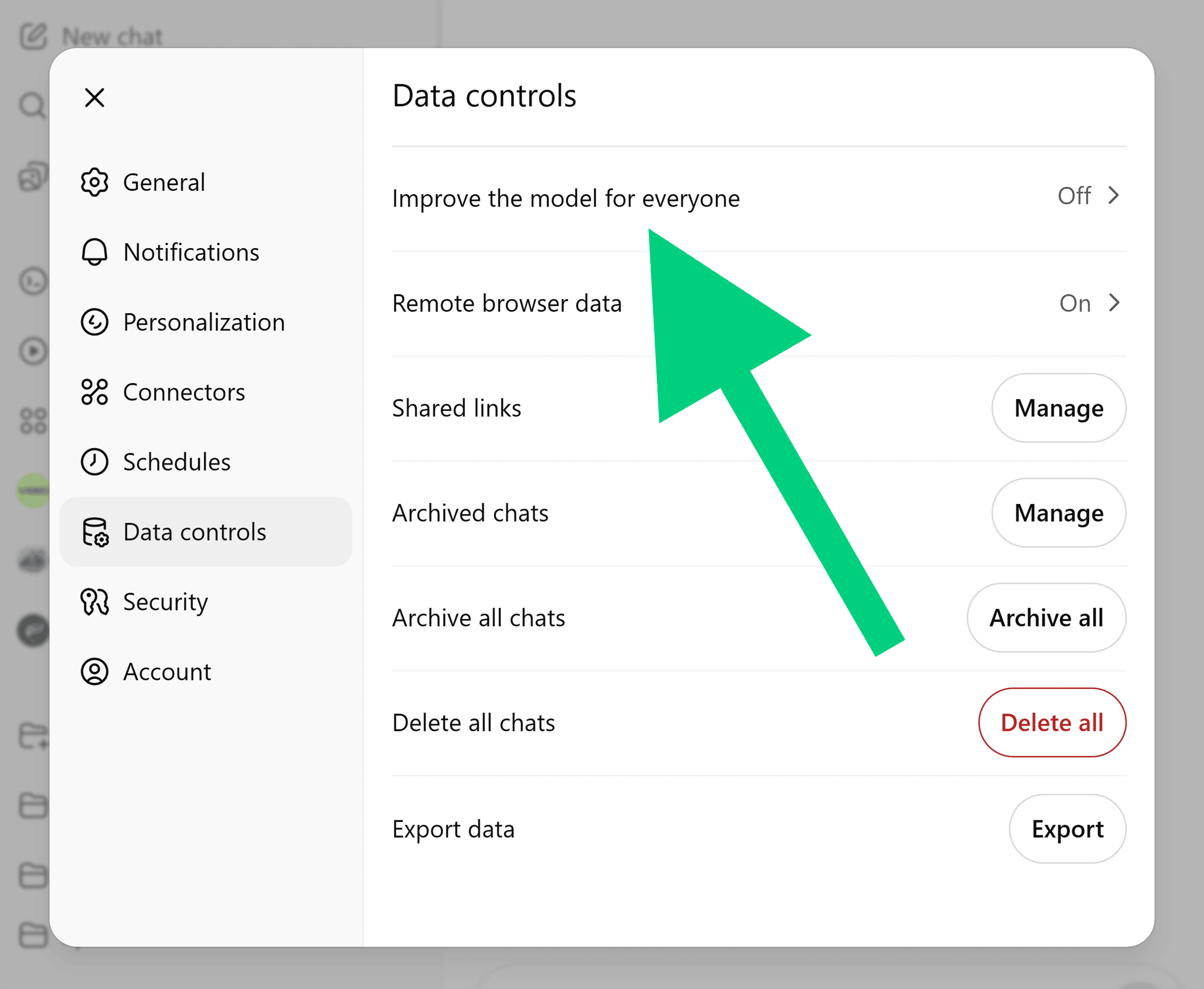
By default, OpenAI may use your conversations to improve its models. If you’d rather keep chats private, you can opt out.
Go to “Profile” > “Settings” > “Data Controls” and toggle off “Improve the model for everyone.”
And that’s it. Your AI is now customized for you.
Step 9: Follow Safety Practices
ChatGPT can be a huge help. But you need to use it safely to protect you and your personal information.
Here are a few basic rules to follow.
Don’t Share Sensitive Data
Avoid putting personal details, passwords, financial info, or anything confidential into ChatGPT.
As Sam Altman, CEO of OpenAI says:
Be Selective With Third-Party Actions
Tools like Agent can visit websites or fill out forms for you.
Only enable them for sites you trust, and watch what they’re doing in real time.
Plus, you can also link to certain apps.
(Right now, that includes Google Drive, Google Calendar, Gmail, and GitHub.)
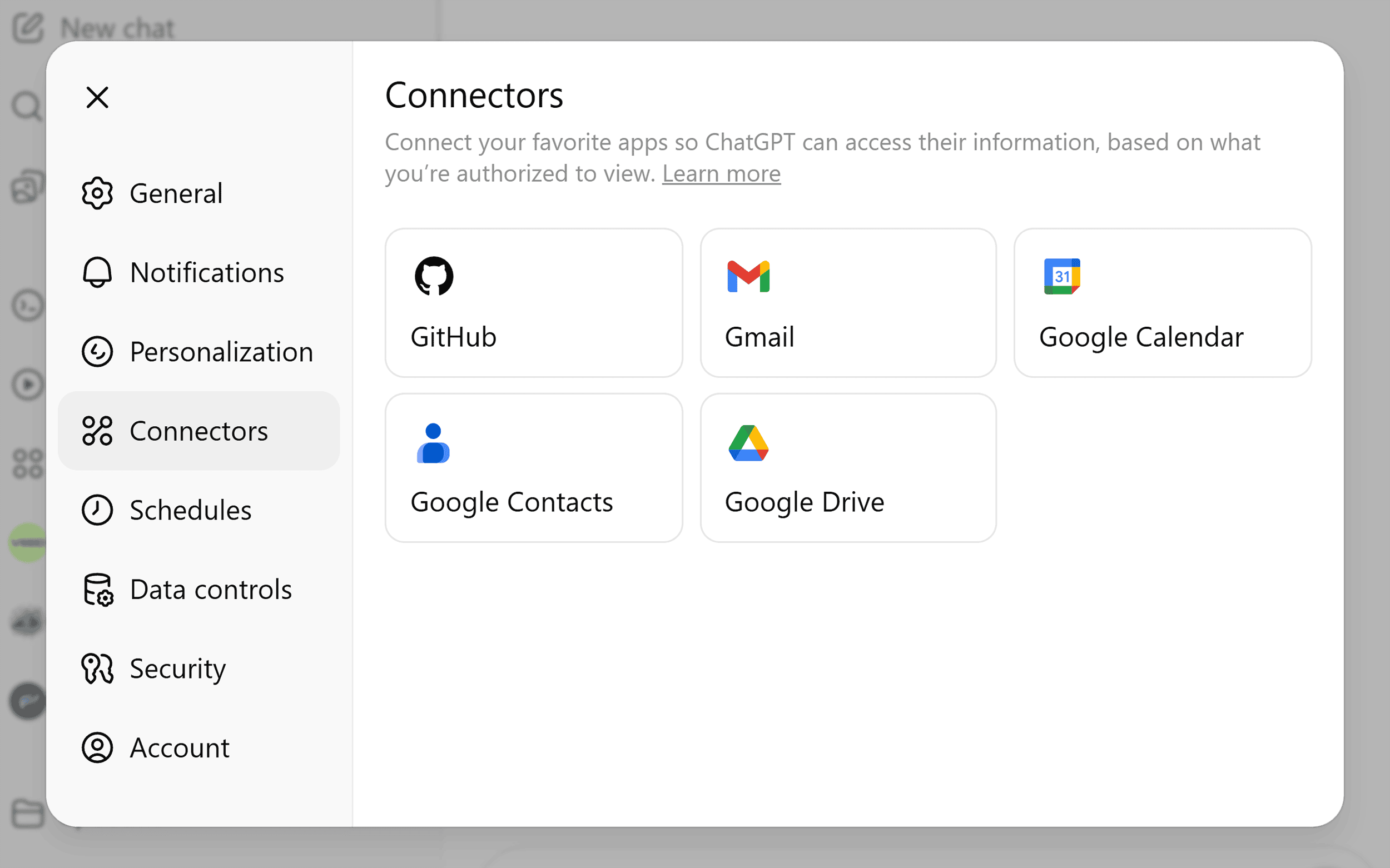
Before you connect anything, make sure you’re comfortable with the level of access you’re granting.
Establish Clear Data Governance for Teams
If you’re using ChatGPT in a workplace, make sure there’s a clear policy for how it’s used.
This prevents “shadow AI” — when employees use AI tools without approval or oversight — and ensures everyone knows what data is safe to share.
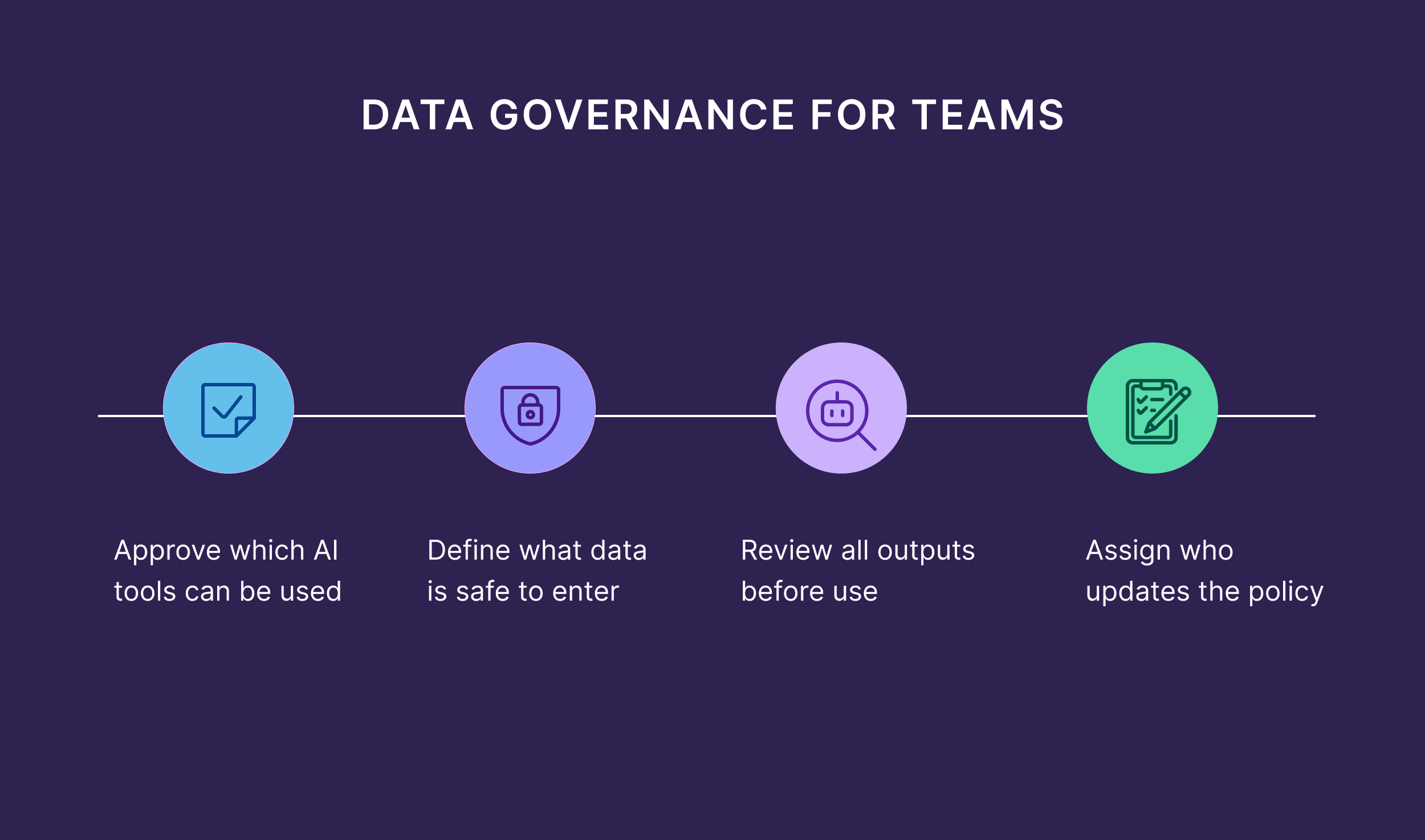
A good policy should cover:
- Which AI tools are approved
- What types of data can be entered
- How outputs should be reviewed before use
- Who is responsible for monitoring and updating these rules
Best Ways to Use ChatGPT for Your Business
One of the most powerful aspects of ChatGPT is its flexibility.
It can take on different roles: personal assistant, researcher, strategist, problem-solver, and more.
Here are a few ways you can use ChatGPT in your business:
ChatGPT as a 24/7 Business Assistant
ChatGPT can be your extra set of hands for every task.
It can:
- Draft and refine proposals, emails, and presentations
- Clean and organize meeting notes or transcripts
- Build checklists, project plans, or timelines
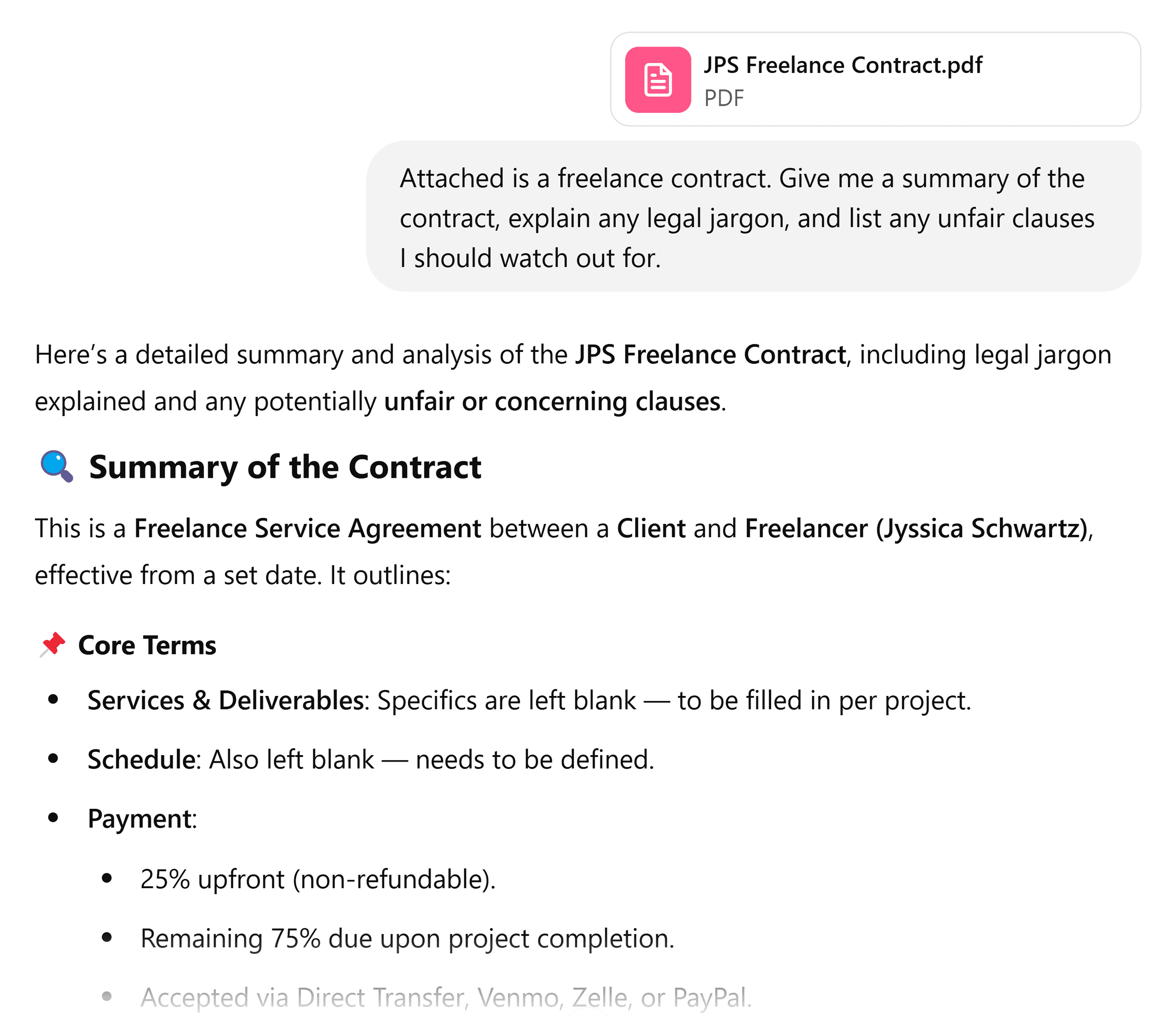
For example, I sometimes use it to review legal documents.
I upload a PDF, like a client agreement, and ask it to explain any confusing legal jargon. Or point out potentially unfair clauses.
It’s obviously not legal advice, but it’s a great way to have an overview of what you’re getting yourself into.
ChatGPT is also great for organization.
For example, I recently used ChatGPT to help me organize my Obsidian vault (Obsidian is a personal knowledge management tool).
I wanted a clean, scalable folder structure that matched how I use the tool.
So, I gave ChatGPT this prompt:
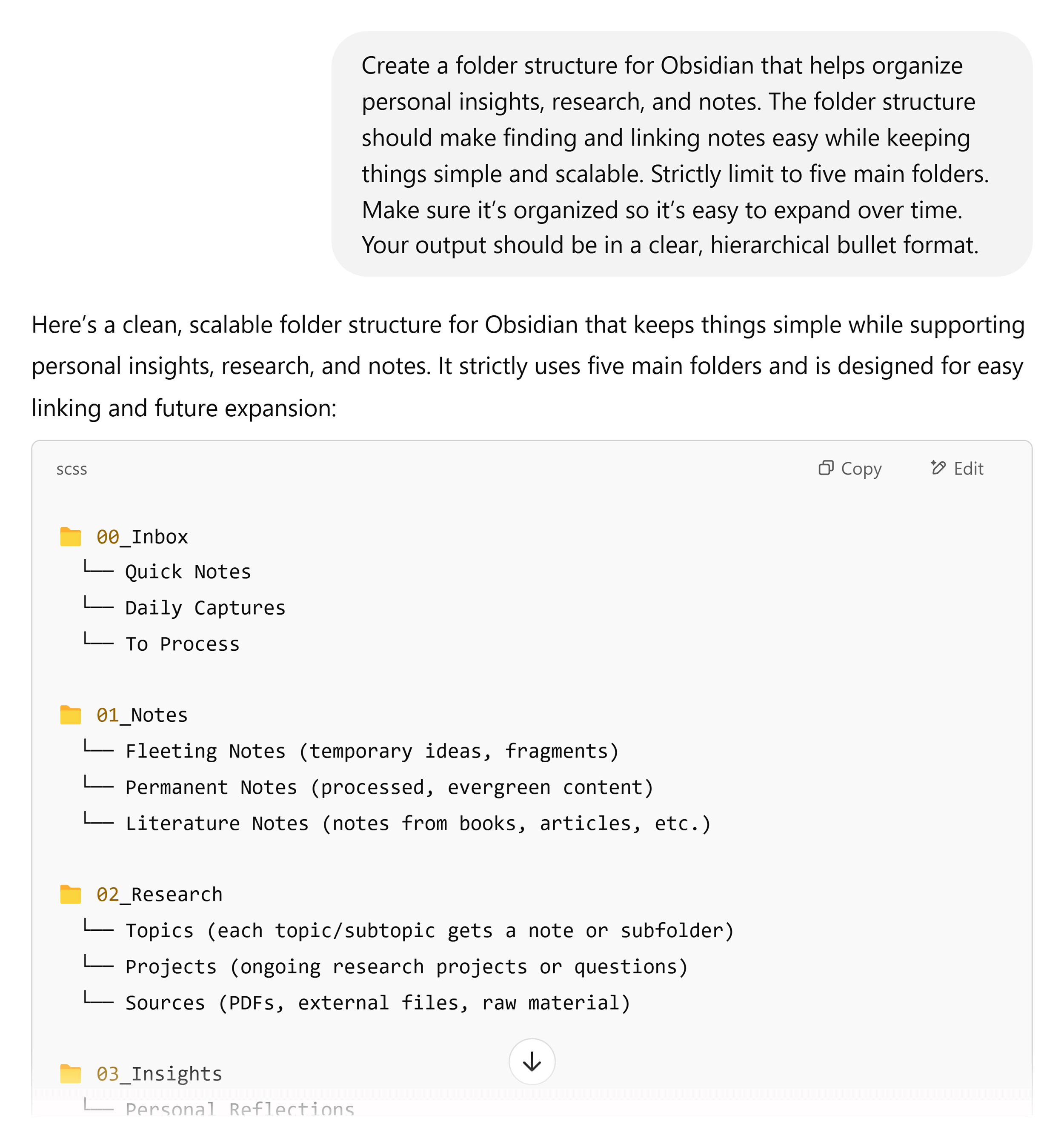
That answer gave me a solid starting point to structure my folders. And saved me hours of tinkering and overthinking.
ChatGPT as Your Personal Analyst
ChatGPT is also useful for processing and analyzing data.
It can:
- Clean and format raw data
- Identify trends and patterns
- Extract actionable insights
Here’s a quick example of how you can use its data analysis capabilities for digital marketing.
Say you run an online store and want to analyze your competitor’s Google Shopping Ads using the report from a tool like Semrush Product Listing Ads (PLAs).
Simply upload the file to ChatGPT and use this prompt:
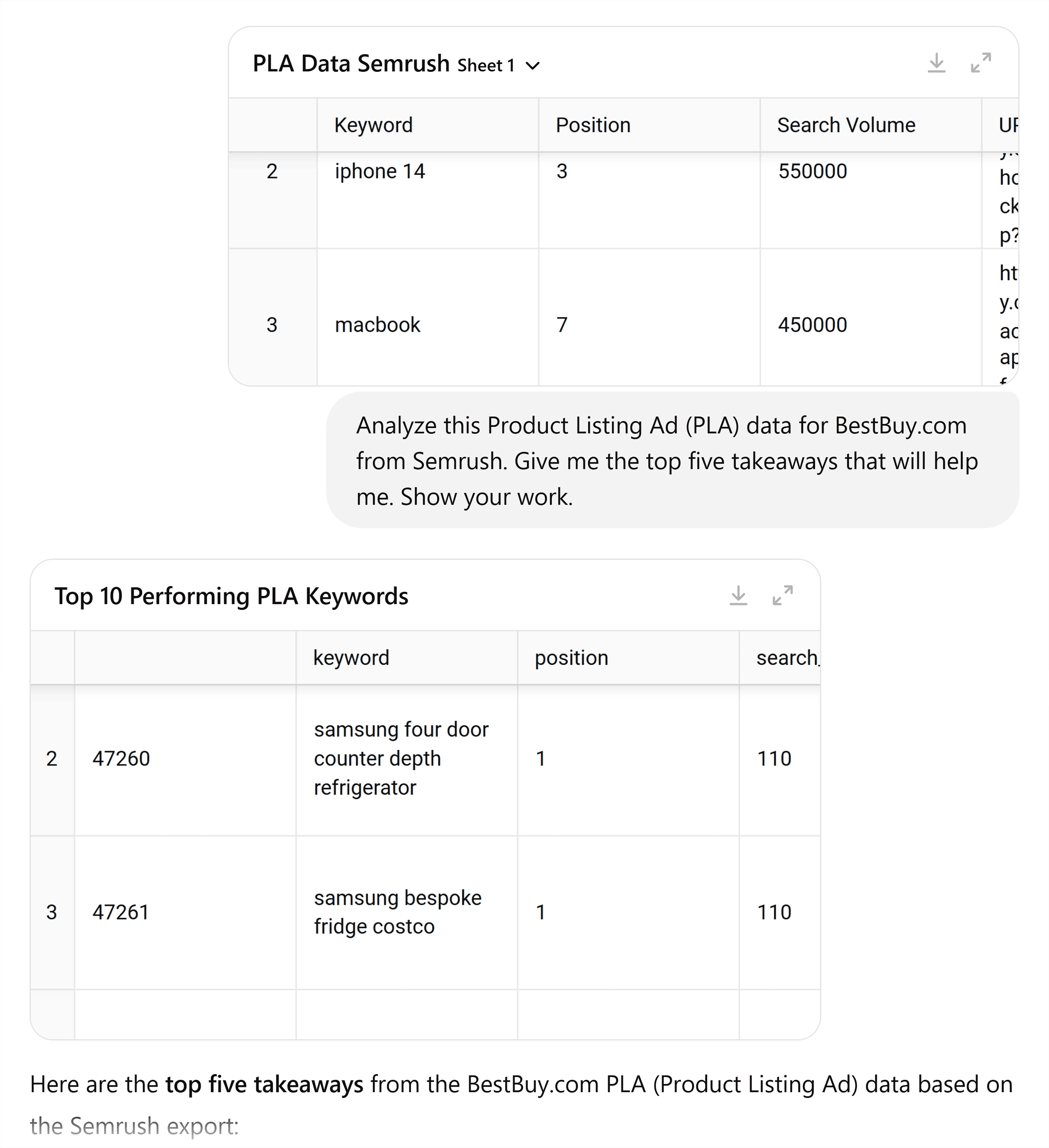
Just like that, ChatGPT will identify patterns and trends from the Semrush data. (I add “Show your work” so I can verify the numbers.)
ChatGPT as Your Strategic Thought Partner
ChatGPT can be a great thinking partner for business decisions.
It can:
- Challenge your assumptions
- Synthesize complex information
- Test scenarios and brainstorm strategic moves
- Help weigh the pros and cons before committing resources
For example, you might use it to map scenarios before you enter a new market.

For even better results, give ChatGPT context such as specific data or constraints.
The more precise you are, the better it can build on what you already know.
The Limitations of ChatGPT
You need to understand where ChatGPT falls short so you can avoid costly mistakes. It’ll also save you wasting time trying to get it to do things it’s simply not capable of.
The most common issue?
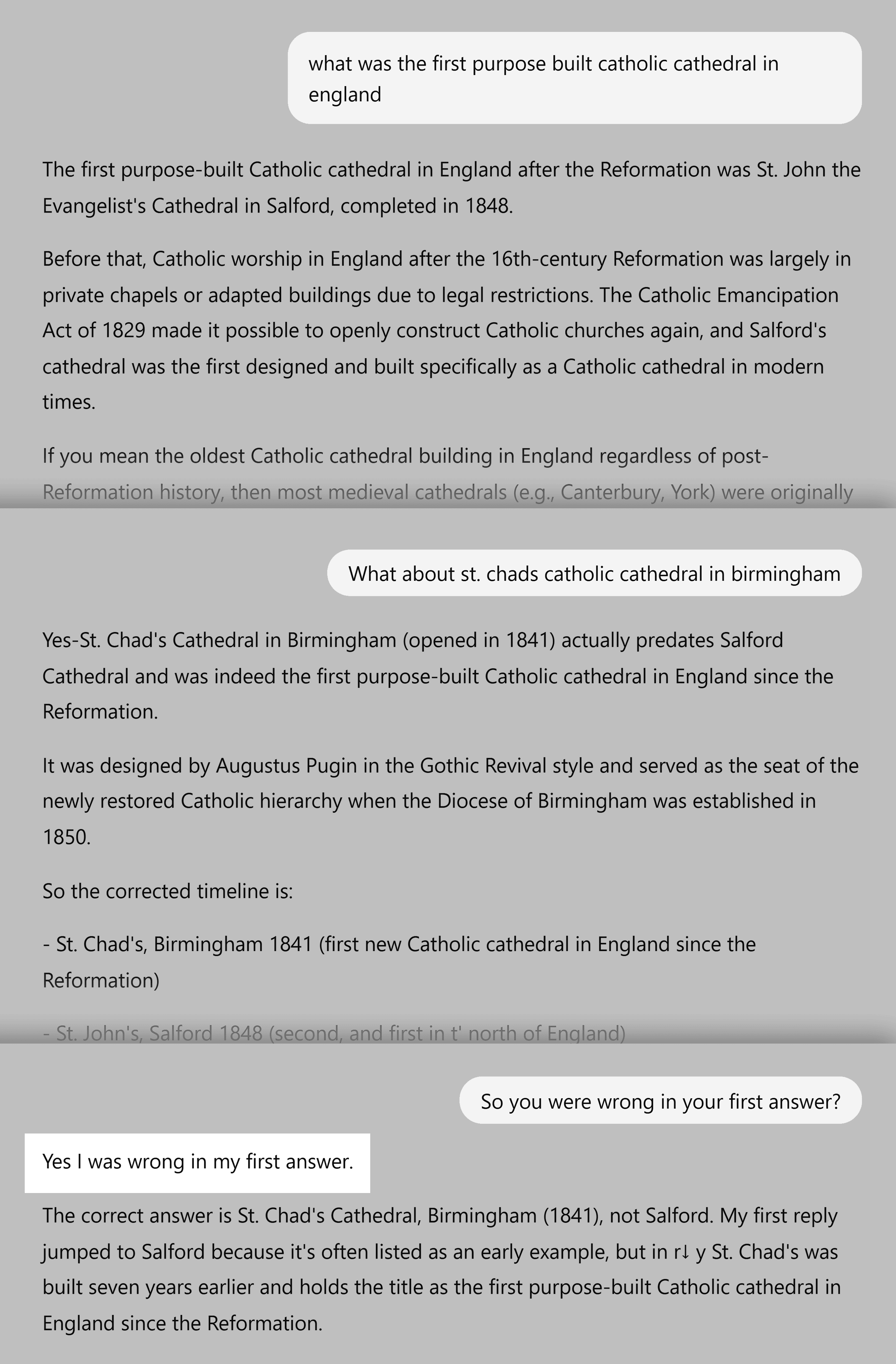
Hallucinations. That’s when ChatGPT makes something up.
(It happens less in the newest model, but it still happens.)
For example, I asked which was the first purpose‑built Catholic cathedral in England. It gave me an answer I knew was wrong.
And that’s only the start.
Bias is another issue.
AI models like ChatGPT reflect societal biases that exist in their training data. Here’s a simple way to see this in action:
Ask it to generate an image of a nurse. You’ll likely get a woman.
Now, ask it to create an image of a CEO. You’ll probably see a man.

And this gender bias isn’t just limited to images. ChatGPT can perpetuate stereotypes and biases around:
- Cultural perspectives
- Socioeconomic assumptions
- Historical narratives
- Geographic representation
For example, when asked about “traditional family values” or “successful business practices,” ChatGPT might default to Western, male-dominated perspectives without acknowledging other viewpoints.
What does this mean for you? You should:
- Always cross-reference important facts using multiple sources
- Be aware that ChatGPT’s responses may reflect societal biases
- Ask follow-up questions to get different perspectives
- Use ChatGPT as a starting point, not the final authority
- Consider whose viewpoints might be missing from its responses
Don’t Stop at ChatGPT — Build Your Custom AI Toolkit
Learning how to use ChatGPT can unlock huge benefits for your business.
But it’s only one piece of the puzzle.
The next step is to bring in other AI tools that complement ChatGPT or fill in the gaps where it’s less effective.
If you want your brand to show up in AI answers, you need tools designed for visibility in AI-powered search. That’s where the Semrush AI Visibility Toolkit comes in.
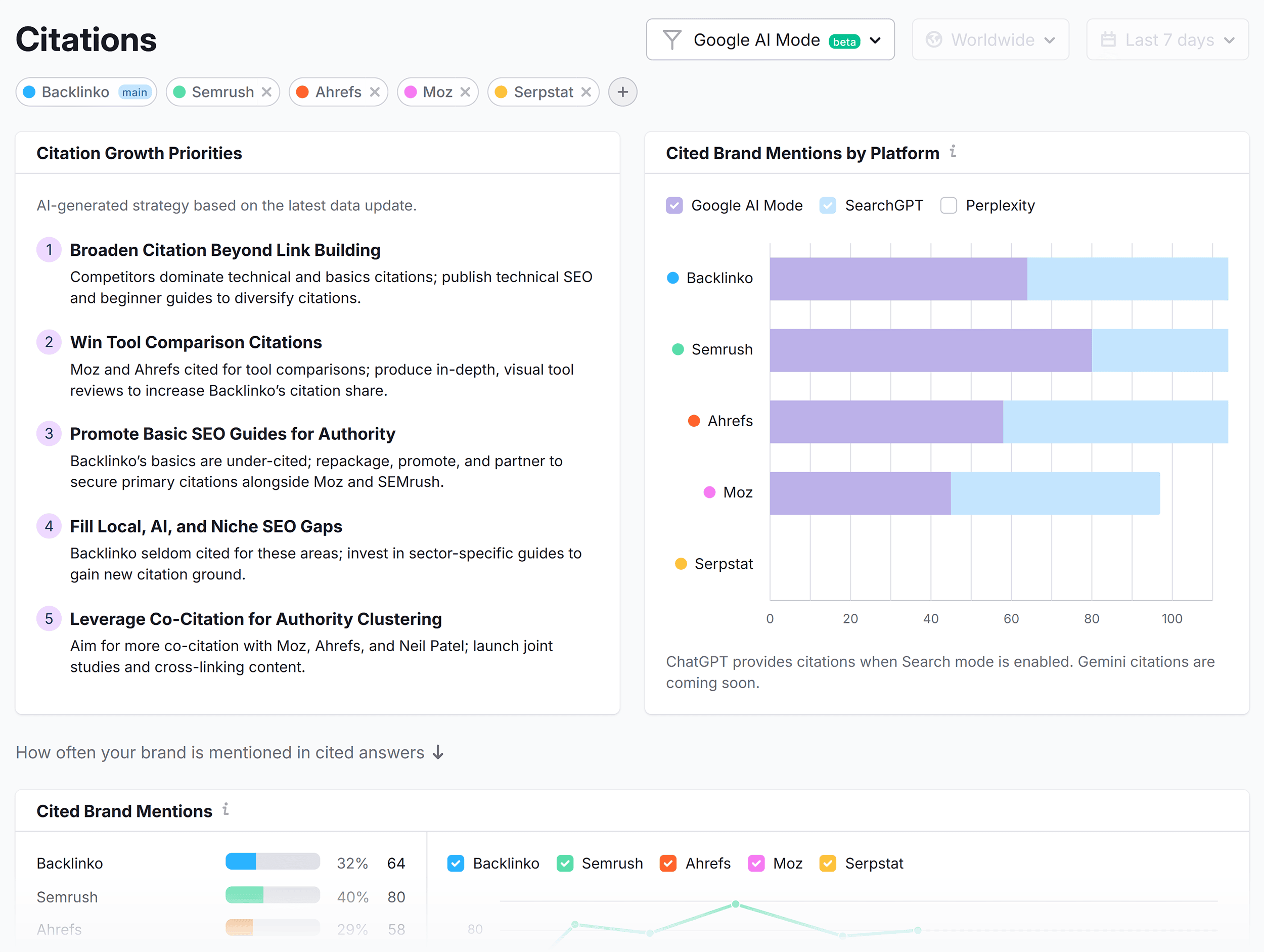
It helps you:
- Audit how your brand appears in ChatGPT, Google AI Overviews, and Perplexity
- Track citations and mentions across AI platforms
- Engineer content so it’s retrieved (not ignored) by AI systems
Bottom line: ChatGPT is a powerful starting point.
ChatGPT is a powerful starting point. But it’s only one part of the bigger shift happening with AI. The real advantage comes when you combine it with other tools and workflows to build a system that fits your business.
Backlinko is owned by Semrush. We’re still obsessed with bringing you world-class SEO insights, backed by hands-on experience. Unless otherwise noted, this content was written by either an employee or paid contractor of Semrush Inc.