8 HTML Tags for SEO (The Ones That Actually Matter) (original) (raw)
Do you need to know HTML to be good at SEO?
No.
Are there some HTML tags that you should at least know how to use properly?
Definitely.
But there really are only a handful of important ones. And in this guide, I’ll go over each of these, what they do, and how you can use them properly to optimize your site.
Here’s a quick summary of the tags I’ll cover:
| HTML Tag | SEO Impact | Why It Matters |
|---|---|---|
| Title tag | High | Tells Google the title of the page and may appear in search results |
| Heading tags (H1-H6) | High | Help search engines understand your content structure and improve readability |
| Robots meta | High | Controls how search engines index and display your pages in search results |
| Canonical tag | High | Prevents duplicate content issues |
| Link tag | High | Gives Google information about links on the page |
| Hreflang | High | Important for international SEO in particular |
| Alt text | Low | Makes images accessible and can help them rank in image search |
| Meta description | Low | Influences click-through rates from search results, but only if Google chooses to display it |
There are many HTML tags that are essential for building a functional website (like , , and
) but that don’t directly impact your SEO. In this guide, I’ll focus on the tags that actually move the needle for your search rankings.
This means I won’t be covering Open Graph tags or Twitter Cards. While they might improve social sharing, they won’t directly affect your SEO.
I also won’t talk about schema markup. While incredibly powerful for SEO, schema isn’t an HTML tag. If you do want to learn more about it, check out our complete guide to schema markup.
1. Title Tag
SEO Impact: High
Your title tag is arguably the most important HTML tag from an SEO perspective.
This one line of code tells search engines what your page is about. Plus, it can affect where you appear in search results, as Google uses it as a ranking signal.
Here’s what a title tag looks like in HTML:
Information Gain: How Top Content Leaders Win at SEOAnd here’s how it appears in search results:
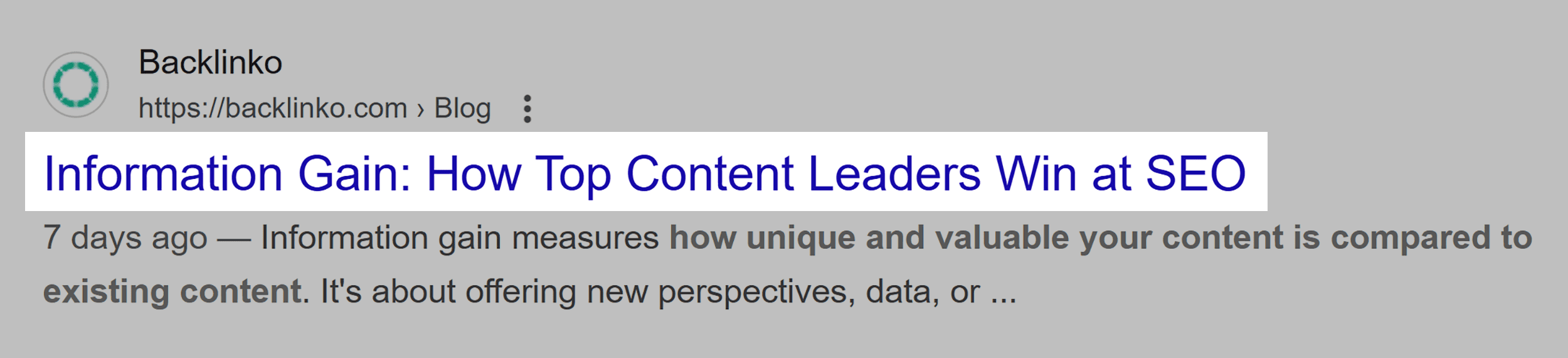
The title tag is the first thing users see in search results. So it’s your most important opportunity to convince them to click through to your site.
While they can affect rankings, the main influence is going to be on your click-through rate (CTR).
But:
Google often rewrites titles when it thinks a different title would better serve the searcher. In fact, a study by Zyppy found that Google rewrites about 61.6% of title tags.
(Note that it’s not actually rewriting your title tag, just displaying a different title in search results.)
For example, Google sometimes shows our article H1…
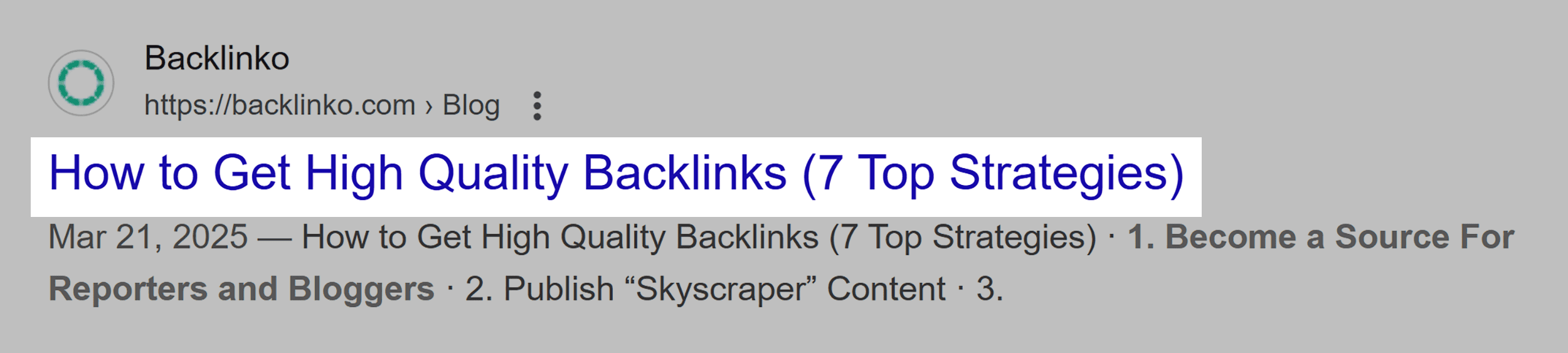
…instead of the title tag:
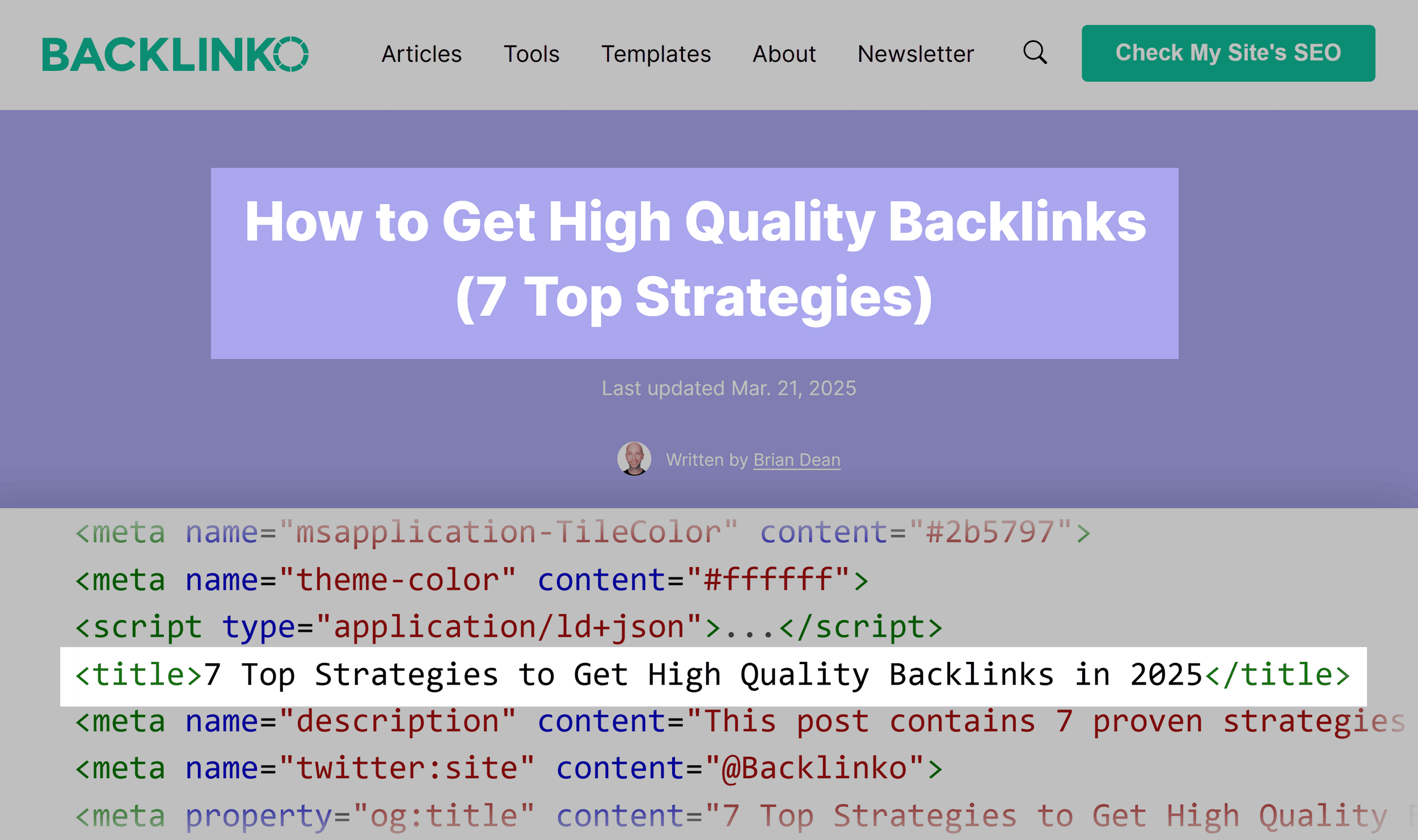
Even though Google often rewrites them, you should still optimize your title tags because:
- They give Google useful context about your page
- They’re your first chance to influence CTR
- Even when it rewrites them, Google often still uses elements of your title tag in the one it displays
Title Tag Best Practices
Here’s how to write title tags that both search engines and humans love:
Front-Load Your Primary Keyword
Put your most important keyword at the beginning of your title when possible. This makes it immediately clear what your page is about.
So instead of this:
- “A Complete Beginner’s Guide to Understanding Social Media Marketing”
Do this:
- “Social Media Marketing: The Complete Beginner’s Guide”
Keep It Concise But Descriptive
Google typically displays the first 50-60 characters of your title tag. It’ll often truncate (cut off) anything longer than that.

Make It Stand Out
Use power words, numbers, or parentheses to make your titles stand out from competitors.
Compare these two titles:
- HTML Tags for SEO
- 17 HTML Tags That Will Skyrocket Your SEO (Proven Results)
Which one would you click?
Obviously don’t use clickbait. But consider how you can make your titles more clickworthy.
2. Heading Tags (H1-H6)
SEO Impact: High
Heading tags create a hierarchical structure for your content that helps both readers and search engines understand how your information is organized.
Here’s how heading tags look in HTML:
Main Page Title
Major Section Topic
Subsection
Further breakdown of the subsection
Even more specific point
The most granular level
(Most of the time you’ll only need to go to H3/H4.)
Think of these tags like an outline for your page. They create a clear content hierarchy that Google uses to understand what your page is about.
Many sites (including this one) use heading tags to create a table of contents for easier navigation.
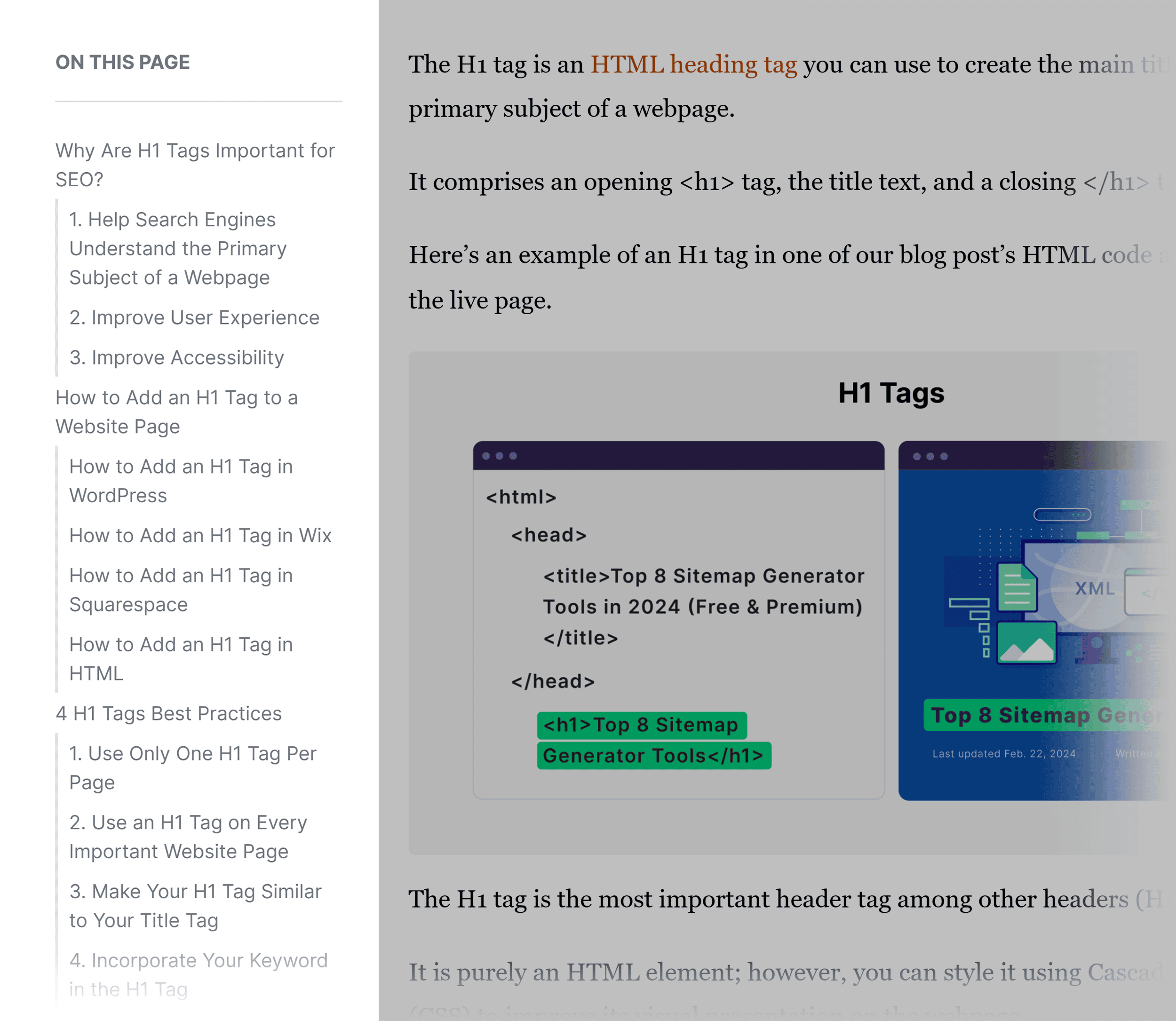
Heading tags also:
- Improve readability by breaking up text
- Help users scan your content
- Make your page more accessible for people using screen readers
Heading Tags Best Practices
Here’s how to optimize your heading tags for SEO:
Closely Match Your H1 to Your Title Tag
Your H1 should function as the main title of your page, and you only need one.
Remember the example from earlier where Google used our H1 instead of our title tag?
This happens more often than you’d think.
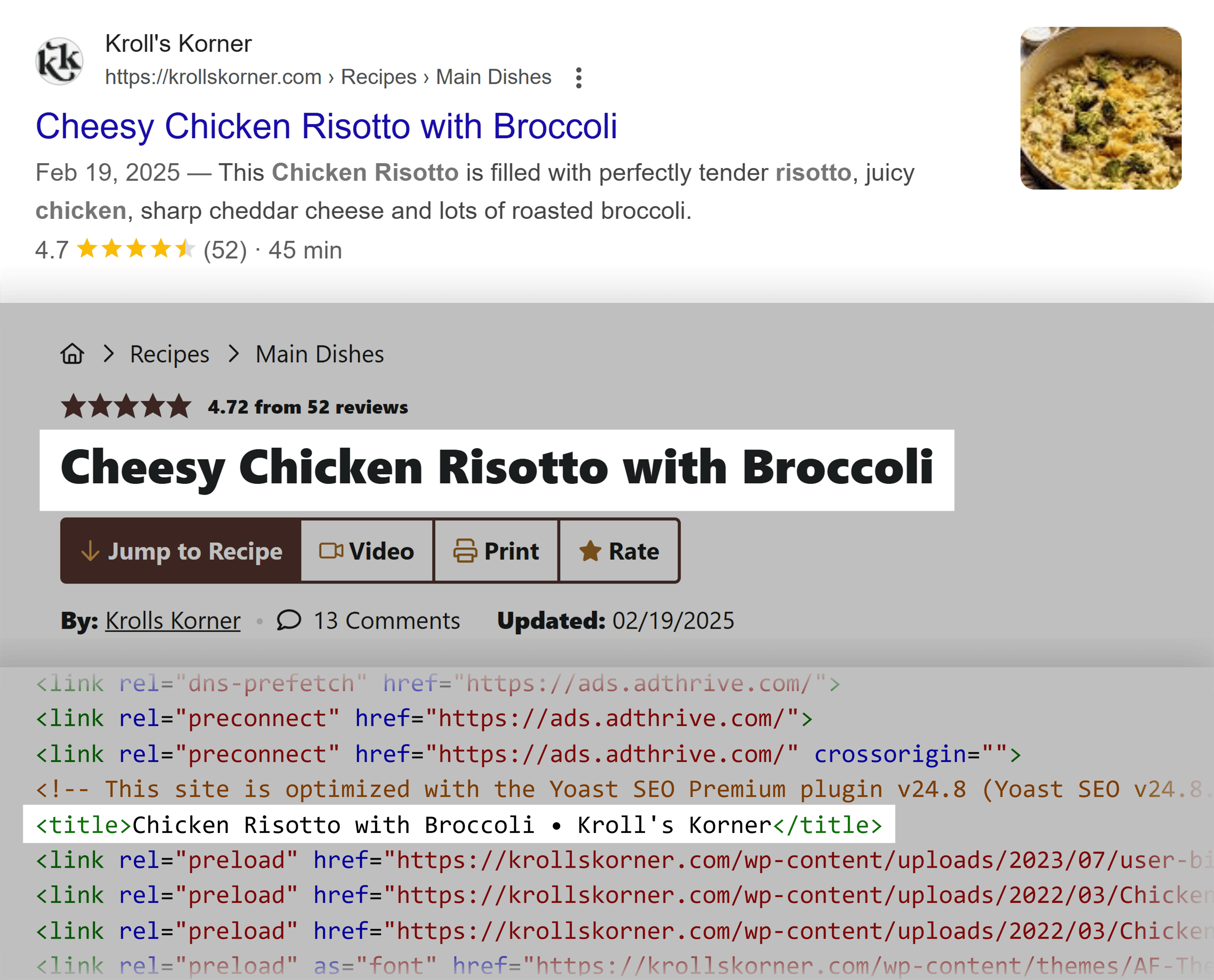
So, optimizing your H1s for SEO and CTR could improve your performance beyond simply providing Google and users with helpful context.
But the aim here isn’t to get Google to choose your H1 over your title tag.
Instead, by closely matching your H1 and title tag, you just make it more likely that Google will choose a relevant, keyword-focused title to display in search. Plus, when the user lands on your page, the H1 is relevant to the content they’re about to read.
Include Target Keywords (Naturally)
Include your primary keyword in your H1 and variations of your keyword in your H2s and H3s where it makes sense.
But don’t force it. Your headings still need to read naturally.
Keep Headings Concise and Descriptive
Aim for headings that clearly communicate what the following section is about.
This makes it more likely that Google will display sections of your content in featured snippets and people also ask boxes.
Like this featured snippet…
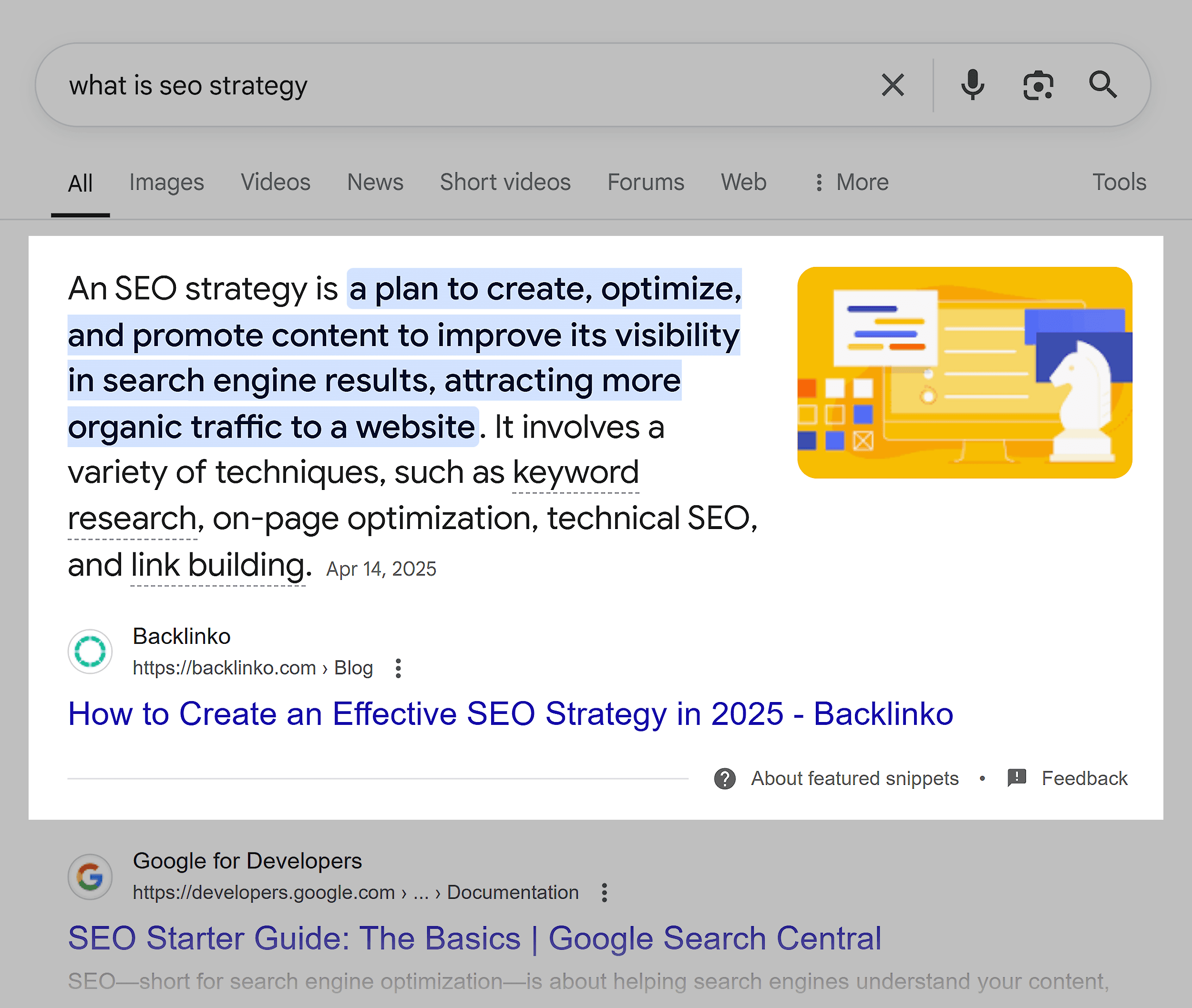
…based on this H2 section:
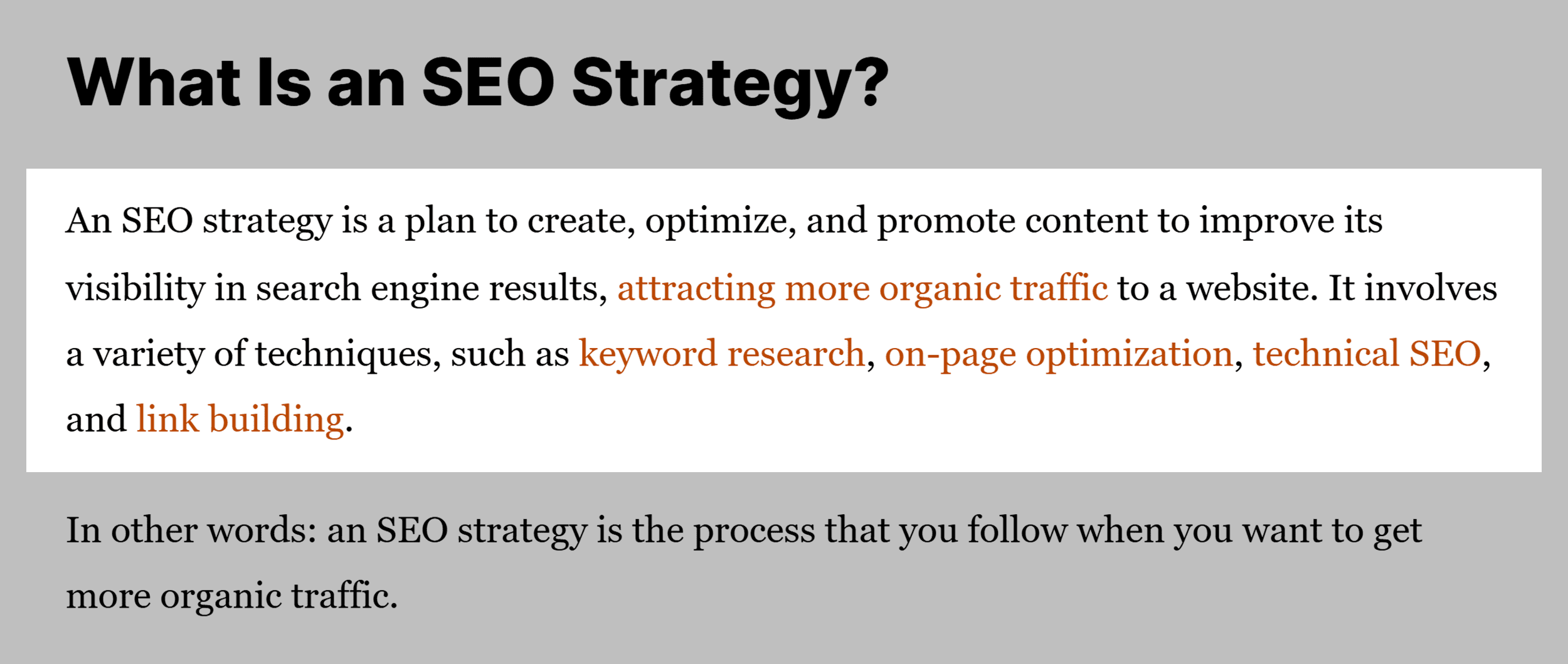
Plus, they’re just better for users too, improving readability.
3. Robots Meta Tag
SEO Impact: High
The robots meta tag gives you control over how search engines interact with individual pages on your site.
Here’s what a robots meta tag looks like in HTML:
You place this tag in thesection of your HTML. It provides specific instructions to search engine crawlers that visit your page.
While the robots.txt file controls site-wide access, the robots meta tag gives you page-by-page control.
This is the first HTML tag on this list that uses attributes and values.
It’s worth explaining these because you can modify different elements (or “tags” for simplicity) with attributes and values. And it’s often the case that the specific attributes you use are what impact your SEO.
For example, in this case the “tag” is the “meta” part, “content” is the attribute, and “noindex, nofollow” are the values.
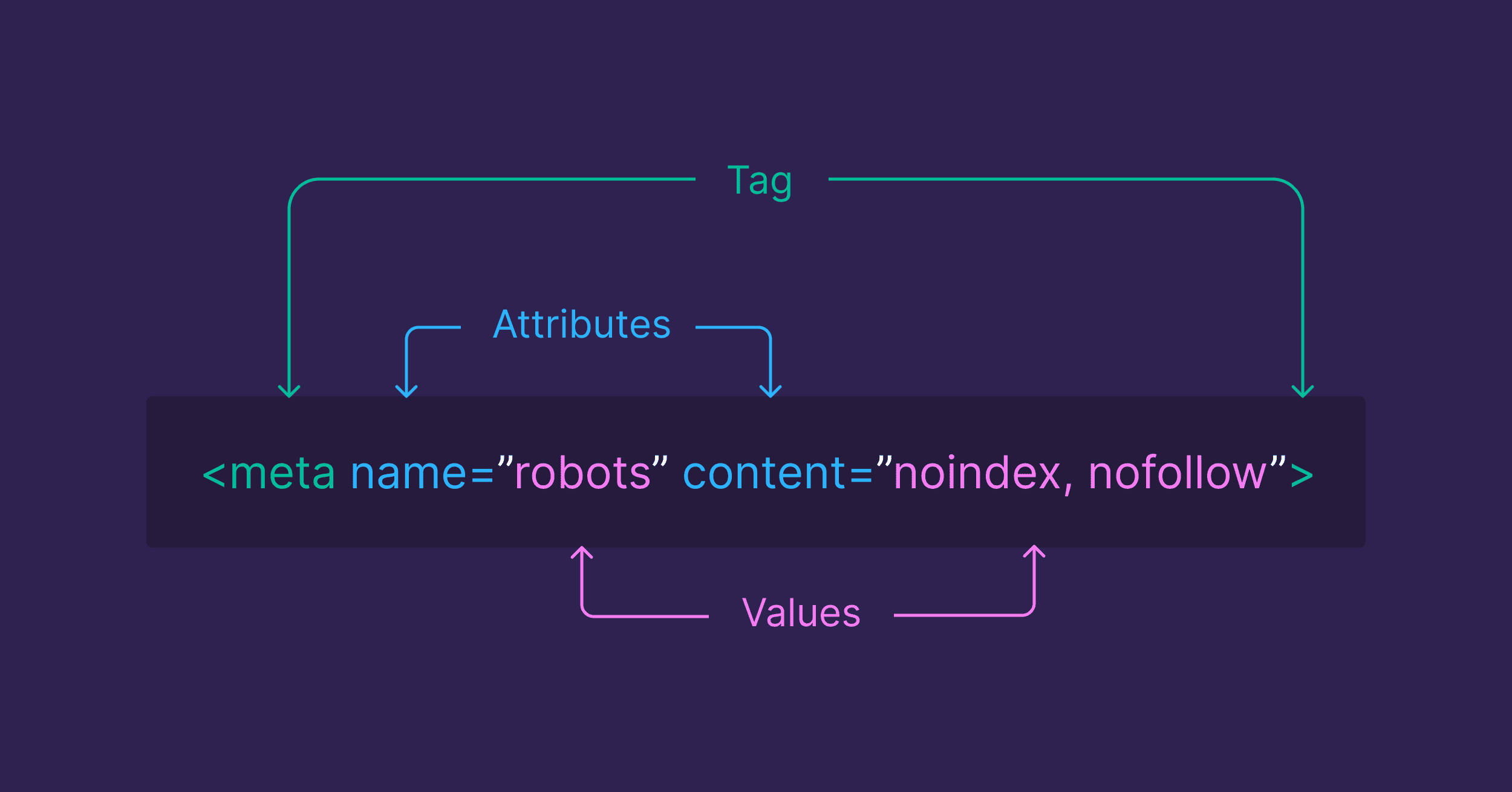
The most common directives you can use in the robots meta tag are:
- index/noindex: Controls whether Google should index the page
- follow/nofollow: Controls whether Google should follow links on the page
- nosnippet: Stops Google displaying a description in search results (usually not what you want)
Robots Meta Tag Best Practices
Here’s how to use the robots meta tag effectively:
Default to “index, follow” for Most Pages
Most pages should use a meta robots tag like this:
You can even simply omit the tag since this is the default behavior.
If you’re using a CMS like WordPress, it’ll likely use this default configuration for your pages. You can use plugins to provide more control, like Yoast:
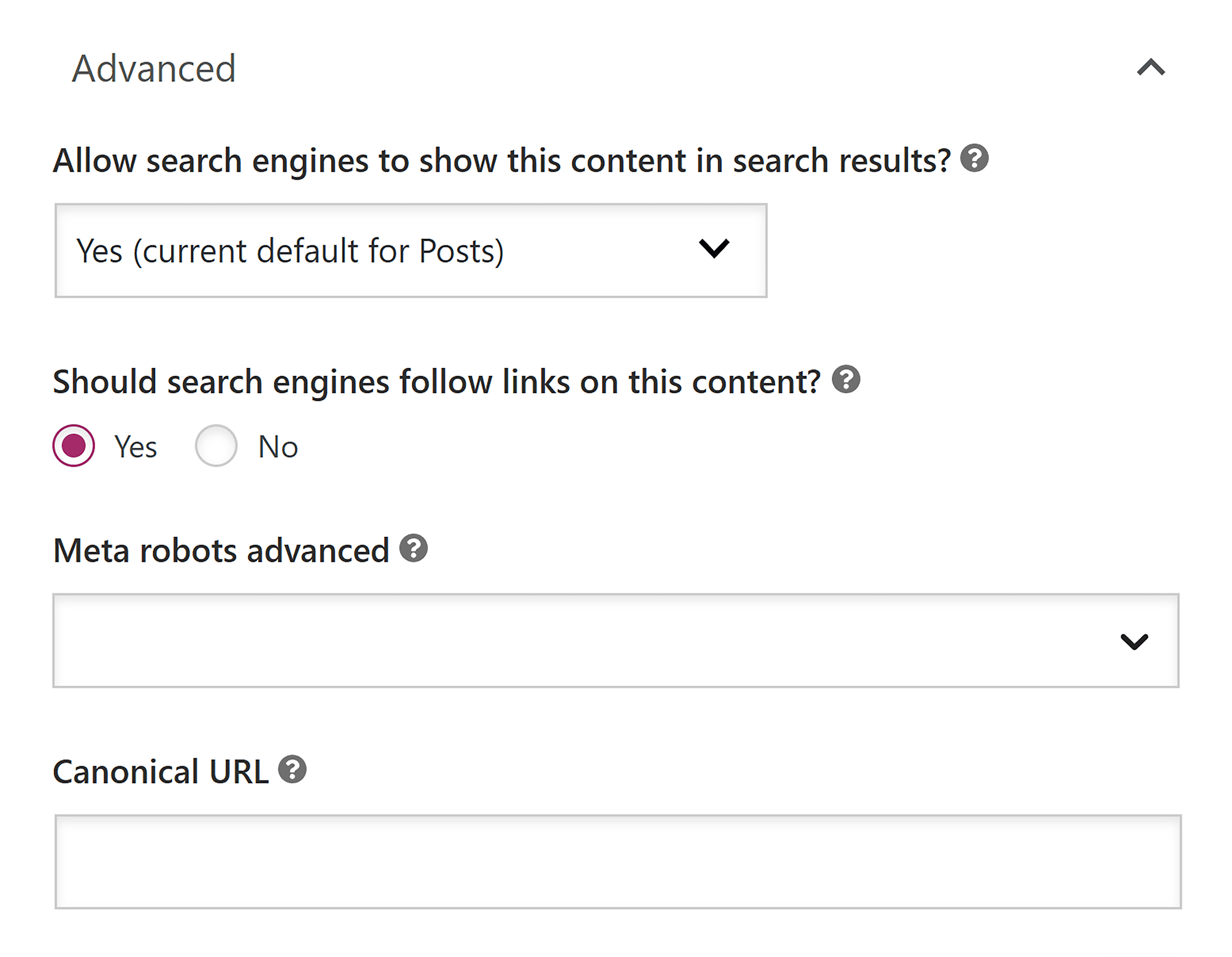
Use “noindex” Strategically
Apply “noindex” to pages that shouldn’t appear in search results but are still valuable to users, such as:
- Thank you pages
- Admin pages
- Pages still in development
Use the “follow” directive to ensure that link equity still flows through these pages even though they won’t appear in search results:
Remember That “noindex” Prevents Indexing, Not Crawling
Google will still need to crawl your “noindex” pages to see the directive. It doesn’t mean the page will never be crawled.
So if you don’t want to index the page, make sure you haven’t blocked crawling in your robots.txt file.
4. Canonical Tag
SEO Impact: High
The canonical tag tells search engines which version of a page is the “primary” version. In other words: the one they should index and rank.
Here’s what a canonical tag looks like in HTML:
Why are canonicals important?
When Google sees multiple pages with the same or close to the same content, it has to decide which version to index and where the link equity should go.
Without canonical tags, Google makes these decisions for you, often not in your favor.
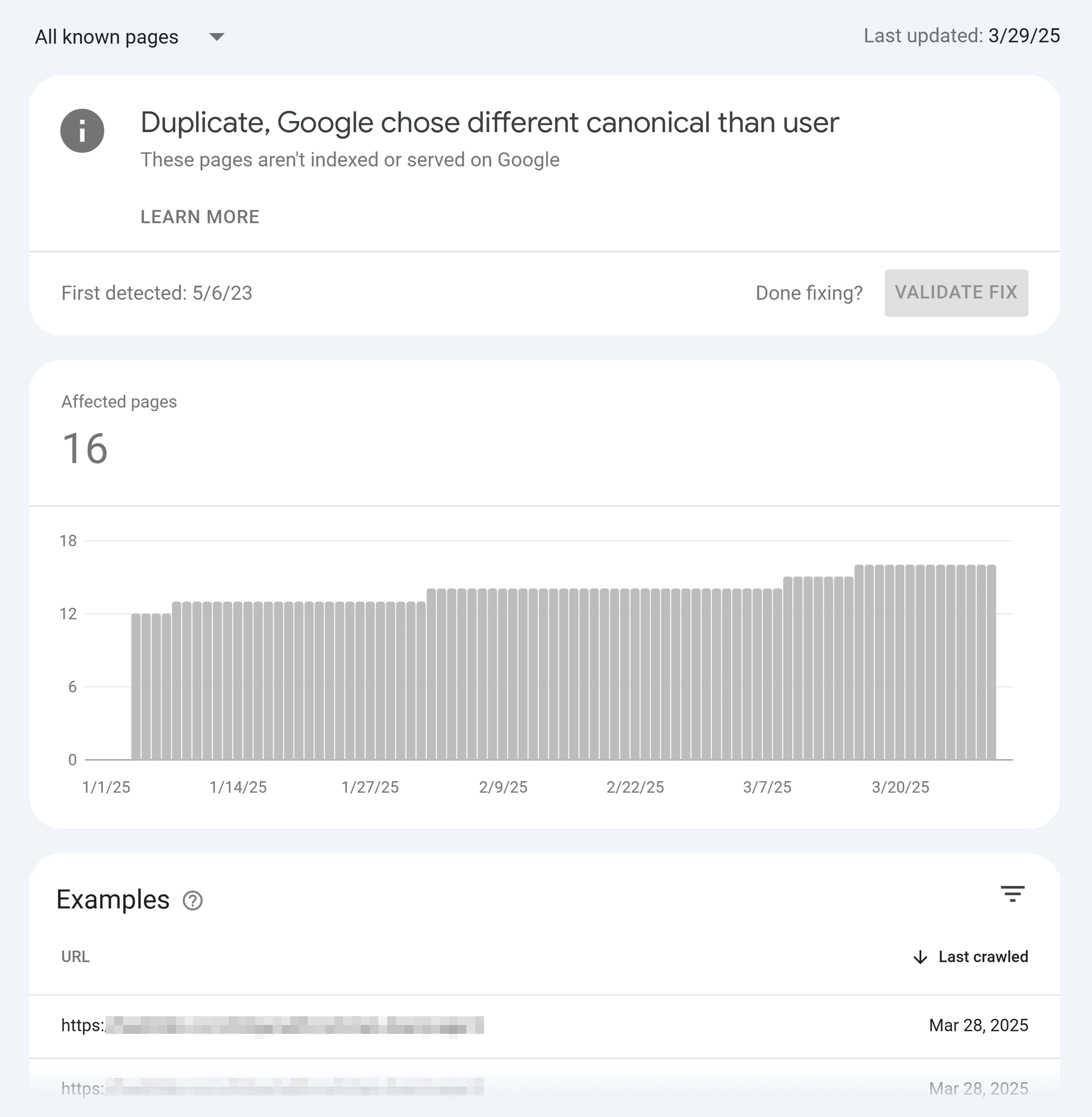
Common situations where you need canonical tags include:
- When your site can be accessed through both www and non-www URLs
- When products can be accessed through multiple category paths
- When you have similar content across mobile and desktop versions (less common nowadays)
You’ll usually just want your main page URL to be the canonical. But when you want to change it, you might need to use a plugin if you’re using WordPress, like Yoast:
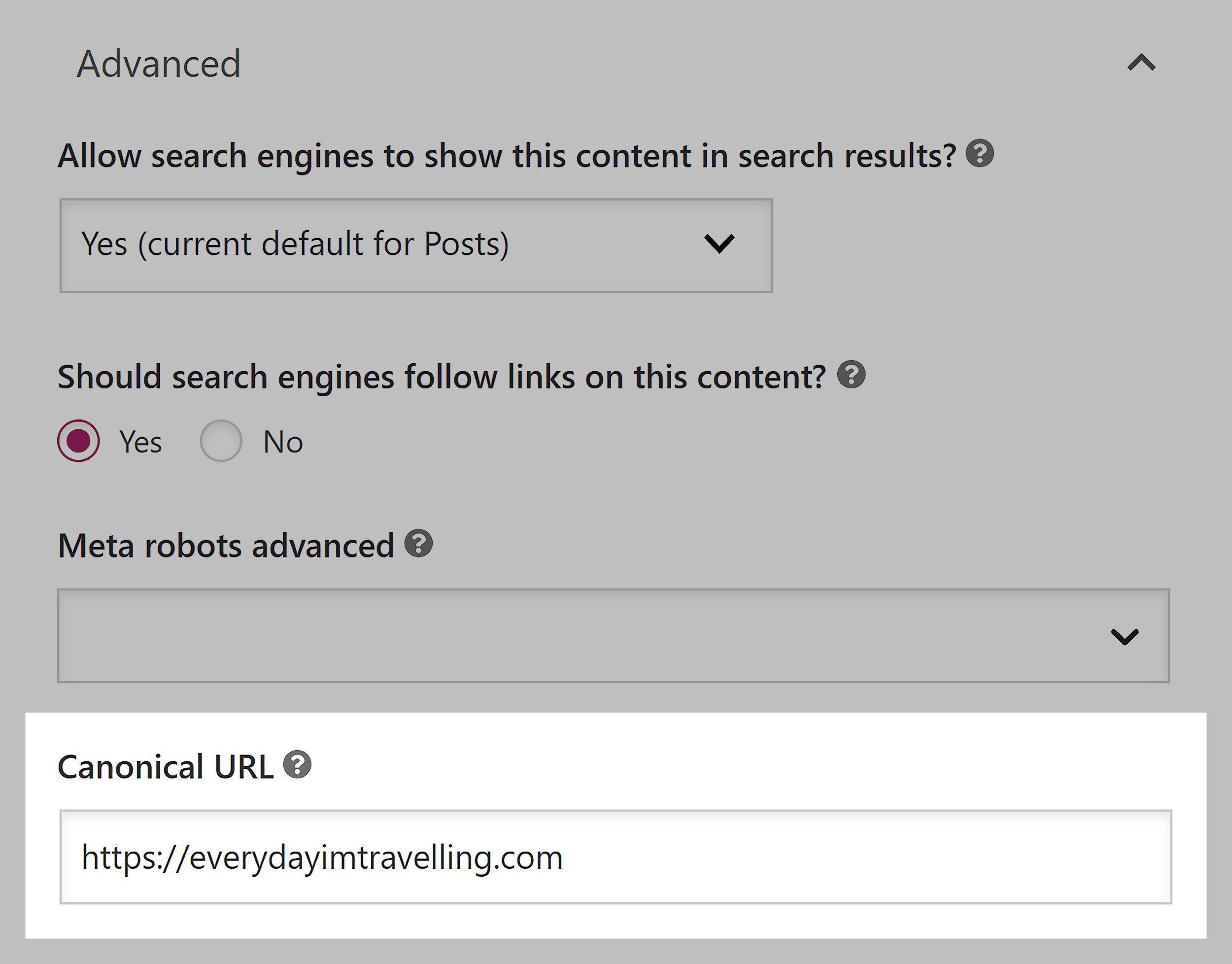
On other platforms, like Shopify and Wix, there may be page-level settings you can tweak.
Canonical Tag Best Practices
Here’s how to implement canonical tags effectively:
Use Absolute URLs, Not Relative Paths
Always use the complete URL, including the protocol (https://) in your canonical tag.
Correct:
Incorrect:
Be Consistent with Trailing Slashes
Choose whether your URLs end with a slash or not and stick with it.
If your preferred URL is https://yourdomain.com/page/, don’t canonicalize it to https://yourdomain.com/page (without the trailing slash).
Google treats these as two separate URLs.
5. Link Tags
SEO Impact: High
You use link tags to create hyperlinks between pieces of content. These can be internal (to links on your site) or external (to other websites).
But you also use link tags for things like canonicalization (see above), defining site icons, and even improving your site’s performance.
Here’s what link tags look like in HTML:
Most website platforms like WordPress will insert link tags properly any time you add a link in the post or page editor.
Link Tag Best Practices
Beyond the element in the section of the page, you can also use relationship attributes in regular anchor tags within your content.
Here are the most common ones and when to use them:
Use “nofollow” for Sites You Don’t Want to Endorse
Use the “nofollow” attribute when you don’t want Google to associate your site with the page you’re linking to. Or when you just don’t want to pass link authority from your site to theirs.
You might want to set your site up to automatically add this to external links that you’re not manually reviewing (like blog comments). But you can also use them for paid or sponsored links.
Use “sponsored” for Affiliate and Sponsor Links
Nofollow was the traditional way to mark sponsored and affiliate links. But the dedicated “sponsored” attribute also works (Google says it prefers the sponsored attribute):
Use “ugc” for Links to User-Generated Content
Finally, for comments and forum posts, you can use the “ugc” attribute:
You can also combine these attributes, so you’ll often see links like this:
6. Hreflang Tag
SEO Impact: High
The hreflang tag tells search engines which language and geographical region a specific page is intended for.
This helps Google choose the right version to display in search results for different audiences.
Here’s what hreflang tags look like in HTML:
Without proper hreflang implementation, Google might:
- Show your UK content to US users (reducing relevance and conversion potential)
- Show your Spanish-language content to French-speaking users (rendering the page useless to that audience)
- Treat your similar language versions as duplicate content (leading to a drop in rankings)
Hreflang Tag Best Practices
Here’s how to implement hreflang correctly:
Use the Correct Language and Country Codes
Language codes follow the ISO 639-1 format (like “en” for English). Country codes use the ISO 3166-1 alpha 2 format (like “us” for the United States).
Common examples:
- en-us: English in the United States
- en-gb: English in Great Britain
- es-es: Spanish in Spain
- es-mx: Spanish in Mexico
- fr: French (all regions)
You don’t need to use a regional code, but hreflang tags do need a language code.
Implement Complete Hreflang Return Tags
Each language/region version must reference all other versions, including itself. This creates a complete loop of references.
For a site with English, Spanish, and French versions, you might have hreflang tags that look like this:
Each page must contain the complete set, including the tag for its own language and region (if you’re using one).
Use X-Default for Fallback Pages
The x-default value specifies a fallback page when none of your language/region versions match the user.
It looks like this:
Use Absolute URLs
Always use complete URLs including the protocol (https://):
Correct:
Incorrect:
- href=”/es/page/”
7. Alt Tags
SEO Impact: Low
Alt tags (technically attributes rather than HTML tags) provide a text description of an image. The alt tag serves multiple important purposes as it:
- Makes your images accessible to visually impaired users
- Appears when images fail to load
- Helps search engines understand what your images show
- May help your images rank in Google Image Search
Here’s what alt text looks like in HTML:

Here’s an example of useful alt text:

You can manually add alt text by editing your page’s code. But in the WordPress editor for example, you can change it with the menu on the right-hand side:
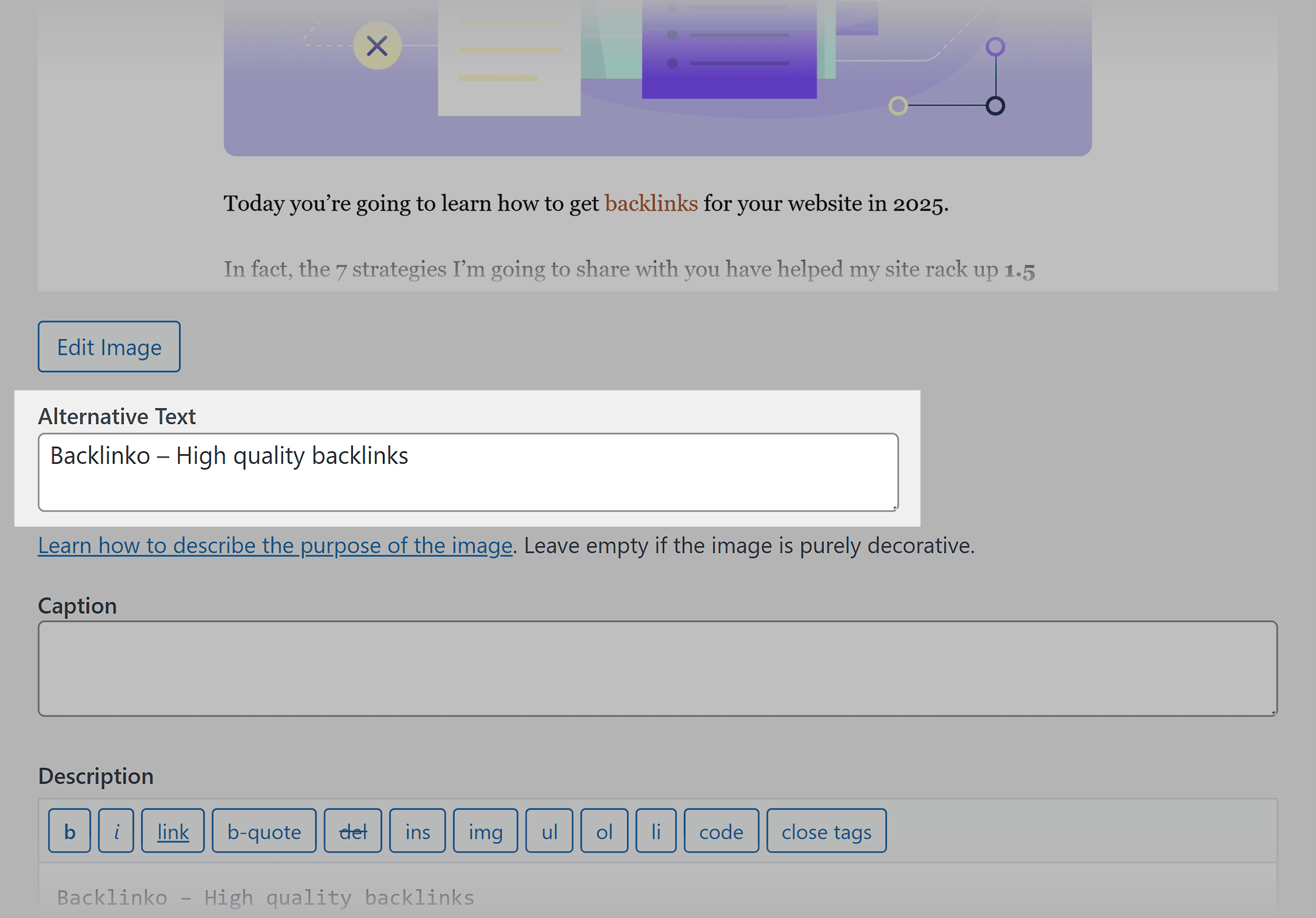
Alt Text Best Practices
Here’s how to optimize your alt text for both users and search engines:
Be Specific and Descriptive
Describe what’s actually in the image. Think about how you’d describe the image to someone who can’t see it.
Bad example:

Good example:
Keep It Concise
Most screen readers cut off alt text at around 125 characters. Aim for alt text that’s descriptive but brief to ensure visually impaired users can understand what your images contain.
Include Your Target Keyword (When Relevant)
If your keyword naturally fits the image description, include it. But don’t force it if it’s not actually relevant to what the image shows.
Natural example:
“HTML title tag example showing proper keyword placement”
Forced example:
“HTML tags SEO title tags meta tags heading tags SEO optimization best practices”
The impact of including keywords in your alt text is just so low that it’s not worth doing at best and spammy at worst.
Don’t Start with “Image of” or “Picture of”
Screen readers already announce that an element is an image, so starting with “image of” is redundant.
Use Empty Alt Attributes for Decorative Images
If an image is purely decorative and doesn’t add any information to the page, use an empty alt attribute:

This tells screen readers to skip the image entirely.
8. Meta Description Tag
SEO Impact: Low
Your meta description doesn’t directly influence your rankings. But it can play a role in convincing users to click on your result in the search engine results pages (SERPs).
Here’s what a meta description looks like in HTML:
And here’s how it typically appears in search results:
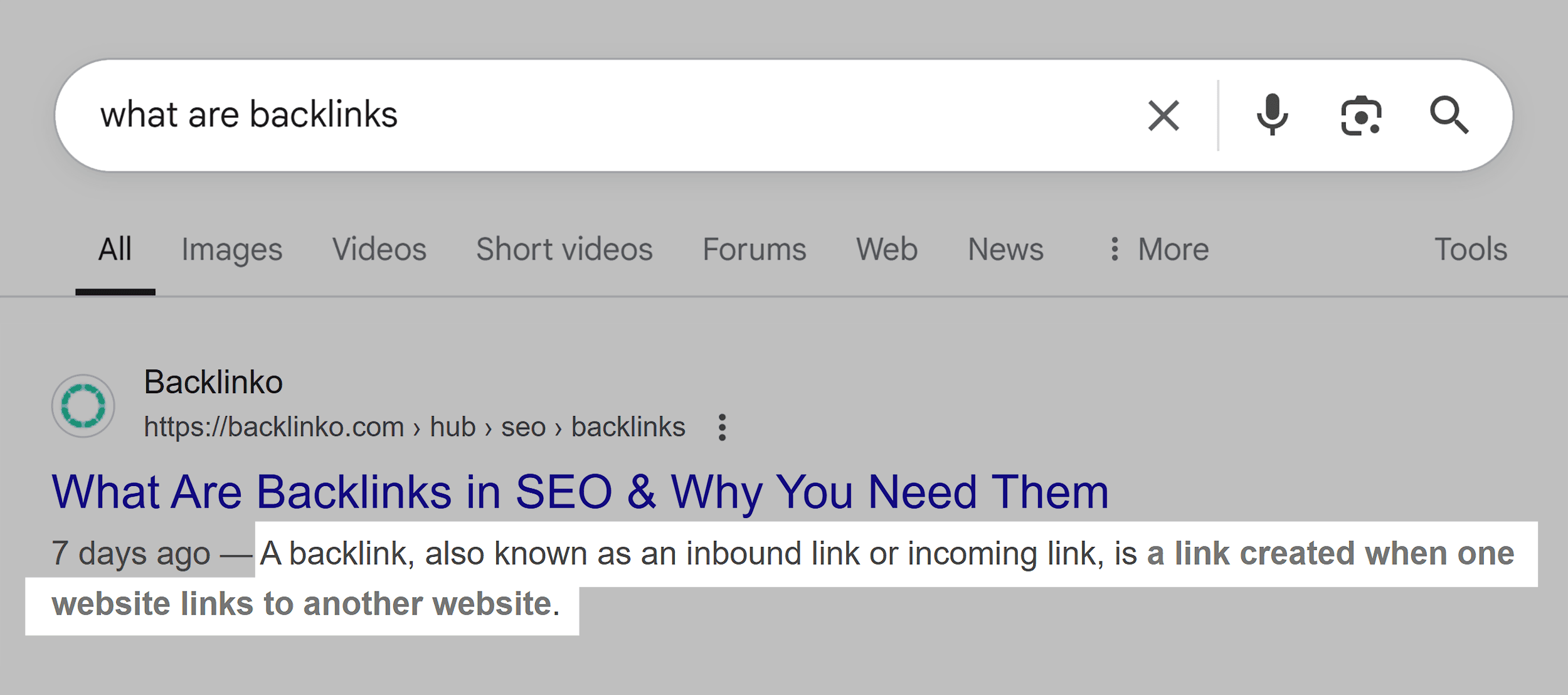
Like with title tags, it’s important to note that Google frequently rewrites meta descriptions. It often pulls relevant text from your page content instead to suit the specific query.
For example, here’s the description Google chose for the same page but for a different search query:
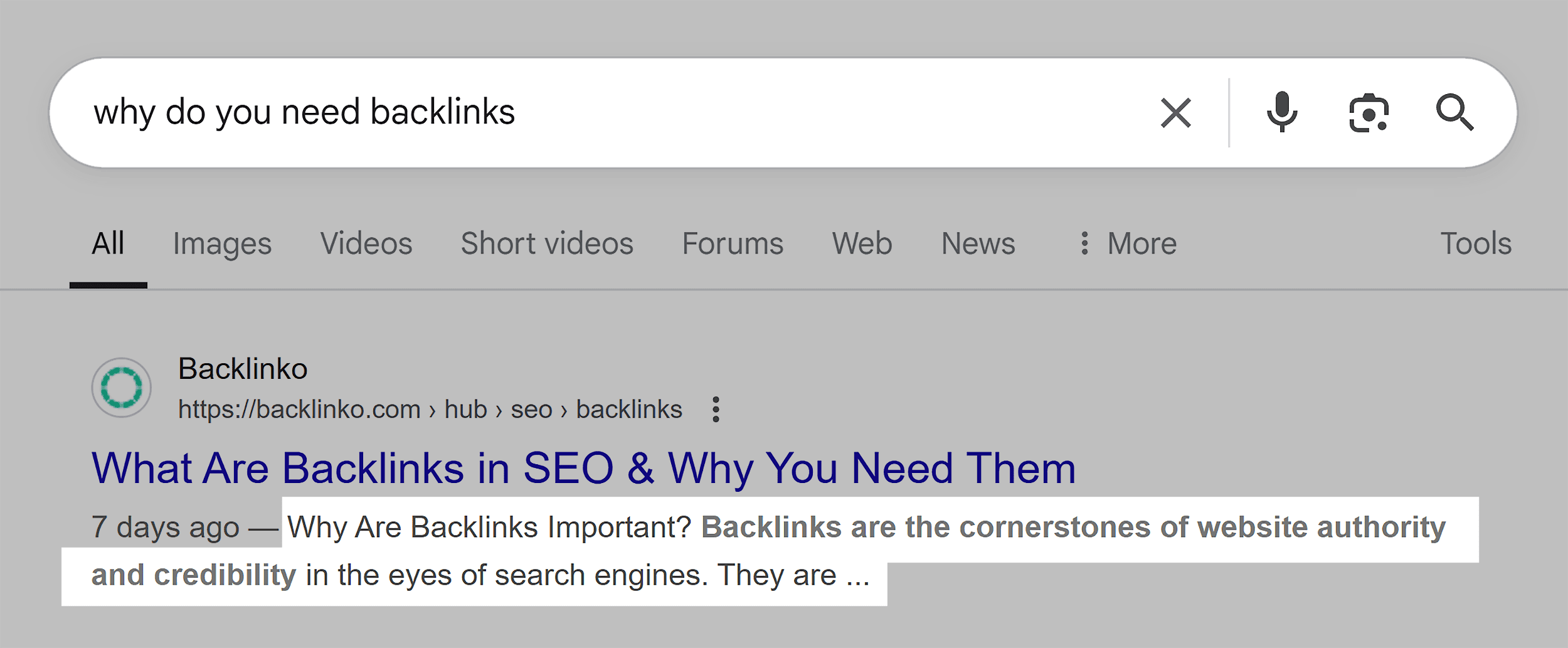
This is why it’s so far down on our list of HTML tags, while it often appears near the top of others.
The bottom line is that putting time and energy into optimizing your meta descriptions is simply not going to lead to measurable SEO impact for most people.
You’ll likely be able to find bigger gains by focusing on other SEO opportunities instead.
But writing a strong meta description can still increase click-through rates when Google does display your chosen description.
Meta Description Best Practices
Here’s how to write meta descriptions that attract clicks:
Keep It Within the Ideal Length
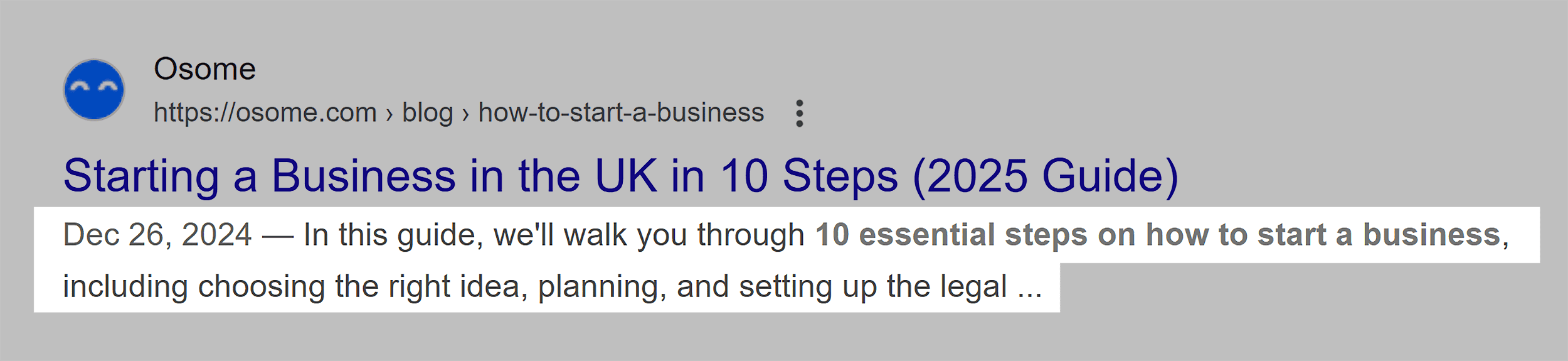
Google typically truncates meta descriptions at around 155-160 characters on desktop (more like 110 characters on mobile). Aim to keep yours under this limit to avoid getting cut off mid-sentence.
Include Your Primary Keyword
When a user’s search query appears in your meta description, Google typically bolds those terms, making your result stand out.
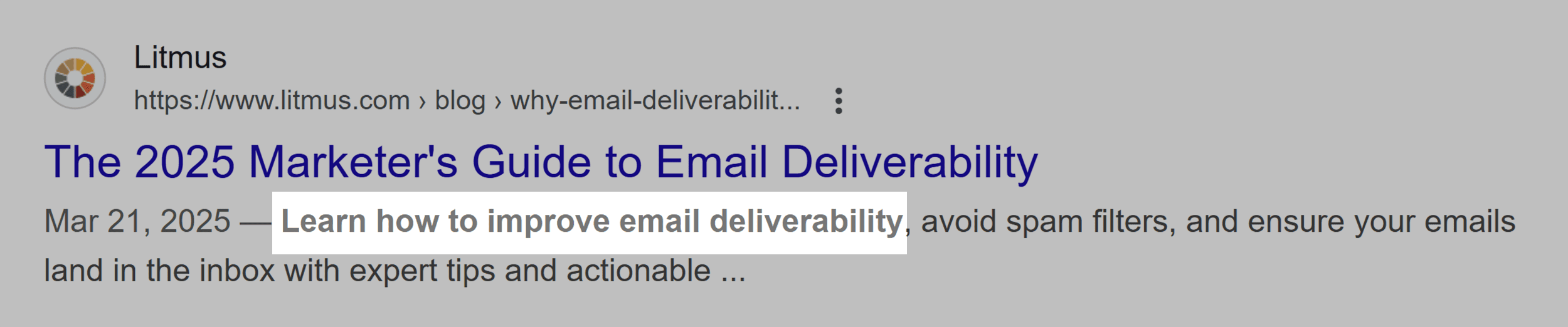
To increase the likelihood of this happening for relevant queries, include your target keyword naturally in your description.
Write Compelling, Action-Oriented Copy
Your meta description should encourage clicks. Use active voice and include a clear benefit or call to action.
Bad example:
“This page is about HTML tags for SEO and how they work.”
Good example:
“Discover which HTML tags actually impact your SEO rankings and learn how to implement them correctly to boost your organic traffic.”
Other HTML Meta Tags
There are a few other meta tags that you should be aware of as a website owner. These won’t directly influence your SEO in most cases. But using them incorrectly can lead to some issues.
Let’s look at the two most important ones:
Viewport Meta Tag
This tag helps ensure your site appears correctly on mobile devices:
The viewport tag tells browsers how to scale and size your page on different devices. Without it, mobile users might see a tiny version of your desktop site. This would provide a poor user experience and potentially lead to higher bounce rates.
How mobile-friendly your site is can affect your rankings, so it’s a good idea to use this tag properly on your site.
Character Set (Charset) Meta Tag
The meta charset tag defines the character encoding for your document. It looks like this:
This tag helps ensure your content displays correctly, and special characters appear as they should.
Not like this:
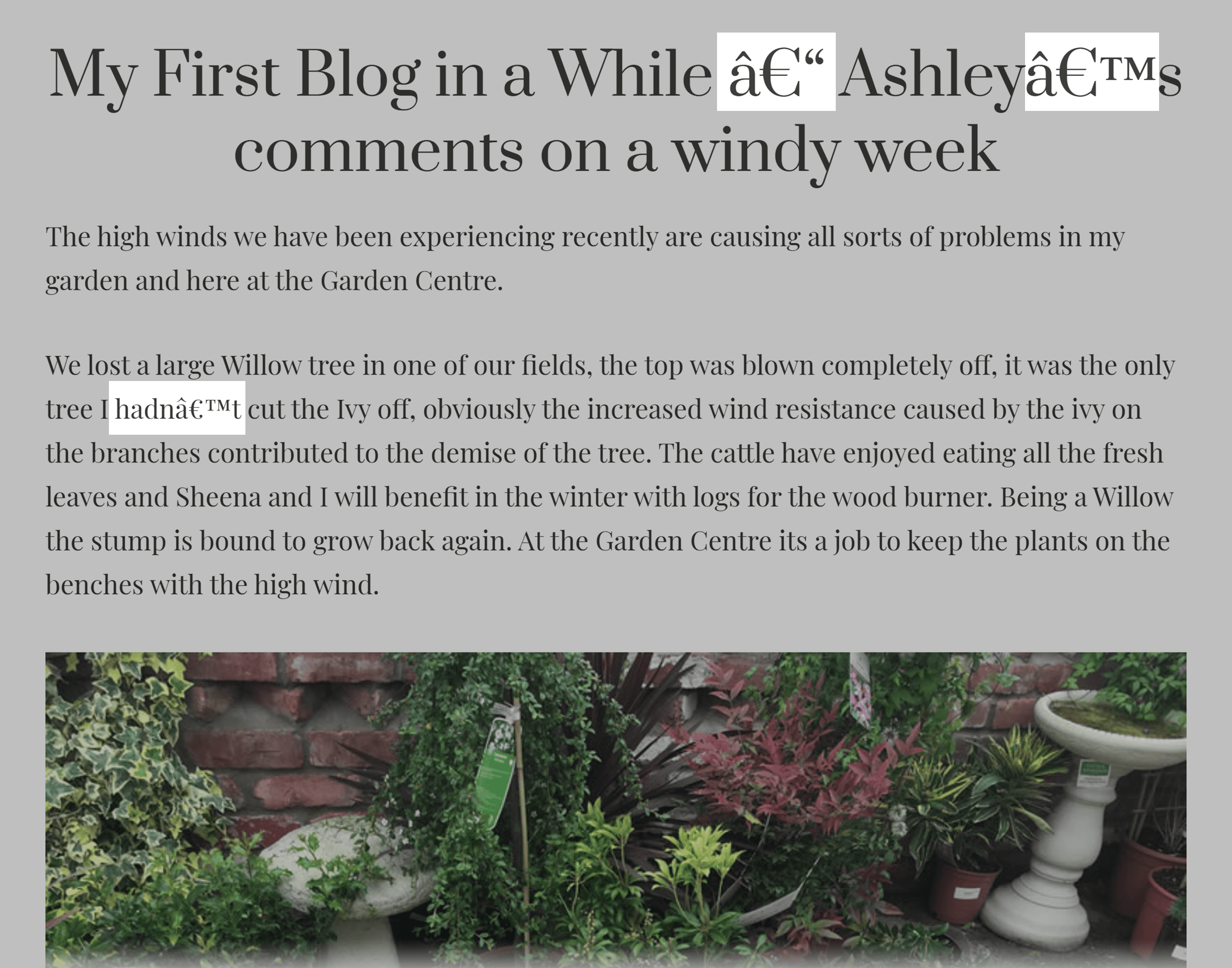
Google recommends using UTF-8 encoding as it supports virtually all characters and symbols.
How to Find Issues with Your Site’s HTML Tags
Here are three ways to check your site’s HTML tags:
1. The Inspect Tool
The quickest way to check your HTML tags on a single page is to use the inspect tool. Just right-click on the element you want to inspect (like a heading tag) or anywhere on the screen to open up the developer tools window.
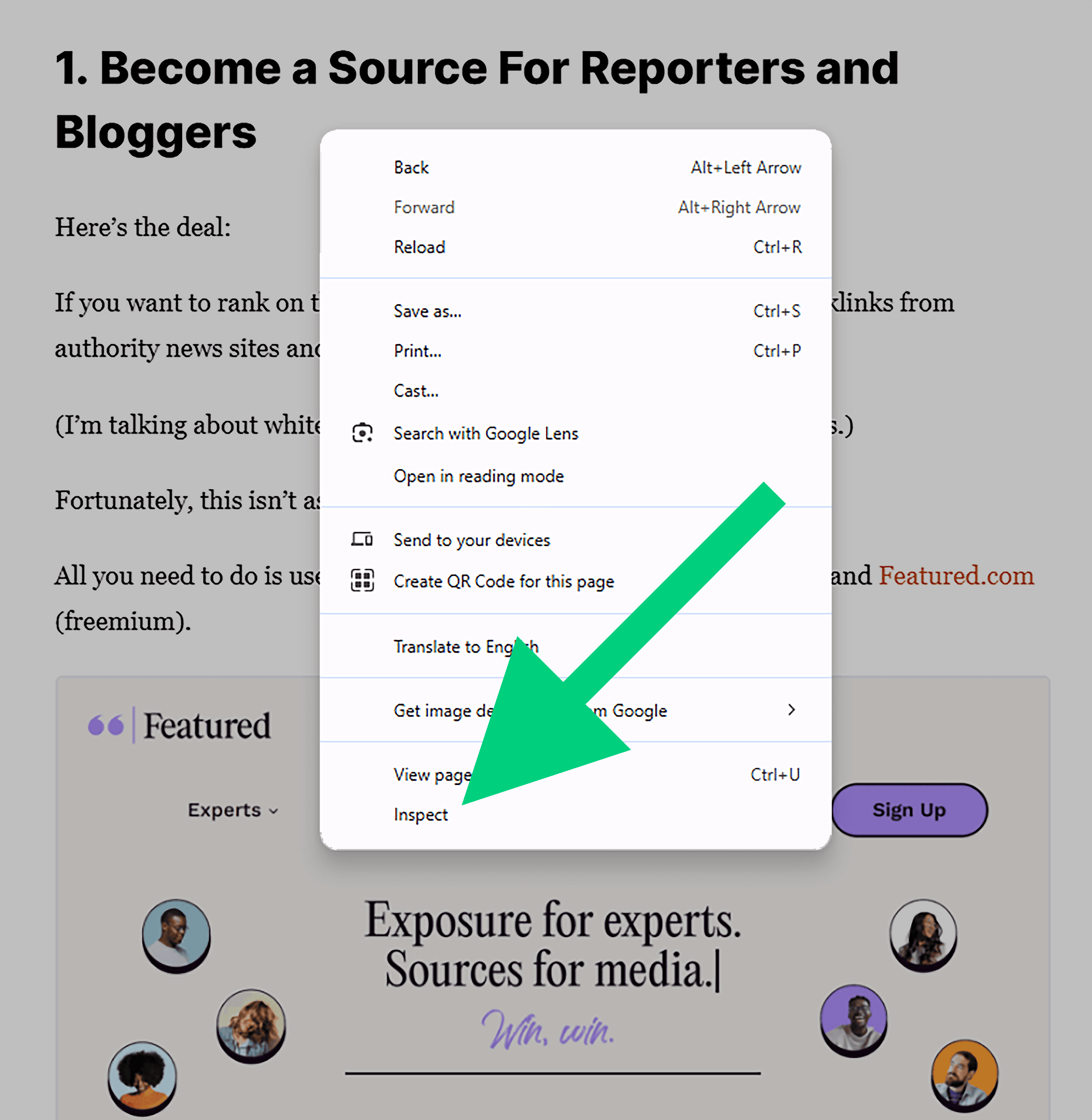
You’ll be able to look at the code to find specific HTML tags. This can be a bit overwhelming at first, but you can use Ctrl/Cmd + F on your keyboard to search for specific tags.
Like this:
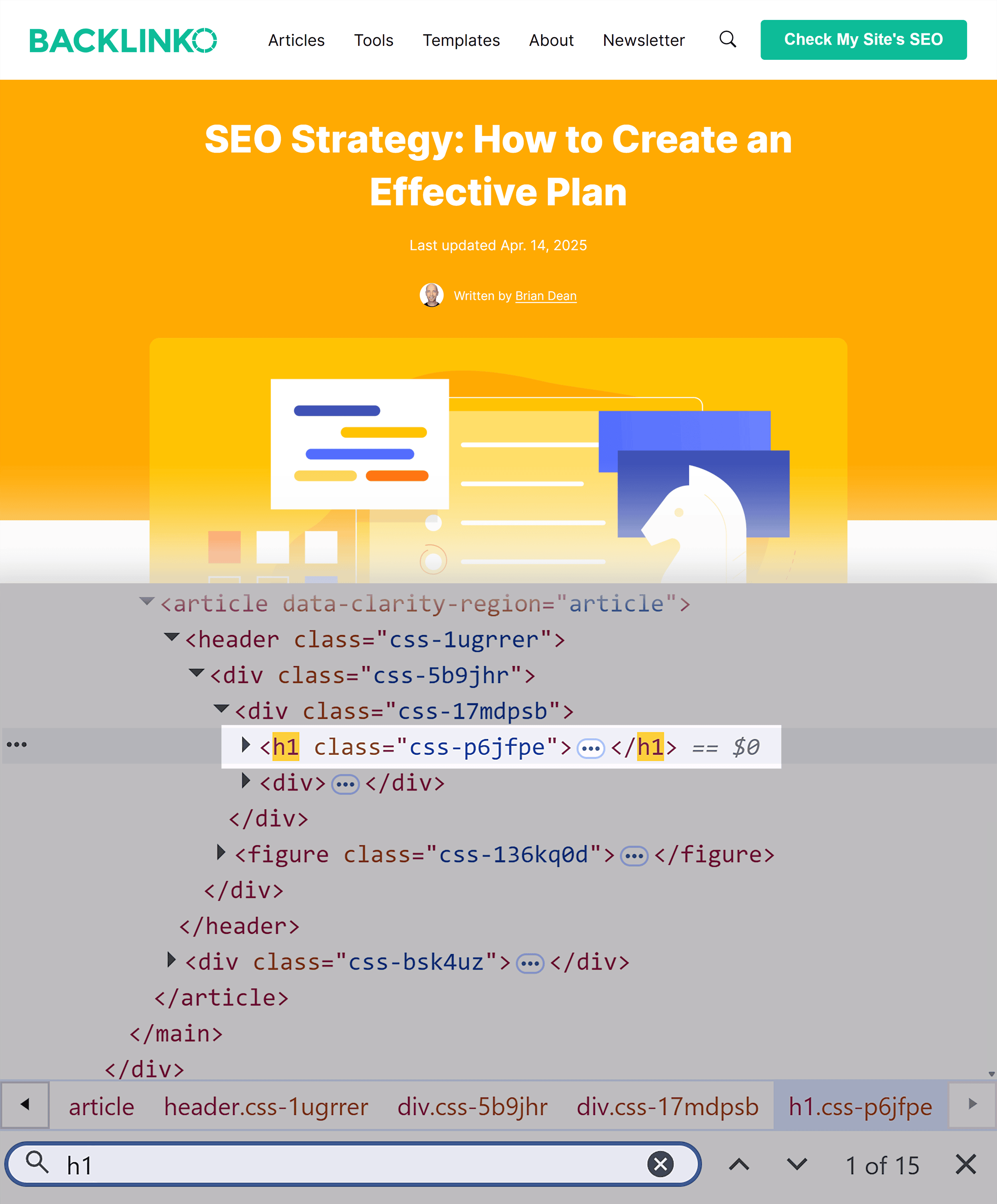
This is useful if you want to check for the presence of a specific tag. Or if you want to verify things like image alt text or canonical URLs.
2. The Detailed Chrome Extension
Another option for checking HTML tags on specific pages is the Detailed Chrome extension. It shows a lot of useful information about a site’s SEO. But we’re most interested in the HTML tags it shows.
Here’s what it looks like:
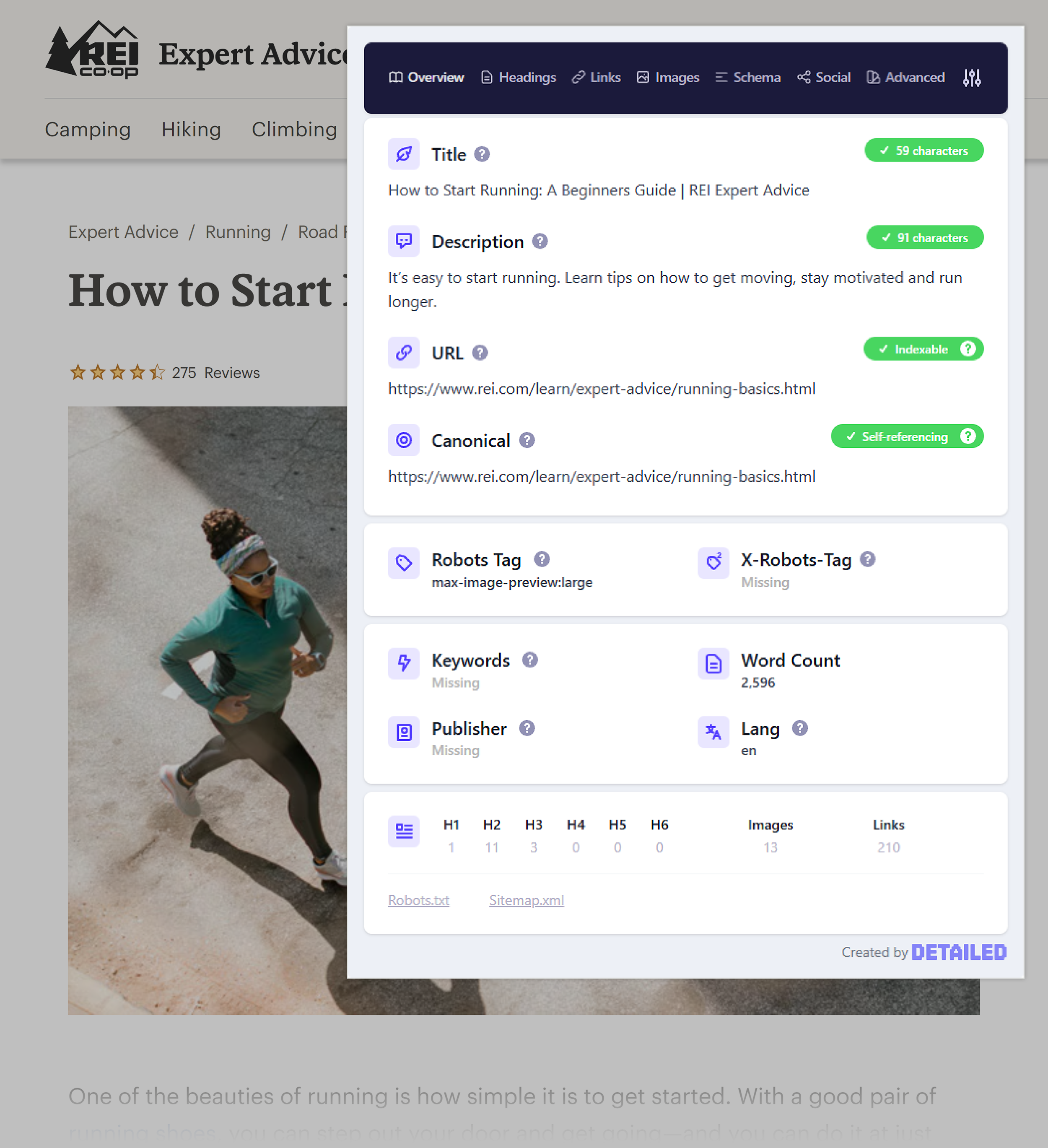
It’ll show the page’s:
- Title tag
- Meta description
- Canonical URL
- Robots meta tag
- Heading hierarchy
- Links
- Image alt tags (you’ll need to export them first)
- Schema
- Open Graph and Twitter Cards
3. Semrush Site Audit
If you want to check more than one page’s HTML tags, you’ll need a more powerful tool. Semrush’s Site Audit will scan your full site and highlight any issues with your HTML tags.
Just run an audit and head to the “Issues” tab. Then search for “tag” to highlight relevant issues:
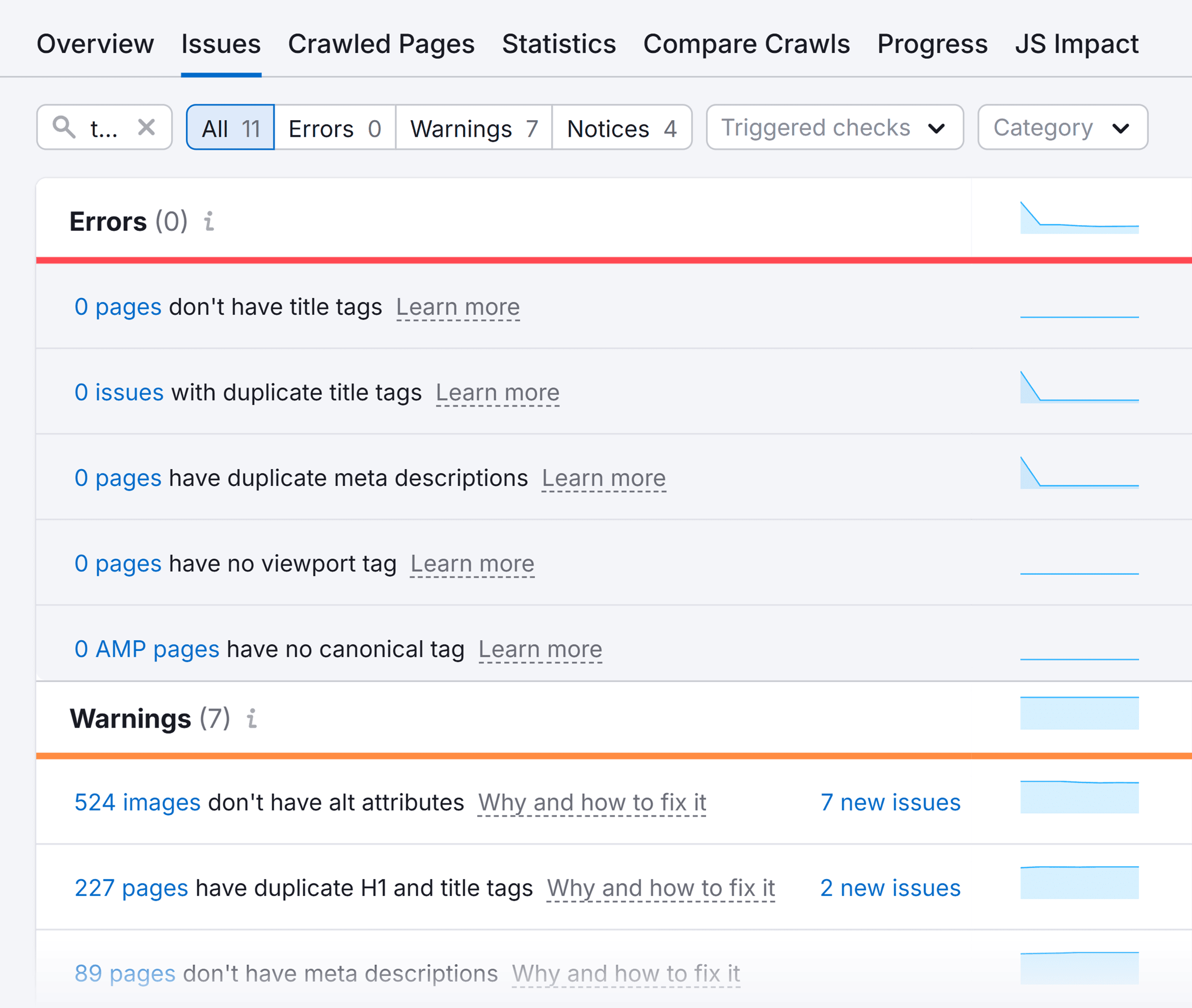
Site Audit will highlight issues related to your:
- Title tags
- Meta description
- Meta viewport tags
- Canonicals
- Alt attributes
- Heading tags
- Links
- Hreflang
This makes it super useful for spotting issues across your entire site. Just click on any of the linked numbers to see each page with the relevant issue:
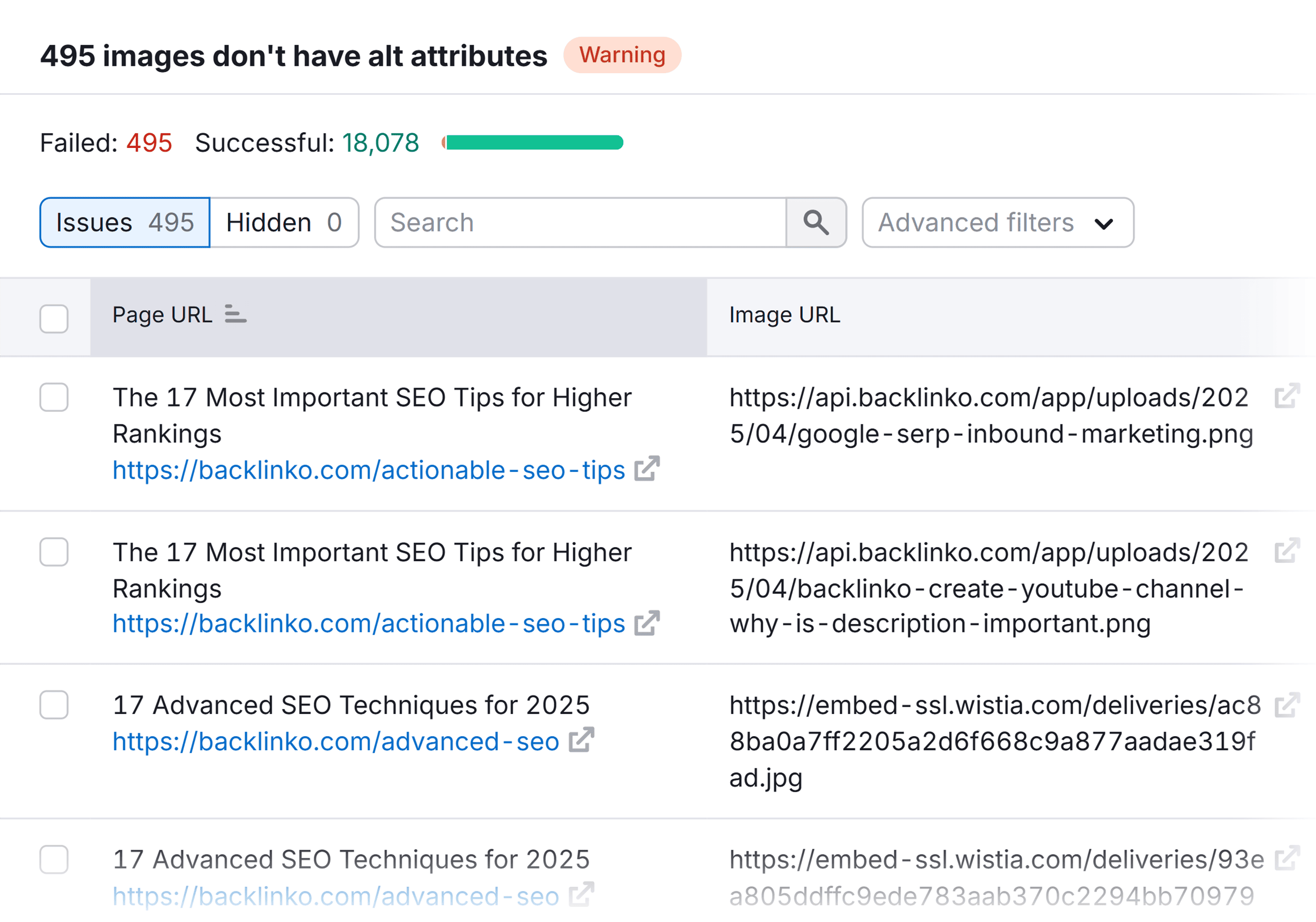
Go through each of these and fix the issues to improve your site’s SEO and user experience.
Backlinko is owned by Semrush. We’re still obsessed with bringing you world-class SEO insights, backed by hands-on experience. Unless otherwise noted, this content was written by either an employee or paid contractor of Semrush Inc.