Schedule YouTube Shorts with Buffer | Grow Your Channel (original) (raw)
Turn your shorts into subscribes
Take your channel from zero to trending. With Buffer, planning, publishing, and amplifying your YouTube Shorts is as easy as hitting that subscribe button — helping you connect with fans and grow your community.
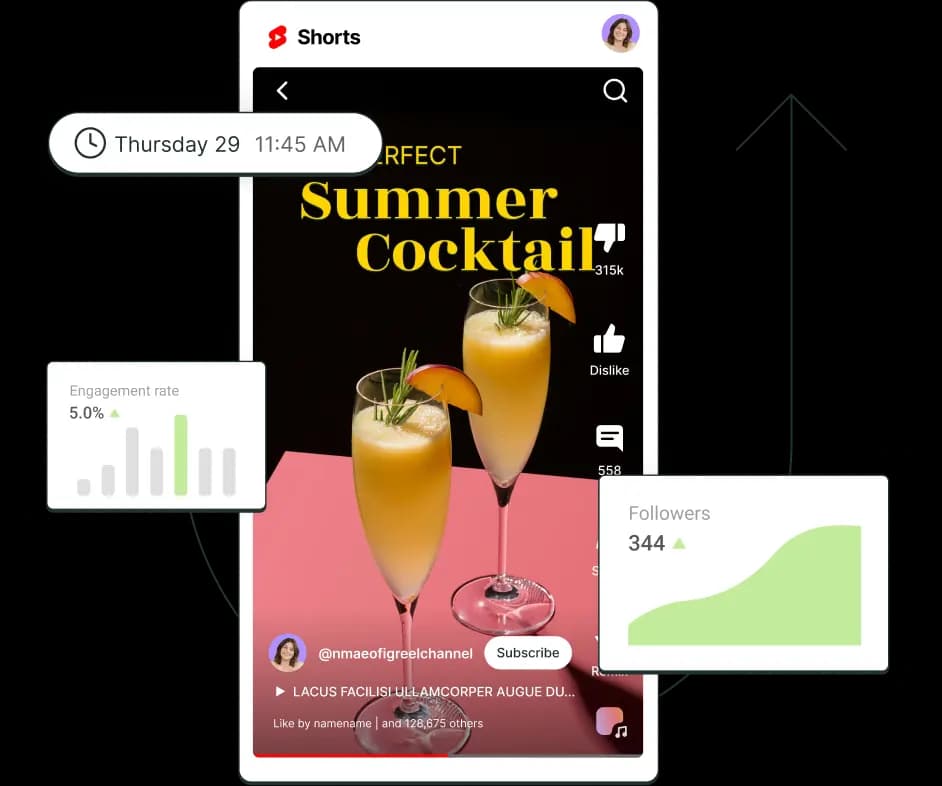
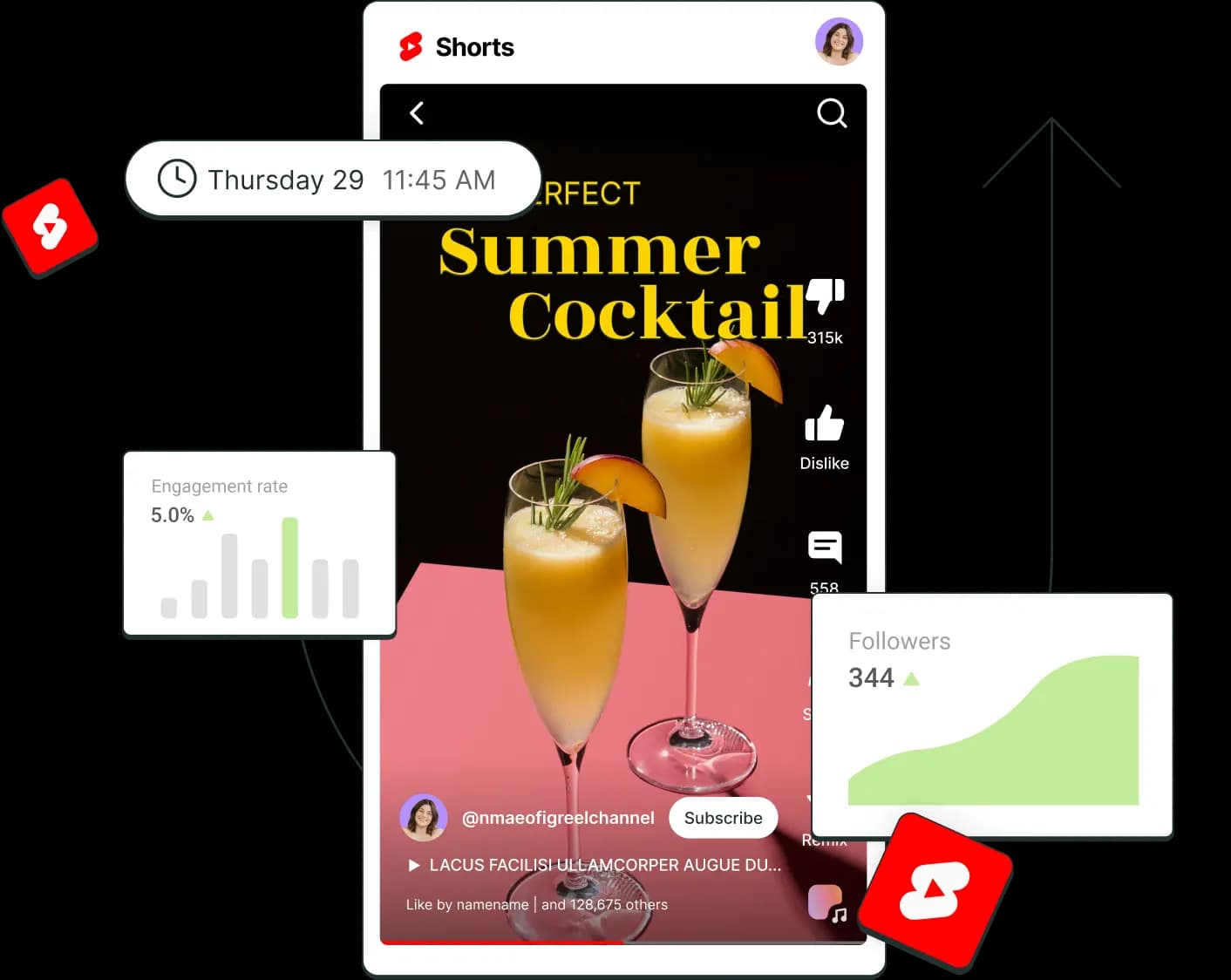
Effortless video scheduling
Plan your video releases with ease. Schedule Shorts in advance to keep your channel active.
Save your creative content ideas
Keep all your video ideas organized in one place. Need inspiration? Use our AI tools to spark new content ideas or refine your video scripts.
Share everywhere
Maximize your reach by effortlessly sharing your videos across multiple platforms, not just YouTube, in one go.
Personalize your free link-in-bio page
With Start Page, give your audience a single link to everything — your videos, merch, and more —automatically updated with every new upload.
One tool, endless possibilities
Buffer isn’t just about scheduling. Discover how our suite of features simplifies content management, fuels endless content ideas, and helps you build a thriving YouTube community.
Schedule
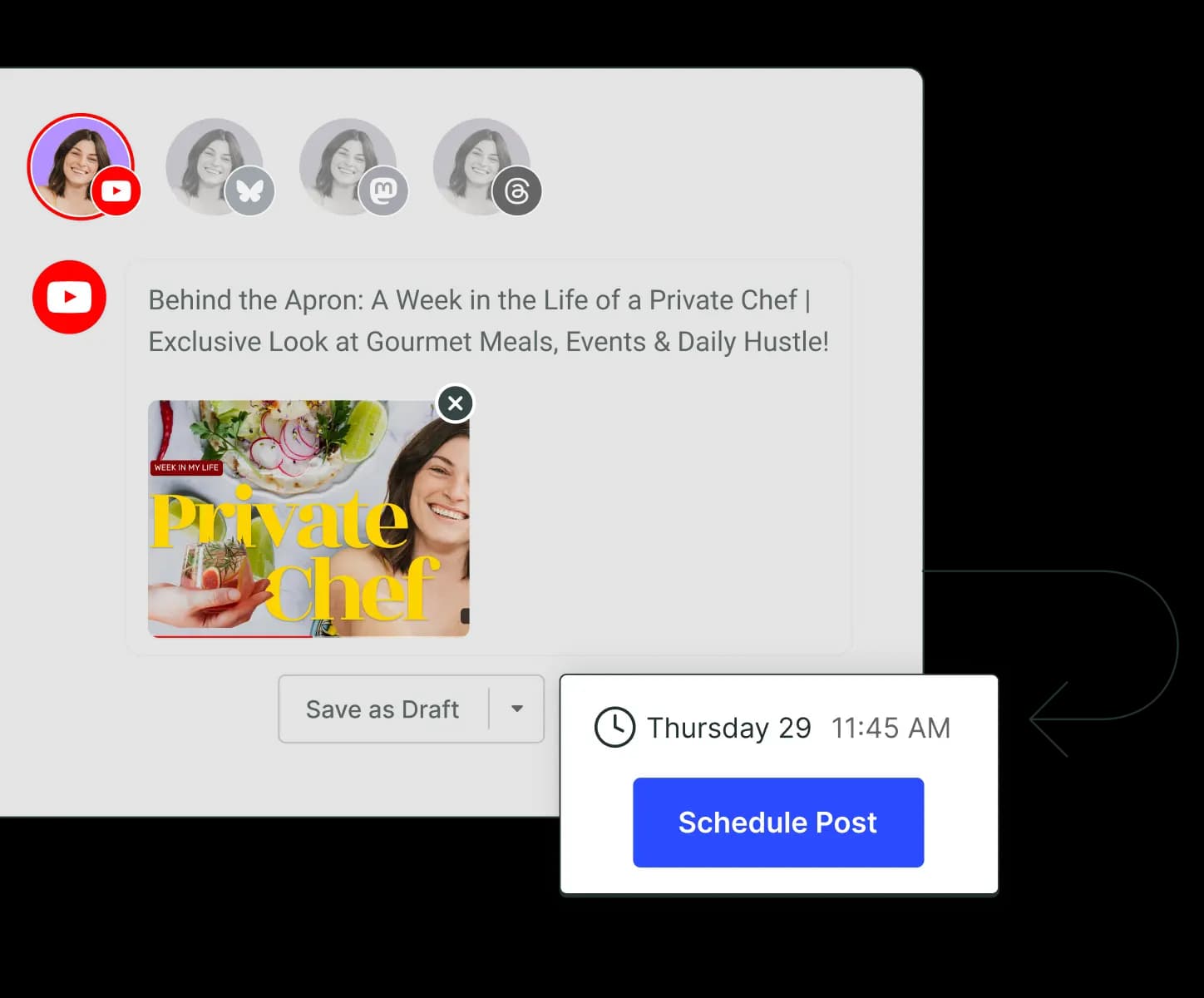
Lights, camera, schedule!
Whether it’s a tutorial, vlog, or something in between, scheduling your YouTube Shorts ahead of time helps you stay consistent and focused on delivering quality content, without the stress of daily uploads.
Create
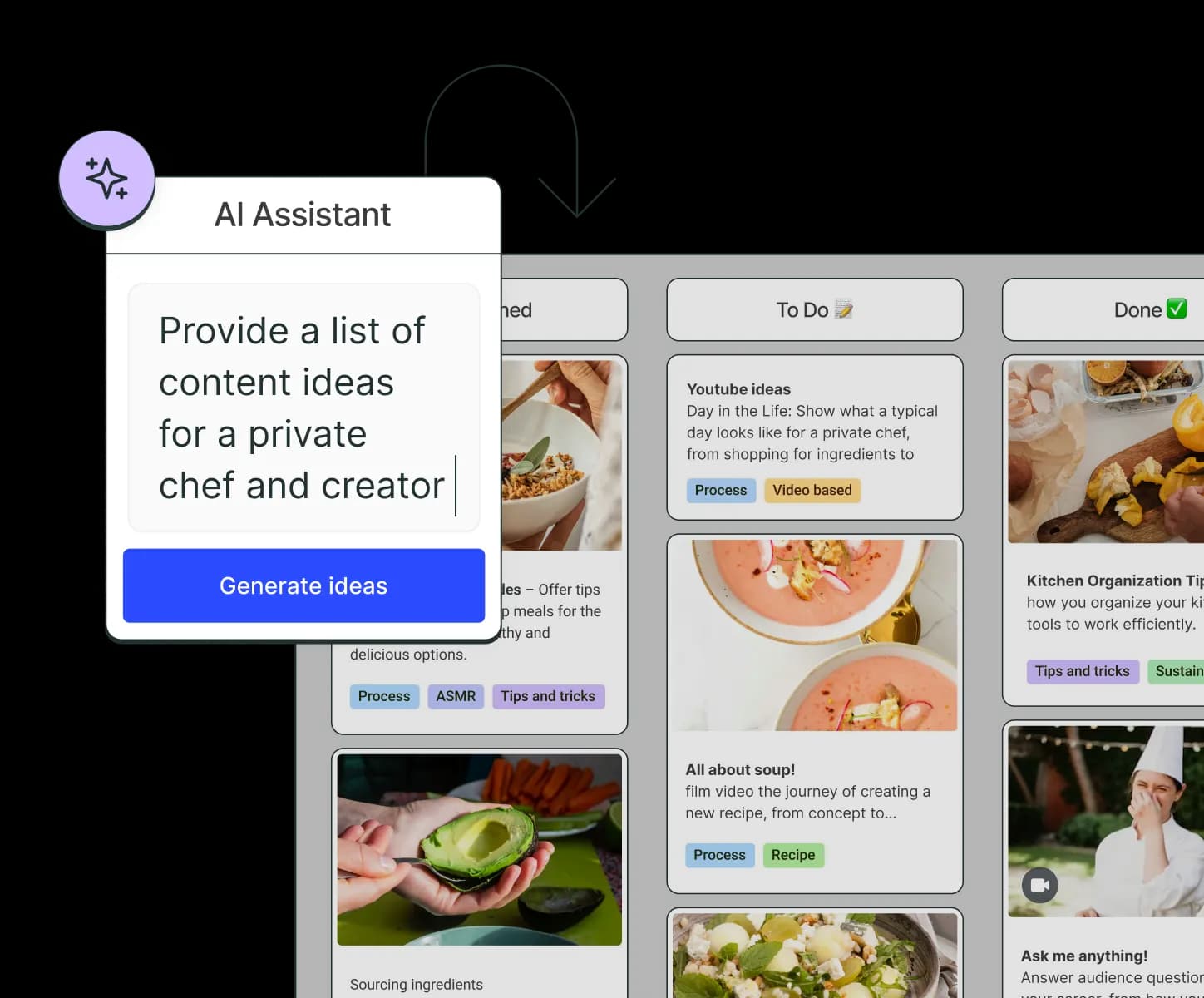
Your home for ideas worth filming
Capture ideas for videos as they come and explore new concepts with AI-powered suggestions. Easily draft video transcriptions, improve your video titles, and create a content calendar that works for you.
Crosspost
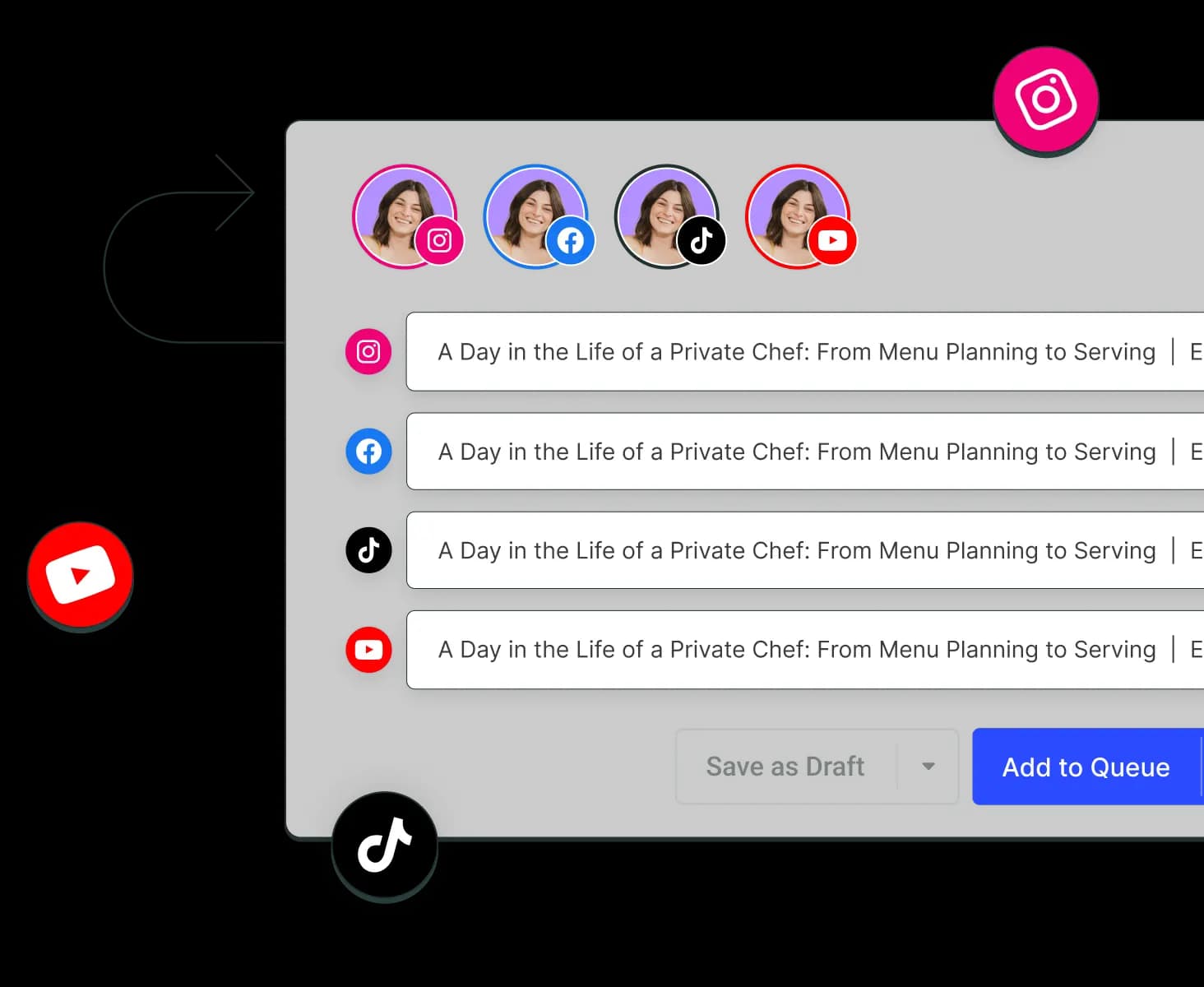
Upload once, share everywhere
Don’t confine your content to just one platform. Crosspost your YouTube Shorts to platforms like TikTok and Instagram to reach more viewers and build a stronger, more connected audience.
Link in bio
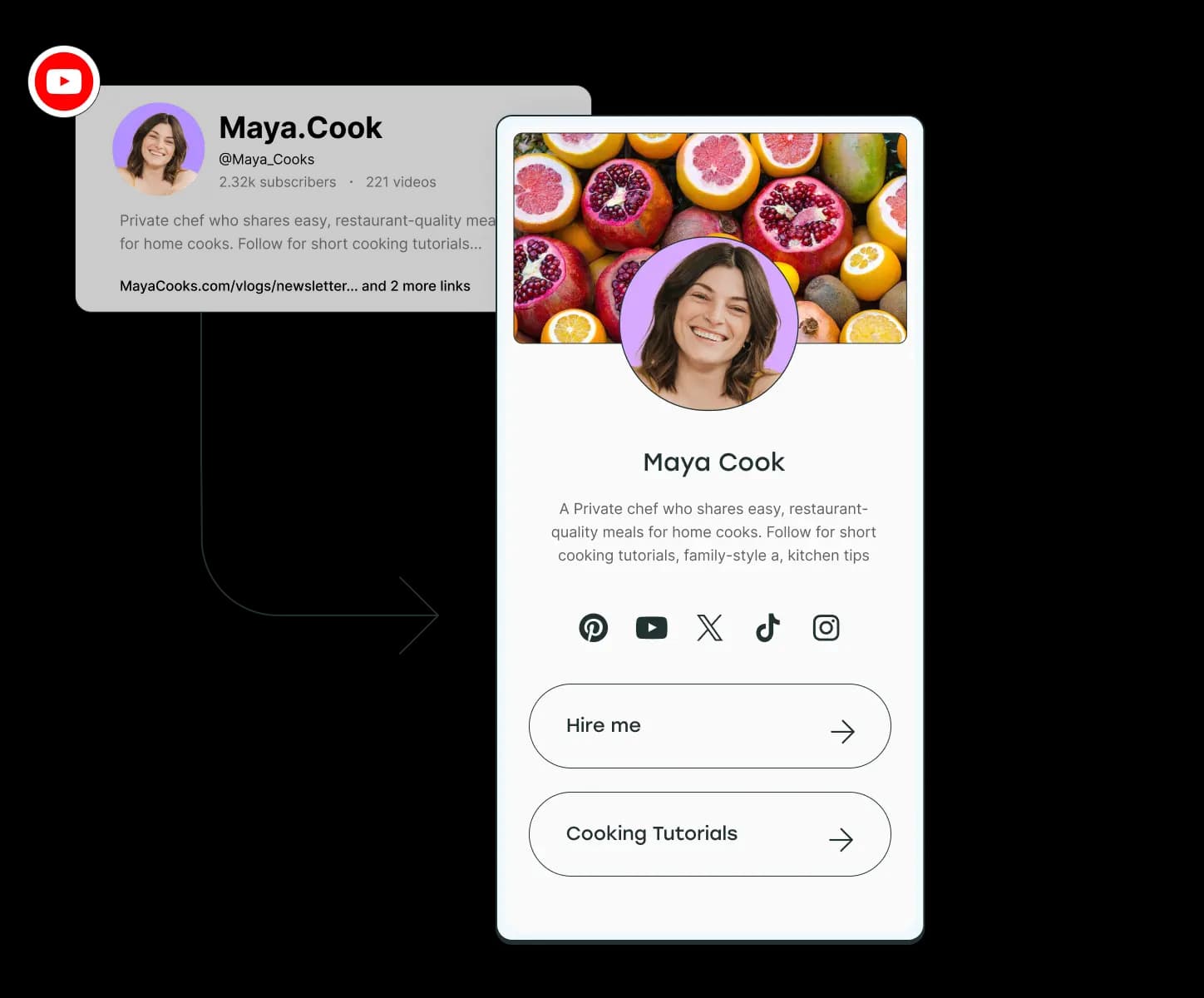
Your channel’s greatest hits on one page
With Buffer’s free link-in-bio tool, you can host links to all of your best content, merchandise, and more. Automatically update it with your latest YouTube videos to keep your fans in the loop, no matter where they follow you.
Resources
Our best advice for YouTube
Want to make your mark on YouTube, but need a helping hand? Explore our resources to learn the ins and outs of successful video marketing.
With Buffer I’m able to save approximately 4-5 hours every week, granting me the freedom to dedicate more of my valuable hours to other important tasks and projects.
 CherRaye Glenn-FlowersBrownce
FAQs
What types of YouTube content can I schedule with Buffer?
Buffer currently only supports scheduling for YouTube Shorts in the following formats: .mov, .mp4, .mpg, .mpeg, .avi, and .WebM. Files need to be 10GB or less and must be filmed in an aspect ratio of 1:1 or 9:16.
How does YouTube Shorts scheduling work with Buffer?
With Buffer’s toolkit for YouTube Shorts, you can plan, preview, collaborate, and publish content that drives meaningful engagement and growth for your channel. Some of our favorite features include:
- Customizable posting schedules
- An AI Assistant that helps you create better content, faster
- A composer that allows you to craft a different message for each social network
- A Create space that allows you to save your post ideas and come back to them later
- Tags to help you sort and organize your content by theme or category
- A browser extension to quickly share content from anywhere on the web
- A drafts and approval process to easily collaborate with your team
What analytics does Buffer provide for YouTube Shorts?
Buffer currently provides reporting on Views, Likes, and Comments for each YouTube Short you’ve published. You can also read our analysis of 1 million videos to learn more about the best times to post videos on YouTube.
Can I manage multiple YouTube channels with Buffer?
Yes, with Buffer you can manage multiple YouTube channels.
How do I start scheduling my YouTube Shorts?
Scheduling YouTube Shorts through Buffer is super easy. Here’s how:
- To get started, log in to your Buffer account
- Make sure your YouTube Channel is connected to your account.
- Click the “Create Post” button at the top right corner of your calendar or queue
- Select the YouTube Channel social channel you'd like to schedule to by clicking on the avatar at the top of the composer
- Craft your post by adding any photos, videos, links, GIFs, text, mentions, and hashtags, and use our AI Assistant to refine your content.
- Then click on Add to Queue, Share Now, Schedule Post, or Save as Draft depending on your scheduling preference