wxPython TextCtrl Widget - CodersLegacy (original) (raw)
In this wxPython Tutorial, we will demonstrate how to use the TextCtrl Widget, alongside it’s various styles, features and functions. A complete list of options will be included here, alongside several code examples for your convenience.
The TextCtrl Widget is quite powerful and flexible, allowing the user to input data in various way with many stylistic features.
wxPython TextCtrl Syntax
The syntax required to create a TextCtrl widget.
text = TextCtrl(parent, id, value, pos, size, style, validator, name)**parent**: This is the Widget to which it is parented, such as a Panel.id: Widget ID. Default value is ID_ANY, which gives it the next available ID.value:The Text which you want to display on the Widget.pos:A tuple containing the coordinates of where the topleft corner of the TextCtrl Widget should begin from.size:A tuple which defines the dimensions of the area occupied by the Text box.style:Used for styling the Text (such as Alignment)
wxPython TextCtrl Styles
A list of availible styles which can be used on the TextCtrl widget.
| Style | Description |
|---|---|
| wx.TE_PROCESS_ENTER | Enables the wx.EVT_TEXT_ENTER event to be generated. |
| wx.TE_MULTILINE | If used, then the widget will allow multiple lines. |
| wx.TE_PASSWORD | Causes the Text to appear as asterisks. |
| wx.TE_READONLY | Makes the Text un-editable by the User. |
| wx.TE_AUTO_URL | Highlights the URLs present in the widget, and generates Events for the URLs. |
| wx.HSCROLL | A horizontal scrollbar will be created, which disables wrapping. |
| wx.TE_NO_VSCROLL | For Multi-Line widgets, the Vertical Scrollbar will be removed. This limits the amount of text that can be entered. |
| wx.TE_LEFT | Causes the Text to be left-justified. |
| wx.TE_CENTRE | Centers the text in the widget. |
| wx.TE_RIGHT | Causes the Text to be right-justified |
wxPython TextCtrl Methods
A list of useful methods which can be used on the TextCtrl widget.
| Method | Description |
|---|---|
| GetLineLength(index) | Returns the length of the line at the specified index (line number) . |
| GetNumberOfLines() | Returns the number of lines in the Widget. |
| GetLineText_(index_) | Returns the contents of the line at the specified index (line number). |
| GetValue() | Returns all the text currently inside the Widget. |
| IsMultiLine() | Returns a bool value stating if the Widget is in Multi-line mode. |
| IsSingleOne() | Returns a bool value stating if the Widget is in Single-line mode. |
| LoadFile(filename) | Load the content of the file at the given filepath into the Widget. |
| SaveFile(filename) | Saves the contents of the Widget in a file at the given filepath. |
| SetMaxLength(len) | Sets a maximum number of characters that the user is allowed to input. |
wxPython TextCtrl Events
A list of available events which can be used on the TextCtrl widget.
| Event | Description |
|---|---|
| wx.EVT_TEXT | Generates this event whenever the Text is changed. |
| wx.EVT_TEXT_ENTER | Generated whenever the User presses “Enter” in the widget. |
| wx.EVT_TEXT_URL | A mouse event that occurs when the cursor is over an URL. |
| wx.EVT_TEXT_MAXLEN | Generated when the user tried to enter more text than the limit specified by the SetMaxLength() function. |
Example Code
In this example we’ll setup a basic TextCtrl widget, with some custom styles.
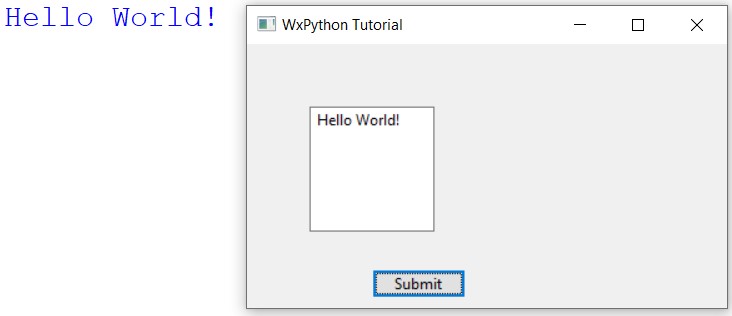
We have applied two Styles, wx.TE_MULTILINE, which makes the widget go from single line mode to multiple, and the wx.TE_NO_VSCROLL style which removes the vertical scrollbar which appears by default on Multiline TextCtrl widgets.
We’ve also created a function, OnPress(), which prints out the text in the TextCtrl Widget. This function is called when the button is pressed.
import wx
class Window(wx.Frame): def init(self, title): super().init(parent = None, title = title) self.panel = wx.Panel(self)
    self.text = wx.TextCtrl(self.panel, pos = (50, 50), size = (100, 100),
                       style = wx.TE_MULTILINE | wx.TE_NO_VSCROLL)

    button = wx.Button(self.panel, pos = (100, 180), label = "Submit")
    button.Bind(wx.EVT_BUTTON, self.OnPress)

    self.Centre()
    self.Show()

def OnPress(self, e):
    print(self.text.GetValue())
app = wx.App() window = Window("WxPython Tutorial") app.MainLoop()
The output of the above code:
Other TextCtrl Examples
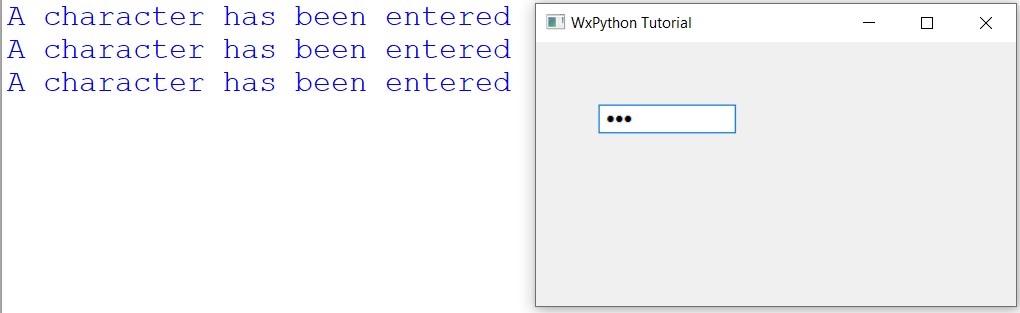
In this example we are using the wx.TE_PASSWORD style, which is used for fields where you want to take password or other sensitive data from the user.
We are also using the wx.EVT_TEXT event, which automatically calls the OnPress() function whenever the text within widget is changed.
import wx
class Window(wx.Frame): def init(self, title): super().init(parent = None, title = title) panel = wx.Panel(self)
    self.text = wx.TextCtrl(panel, pos=(50,50), style=wx.TE_PASSWORD)
    self.text.Bind(wx.EVT_TEXT, self.OnPress)

    self.Centre()
    self.Show()

def OnPress(self, e):
    print("A character has been entered")
app = wx.App() window = Window("WxPython Tutorial") app.MainLoop()
This is the output: (pictured next to the console)
This marks the end of the wxPython TextCtrl Widget. Any suggestions or contributions for CodersLegacy are more than welcome. Questions regarding the tutorial content can be asked in the comments section below.