Windows 10 & Windows 11 Installation Build Guide (original) (raw)
Note: Due to the USB 3.0 translation layer between native hardware and virtual machine, the librealsense team does not recommend or support installation in a VM.
librealsense shall be built on Windows using CMake v3.10+ and Visual Studio >= 2019 :
(MSVC2015 and older are not fully compatible with the C++14 feature-set).
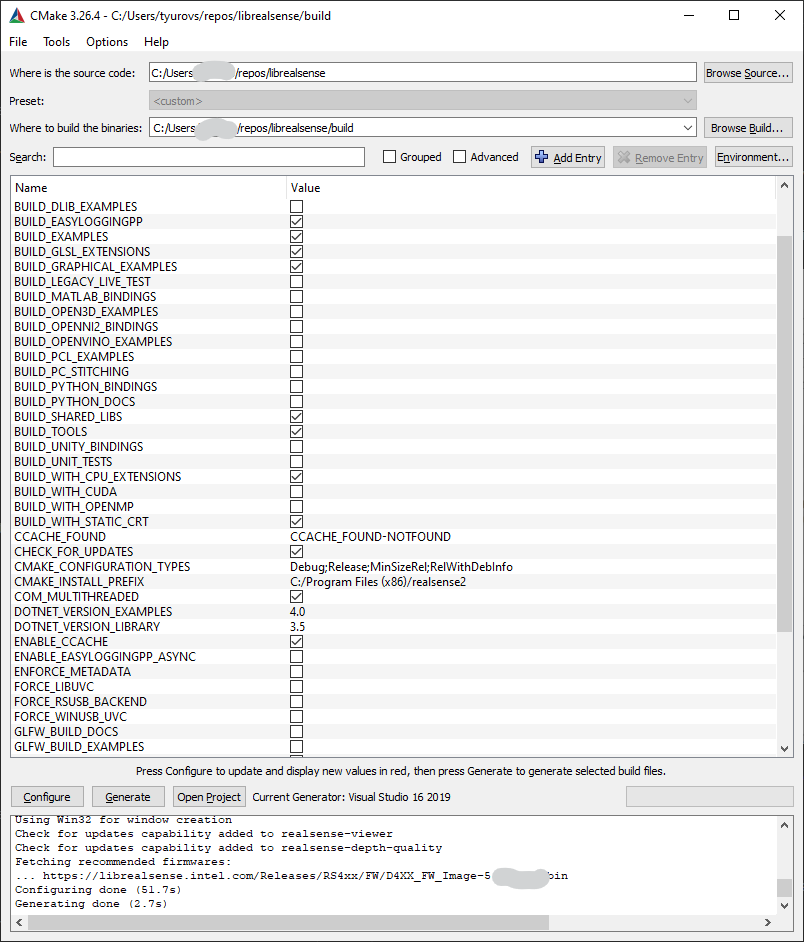
Don't forget to check BUILD_EXAMPLES if you wish to use librealsense samples.
Metadata attributes is an advanced capability provided by librealsense.
Read more on this feature in link.
Follow the instructions to enable metadata generation:
Prerequisites:
- Windows 10 with administrator login.
- WinSDK ver 10 (10.0.15063) or later.
- Verify OS version:
- Run
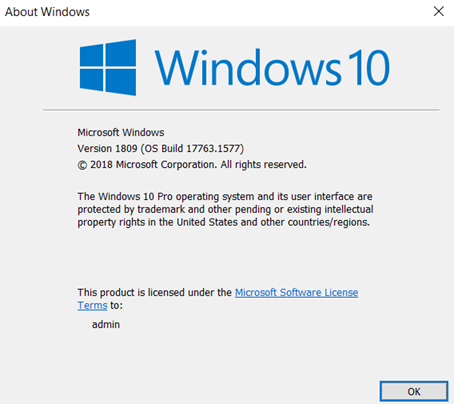
winvercommand from desktop/terminal - "Windows 10 (Build 15063 or later, 17763+ recommended) or Windows 11" is expected.
- Install WinSDK ver10:
- Navigate to "Control Panel" -> "Programs and Features"
- Double-click on "Microsoft Visual Studio" and select "Modify"
- Check that SDK version 10.0.10586 or later is present, install if needed:

- Windows OS requires a dedicated registry entry to be present for each unique video device in order to provide metadata.
- Launch Windows
Powershelltool as Admin and navigate to the script directory - Launch Windows
Powershelltool as Admin and navigate to the script directory - Run the following:
PS > .\realsense_metadata_win10.ps1 <optional:operation>
The supported parameters are-op installadds registry keys for connected RealSense devices-op install_alladds keys for all RealSense devices logged in the registry-op removeremoves registry keys for connected RealSense devices-op remove_allremoves the keys for all RealSense devices logged in the registry
Running the script without arguments will is similar to-op installoperation.
- If you receive
... cannot be loaded because running scripts is disabled on this systemmessage, run:
PS > Set-ExecutionPolicy RemoteSignedanswer Y and then rerun the script
Important - The registry keys are device-unique. Therefore, the script must be executed each time a new RealSense device is attached to the PC.
In case the script cannot be executed due to permissions, or other Host-related issue please follow the instructions to update the registry manually:
- Connect Intel® RealSense™ device to the host
- Navigate to "Control Panel" -> "Device Manager"
- Browse for Intel® RealSense™ devices
- Select the first device from the list, e.g.
Intel® RealSense™ Camera D415 Depth(Step 1) - Find device's path (Step 2) and the additional interfaces (Step 3)


- Modifying the Windows Registry:
- For each interface found (Steps 2 and 3) perform
* Using Registry Editing tool such as "regedit" navigate toHKLM\SYSTEM\CurrentControlSet\Control\DeviceClasses\{e5323777-f976-4f5b-9b55-b94699c46e44}branch.
* Browse into the subdirectory with the name identical to theDevice instance pathobtained from the previous step
* Expand the entry into#GLOBAL->Device Parameters
* AddDWORD 32bitvalue namedMetadataBufferSizeInKB0with value 5.
* Add an additionalDWORD 32bitvalue namedMetadataBufferSizeInKB1with value 5 for RS400 device zero interface##?##USB#VID_8086&PID... **MI_00**..
- For each interface found (Steps 2 and 3) perform

- Repeat the previous step for
HKLM\SYSTEM\CurrentControlSet\Control\DeviceClasses\{65E8773D-8F56-11D0-A3B9-00A0C9223196}branch - Repeat the procedure for all the additional RealSense devices (e.g.
Intel® RealSense™ Camera SR300 RGB)
During compilation the library will automatically detect and enable/disable metadata functionality according to the WinSDK version selected.
In case the installed WinSDK doesn't expose metadata the user will be notified that the build does not include metadata generation:Librealsense notification: Featuring UVC Metadata requires WinSDK 10.0.10586.0 toolset. The library will be compiled without the metadata support!
In order to ensure compilation with metadata support check the ENFORCE_METADATA in the Cmake configuration stage.
When set, the compiler will check the target WinSDK version, and abort the build if it is not compatible with metadata requirements.
Note In case of multiple WinSDK version installed, CMake automatically selects the latest version of SDK. In some cases, however, the automatic selection may fail. Then you need to manually retarget the solution for the proper WinSDK version:

| Error | Cause | Correction Steps |
|---|---|---|
| The camera is not recognized by the SDK | The SDK does not have access to the camera | Make sure that "Allow desktop apps to access your camera" setting is set to on in Windows OS (Setting -> Privacy -> Camera) |
Updated about 1 month ago