启动画面 (original) (raw)
从 Android 12 开始,SplashScreen API 可让应用以动画效果启动,包括启动时的进入应用动作、显示应用图标的启动画面,以及向应用本身的过渡。SplashScreen 是 Window,因此涵盖 Activity。
图 1. 启动画面。
启动画面体验可让应用每次启动时都呈现标准设计元素,但它也可自定义,以便您的应用能够保持其独特的品牌形象。
除了使用 SplashScreen 平台 API 之外,您还可以使用封装 SplashScreen API 的 SplashScreen compat 库。
启动画面的工作原理
当用户启动应用而应用的进程未运行(冷启动)或 Activity 尚未创建(温启动)时,会发生以下事件:
- 系统使用主题以及您定义的任何动画显示启动画面。
- 当应用准备就绪时,系统会关闭启动画面并显示应用。
在热启动期间从不显示启动画面。
启动画面的元素和机制
启动画面的元素由 Android 清单文件中的 XML 资源文件定义。每个元素都有浅色模式和深色模式版本。
启动画面的可自定义元素包括应用图标、图标背景和窗口背景:
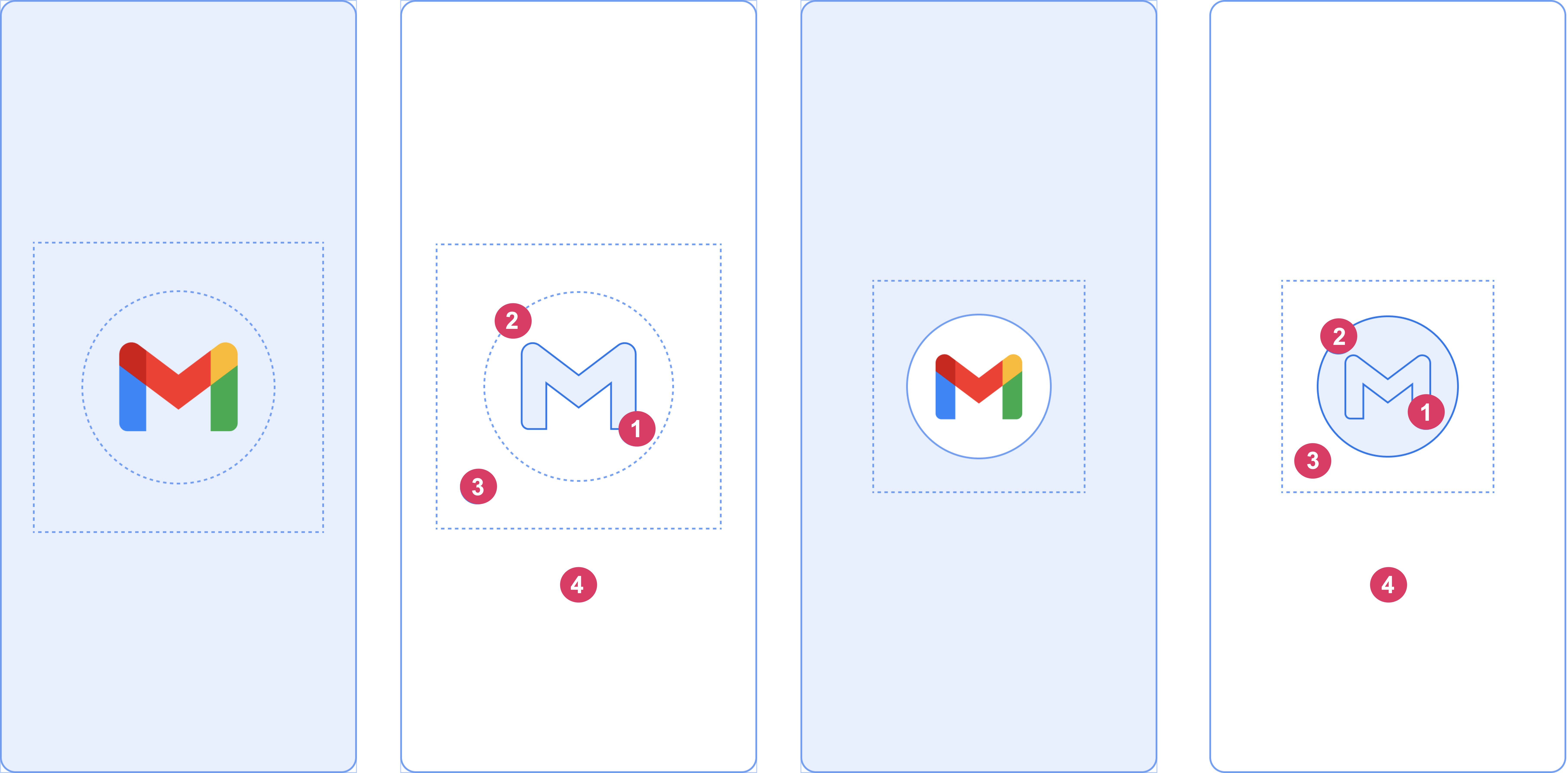
图 2. 启动画面的可自定义元素。
请考虑图 2 中显示的以下元素:
1 应用图标必须是矢量可绘制对象。可以是静态的,也可以是动态的。虽然动画的时长可以不受限制,但我们建议不超过 1,000 毫秒。启动器图标是默认图标。
2 可以选择添加图标背景;在图标与窗口背景之间需要更高的对比度时图标背景很有用。如果您使用自适应图标,当该图标与窗口背景之间的对比度足够高时,就会显示其背景。
3 与自适应图标一样,前景的三分之一被遮盖。
4 窗口背景由不透明的单色组成。如果窗口背景已设置且为纯色,则未设置相应的属性时默认使用该背景。
启动画面尺寸
启动画面图标使用的规范与自适应图标相同,如下所示:
- 品牌图片:尺寸必须为 200×80 dp。
- 带有图标背景的应用图标:尺寸必须为 240×240 dp,并且位于直径 160 dp 的圆圈内。
- 无图标背景的应用图标:尺寸必须为 288×288 dp,并且位于直径 192 dp 的圆圈内。
例如,如果图片的完整尺寸为 300×300 dp,则图标需要位于直径 200 dp 的圆圈内。圆圈以外的所有内容都会变为不可见(被遮盖)。
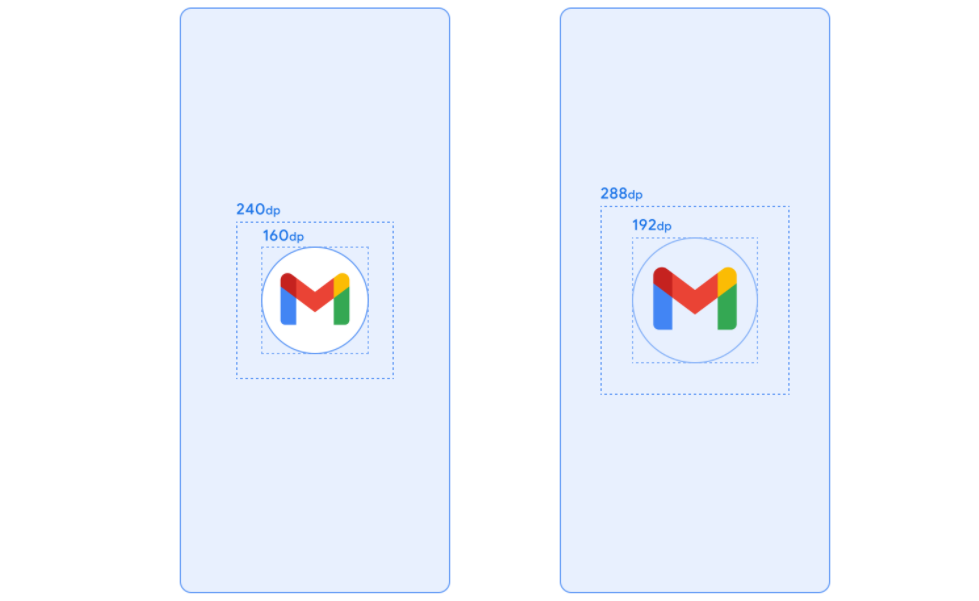
图 3. 纯色背景和透明背景各自的启动画面图标尺寸。
启动画面动画和启动序列
额外的延迟时间通常与在冷启动时启动应用有关。向启动画面添加动画图标具有明显的美感,并提供更优质的体验。用户研究表明,在观看动画时,用户感知到的启动时间会缩短。
启动画面动画会嵌入到启动序列组件中,如图 4 所示。
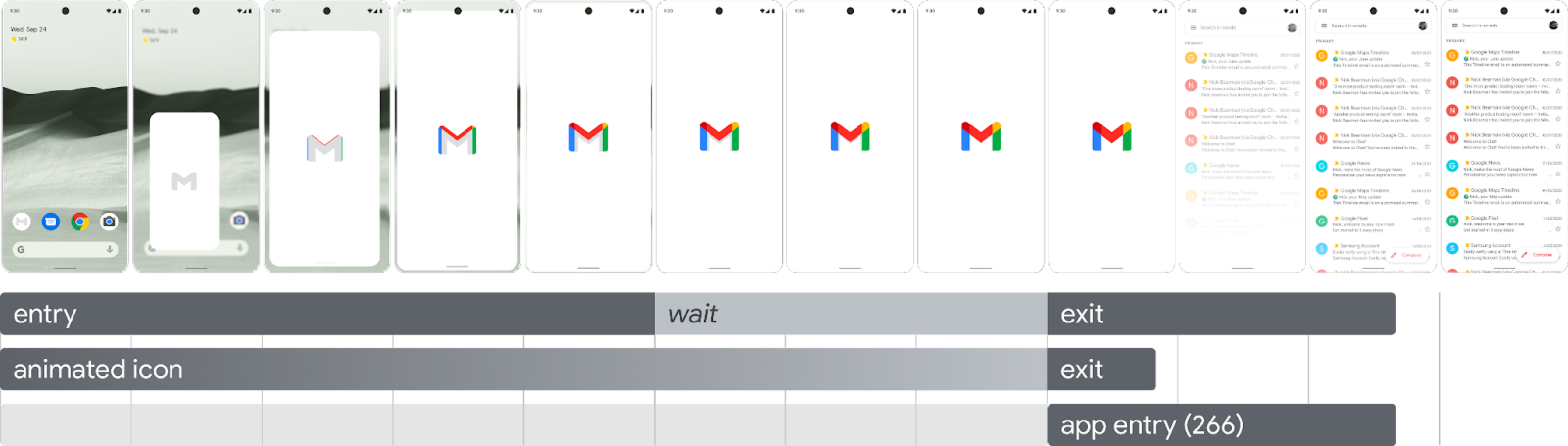
图 4. 启动序列。
- 进入动画:由系统视图到启动画面组成。它由系统控制,无法自定义。
- 启动画面(在序列的“等待”部分显示):您可以对启动画面进行自定义,从而提供自己的徽标动画和品牌形象。它必须满足本页中所述的要求,才能正常运行。
- 退出动画:由隐藏启动画面的动画组成。 如果您想自定义,请使用 SplashScreenView 及其图标。您可以在它们之上运行任何动画(需要设置转换、不透明度和颜色)。在这种情况下,当动画完成时,请手动移除启动画面。
运行图标动画时,如果应用先前已准备就绪,应用启动功能可让您选择跳过相应序列。应用会触发 onResume() 或者启动画面会自动超时,因此确保用户能够轻松跳过启动画面动画。只有当从视觉角度来看应用稳定后,才应通过 onResume() 关闭启动画面,因此无需额外的旋转图标。引入不完整的界面可能会给用户带来不快,并让用户感觉不可预知或不够完善。
启动画面动画要求
启动画面必须符合以下规范:
- 设置不透明的单一窗口背景颜色。SplashScreen 兼容型库支持日间模式和夜间模式。
- 确保动画图标符合以下规范:
- 格式:图标必须是动画形式的矢量可绘制对象 (AVD) XML。
- 尺寸:AVD 图标的大小必须是自适应图标大小的四倍,如下所示:
* 图标面积必须是 432 dp,即无遮盖自适应图标的 108 dp 面积的 4 倍。
* 图片内部三分之二的区域在启动器图标上可见,并且必须是 288 dp,即 72 dp 的四倍,72 dp 是自适应图标内部遮盖区域的面积。 - 时长:我们建议在手机上的时长不超过 1,000 毫秒。您可以使用延迟启动,但不能超过 166 毫秒。如果应用启动时间超过 1000 毫秒,请考虑使用循环动画。
- 确定合适的时间来关闭启动画面,这发生在应用绘制第一帧时。您可以按照让启动画面在屏幕上显示更长时间部分中的说明进一步自定义此设置。
启动画面资源
图 5. 示例 AVD。
下载示例入门套件,该套件演示了如何创建动画、设置动画格式并将其导出到 AVD。 此软件包包含以下工具:
- 动画的 Adobe After Effects 项目文件。
- 最终导出的 AVD XML 文件。
- 动画的 GIF 示例。
下载这些文件,即表示您同意 Google 服务条款。
Google 隐私权政策介绍了此服务如何处理数据。
自定义应用中的启动画面
默认情况下,如果 windowBackground 是单色,SplashScreen 会使用主题的 windowBackground。如需自定义启动画面,请向应用主题添加属性。
您可以通过执行以下任一操作来自定义应用的启动画面:
- 设置主题属性以更改其外观。
- 让其在屏幕上显示更长时间。
- 自定义用于关闭启动画面的动画。
开始使用
核心 SplashScreen 库为搭载 API 23 及更高版本的所有设备带来了 Android 12 启动画面。如需将其添加到您的项目中,请将以下代码段添加到 build.gradle 文件中:
Groovy
dependencies { implementation "androidx.core:core-splashscreen:1.0.0" }
Kotlin
dependencies { implementation("androidx.core:core-splashscreen:1.0.0") }
设置启动画面的主题以更改其外观
您可以在 Activity 主题中指定以下属性来自定义应用的启动画面。如果您已有使用 android:windowBackground 等属性的旧版启动画面实现,不妨考虑为 Android 12 及更高版本提供替代资源文件。
- 使用 windowSplashScreenBackground 以特定的单色填充背景:
<item name="android:windowSplashScreenBackground">@color/...</item> - 使用 windowSplashScreenAnimatedIcon 替换起始窗口中心的图标。
对于仅以 Android 12(API 级别 32)为目标平台的应用,请执行以下操作:
如果对象可通过 AnimationDrawable 和AnimatedVectorDrawable呈现动画效果且可绘制,请设置windowSplashScreenAnimationDuration以在显示起始窗口的同时播放动画。Android 13 不需要这样做,因为系统会直接从AnimatedVectorDrawable推断时长。
<item name="android:windowSplashScreenAnimatedIcon">@drawable/...</item> - 使用 windowSplashScreenAnimationDuration 指示启动画面图标动画的时长。设置该时长对显示启动画面的实际时间不会产生任何影响,但您可以在自定义启动画面退出动画时使用 SplashScreenView.getIconAnimationDuration 检索图标动画的时长。如需了解详情,请参阅下文有关让启动画面在屏幕上显示更长时间的部分。
<item name="android:windowSplashScreenAnimationDuration">1000</item> - 使用 windowSplashScreenIconBackgroundColor 设置启动画面图标后面的背景。当窗口背景与图标之间的对比度不够高时,这很有用。
<item name="android:windowSplashScreenIconBackgroundColor">@color/...</item> - 您可以使用 windowSplashScreenBrandingImage 设置要显示在启动画面底部的图片。不过,设计准则建议不要使用品牌图片。
<item name="android:windowSplashScreenBrandingImage">@drawable/...</item> - 您可以使用 windowSplashScreenBehavior 指定应用是否始终在 Android 13 及更高版本中的启动画面上显示该图标。默认值为 0,如果启动 activity 将
splashScreenStyle设置为 SPLASH_SCREEN_STYLE_ICON,则在启动画面上显示图标;如果启动 activity 未指定样式,则遵循系统行为。如果您希望永远不显示空白启动画面,并始终显示动画图标,请将此属性设置为值icon_preferred。
<item name="android:windowSplashScreenBehavior">icon_preferred</item> 让启动画面在屏幕上显示更长时间
当应用绘制第一帧后,启动画面会立即关闭。如果您需要加载少量数据(例如从本地磁盘异步加载应用内设置),可以使用 ViewTreeObserver.OnPreDrawListener 让应用暂停绘制第一帧。
如果启动 activity 在绘制之前完成(例如,不设置内容视图并在 onResume 之前完成),则无需预绘制监听器。
Kotlin
// Create a new event for the activity. override fun onCreate(savedInstanceState: Bundle?) { super.onCreate(savedInstanceState) // Set the layout for the content view. setContentView(R.layout.main_activity)
// Set up an OnPreDrawListener to the root view.
val content: View = findViewById(android.R.id.content)
content.viewTreeObserver.addOnPreDrawListener(
    object : ViewTreeObserver.OnPreDrawListener {
        override fun onPreDraw(): Boolean {
            // Check whether the initial data is ready.
            return if (viewModel.isReady) {
                // The content is ready. Start drawing.
                content.viewTreeObserver.removeOnPreDrawListener(this)
                true
            } else {
                // The content isn't ready. Suspend.
                false
            }
        }
    }
)
}
Java
// Create a new event for the activity. @Override protected void onCreate(@Nullable Bundle savedInstanceState) { super.onCreate(savedInstanceState); // Set the layout for the content view. setContentView(R.layout.main_activity);
// Set up an OnPreDrawListener to the root view.
final View content = findViewById(android.R.id.content);
content.getViewTreeObserver().addOnPreDrawListener(
        new ViewTreeObserver.OnPreDrawListener() {
            @Override
            public boolean onPreDraw() {
                // Check whether the initial data is ready.
                if (mViewModel.isReady()) {
                    // The content is ready. Start drawing.
                    content.getViewTreeObserver().removeOnPreDrawListener(this);
                    return true;
                } else {
                    // The content isn't ready. Suspend.
                    return false;
                }
            }
        });
}
自定义用于关闭启动画面的动画
您可以通过 Activity.getSplashScreen() 进一步自定义启动画面的动画。
Kotlin
override fun onCreate(savedInstanceState: Bundle?) { super.onCreate(savedInstanceState) // ...
// Add a callback that's called when the splash screen is animating to the
// app content.
splashScreen.setOnExitAnimationListener { splashScreenView ->
    // Create your custom animation.
    val slideUp = ObjectAnimator.ofFloat(
        splashScreenView,
        View.TRANSLATION_Y,
        0f,
        -splashScreenView.height.toFloat()
    )
    slideUp.interpolator = AnticipateInterpolator()
    slideUp.duration = 200L

    // Call SplashScreenView.remove at the end of your custom animation.
    slideUp.doOnEnd { splashScreenView.remove() }

    // Run your animation.
    slideUp.start()
}
}
Java
@Override protected void onCreate(@Nullable Bundle savedInstanceState) { super.onCreate(savedInstanceState); // ...
// Add a callback that's called when the splash screen is animating to the
// app content.
getSplashScreen().setOnExitAnimationListener(splashScreenView -> {
    final ObjectAnimator slideUp = ObjectAnimator.ofFloat(
            splashScreenView,
            View.TRANSLATION_Y,
            0f,
            -splashScreenView.getHeight()
    );
    slideUp.setInterpolator(new AnticipateInterpolator());
    slideUp.setDuration(200L);

    // Call SplashScreenView.remove at the end of your custom animation.
    slideUp.addListener(new AnimatorListenerAdapter() {
        @Override
        public void onAnimationEnd(Animator animation) {
            splashScreenView.remove();
        }
    });

    // Run your animation.
    slideUp.start();
});
}
在此回调开始时,启动画面上动画形式的矢量可绘制对象开始。根据应用启动的时长,可绘制对象可能在其动画的中间。使用 SplashScreenView.getIconAnimationStart 可了解动画何时开始。您可以按如下方式计算图标动画的剩余时长:
Kotlin
// Get the duration of the animated vector drawable. val animationDuration = splashScreenView.iconAnimationDuration // Get the start time of the animation. val animationStart = splashScreenView.iconAnimationStart // Calculate the remaining duration of the animation. val remainingDuration = if (animationDuration != null && animationStart != null) { (animationDuration - Duration.between(animationStart, Instant.now())) .toMillis() .coerceAtLeast(0L) } else { 0L }
Java
// Get the duration of the animated vector drawable. Duration animationDuration = splashScreenView.getIconAnimationDuration(); // Get the start time of the animation. Instant animationStart = splashScreenView.getIconAnimationStart(); // Calculate the remaining duration of the animation. long remainingDuration; if (animationDuration != null && animationStart != null) { remainingDuration = animationDuration.minus( Duration.between(animationStart, Instant.now()) ).toMillis(); remainingDuration = Math.max(remainingDuration, 0L); } else { remainingDuration = 0L; }
其他资源
- 将现有的启动画面实现迁移到 Android 12 及更高版本
- Now in Android 应用,其中展示了启动画面的实际实现