Progress-centric notifications (original) (raw)
Android 16 introduces progress-centric notifications to help users seamlessly track user-initiated, start-to-end journeys.
Notification.ProgressStyle is a new notification style that lets you create progress-centric notifications. Key use cases include rideshare, delivery, and navigation. Within the Notification.ProgressStyleclass, you can denote states and milestones in a user journey usingpoints and segments.
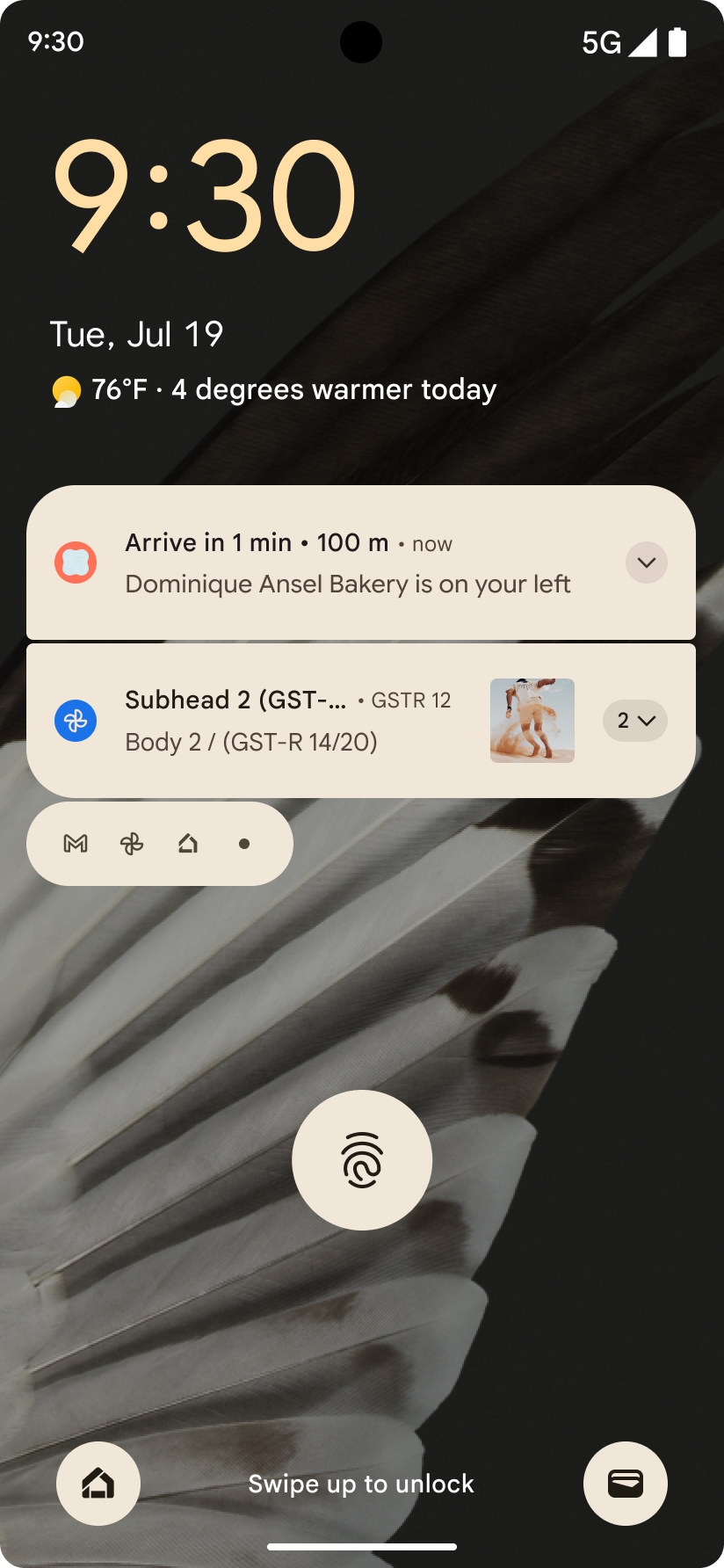
A progress-centric notification displayed on the lockscreen.
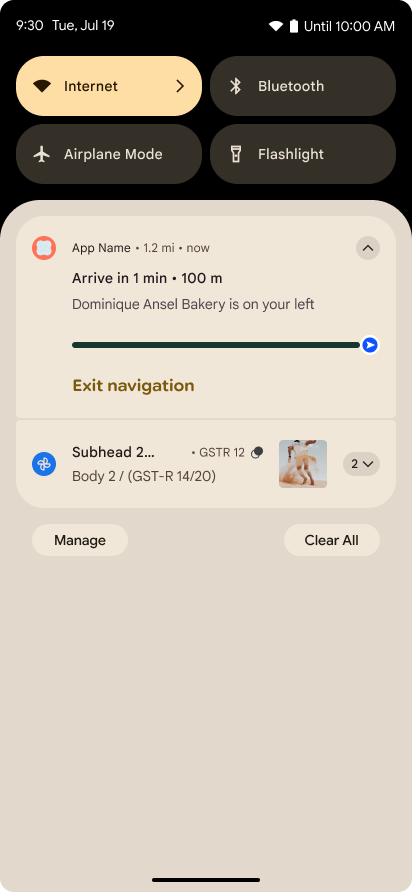
A progress-centric notification displayed in the notification shade.
Relevant classes and methods
The following classes contain the different APIs that you use to construct aProgressStyle notification:
Anatomy and customization
The following images show the different parts that make up ProgressStylenotifications:
The following images show the different parts that make up ProgressStylenotifications:
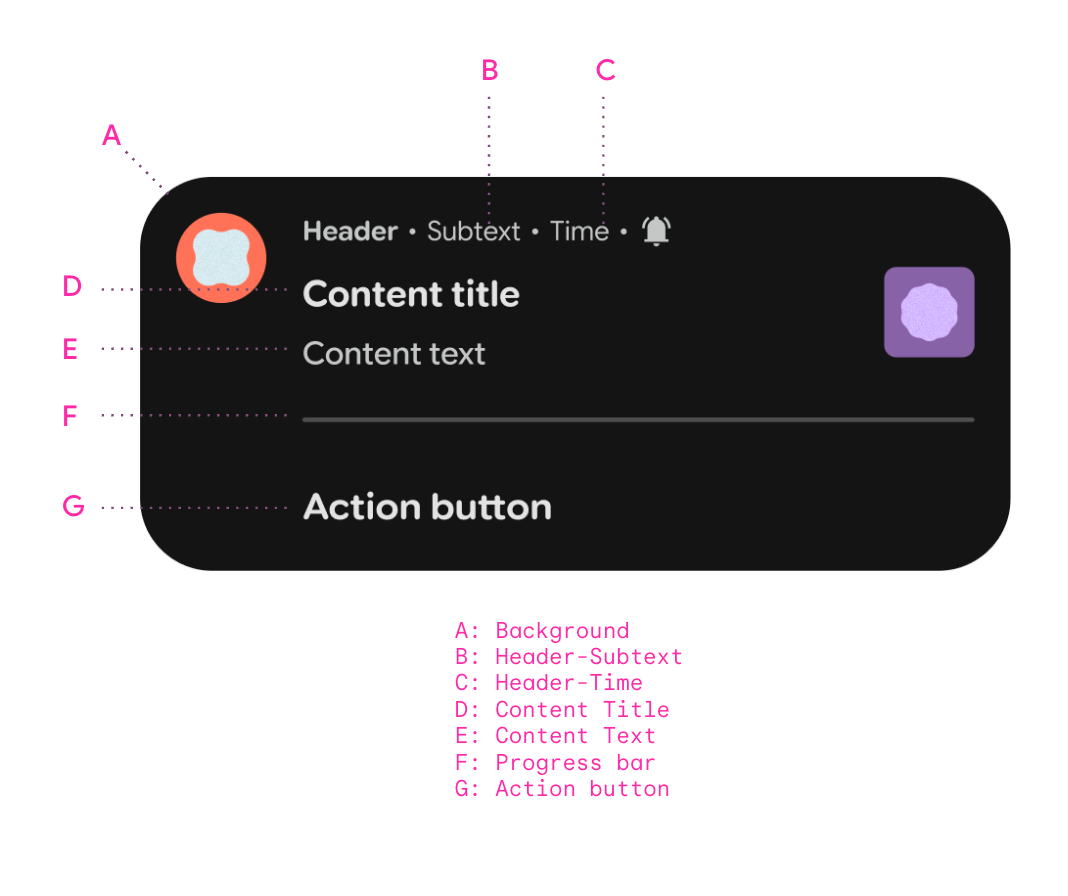
| A. Header - Subtext | Notification.Builder.setSubText() |
|---|---|
| B. Header - Time | Notification.Builder.setWhen() |
| C. Content Title | Notification.Builder.setContentTitle() |
| D. Content Text | Notification.Builder.setContentText() |
| E. Progress bar | Notification.ProgressStyle |
| F. Action button | Notification.Builder.addAction() |
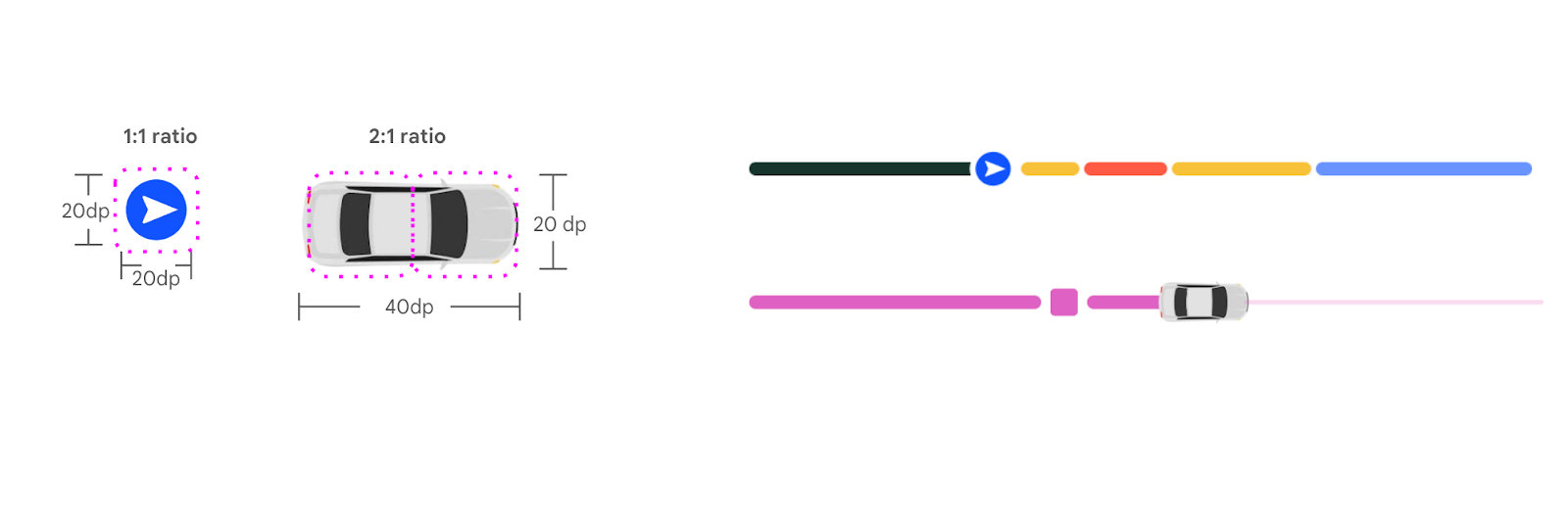
Apps can set a vehicle image for the tracker icon and use segments and points to denote the rideshare experience and milestones.
Best practices
Adhere to the following best practices to help provide the best possible user experience with progress-centric notifications:
- Ensure the right fields are set to meet promoted visibility.
- Use the right visual elements to guide the user in their journey. For example, rideshare apps should set a vehicle image and the most accurate color of the vehicle being used in a rideshare experience usingNotification.setLargeIcon()
- Use concise and clear language to define the progress of that user journey. Time of arrival, driver name, and state of journey are critical text that should be communicated in the notification.
- Provide useful and relevant actions in the notification that will help streamline the user journey. For example, providing a tip or adding an additional dish to a newly-initiated order for food delivery are actionable items prior to its delivery.
- Use segments and points to denote states. For example, use segments to colorize a state and duration of traffic in a rideshare journey, and use points for states for milestones, food preparation, delivery, and passenger pick-up.
- Update the progress experience frequently and accurately to match the actual progression of the journey. For example, traffic conditions that change can be reflected in changes in segment colors and updates in text.
The following code snippet shows how a ProgressStyle notification could be used for a rideshare context:
var ps =
    Notification.ProgressStyle()
        .setStyledByProgress(false)
        .setProgress(456)
        .setProgressTrackerIcon(Icon.createWithResource(appContext, R.drawable.ic_car_red))
        .setProgressSegments(
            listOf(
                Notification.ProgressStyle.Segment(41).setColor(Color.BLACK),
                Notification.ProgressStyle.Segment(552).setColor(Color.YELLOW),
                Notification.ProgressStyle.Segment(253).setColor(Color.WHITE),
                Notification.ProgressStyle.Segment(94).setColor(Color.BLUE)
            )
        )
        .setProgressPoints(
            listOf(
                Notification.ProgressStyle.Point(60).setColor(Color.RED),
                Notification.ProgressStyle.Point(560).setColor(Color.GREEN)
            )
        )
Note that in the example, a vehicle image is set for the tracker icon, and segments and points are used to denote the rideshare experience and milestones to provide a more complete user experience.
Check out the sample app for more information.