Java versions in Android builds (original) (raw)
Whether your source code is written in Java, Kotlin, or both, there are several places you must choose a JDK or Java language version for your build.
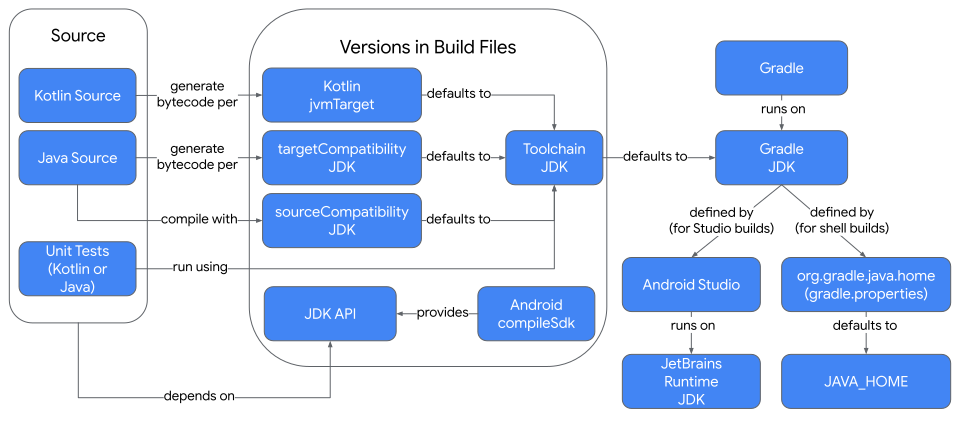
Figure 1. JDK relationships in a build
Glossary
Java Development Kit (JDK)
The Java Development Kit (JDK) contains:
- Tools, such as a compiler, profiler, and archive creator. These are used behind the scenes during your build to create your application.
- Libraries containing APIs that you can call from your Kotlin or Java source code. Note that not all functions are available on Android.
- The Java Virtual Machine (JVM), an interpreter that executes Java applications. You use the JVM to run the Android Studio IDE and the Gradle build tool. The JVM is not used on Android devices or emulators.
JetBrains Runtime (JBR)
The JetBrains Runtime (JBR) is an enhanced JDK, distributed with Android Studio. It includes several optimizations for use in Studio and related JetBrains products, but can also be used to run other Java applications.
How do I choose a JDK to run Android Studio?
We recommend that you use the JBR to run Android Studio. It's deployed with and used to test Android Studio, and includes enhancements for optimal Android Studio usage. To ensure this, don't set the STUDIO_JDKenvironment variable.
The startup scripts for Android Studio look for a JVM in the following order:
STUDIO_JDKenvironment variablestudio.jdkdirectory (in the Android Studio distribution)jbrdirectory (JetBrains Runtime), in the Android Studio distribution. Recommended.JDK_HOMEenvironment variableJAVA_HOMEenvironment variablejavaexecutable in thePATHenvironment variable
How do I choose which JDK runs my Gradle builds?
If you run Gradle using the buttons in Android Studio, the JDK set in the Android Studio settings is used to run Gradle. If you run Gradle in a terminal, either inside or outside Android Studio, the JAVA_HOME environment variable (if set) determines which JDK runs the Gradle scripts. If JAVA_HOMEis not set, it uses the java command on your PATH environment variable.
For the most consistent results, make sure you set your JAVA_HOMEenvironment variable, andGradle JDK configuration in Android Studio to that same JDK.
When running your build, Gradle creates a process called a daemon to perform the actual build. This process can be reused, as long as the builds are using the same JDK and Gradle version. Reusing a daemon reduces the time to start a new JVM and initialize the build system.
If you start builds with different JDKs or Gradle versions, additional daemons are created, consuming more CPU and memory.
Gradle JDK configuration in Android Studio
To modify the existing project's Gradle JDK configuration, open the Gradle settings from File (or Android Studio on macOS) > Settings > Build, Execution, Deployment > Build Tools > Gradle. The Gradle JDKdrop-down contains the following options to select from:
- Macros such as
JAVA_HOMEandGRADLE_LOCAL_JAVA_HOME - JDK table entries in
vendor-versionformat likejbr-17which are stored in the Android configuration files - Downloading a JDK
- Adding a specific JDK
- Locally detected JDKs from the operating system's default JDK installation directory
The selected option is stored in the gradleJvm option in the project's .idea/gradle.xml file, and its JDK path resolution is used to run Gradle when started through Android Studio.

Figure 2. Gradle JDK settings in Android Studio.
The macros enable dynamic project JDK path selection:
JAVA_HOME: uses the environment variable with the same nameGRADLE_LOCAL_JAVA_HOME: uses thejava.homeproperty in the.gradle/config.propertiesfile which defaults to the JetBrains Runtime.
The selected JDK is used to run your Gradle build and resolve JDK API references when editing your build scripts and source code. Note that the specified compileSdk will further restrict which Java symbols will be available when editing and building your source code.
Make sure to choose a JDK version that is higher than or equal to the JDK versions used by plugins that you use in your Gradle build. To determine the minimum required JDK version for the Android Gradle Plugin (AGP), see the compatibility table in the release notes.
For example, the Android Gradle Plugin version 8.x requires JDK 17. If you try to run a Gradle build that uses it with an earlier version of the JDK, it reports a message like:
An exception occurred applying plugin request [id: 'com.android.application']
> Failed to apply plugin 'com.android.internal.application'.
   > Android Gradle plugin requires Java 17 to run. You are currently using Java 11.
      Your current JDK is located in /usr/local/buildtools/java/jdk
      You can try some of the following options:
       - changing the IDE settings.
       - changing the JAVA_HOME environment variable.
       - changing `org.gradle.java.home` in `gradle.properties`.
Which Java APIs can I use in my Java or Kotlin source code?
An Android application can use some of the APIs defined in a JDK, but not all of them. The Android SDK defines implementations of many Java library functions as part of its available APIs. The compileSdk property specifies which Android SDK version to use when compiling your Kotlin or Java source code.
Kotlin
android {
    ...
    compileSdk = 36
}
Groovy
android {
    ...
    compileSdk 36
}
Each version of Android supports a specific version of the JDK and a subset of its available Java APIs. If you use a Java API that's available in a compileSdk that's not available in the specifiedminSdk, you might be able to use the API in the earlier version of Android through a process known asdesugaring. See Java 11+ APIs available through desugaring for supported APIs.
Use this table to determine which Java version is supported by each Android API, and where to find details on which Java APIs are available.
| Android | Java | API and language features supported |
|---|---|---|
| 14 (API 34) | 17 | Core libraries |
| 13 (API 33) | 11 | Core libraries |
| 12 (API 32) | 11 | Java API |
| 11 and lower | Android versions |
The Java toolchain JDK contains the Java compiler used to compile any Java source code. This JDK also runs javadoc and unit tests during the build.
The toolchain defaults to the JDK used to run Gradle. If you use the default and run a build on different machines (for example, your local machine and a separate Continuous Integration server), the results of your build can differ if different JDK versions are used.
To create a more-consistent build, you can explicitly specify a Java toolchain version. Specifying this:
- Locates a compatible JDK on the system running the build.
- If no compatible JDK exists (and a toolchain resolver is defined), downloads one.
- Exposes the toolchain Java APIs for calls from source code.
- Compiles Java source using its Java language version.
- Supplies defaults for sourceCompatibility andtargetCompatibility.
We recommend that you always specify the Java toolchain, and either ensure that the specified JDK is installed, or add atoolchain resolverto your build.
You can specify the toolchain whether your source code is written in Java, Kotlin, or both. Specify the toolchain at the top level of your module'sbuild.gradle(.kts) file.
Specify the Java toolchain version like this:
Kotlin
java {
    toolchain {
        languageVersion = JavaLanguageVersion.of(17)
    }
}
Groovy
java {
    toolchain {
        languageVersion = JavaLanguageVersion.of(17)
    }
}
This works if your source is Kotlin, Java, or a mix of both.
The toolchain JDK version can be the same as the JDK used to run Gradle, but keep in mind they serve different purposes.
Which Java language source features can I use in my Java source code?
The sourceCompatibility property determines which Java language features are available during compilation of Java source. It does not affect Kotlin source.
Specify sourceCompatibility in your module's build.gradle(.kts) file as follows:
Kotlin
android {
    compileOptions {
        sourceCompatibility = JavaVersion.VERSION_17
    }
}
Groovy
android {
    compileOptions {
        sourceCompatibility JavaVersion.VERSION_17
    }
}
If not specified, this property defaults to the Java toolchainversion. If you're not using a Java toolchain, then it defaults to a version chosen by the Android Gradle plugin (for example, Java 8 or higher).
Which Java binary features can be used when I compile my Kotlin or Java source?
The targetCompatibility and jvmTarget properties determine the Java class-format version used when generating bytecode for compiled Java and Kotlin source, respectively.
Some Kotlin features existed before equivalent Java features were added. Early Kotlin compilers had to create their own way to represent those Kotlin features. Some of these features were later added to Java. With later jvmTarget levels, the Kotlin compiler might directly use the Java feature, which might result in better performance.
Different versions of Android support different versions of Java. You can take advantage of additional Java features by increasingtargetCompatibility and jvmTarget, but this might force you to also increase yourminimum Android SDK version to ensure the feature is available.
Note that targetCompatibility must be greater than or equal tosourceCompatibility. In practice, sourceCompatibility,targetCompatibility, and jvmTarget should generally use the same value. You can set them as follows:
Kotlin
android {
    compileOptions {
        sourceCompatibility = JavaVersion.VERSION_17
        targetCompatibility = JavaVersion.VERSION_17
    }
    kotlinOptions {
        jvmTarget = "17"
    }
}
Groovy
android {
    compileOptions {
        sourceCompatibility JavaVersion.VERSION_17
        targetCompatibility JavaVersion.VERSION_17
    }
    kotlinOptions {
        jvmTarget '17'
    }
}
If not specified, these properties default to the Java toolchainversion. If you're not using a Java toolchain, then the default values might differ and cause build issues. Therefore, we recommend that you always explicitly specify these values or use a Java toolchain.