(Deprecated) Android Room with a View - Java | Android Developers (original) (raw)
(Deprecated) Android Room with a View - Java
1. Before you begin
The purpose of Architecture Components is to provide guidance on app architecture, with libraries for common tasks like lifecycle management and data persistence. Architecture components help you structure your app in a way that is robust, testable, and maintainable with less boilerplate code. The Architecture Component libraries are part of Android Jetpack.
This is the Java programming language version of the codelab. The version in the Kotlin language can be found here.
If you run into any issues (code bugs, grammatical errors, unclear wording, etc.) as you work through this codelab, please report the issue via the Report a mistake link in the lower left corner of the codelab.
Prerequisites
You need to be familiar with Java, object-oriented design concepts, and Android Development Fundamentals. In particular:
RecyclerViewand adapters- SQLite database and the SQLite query language
- Threading and
ExecutorService - It helps to be familiar with software architectural patterns that separate data from the user interface, such as MVP or MVC. This codelab implements the architecture defined in the Guide to App Architecture.
This codelab is focused on Android Architecture Components. Off-topic concepts and code are provided for you to simply copy and paste.
This codelab provides all the code you need to build the complete app.
What you'll do
In this codelab, you'll learn how to design and construct an app using the Architecture Components Room, ViewModel, and LiveData, and build an app that does the following:
- Implements our recommended architecture using the Android Architecture Components.
- Works with a database to get and save the data, and pre-populates the database with some words.
- Displays all the words in a
RecyclerViewinMainActivity. - Opens a second activity when the user taps the + button. When the user enters a word, adds the word to the database and the list.
The app is no-frills, but sufficiently complex that you can use it as a template to build upon. Here's a preview:
What you'll need
- The latest stable version of Android Studio and knowledge of how to use it. Make sure Android Studio is updated, as well as your SDK and Gradle. Otherwise, you may have to wait until all the updates are done.
- An Android device or emulator.
2. Using the Architecture Components
There are a lot of steps to using the Architecture Components and implementing the recommended architecture. The most important thing is to create a mental model of what is going on, understanding how the pieces fit together and how the data flows. As you work through this codelab, don't just copy and paste the code, but try to start building that inner understanding.
What are the recommended Architecture Components?
Here is a short introduction to the Architecture Components and how they work together. Note that this codelab focuses on a subset of the components, namely LiveData, ViewModel and Room. Each component is explained more as you use it.
This diagram shows a basic form of this architecture:
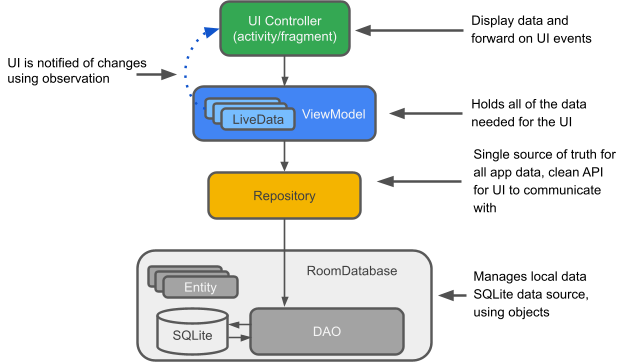
Entity: Annotated class that describes a database table when working with Room.
SQLite database: On device storage. The Room persistence library creates and maintains this database for you.
DAO: Data access object. A mapping of SQL queries to functions. When you use a DAO, you call the methods, and Room takes care of the rest.
Room database: Simplifies database work and serves as an access point to the underlying SQLite database (hides SQLiteOpenHelper). The Room database uses the DAO to issue queries to the SQLite database.
Repository: Used to manage multiple data sources.
ViewModel: Acts as a communication center between the Repository (data) and the UI. The UI no longer needs to worry about the origin of the data. ViewModel instances survive Activity/Fragment recreation.
LiveData: A data holder class that can be observed. Always holds/caches the latest version of data, and notifies its observers when data has changed. LiveData is lifecycle aware. UI components just observe relevant data and don't stop or resume observation. LiveData automatically manages all of this since it's aware of the relevant lifecycle status changes while observing.
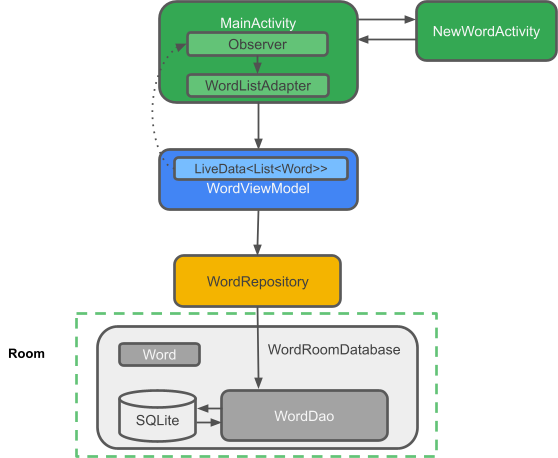
RoomWordSample architecture overview
The following diagram shows all the pieces of the app. Each of the enclosing boxes (except for the SQLite database) represents a class that you will create.
3. Create your app
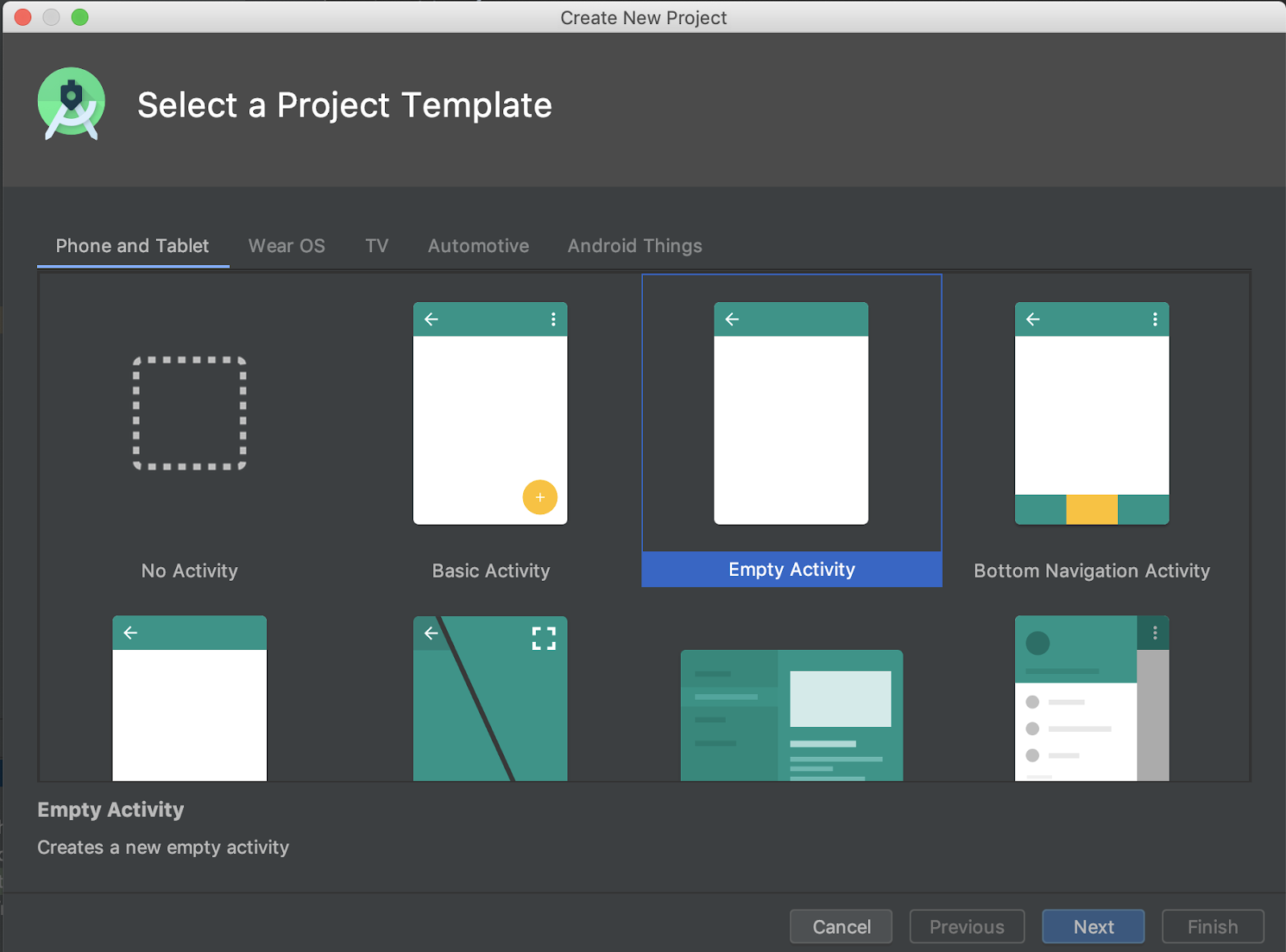
- Open Android Studio and click Start a new Android Studio project.
- In the Create New Project window, choose Empty Activity and click Next.
- On the next screen, name the app RoomWordSample, and click Finish.
4. Update Gradle files
Next, you'll have to add the component libraries to your Gradle files.
- In Android Studio, click the Projects tab and expand the Gradle Scripts folder.
- Open
build.gradle(Module: app). - Add the following compileOptions block inside the
androidblock to set target and source compatibility to 1.8, which will allow us to use JDK 8 lambdas later on:
compileOptions {
    sourceCompatibility = 1.8
    targetCompatibility = 1.8
}
- Replace the
dependenciesblock with:
dependencies {
    implementation "androidx.appcompat:appcompat:$rootProject.appCompatVersion"

    // Dependencies for working with Architecture components
    // You'll probably have to update the version numbers in build.gradle (Project)

    // Room components
    implementation "androidx.room:room-runtime:$rootProject.roomVersion"
    annotationProcessor "androidx.room:room-compiler:$rootProject.roomVersion"
    androidTestImplementation "androidx.room:room-testing:$rootProject.roomVersion"

    // Lifecycle components
    implementation "androidx.lifecycle:lifecycle-viewmodel:$rootProject.lifecycleVersion"
    implementation "androidx.lifecycle:lifecycle-livedata:$rootProject.lifecycleVersion"
    implementation "androidx.lifecycle:lifecycle-common-java8:$rootProject.lifecycleVersion"

    // UI
    implementation "androidx.constraintlayout:constraintlayout:$rootProject.constraintLayoutVersion"
    implementation "com.google.android.material:material:$rootProject.materialVersion"

    // Testing
    testImplementation "junit:junit:$rootProject.junitVersion"
    androidTestImplementation "androidx.arch.core:core-testing:$rootProject.coreTestingVersion"
    androidTestImplementation ("androidx.test.espresso:espresso-core:$rootProject.espressoVersion", {
        exclude group: 'com.android.support', module: 'support-annotations'
    })
    androidTestImplementation "androidx.test.ext:junit:$rootProject.androidxJunitVersion"
}
- In your
build.gradle(Project: RoomWordsSample) file, add the version numbers to the end of the file, as given in the code below:
ext {
    appCompatVersion = '1.5.1'
    constraintLayoutVersion = '2.1.4'
    coreTestingVersion = '2.1.0'
    lifecycleVersion = '2.3.1'
    materialVersion = '1.3.0'
    roomVersion = '2.3.0'
    // testing
    junitVersion = '4.13.2'
    espressoVersion = '3.4.0'
    androidxJunitVersion = '1.1.2'
}
- Sync your project.
5. Create an entity
The data for this app is words, and you will need a simple table to hold those values:
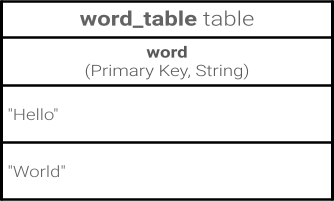
Architecture components allow you to create one via an Entity. Let's do this now.
- Create a new class file called
Word. This class will describe the Entity (which represents the SQLite table) for your words. Each property in the class represents a column in the table. Room will ultimately use these properties to both create the table and instantiate objects from rows in the database. Here is the code:
public class Word {

   private String mWord;

   public Word(@NonNull String word) {this.mWord = word;}

   public String getWord(){return this.mWord;}
}
To make the Word class meaningful to a Room database, you need to annotate it. Annotations identify how each part of this class relates to an entry in the database. Room uses this information to generate code.
- Update your
Wordclass with annotations as shown in this code:
@Entity(tableName = "word_table")
public class Word {

   @PrimaryKey
   @NonNull
   @ColumnInfo(name = "word")
   private String mWord;

   public Word(@NonNull String word) {this.mWord = word;}

   public String getWord(){return this.mWord;}
}
Let's see what these annotations do:
@Entity(tableName ="word_table")Each@Entityclass represents a SQLite table. Annotate your class declaration to indicate that it's an entity. You can specify the name of the table if you want it to be different from the name of the class. This names the table "word_table".@PrimaryKeyEvery entity needs a primary key. To keep things simple, each word acts as its own primary key.@NonNullDenotes that a parameter, field, or method return value can never be null.@ColumnInfo(name ="word")Specify the name of the column in the table if you want it to be different from the name of the member variable.- Every field that's stored in the database needs to be either public or have a "getter" method. This sample provides a
getWord()method.
You can find a complete list of annotations in the Room package summary reference.
Tip: You can autogenerate unique keys by annotating the primary key as follows:
@Entity(tableName = "word_table")
public class Word {

    @PrimaryKey(autoGenerate = true)
    private int id;

    @NonNull
    private String word;
    //..other fields, getters, setters
}
6. Create the DAO
What is the DAO?
A DAO (data access object) validates your SQL at compile-time and associates it with a method. In your Room DAO, you use handy annotations, like @Insert, to represent the most common database operations! Room uses the DAO to create a clean API for your code.
The DAO must be an interface or abstract class. By default, all queries must be executed on a separate thread.
Implement the DAO
Let's write a DAO that provides queries for:
- Getting all words ordered alphabetically
- Inserting a word
- Deleting all words
- Create a new class file called
WordDao. - Copy and paste the following code into
WordDaoand fix the imports as necessary to make it compile:
@Dao
public interface WordDao {

   // allowing the insert of the same word multiple times by passing a
   // conflict resolution strategy
   @Insert(onConflict = OnConflictStrategy.IGNORE)
   void insert(Word word);

   @Query("DELETE FROM word_table")
   void deleteAll();

   @Query("SELECT * FROM word_table ORDER BY word ASC")
   List<Word> getAlphabetizedWords();
}
Let's walk through it:
WordDaois an interface; DAOs must either be interfaces or abstract classes.- The
@Daoannotation identifies it as a DAO class for Room. void insert(Word word);Declares a method to insert one word:- The @Insert annotation is a special DAO method annotation where you don't have to provide any SQL! (There are also @Delete and @Update annotations for deleting and updating rows, but you are not using them in this app.)
onConflict = OnConflictStrategy.IGNORE: The selected on conflict strategy ignores a new word if it's exactly the same as one already in the list. To know more about the available conflict strategies, check out the documentation.deleteAll():declares a method to delete all the words.- There is no convenience annotation for deleting multiple entities, so it's annotated with the generic
@Query. @Query("DELETE FROM word_table"):@Queryrequires that you provide a SQL query as a string parameter to the annotation.List<Word> getAlphabetizedWords():A method to get all the words and have it return aListofWords.@Query("SELECT * FROM word_table ORDER BY word ASC"): Returns a list of words sorted in ascending order.
7. The LiveData class
When data changes you usually want to take some action, such as displaying the updated data in the UI. This means you have to observe the data so that when it changes, you can react.
Depending on how the data is stored, this can be tricky. Observing changes to data across multiple components of your app can create explicit, rigid dependency paths between the components. This makes testing and debugging difficult, among other things.
LiveData, a lifecycle library class for data observation, solves this problem. Use a return value of type LiveData in your method description, and Room generates all necessary code to update the LiveData when the database is updated.
In WordDao, change the getAlphabetizedWords() method signature so that the returned List<Word> is wrapped with LiveData:
   @Query("SELECT * FROM word_table ORDER BY word ASC")
   LiveData<List<Word>> getAlphabetizedWords();
Later in this codelab, you track data changes via an Observer in MainActivity.
8. Add a Room database
What is a Room database?
- Room is a database layer on top of an SQLite database.
- Room takes care of mundane tasks that you used to handle with an SQLiteOpenHelper.
- Room uses the DAO to issue queries to its database.
- By default, to avoid poor UI performance, Room doesn't allow you to issue queries on the main thread. When Room queries return LiveData, the queries are automatically run asynchronously on a background thread.
- Room provides compile-time checks of SQLite statements.
Implement the Room database
Your Room database class must be abstract and extend RoomDatabase. Usually, you only need one instance of a Room database for the whole app.
Let's make one now. Create a class file called WordRoomDatabase and add this code to it:
@Database(entities = {Word.class}, version = 1, exportSchema = false)
public abstract class WordRoomDatabase extends RoomDatabase {

   public abstract WordDao wordDao();

   private static volatile WordRoomDatabase INSTANCE;
   private static final int NUMBER_OF_THREADS = 4;
   static final ExecutorService databaseWriteExecutor =
        Executors.newFixedThreadPool(NUMBER_OF_THREADS);

   static WordRoomDatabase getDatabase(final Context context) {
        if (INSTANCE == null) {
            synchronized (WordRoomDatabase.class) {
                if (INSTANCE == null) {
                    INSTANCE = Room.databaseBuilder(context.getApplicationContext(),
                            WordRoomDatabase.class, "word_database")
                            .build();
                }
            }
        }
        return INSTANCE;
    }
}
Let's walk through the code:
- The database class for Room must be
abstractand extendRoomDatabase - You annotate the class to be a Room database with
@Databaseand use the annotation parameters to declare the entities that belong in the database and set the version number. Each entity corresponds to a table that will be created in the database. Database migrations are beyond the scope of this codelab, so we setexportSchemato false here to avoid a build warning. In a real app, you should consider setting a directory for Room to use to export the schema so you can check the current schema into your version control system. - The database exposes DAOs through an abstract "getter" method for each @Dao.
- We've defined a singleton,
WordRoomDatabase,to prevent having multiple instances of the database opened at the same time. getDatabasereturns the singleton. It'll create the database the first time it's accessed, using Room's database builder to create a RoomDatabase object in the application context from theWordRoomDatabaseclass and names it"word_database".- We've created an
ExecutorServicewith a fixed thread pool that you will use to run database operations asynchronously on a background thread.
9. Create the Repository
What is a Repository?
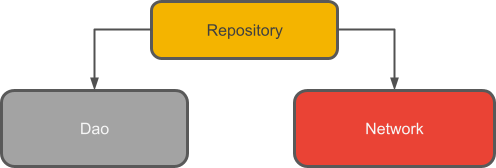
A Repository class abstracts access to multiple data sources. The Repository is not part of the Architecture Components libraries, but is a suggested best practice for code separation and architecture. A Repository class provides a clean API for data access to the rest of the application.
Why use a Repository?
A Repository manages queries and allows you to use multiple backends. In the most common example, the Repository implements the logic for deciding whether to fetch data from a network or use results cached in a local database.
Implementing the Repository
Create a class file called WordRepository and paste the following code into it:
class WordRepository {

    private WordDao mWordDao;
    private LiveData<List<Word>> mAllWords;

    // Note that in order to unit test the WordRepository, you have to remove the Application
    // dependency. This adds complexity and much more code, and this sample is not about testing.
    // See the BasicSample in the android-architecture-components repository at
    // https://github.com/googlesamples
    WordRepository(Application application) {
        WordRoomDatabase db = WordRoomDatabase.getDatabase(application);
        mWordDao = db.wordDao();
        mAllWords = mWordDao.getAlphabetizedWords();
    }

    // Room executes all queries on a separate thread.
    // Observed LiveData will notify the observer when the data has changed.
    LiveData<List<Word>> getAllWords() {
        return mAllWords;
    }

    // You must call this on a non-UI thread or your app will throw an exception. Room ensures
    // that you're not doing any long running operations on the main thread, blocking the UI.
    void insert(Word word) {
        WordRoomDatabase.databaseWriteExecutor.execute(() -> {
            mWordDao.insert(word);
        });
    }
}
The main takeaways:
- The DAO is passed into the repository constructor as opposed to the whole database. This is because you only need access to the DAO, since it contains all the read/write methods for the database. There's no need to expose the entire database to the repository.
- The
getAllWordsmethod returns theLiveDatalist of words from Room; we can do this because of how we defined thegetAlphabetizedWordsmethod to returnLiveDatain the "The LiveData class" step. Room executes all queries on a separate thread. Then observedLiveDatawill notify the observer on the main thread when the data has changed. - We need to not run the insert on the main thread, so we use the
ExecutorServicewe created in theWordRoomDatabaseto perform the insert on a background thread.
10. Create the ViewModel
What is a ViewModel?
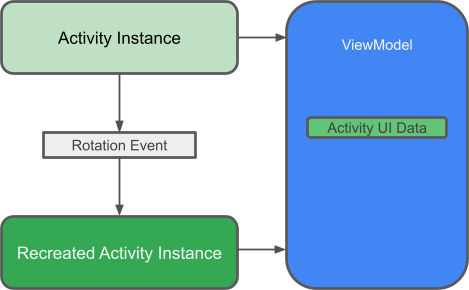
The ViewModel's role is to provide data to the UI and survive configuration changes. A ViewModel acts as a communication center between the Repository and the UI. You can also use a ViewModel to share data between fragments. The ViewModel is part of the lifecycle library.
For an introductory guide to this topic, see ViewModel Overview or the ViewModels: A Simple Example blog post.
Why use a ViewModel?
A ViewModel holds your app's UI data in a lifecycle-conscious way that survives configuration changes. Separating your app's UI data from your Activity and Fragment classes lets you better follow the single responsibility principle: Your activities and fragments are responsible for drawing data to the screen, while your ViewModel can take care of holding and processing all the data needed for the UI.
In the ViewModel, use LiveData for changeable data that the UI will use or display. Using LiveData has several benefits:
- You can put an observer on the data (instead of polling for changes) and only update the the UI when the data actually changes.
- The Repository and the UI are completely separated by the
ViewModel. - There are no database calls from the
ViewModel(this is all handled in the Repository), making the code more testable.
Implement the ViewModel
Create a class file for WordViewModel and add this code to it:
public class WordViewModel extends AndroidViewModel {

   private WordRepository mRepository;

   private final LiveData<List<Word>> mAllWords;

   public WordViewModel (Application application) {
       super(application);
       mRepository = new WordRepository(application);
       mAllWords = mRepository.getAllWords();
   }

   LiveData<List<Word>> getAllWords() { return mAllWords; }

   public void insert(Word word) { mRepository.insert(word); }
}
Here we've:
- Created a class called
WordViewModelthat gets theApplicationas a parameter and extendsAndroidViewModel. - Added a private member variable to hold a reference to the repository.
- Added a
getAllWords()method to return a cached list of words. - Implemented a constructor that creates the
WordRepository. - In the constructor, initialized the
allWordsLiveData using the repository. - Created a wrapper
insert()method that calls the Repository'sinsert()method. In this way, the implementation ofinsert()is encapsulated from the UI.
11. Add XML layout
Next, you need to add the XML layout for the list and items.
This codelab assumes that you are familiar with creating layouts in XML, so we are just providing you with the code.
Make your application theme material by setting the AppTheme parent to Theme.MaterialComponents.Light.DarkActionBar. Add a style for list items in values/styles.xml:
<resources>

    <!-- Base application theme. -->
    <style name="AppTheme" parent="Theme.MaterialComponents.Light.DarkActionBar">
        <!-- Customize your theme here. -->
        <item name="colorPrimary">@color/colorPrimary</item>
        <item name="colorPrimaryDark">@color/colorPrimaryDark</item>
        <item name="colorAccent">@color/colorAccent</item>
    </style>

    <!-- The default font for RecyclerView items is too small.
    The margin is a simple delimiter between the words. -->
    <style name="word_title">
        <item name="android:layout_width">match_parent</item>
        <item name="android:layout_marginBottom">8dp</item>
        <item name="android:paddingLeft">8dp</item>
        <item name="android:background">@android:color/holo_orange_light</item>
        <item name="android:textAppearance">@android:style/TextAppearance.Large</item>
    </style>
</resources>
Add a layout/recyclerview_item.xml layout:
<?xml version="1.0" encoding="utf-8"?>
<LinearLayout xmlns:android="http://schemas.android.com/apk/res/android"
    android:orientation="vertical"
    android:layout_width="match_parent"
    android:layout_height="wrap_content">

    <TextView
        android:id="@+id/textView"
        style="@style/word_title"
        android:layout_width="match_parent"
        android:layout_height="wrap_content"
        android:background="@android:color/holo_orange_light" />
</LinearLayout>
In layout/activity_main.xml, replace the TextView with a RecyclerView and add a floating action button (FAB). Now your layout should look like this:
<androidx.constraintlayout.widget.ConstraintLayout
    xmlns:android="http://schemas.android.com/apk/res/android"
    xmlns:app="http://schemas.android.com/apk/res-auto"
    xmlns:tools="http://schemas.android.com/tools"
    android:layout_width="match_parent"
    android:layout_height="match_parent"
    tools:context=".MainActivity">

    <androidx.recyclerview.widget.RecyclerView
        android:id="@+id/recyclerview"
        android:layout_width="0dp"
        android:layout_height="0dp"
        tools:listitem="@layout/recyclerview_item"
        android:padding="@dimen/big_padding"
        app:layout_constraintBottom_toBottomOf="parent"
        app:layout_constraintLeft_toLeftOf="parent"
        app:layout_constraintRight_toRightOf="parent"
        app:layout_constraintTop_toTopOf="parent" />

    <com.google.android.material.floatingactionbutton.FloatingActionButton
        android:id="@+id/fab"
        app:layout_constraintBottom_toBottomOf="parent"
        app:layout_constraintEnd_toEndOf="parent"
        android:layout_width="wrap_content"
        android:layout_height="wrap_content"
        android:layout_margin="16dp"
        android:contentDescription="@string/add_word"/>

</androidx.constraintlayout.widget.ConstraintLayout>
Your floating action button (FAB)'s appearance should correspond to the available action, so we will want to replace the icon with a + symbol.
First, we need to add a new Vector Asset:
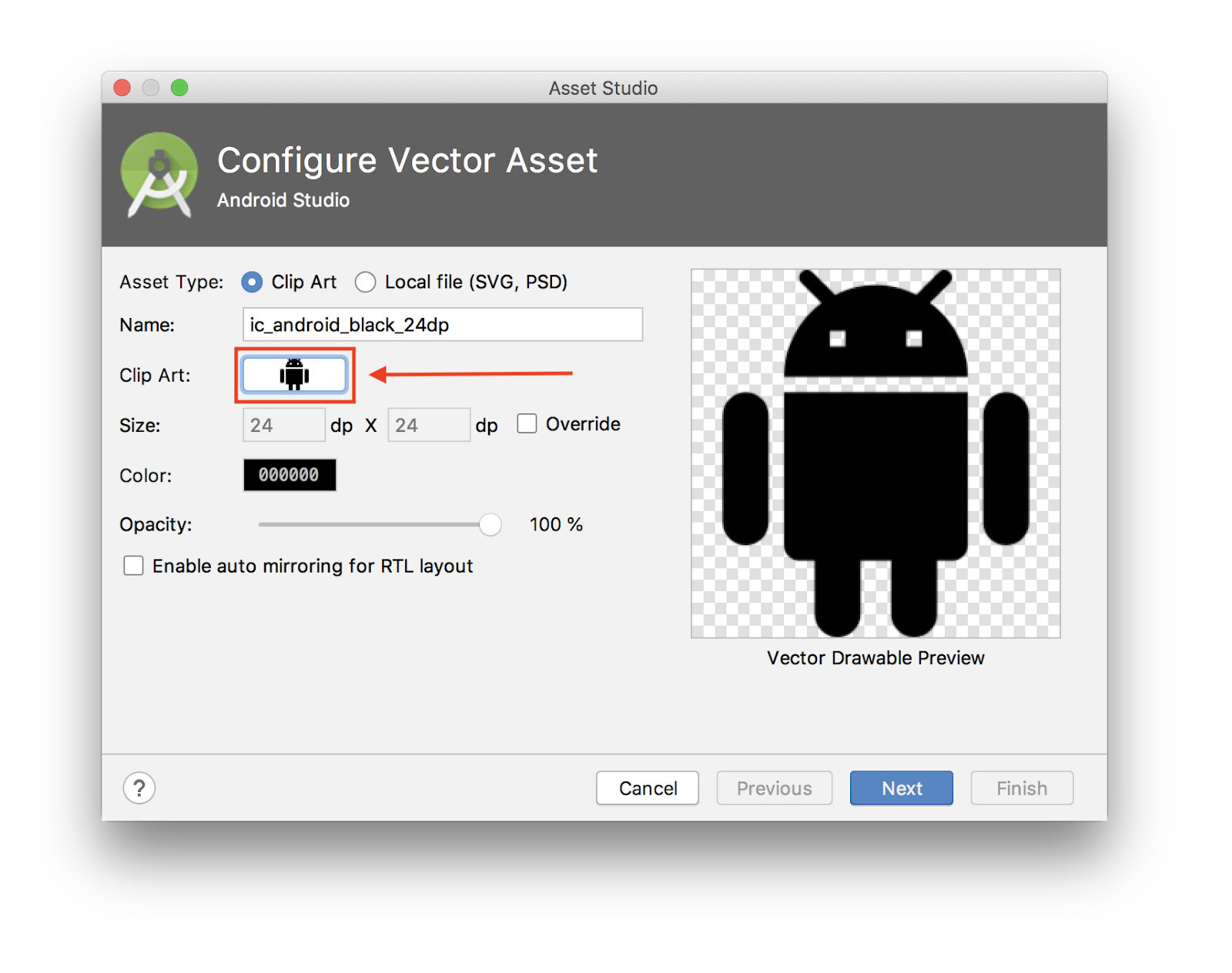
- Select File > New > Vector Asset.
- Click the Android robot icon in the Icon:
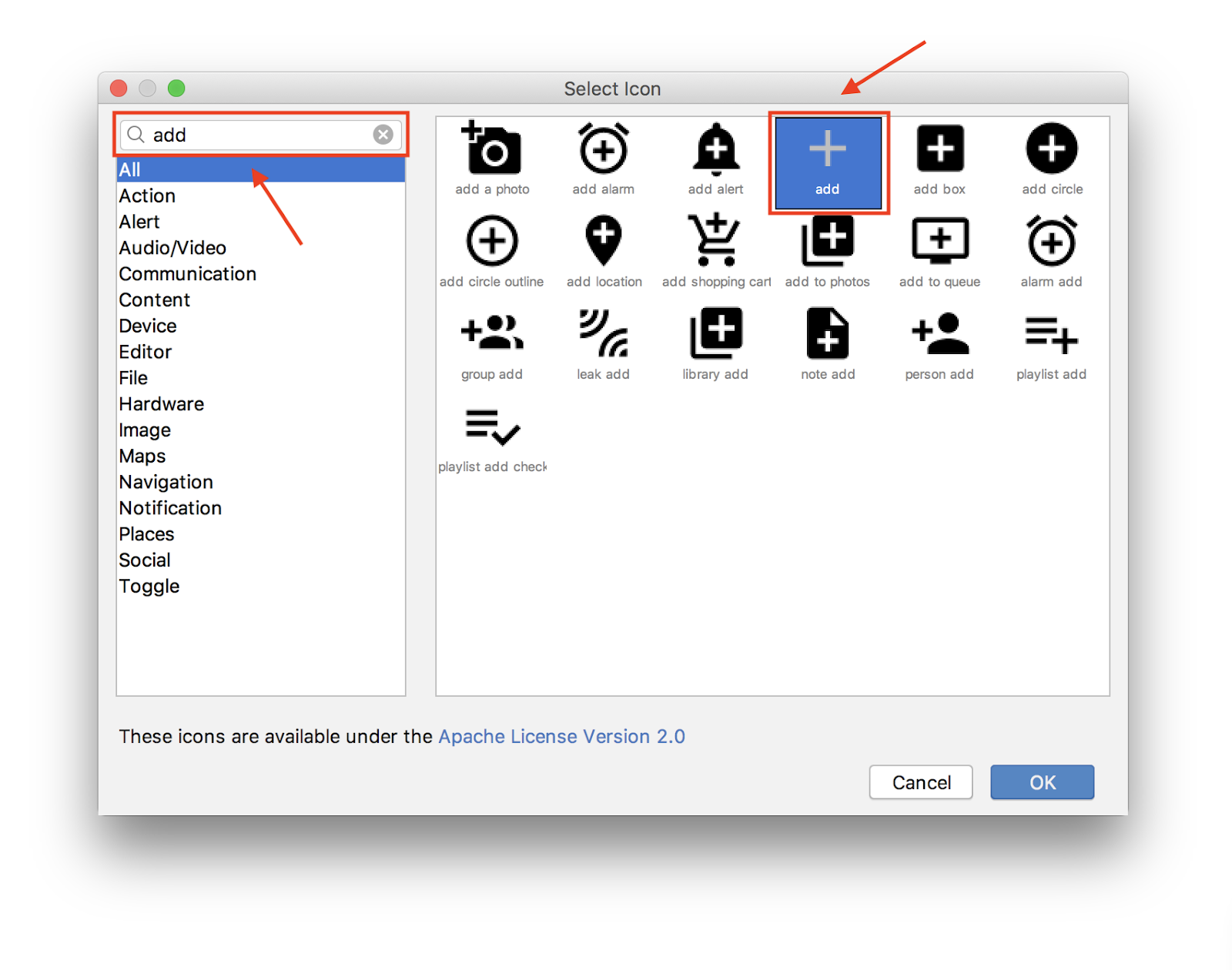
- Search for "add" and select the ‘+' asset. Click OK.
- After that, click Next.
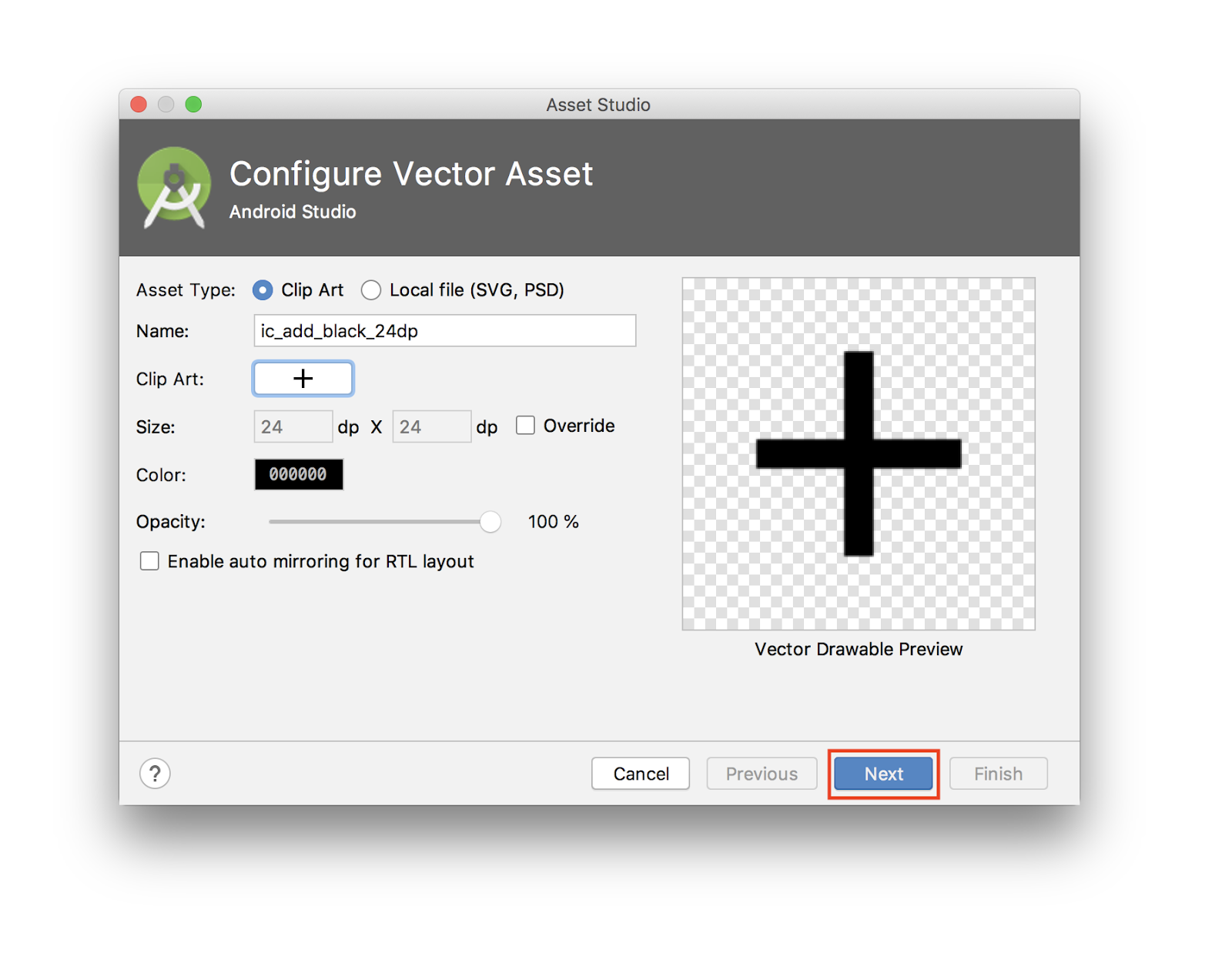
- Confirm the icon path as
main > drawableand click Finish to add the asset.
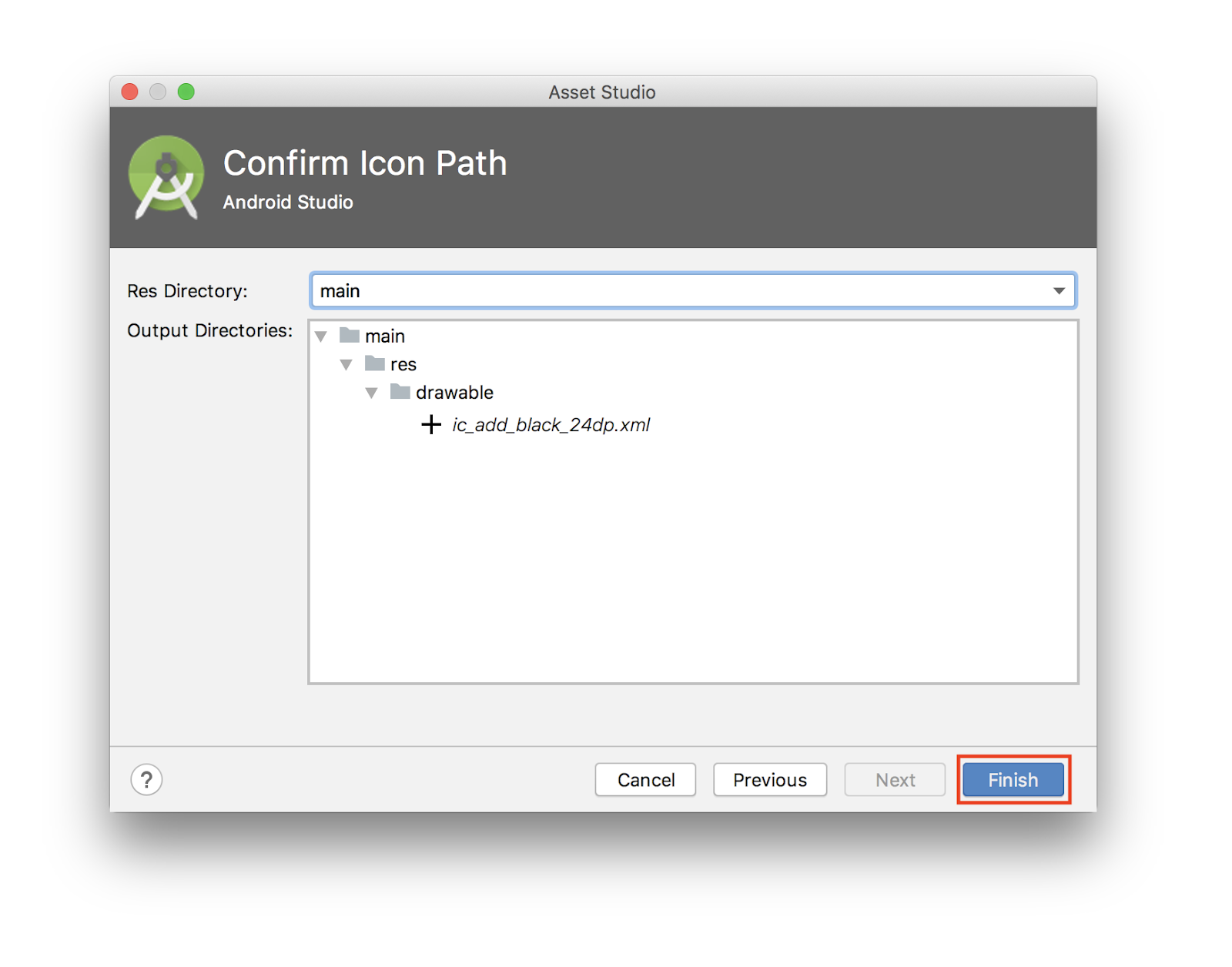
- Still in
layout/activity_main.xml, update the FAB to include the new drawable:
<com.google.android.material.floatingactionbutton.FloatingActionButton
        android:id="@+id/fab"
        app:layout_constraintBottom_toBottomOf="parent"
        app:layout_constraintEnd_toEndOf="parent"
        android:layout_width="wrap_content"
        android:layout_height="wrap_content"
        android:layout_margin="16dp"
        android:contentDescription="@string/add_word"
        android:src="@drawable/ic_add_black_24dp"/>
12. Add a RecyclerView
You are going to display the data in a RecyclerView, which is a little nicer than just throwing the data in a TextView. This codelab assumes that you know how RecyclerView, RecyclerView.ViewHolder, and ListAdapter work.
Start by creating a new file that will hold the ViewHolder, that displays a Word. Create a bind method that sets the text.
class WordViewHolder extends RecyclerView.ViewHolder {
    private final TextView wordItemView;

    private WordViewHolder(View itemView) {
        super(itemView);
        wordItemView = itemView.findViewById(R.id.textView);
    }

    public void bind(String text) {
        wordItemView.setText(text);
    }

    static WordViewHolder create(ViewGroup parent) {
        View view = LayoutInflater.from(parent.getContext())
                .inflate(R.layout.recyclerview_item, parent, false);
        return new WordViewHolder(view);
    }
}
Create a class WordListAdapter that extends ListAdapter. Create the DiffUtil.ItemCallback implementation as a static class in the WordListAdapter. Here is the code:
public class WordListAdapter extends ListAdapter<Word, WordViewHolder> {

    public WordListAdapter(@NonNull DiffUtil.ItemCallback<Word> diffCallback) {
        super(diffCallback);
    }

    @Override
    public WordViewHolder onCreateViewHolder(ViewGroup parent, int viewType) {
        return WordViewHolder.create(parent);
    }

    @Override
    public void onBindViewHolder(WordViewHolder holder, int position) {
        Word current = getItem(position);
        holder.bind(current.getWord());
    }

    static class WordDiff extends DiffUtil.ItemCallback<Word> {

        @Override
        public boolean areItemsTheSame(@NonNull Word oldItem, @NonNull Word newItem) {
            return oldItem == newItem;
        }

        @Override
        public boolean areContentsTheSame(@NonNull Word oldItem, @NonNull Word newItem) {
            return oldItem.getWord().equals(newItem.getWord());
        }
    }
}
Add the RecyclerView in the onCreate() method of MainActivity.
In the onCreate() method after setContentView:
RecyclerView recyclerView = findViewById(R.id.recyclerview);
final WordListAdapter adapter = new WordListAdapter(new WordListAdapter.WordDiff());
recyclerView.setAdapter(adapter);
recyclerView.setLayoutManager(new LinearLayoutManager(this));
Run your app to make sure everything works. There are no items, because you have not hooked up the data yet.
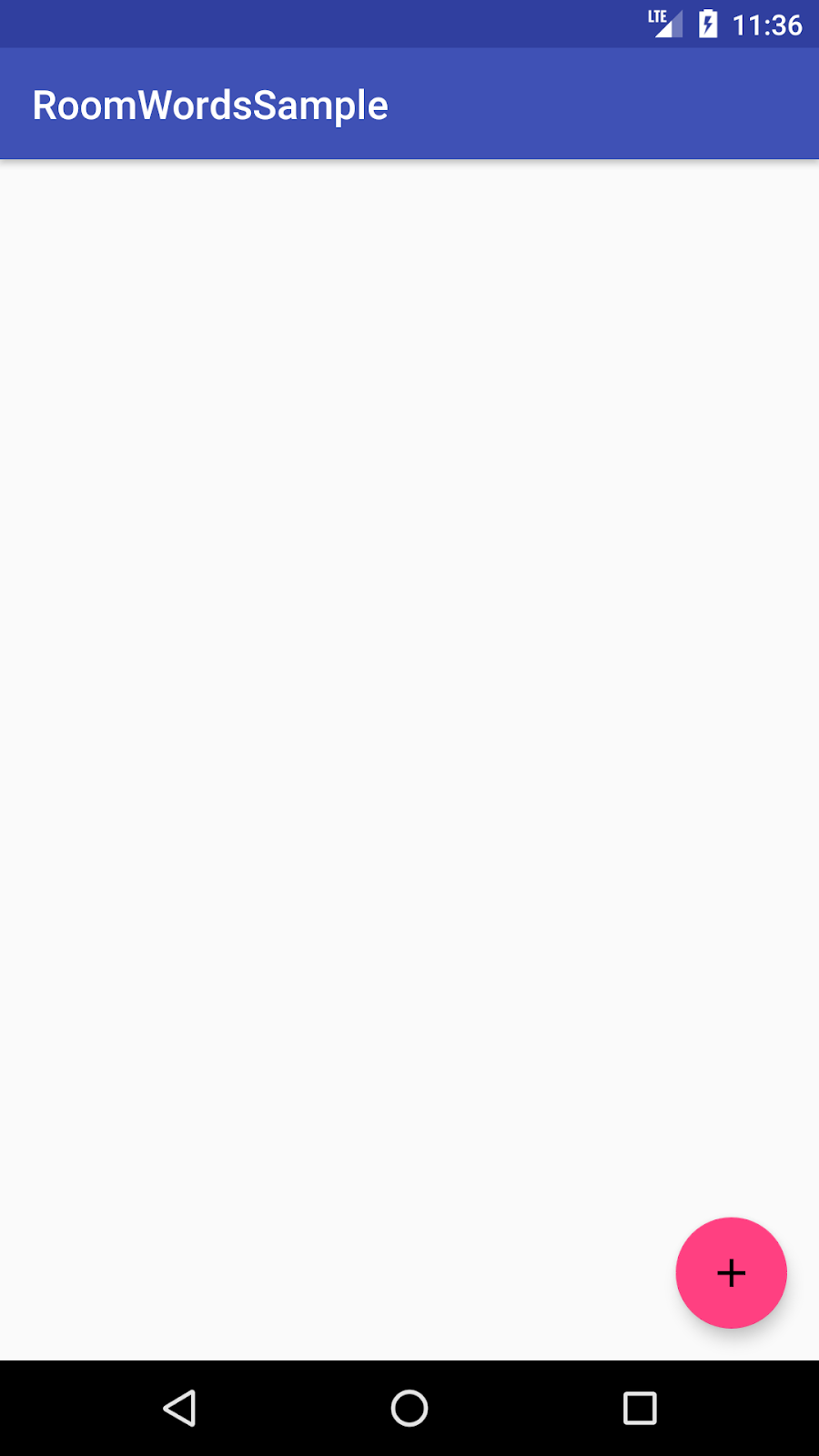
13. Populate the database
There is no data in the database. You will add data in two ways: Add some data when the database is opened, and add an Activity for adding words.
To delete all content and populate the database when the app is installed, you create a RoomDatabase.Callback and override onCreate().
Here is the code for creating the callback within the WordRoomDatabase class. Because you cannot do Room database operations on the UI thread, onCreate() uses the previously defined databaseWriteExecutor to execute a lambda on a background thread. The lambda deletes the contents of the database, then populates it with the two words "Hello" and "World". Feel free to add more words!
private static RoomDatabase.Callback sRoomDatabaseCallback = new RoomDatabase.Callback() {
    @Override
    public void onCreate(@NonNull SupportSQLiteDatabase db) {
        super.onCreate(db);

        // If you want to keep data through app restarts,
        // comment out the following block
        databaseWriteExecutor.execute(() -> {
            // Populate the database in the background.
            // If you want to start with more words, just add them.
            WordDao dao = INSTANCE.wordDao();
            dao.deleteAll();

            Word word = new Word("Hello");
            dao.insert(word);
            word = new Word("World");
            dao.insert(word);
        });
    }
};
Then, add the callback to the database build sequence right before calling .build() on the Room.databaseBuilder():
.addCallback(sRoomDatabaseCallback)
14. Add NewWordActivity
Add these string resources in values/strings.xml:
<string name="hint_word">Word...</string>
<string name="button_save">Save</string>
<string name="empty_not_saved">Word not saved because it is empty.</string>
Add this color resource in value/colors.xml:
<color name="buttonLabel">#FFFFFF</color>
Create a new dimension resource file:
- Select File > New > Android Resource File.
- From the Available qualifiers, select Dimension.
- Set the file name: dimens
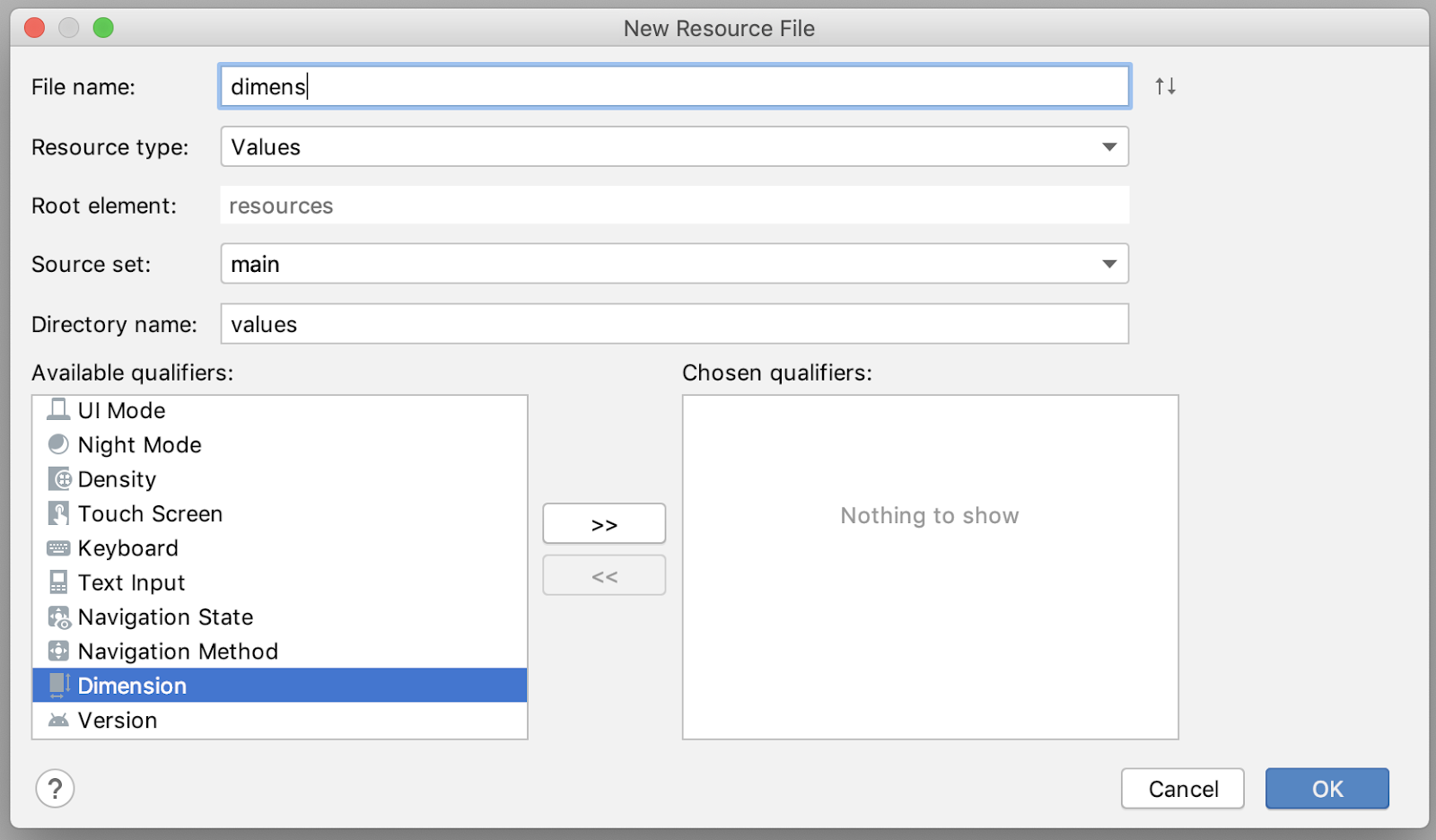
Add these dimension resources in values/dimens.xml:
<dimen name="small_padding">8dp</dimen>
<dimen name="big_padding">16dp</dimen>
Create a new empty Android Activity with the Empty Activity template:
- Select File > New > Activity > Empty Activity
- Enter
NewWordActivityfor the Activity name. - Verify that the new activity has been added to the Android Manifest.
<activity android:name=".NewWordActivity"></activity>
Update the activity_new_word.xml file in the layout folder with the following code:
<LinearLayout xmlns:android="http://schemas.android.com/apk/res/android"
    android:orientation="vertical"
    android:layout_width="match_parent"
    android:layout_height="match_parent">

    <EditText
        android:id="@+id/edit_word"
        android:layout_width="match_parent"
        android:layout_height="wrap_content"
        android:minHeight="@dimen/min_height"
        android:fontFamily="sans-serif-light"
        android:hint="@string/hint_word"
        android:inputType="textAutoComplete"
        android:layout_margin="@dimen/big_padding"
        android:textSize="18sp" />

    <Button
        android:id="@+id/button_save"
        android:layout_width="match_parent"
        android:layout_height="wrap_content"
        android:background="@color/colorPrimary"
        android:text="@string/button_save"
        android:layout_margin="@dimen/big_padding"
        android:textColor="@color/buttonLabel" />

</LinearLayout>
Update the code for the activity:
public class NewWordActivity extends AppCompatActivity {

   public static final String EXTRA_REPLY = "com.example.android.wordlistsql.REPLY";

   private  EditText mEditWordView;

   @Override
   public void onCreate(Bundle savedInstanceState) {
       super.onCreate(savedInstanceState);
       setContentView(R.layout.activity_new_word);
       mEditWordView = findViewById(R.id.edit_word);

       final Button button = findViewById(R.id.button_save);
       button.setOnClickListener(view -> {
           Intent replyIntent = new Intent();
           if (TextUtils.isEmpty(mEditWordView.getText())) {
               setResult(RESULT_CANCELED, replyIntent);
           } else {
               String word = mEditWordView.getText().toString();
               replyIntent.putExtra(EXTRA_REPLY, word);
               setResult(RESULT_OK, replyIntent);
           }
           finish();
       });
   }
}
15. Connect with the data
The final step is to connect the UI to the database by saving new words the user enters and displaying the current contents of the word database in the RecyclerView.
To display the current contents of the database, add an observer that observes the LiveData in the ViewModel.
Whenever the data changes, the onChanged() callback is invoked, which calls the adapter's setWords() method to update the adapter's cached data and refresh the displayed list.
In MainActivity, create a member variable for the ViewModel:
private WordViewModel mWordViewModel;
Use ViewModelProvider to associate your ViewModel with your Activity.
When your Activity first starts, the ViewModelProviders will create the ViewModel. When the activity is destroyed, for example through a configuration change, the ViewModel persists. When the activity is re-created, the ViewModelProviders return the existing ViewModel. For more information, see ViewModel.
In onCreate() below the RecyclerView code block, get a ViewModel from the ViewModelProvider:
mWordViewModel = new ViewModelProvider(this).get(WordViewModel.class);
Also in onCreate(), add an observer for the LiveData returned by getAlphabetizedWords(). The onChanged() method fires when the observed data changes and the activity is in the foreground:
mWordViewModel.getAllWords().observe(this, words -> {
    // Update the cached copy of the words in the adapter.
    adapter.submitList(words);
});
Define a request code as a member of the MainActivity:
public static final int NEW_WORD_ACTIVITY_REQUEST_CODE = 1;
In MainActivity, add the onActivityResult() code for the NewWordActivity.
If the activity returns with RESULT_OK, insert the returned word into the database by calling the insert() method of the WordViewModel:
public void onActivityResult(int requestCode, int resultCode, Intent data) {
   super.onActivityResult(requestCode, resultCode, data);

   if (requestCode == NEW_WORD_ACTIVITY_REQUEST_CODE && resultCode == RESULT_OK) {
       Word word = new Word(data.getStringExtra(NewWordActivity.EXTRA_REPLY));
       mWordViewModel.insert(word);
   } else {
       Toast.makeText(
               getApplicationContext(),
               R.string.empty_not_saved,
               Toast.LENGTH_LONG).show();
   }
}
In MainActivity,start NewWordActivity when the user taps the FAB. In the MainActivity onCreate, find the FAB and add an onClickListener with this code:
FloatingActionButton fab = findViewById(R.id.fab);
fab.setOnClickListener( view -> {
   Intent intent = new Intent(MainActivity.this, NewWordActivity.class);
   startActivityForResult(intent, NEW_WORD_ACTIVITY_REQUEST_CODE);
});
Now, run your app! When you add a word to the database in NewWordActivity, the UI will automatically update.
16. Summary
Now that you have a working app, let's recap what you've built. Here is the app structure again:
The components of the app are:
MainActivity: displays words in a list using aRecyclerViewand theWordListAdapter. InMainActivity, there is anObserverthat observes the words LiveData from the database and is notified when they change.NewWordActivity: adds a new word to the list.WordViewModel: provides methods for accessing the data layer, and it returns LiveData so that MainActivity can set up the observer relationship.*LiveData<List<Word>>: Makes possible the automatic updates in the UI components. In theMainActivity, there is anObserverthat observes the words LiveData from the database and is notified when they change.Repository: manages one or more data sources. TheRepositoryexposes methods for the ViewModel to interact with the underlying data provider. In this app, that backend is a Room database.Room: is a wrapper around and implements a SQLite database. Room does a lot of work for you that you used to have to do yourself.- DAO: maps method calls to database queries, so that when the Repository calls a method such as
getAlphabetizedWords(), Room can executeSELECT * FROM word_table ORDER BY word ASC. Word: is the entity class that contains a single word.ViewsandActivities(andFragments) only interact with the data through theViewModel. As such, it doesn't matter where the data comes from.
17. Congratulations!
[Optional] Download the solution code
If you haven't already, you can take a look at the solution code for the codelab. You can look at the github repository or download the code here:
Unpack the downloaded zip file. This will unpack a root folder, android-room-with-a-view-master, which contains the complete app.
Except as otherwise noted, the content of this page is licensed under the Creative Commons Attribution 4.0 License, and code samples are licensed under the Apache 2.0 License. For details, see the Google Developers Site Policies. Java is a registered trademark of Oracle and/or its affiliates.