配對裝置配對連線 (original) (raw)
新增通訊協定支援
網路
- 執行網路作業
* 關於執行網路作業
* 連線到網路
* 管理網路用量
* 讀取網路狀態
* 針對網路存取權進行最佳化
* 將網路數據用量最佳化
* 監控連線狀態和連線計量功能
* 剖析 XML 資料 - Wi-Fi
* 設定掃描 Wi-Fi
* 新增 Wi-Fi Direct (P2P)
* 實作 Wi-Fi 感知功能
* 使用 RTT API 設定 Wi-Fi 位置資訊
* 使用僅限本機的無線基地台
* 要求存取裝置
* 探索與連線
* 關於網路服務探索 (NSD)
* 使用 NSD
* 使用 Wi-Fi Direct 建立 P2P 連線
* 使用 Wi-Fi Direct 探索服務
* 關於 Wi-Fi 輕鬆連線 - 受限的衛星網路
- 執行網路作業
最佳化應用程式以提升連線能力
配對裝置配對連線
在搭載 Android 8.0 (API 級別 26) 以上版本的裝置上,隨附裝置配對功能會代表應用程式掃描附近的藍牙或 Wi-Fi 裝置,不需要 ACCESS_FINE_LOCATION 權限。這有助於盡可能保護使用者隱私。使用這個方法可執行隨附裝置的初始設定,例如支援 BLE 的智慧手錶。此外,如要配對隨附裝置,必須啟用定位服務。
配對隨附裝置本身不會建立連線,也不會啟用持續掃描功能。應用程式可以使用藍牙或 Wi-Fi 連線 API 建立連線。
配對裝置後,裝置即可使用REQUEST_COMPANION_RUN_IN_BACKGROUND和REQUEST_COMPANION_USE_DATA_IN_BACKGROUND權限從背景啟動應用程式。應用程式也可以使用 REQUEST_COMPANION_START_FOREGROUND_SERVICES_FROM_BACKGROUND 權限從背景啟動前景服務。
使用者可以從清單中選取裝置,並授予應用程式存取裝置的權限。如果解除安裝應用程式或呼叫 disassociate(),系統就會撤銷這些權限。如果使用者不再需要關聯,例如登出或移除已綁定的裝置,隨附應用程式有責任清除自己的關聯。
實作配對裝置配對連線
本節說明如何使用 CompanionDeviceManager,透過藍牙、BLE 和 Wi-Fi 將應用程式與隨附裝置配對。
指定隨附裝置
下列程式碼範例說明如何在資訊清單檔案中新增 旗標。這會告知系統,您的應用程式打算設定隨附裝置。
<uses-feature android:name="android.software.companion_device_setup"/>
依「DeviceFilter」列出裝置
您可以顯示符合您提供的 DeviceFilter 範圍內所有隨附裝置 (如圖 1 所示)。如要限制掃描範圍,只掃描一部裝置,請輕觸 setSingleDevice() true (如圖 2 所示)。
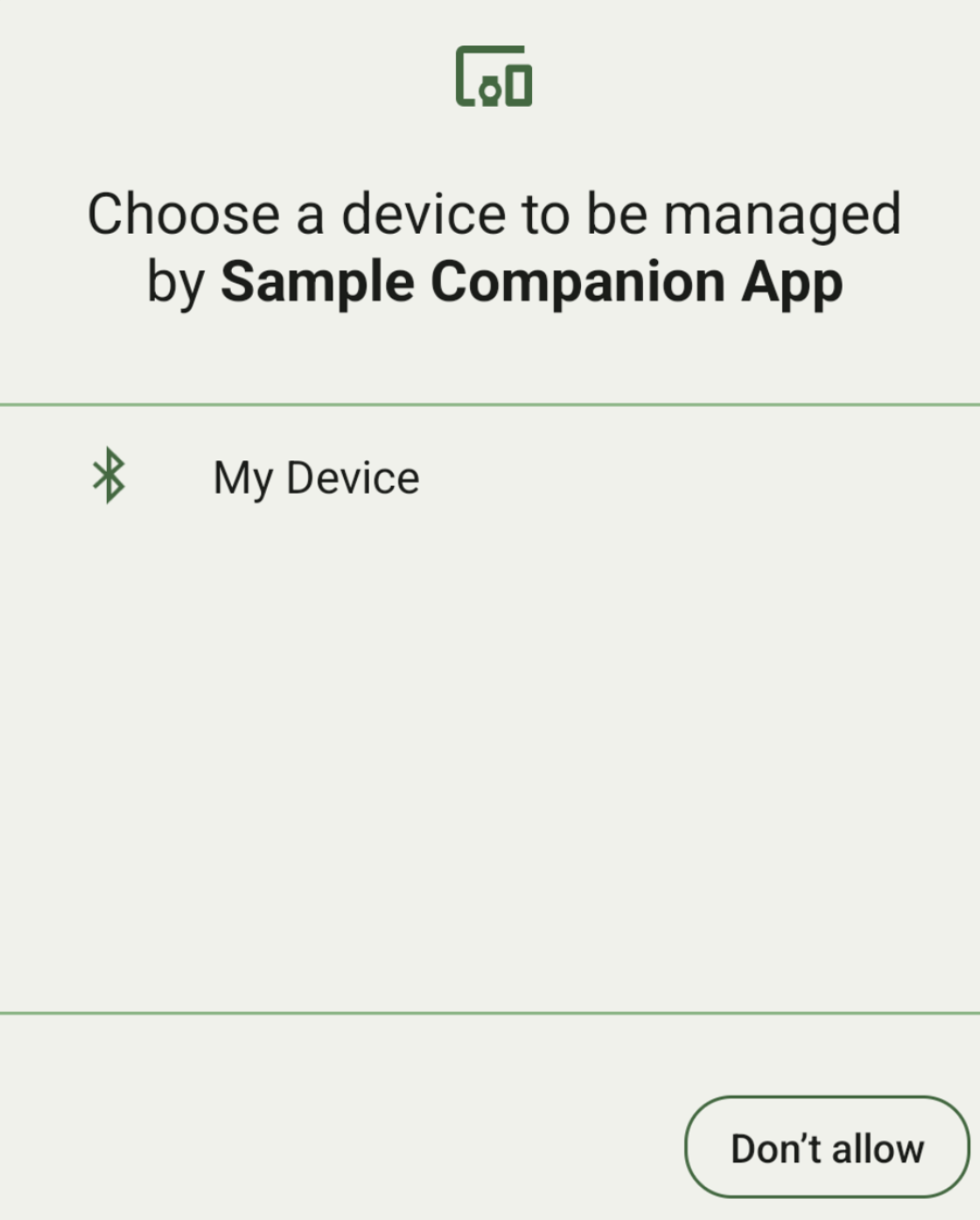
圖 1. 配對裝置配對連線
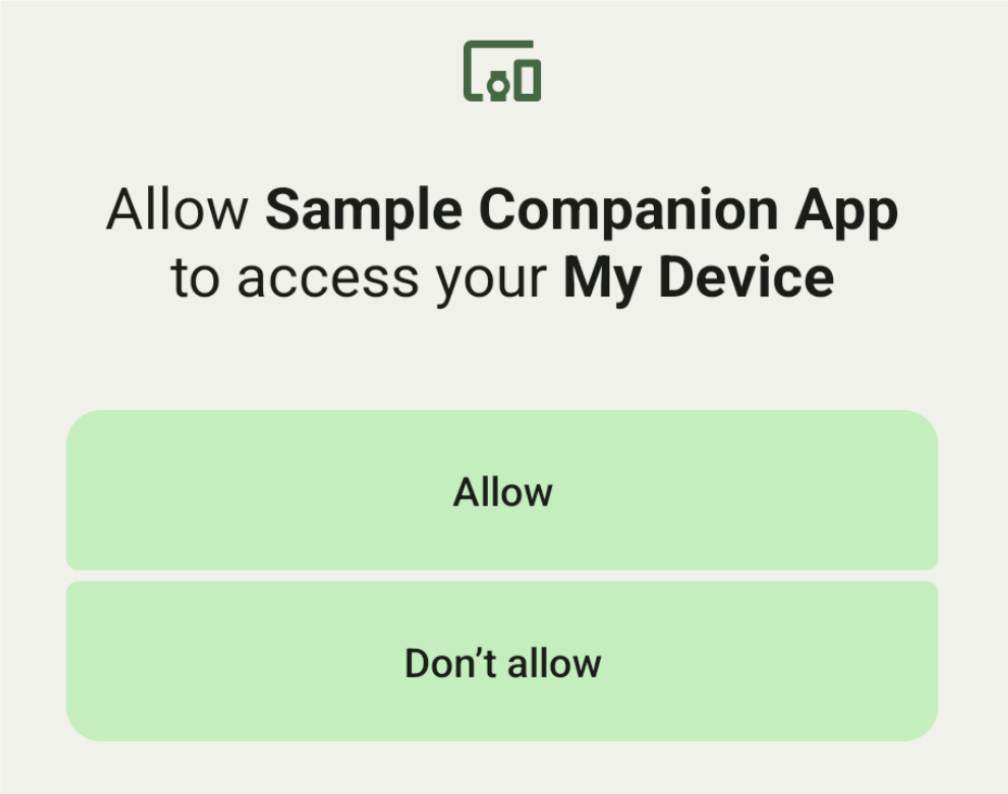
圖 2. 配對單一裝置
以下是 DeviceFilter 的子類別,可在 AssociationRequest 中指定:
這三個子類別都有建構函式,可簡化篩選條件的設定。在下列範例中,裝置會掃描具有 BluetoothDeviceFilter 的藍牙裝置。
Kotlin
val deviceFilter: BluetoothDeviceFilter = BluetoothDeviceFilter.Builder() // Match only Bluetooth devices whose name matches the pattern. .setNamePattern(Pattern.compile("My device")) // Match only Bluetooth devices whose service UUID matches this pattern. .addServiceUuid(ParcelUuid(UUID(0x123abcL, -1L)), null) .build()
Java
BluetoothDeviceFilter deviceFilter = new BluetoothDeviceFilter.Builder() // Match only Bluetooth devices whose name matches the pattern. .setNamePattern(Pattern.compile("My device")) // Match only Bluetooth devices whose service UUID matches this pattern. .addServiceUuid(new ParcelUuid(new UUID(0x123abcL, -1L)), null) .build();
將 DeviceFilter 設為 AssociationRequest,以便 CompanionDeviceManager 判斷要搜尋的裝置類型。
Kotlin
val pairingRequest: AssociationRequest = AssociationRequest.Builder() // Find only devices that match this request filter. .addDeviceFilter(deviceFilter) // Stop scanning as soon as one device matching the filter is found. .setSingleDevice(true) .build()
Java
AssociationRequest pairingRequest = new AssociationRequest.Builder() // Find only devices that match this request filter. .addDeviceFilter(deviceFilter) // Stop scanning as soon as one device matching the filter is found. .setSingleDevice(true) .build();
應用程式初始化 AssociationRequest 後,請在 CompanionDeviceManager 上執行 associate() 函式。associate() 函式會接收 AssociationRequest 和 Callback。
當 CompanionDeviceManager 找到裝置並準備啟動使用者同意聲明對話方塊時,Callback 會在 onAssociationPending 中傳回 IntentSender。使用者確認裝置後,裝置的 AssociationInfo 會在 onAssociationCreated 中傳回。 如果應用程式找不到任何裝置,回呼會傳回 onFailure 和錯誤訊息。
在搭載 Android 13 (API 級別 33) 以上版本的裝置上:
Kotlin
val deviceManager = requireContext().getSystemService(Context.COMPANION_DEVICE_SERVICE)
val executor: Executor = Executor { it.run() }
deviceManager.associate(pairingRequest, executor, object : CompanionDeviceManager.Callback() { // Called when a device is found. Launch the IntentSender so the user // can select the device they want to pair with. override fun onAssociationPending(intentSender: IntentSender) { intentSender?.let { startIntentSenderForResult(it, SELECT_DEVICE_REQUEST_CODE, null, 0, 0, 0) } }
override fun onAssociationCreated(associationInfo: AssociationInfo) {
    // An association is created.
}

override fun onFailure(errorMessage: CharSequence?) {
    // To handle the failure.
 }
})
Java
CompanionDeviceManager deviceManager = (CompanionDeviceManager) getSystemService(Context.COMPANION_DEVICE_SERVICE);
Executor executor = new Executor() { @Override public void execute(Runnable runnable) { runnable.run(); } }; deviceManager.associate(pairingRequest, new CompanionDeviceManager.Callback() { executor, // Called when a device is found. Launch the IntentSender so the user can // select the device they want to pair with. @Override public void onDeviceFound(IntentSender chooserLauncher) { try { startIntentSenderForResult( chooserLauncher, SELECT_DEVICE_REQUEST_CODE, null, 0, 0, 0 ); } catch (IntentSender.SendIntentException e) { Log.e("MainActivity", "Failed to send intent"); } }
@Override
public void onAssociationCreated(AssociationInfo associationInfo) {
    // An association is created.
}

@Override
public void onFailure(CharSequence errorMessage) {
    // To handle the failure.
});
在搭載 Android 12L (API 級別 32) 以下版本 (已淘汰) 的裝置上:
Kotlin
val deviceManager = requireContext().getSystemService(Context.COMPANION_DEVICE_SERVICE)
deviceManager.associate(pairingRequest, object : CompanionDeviceManager.Callback() { // Called when a device is found. Launch the IntentSender so the user // can select the device they want to pair with. override fun onDeviceFound(chooserLauncher: IntentSender) { startIntentSenderForResult(chooserLauncher, SELECT_DEVICE_REQUEST_CODE, null, 0, 0, 0) }
    override fun onFailure(error: CharSequence?) {
        // To handle the failure.
    }
}, null)
Java
CompanionDeviceManager deviceManager = (CompanionDeviceManager) getSystemService(Context.COMPANION_DEVICE_SERVICE); deviceManager.associate(pairingRequest, new CompanionDeviceManager.Callback() { // Called when a device is found. Launch the IntentSender so the user can // select the device they want to pair with. @Override public void onDeviceFound(IntentSender chooserLauncher) { try { startIntentSenderForResult( chooserLauncher, SELECT_DEVICE_REQUEST_CODE, null, 0, 0, 0 ); } catch (IntentSender.SendIntentException e) { Log.e("MainActivity", "Failed to send intent"); } }
@Override
public void onFailure(CharSequence error) {
    // To handle the failure.
}
}, null);
使用者選取的結果會傳回至活動的 onActivityResult() 片段。接著即可存取所選裝置。
使用者選取藍牙裝置時,預期會看到BluetoothDevice。 使用者選取 Bluetooth LE 裝置時,預期會看到 android.bluetooth.le.ScanResult。 使用者選取 Wi-Fi 裝置時,預期會看到 android.net.wifi.ScanResult。
Kotlin
override fun onActivityResult(requestCode: Int, resultCode: Int, data: Intent?) { when (requestCode) { SELECT_DEVICE_REQUEST_CODE -> when(resultCode) { Activity.RESULT_OK -> { // The user chose to pair the app with a Bluetooth device. val deviceToPair: BluetoothDevice? = data?.getParcelableExtra(CompanionDeviceManager.EXTRA_DEVICE) deviceToPair?.let { device -> device.createBond() // Continue to interact with the paired device. } } } else -> super.onActivityResult(requestCode, resultCode, data) } }
Java
@Override protected void onActivityResult(int requestCode, int resultCode, @Nullable Intent data) { if (resultCode != Activity.RESULT_OK) { return; } if (requestCode == SELECT_DEVICE_REQUEST_CODE && data != null) { BluetoothDevice deviceToPair = data.getParcelableExtra(CompanionDeviceManager.EXTRA_DEVICE); if (deviceToPair != null) { deviceToPair.createBond(); // Continue to interact with the paired device. } } else { super.onActivityResult(requestCode, resultCode, data); } }
請參閱完整範例:
在搭載 Android 13 (API 級別 33) 以上版本的裝置上:
Kotlin
private const val SELECT_DEVICE_REQUEST_CODE = 0
class MainActivity : AppCompatActivity() {
private val deviceManager: CompanionDeviceManager by lazy {
    getSystemService(Context.COMPANION_DEVICE_SERVICE) as CompanionDeviceManager
}
val mBluetoothAdapter: BluetoothAdapter by lazy {
    val java = BluetoothManager::class.java
    getSystemService(java)!!.adapter }
val executor: Executor =  Executor { it.run() }

override fun onCreate(savedInstanceState: Bundle?) {
    super.onCreate(savedInstanceState)
    setContentView(R.layout.activity_main)

    // To skip filters based on names and supported feature flags (UUIDs),
    // omit calls to setNamePattern() and addServiceUuid()
    // respectively, as shown in the following  Bluetooth example.
    val deviceFilter: BluetoothDeviceFilter = BluetoothDeviceFilter.Builder()
        .setNamePattern(Pattern.compile("My device"))
        .addServiceUuid(ParcelUuid(UUID(0x123abcL, -1L)), null)
        .build()

    // The argument provided in setSingleDevice() determines whether a single
    // device name or a list of them appears.
    val pairingRequest: AssociationRequest = AssociationRequest.Builder()
        .addDeviceFilter(deviceFilter)
        .setSingleDevice(true)
        .build()

    // When the app tries to pair with a Bluetooth device, show the
    // corresponding dialog box to the user.
    deviceManager.associate(pairingRequest,
        executor,
        object : CompanionDeviceManager.Callback() {
            // Called when a device is found. Launch the IntentSender so the user
            // can select the device they want to pair with.
            override fun onAssociationPending(intentSender: IntentSender) {
            intentSender?.let {
                startIntentSenderForResult(it, SELECT_DEVICE_REQUEST_CODE, null, 0, 0, 0)
          }
        }

         override fun onAssociationCreated(associationInfo: AssociationInfo) {
             // AssociationInfo object is created and get association id and the
             // macAddress.
             var associationId: int = associationInfo.id
             var macAddress: MacAddress = associationInfo.deviceMacAddress
         }
         override fun onFailure(errorMessage: CharSequence?) {
            // Handle the failure.
        }
)

override fun onActivityResult(requestCode: Int, resultCode: Int, data: Intent?) {
    when (requestCode) {
        SELECT_DEVICE_REQUEST_CODE -> when(resultCode) {
            Activity.RESULT_OK -> {
                // The user chose to pair the app with a Bluetooth device.
                val deviceToPair: BluetoothDevice? =
                    data?.getParcelableExtra(CompanionDeviceManager.EXTRA_DEVICE)
                deviceToPair?.let { device ->
                    device.createBond()
                    // Maintain continuous interaction with a paired device.
                }
            }
        }
        else -> super.onActivityResult(requestCode, resultCode, data)
    }
}
}
Java
class MainActivityJava extends AppCompatActivity {
private static final int SELECT_DEVICE_REQUEST_CODE = 0;
Executor executor = new Executor() {
    @Override
    public void execute(Runnable runnable) {
        runnable.run();
    }
};

@Override
protected void onCreate(@Nullable Bundle savedInstanceState) {
    super.onCreate(savedInstanceState);
    setContentView(R.layout.activity_main);

    CompanionDeviceManager deviceManager =
        (CompanionDeviceManager) getSystemService(
            Context.COMPANION_DEVICE_SERVICE
        );

    // To skip filtering based on name and supported feature flags,
    // do not include calls to setNamePattern() and addServiceUuid(),
    // respectively. This example uses Bluetooth.
    BluetoothDeviceFilter deviceFilter =
        new BluetoothDeviceFilter.Builder()
            .setNamePattern(Pattern.compile("My device"))
            .addServiceUuid(
                new ParcelUuid(new UUID(0x123abcL, -1L)), null
            )
            .build();

    // The argument provided in setSingleDevice() determines whether a single
    // device name or a list of device names is presented to the user as
    // pairing options.
    AssociationRequest pairingRequest = new AssociationRequest.Builder()
        .addDeviceFilter(deviceFilter)
        .setSingleDevice(true)
        .build();

    // When the app tries to pair with the Bluetooth device, show the
    // appropriate pairing request dialog to the user.
    deviceManager.associate(pairingRequest, new CompanionDeviceManager.Callback() {
        executor,
       // Called when a device is found. Launch the IntentSender so the user can
       // select the device they want to pair with.
       @Override
       public void onDeviceFound(IntentSender chooserLauncher) {
           try {
               startIntentSenderForResult(
                   chooserLauncher, SELECT_DEVICE_REQUEST_CODE, null, 0, 0, 0
               );
           } catch (IntentSender.SendIntentException e) {
               Log.e("MainActivity", "Failed to send intent");
           }
       }

      @Override
      public void onAssociationCreated(AssociationInfo associationInfo) {
             // AssociationInfo object is created and get association id and the
             // macAddress.
             int associationId = associationInfo.getId();
             MacAddress macAddress = associationInfo.getDeviceMacAddress();
      }

      @Override
      public void onFailure(CharSequence errorMessage) {
         // Handle the failure.
    });
}

@Override
protected void onActivityResult(int requestCode, int resultCode, @Nullable Intent data) {
    if (resultCode != Activity.RESULT_OK) {
        return;
    }
    if (requestCode == SELECT_DEVICE_REQUEST_CODE) {
        if (resultCode == Activity.RESULT_OK && data != null) {
            BluetoothDevice deviceToPair = data.getParcelableExtra(
                CompanionDeviceManager.EXTRA_DEVICE
            );

            if (deviceToPair != null) {
                deviceToPair.createBond();
                // ... Continue interacting with the paired device.
            }
        }
    } else {
        super.onActivityResult(requestCode, resultCode, data);
    }
}
}
在搭載 Android 12L (API 級別 32) 以下版本 (已淘汰) 的裝置上:
Kotlin
private const val SELECT_DEVICE_REQUEST_CODE = 0
class MainActivity : AppCompatActivity() {
private val deviceManager: CompanionDeviceManager by lazy {
    getSystemService(Context.COMPANION_DEVICE_SERVICE) as CompanionDeviceManager
}

override fun onCreate(savedInstanceState: Bundle?) {
    super.onCreate(savedInstanceState)
    setContentView(R.layout.activity_main)

    // To skip filters based on names and supported feature flags (UUIDs),
    // omit calls to setNamePattern() and addServiceUuid()
    // respectively, as shown in the following  Bluetooth example.
    val deviceFilter: BluetoothDeviceFilter = BluetoothDeviceFilter.Builder()
        .setNamePattern(Pattern.compile("My device"))
        .addServiceUuid(ParcelUuid(UUID(0x123abcL, -1L)), null)
        .build()

    // The argument provided in setSingleDevice() determines whether a single
    // device name or a list of them appears.
    val pairingRequest: AssociationRequest = AssociationRequest.Builder()
        .addDeviceFilter(deviceFilter)
        .setSingleDevice(true)
        .build()

    // When the app tries to pair with a Bluetooth device, show the
    // corresponding dialog box to the user.
    deviceManager.associate(pairingRequest,
        object : CompanionDeviceManager.Callback() {

            override fun onDeviceFound(chooserLauncher: IntentSender) {
                startIntentSenderForResult(chooserLauncher,
                    SELECT_DEVICE_REQUEST_CODE, null, 0, 0, 0)
            }

            override fun onFailure(error: CharSequence?) {
                // Handle the failure.
            }
        }, null)
}

override fun onActivityResult(requestCode: Int, resultCode: Int, data: Intent?) {
    when (requestCode) {
        SELECT_DEVICE_REQUEST_CODE -> when(resultCode) {
            Activity.RESULT_OK -> {
                // The user chose to pair the app with a Bluetooth device.
                val deviceToPair: BluetoothDevice? =
                    data?.getParcelableExtra(CompanionDeviceManager.EXTRA_DEVICE)
                deviceToPair?.let { device ->
                    device.createBond()
                    // Maintain continuous interaction with a paired device.
                }
            }
        }
        else -> super.onActivityResult(requestCode, resultCode, data)
    }
}
}
Java
class MainActivityJava extends AppCompatActivity {
private static final int SELECT_DEVICE_REQUEST_CODE = 0;

@Override
protected void onCreate(@Nullable Bundle savedInstanceState) {
    super.onCreate(savedInstanceState);
    setContentView(R.layout.activity_main);

    CompanionDeviceManager deviceManager =
        (CompanionDeviceManager) getSystemService(
            Context.COMPANION_DEVICE_SERVICE
        );

    // To skip filtering based on name and supported feature flags,
    // don't include calls to setNamePattern() and addServiceUuid(),
    // respectively. This example uses Bluetooth.
    BluetoothDeviceFilter deviceFilter =
        new BluetoothDeviceFilter.Builder()
            .setNamePattern(Pattern.compile("My device"))
            .addServiceUuid(
                new ParcelUuid(new UUID(0x123abcL, -1L)), null
            )
            .build();

    // The argument provided in setSingleDevice() determines whether a single
    // device name or a list of device names is presented to the user as
    // pairing options.
    AssociationRequest pairingRequest = new AssociationRequest.Builder()
        .addDeviceFilter(deviceFilter)
        .setSingleDevice(true)
        .build();

    // When the app tries to pair with the Bluetooth device, show the
    // appropriate pairing request dialog to the user.
    deviceManager.associate(pairingRequest,
        new CompanionDeviceManager.Callback() {
            @Override
            public void onDeviceFound(IntentSender chooserLauncher) {
                try {
                    startIntentSenderForResult(chooserLauncher,
                        SELECT_DEVICE_REQUEST_CODE, null, 0, 0, 0);
                } catch (IntentSender.SendIntentException e) {
                    // failed to send the intent
                }
            }

            @Override
            public void onFailure(CharSequence error) {
                // handle failure to find the companion device
            }
        }, null);
}

@Override
protected void onActivityResult(int requestCode, int resultCode, @Nullable Intent data) {
    if (requestCode == SELECT_DEVICE_REQUEST_CODE) {
        if (resultCode == Activity.RESULT_OK && data != null) {
            BluetoothDevice deviceToPair = data.getParcelableExtra(
                CompanionDeviceManager.EXTRA_DEVICE
            );

            if (deviceToPair != null) {
                deviceToPair.createBond();
                // ... Continue interacting with the paired device.
            }
        }
    } else {
        super.onActivityResult(requestCode, resultCode, data);
    }
}
}
配對裝置設定檔
在 Android 12 (API 級別 31) 以上版本中,管理手錶等裝置的隨附應用程式可在配對時授予必要權限,藉此使用隨附裝置設定檔簡化設定程序。詳情請參閱「隨附裝置設定檔」。
讓隨附應用程式保持喚醒狀態
自 Android 16 (API 級別 36) 起,
CompanionDeviceManager.startObservingDevicePresence(String)和CompanionDeviceService.onDeviceAppeared()已淘汰。
- 您應使用 CompanionDeviceManager.startObservingDevicePresence (ObservingDevicePresenceRequest) 自動管理已實作的 CompanionDeviceService 繫結。
- 系統會根據相關聯隨附裝置的在場狀態,自動管理 CompanionDeviceService 的繫結狀態:
1. 當隨附裝置位於 BLE 範圍內或透過藍牙連線時,服務會繫結。
2. 當隨附裝置移出 BLE 範圍或藍牙連線終止時,服務就會解除繫結。
- 系統會根據相關聯隨附裝置的在場狀態,自動管理 CompanionDeviceService 的繫結狀態:
- 應用程式會根據各種 DevicePresenceEvent 接收回呼。
詳情請參閱 CompanionDeviceService.onDeviceEvent()。
這個頁面中的內容和程式碼範例均受《內容授權》中的授權所規範。Java 與 OpenJDK 是 Oracle 和/或其關係企業的商標或註冊商標。
上次更新時間:2026-03-31 (世界標準時間)。