Debug your layout with Layout Inspector (original) (raw)
The Layout Inspector in Android Studio lets you debug the layout of your app by showing a view hierarchy where you can inspect the properties of each view. With the Layout Inspector, you can compare your app layout with design mockups, display a magnified or 3D view of your app, and examine details of its layout at runtime. This is especially useful when your layout is built at runtime rather than entirely in XML and the layout is behaving unexpectedly.
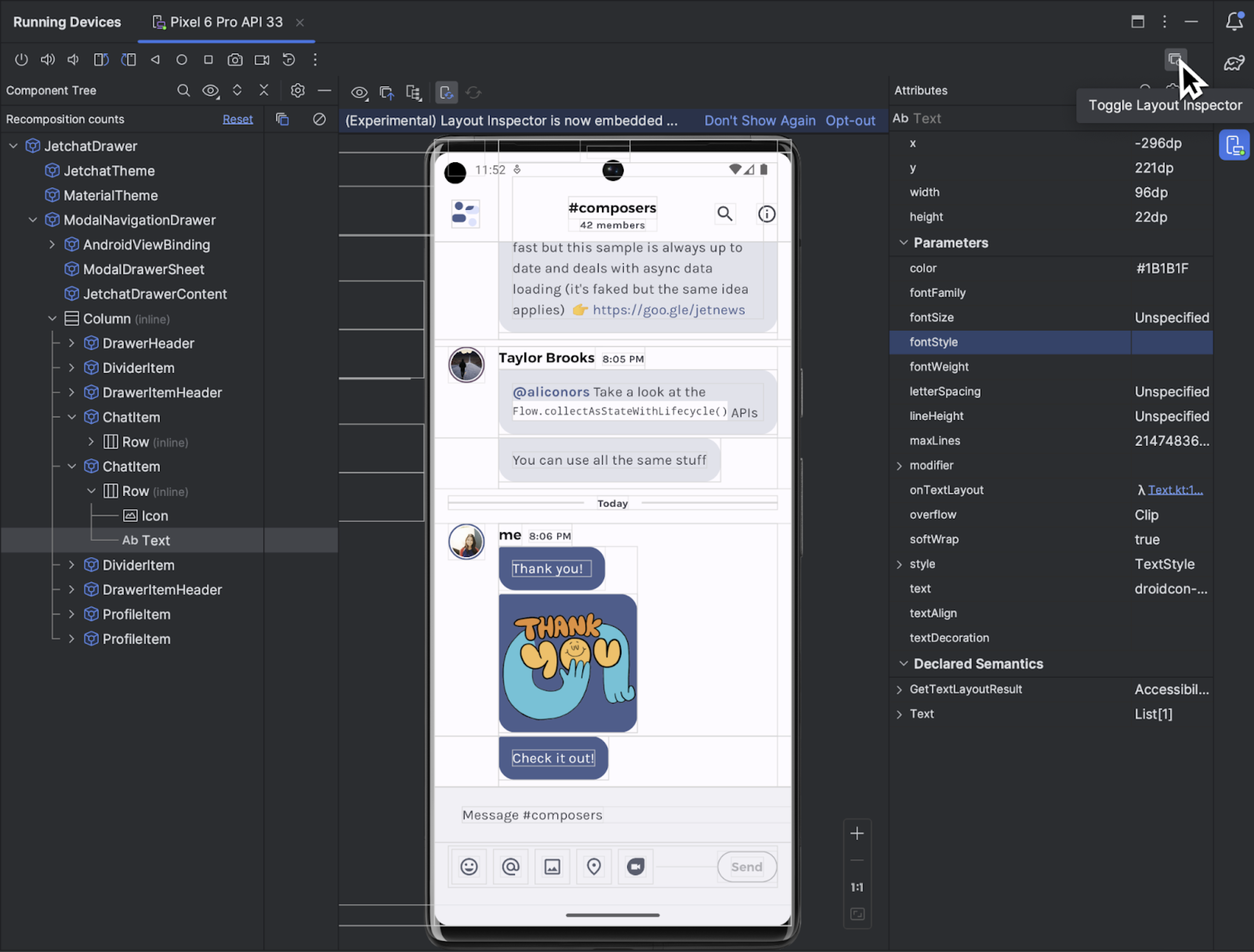
Figure 1. Embedded Layout Inspector for the Jetchat app.
Get started
To start the Layout Inspector, run your app, go to theRunning Devices window, and click Toggle Layout Inspector  . If you switch among multiple devices or projects, the Layout Inspector automatically connects to the debuggable processes running in the foreground of the connected device.
Here's how to do some common tasks:
Select or isolate a view
A view usually draws something the user can see and interact with. TheComponent Tree shows your app's hierarchy in real time with each view component, which helps you debug your app's layout because you can visualize the elements within your app and the values associated with them.
To select a view, click it in the Component Tree or the Layout Display. All of the layout attributes for the selected view appear in the Attributespanel.
If your layout includes overlapping views, you can see all the views in a region when you right-click in Deep Inspect mode . To select a view that isn't in front, click it in the Component Tree orrotate the layout.
To work with complex layouts, you can isolate individual views so that only a subset of the layout is shown in the Component Tree and rendered in theLayout Display. To isolate a view, take a snapshot , right-click the view in the Component Tree and select Show Only Subtree orShow Only Parents. To return to the full view, right-click the view and select Show All. You must take a snapshot before isolating a view.
Hide layout borders and view labels
To hide the bounding box or view labels for a layout element, click View Options  at the top of the Layout Display and toggle Show Borders or Show View Label.
Capture layout hierarchy snapshots
Layout Inspector lets you save snapshots of your running app's layout hierarchy, so that you can share them with others or refer to them later.
Snapshots capture the data you would typically see when using the Layout Inspector, including a detailed 3D rendering of your layout, the component tree of your View, Compose, or hybrid layout, and detailed attributes for each component of your UI. To save a snapshot, click Snapshot Export/Import and thenExport Snapshot.
Load a previously saved Layout Inspector snapshot by clickingImport Snapshot.
3D mode
The Layout Display features an advanced 3D visualization of your app's view hierarchy at runtime. To use this feature, take a snapshot, click the 3D Mode button in the snapshot Inspector window, and rotate it by dragging the mouse.
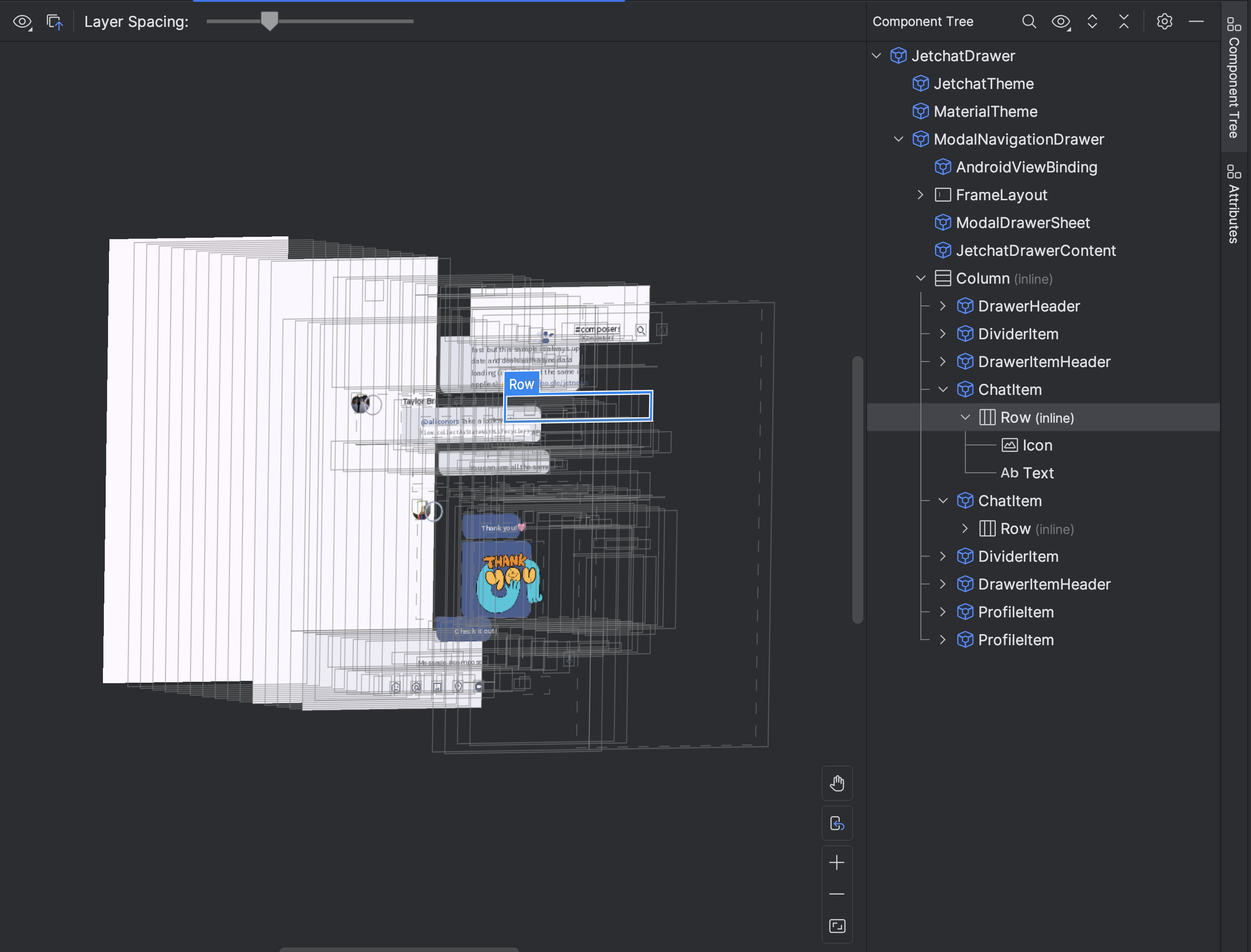
Figure 2. Rotated 3D view of a Layout.

Figure 3. To expand or contract the layers of the Layout, use the Layer Spacing slider.
Compare app layout to a reference image overlay
To compare your app layout with a reference image, such as a UI mockup, you can load a bitmap image overlay in the Layout Inspector.
Inspect Compose
Layout Inspector lets you inspect a Compose layout inside a running app in an emulator or physical device. You can use the Layout Inspector to check how often a composable is recomposed or skipped, which can help identify issues with your app. For example, some coding errors might force your UI to recompose excessively, which can cause poor performance. Some coding errors can prevent your UI from recomposing and, therefore, preventing your UI changes from showing up on the screen.
Learn more about Layout Inspector for Compose
View Attribute Inspection
Layout Inspector requires the following global setting to function properly:
adb shell settings put global debug_view_attributes 1
This option generates extra information for inspection on all of the processes on the device.
Layout Inspector automatically enables the setting when started. This causes the current foreground Activity to restart. You will not see another Activity restart unless the flag is manually disabled on the device.
To disable the flag, run the following adb command:
adb shell settings delete global debug_view_attributes
Alternatively, turn off Enable view attribute inspectionfrom your device's developer options.
Standalone Layout Inspector
For optimal performance, we recommend using the Layout Inspector in its default embedded mode. If you want to un-embed the Layout Inspector, go to File(Android Studio on macOS)> Settings > Tools > Layout Inspectorand clear the Enable embedded Layout Inspector checkbox.
In standalone mode, enable live updates by clicking the Live Updates  option from the Layout Inspector toolbar.