Create an Android library (original) (raw)
An Android library is structurally the same as an Android app module. It includes everything needed to build an app, including source code, resource files, and an Android manifest.
However, instead of compiling into an APK that runs on a device, an Android library compiles into an Android Archive (AAR) file that you can use as a dependency for an Android app module. Unlike JAR files, AAR files offer the following functionality for Android apps:
- AAR files can contain Android resources and a manifest file, which lets you bundle in shared resources like layouts and drawables in addition to Kotlin or Java classes and methods.
- AAR files can contain C/C++ librariesfor use by the app module's C/C++ code.
A library module is useful in the following situations:
- When building multiple apps that use some of the same components, such as activities, services, or UI layouts
- When building an app that exists in multiple APK variations, such as a free and paid version, that share core components
In either case, move the files you want to reuse into a library module and then add the library as a dependency for each app module.
This page explains how to create and use an Android library module. For guidance on how to publish a library, seePublish your library
Create a library module
To create a new library module in your project, proceed as follows:
- Click File > New > New Module.
- In the Create New Module dialog that appears, click Android Library, then click Next.
There's also an option to create a Kotlin or Java library, which builds a traditional JAR file. While a JAR file is useful for many projects—especially when you want to share code with other platforms—it doesn't let you include Android resources or manifest files, which is very useful for code reuse in Android projects. This guide focuses on creating Android libraries. - Give your library a name and select a minimum SDK version for the code in the library, then click Finish.
Once the Gradle project sync completes, the library module appears in the Project pane. If you don't see the new module folder, make sure the pane is displaying the Android view.
Convert an app module to a library module
If you have an existing app module with code you want to reuse, you can turn it into a library module as follows:
- Open the module-level
build.gradlefile, if you're using Groovy, or thebuild.gradle.ktsfile, if you're using Kotlin script. - Delete the line for the
applicationId. Only an Android app module can define this. - Find the `plugins` block at the top of the file that looks like this:
Groovy
plugins {
id 'com.android.application'
}
Kotlin
plugins {
id("com.android.application")
}
Change it to the following:
Groovy
plugins {
id 'com.android.library'
}
Kotlin
plugins {
id("com.android.library")
}
4. Save the file and click File > Sync Project with Gradle Files.
The structure of the module remains the same, but it now operates as an Android library. The build creates an AAR file instead of an APK.
When you want to build the AAR file, select the library module in theProject window and clickBuild > Build APK.
Add dependencies with the Project Structure dialog
You can use the Project Structure dialog to add dependencies to your project. The following sections describe how to use the dialog to add dependencies.
Use your library from within the same project
To use your new Android library's code in another app or library module within the same project, add a project-level dependency:
- Navigate to File > Project Structure > Dependencies.
- Select the module that you want to add the library.
- In the Declared Dependencies tab, click
 and selectModule Dependency from the menu.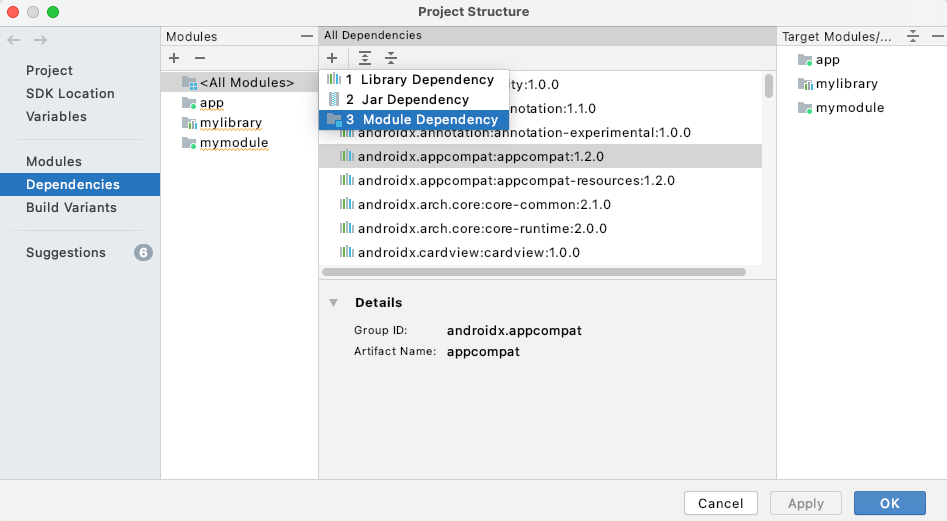
- In the Add Module Dependency dialog, select your library module.
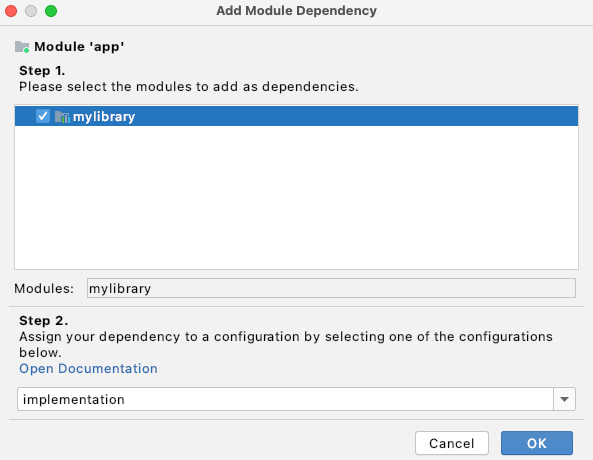
- Select the configuration that requires this dependency or selectimplementation if it applies to all configurations, then click OK.
Android Studio edits your module's build.gradle or build.gradle.kts file to add the dependency, in the following form:
Groovy
implementation project(path: ":example-library")
Kotlin
implementation(project(":example-library"))
Use your library in other projects
The recommended way to share dependencies (JARs and AARs) is with a Maven repository, either hosted on a service, such asMaven Central, or with a directory structure on your local disk. For more information on using Maven repositories, see Remote repositories.
When an Android library is published to a Maven repository, metadata is included so that the dependencies of the library are included in the consuming build. This lets the library be automatically deduplicated if it is used in multiple places.
To use your Android library's code in another app module in a different project, proceed as follows:
- Navigate toFile >Project Structure >Dependencies.
- In the Declared Dependencies tab, click and selectLibrary Dependency in the menu.
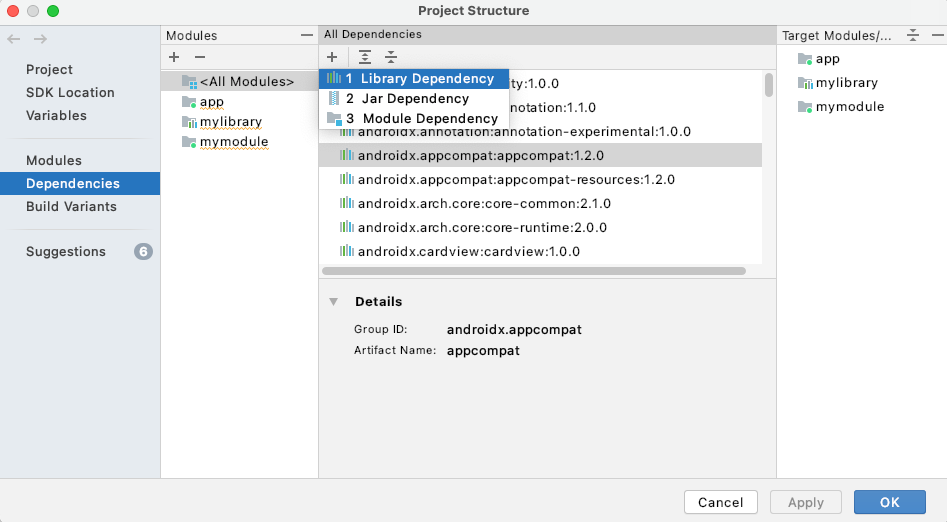
- In the Add Library Dependency dialog, use the search box to find the library to add. This form searches the repositories specified in the in the
dependencyResolutionManagement { repositories {...}}block in thesettings.gradleorsettings.gradle.ktsfile.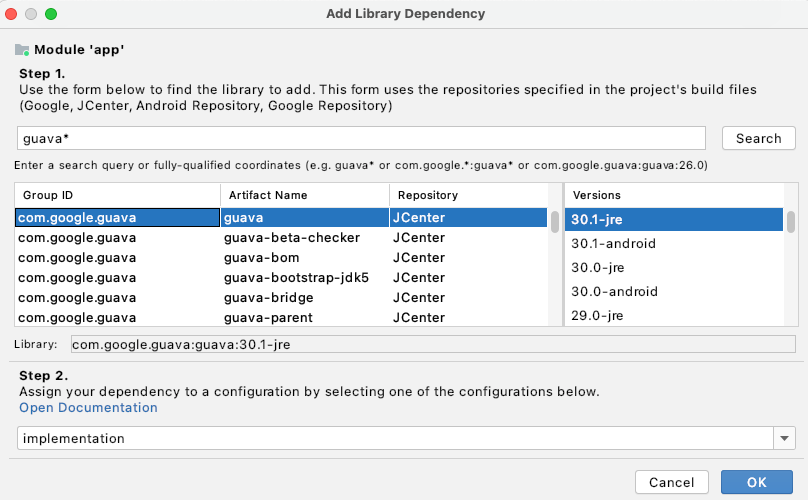
- Select the configuration that requires this dependency or selectimplementation if it applies to all configurations, then click OK.
Check your app’s build.gradle or build.gradle.kts file to confirm that a declaration similar to the following appears (depending on the build configuration you've selected):
Groovy
implementation 'com.example:examplelibrary:1.0.0'
Kotlin
implementation("com.example:examplelibrary:1.0.0")
Add your AAR or JAR as a dependency
To use your Android library's code in another app module, proceed as follows:
- Navigate to File >Project Structure >Dependencies.
- In the Declared Dependencies tab, click and select Jar Dependency in the menu.
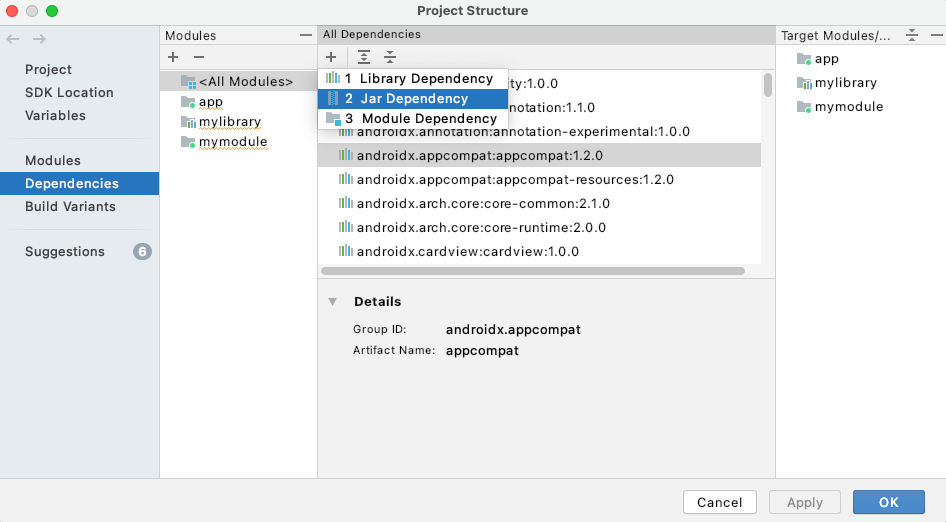
- In the Add Jar/Aar Dependency dialog, enter the path to your AAR or JAR file, then select the configuration to which the dependency applies. If the library should be available to all configurations, select theimplementation configuration.
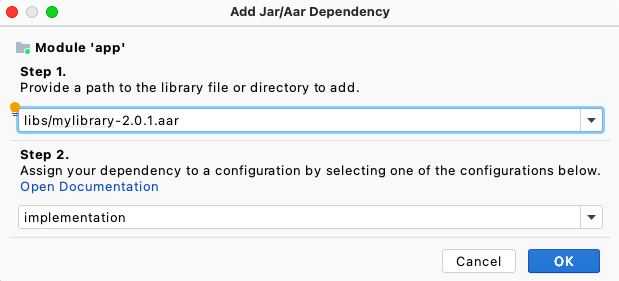
Check your app’sbuild.gradleorbuild.gradle.ktsfile to confirm that a declaration similar to the following appears (depending on the build configuration you've selected):
Groovy
implementation files('my_path/my_lib.aar')
Kotlin
implementation(files("my_path/my_lib.aar"))
To import a dependency on the Gradle build running outside of Android Studio, add a path to the dependency in your app’s build.gradle or build.gradle.kts file. For example:
Groovy
dependencies { implementation fileTree(dir: "libs", include: [".jar", ".aar"]) }
Kotlin
dependencies { implementation(fileTree(mapOf("dir" to "libs", "include" to listOf(".jar", ".aar")))) }
For more about adding Gradle dependencies, seeAdd build dependencies.
Declare a public resource
Resources include all files in your project’s res/ directory, such as images. All resources in a library default to public. To make all resources implicitly private, you must define at least one specific attribute as public.
To declare a public resource, add a <public> declaration to your library’s public.xml file. If you haven't added public resources before, you need to create the public.xml file in theres/values/ directory of your library.
The following example code creates two public string resources with the names mylib_app_name and mylib_public_string:
To prevent users of your library from accessing resources intended only for internal use, use this automatic private designation mechanism by declaring one or more public resources. Alternately, you can make all resources private by adding an empty <public /> tag. This marks nothing as public and makes all resources private.
Any resources that you want to remain visible to developers using your library should be made public.
Implicitly making attributes private prevents users of your library from receiving code completion suggestions from internal library resources and lets users rename or remove private resources without breaking clients of your library. Private resources are filtered out of code completion, and the lint tool warns you when you try to reference a private resource.
When building a library, the Android Gradle plugin gets the public resource definitions and extracts them into the public.txt file, which is then packaged inside the AAR file.
Development considerations for library modules
As you develop your library modules and dependent apps, be aware of the following behaviors and limitations.
- Libraries are merged in priority order.
Once you have added references to library modules to your Android app module, you can set their relative priority. At build time, the libraries are merged with the app one at a time, starting from the lowest priority to the highest.
Resource references in a library will refer to the merged resource, not necessarily the library resource. A library module can't enforce the usage of its own resources over those of the app or other libraries when there are resources with the same name. - Avoid resource merge conflicts.
The build tools merge resources from a library module with those of a dependent app module. If a given resource name is defined in both modules, the resource from the app is used.
If conflicts occur between multiple AAR libraries, then the resource from the library listed first in the dependencies list (closest to the top of thedependenciesblock) is used.
To avoid resource conflicts, consider using a prefix or other consistent naming scheme that is unique to the module (or is unique across all project modules). - In multi-module builds, JAR dependencies are treated as transitive dependencies.
When you add a JAR dependency to a library project that outputs an AAR, the JAR is processed by the library module and packaged with its AAR.
However, if your project includes a library module that is consumed by an app module, the app module treats the library's local JAR dependency as a transitive dependency. In this case, the local JAR is processed by the app module that consumes it, and not by the library module. This speeds up incremental builds that are caused by changes to a library's code.
Any Java resource conflicts caused by local JAR dependencies must be resolved in the app module that consumes the library. - A library module can depend on an external JAR library.
You can develop a library module that depends on an external library. In this case, the dependent module must build against a target that includes the external library.
Note that both the library module and the dependent app must declare the external library in their manifest files in a element. - The app module's
minSdkVersionmust be equal to or greater than the version defined by the library.
A library is compiled as part of the dependent app module, so the APIs used in the library module must be compatible with the platform version that the app module supports. - Each library module creates its own
Rclass.
When you build the dependent app modules, library modules are compiled into an AAR file then added to the app module. Therefore, each library has its ownRclass, named according to the library's package name.
TheRclass generated from main module and the library module is created in all the packages that are needed, including the main module's package and the libraries' packages. - A library module might include its own ProGuard configuration file.
If you have a library project that you use to build and publish an AAR, you can add a ProGuard configuration file to your library's build configuration. If you do, the Android Gradle plugin applies the ProGuard rules that you have specified. The build tools embed this file within the generated AAR file for the library module. When you add the library to an app module, the library's ProGuard file is appended to the ProGuard configuration file (proguard.txt) of the app module.
By embedding a ProGuard file in your library module, you help ensure that app modules that depend on your library don't have to manually update their ProGuard files to use your library. When the Android Studio build system builds your app, it uses the directives from both the app module and the library. So there's no need to run a code shrinker on the library in a separate step.
To add the ProGuard rules to your library project, specify the file's name with theconsumerProguardFilesproperty inside thedefaultConfigblock of your library'sbuild.gradleorbuild.gradle.ktsfile.
For example, the following snippet setslib-proguard-rules.txtas the library's ProGuard configuration file:
Groovy
android {
defaultConfig {
consumerProguardFiles 'lib-proguard-rules.txt'
}
...
}
Kotlin
android {
defaultConfig {
consumerProguardFiles("lib-proguard-rules.txt")
}
...
}
However, if your library module is a part of a multi-module build that compiles into an APK and doesn't generate an AAR, run code shrinking on only the app module that consumes the library. To learn more about ProGuard rules and their usage, readShrink, obfuscate, and optimize your app.
- Testing a library module is nearly the same astesting an app.
The main difference is that the library and its dependencies are automatically included as dependencies of the test APK. This means that the test APK includes not only its own code but also the library's AAR and all its dependencies. Because there is no separate app under test, theandroidTesttask installs (and uninstalls) only the test APK.
When merging multiple manifest files, Gradle follows the default priority order and merges the library's manifest into the test APK's main manifest.
Anatomy of an AAR file
The file extension for an AAR file is .aar, and the Maven artifact type isaar as well. The file itself is a ZIP file. The only mandatory entry is/AndroidManifest.xml.
An AAR file can also include one or more of the following optional entries:
/classes.jar/res//R.txt/public.txt/assets//libs/name.jar/jni/abi_name/name.so(where abi_name is one of theAndroid-supported ABIs)/proguard.txt/lint.jar/api.jar/prefab/for exporting native libraries