Write a Microbenchmark (original) (raw)
To learn how to use the Microbenchmark library by adding changes to your application code, see the Quickstart section. To learn how to complete a full setup with more complicated changes to your codebase, see theFull project setup section.
Quickstart
This section shows how to try out benchmarking and run one-off measurements without needing to move code into modules. For accurate performance results, these steps involve disabling debugging in your app, so keep this in a local working copy without committing the changes to your source control system.
To perform one-off benchmarking, do the following:
- Add the library to your module's
build.gradleorbuild.gradle.ktsfile:
Kotlin
dependencies {
implementation("androidx.benchmark:benchmark-junit4:1.2.4")
}
Groovy
dependencies {
implementation 'androidx.benchmark:benchmark-junit4:1.2.4'
}
Use an implementation dependency instead of an androidTestImplementationdependency. If you use androidTestImplementation, the benchmarks fail to run because the library manifest isn't merged into the app manifest.
2. Update the debug build type so that it isn't debuggable:
Kotlin
android {
...
buildTypes {
debug {
isDebuggable = false
}
}
}
Groovy
android {
...
buildTypes {
debug {
debuggable false
}
}
}
3. Change the testInstrumentationRunner to be AndroidBenchmarkRunner:
Kotlin
android {
...
defaultConfig {
testInstrumentationRunner = "androidx.benchmark.junit4.AndroidBenchmarkRunner"
}
}
Groovy
android {
...
defaultConfig {
testInstrumentationRunner "androidx.benchmark.junit4.AndroidBenchmarkRunner"
}
}
4. Add an instance of BenchmarkRule in a test file in theandroidTest directory to add your benchmark. For more information about writing benchmarks, see Create a Microbenchmark class.
The following code snippet shows how to add a benchmark to an Instrumented test:
Kotlin
@RunWith(AndroidJUnit4::class)
class SampleBenchmark {
@get:Rule
val benchmarkRule = BenchmarkRule()
@Test
fun benchmarkSomeWork() {
    benchmarkRule.measureRepeated {
        doSomeWork()
    }
}
}
Java
@RunWith(AndroidJUnit4.class)
class SampleBenchmark {
@Rule
public BenchmarkRule benchmarkRule = new BenchmarkRule();
@Test
public void benchmarkSomeWork() {
BenchmarkRuleKt.measureRepeated(
(Function1<BenchmarkRule.Scope, Unit>) scope -> doSomeWork()
);
}
}
}
To learn how to write a benchmark, skip to Create a Microbenchmark class.
Full project setup
To set up regular benchmarking rather than one-off benchmarking, isolate benchmarks into their own module. This helps ensure that their configuration, such as setting debuggable to false, is separate from regular tests.
Because Microbenchmark runs your code directly, place the code you want to benchmark into a separate Gradle module and set dependency on that module as shown in figure 1.
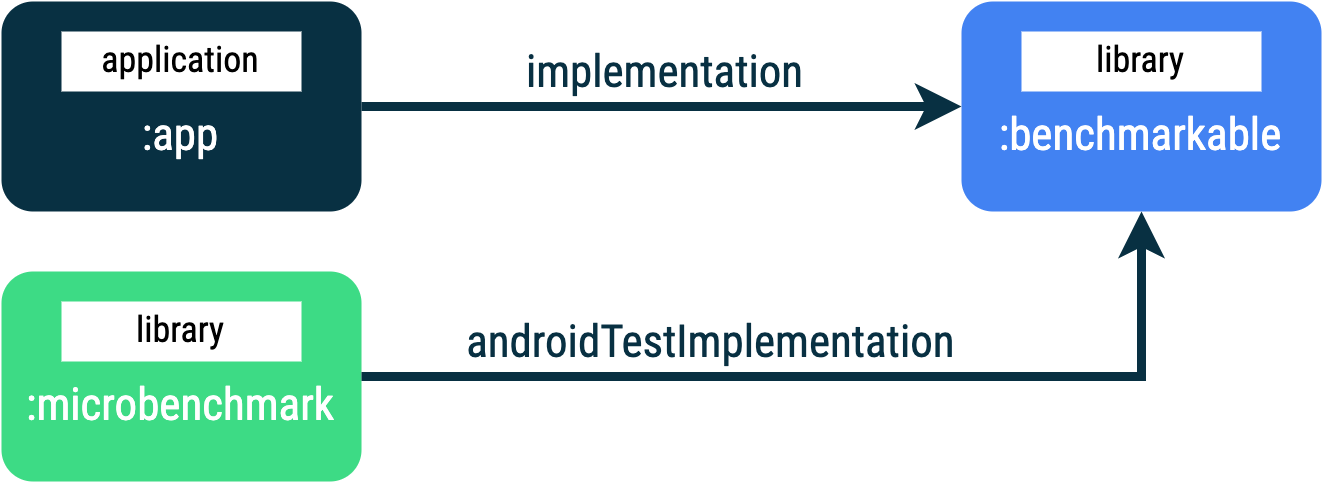
Figure 1. App structure with :app,:microbenchmark, and :benchmarkable Gradle modules, which lets Microbenchmarks benchmark code in the:benchmarkable module.
To add a new Gradle module, you can use the module wizard in Android Studio. The wizard creates a module that is pre-configured for benchmarking, with a benchmark directory added and debuggable set to false.
- Right-click your project or module in the Project panel in Android Studio and click New > Module.
- Select Benchmark in the Templates pane.
- Select Microbenchmark as the benchmark module type.
- Type "microbenchmark" for the module name.
- Click Finish.
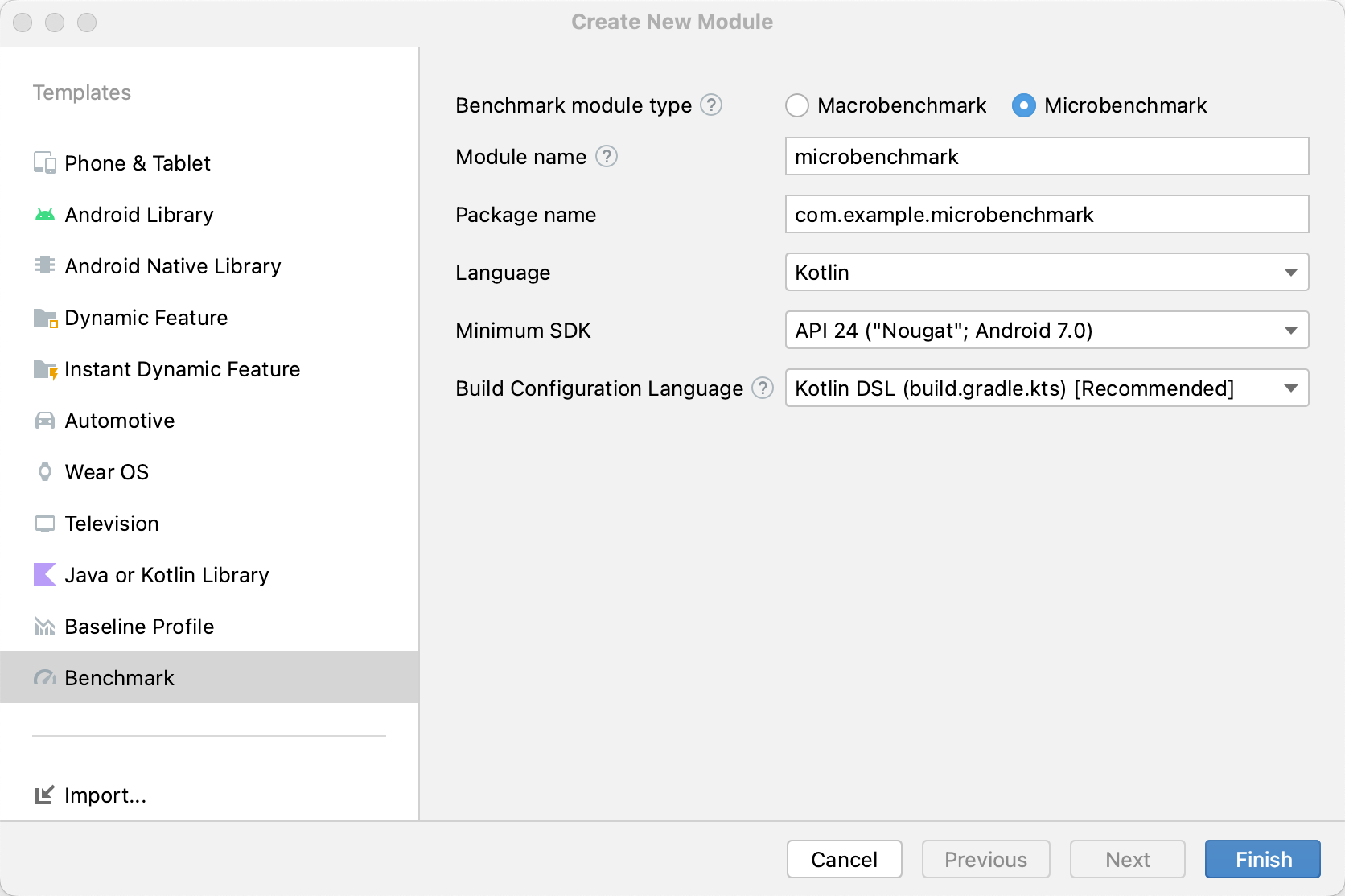
Figure 2. Add a new Gradle module in Android Studio Bumblebee.
After the module is created, change its build.gradle or build.gradle.ktsfile and add androidTestImplementation to the module containing code to benchmark:
Kotlin
dependencies { // The module name might be different. androidTestImplementation(project(":benchmarkable")) }
Groovy
dependencies { // The module name might be different. androidTestImplementation project(':benchmarkable') }
Create a Microbenchmark class
Benchmarks are standard instrumentation tests. To create a benchmark, use theBenchmarkRule class provided by the library. To benchmark activities, useActivityScenario or ActivityScenarioRule. To benchmark UI code, use @UiThreadTest.
The following code shows a sample benchmark:
Kotlin
@RunWith(AndroidJUnit4::class) class SampleBenchmark { @get:Rule val benchmarkRule = BenchmarkRule()
@Test
fun benchmarkSomeWork() {
benchmarkRule.measureRepeated {
doSomeWork()
}
}}
Java
@RunWith(AndroidJUnit4.class) class SampleBenchmark { @Rule public BenchmarkRule benchmarkRule = new BenchmarkRule();
@Test
public void benchmarkSomeWork() {
    final BenchmarkState state = benchmarkRule.getState();
    while (state.keepRunning()) {
        doSomeWork();
    }
}
}
Disable timing for setup
You can disable timing for sections of code you don't want to measure with therunWithTimingDisabled{} block. These sections usually represent some code which you need to run on each iteration of the benchmark.
Kotlin
// using random with the same seed, so that it generates the same data every run private val random = Random(0)
// create the array once and just copy it in benchmarks private val unsorted = IntArray(10_000) { random.nextInt() }
@Test fun benchmark_quickSort() { // ... benchmarkRule.measureRepeated { // copy the array with timing disabled to measure only the algorithm itself listToSort = runWithTimingDisabled { unsorted.copyOf() }
    // sort the array in place and measure how long it takes
    SortingAlgorithms.quickSort(listToSort)
}

// assert only once not to add overhead to the benchmarks
assertTrue(listToSort.isSorted)
}
Java
private final int[] unsorted = new int[10000];
public SampleBenchmark() { // Use random with the same seed, so that it generates the same data every // run. Random random = new Random(0);
// Create the array once and copy it in benchmarks.
Arrays.setAll(unsorted, (index) -> random.nextInt());
}
@Test public void benchmark_quickSort() { final BenchmarkState state = benchmarkRule.getState();
int[] listToSort = new int[0];

while (state.keepRunning()) {
// Copy the array with timing disabled to measure only the algorithm // itself. state.pauseTiming(); listToSort = Arrays.copyOf(unsorted, 10000); state.resumeTiming();
    // Sort the array in place and measure how long it takes.
    SortingAlgorithms.quickSort(listToSort);
}

// Assert only once, not to add overhead to the benchmarks.
assertTrue(SortingAlgorithmsKt.isSorted(listToSort));
}
Try to minimize the amount of work done inside the measureRepeated block and inside runWithTimingDisabled. The measureRepeated block is run multiple times and it can affect the overall time needed to run the benchmark. If you need to verify some results of a benchmark, you can assert the last result instead of doing it every iteration of the benchmark.
Run the benchmark
In Android Studio, run your benchmark as you do with any @Test using the gutter action next to your test class or method, as shown in figure 3.
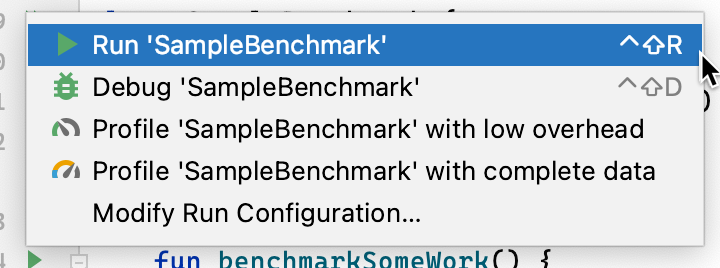
Figure 3. Run Microbenchmark test using the gutter action next to a test class.
Alternatively, from the command line, run the connectedCheck to run all of the tests from specified Gradle module:
./gradlew benchmark:connectedCheckOr a single test:
./gradlew benchmark:connectedCheck -P android.testInstrumentationRunnerArguments.class=com.example.benchmark.SampleBenchmark#benchmarkSomeWorkBenchmark results
After a successful Microbenchmark run, metrics are displayed directly in Android Studio and a full benchmark report with additional metrics and device information is available in JSON format.
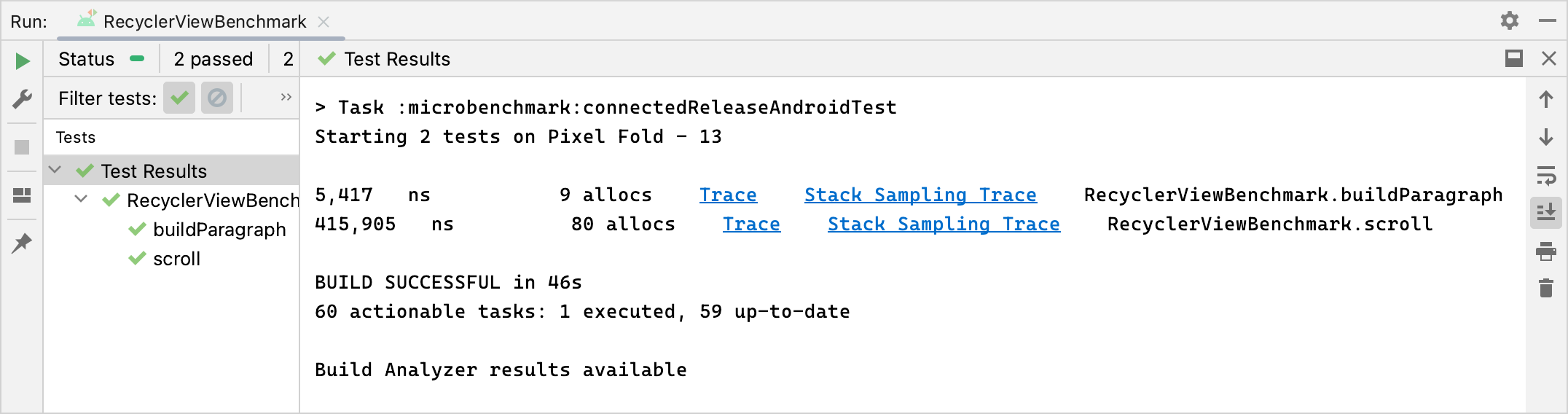
Figure 4. Microbenchmark results.
JSON reports and any profiling traces are also automatically copied from device to host. These are written on the host machine in the following location:
project_root/module/build/outputs/connected_android_test_additional_output/debugAndroidTest/connected/device_id/
By default, the JSON report is written to disk on-device in the test APK's external shared media folder, which is typically located in/storage/emulated/0/Android/media/**app_id**/**app_id**-benchmarkData.json.
Configuration errors
The library detects the following conditions to ensure your project and environment are set up for release-accurate performance:
- Debuggable is set to
false. - A physical device is being used—emulators aren't supported.
- Clocks are locked if the device is rooted.
- Sufficient battery level on device of at least 25%.
If any of the preceding checks fail, the benchmark reports an error to discourage inaccurate measurements.
To suppress specific error types as warnings and prevent them from halting the benchmark, pass the error type in a comma-separated list to the instrumentation argument androidx.benchmark.suppressErrors.
You can set this from your Gradle script, as shown in the following example:
Kotlin
android { defaultConfig { … testInstrumentationRunnerArguments["androidx.benchmark.suppressErrors"] = "DEBUGGABLE,LOW-BATTERY" } }
Groovy
android { defaultConfig { … testInstrumentationRunnerArguments["androidx.benchmark.suppressErrors"] = "DEBUGGABLE,LOW-BATTERY" } }
You can also suppress errors from the command line:
$ ./gradlew :benchmark:connectedCheck -P andoidtestInstrumentationRunnerArguments.androidx.benchmark.supperssErrors=DEBUGGABLE,LOW-BATTERY
Suppressing errors lets the benchmark run in an incorrectly configured state, and the output of the benchmark is intentionally renamed by prepending test names with the error. For example, running a debuggable benchmark with the suppression in the preceding snippet prepends test names with DEBUGGABLE_.
Recommended for you
- Note: link text is displayed when JavaScript is off
- Write a Macrobenchmark
- Build Microbenchmarks without Gradle
- Create Baseline Profiles {:#creating-profile-rules}