CameraX video capturing architecture (original) (raw)
A capturing system generally records video and audio streams, compresses them, muxes the two streams, then writes the resultant stream to disk.
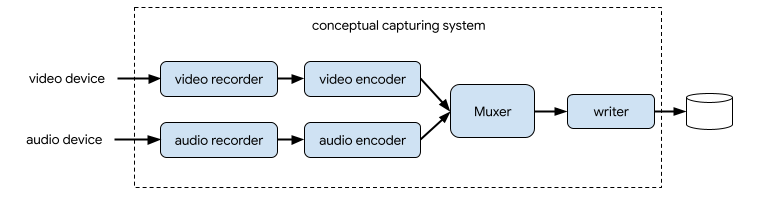
Figure 1. Conceptual diagram for a video and audio capturing system.
In CameraX, the solution for video capturing is theVideoCaptureuse case:
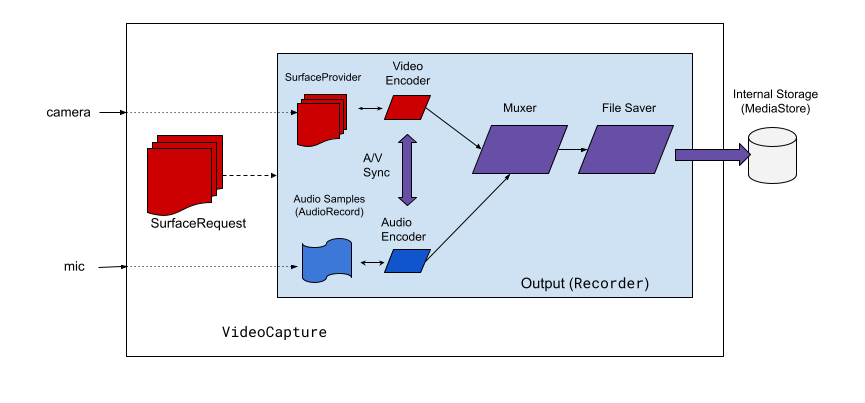
Figure 2. Conceptual diagram that shows how CameraX handles the VideoCapture use case.
As shown in figure 2, CameraX video capture includes a few high-level architectural components:
SurfaceProviderfor the video source.AudioSourcefor audio source.- Two encoders to encode and compress video/audio.
- A media muxer to mux the two streams.
- A file saver to write out the result.
The VideoCapture API abstracts the complex capturing engine and provides applications with a much simpler and straightforward API.
VideoCapture API overview
VideoCapture is a CameraX use case that works well on its own or when combined with other use cases. Specific supported combinations depend on the camera hardware capabilities, but Preview and VideoCapture is a valid use case combination on all devices.
The VideoCapture API consists of the following objects that communicate with applications:
- VideoCapture is the top-level use case class.
VideoCapturebinds to aLifecycleOwnerwith aCameraSelectorand other CameraX UseCases. For more information about these concepts and usages, seeCameraX Architecture. - A Recorder is an implementation of VideoOutput that is tightly coupled with
VideoCapture.Recorderis used to perform the video and audio capturing. An application creates recordings from aRecorder. - A PendingRecordingconfigures a recording, providing options like enabling audio and setting an event listener. You must use a
Recorderto create aPendingRecording. APendingRecordingdoes not record anything. - A Recording performs the actual recording. You must use a
PendingRecordingto create aRecording.
Figure 3 shows the relationships between these objects:
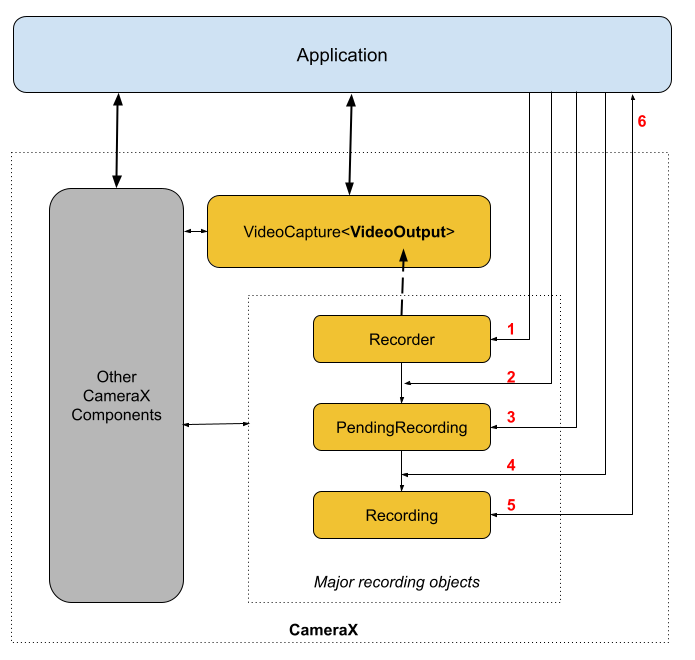
Figure 3. Diagram showing the interactions that occur in a VideoCapture use case.
Legend:
- Create a Recorder withQualitySelector.
- Configure the
Recorderwith one of theOutputOptions. - Enable audio withwithAudioEnabled()if needed.
- Call start()with a VideoRecordEventlistener to begin recording.
- Use
pause()/resume()/stop()on theRecordingto control the recording. - Respond to VideoRecordEventsinside your event listener.
The detailed API list is in the current.txt inside the source code.
Using the VideoCapture API
To integrate the CameraX VideoCapture use case into your app, do the following:
- Bind
VideoCapture. - Prepare and configure recording.
- Start and control the runtime recording.
The following sections outline what you can do at each step to get an end-to-end recording session.
Bind VideoCapture
To bind the VideoCapture use case, do the following:
- Create a
Recorderobject. - Create
VideoCaptureobject. - Bind to a
Lifecycle.
CameraX VideoCapture API follows the builder design pattern. Applications use Recorder.Builder to create a Recorder. You can also configure the video resolution for the Recorder through a QualitySelector object.
CameraX Recorder supports the following pre-defined Qualitiesfor video resolutions:
Quality.UHDfor 4K ultra HD video size (2160p)Quality.FHDfor full HD video size (1080p)Quality.HDfor HD video size (720p)Quality.SDfor SD video size (480p)
Note that CameraX can also choose other resolutions when authorized by the app.
The exact video size of each selection depends on the camera and encoder's capabilities. For more information, see the documentation forCamcorderProfile.
Applications can configure resolution by creating aQualitySelector. You can create a QualitySelector using one of the following methods:
- Provide a few preferred resolutions by using
fromOrderedList(), and include a fallback strategy to use in case none of the preferred resolutions is supported.
CameraX can decide the best fallback match based on the selected camera's capability, refer toQualitySelector's FallbackStrategy specificationfor more details. For example, the following code requests the highest supported resolution for recording, and if none of the request resolutions can be supported, authorize CameraX to choose one that is the closest to the Quality.SD resolution:
val qualitySelector = QualitySelector.fromOrderedList(
         listOf(Quality.UHD, Quality.FHD, Quality.HD, Quality.SD),
FallbackStrategy.lowerQualityOrHigherThan(Quality.SD)) - Query the camera capabilities first, and choose from the supported resolutions using
QualitySelector::from():
val cameraInfo = cameraProvider.availableCameraInfos.filter {
    Camera2CameraInfo
    .from(it)
    .getCameraCharacteristic(CameraCharacteristics.LENS\_FACING) == CameraMetadata.LENS_FACING_BACK
}
val supportedQualities = QualitySelector.getSupportedQualities(cameraInfo[0])
val filteredQualities = arrayListOf (Quality.UHD, Quality.FHD, Quality.HD, Quality.SD)
                       .filter { supportedQualities.contains(it) }
// Use a simple ListView with the id of simple_quality_list_view
viewBinding.simpleQualityListView.apply {
    adapter = ArrayAdapter(context,
                           android.R.layout.simple_list_item_1,
                           filteredQualities.map { it.qualityToString() })
    // Set up the user interaction to manually show or hide the system UI.
    setOnItemClickListener { _, _, position, _ ->
        // Inside View.OnClickListener,
        // convert Quality.* constant to QualitySelector
        val qualitySelector = QualitySelector.from(filteredQualities[position])
        // Create a new Recorder/VideoCapture for the new quality
        // and bind to lifecycle
        val recorder = Recorder.Builder()
            .setQualitySelector(qualitySelector).build()
         // ...
    }
}
// A helper function to translate Quality to a string
fun Quality.qualityToString() : String {
    return when (this) {
        Quality.UHD -> "UHD"
        Quality.FHD -> "FHD"
        Quality.HD -> "HD"
        Quality.SD -> "SD"
        else -> throw IllegalArgumentException()
    }
}
Note that the returned capability fromQualitySelector.getSupportedQualities()is guaranteed to work for either the VideoCapture use case or the combination of VideoCapture and Preview use cases. When binding together withImageCapture or ImageAnalysis use case, CameraX might still fail the binding when the required combination is not supported on the requested camera.
Once you have a QualitySelector, the application can create aVideoCapture object and perform the binding. Note that this binding is the same as with other use cases:
val recorder = Recorder.Builder()
    .setExecutor(cameraExecutor).setQualitySelector(qualitySelector)
    .build()
val videoCapture = VideoCapture.withOutput(recorder)

try {
    // Bind use cases to camera
    cameraProvider.bindToLifecycle(
            this, CameraSelector.DEFAULT_BACK_CAMERA, preview, videoCapture)
} catch(exc: Exception) {
    Log.e(TAG, "Use case binding failed", exc)
}
Note that bindToLifecycle() returns a Camera object. See this guide for more information about controlling camera output, such as zoom and exposure.
The Recorder selects the most suitable format for the system. The most common video codec isH.264 AVC) with container formatMPEG-4.
Configure and create recording
From a Recorder, the application can create recording objects to perform the video and audio capturing. Applications create recordings by doing the following:
- Configure
OutputOptionswith theprepareRecording(). - (Optional) Enable audio recording.
- Use
start()to register aVideoRecordEventlistener, and begin video capturing.
TheRecorder returns a Recording object when you call the start() function. Your application can use this Recording object to finish capturing or to perform other actions, such as pausing or resuming.
A Recorder supports one Recording object at a time. You can start a new recording once you've called Recording.stop() orRecording.close() on the previous Recording object.
Let's look at these steps in more detail. First, the application configures the OutputOptions for a Recorder with Recorder.prepareRecording(). A Recorder supports the following types of OutputOptions:
FileDescriptorOutputOptionsfor capturing into aFileDescriptor.FileOutputOptionsfor capturing into a File.MediaStoreOutputOptionsfor capturing into aMediaStore.
All OutputOptions types enable you to set a maximum file size withsetFileSizeLimit(). Other options are specific to the individual output type, such as ParcelFileDescriptor for the FileDescriptorOutputOptions.
prepareRecording() returns a PendingRecording object, which is an intermediate object that is used to create the correspondingRecording object. PendingRecording is a transient class that should be invisible in most cases and is rarely cached by the app.
Applications can further configure the recording, such as:
- Enable audio with
withAudioEnabled(). - Register a listener to receive video recording events with
start(Executor, Consumer<VideoRecordEvent>). - Allow a recording to continuously record while the VideoCapture it's attached to is rebound to another camera, with
PendingRecording.asPersistentRecording().
To start recording, call PendingRecording.start(). CameraX turns thePendingRecording into a Recording, queues the recording request, and returns the newly created Recording object to the application. Once recording begins on the corresponding Camera device, CameraX sends aVideoRecordEvent.EVENT_TYPE_START event.
The following example shows how to record video and audio into aMediaStore file:
// Create MediaStoreOutputOptions for our recorder
val name = "CameraX-recording-" +
        SimpleDateFormat(FILENAME_FORMAT, Locale.US)
                .format(System.currentTimeMillis()) + ".mp4"
val contentValues = ContentValues().apply {
   put(MediaStore.Video.Media.DISPLAY_NAME, name)
}
val mediaStoreOutput = MediaStoreOutputOptions.Builder(this.contentResolver,
                              MediaStore.Video.Media.EXTERNAL_CONTENT_URI)
                              .setContentValues(contentValues)
                              .build()

// 2. Configure Recorder and Start recording to the mediaStoreOutput.
val recording = videoCapture.output
                .prepareRecording(context, mediaStoreOutput)
                .withAudioEnabled()
                .start(ContextCompat.getMainExecutor(this), captureListener)
While the camera preview is mirrored on the front camera by default, videos recorded by VideoCapture are not mirrored by default. With CameraX 1.3, it's now possible to mirror video recordings so that the front camera preview and the recorded video match.
There are three MirrorMode options: MIRROR_MODE_OFF, MIRROR_MODE_ON, and MIRROR_MODE_ON_FRONT_ONLY. To align to the camera preview, Google recommends using MIROR_MODE_ON_FRONT_ONLY, which means that mirroring is not enabled for the rear camera, but is enabled for the front camera. For more information about MirrorMode, seeMirrorMode constants.
This code snippet shows how to callVideoCapture.Builder.setMirrorMode() using MIRROR_MODE_ON_FRONT_ONLY. For more information, see setMirrorMode().
Kotlin
val recorder = Recorder.Builder().build()
val videoCapture = VideoCapture.Builder(recorder) .setMirrorMode(MIRROR_MODE_ON_FRONT_ONLY) .build()
useCases.add(videoCapture);
Java
Recorder.Builder builder = new Recorder.Builder(); if (mVideoQuality != QUALITY_AUTO) { builder.setQualitySelector( QualitySelector.from(mVideoQuality)); } VideoCapture videoCapture = new VideoCapture.Builder<>(builder.build()) .setMirrorMode(MIRROR_MODE_ON_FRONT_ONLY) .build(); useCases.add(videoCapture);
Control an active recording
You can pause, resume, and stop an ongoing Recording by using the following methods:
- pauseto pause the current active recording.
- resume()to resume a paused active recording.
- stop()to finish recording and flush any associated recording objects.
- mute()to mute or un-mute the current recording.
Note that you can call stop() to terminate a Recording regardless of whether the recording is in a paused or active recording state.
If you've registered an EventListener withPendingRecording.start(), the Recording communicates by using aVideoRecordEvent.
VideoRecordEvent.EVENT_TYPE_STATUSis used for recording statistics such as current file size and recorded time span.VideoRecordEvent.EVENT_TYPE_FINALIZEis used for the recording result and includes information such as the URI of the final file along with any related errors.
Once your app receives a EVENT_TYPE_FINALIZE that indicates a successful recording session, you can then access the captured video from the location specified in OutputOptions.
Additional resources
To learn more about CameraX, see the following additional resources: