Schedule alarms (original) (raw)
Alarms (based on the AlarmManagerclass) give you a way to perform time-based operations outside the lifetime of your application. For example, you could use an alarm to initiate a long-running operation, such as starting a service once a day to download a weather forecast.
Alarms have these characteristics:
- They let you fire Intents at set times and/or intervals.
- You can use them in conjunction with broadcast receivers to schedulejobs orWorkRequests to perform other operations.
- They operate outside of your application, so you can use them to trigger events or actions even when your app is not running, and even if the device itself is asleep.
- They help you minimize your app's resource requirements. You can schedule operations without relying on timers or continuously running services.
Set an inexact alarm
When an app sets an inexact alarm, the system delivers the alarm at some point in the future. Inexact alarms provide some guarantees regarding the timing of alarm delivery while respecting battery-saving restrictions such asDoze.
Developers can leverage the following API guarantees to customize the timing of inexact alarm delivery.
Deliver an alarm after a specific time
If your app calls set(),setInexactRepeating(), or setAndAllowWhileIdle(), the alarm never goes off before the supplied trigger time.
On Android 12 (API level 31) and higher, the system invokes the alarm within one hour of the supplied trigger time, unless any battery-saving restrictions are in effect such as battery saver orDoze.
Deliver an alarm during a time window
If your app calls setWindow(), the alarm never goes off before the supplied trigger time. Unless any battery-saving restrictions are in effect, the alarm is delivered within the specified time window, starting from the given trigger time.
If your app targets Android 12 or higher, the system can delay the invocation of a time-windowed inexact alarm by at least 10 minutes. For this reason, windowLengthMillis parameter values under 600000 are clipped to600000.
Deliver a repeating alarm at roughly regular intervals
If your app calls setInexactRepeating(), the system invokes multiple alarms:
- The first alarm goes off within the specified time window, starting from the given trigger time.
- Subsequent alarms usually go off after the specified time window elapses. The time between two consecutive invocations of the alarm can vary.
Set an exact alarm
The system invokes an exact alarm at a precise moment in the future.
Most apps can schedule tasks and events using inexact alarms to complete several common use cases. If your app's core functionality depends on a precisely-timed alarm—such as for an alarm clock app or a calendar app—then it's OK to use an exact alarm instead.
Use cases that might not require exact alarms
The following list shows common workflows that may not require an exact alarm:
Scheduling timing operations during the lifetime of your app
The Handler class includes several good methods to handle timing operations, such as doing some work every_n_ seconds, while your app is alive:postAtTime()andpostDelayed(). Note that these APIs rely on system uptimeand not real time.
Scheduled background work, such as updating your app and uploading logs
WorkManager provides a way to schedule timing-sensitive periodic work. You can provide a repeat interval and flexInterval (15 minutes minimum) to define granular runtime for the work.
User-specified action that should happen after a specific time (even if system in idle state)
Use an inexact alarm. Specifically, callsetAndAllowWhileIdle().
User-specified action that should happen after a specific time
Use an inexact alarm. Specifically, callset().
User-specified action that can happen within a specified time window
Use an inexact alarm. Specifically, callsetWindow(). Note that, if your app targets Android 12 or higher, the smallest allowed window length is 10 minutes.
Ways to set an exact alarm
Your app can set exact alarms using one of the following methods. These methods are ordered such that the ones closer to the bottom of the list serve more time-critical tasks but demand more system resources.
Invoke an alarm at a nearly precise time in the future, as long as other battery-saving measures aren't in effect.
Use this method to set exact alarms, unless your app's work is time-critical for the user.
Invoke an alarm at a nearly precise time in the future, even if battery-saving measures are in effect.
Invoke an alarm at a precise time in the future. Because these alarms are highly visible to users, the system never adjusts their delivery time. The system identifies these alarms as the most critical ones and leaves low-power modes if necessary to deliver the alarms.
System resource consumption
When the system triggers exact alarms that your app sets, the device consumes a great deal of resources, such as battery life, especially if it's in a power-saving mode. Furthermore, the system cannot easily batch these requests in order to use resources more efficiently.
It's highly recommended that you create an inexact alarm whenever possible. To perform longer work, schedule it usingWorkManager orJobScheduler from your alarm'sBroadcastReceiver. To perform work while the device is in Doze, create an inexact alarm usingsetAndAllowWhileIdle(), and start a job from the alarm.
Declare the appropriate exact alarm permission
If your app targets Android 12 or higher, you must obtain the "Alarms & reminders" special app access. To do so, declare theSCHEDULE_EXACT_ALARMpermission in your app's manifest file, as shown in the following code snippet:
<manifest ...> <application ...> ...
If your app targets Android 13 (API level 33) or higher, you have the option to declare either the SCHEDULE_EXACT_ALARMor the USE_EXACT_ALARMpermission.
<manifest ...> <application ...> ...
While both the SCHEDULE_EXACT_ALARM and the USE_EXACT_ALARM permissions signal the same capabilities, they are granted differently and support different use-cases. Your app should use exact alarms, and declare eitherSCHEDULE_EXACT_ALARM or USE_EXACT_ALARM permission, only if a user-facing function in your app requires precisely-timed actions.
USE_EXACT_ALARM
- Granted automatically
- Cannot be revoked by the user
- Subject to an upcoming Google Play policy
- Limited use cases
SCHEDULE_EXACT_ALARM
- Granted by the user
- Broader set of use cases
- Apps should confirm that the permission has not been revoked
The SCHEDULE_EXACT_ALARM permission is not pre-granted to fresh installs of apps targeting Android 13 (API level 33) and higher. If a user transfers app data to a device running Android 14 through a backup-and-restore operation, theSCHEDULE_EXACT_ALARM permission will be denied on the new device. However, if an existing app already has this permission, it will be pre-granted when the device upgrades to Android 14.
Note: If the exact alarm is set using anOnAlarmListenerobject, such as with thesetExactAPI, the SCHEDULE_EXACT_ALARM permission isn't required.
Using the SCHEDULE_EXACT_ALARM permission
Unlike USE_EXACT_ALARM, the SCHEDULE_EXACT_ALARM permission must be granted by the user. Both the user and the system can revoke theSCHEDULE_EXACT_ALARM permission.
To check whether the permission is granted to your app, callcanScheduleExactAlarms()before trying to set an exact alarm. When the SCHEDULE_EXACT_ALARM permission is revoked for your app, your app stops, and all future exact alarms are canceled. This also means that the value returned bycanScheduleExactAlarms() stays valid for the entire lifecycle of your app.
When the SCHEDULE_EXACT_ALARMS permission is granted to your app, the system sends it theACTION_SCHEDULE_EXACT_ALARM_PERMISSION_STATE_CHANGEDbroadcast. Your app should implement a broadcast receiver that does the following:
- Confirms that your app still has the special app access. To do so, callcanScheduleExactAlarms(). This check protects your app from the case where the user grants your app the permission, then revokes it almost immediately afterward.
- Reschedules any exact alarms that your app needs, based on its current state. This logic should be similar to what your app does when it receives theACTION_BOOT_COMPLETEDbroadcast.
Ask users to grant the SCHEDULE_EXACT_ALARM permission
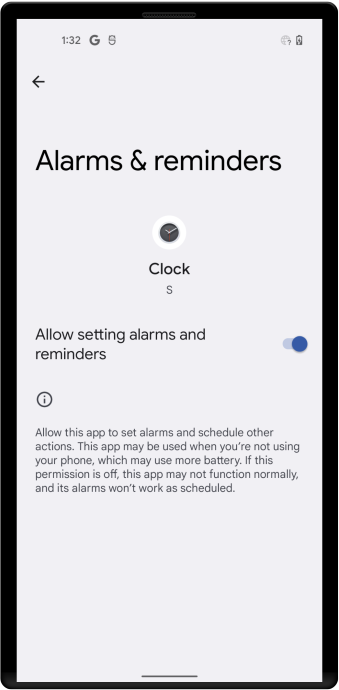
Figure 1. "Alarms & reminders" special app access page in system settings, where users can allow your app to set exact alarms.
If necessary, you can send users to the Alarms & reminders screen in system settings, as shown in Figure 1. To do so, complete the following steps:
- In your app's UI, explain to the user why your app needs to schedule exact alarms.
- Invoke an intent that includes theACTION_REQUEST_SCHEDULE_EXACT_ALARMintent action.
Set a repeating alarm
Repeating alarms allow the system to notify your app on a recurring schedule.
A poorly-designed alarm can cause battery drain and put a significant load on servers. For this reason, on Android 4.4 (API level 19) and higher, all repeating alarms are inexact alarms.
A repeating alarm has the following characteristics:
- An alarm type. For more discussion, see Choose an alarm type.
- A trigger time. If the trigger time you specify is in the past, the alarm triggers immediately.
- The alarm's interval. For example, once a day, every hour, or every 5 minutes.
- A pending intent that fires when the alarm is triggered. When you set a second alarm that uses the same pending intent, it replaces the original alarm.
To cancel a PendingIntent(), passFLAG_NO_CREATEto PendingIntent.getService()to get an instance of the intent (if it exists), then pass that intent toAlarmManager.cancel()
Kotlin
val alarmManager = context.getSystemService(Context.ALARM_SERVICE) as? AlarmManager val pendingIntent = PendingIntent.getService(context, requestId, intent, PendingIntent.FLAG_NO_CREATE) if (pendingIntent != null && alarmManager != null) { alarmManager.cancel(pendingIntent) }
Java
AlarmManager alarmManager = (AlarmManager) context.getSystemService(Context.ALARM_SERVICE); PendingIntent pendingIntent = PendingIntent.getService(context, requestId, intent, PendingIntent.FLAG_NO_CREATE); if (pendingIntent != null && alarmManager != null) { alarmManager.cancel(pendingIntent); }
Choose an alarm type
One of the first considerations in using a repeating alarm is what its type should be.
There are two general clock types for alarms: "elapsed real time" and "real time clock" (RTC). Elapsed real time uses the "time since system boot" as a reference, and real time clock uses UTC (wall clock) time. This means that elapsed real time is suited to setting an alarm based on the passage of time (for example, an alarm that fires every 30 seconds) since it isn't affected by time zone or locale. The real time clock type is better suited for alarms that are dependent on current locale.
Both types have a "wakeup" version, which says to wake up the device's CPU if the screen is off. This ensures that the alarm will fire at the scheduled time. This is useful if your app has a time dependency. For example, if it has a limited window to perform a particular operation. If you don't use the wakeup version of your alarm type, then all the repeating alarms will fire when your device is next awake.
If you simply need your alarm to fire at a particular interval (for example, every half hour), use one of the elapsed real time types. In general, this is the better choice.
If you need your alarm to fire at a particular time of day, then choose one of the clock-based real time clock types. Note, however, that this approach can have some drawbacks. The app may not translate well to other locales, and if the user changes the device's time setting, it could cause unexpected behavior in your app. Using a real time clock alarm type also does not scale well, as discussed above. We recommend that you use an "elapsed real time" alarm if you can.
Here is the list of types:
- ELAPSED_REALTIME: Fires the pending intent based on the amount of time since the device was booted, but doesn't wake up the device. The elapsed time includes any time during which the device was asleep.
- ELAPSED_REALTIME_WAKEUP: Wakes up the device and fires the pending intent after the specified length of time has elapsed since device boot.
- RTC: Fires the pending intent at the specified time but does not wake up the device.
- RTC_WAKEUP: Wakes up the device to fire the pending intent at the specified time.
Examples of elapsed real time alarms
Here are some examples of using ELAPSED_REALTIME_WAKEUP
Wake up the device to fire the alarm in 30 minutes, and every 30 minutes after that:
Kotlin
// Hopefully your alarm will have a lower frequency than this! alarmMgr?.setInexactRepeating( AlarmManager.ELAPSED_REALTIME_WAKEUP, SystemClock.elapsedRealtime() + AlarmManager.INTERVAL_HALF_HOUR, AlarmManager.INTERVAL_HALF_HOUR, alarmIntent )
Java
// Hopefully your alarm will have a lower frequency than this! alarmMgr.setInexactRepeating(AlarmManager.ELAPSED_REALTIME_WAKEUP, SystemClock.elapsedRealtime() + AlarmManager.INTERVAL_HALF_HOUR, AlarmManager.INTERVAL_HALF_HOUR, alarmIntent);
Wake up the device to fire a one-time (non-repeating) alarm in one minute:
Kotlin
private var alarmMgr: AlarmManager? = null private lateinit var alarmIntent: PendingIntent ... alarmMgr = context.getSystemService(Context.ALARM_SERVICE) as AlarmManager alarmIntent = Intent(context, AlarmReceiver::class.java).let { intent -> PendingIntent.getBroadcast(context, 0, intent, 0) }
alarmMgr?.set( AlarmManager.ELAPSED_REALTIME_WAKEUP, SystemClock.elapsedRealtime() + 60 * 1000, alarmIntent )
Java
private AlarmManager alarmMgr; private PendingIntent alarmIntent; ... alarmMgr = (AlarmManager)context.getSystemService(Context.ALARM_SERVICE); Intent intent = new Intent(context, AlarmReceiver.class); alarmIntent = PendingIntent.getBroadcast(context, 0, intent, 0);
alarmMgr.set(AlarmManager.ELAPSED_REALTIME_WAKEUP, SystemClock.elapsedRealtime() + 60 * 1000, alarmIntent);
Examples of real time clock alarms
Here are some examples of usingRTC_WAKEUP.
Wake up the device to fire the alarm at approximately 2:00 p.m., and repeat once a day at the same time:
Kotlin
// Set the alarm to start at approximately 2:00 p.m. val calendar: Calendar = Calendar.getInstance().apply { timeInMillis = System.currentTimeMillis() set(Calendar.HOUR_OF_DAY, 14) }
// With setInexactRepeating(), you have to use one of the AlarmManager interval // constants--in this case, AlarmManager.INTERVAL_DAY. alarmMgr?.setInexactRepeating( AlarmManager.RTC_WAKEUP, calendar.timeInMillis, AlarmManager.INTERVAL_DAY, alarmIntent )
Java
// Set the alarm to start at approximately 2:00 p.m. Calendar calendar = Calendar.getInstance(); calendar.setTimeInMillis(System.currentTimeMillis()); calendar.set(Calendar.HOUR_OF_DAY, 14);
// With setInexactRepeating(), you have to use one of the AlarmManager interval // constants--in this case, AlarmManager.INTERVAL_DAY. alarmMgr.setInexactRepeating(AlarmManager.RTC_WAKEUP, calendar.getTimeInMillis(), AlarmManager.INTERVAL_DAY, alarmIntent);
Wake up the device to fire the alarm at precisely 8:30 a.m., and every 20 minutes thereafter:
Kotlin
private var alarmMgr: AlarmManager? = null private lateinit var alarmIntent: PendingIntent ... alarmMgr = context.getSystemService(Context.ALARM_SERVICE) as AlarmManager alarmIntent = Intent(context, AlarmReceiver::class.java).let { intent -> PendingIntent.getBroadcast(context, 0, intent, 0) }
// Set the alarm to start at 8:30 a.m. val calendar: Calendar = Calendar.getInstance().apply { timeInMillis = System.currentTimeMillis() set(Calendar.HOUR_OF_DAY, 8) set(Calendar.MINUTE, 30) }
// setRepeating() lets you specify a precise custom interval--in this case, // 20 minutes. alarmMgr?.setRepeating( AlarmManager.RTC_WAKEUP, calendar.timeInMillis, 1000 * 60 * 20, alarmIntent )
Java
private AlarmManager alarmMgr; private PendingIntent alarmIntent; ... alarmMgr = (AlarmManager)context.getSystemService(Context.ALARM_SERVICE); Intent intent = new Intent(context, AlarmReceiver.class); alarmIntent = PendingIntent.getBroadcast(context, 0, intent, 0);
// Set the alarm to start at 8:30 a.m. Calendar calendar = Calendar.getInstance(); calendar.setTimeInMillis(System.currentTimeMillis()); calendar.set(Calendar.HOUR_OF_DAY, 8); calendar.set(Calendar.MINUTE, 30);
// setRepeating() lets you specify a precise custom interval--in this case, // 20 minutes. alarmMgr.setRepeating(AlarmManager.RTC_WAKEUP, calendar.getTimeInMillis(), 1000 * 60 * 20, alarmIntent);
Decide how precise your alarm needs to be
As previously described, choosing the alarm type is often the first step in creating an alarm. A further distinction is how precise you need your alarm to be. For most apps,setInexactRepeating()is the right choice. When you use this method, Android synchronizes multiple inexact repeating alarms and fires them at the same time. This reduces the drain on the battery.
Avoid using exact alarms if possible. However, for the rare app that has rigid time requirements, you can set an exact alarm by callingsetRepeating().
With setInexactRepeating(), you can't specify a custom interval the way you can withsetRepeating(). You have to use one of the interval constants, such asINTERVAL_FIFTEEN_MINUTES,INTERVAL_DAY, and so on. See AlarmManagerfor the complete list.
Cancel an alarm
Depending on your app, you may want to include the ability to cancel the alarm. To cancel an alarm, call cancel()on the Alarm Manager, passing in thePendingIntent you no longer want to fire. For example:
Kotlin
// If the alarm has been set, cancel it. alarmMgr?.cancel(alarmIntent)
Java
// If the alarm has been set, cancel it. if (alarmMgr!= null) { alarmMgr.cancel(alarmIntent); }
Start an alarm when the device restarts
By default, all alarms are canceled when a device shuts down. To prevent this from happening, you can design your application to automatically restart a repeating alarm if the user reboots the device. This ensures that the AlarmManager will continue doing its task without the user needing to manually restart the alarm.
Here are the steps:
- Set the RECEIVE_BOOT_COMPLETEDpermission in your application's manifest. This allows your app to receive theACTION_BOOT_COMPLETEDthat is broadcast after the system finishes booting (this only works if the app has already been launched by the user at least once):
- Implement aBroadcastReceiverto receive the broadcast:
Kotlin
class SampleBootReceiver : BroadcastReceiver() {
override fun onReceive(context: Context, intent: Intent) {
if (intent.action == "android.intent.action.BOOT_COMPLETED") {
// Set the alarm here.
}
}
}
Java
public class SampleBootReceiver extends BroadcastReceiver {
@Override
public void onReceive(Context context, Intent intent) {
if (intent.getAction().equals("android.intent.action.BOOT_COMPLETED")) {
// Set the alarm here.
}
}
}
3. Add the receiver to your app's manifest file with an intent filter that filters on theACTION_BOOT_COMPLETEDaction:
Notice that in the manifest, the boot receiver is set toandroid:enabled="false". This means that the receiver will not be called unless the application explicitly enables it. This prevents the boot receiver from being called unnecessarily. You can enable a receiver (for example, if the user sets an alarm) as follows:
Kotlin
val receiver = ComponentName(context, SampleBootReceiver::class.java)
context.packageManager.setComponentEnabledSetting(
receiver,
PackageManager.COMPONENT_ENABLED_STATE_ENABLED,
PackageManager.DONT_KILL_APP
)
Java
ComponentName receiver = new ComponentName(context, SampleBootReceiver.class);
PackageManager pm = context.getPackageManager();
pm.setComponentEnabledSetting(receiver,
PackageManager.COMPONENT_ENABLED_STATE_ENABLED,
PackageManager.DONT_KILL_APP);
Once you enable the receiver this way, it will stay enabled, even if the user reboots the device. In other words, programmatically enabling the receiver overrides the manifest setting, even across reboots. The receiver will stay enabled until your app disables it. You can disable a receiver (for example, if the user cancels an alarm) as follows:
Kotlin
val receiver = ComponentName(context, SampleBootReceiver::class.java)
context.packageManager.setComponentEnabledSetting(
receiver,
PackageManager.COMPONENT_ENABLED_STATE_DISABLED,
PackageManager.DONT_KILL_APP
)
Java
ComponentName receiver = new ComponentName(context, SampleBootReceiver.class);
PackageManager pm = context.getPackageManager();
pm.setComponentEnabledSetting(receiver,
PackageManager.COMPONENT_ENABLED_STATE_DISABLED,
PackageManager.DONT_KILL_APP);
Invoke alarms while the device is in Doze mode
Devices that run Android 6.0 (API level 23) supportDozemode, which helps extend device battery life. Alarms don't fire when the device is inDoze modeAny scheduled alarms are deferred until the device exits Doze. If you need to complete work even when the device is idle, there are several options available:
- Set an exact alarm.
- Use the WorkManager API, which is built to perform background work. You can indicate that the system should expedite your work so that the work finishes as soon as possible. For more information, seeSchedule tasks with WorkManager
Best practices
Every choice you make in designing your repeating alarm can have consequences in how your app uses (or abuses) system resources. For example, imagine a popular app that syncs with a server. If the sync operation is based on clock time and every instance of the app syncs at 11:00 p.m., the load on the server could result in high latency or even "denial of service." Follow these best practices in using alarms:
- Add randomness (jitter) to any network requests that trigger as a result of a repeating alarm:
- Do any local work when the alarm triggers. "Local work" means anything that doesn't hit a server or require the data from the server.
- At the same time, schedule the alarm that contains the network requests to fire at some random period of time.
- Keep your alarm frequency to a minimum.
- Don't wake up the device unnecessarily (this behavior is determined by the alarm type, as described in Choose an alarm type).
- Don't make your alarm's trigger time any more precise than it has to be.
UsesetInexactRepeating()instead ofsetRepeating(). When you use setInexactRepeating(), Android synchronizes repeating alarms from multiple apps and fires them at the same time. This reduces the total number of times the system must wake the device, thus reducing drain on the battery. As of Android 4.4 (API Level 19), all repeating alarms are inexact alarm. Note that whilesetInexactRepeating()is an improvement oversetRepeating(), it can still overwhelm a server if every instance of an app hits the server around the same time. Therefore, for network requests, add some randomness to your alarms, as discussed previously. - Avoid basing your alarm on clock time if possible.
Repeating alarms that are based on a precise trigger time don't scale well. UseELAPSED_REALTIME if you can. The different alarm types are described in more detail in the following section.