AndroidJUnitRunner (original) (raw)
The AndroidJUnitRunner class is a JUnit test runner that lets you run instrumented JUnit 4 tests on Android devices, including those using the Espresso, UI Automator, and Composetesting frameworks.
The test runner handles loading your test package and the app under test to a device, running your tests, and reporting test results.
This test runner supports several common testing tasks, including the following:
Write JUnit tests
The following code snippet shows how you might write an instrumented JUnit 4 test to validate that the changeText operation in the ChangeTextBehaviorclass works correctly:
Kotlin
@RunWith(AndroidJUnit4::class) @LargeTest // Optional runner annotation class ChangeTextBehaviorTest { val stringToBeTyped = "Espresso" // ActivityTestRule accesses context through the runner @get:Rule val activityRule = ActivityTestRule(MainActivity::class.java)
@Test fun changeText_sameActivity() { // Type text and then press the button. onView(withId(R.id.editTextUserInput)) .perform(typeText(stringToBeTyped), closeSoftKeyboard()) onView(withId(R.id.changeTextBt)).perform(click())
// Check that the text was changed. onView(withId(R.id.textToBeChanged)) .check(matches(withText(stringToBeTyped))) } }
Java
@RunWith(AndroidJUnit4.class) @LargeTest // Optional runner annotation public class ChangeTextBehaviorTest {
private static final String stringToBeTyped = "Espresso";

@Rule
public ActivityTestRule<MainActivity>; activityRule =
        new ActivityTestRule<>;(MainActivity.class);

@Test
public void changeText_sameActivity() {
    // Type text and then press the button.
    onView(withId(R.id.editTextUserInput))
            .perform(typeText(stringToBeTyped), closeSoftKeyboard());
    onView(withId(R.id.changeTextBt)).perform(click());

    // Check that the text was changed.
    onView(withId(R.id.textToBeChanged))
            .check(matches(withText(stringToBeTyped)));
}
}
Access the Application's Context
When you use AndroidJUnitRunner to run your tests, you can access the context for the app under test by calling the staticApplicationProvider.getApplicationContext() method. If you've created a custom subclass of Application in your app, this method returns your custom subclass's context.
If you're a tools implementer, you can access low-level testing APIs using theInstrumentationRegistry class. This class includes theInstrumentation object, the target app Context object, the test app Context object, and the command line arguments passed into your test.
Filter tests
In your JUnit 4.x tests, you can use annotations to configure the test run. This feature minimizes the need to add boilerplate and conditional code in your tests. In addition to the standard annotations supported by JUnit 4, the test runner also supports Android-specific annotations, including the following:
@RequiresDevice: Specifies that the test should run only on physical devices, not on emulators.@SdkSuppress: Suppresses the test from running on a lower Android API level than the given level. For example, to suppress tests on all API levels lower than 23 from running, use the annotation@SDKSuppress(minSdkVersion=23).@SmallTest,@MediumTest, and@LargeTest: Classify how long a test should take to run, and consequently, how frequently you can run the test. You can use this annotation to filter which tests to run, setting theandroid.testInstrumentationRunnerArguments.sizeproperty:
-Pandroid.testInstrumentationRunnerArguments.size=small
Shard tests
If you need to parallelize the execution of your tests, sharing them across multiple servers to make them run faster, you can split them into groups, or_shards_. The test runner supports splitting a single test suite into multiple shards, so you can easily run tests belonging to the same shard together as a group. Each shard is identified by an index number. When running tests, use the-e numShards option to specify the number of separate shards to create and the-e shardIndex option to specify which shard to run.
For example, to split the test suite into 10 shards and run only the tests grouped in the second shard, use the following adb command:
adb shell am instrument -w -e numShards 10 -e shardIndex 2
Use Android Test Orchestrator
Android Test Orchestrator allows you to run each of your app's tests within its own invocation of Instrumentation. When using AndroidJUnitRunner version 1.0 or higher, you have access to Android Test Orchestrator.
Android Test Orchestrator offers the following benefits for your testing environment:
- Minimal shared state: Each test runs in its own
Instrumentationinstance. Therefore, if your tests share app state, most of that shared state is removed from your device's CPU or memory after each test. To remove all shared state from your device's CPU and memory after each test, use theclearPackageDataflag. See the Enable from Gradlesection for an example. - Crashes are isolated: Even if one test crashes, it takes down only its own instance of
Instrumentation. This means that the other tests in your suite still run, providing complete test results.
This isolation results in a possible increase in test execution time as the Android Test Orchestrator restarts the application after each test.
Both Android Studio and Firebase Test Lab have Android Test Orchestrator pre-installed, though you need to enable the feature in Android Studio.
Enable from Gradle
To enable Android Test Orchestrator using the Gradle command-line tool, complete these steps:
- Step 1: Modify gradle file. Add the following statements to your project's
build.gradlefile:
android {
 defaultConfig {
  ...
  testInstrumentationRunner "androidx.test.runner.AndroidJUnitRunner"

  // The following argument makes the Android Test Orchestrator run its
  // "pm clear" command after each test invocation. This command ensures
  // that the app's state is completely cleared between tests.
  testInstrumentationRunnerArguments clearPackageData: 'true'
 }

 testOptions {
  execution 'ANDROIDX_TEST_ORCHESTRATOR'
 }
}

dependencies {
 androidTestImplementation 'androidx.test:runner:1.1.0'
 androidTestUtil 'androidx.test:orchestrator:1.1.0'
}
- Step 2: Run Android Test Orchestrator by executing the following command:
./gradlew connectedCheck
Enable from Android Studio
To enable Android Test Orchestrator in Android Studio, add the statements shown in Enable from Gradle to your app's build.gradle file.
Enable from command line
To use Android Test Orchestrator on the command line, run the following commands in a terminal window:
DEVICE_API_LEVEL=$(adb shell getprop ro.build.version.sdk)

FORCE_QUERYABLE_OPTION=""
if [[ $DEVICE_API_LEVEL -ge 30 ]]; then
   FORCE_QUERYABLE_OPTION="--force-queryable"
fi

# uninstall old versions
adb uninstall androidx.test.services
adb uninstall androidx.test.orchestrator

# Install the test orchestrator.
adb install $FORCE_QUERYABLE_OPTION -r path/to/m2repository/androidx/test/orchestrator/1.4.2/orchestrator-1.4.2.apk

# Install test services.
adb install $FORCE_QUERYABLE_OPTION -r path/to/m2repository/androidx/test/services/test-services/1.4.2/test-services-1.4.2.apk

# Replace "com.example.test" with the name of the package containing your tests.
# Add "-e clearPackageData true" to clear your app's data in between runs.
adb shell 'CLASSPATH=$(pm path androidx.test.services) app_process / \
 androidx.test.services.shellexecutor.ShellMain am instrument -w -e \
 targetInstrumentation com.example.test/androidx.test.runner.AndroidJUnitRunner \
 androidx.test.orchestrator/.AndroidTestOrchestrator'
As the command syntax shows, you install Android Test Orchestrator, then use it directly.
adb shell pm list instrumentation
Using different toolchains
If you use a different toolchain to test your app, you can still use Android Test Orchestrator by completing the following steps:
- Include the necessary packages in your app's build file.
- Enable Android Test Orchestrator from the command-line.
Architecture
The Orchestrator service APK is stored in a process that's separate from the test APK and the APK of the app under test:
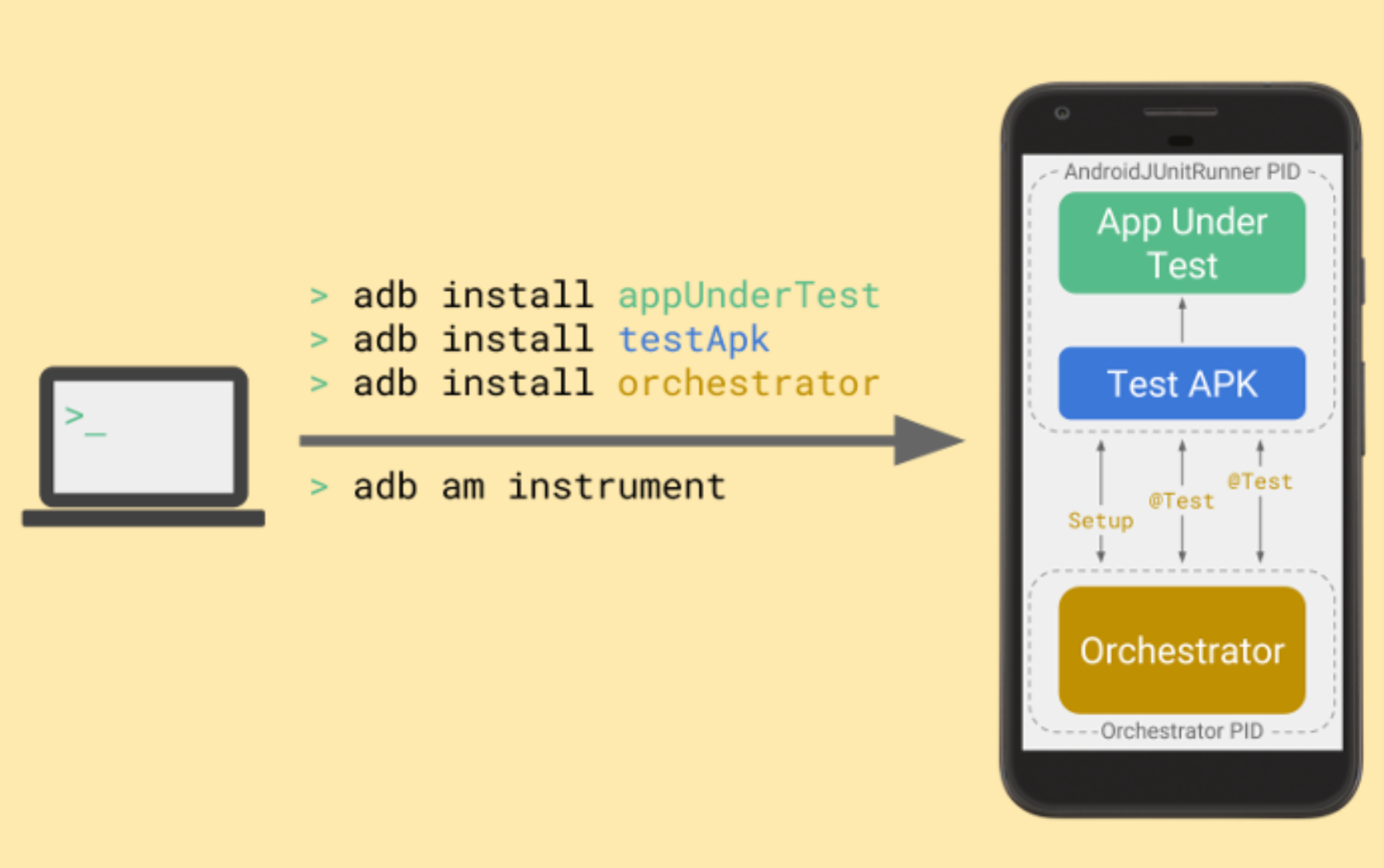
Figure 1: Android Test Orchestration APK structure.
Android Test Orchestrator collects JUnit tests at the beginning of your test suite run, but it then executes each test separately, in its own instance ofInstrumentation.
More information
To learn more about using AndroidJUnitRunner, see the API reference.
Additional resources
For more information about using AndroidJUnitRunner, consult the following resources.
Samples
- AndroidJunitRunnerSample: Showcases test annotations, parameterized tests, and test suite creation.