Desktop server (using desktop app) | Developer Docs (original) (raw)
note
Note: You can only use the desktop MCP server via the Figma desktop app. Download the Figma desktop app →
You must use a code editor or application that supports MCP servers (i.e. VS Code, Cursor, Claude Code)
The MCP Server brings Figma directly into your workflow by providing important design information and context to AI agents generating code from Figma design files.
MCP Servers are part of a standardized interface for AI agents to interact with data sources using the Model Context Protocol.
With the server enabled, you can:
- Generate code from selected frames: Select a Figma frame and turn it into code. Great for product teams building new flows or iterating on app features.
- Extract design context: Pull in variables, components, and layout data directly into your IDE. This is especially useful for design systems and component-based workflows.
- Retrieve Make resources: Gather code resources from Make files and provide them to the LLM as context. This can help as you move from prototype to production application.
- Keep your design system components consistent with Code Connect: Boost output quality by reusing your actual components. Code Connect keeps your generated code consistent with your codebase.
Step 1: Enable the desktop MCP Server
- Open the Figma desktop app and make sure you've updated to the latest version.
- Create or open a Figma Design file.
- In the toolbar at the bottom, toggle to Dev Mode or use the keyboard shortcut ShiftD
- In the MCP server section of the inspect panel, click Enable desktop MCP server.
You should see a confirmation message at the bottom of the screen letting you know the server is enabled and running.
note
Note: The desktop server runs locally at http://127.0.0.1:3845/mcp. Keep this address handy for your configuration file in the next step.
Step 2: Set up your MCP client
Once the server is running locally on the Figma desktop app, MCP clients will be able to connect to your server. Follow the instructions for your specific client to add the MCP server.
VS Code
- Use the shortcut ⌘ Shift P to search for
MCP:Add Server. - Select
HTTP. - Past the server url
http://127.0.0.1:3845/mcpin the search bar, then hit Enter. - Type in
figma-desktopwhen it asks for a Server ID, then hit Enter. - Select whether you want to add this server globally or only for the current workspace. Once confirmed, you'll see a configuration like this in your
mcp.jsonfile:
{
"servers": {
"figma-desktop": {
"type": "http",
"url": "http://127.0.0.1:3845/mcp"
}
}
} - Open the chat toolbar using ⌥⌘B or ⌃⌘I and switch to Agent mode.
- With the chat open, type in
#get_design_contextto confirm that the MCP server tools are available. If no tools are listed, restart the Figma desktop app and VS Code.
Cursor
- Open Cursor → Settings → Cursor Settings.
- Go to the MCP tab.
- Click + Add new global MCP server.
- Enter the following configuration and save:
{
"mcpServers": {
"figma-desktop": {
"url": "http://127.0.0.1:3845/mcp"
}
}
}
For more information, see Cursor's official documentation.
Claude Code
- Open your terminal and run:
claude mcp add --transport http figma-desktop http://127.0.0.1:3845/mcp
- Use the following commands to check MCP settings and manage servers:
- List all configured servers
claude mcp list - Get details for a specific server
claude mcp get my-server - Remove a server
claude mcp remove my-server
- List all configured servers
For more information, see Anthropic's official documentation.
Other editors
You can manually add the MCP server using this configuration:
{ "mcpServers": { "figma-desktop": { "url": "http://127.0.0.1:3845/mcp" } } }
Once configured, refresh or start the server. You should see a successful connection and the available tools. If the connection failed or you do not see any tools, double check that the server is active in the Figma desktop app.
Step 3: Prompt your MCP client
The MCP server introduces a set of tools that help LLMs translate designs in Figma. Once connected, you can prompt your MCP client to access a specific design node.
There are two ways to provide Figma design context to your AI client:
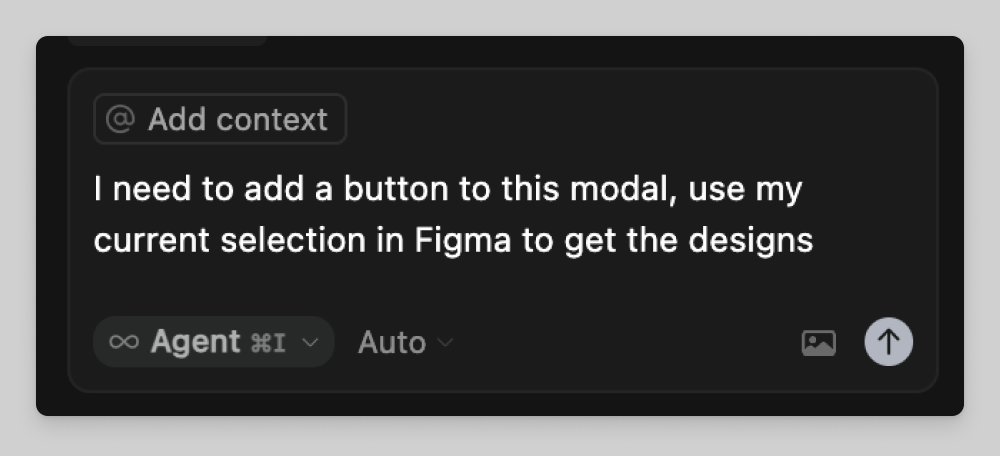
Selection-based
- Select a frame or layer inside Figma using the desktop app.
- Prompt your client to help you implement your current selection.
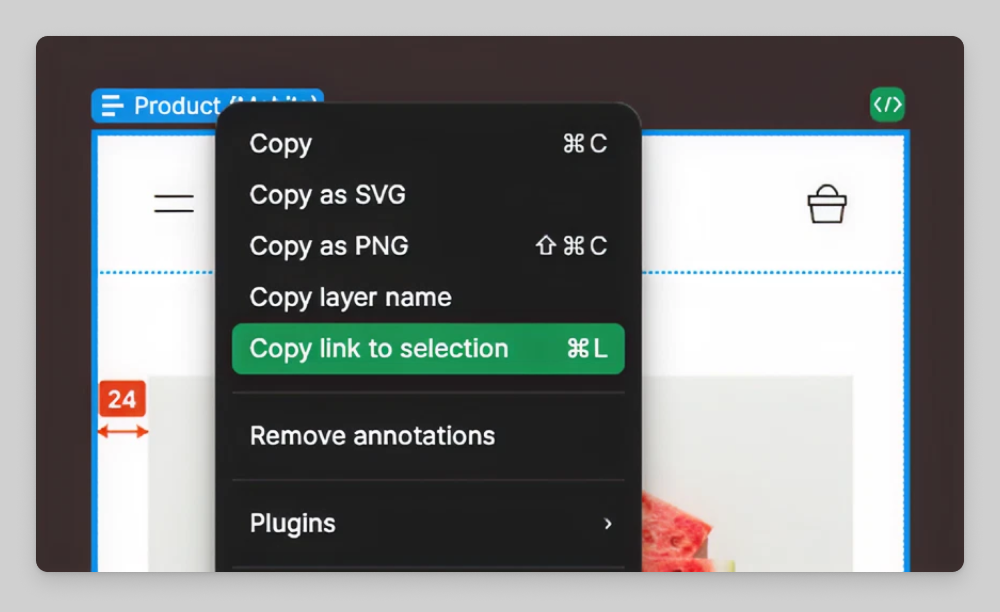
Link-based
- Copy the link to a frame or layer in Figma.
- Prompt your client to help you implement the design at the selected URL.
note
Note: Your client won't be able to navigate to the selected URL, but it will extract the node-id that is required for the MCP server to identify which object to return information about.
Step 4: Tweak your settings
The desktop MCP server has a few settings you can tweak to get it working just as you like it. To find these settings, go the MCP server section of the inspect panel and click the Open settings modal button.
Image settings
Lets you choose how image assets are handled:
- Local server: uses local images, adds a localhost link to the returned markup, allowing you to use the actual image asset wherever your file is rendered.
- Download assets: allow the MCP server to download and write image assets (e.g. icons, images) from Figma into the user's project.
- (DEPRECATED) Placeholders: Skips image extraction and adds generic placeholders instead - helpful if you prefer swapping them manually in code.
Enable Code Connect
Includes Code Connect mappings in the response, so the generated code can reuse components from your connected codebase where possible.