Collect and process information from Google Chat users (original) (raw)
This guide describes how Google Chat apps can collect and process information from users by building form inputs in card-based interfaces.
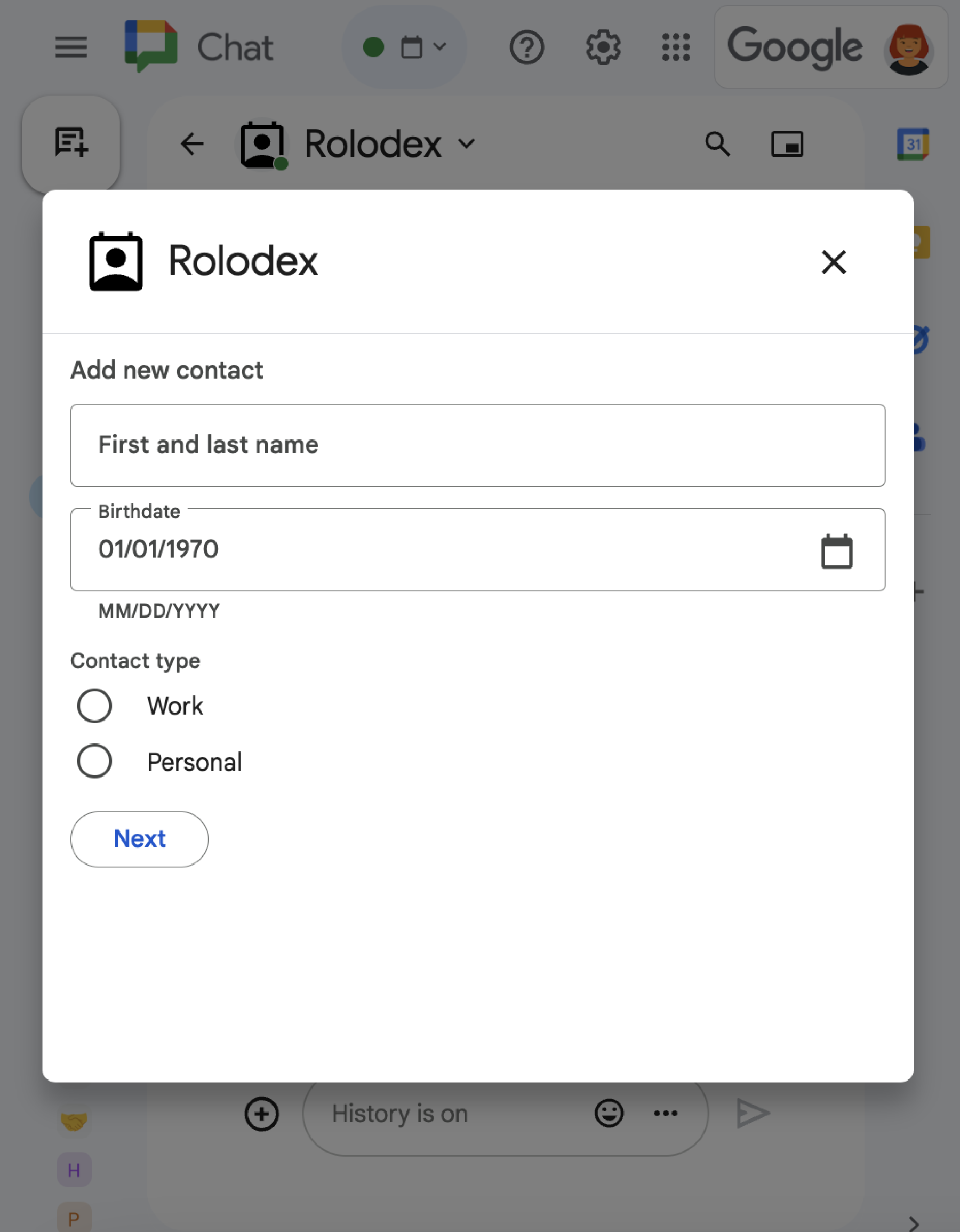
Figure 1: Asample Chat app that opens a dialog to collect contact information.
Chat apps request information from users to perform actions in or outside of Chat, including in the following ways:
- Configure settings. For example, to let users customize notification settings or configure and add the Chat app to one or more spaces.
- Create or update information in other Google Workspace applications. For example, let users create a Google Calendar event.
- Let users access and update resources in other apps or web services. For example, a Chat app can help users update the status of a support ticket directly from a Chat space.
Prerequisites
Node.js
A Google Chat app that receives and responds to interaction events. To create an interactive Chat app using an HTTP service, complete this quickstart.
Python
A Google Chat app that receives and responds to interaction events. To create an interactive Chat app using an HTTP service, complete this quickstart.
Java
A Google Chat app that receives and responds to interaction events. To create an interactive Chat app using an HTTP service, complete this quickstart.
Apps Script
A Google Chat app that receives and responds to interaction events. To create an interactive Chat app in Apps Script, complete this quickstart.
Build forms using cards
To collect information, Chat apps design forms and their inputs, and build them into cards. To display cards to users, Chat apps can use the following Chat interfaces:
- Messages that contain one or more cards.
- Homepages, which is a card that appears from the Home tab in direct messages with the Chat app.
- Dialogs, which are cards that open in a new window from messages and homepages.
Chat apps can build the cards using the following widgets:
- Form input widgets that request information from users. Optionally, you can add validationto form input widgets, to ensure that users input and format information correctly. Chat apps can use the following form input widgets:
- Text inputs(
textInput) for free-form or suggested text. - Selection inputs(
selectionInput) are selectable UI elements such as checkboxes, radio buttons, and drop-down menus. Selection input widgets can also populate items from static or dynamic data sources. For example, users can select from a list of Chat spaces that they're a member of. - Date time pickers(
dateTimePicker) for date and time entries.
- Text inputs(
- A button widget so that users can submit values that they've input in the card. After a user clicks the button, the Chat app can thenprocess the information that it receives.
In the following example, a card collects contact information using a text input, date time picker, and selection input:
For an example of a Chat app that uses this contact form, see the following code:
Node.js
Python
Java
Apps Script
For more examples of interactive widgets that you can use to collect information, seeDesign an interactive card or dialog.
Receive data from interactive widgets
Whenever users click a button, Chat apps receive an interaction event dependent on the location of the button:
- If the button is in a message or dialog, Chat apps receive aCARD_CLICKED interaction eventthat contains information about the interaction. The payload of
CARD_CLICKEDinteraction events contains acommon.formInputsobject with any values that the user inputs.
You can retrieve the values from the objectcommon.formInputs.WIDGET_NAME, whereWIDGET_NAME is thenamefield that you specified for the widget. The values are returned as a specific data type for the widget (represented as an Inputs object).
The following shows a portion of aCARD_CLICKEDinteraction event where a user inputted values for each widget:
HTTP
{
  "type": "CARD_CLICKED",
  "common": { "formInputs": {
    "contactName": { "stringInputs": {
      "value": ["Kai 0"]
    }},
    "contactBirthdate": { "dateInput": {
      "msSinceEpoch": 1000425600000
    }},
    "contactType": { "stringInputs": {
      "value": ["Personal"]
    }}
  }}
}
Apps Script
{
  "type": "CARD_CLICKED",
  "common": { "formInputs": {
    "contactName": { "": { "stringInputs": {
      "value": ["Kai 0"]
    }}},
    "contactBirthdate": { "": { "dateInput": {
      "msSinceEpoch": 1000425600000
    }}},
      "contactType": { "": { "stringInputs": {
      "value": ["Personal"]
    }}}
  }}
} - If the button is on a homepage, Chat apps receive aSUBMIT_FORM interaction event. The payload of the interaction event contains acommonEventObject.formInputsobject with any values that the user inputs.
You can retrieve the values from the objectcommonEventObject.formInputs.WIDGET_NAME, whereWIDGET_NAME is thenamefield that you specified for the widget. The values are returned as a specific data type for the widget (represented as an Inputs object).
The following shows a portion of aSUBMIT_FORMinteraction event where a user inputted values for each widget:
HTTP
{
  "type": "SUBMIT_FORM",
  "commonEventObject": { "formInputs": {
    "contactName": { "stringInputs": {
      "value": ["Kai 0"]
    }},
    "contactBirthdate": { "dateInput": {
      "msSinceEpoch": 1000425600000
    }},
    "contactType": { "stringInputs": {
      "value": ["Personal"]
    }}
  }}
}
Apps Script
{
  "type": "SUBMIT_FORM",
  "commonEventObject": { "formInputs": {
    "contactName": { "": { "stringInputs": {
      "value": ["Kai 0"]
    }}},
    "contactBirthdate": { "": { "dateInput": {
      "msSinceEpoch": 1000425600000
    }}},
      "contactType": { "": { "stringInputs": {
      "value": ["Personal"]
    }}}
  }}
}
To receive the data, your Chat app handles the interaction event to get the values that users input into widgets. The following table shows how to get the value for a given form input widget. For each widget, the table shows the data type that the widget accepts, where the value is stored in the interaction event, and an example value.
| Form input widget | Type of input data | Input value from the interaction event | Example value |
|---|---|---|---|
| textInput | stringInputs | event.common.formInputs.contactName.stringInputs.value[0] | Kai O |
| selectionInput | stringInputs | To get the first or only value, event.common.formInputs.contactType.stringInputs.value[0] | Personal |
| dateTimePicker that only accepts dates. | dateInput | event.common.formInputs.contactBirthdate.dateInput.msSinceEpoch. | 1000425600000 |
Transfer data to another card
After a user submits information from a card, you might need to return additional cards to do any of the following:
- Help users to complete longer forms by creating distinct sections.
- Let users preview and confirm information from the initial card, so that they can review their answers before submitting.
- Dynamically populate the remaining parts of the form. For example, to prompt users to create an appointment, a Chat app could display an initial card that requests the reason for the appointment, and then populates another card that provides available times based on the appointment type.
To transfer the data input from the initial card, you can build the buttonwidget with actionParametersthat contain the widget's name and the value the user inputs, as shown in the following example:
Node.js
Python
Java
Apps Script
When a user clicks the button, your Chat app receives aCARD_CLICKED interaction event from which you canreceive data.
Respond to a form submission
After receiving the data from a card message or dialog, the Chat app responds by either acknowledging receipt or returning an error.
In the following example, a Chat app sends a text message to confirm that it has successfully received a form submitted from a dialog or card message.
Node.js
Python
Java
Apps Script
To process and close a dialog, you return anActionResponseobject that specifies whether you want to send a confirmation message, update the original message or card, or just close the dialog. For steps, seeClose a dialog.
Troubleshoot
When a Google Chat app orcard returns an error, the Chat interface surfaces a message saying "Something went wrong." or "Unable to process your request." Sometimes the Chat UI doesn't display any error message, but the Chat app or card produces an unexpected result; for example, a card message might not appear.
Although an error message might not display in the Chat UI, descriptive error messages and log data are available to help you fix errors when error logging for Chat apps is turned on. For help viewing, debugging, and fixing errors, seeTroubleshoot and fix Google Chat errors.
- View the Contact Manager sample, which is a Chat app that prompts users to complete a contact form from card messages and dialogs.
- Open interactive dialogs