Format messages (original) (raw)
This page explains how Google Chat apps can format text to send messages that contain any of the following:
- Rich text that contains hyperlinks or @mentions one or all users in a Chat space.
- Text that appears in a card interface, including as paragraph text or UI text that displays alongside an icon, such as a button.
Format a text message
Chat lets you add basic formatting to a text message, including bold, italic, and strikethrough, by using a small subset of Markdown syntax. You format text differently in text messages than in card messages because text messages are formatted with the same syntax that Chat users use.
To format text messages, use the following syntax:
| Format | Symbol | Example syntax | Text displayed in Google Chat |
|---|---|---|---|
| Bold | * | *hello* | hello |
| Italic | _ (underscore) | _hello_ | hello |
| Strikethrough | ~ | ~hello~ | |
| Monospace | ` (backquote) | `hello` | hello |
| Monospace block | ` ` ` (three backquotes) | ```HelloWorld``` | HelloWorld |
| Bulleted list | * or - (hyphen) followed by a space | * This is the first item in the list * This is the second item in the list | This is the first item in the list This is the second item in the list |
| Hyperlink | <hyperlink|display text> | <https://example.com|Example website> | Example website To learn more about hyperlinking, see Format links. |
| Mention user | <users/{user}> where {user} is the user ID. | <users/123456789012345678901> | @Mahan S To learn more about mentioning users, see Mention users in a text message. |
For example, consider the following JSON:
    {
      "text": "Your pizza delivery *has arrived*!\nThank you for using _Cymbal Pizza!_"
    }
This formatted text message displays the following in a Chat space:
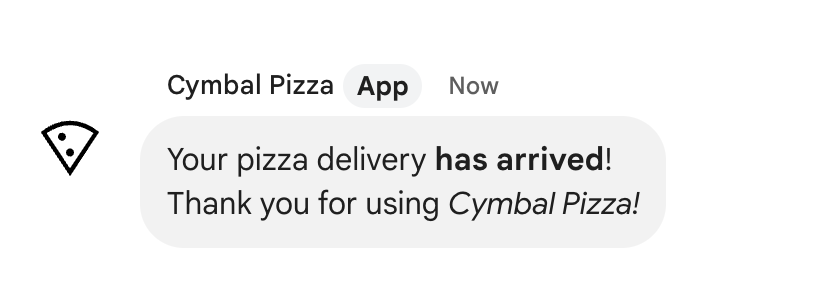
View text formatting sent in a message
When a user sends a message, the plain-text body of the message is in thetext field. Some formatting that is applied to the text message using Markdown syntax, is in the text field. Additional formatting is in the output-only formattedText field, including the following:
- Additional Markdown syntax for text
- User mentions
- Custom hyperlinks
- Custom emoji
For example, consider the following text sent by a user:

If the message was formatted by using the Format menu in the Chat UI, the text field contains the text only, while theformattedText field contains the markups, the text, and the hyperlink. The following example shows the draft of a text message with a word hyperlinked, items in a list, and one word bolded:
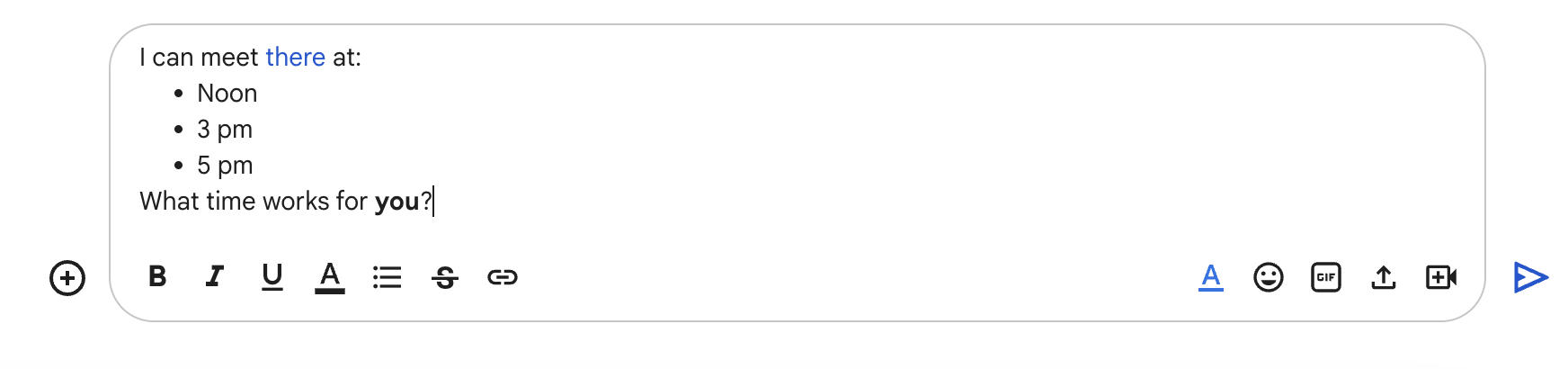
The message is received in the following format:
    {
      "text": "I can meet there at:\nNoon\n3 pm\n5 pm\nWhat time works for you?",
      "formattedText": "I can meet <http://example.com|there> at:\n* Noon\n* 3 pm\n* 5 pm\nWhat time works for *you*?",
    }
Format links
If you include a plain link URL in your message text, such ashttp://www.example.com/, Google Chat uses this as the link text and automatically hyperlinks that text to the specified URL.
To provide alternate link text for your link, use the following syntax:
| Example syntax | Text displayed in Google Chat |
|---|---|
| <https://example.com|Example website> | Example website |
The pipe and link text are optional, so that <https://www.example.com/> andhttps://www.example.com/ are equivalent.
Use custom emoji in a text message
Chat apps cansend text messageswith custom emoji to personalize messages. Custom emojis are only available for Google Workspace organizations, and the administrator must turn custom emojis on for the organization. For more information, seeLearn about custom emojis in Google Chatand Manage custom emoji permissions.
To create messages with custom emojis, your app must useuser authentication. Custom emojis aren't supported inmessages created as a webhookor in messages created with app authentication.
To add custom emoji to the text of a message, specify the name oremoji_name of the customEmoji resource:
{
    "text": "Hello <customEmojis/CUSTOM_EMOJI_ID>."
}
To use this sample, replace CUSTOM_EMOJI_ID with the ID for the custom emoji. You can find this ID in thenameor emoji_namefield of the customEmoji resource.
Mention users in a text message
Chat apps cansend text messagesthat @mention one or all users in a Chat space. To mention users that haven't joined the space or a space that is in import mode, Chat apps must send the message withuser authentication.
@mention specific users
To @mention a specific user, add <users/{user}> to the text message where{user} is the ID of the user. For example, consider the following text message where 123456789012345678901 represents the ID for the user Mahan S.:
{
    "text": "A customer has reported an issue. Assigning ticket #942 to <users/123456789012345678901>."
}
The text message displays as the following:

You can specify the users/{user} value in the following ways:
- If your Google Chat app is responding to a message sent by the user, you can use the
message.sender.namefield of theMESSAGE interaction event. - If your Google Chat app is creating anasynchronous text message, you can specify the value for
users/{user}in the following ways:- Use the
namefield of the Google ChatUser resource, such asusers/123456789012345678901. - Use the user's email address as an alias for the
{user}value. For example, if the email address ismahan@example.com, you can specify the user asusers/mahan@example.com. To use an email alias, your Google Chat app mustauthenticate as a user.
- Use the
- If you use the People API, you can also use thepeople.get methodto identify the user ID.
@mention all users
To create a text message that @mentions everyone in a space, replace {user}with all. The following JSON example mentions all users in a message:
{
    "text": "Important message for <users/all>: Code freeze starts at midnight tonight!"
}
Format text that appears in cards
Inside cards, most text fields support basic text formatting by using a small subset of HTML tags. You format text differently in card messages than in text messages because text messages are formatted with the same syntax that Chat users use.
Use the Card Builder to design and preview messaging and user interfaces for Chat apps:
Format paragraph text
The supported tags and their purpose are shown in the following table:
| Format | Example | Rendered result |
|---|---|---|
| Bold | "This is bold." | This is bold. |
| Italics | "This is italics." | This is italics. |
| Underline | "This is underline." | This is underline. |
| Strikethrough | "This is |
This is |
| Font color | "This is <font color=\"#FF0000\">red font." | This is red font. |
| Hyperlink | "This is a <a href=\"hyperlink" title="undefined" rel="noopener noreferrer">https://www.google.com\\">hyperlink." | This is a hyperlink. |
| Time | "This is a time format: ." | This is a time format: 2023-02-16 15:00. |
| Newline | "This is the first line. This is a new line." |
This is the first line. This is a new line. |
To define lists and code blocks, use the following tags:
| Format | Example | Rendered result |
|---|---|---|
| New line | "Line 1 Line 2" |
Line 1Line 2 |
| Monospace | "This is an inline code." |
This is an inline code. |
| Monospace block | " |
This is a code block. |
| Bulleted list | "
|
List item 1List item 2 |
| Ordered list | "
|
List item 1List item 2 |
Markdown
When Markdown syntax is turned on, you can use the following syntax:
| Format | Example | Rendered result |
|---|---|---|
| Bold | **hello** or __hello__ | hello |
| Italic | *hello* or _hello_ | hello |
| Strikethrough | ~hello~ | |
| Monospace | `hello` | hello |
| Monospace block | ```HelloWorld``` | HelloWorld |
| Bulleted list | - This is the first item in the list - This is the second item in the list | This is the first item in the list This is the second item in the list |
| * This is the first item in the list * This is the second item in the list | This is the first item in the list This is the second item in the list | |
| Ordered list | 1. This is the first item in the list 2. This is the second item in the list | This is the first item in the list This is the second item in the list |
| Hyperlink | [Example website](https://example.com) | Example website |
Add icons to text
To display icons alongside text in a card, you can use theDecoratedTextandButtonListwidgets.
The following sections explain how to use built-in icons, Google Material icons, or custom icons in decorated text or buttons.
Use icons from Chat
To use a built-in icons available in Chat, specify one of the following:
The following table lists the built-in icons that are available for card messages:
| AIRPLANE | BOOKMARK |
|---|---|
| BUS | CAR |
| CLOCK | CONFIRMATION_NUMBER_ICON |
| DESCRIPTION | DOLLAR |
| EVENT_SEAT | |
| FLIGHT_ARRIVAL | FLIGHT_DEPARTURE |
| HOTEL | HOTEL_ROOM_TYPE |
| INVITE | MAP_PIN |
| MEMBERSHIP | MULTIPLE_PEOPLE |
| PERSON | PHONE |
| RESTAURANT_ICON | SHOPPING_CART |
| STAR | STORE |
| TICKET | TRAIN |
| VIDEO_CAMERA | VIDEO_PLAY |
The following is an example of a card with an email icon:
Use Google Material icons
You can use Google Material iconsto select from over 2500+ icon options and customize the weight, fill, and grade of the icons.
The following is an example of card with a Google Material icon:
Use custom icons
To add a custom icon, include the iconUrl field and specify the icon's corresponding URL.
The following is an example of a custom icon: