Build a Google Chat app as a webhook (original) (raw)
This page describes how to set up a webhook to send asynchronous messages into a Chat space using external triggers. For example, you can configure a monitoring application to notify on-call personnel on Chat when a server goes down. To send a synchronous message with a Chat app, seeSend a message.
With this type of architecture design, users can't interact with the webhook or the connected external application because communication is one-way. Webhooks aren't conversational. They can't respond to or receive messages from users orChat app interaction events. To respond to messages,build a Chat appinstead of a webhook.
While a webhook isn't technically a Chat app—webhooks connect applications using standard HTTP requests—this page refers to it as a Chat app for simplification. Each webhook only works in the Chat space in which it's registered. Incoming webhooks work in direct messages, but only when all users haveChat apps enabled. You can't publish webhooks to the Google Workspace Marketplace.
The following diagram shows the architecture of a webhook connected to Chat:
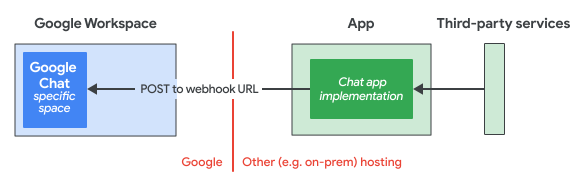
In the preceding diagram, a Chat app has the following flow of information:
- The Chat app logic receives information from external third-party services, such as a project management system or a ticketing tool.
- The Chat app logic is hosted in either a cloud or on-premises system that can send messages by using a webhook URL to a specific Chat space.
- Users can receive messages from the Chat app in that specific Chat space, but are unable to interact with the Chat app.
Prerequisites
Node.js
- A Business or EnterpriseGoogle Workspace account with access toGoogle Chat. Your Google Workspace organization must let usersadd and use incoming webhooks.
- Node.js 14 or greater
- The npmpackage management tool
- A Google Chat space. To create one using the Google Chat API, seeCreate a space. To create one in Chat, visit theHelp Center documentation.
Python
- A Business or EnterpriseGoogle Workspace account with access toGoogle Chat. Your Google Workspace organization must let usersadd and use incoming webhooks.
- Python 3.6 or greater
- The pip package management tool
- The
httplib2library. To install the library, run the following command in your command-line interface:
pip install httplib2 - A Google Chat space. To create one using the Google Chat API, seeCreate a space. To create one in Chat, visit theHelp Center documentation.
Java
- A Business or EnterpriseGoogle Workspace account with access toGoogle Chat. Your Google Workspace organization must let usersadd and use incoming webhooks.
- Java 11 or greater
- The Maven package management tool
- A Google Chat space. To create one using the Google Chat API, seeCreate a space. To create one in Chat, visit theHelp Center documentation.
Apps Script
- A Business or EnterpriseGoogle Workspace account with access toGoogle Chat. Your Google Workspace organization must let usersadd and use incoming webhooks.
- Create a standalone Apps Script project, and turn on the Advanced Chat Service.
- A Google Chat space. To create one using the Google Chat API, seeCreate a space. To create one in Chat, visit theHelp Center documentation.
Create a webhook
To create a webhook, register it in the Chat space where you want to receive messages, and then write a script that sends messages.
Register the incoming webhook
- In a browser, openChat. Webhooks aren't configurable from the Chat mobile app.
- Go to the space where you want to add a webhook.
- Next to the space title, click the expand more arrow, and then click Apps & integrations.
- Click Add webhooks.
- In the Name field, enter
Quickstart Webhook. - In the Avatar URL field, enter
https://developers.google.com/chat/images/chat-product-icon.png. - Click Save.
- To copy the webhook URL, clickMore, and then clickCopy link.
The webhook URL contains two parameters:key, a common value shared between webhooks, andtokenwhich is a unique value that must be kept secret to preserve the security of your webhook.
Write the webhook script
The example webhook script sends a message to the space in which the webhook is registered by sending a POST request to the webhook URL. The Chat API responds with an instance ofMessage.
Select a language to learn how to create a webhook script:
Node.js
- In your working directory, create a file named
index.js. - In
index.js, paste the following code: - Replace the value for the
urlvariable with the webhook URL that you copied when you registered the webhook.
Python
- In your working directory, create a file named
quickstart.py. - In
quickstart.py, paste the following code: - Replace the value for the
urlvariable with the webhook URL that you copied when you registered the webhook.
Java
- In your working directory, create a file named
pom.xml. - In
pom.xml, copy and paste the following: - In your working directory, create the following directory structure
src/main/java. - In the
src/main/javadirectory, create a file namedApp.java. - In
App.java, paste the following code: - Replace the value for the
URLvariable with the webhook URL that you copied when you registered the webhook.
Apps Script
- In a browser, go toApps Script.
- Click New Project
- Paste the following code:
- Replace the value for the
urlvariable with the webhook URL that you copied when you registered the webhook.
Run the webhook script
In a CLI, run the script:
Node.js
node index.jsPython
python3 quickstart.pyJava
mvn compile exec:java -Dexec.mainClass=AppApps Script
- Click Run.
When you run the code, the webhook sends a message to the space in which you registered it.
Start or reply to a message thread
- Specifyspaces.messages.thread.threadKeyas part of the message request body. Depending on whether you're starting or replying to a thread, use the following values for
threadKey:- If starting a thread, set the
threadKeyto an arbitrary string, but make a note of this value to post a reply to the thread. - If replying to a thread, specify the
threadKeythat was set when the thread was started. For example, to post a reply to the thread where the initial message usedMY-THREAD, setMY-THREAD.
- If starting a thread, set the
- Define the thread behavior if the specified
threadKeyisn't found:- Reply to a thread or start a new thread. Add the
messageReplyOption=REPLY_MESSAGE_FALLBACK_TO_NEW_THREADparameter to the webhook URL. Passing this URL parameter causes Chat to look for an existing thread using the specifiedthreadKey. If one is found, then the message posts as a reply to that thread. If none is found, then the message starts a new thread corresponding to thatthreadKey. - Reply to a thread or do nothing. Add the
messageReplyOption=REPLY_MESSAGE_OR_FAILparameter to the webhook URL. Passing this URL parameter causes Chat to look for an existing thread using the specifiedthreadKey. If one is found, then the message posts as a reply to that thread. If none is found, then the message isn't sent.
To learn more, see messageReplyOption.
- Reply to a thread or start a new thread. Add the
The following code sample starts or replies to a message thread:
Node.js
Python
Java
Apps Script
Handle errors
Webhook requests can fail for a variety of reasons, including:
- Invalid request.
- Webhook or space hosting the webhook is deleted.
- Intermittent issues like network connectivity or quota limits.
When building your webhook, you should appropriately handle errors by:
- Logging the failure.
- For time-based, quota, or network connectivity errors,retrying the request with exponential backoff.
- Doing nothing, which is appropriate if sending the webhook message isn't important.
The Google Chat API returns errors as agoogle.rpc.Status, which includes an HTTP error code that indicates the type of error that was encountered: a client error (400 series) or a server error (500 series). To review all HTTP mappings, seegoogle.rpc.Code.
{
    "code": 503,
    "message": "The service is currently unavailable.",
    "status": "UNAVAILABLE"
}
To learn how to interpret HTTP status codes and handle errors, seeErrors.
Limitations and considerations
- When creating a messagewith a webhook in Google Chat API, the response doesn't contain the full message. The response only populates the
nameandthread.namefields. - Webhooks are subject to the per-space quota for
spaces.messages.create: 1 request per second, shared among all webhooks in the space. Chat might also reject webhook requests that exceed 1 query per second in the same space. For more information on Chat API quotas, see Usage limits. - Choose a Chat app architecture
- Send card messages
- Format messages