Get and Install Qt with Qt Online Installer (original) (raw)
Qt Online Installer lets you install only the modules and tools you need to develop for a specific desktop platform and deploy your applications to desktop platforms, mobile devices, embedded systems, or MCUs.
To install Qt, complete the instructions on this page or take the How to install Qt course.
Before you start
Before you start the installation:
- Create an account at Qt Account.
- Ensure that your platform is supported, see Supported Platforms.
Install
- On Qt Account, go to Downloads and select Qt Online Installer for your operating system.
- Run Qt Online Installer.
- Select the components that you want to install and follow the instructions to complete the installation.
Note the following:- The available selection of components in Qt Online Installer depends on your license.
- You can always install, uninstall, and update modules and components after the installation with Qt Maintenance Tool (included in every Qt installation).
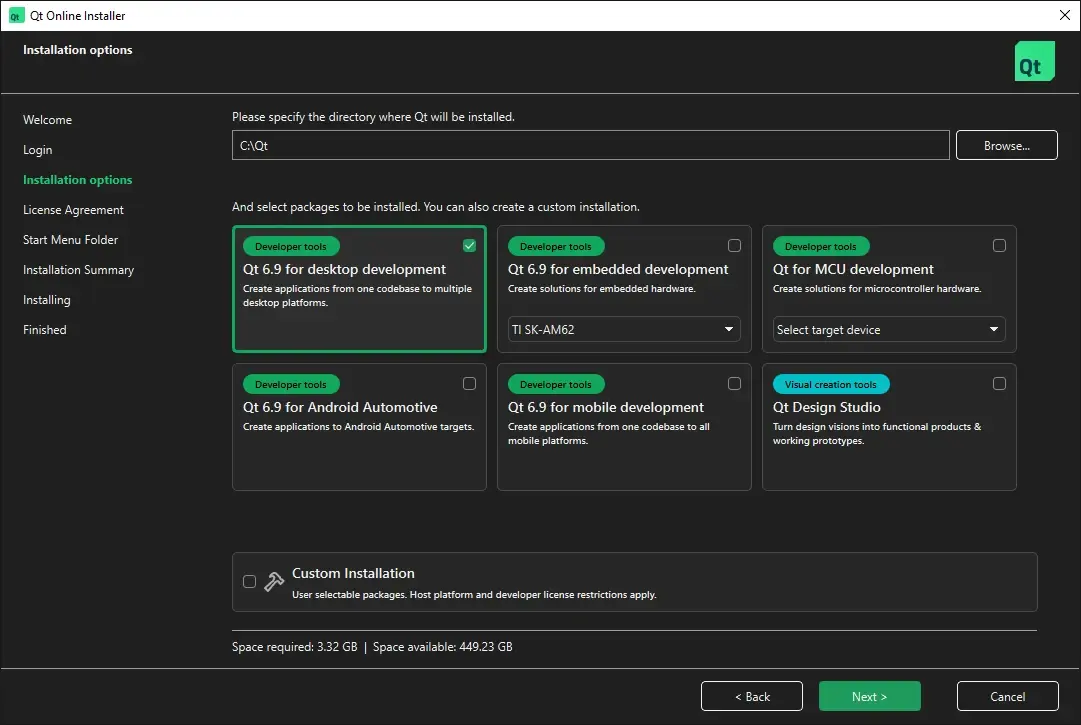
See the following table to find examples of which components to install depending on your target platforms.
| To develop for | Choose | Notes |
|---|---|---|
| Desktop | Qt <x.x> for desktop development | To use something other than the default toolchain, such as MSVC on Windows, select Custom Installation. Then select Qt for the toolchain you want to use. |
| Mobile Devices | Qt <x.x> for mobile development | To develop for a particular platform, select Custom Installation. Then select the Qt for the mobile device platform that you want to run the applications on. For example, Qt for Android or Qt for iOS. |
| Embedded Devices | Qt <x.x> for embedded development | For more information, see the quick start guide for your device in the Boot to Qt documentation. |
| Android Automotive | Qt <x.x> for Android Automotive | For more information, see the Installing Qt for Android Automotive part in the Qt for Android Automotive documentation. |
| Automation | Custom Installation | Install necessary Qt modules and toolchains from the Qt for Automation/Qt M2M Protocols section, depending on the types of devices that you want to run applications on. |
| MCUs | Qt for MCU development | For more information, see the Installing Qt for MCUs part in the Qt for MCUs Documentation. |
Getting help
To get help with the installation, see these support channels:
After the installation
After you have installed Qt, you are ready to start developing applications.
For more information, see Create Your First Applications or Qt courses.
Get, install, and build Qt Get and Install Qt with Command Line Interface
© 2026 The Qt Company Ltd. Documentation contributions included herein are the copyrights of their respective owners. The documentation provided herein is licensed under the terms of the GNU Free Documentation License version 1.3 as published by the Free Software Foundation. Qt and respective logos are trademarks of The Qt Company Ltd. in Finland and/or other countries worldwide. All other trademarks are property of their respective owners.