Navigate with locator | Qt Creator Documentation (original) (raw)
Locate not only files, but any items defined by locator filters, as well as trigger global actions and perform other tasks, such as build projects or run external tools.
Go to the locator
To activate the locator:
- Select Ctrl+K (Cmd+K on macOS).
- Go to Tools, and then select Locate.
- Go to Edit, and then select Go to Line.
- Select the line and column indicator on the editor toolbar.
By default, you can find the locator in the bottom left of the Qt Creator window. To open it as a centered popup, select  , and then select Open as Centered Popup.
Use locator filters
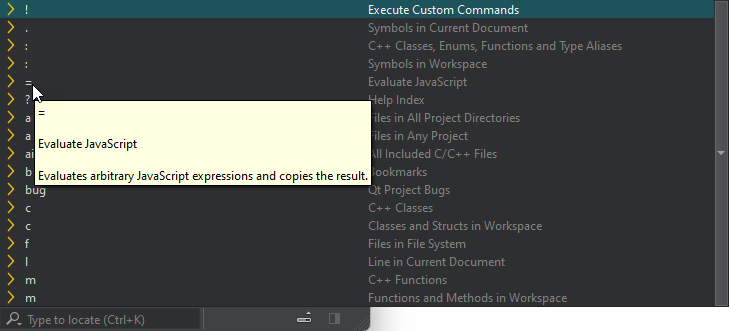
The filters that are available depend on the current document and project. If the locator field is empty, a list of available filters is shown. A list of filters is also shown when selecting . For more information about what a particular locator filter does, see the tooltips that appear when you hover over a filter.
To use a locator filter:
- Enter the locator filter prefix followed by Space. The prefix is usually short, from one to three characters. Then enter the search string (for example, a filename or class name) or the command to execute. Select Tab to complete the search string.
- Select a locator filter in the filter list to use it. Use the up and down arrow keys or select Ctrl+P and Ctrl+N to move up and down the list, and then select Enter to use the selected filter.
As you enter a search string, the locator shows the occurrences of that string regardless of where in the name of an object it appears. Some locator filters, such as colon, m, and t, support fuzzy matching, which means that you can enter the uppercase letters to locate a symbol when using camel case or the letters after the underscore when using snake case.
To turn off Tab completion, select and clear Use Tab Completion.
Use wildcard characters in search strings
To narrow down the search results, use the following wildcard characters:
- To match any number of any or no characters, enter
*. - To match a single instance of any character, enter
?.
Omit default filters
By default, you can use the following preset locator filters without a prefix:
- Going to a line and column in the current file (
l). - Going to an open file (
o). - Going to a file in any open project (
a).
Locate lines and columns
To move directly to a particular line and column in the document when you open the document, append the line and column number to the file name in the locator, separated by plus signs (+) or colons (:).
For example, to open HelloWorld.qml to line 41 and column 2, enter:
Search the web
Use the Web Search (r) locator filter to perform web searches.
URLs and search commands for Bing, Google, Yahoo! Search, cplusplus.com, and Wikipedia are configured by default. Add search commands for other web search engines in the locator preferences.
Create files and directories from the locator
To create a new file and open it in the editor:
- Enter
ffollowed by Space, followed by path and file name - Select Enter or select Create and Open File.
To create a directory, select Create Directory.