AI assistant | Qt Design Studio Documentation 4.8.1 (original) (raw)
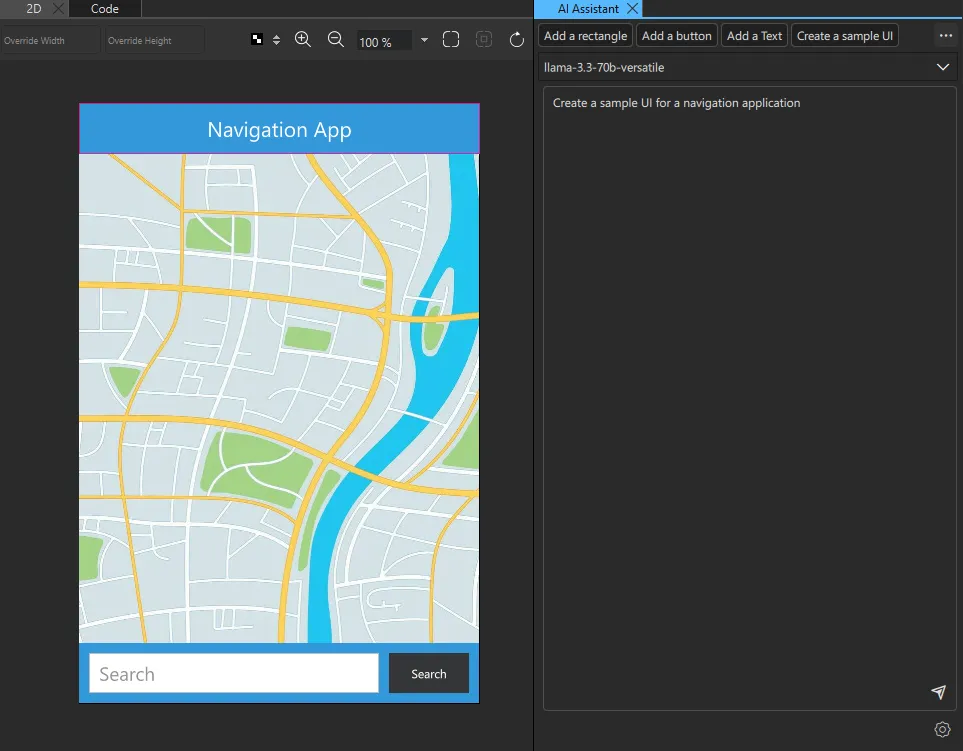
The AI assistant is an AI-powered user interface prototyping assistant. When connected to a Large Language Model (LLM), it helps you speed up user interface prototyping.
Because the output depends on the underlying AI model and your input, results will vary. Prototyping is an experimental process that often requires multiple iterations. Provide clear and detailed prompts for the best results.
AI models
The tables below list the models that are available in Qt Design Studio by default. To add more models than the default ones, see the link to the provider's full list of models below each table.
Note: The AI assistant in Qt Design Studio does not support text-to-speech (TTS) or image generation models.
Choosing a model
When choosing which AI model to use, consider the following:
- The
llama-3.3-70b-versatilemodel from Groq is the recommended model. It has shown better QML generation quality compared to other models. - Higher-parameter models (for example,
70b) generally deliver better QML code quality compared to smaller ones (for example,8b). - Access considerations:
- Groq offers generous free tier rate limits, making it a cost-effective option for experimentation.
- Gemini provides free tier rate limits, though they are more limited than Groq.
- OpenAI and Claude do not offer any free plans. The pricing depends on the model. See OpenAI pricing and Claude pricing.
Groq
For a full list of models, see https://console.groq.com/docs/models.
Gemini
For a full list of models, see https://ai.google.dev/gemini-api/docs/models.
OpenAI
For a full list of models, see https://platform.openai.com/docs/models.
Claude
For a full list of models, see https://docs.claude.com/en/docs/about-claude/models/overview.
Setting up the AI assistant
Before you start
To use the AI assistant in Qt Design Studio, you need an API key to Groq, Gemini, OpenAI, or Claude.
Configuring the AI assistant
To configure the AI assistant:
- In the AI Assistant view, select
 .
. - Enter the API key for your AI provider.
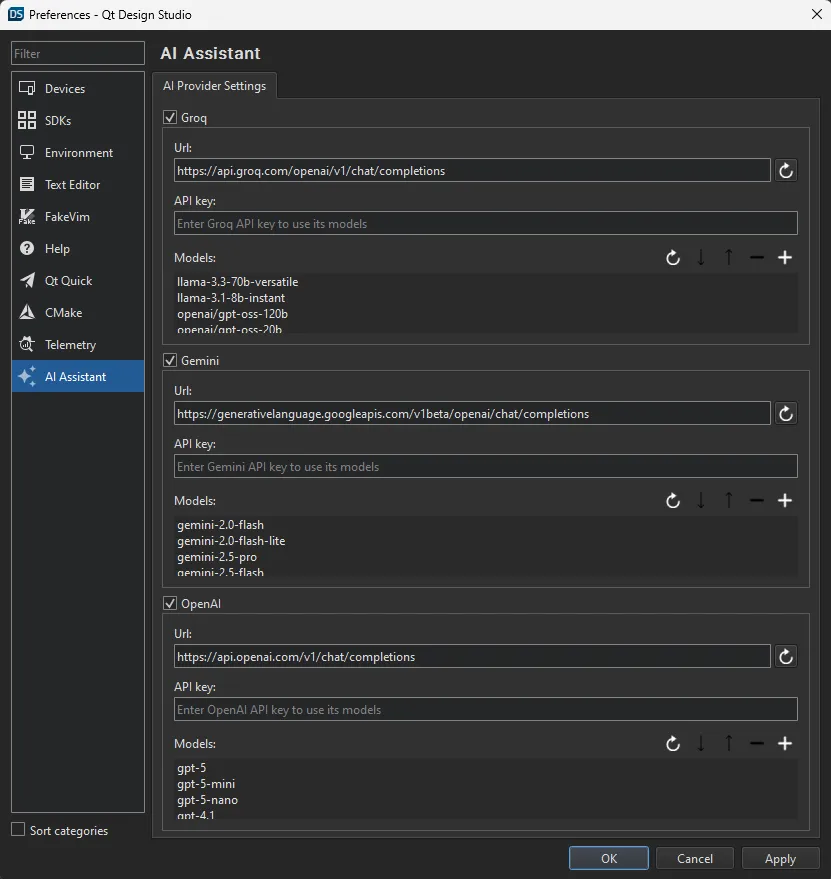
In the AI Assistant view, you can now use the models under the providers for which you set API keys.
You can also:
- Remove the provider and its models from selectable models in the AI Assistant view by clearing the checkbox next to the provider name.
- Reset the provider Url by selecting
 next to the Url field.
Adding, removing, and reorganizing models
In the AI assistant settings dialog:
Using the AI assistant
Note the following:
- The AI assistant is aware of images (by their names only) in the project assets and is instructed to use them whenever it seem to fit. For example, if you have an image named
banana.jpgin your project assets, the AI assistant likely uses this image if you ask it to add a banana to the UI. - The AI assistant is aware of
.uifiles and instructed to not generate code in them.
Using a prompt to generate content
To generate content with the AI assistant:
- In the AI Assistant view, select the model that you want to use from the drop-down menu.
- Enter your prompt in the prompt field. If the selected model supports image input, you can also use
 to attach an image to your prompt. These models can interpret the content of the image such as layout and visual hierarchy and use that understanding during generation. For example, you can attach an image of a UI layout and ask the AI assistant to build a UI based on the attached image.
Note: If you attach an image to the AI assistant, it remains in use and effects results of your next generations until you remove it. - Select
 to run the prompt.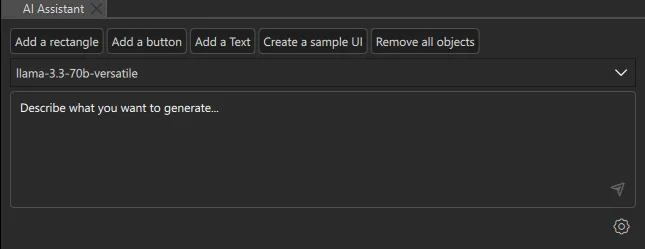
After a successful generation, rate the output with thumbs up or thumbs down. This helps improve the Qt Design Studio AI assistant.

If the generation is not succesful, there are two types of messages:
- A Warning is displayed if there are any issues with the generated QML code.
- An Error is displayed if there are any issues with the API request.