Atono MCP Server (original) (raw)
Connect AI coding tools to your Atono workspace using the Model Context Protocol (MCP). The Atono MCP server bridges your Atono workspace and MCP-enabled tools such as Claude Code, Windsurf, Cursor, VS Code, GitHub Copilot, and others that support the MCP standard.
The Atono MCP server provides a secure way for AI-powered development tools to access and act on data within your Atono workspace.
The server runs locally using Docker and communicates with clients through via the MCP standard. When connected, your AI assistant can read and update Atono data—like stories, workflow steps, and bugs—using your authenticated workspace access.
Each MCP-enabled client connects in its own way, so setup details vary slightly by tool. You’ll find configuration examples in the sections that follow.
Once connected, your AI tool can use Atono data in real time—not just to look things up, but to help manage work across your teams. It understands your workflows, steps, and items, and can take action when you ask.
Here are a few examples of what that looks like in practice:
- “Add a story for the API team to paginate search results and assign it to Max.”
- The AI finds the right team and step, creates the story, and assigns it.
- “Move STORY-123 to Development and assign it to Sam Taylor."
- It gathers updates the story's workflow step and assigns it.
- "Fix BUG-789 and move it to Test once done.”
- After applying the fix, the AI moves the bug to Test and adds a plain-English summary of the change.
- "Write release notes for STORY-45, STORY-52, and STORY-73."
- The AI retrieves each story, summarizes their acceptance criteria and outcomes, and drafts release notes that describe what changed and why.
Together, these actions use the Atono MCP tools listed later in this topic—the individual commands your AI assistant can call to read or update data in your workspace.
Before you begin, make sure you have the following:
- Docker Desktop (version 27.0 or later): Used to run the Atono MCP server locally in a container.
- You can confirm installation by running
docker --versionin your terminal (macOS/Linux) or command prompt (Windows). If Docker is installed correctly, you'll see a version number.
- You can confirm installation by running
- Atono MCP server: Available from Docker Hub. Download the MCP server by running the following command in your terminal (MacOS) or command prompt (Windows):
docker pull atonoai/atono-mcp-server:VERSION_NUMBER- Replace
VERSION_NUMBERwith the latest version of the Atono MCP Server available from Docker Hub (for example,0.5.0). - This command fetches the latest Atono MCP server image from Docker Hub so it's ready to run when your AI tool connects. Your AI tool automatically pulls and runs this image when you add the MCP configuration.
- An Atono API key: Used to authenticate your MCP server with your Atono workspace. For instructions on retrieving your Atono API Key, see Manage API Keys.
- An MCP-enabled AI tool: Such as Claude Code, Windsurf, Cursor, VS Code, or GitHub Copilot. These clients can connect to your local Atono MCP server and use it to read or update Atono data. Each tool provides its own interface for adding an MCP server configuration.
After you’ve installed Docker, retrieved your Atono API key, and confirmed that your AI tool supports MCP, you’re ready to connect it to your workspace.
Each client has its own way of adding an MCP server, but they all follow the same basic pattern: point to the Atono MCP Docker image, provide your API key, and restart the tool.
You’ll find setup details for several popular tools below. If yours isn’t listed, start with the General example and refer to your tool’s documentation for the specific configuration format it requires.
Most MCP-enabled tools include an “Add MCP Server” dialog or allow you to edit a small JSON configuration file.
A generic example looks like this:
{
  "atono": {
    "command": "docker",
    "args": [
      "run",
      "-i",
      "--rm",
      "-e",
      "X_API_KEY",
      "atonoai/atono-mcp-server:VERSION_NUMBER"
    ],
    "env": {
      "X_API_KEY": "YOUR_ATONO_API_KEY"
    }
  }
}
Notes:
- command — the program used to launch the server (Docker).
- args — the parameters passed to Docker to run the container.
- env — environment variables passed to the container, including your API key.
Some tools may use slightly different field names—for example:
serverUrlorurl(for HTTP connections instead of command-based ones)headersinstead of env for authentication tokens
- Run the following command in your terminal:
claude mcp add --transport stdio atono \
  --env X_API_KEY=YOUR_ATONO_API_KEY \
-- docker run -i --rm -e X_API_KEY atonoai/atono-mcp-server:VERSION_NUMBER- Replace
YOUR_ATONO_API_KEYwith your API key. - Replace
VERSION_NUMBERwith the latest version of the Atono MCP Server available from Docker Hub (for example,0.5.0). - Confirm connection success by running
/mcpin a Claude Code session and checking that “Atono” appears in the list of servers.
For more details, see Claude Docs on Installing MCP servers.
- Go to Settings > Developer > Local MCP Servers > Edit config.
- Open the Claude configuration file: claude_desktop_config.json.
- Add the Atono MCP server configuration:
If the file is empty, copy and paste the following:
{
  "mcpServers": {
    "atono": {
      "command": "docker",
      "args": [
        "run",
        "-i",
        "--rm",
        "-e",
        "X_API_KEY=YOUR_ATONO_API_KEY",
        "atonoai/atono-mcp-server:VERSION_NUMBER"
      ]
    }
  }
}
If the file already has other settings, add the mcpServers section (with a comma after the previous section):
{
  "existingSettings": "...",
  "mcpServers": {
    "atono": {
      "command": "docker",
      "args": [
        "run",
        "-i",
        "--rm",
        "-e",
        "X_API_KEY=YOUR_ATONO_API_KEY",
        "atonoai/atono-mcp-server:VERSION_NUMBER"
      ]
    }
  }
}
- Replace
YOUR_ATONO_API_KEYwith your API key. - Replace
VERSION_NUMBERwith the latest version of the Atono MCP Server available from Docker Hub (for example,0.5.0). - Save the file and restart Claude Desktop.
- If you return to Settings > Developer > MCP servers > Edit config, you should see
atonolisted. - Start a new chat and ask a question, such as "What Atono MCP tools are available?" You should see a list of the tools that allow Claude Desktop to manage your Atono workspace.
- When you next ask a question that requires workspace context (for example, "Find BUG-456 in Atono"), Claude will detect the Atono MCP server and prompt you to allow access —Always allow or Allow once. You might see this prompt again when using other tools.
If you're using Cursor, click the button below to install the Atono MCP server. Cursor loads the configuration automatically—no JSON editing required.

If you'd prefer, you can also install Atono from the official Cursor MCP directory.
Once installed, the server appears under Tools & MCP, and Cursor can use it to read and update Atono data when you ask.
- Go to Cursor > Settings > Cursor Settings.
- On the Settings page, in the side menu, click Tools & MCP.
- Click Add Custom MCP. This opens the mcp.json file.
- Add the following:
{
  "mcpServers": {
    "atono-mcp-server": {
      "command": "docker",
      "args": [
        "run",
        "-i",
        "--rm",
        "-e",
        "X_API_KEY=YOUR_ATONO_API_KEY",
        "atonoai/atono-mcp-server:VERSION_NUMBER"
      ]
    }
  }
}- Replace
YOUR_ATONO_API_KEYwith your API key. - Replace
VERSION_NUMBERwith the latest version of the Atono MCP Server available from Docker Hub (for example,0.5.0). - Save the file and return to the Cursor Settings page. You should see the
atono-mcp-serverlisted and enabled. - Click the "# tools enabled" text under the server name to view its available tools.
Codex supports MCP servers via a configuration file stored at ~/.codex/config.toml.
- Add the following to your file:
[mcp_servers.atono]
command = "docker"
args = ["run", "-i", "--rm", "-e", "X_API_KEY", "atonoai/atono-mcp-server:VERSION_NUMBER"]

[mcp_servers.atono.env]
X_API_KEY = "Place your API Key here"- Replace
VERSION_NUMBERwith the latest version of the Atono MCP Server available from Docker Hub (for example,0.5.0). - Replace
YOUR_ATONO_API_KEYwith your API key.
Codex automatically starts the Atono MCP server when you open a session that references it.
For more details, see OpenAI's Model Context Protocol documentation.
- Open the Copilot Chat panel in VS Code.
- Click the Configure Tools (tools) icon next to the model selector.
- In the Configure Tools dialog, click the Add MCP Server (plug) icon to open a list of connection types.
- Select Docker Image.
- When prompted, enter the Docker image name:
atonoai/atono-mcp-server:VERSION_NUMBER- Replace
VERSION_NUMBERwith the latest version of the Atono MCP Server available from Docker Hub (for example,0.5.0). - Press Enter.
- When asked to confirm, click Allow.
- When prompted to enter the Server ID, leave the default value (
atono-mcp-server) and press Enter. - Choose where to install the server:
- Workspace - adds the connection for your current project only (recommended).
- Global - makes the connection available in all VS Code workspaces.
- When prompted to trust the server, click Trust.
- When the
.vscode/mcp.jsonfile opens, add the following:
{
  "mcpServers": {
    "atono-mcp-server": {
      "command": "docker",
      "args": [
        "run",
        "-i",
        "--rm",
        "-e",
        "X_API_KEY=YOUR_ATONO_API_KEY",
        "atonoai/atono-mcp-server:VERSION_NUMBER"
      ]
    }
  }
}
Replace
YOUR_ATONO_API_KEYwith your API Key.Replace
VERSION_NUMBERwith the latest version of the Atono MCP Server available from Docker Hub (for example,0.5.0).In the **MCP Servers **panel, click the Restart (restart) icon next to atono-mcp-server to apply your changes.
When prompted again, click Trust.
In Copilot Chat, type like: "What is my Atono configuration?"
When Copilot asks to the the Atono MCP server, click Allow.
Go to Windsurf > Settings > Windsurf settings.
On the Settings page, to Cascade > MCP Servers, and click Open MCP Marketplace.
Click the Settings (gear) icon from Windsurf’s MCP Marketplace, to automatically open the
mcp_config.jsonfile in your editor.Add the following:
{
  "mcpServers": {
    "atono-mcp-server": {
      "command": "docker",
      "args": [
        "run",
        "-i",
        "--rm",
        "-e",
        "X_API_KEY=YOUR_ATONO_API_KEY",
        "atonoai/atono-mcp-server:VERSION_NUMBER"
      ]
    }
  }
}- Replace
YOUR_ATONO_API_KEYwith your API Key. - Replace
VERSION_NUMBERwith the latest version of the Atono MCP Server available from Docker Hub (for example,0.5.0). - Save the file and restart Windsurf.
- If you return to your list of MCP servers, you should now see the custom atono-mcp-server listed and enabled. Click the server to view its available tools.
Once connected, your AI coding assistant can access the Atono tools exposed by the MCP server. These tools define the specific actions the AI can perform within your workspace.
These tools help the AI connect to your Atono workspace and understand its structure—who’s in it, how teams are organized, and how their workflows are defined.
Verifies your connection between Atono and the MCP server. When called, it confirms that authentication succeeded and returns basic workspace details such as the workspace name and number of users.
Retrieves the list of users in your Atono workspace. If you include a team_id, the tool limits results to members of that team. The AI might use this when it needs to confirm who’s available for assignment or to reference teammates by name in follow-up actions.
Lists all teams in your Atono workspace and returns each team’s ID, name, and description. The AI can use this information to determine which team owns a story or bug before performing actions such as creating or moving work.
Retrieves all workflow steps for a specific team, including their category (To do, In progress, Done, or Won’t do) and whether each step accepts stories, bugs, or new items. This helps the AI understand the team’s workflow before suggesting a move or assignment.
These tools let the AI retrieve, create, or update stories in your workspace—everything from checking acceptance criteria to moving work between steps.
Retrieves a story’s full details, including its title, handle, acceptance criteria, workflow step, and related context like personas or technical notes. The AI might call this tool when summarizing progress, checking acceptance criteria, or confirming which step a story is in.
Creates a new story in your Atono workspace. It can include a title, description, acceptance criteria, and optionally a team assignment. Depending on context and the MCP client, the AI may ask for these details or infer them automatically from the conversation.
Moves a story to another workflow step within its team. This updates the story’s position in the team’s workflow and affects cycle-time tracking when the step’s category changes.
Updates or removes the assignee of a story. If a user ID is provided, the story is assigned to that user; if not, it becomes unassigned. The AI may use this tool to keep ownership up to date when tasks shift between developers.
These tools let the AI retrieve, update, and document bugs within your Atono workspace, helping it report status or summarize fixes as they’re applied.
Retrieves a bug’s full details, including its title, handle, description, reproduction steps, expected and actual behavior, workflow step, and team. The AI might use this tool to summarize known issues, report progress, or confirm where a bug currently sits in the workflow.
Moves a bug to another workflow step within its team. This updates its position in the workflow and contributes to cycle-time tracking when the step’s category changes.
Updates or removes the assignee of a bug. If a user ID is provided, the bug is assigned to that user; if not, it becomes unassigned. The AI might use this tool when reassigning work or clarifying ownership during triage.
Adds a plain-English summary of a fix to the bottom of a bug’s description. This summary may be added automatically by the AI once a fix is completed. For example: You ask the AI to fix a bug. The AI proposes and applies a fix. The bug is updated to the next workflow step (for example, Test) and a plain-English summary of the fix appears at the bottom of the bug’s description.
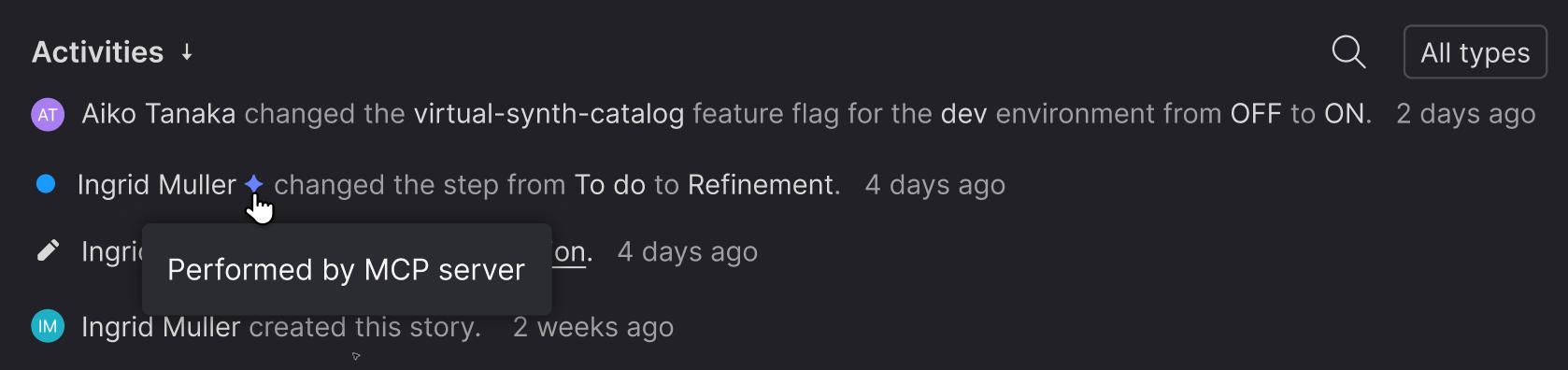
When the Atono MCP server performs actions on behalf of a user—such as creating a story, moving it between workflow steps, or updating a bug—it marks those actions so they can be identified as being completed by the MCP server.
This marking allows Atono to record the action in the Activities view as Performed by MCP server, helping teams understand which updates came from AI-connected tools rather than direct user actions in the UI.
Press Ctrl + C in your terminal to stop the server.
To remove the image completely:
docker rmi atonoai/atono-mcp-server:latest- Treat your Atono API key like a password.
- Avoid committing keys to repositories or shared config files.
- The MCP server only exposes a limited set of actions defined by Atono—it cannot access unrelated data or perform destructive operations.
MCP client implementations can differ slightly. Some tools currently support the configuration examples shown above, while others may use alternate field names such as url, type, or headers. Refer to your client’s documentation or example template when adding an MCP server configuration.
Atono will continue to maintain compatibility with standard MCP fields as the protocol matures.
Updated 27 days ago