Run a query (original) (raw)
Discover
Get started
Plan
Datasets
Tables
- External data sources
* Introduction
* External tables
* Introduction
* Create Apache Iceberg external tables
* Create Bigtable external tables
* Create Cloud Storage external tables
* Create Google Drive external tables
* Use metadata caching
* Manage Hive partitioned data
* Create a table definition file for external data - Apache Iceberg managed tables
- External data sources
Load, transform, and export
Migrate data
- Introduction
- BigQuery Migration Service
- Migration assessment
- Migrate schema and data
- Migrate data pipelines
- Use custom organization policies
- Migrate SQL
* Translate SQL queries interactively
* Translate SQL queries using the API
* Translate SQL queries in batch
* Generate metadata for translation and assessment
* Transform SQL translations with YAML
* Map SQL object names for batch translation
Load data
- Introduction
- Create data integration workflows using the BigQuery web UI
- Storage overview
- BigQuery Data Transfer Service
* Introduction
* Supported data sources
* Data location and transfers
* Authorize transfers
* Enable transfers
* Manage transfers
* Transfer run notifications
* Troubleshoot transfer configurations
* Use service accounts
* Use third-party transfers
* Use custom organization policies
* Data source change log
* Event-driven transfers
* Transfer data into Managed Iceberg tables - Batch load data
* Introduction
* Auto-detect schemas
* Load Avro data
* Load Parquet data
* Load ORC data
* Load CSV data
* Load JSON data
* Load externally partitioned data
* Load data from a Datastore export
* Load data from a Firestore export
* Load data using the Storage Write API
* Load data into partitioned tables - Load data from other Google services
- Discover and catalog Cloud Storage data
- Load data using third-party apps
- Load data using BigQuery Omni operations
- Optimize load jobs
Export data
Analyze
Analyze your data
- Run a query
- Write queries with Gemini
- Write query results
- Query data with SQL
* Introduction
* Arrays
* JSON data
* Multi-statement queries
* Parameterized queries
* Pipe syntax
* Analyze data using pipe syntax
* Recursive CTEs
* Sketches
* Table sampling
* Time series
* Transactions
* Wildcard tables - Use DataFrames
* Introduction
* Install DataFrames
* Manipulate data
* Customize Python functions
* Use ML and AI
* Use the data type system
* Manage sessions and I/O
* Visualize graphs
* Use DataFrames in dbt
* Optimize performance
* Migrate to DataFrames version 2.0
* Use the BigQuery JupyterLab plugin - Routines
* Introduction
* Manage routines
* User-defined functions
* User-defined functions in Python
* User-defined aggregate functions
* Table functions
* Remote functions
* SQL stored procedures
* Stored procedures for Apache Spark
* Analyze object tables by using remote functions
* Remote functions and Translation API tutorial - Run global queries
- Access historical data
- Use open source Python libraries
Use BigQuery Graph
Manage queries
- Use cached results
- Troubleshoot queries
- Optimize queries
* Introduction
* Use the query plan explanation
* Get query performance insights
* Optimize query computation
* Use history-based optimizations
* Optimize storage for query performance
* Use materialized views
* Use BI Engine
* Use nested and repeated data
* Optimize functions
* Use the advanced runtime
* Use primary and foreign keys - Paginate with the BigQuery API
Query external data sources
- Establish connections
* Introduction
* Create connections
* Create a Cloud resource connection
* Create a default Cloud resource connection
* AlloyDB connections
* Amazon S3 connections
* Apache Spark connections
* Azure Blob Storage connections
* Cloud SQL connections
* SAP Datasphere connections
* Spanner connections
* Manage connections
* Configure connections with network attachments - Run queries on external data
- Establish connections
BigQuery AI
Generative AI functions
- Overview
- End-to-end user journeys for generative AI models
- Choose a text generation function
- Set permissions for generative AI functions
- Optimize costs with model distillation
- Tutorials
* Generate text
* Generate text with Gemini
* Generate text with Gemma
* Generate text with any supported model
* Generate text using AI.GENERATE
* Handle quota errors
* Analyze images
* Perform semantic analysis
* Computer vision
* Annotate images
* Run inference on image data
* Analyze images with an imported classification model
* Analyze images with an imported feature vector model
Embeddings and vector search
- Overview
- Vector indexes
- Manage vector indexes
- Automate embedding generation
- Tutorials
* Generate embeddings
* Generate text embeddings using a remote model
* Generate text embeddings using an open model
* Generate image embeddings using an LLM
* Generate video embeddings using an LLM
* Handle quota errors by calling ML.GENERATE_EMBEDDING iteratively
* Generate and search multimodal embeddings
* Generate text embeddings using pretrained TensorFlow models
* Generate embeddings with transformer models in ONNX format
Machine learning
- Introduction
- ML models and MLOps
* Model creation
* Hyperparameter tuning overview
* Model evaluation overview
* Model inference overview
* Explainable AI overview
* Model weights overview
* ML pipelines overview
* Model monitoring overview
* Manage BigQueryML models in Agent Platform - Classification
- Regression
- Dimensionality reduction
- Clustering
- Recommendation
- Forecasting
- Anomaly detection
- Contribution analysis
- Tutorials
* Recommendation
* Create recommendations based on explicit feedback with a matrix factorization model
* Create recommendations based on implicit feedback with a matrix factorization model
* Augmented analytics
* Forecasting
* Forecast a single time series with an ARIMA_PLUS univariate model
* Forecast multiple time series with an ARIMA_PLUS univariate model
* Forecast time series with a TimesFM univariate model
* Scale an ARIMA_PLUS univariate model to millions of time series
* Forecast a single time series with a multivariate model
* Forecast multiple time series with a multivariate model
* Use custom holidays with an ARIMA_PLUS univariate model
* Limit forecasted values for an ARIMA_PLUS univariate model
* Forecast hierarchical time series with an ARIMA_PLUS univariate model
Administer
Monitor workloads
Govern
Share data
Audit
Develop
Version control with repositories and workspaces
This document shows you how to run a query in BigQuery and understand how much data the query will process before execution by performing adry run.
Types of queries
You can query BigQuery databy using one of the following query job types:
- Interactive query jobs. By default, BigQuery runs queries as interactive query jobs, which are intended to start executing as quickly as possible.
- Batch query jobs. Batch queries have lower priority than interactive queries. When a project or reservation is using all of its available compute resources, batch queries are more likely to be queued and remain in the queue. After a batch query starts running, the batch query runs the same as an interactive query. For more information, see query queues.
- Continuous query jobs. With these jobs, the query runs continuously, letting you analyze incoming data in BigQuery in real time and then write the results to a BigQuery table, or export the results to Bigtable or Pub/Sub. You can use this capability to perform time sensitive tasks, such as creating and immediately acting on insights, applying real time machine learning (ML) inference, and building event-driven data pipelines.
You can run query jobs by using the following methods:
- Compose and run a query in the Google Cloud console.
- Run the
bq querycommand in the bq command-line tool. - Programmatically call thejobs.queryorjobs.insertmethod in the BigQueryREST API.
- Use the BigQuery client libraries.
BigQuery saves query results to either atemporary table (default) or permanent table. When you specify a permanent table as the destination table for the results, you can choose whether to append or overwrite an existing table, or create a new table with a unique name.
Required roles
To get the permissions that you need to run a query job, ask your administrator to grant you the following IAM roles:
- BigQuery Job User (
roles/bigquery.jobUser) on the project. - BigQuery Data Viewer (
roles/bigquery.dataViewer) on all tables and views that your query references. To query views, you also need this role on all underlying tables and views. If you're using authorized views or authorized datasets, you don't need access to the underlying source data.
For more information about granting roles, see Manage access to projects, folders, and organizations.
These predefined roles contain the permissions required to run a query job. To see the exact permissions that are required, expand the Required permissions section:
Required permissions
The following permissions are required to run a query job:
bigquery.jobs.createon the project from which the query is being run, regardless of where the data is stored.bigquery.tables.getDataon all tables and views that your query references. To query views, you also need this permission on all underlying tables and views. If you're using authorized views or authorized datasets, you don't need access to the underlying source data.
You might also be able to get these permissions with custom roles or other predefined roles.
Troubleshooting
Access Denied: Project [project_id]: User does not have bigquery.jobs.create
permission in project [project_id].
This error occurs when a principal lacks permission to create a query jobs in the project.
Resolution: An administrator must grant you the bigquery.jobs.createpermission on the project you are querying. This permission is required in addition to any permission required to access the queried data.
For more information about BigQuery permissions, seeAccess control with IAM.
Run an interactive query
To run an interactive query, select one of the following options:
Console
- Go to the BigQuery page.
Go to BigQuery - Click SQL query.
- In the query editor, enter a valid GoogleSQL query.
For example, query theBigQuery public dataset usa_namesto determine the most common names in the United States between the years 1910 and 2013:
SELECT
  name, gender,
  SUM(number) AS total
FROM
  `bigquery-public-data.usa_names.usa_1910_2013`
GROUP BY
  name, gender
ORDER BY
  total DESC
LIMIT
  10;
Alternatively, you can use the Reference panelto construct new queries.
4. Optional: To automatically display code suggestions when you type a query, clickTools > Parser-based auto-completion. If you don't need autocomplete suggestions, deselectParser-based auto-completion. This also turns off the project name autofill suggestions.
5. Optional: To select additional query settings, clickEdit > Query settings.
6. Click Run.
If you don't specify a destination table, the query job writes the output to a temporary (cache) table.
You can now explore the query results in the Results tab of theQuery results pane.
7. Optional: To sort the query results by column, clickOpen sort menunext to the column name and select a sort order. If the estimated bytes processed for the sort is more than zero, then the number of bytes is displayed at the top of the menu.
8. Optional: To see visualization of your query results, go to theVisualization tab. You can zoom in or zoom out of the chart, download the chart as a PNG file, or toggle the legend visibility.
In the Visualization configuration pane, you can change the visualization type and configure the measures and dimensions of the visualization. Fields in this pane are prefilled with the initial configuration inferred from the destination table schema of the query. The configuration is preserved between following query runs in the same query editor.
For Line, Bar, or Scatter visualizations, the supported dimensions are INT64, FLOAT64,NUMERIC, BIGNUMERIC, TIMESTAMP, DATE, DATETIME, TIME, andSTRING data types, while the supported measures are INT64,FLOAT64, NUMERIC, and BIGNUMERIC data types.
If your query results include the GEOGRAPHY type, then Map is the default visualization type, which lets you visualize your results on aninteractive map.
9. Optional: In the JSON tab, you can explore the query results in the JSON format, where the key is the column name and the value is the result for that column.
bq
- In the Google Cloud console, activate Cloud Shell.
Activate Cloud Shell
At the bottom of the Google Cloud console, aCloud Shell session starts and displays a command-line prompt. Cloud Shell is a shell environment with the Google Cloud CLI already installed and with values already set for your current project. It can take a few seconds for the session to initialize. - Use thebq query command. In the following example, the
--use_legacy_sql=falseflag lets you use GoogleSQL syntax.
bq query \
--use_legacy_sql=false \
'QUERY'
Replace QUERY with a valid GoogleSQL query. For example, query theBigQuery public dataset usa_namesto determine the most common names in the United States between the years 1910 and 2013:
bq query \
    --use_legacy_sql=false \
    'SELECT
      name, gender,
      SUM(number) AS total
    FROM
      `bigquery-public-data.usa_names.usa_1910_2013`
    GROUP BY
      name, gender
    ORDER BY
      total DESC
    LIMIT
      10;'
The query job writes the output to a temporary (cache) table.
Optionally, you can specify the destination table andlocationfor the query results. To write the results to an existing table, include the appropriate flag to append (--append_table=true) or overwrite (--replace=true) the table.
bq query \
--location=LOCATION \
--destination_table=TABLE \
--use_legacy_sql=false \
'QUERY'
Replace the following:
- LOCATION: the region or multi-region for the destination table—for example,
US
In this example, theusa_namesdataset is stored in the US multi-region location. If you specify a destination table for this query, the dataset that contains the destination table must also be in the US multi-region. You cannot query a dataset in one location and write the results to a table in another location.
You can set a default value for the location using the.bigqueryrc file. - TABLE: a name for the destination table—for example,
myDataset.myTable
If the destination table is a new table, then BigQuery creates the table when you run your query. However, you must specify an existing dataset.
If the table isn't in your current project, then add the Google Cloud project ID using the formatPROJECT_ID:DATASET.TABLE—for example,myProject:myDataset.myTable. If--destination_tableis unspecified, a query job is generated that writes the output to a temporary table.
Terraform
Use thegoogle_bigquery_job resource.
To authenticate to BigQuery, set up Application Default Credentials. For more information, seeSet up authentication for client libraries.
The following example runs a query. You can retrieve the query results byviewing the job details:
To apply your Terraform configuration in a Google Cloud project, complete the steps in the following sections.
Prepare Cloud Shell
- Launch Cloud Shell.
- Set the default Google Cloud project where you want to apply your Terraform configurations.
You only need to run this command once per project, and you can run it in any directory.
export GOOGLE_CLOUD_PROJECT=PROJECT_ID
Environment variables are overridden if you set explicit values in the Terraform configuration file.
Prepare the directory
Each Terraform configuration file must have its own directory (also called a root module).
- In Cloud Shell, create a directory and a new file within that directory. The filename must have the
.tfextension—for examplemain.tf. In this tutorial, the file is referred to asmain.tf.
mkdir DIRECTORY && cd DIRECTORY && touch main.tf - If you are following a tutorial, you can copy the sample code in each section or step.
Copy the sample code into the newly createdmain.tf.
Optionally, copy the code from GitHub. This is recommended when the Terraform snippet is part of an end-to-end solution. - Review and modify the sample parameters to apply to your environment.
- Save your changes.
- Initialize Terraform. You only need to do this once per directory.
terraform init
Optionally, to use the latest Google provider version, include the-upgradeoption:
terraform init -upgrade
Apply the changes
- Review the configuration and verify that the resources that Terraform is going to create or update match your expectations:
terraform plan
Make corrections to the configuration as necessary. - Apply the Terraform configuration by running the following command and entering
yesat the prompt:
terraform apply
Wait until Terraform displays the "Apply complete!" message. - Open your Google Cloud project to view the results. In the Google Cloud console, navigate to your resources in the UI to make sure that Terraform has created or updated them.
API
To run a query using the API, insert a new joband populate the query job configuration property. Optionally specify your location in the location property in the jobReference section of thejob resource.
Poll for results by callinggetQueryResults. Poll until jobComplete equals true. Check for errors and warnings in theerrors list.
C#
Before trying this sample, follow the C# setup instructions in theBigQuery quickstart using client libraries. For more information, see theBigQuery C# API reference documentation.
To authenticate to BigQuery, set up Application Default Credentials. For more information, seeSet up authentication for client libraries.
Go
Before trying this sample, follow the Go setup instructions in theBigQuery quickstart using client libraries. For more information, see theBigQuery Go API reference documentation.
To authenticate to BigQuery, set up Application Default Credentials. For more information, seeSet up authentication for client libraries.
Java
Before trying this sample, follow the Java setup instructions in theBigQuery quickstart using client libraries. For more information, see theBigQuery Java API reference documentation.
To authenticate to BigQuery, set up Application Default Credentials. For more information, seeSet up authentication for client libraries.
To run a query with a proxy, see Configuring a proxy.
Node.js
Before trying this sample, follow the Node.js setup instructions in theBigQuery quickstart using client libraries. For more information, see theBigQuery Node.js API reference documentation.
To authenticate to BigQuery, set up Application Default Credentials. For more information, seeSet up authentication for client libraries.
PHP
Before trying this sample, follow the PHP setup instructions in theBigQuery quickstart using client libraries. For more information, see theBigQuery PHP API reference documentation.
To authenticate to BigQuery, set up Application Default Credentials. For more information, seeSet up authentication for client libraries.
Python
Before trying this sample, follow the Python setup instructions in theBigQuery quickstart using client libraries. For more information, see theBigQuery Python API reference documentation.
To authenticate to BigQuery, set up Application Default Credentials. For more information, seeSet up authentication for client libraries.
Ruby
Before trying this sample, follow the Ruby setup instructions in theBigQuery quickstart using client libraries. For more information, see theBigQuery Ruby API reference documentation.
To authenticate to BigQuery, set up Application Default Credentials. For more information, seeSet up authentication for client libraries.
Run a batch query
To run a batch query, select one of the following options:
Console
- Go to the BigQuery page.
Go to BigQuery - Click SQL query.
- In the query editor, enter a valid GoogleSQL query.
For example, query theBigQuery public dataset usa_namesto determine the most common names in the United States between the years 1910 and 2013:
SELECT
  name, gender,
  SUM(number) AS total
FROM
  `bigquery-public-data.usa_names.usa_1910_2013`
GROUP BY
  name, gender
ORDER BY
  total DESC
LIMIT
10; - Click Edit > Query settings.
- In the Resource management section, select Batch.
- Optional: Adjust your query settings.
- Click Save.
- Click Run.
If you don't specify a destination table, the query job writes the output to a temporary (cache) table.
bq
- In the Google Cloud console, activate Cloud Shell.
Activate Cloud Shell
At the bottom of the Google Cloud console, aCloud Shell session starts and displays a command-line prompt. Cloud Shell is a shell environment with the Google Cloud CLI already installed and with values already set for your current project. It can take a few seconds for the session to initialize. - Use thebq query commandand specify the
--batchflag. In the following example, the--use_legacy_sql=falseflag lets you use GoogleSQL syntax.
bq query \
--batch \
--use_legacy_sql=false \
'QUERY'
Replace QUERY with a valid GoogleSQL query. For example, query theBigQuery public dataset usa_namesto determine the most common names in the United States between the years 1910 and 2013:
bq query \
    --batch \
    --use_legacy_sql=false \
    'SELECT
      name, gender,
      SUM(number) AS total
    FROM
      `bigquery-public-data.usa_names.usa_1910_2013`
    GROUP BY
      name, gender
    ORDER BY
      total DESC
    LIMIT
      10;'
The query job writes the output to a temporary (cache) table.
Optionally, you can specify the destination table andlocationfor the query results. To write the results to an existing table, include the appropriate flag to append (--append_table=true) or overwrite (--replace=true) the table.
bq query \
--batch \
--location=LOCATION \
--destination_table=TABLE \
--use_legacy_sql=false \
'QUERY'
Replace the following:
- LOCATION: the region or multi-region for the destination table—for example,
US
In this example, theusa_namesdataset is stored in the US multi-region location. If you specify a destination table for this query, the dataset that contains the destination table must also be in the US multi-region. You cannot query a dataset in one location and write the results to a table in another location.
You can set a default value for the location using the.bigqueryrc file. - TABLE: a name for the destination table—for example,
myDataset.myTable
If the destination table is a new table, then BigQuery creates the table when you run your query. However, you must specify an existing dataset.
If the table isn't in your current project, then add the Google Cloud project ID using the formatPROJECT_ID:DATASET.TABLE—for example,myProject:myDataset.myTable. If--destination_tableis unspecified, a query job is generated that writes the output to a temporary table.
API
To run a query using the API, insert a new joband populate the query job configuration property. Optionally specify your location in the location property in the jobReference section of thejob resource.
When you populate the query job properties, include theconfiguration.query.priority property and set the value to BATCH.
Poll for results by callinggetQueryResults. Poll until jobComplete equals true. Check for errors and warnings in theerrors list.
Go
Before trying this sample, follow the Go setup instructions in theBigQuery quickstart using client libraries. For more information, see theBigQuery Go API reference documentation.
To authenticate to BigQuery, set up Application Default Credentials. For more information, seeSet up authentication for client libraries.
Java
To run a batch query, set the query prioritytoQueryJobConfiguration.Priority.BATCHwhen creating aQueryJobConfiguration.
Before trying this sample, follow the Java setup instructions in theBigQuery quickstart using client libraries. For more information, see theBigQuery Java API reference documentation.
To authenticate to BigQuery, set up Application Default Credentials. For more information, seeSet up authentication for client libraries.
Node.js
Before trying this sample, follow the Node.js setup instructions in theBigQuery quickstart using client libraries. For more information, see theBigQuery Node.js API reference documentation.
To authenticate to BigQuery, set up Application Default Credentials. For more information, seeSet up authentication for client libraries.
Python
Before trying this sample, follow the Python setup instructions in theBigQuery quickstart using client libraries. For more information, see theBigQuery Python API reference documentation.
To authenticate to BigQuery, set up Application Default Credentials. For more information, seeSet up authentication for client libraries.
Run a continuous query
Running a continuous query job requires additional configuration. For more information, seeCreate continuous queries.
Use the Reference panel
In the query editor, the Reference panel dynamically displays context-aware information about tables, snapshots, views, and materialized views. The panel lets you preview the schema details of these resources, or open them in a new tab. You can also use the Reference panel to construct new queries or edit existing queries by inserting query snippets or field names.
To construct a new query using the Reference panel, follow these steps:
- In the Google Cloud console, go to the BigQuery page.
Go to BigQuery - Click SQL query.
- Click quick_reference_all Reference.
- Click a recent or starred table or view. You can also use the search bar to find tables and views.
- Click View actions, and then click Insert query snippet.
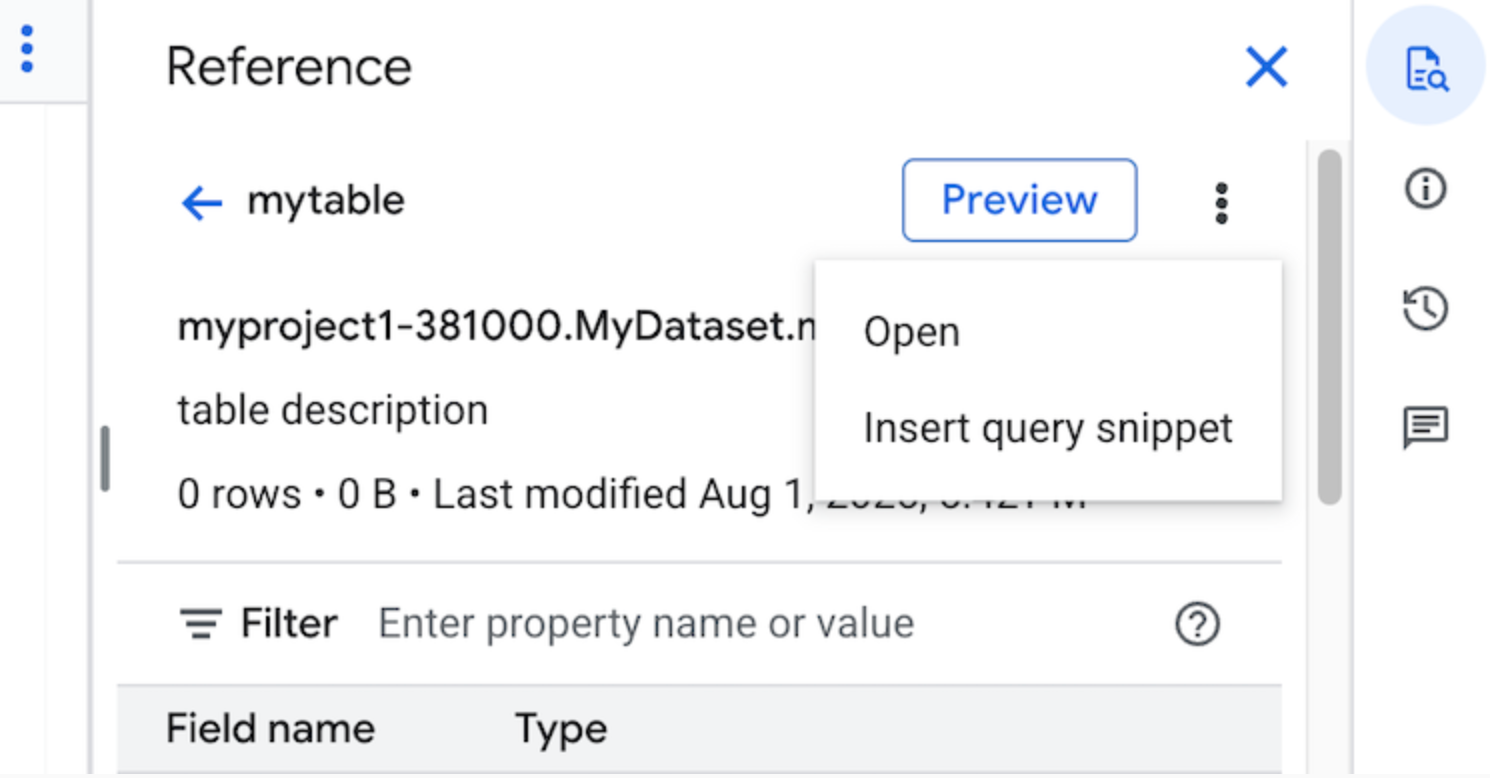
- Optional: You can preview the schema details of the table or view, or open them in a new tab.
- You can now either edit the query manually or insert field names directly into your query. To insert a field name, point to and click a place in the query editor where you want to insert the field name, and then click the field name in the Reference panel.
Query settings
When you run a query, you can specify the following settings:
- A destination table for the query results.
- The priority of the job.
- Whether to use cached query results.
- The job timeout in milliseconds.
- Whether to use session mode.
- The type of encryption to use.
- The maximum number of bytes billed for the query.
- The dialect of SQL to use.
- The location in which to run the query. The query must run in the same location as any tables referenced in the query.
- The reservation to run your query in.
Optional job creation mode
Optional job creation mode can improve the overall latency of queries that run for a short duration, such as those from dashboards or data exploration workloads. This mode executes the query and returns the results inline forSELECT statements without requiring the use ofjobs.getQueryResultsto fetch the results. Queries using optional job creation mode don't create a job when executed unless BigQuery determines that a job creation is necessary to complete the query.
To enable optional job creation mode, set the jobCreationMode field of theQueryRequestinstance to JOB_CREATION_OPTIONAL in thejobs.query request body.
When the value of this field is set to JOB_CREATION_OPTIONAL, BigQuery determines if the query can use the optional job creation mode. If so, BigQuery executes the query and returns all results in the rows field of the response. Since a job isn't created for this query, BigQuery doesn't return a jobReference in the response body. Instead, it returns a queryId field, which you can use to get insights about the query using the INFORMATION_SCHEMA.JOBSview. Since no job is created, there is no jobReference that can be passed tojobs.get andjobs.getQueryResultsAPIs to lookup these queries.
If BigQuery determines that a job is required to complete the query, a jobReference is returned. You can inspect the job_creation_reasonfield in INFORMATION_SCHEMA.JOBSview to determine the reason that a job was created for the query. In this case, you should usejobs.getQueryResultsto fetch the results when the query is complete.
When you use the JOB_CREATION_OPTIONAL value, the jobReference field might not be present in the response. Check if the field exists before accessing it.
When JOB_CREATION_OPTIONAL is specified for multi-statement queries (scripts), BigQuery might optimize the execution process. As part of this optimization, BigQuery might determine that it can complete the script by creating fewer job resources than the number of individual statements, potentially even executing the entire script without creating any job at all. This optimization depends on BigQuery's assessment of the script, and the optimization might not be applied in every case. The optimization is fully automated by the system. No user controls or actions are required.
To run a query using optional job creation mode, select one of the following options:
Console
- Go to the BigQuery page.
Go to BigQuery - Click SQL query.
- In the query editor, enter a valid GoogleSQL query.
For example, query theBigQuery public dataset usa_namesto determine the most common names in the United States between the years 1910 and 2013:
SELECT
  name, gender,
  SUM(number) AS total
FROM
  `bigquery-public-data.usa_names.usa_1910_2013`
GROUP BY
  name, gender
ORDER BY
  total DESC
LIMIT
10; - Click Edit > Query mode > Optional job creation. To confirm this choice, click Confirm.
- Click Run.
bq
- In the Google Cloud console, activate Cloud Shell.
Activate Cloud Shell
At the bottom of the Google Cloud console, aCloud Shell session starts and displays a command-line prompt. Cloud Shell is a shell environment with the Google Cloud CLI already installed and with values already set for your current project. It can take a few seconds for the session to initialize. - Use thebq query commandand specify the
--job_creation_mode=JOB_CREATION_OPTIONALflag. In the following example, the--use_legacy_sql=falseflag lets you use GoogleSQL syntax.
bq query \
--rpc=true \
--use_legacy_sql=false \
--job_creation_mode=JOB_CREATION_OPTIONAL \
--location=LOCATION \
'QUERY'
Replace QUERY with a valid GoogleSQL query, and replace LOCATION with a valid region where the dataset is located. For example, query theBigQuery public dataset usa_namesto determine the most common names in the United States between the years 1910 and 2013:
bq query \
    --rpc=true \
    --use_legacy_sql=false \
    --job_creation_mode=JOB_CREATION_OPTIONAL \
    --location=us \
    'SELECT
      name, gender,
      SUM(number) AS total
    FROM
      `bigquery-public-data.usa_names.usa_1910_2013`
    GROUP BY
      name, gender
    ORDER BY
      total DESC
    LIMIT
      10;'
The query job returns the output inline in the response.
API
To run a query in optional job creation mode using the API, run a query synchronouslyand populate the QueryRequest property. Include the jobCreationMode property and set its value to JOB_CREATION_OPTIONAL.
Check the response. If jobComplete equals true and jobReference is empty, read the results from the rows field. You can also get the queryId from the response.
If jobReference is present, you can check jobCreationReason for why a job was created by BigQuery. Poll for results by callinggetQueryResults. Poll until jobComplete equals true. Check for errors and warnings in theerrors list.
Java
Available version: 2.51.0 and up
Before trying this sample, follow the Java setup instructions in theBigQuery quickstart using client libraries. For more information, see theBigQuery Java API reference documentation.
To authenticate to BigQuery, set up Application Default Credentials. For more information, seeSet up authentication for client libraries.
To run a query with a proxy, see Configuring a proxy.
Python
Available version: 3.34.0 and up
Before trying this sample, follow the Python setup instructions in theBigQuery quickstart using client libraries. For more information, see theBigQuery Python API reference documentation.
To authenticate to BigQuery, set up Application Default Credentials. For more information, seeSet up authentication for client libraries.
Node
Available version: 8.1.0 and up
Before trying this sample, follow the Node.js setup instructions in theBigQuery quickstart using client libraries. For more information, see theBigQuery Node.js API reference documentation.
To authenticate to BigQuery, set up Application Default Credentials. For more information, seeSet up authentication for client libraries.
Go
Available version: 1.69.0 and up
Before trying this sample, follow the Go setup instructions in theBigQuery quickstart using client libraries. For more information, see theBigQuery Go API reference documentation.
To authenticate to BigQuery, set up Application Default Credentials. For more information, seeSet up authentication for client libraries.
JDBC Driver
Available version: JDBC v1.6.1 and up
Requires setting JobCreationMode=2 in the connection string.
jdbc:bigquery://https://www.googleapis.com/bigquery/v2:443;JobCreationMode=2;Location=US;ODBC Driver
Available version: ODBC v3.0.7.1016 and up
Requires setting JobCreationMode=2 in the .ini file.
[ODBC Data Sources]
Sample DSN=Simba Google BigQuery ODBC Connector 64-bit
[Sample DSN]
JobCreationMode=2
Global queries
Queries are run in the location of the data that they reference. However, if a query references data stored in more than one location, a global query is executed. When running a global query, BigQuery is able to collect all necessary data from different locations in one place, perform a query, and return the results. Because global queries require transferring data between locations, they require additional permissions and can incur additional costs.
For more information about global queries, see Global queries.
Quotas
For information about quotas related to interactive and batch queries, seeQuery jobs.
To troubleshoot quota errors related to queries, see the BigQuery Troubleshooting page. The following quota errors and their troubleshooting information are directly related to queries:
Monitor queries
You can get information about queries as they are executing by using thejobs explorer or by querying theINFORMATION_SCHEMA.JOBS_BY_PROJECT view.
Dry run
A dry run in BigQuery provides the following information:
- estimate of charges in on-demand mode
- validation of your query
- approximate bytes processed by your query in capacity mode
Dry runs don't use query slots, and you are not charged for performing a dry run. You can use the estimate returned by a dry run to calculate query costs in the pricing calculator.
Perform a dry run
To perform a dry run, do the following:
Console
- Go to the BigQuery page.
Go to BigQuery - Enter your query in the query editor.
If the query is valid, then a check mark automatically appears along with the amount of data that the query will process. If the query is invalid, then an exclamation point appears along with an error message.
bq
Enter a query like the following using the --dry_run flag.
bq query
--use_legacy_sql=false
--dry_run
'SELECT
COUNTRY,
AIRPORT,
IATA
FROM
project_id.dataset.airports
LIMIT
1000'
For a valid query, the command produces the following response:
Query successfully validated. Assuming the tables are not modified, running this query will process 10918 bytes of data.
API
To perform a dry run by using the API, submit a query job withdryRun set to true in theJobConfigurationtype.
Go
Before trying this sample, follow the Go setup instructions in theBigQuery quickstart using client libraries. For more information, see theBigQuery Go API reference documentation.
To authenticate to BigQuery, set up Application Default Credentials. For more information, seeSet up authentication for client libraries.
Java
Before trying this sample, follow the Java setup instructions in theBigQuery quickstart using client libraries. For more information, see theBigQuery Java API reference documentation.
To authenticate to BigQuery, set up Application Default Credentials. For more information, seeSet up authentication for client libraries.
Node.js
Before trying this sample, follow the Node.js setup instructions in theBigQuery quickstart using client libraries. For more information, see theBigQuery Node.js API reference documentation.
To authenticate to BigQuery, set up Application Default Credentials. For more information, seeSet up authentication for client libraries.
PHP
Before trying this sample, follow the PHP setup instructions in theBigQuery quickstart using client libraries. For more information, see theBigQuery PHP API reference documentation.
To authenticate to BigQuery, set up Application Default Credentials. For more information, seeSet up authentication for client libraries.
Python
Set theQueryJobConfig.dry_runproperty to True.Client.query()always returns a completedQueryJobwhen provided a dry run query configuration.
Before trying this sample, follow the Python setup instructions in theBigQuery quickstart using client libraries. For more information, see theBigQuery Python API reference documentation.
To authenticate to BigQuery, set up Application Default Credentials. For more information, seeSet up authentication for client libraries.
What's next
- Learn how tomanage query jobs.
- Learn how toview query history.
- Learn how tosave and share queries.
- Learn about query queues.
- Learn how to write query results.
Except as otherwise noted, the content of this page is licensed under the Creative Commons Attribution 4.0 License, and code samples are licensed under the Apache 2.0 License. For details, see the Google Developers Site Policies. Java is a registered trademark of Oracle and/or its affiliates.
Last updated 2026-06-18 UTC.