Autoscale node groups (original) (raw)
Linux Windows
If you use sole-tenant nodes for your workloads, you can automatically manage the sizes of node groups by using the node group autoscaler. You can configure autoscaling while creating a node group or after creating one.
The autoscaler can help you automatically manage the sizes of your sole-tenant node groups by:
- Increasing the size of a node group when there is insufficient capacity for another virtual machine (VM) instance on that node group. After the autoscaler increases the size of the node group, the VMs are scheduled transparently.
- Decreasing the size of a node group when there are empty nodes, which prevents you from paying for unused sole-tenant nodes.
While scaling a node group, the autoscaler considers the required capacity for the VM being scheduled, the free capacity on the nodes it is targeting, and the autoscaling policy of the node group. The required capacity is based only on the size of the VM. The free capacity is estimated based on the size of the node, the VMs already scheduled on it, and the optional CPU overcommit ratio.
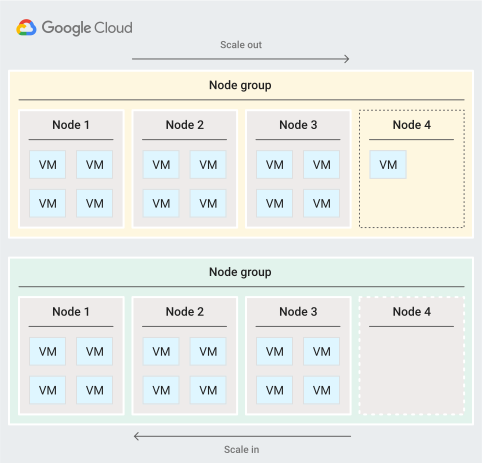
The following diagram shows:
- The node group autoscaler scaling out by adding a new node to a node group in response to the deployment of a VM to a node group with no empty nodes.
- The node group autoscaler scaling by removing an empty node from a sole-tenant node group.
Autoscaler modes
By default, the autoscaler is not enabled on node groups. When the autoscaler is not enabled, you must manually manage the sizes of your node groups. If you enable the autoscaler on a node group, you can specify that the autoscaler both increases and decreases the size of the node group (scales out and scales in), or that it only increases the size of the group (only scales out).
Scale out and scale in
In this mode, the node group autoscaler both increases (scales out) and decreases (scales in) the size of your node groups. For this mode, you must specify a maximum size and a minimum size for the node group. The autoscaler won't scale the size of the node group above the specified maximum or below the specified minimum.
Scaling out is triggered when the scheduling for a VM fails due to lack of capacity. To resolve this issue, a new node is added to the group and the operation is tried again.
Scaling in is triggered when a node remains empty for a period of time. An empty node is a result of a VM being deleted or migrated out of the node group. If the autoscaling policy of the node group allows it, the empty node is scheduled for removal after a stabilization period. The stabilization period ensures that the node is still available if you need to use it.
Only scale out
With this mode, the autoscaler increases the size of the node group in response to requests to schedule VMs, but doesn't remove empty nodes from node groups. Google recommends this mode for monotonically increasing workloads or workloads that require physical server affinity, such as BYOL workloads, which require licenses to reside on the same physical server.
You must use this mode if your node groups are configured with the Migrate within node group maintenance policy.
Size range of a node group
When you enable the autoscaler, you set the size range of the node group by specifying a minimum and maximum value for the node group size.
If you don't specify a value for the minimum size, the autoscaler sets the minimum size to zero (0). If you do a specify value for the minimum size, it must be an integer greater than or equal to 0, and it must be less than or equal to the maximum size.
You must specify a value for the maximum size of the node group. The value must be an integer that is greater than or equal to 0 and less than or equal to 100, which is the maximum allowed size for a sole-tenant node group, and the value must be greater than or equal to the specified minimum value.
To accommodate workloads that might exceed the size maximum of 100 for a node group, create multiple node groups with matching affinity labels, for example,workload:in:my-autoscaled-node-groups. Then, schedule VMs using that affinity label, and enable autoscaling on each group to create a dynamically scaling group of node groups.
Availability
You can only use the sole-tenant node autoscaler inregions that support sole-tenant nodes.
Before you begin
- If you haven't already, set up authentication. Authentication verifies your identity for access to Google Cloud services and APIs. To run code or samples from a local development environment, you can authenticate to Compute Engine by selecting one of the following options:
Select the tab for how you plan to use the samples on this page:
Enable the node group autoscaler
Configure autoscaling on a new node group.
gcloud
The example below shows how to use the node-groups createcommand to enable the autoscaler when you are creating a node group. To add an autoscaler to an existing node group, use the node-groups updatecommand.
gcloud compute sole-tenancy node-groups create group-name
--node-template template-name
--target-size size
--maintenance-policy maintenance-policy
--zone zone
--autoscaler-mode mode
--max-nodes max-nodes
--min-nodes min-nodes
Replace the following:
group-name: Name of the node group to create.template-name: Name of the node template from which to create the node group.size: Target initial number of nodes in the node group.maintenance-policy: Specifies if VMs migrate and if they are restarted during host maintenance events. Set it to one of the following values:default: VMs live migrate to a new node.migrate-within-node-group: VMs live migrate to another node in the node group.restart-in-place: VMs restart on the same node after they are terminated due to a maintenance event.
zone: Zone in which to create the node group.mode: Mode for the autoscaler on this node group. Set to one of the following values:off: Disables the autoscaler.on: Enables scaling in and scaling out.only-scale-out: Enables only scaling out. You must use this mode if your node groups are configured to restart their hosted VMs on minimal servers.
max-nodes: Maximum size of the node group. Set to a value less than or equal to 100 and greater than or equal tomin-nodes.min-nodes: Minimum size of the node group, and must be an integer value less than or equal tomax-nodes. The default value is 0.
REST
The following example shows how to use thenodeGroups.insertcommand to enable the autoscaler when you are creating a node group. To add an autoscaler to an existing node group, use thenodeGroups.patchcommand.
{ "name": "group-name", "nodeTemplate": "template-name", "autoscalingPolicy": { "mode": "mode", "min_nodes": min-nodes, "max_nodes": max-nodes } "maintenancePolicy": maintenance-policy }
Replace the following:
project-id: ID of the project for which to add a node group with an autoscaler.zone: Zone in which to create the new node group.initial-node-count: Required when creating the node group. This specifies the initial number of nodes in the node group. If the value formin-nodesis greater than the initial node count, the size of the node group is scaled out to the value ofmin-nodes.group-name: Name of the new node group.template-name: Name of the node template from which to create the node group.mode: Mode for the autoscaler on this node group. Set to one of the following:OFF: Disables the autoscaler.ON: Enables scaling in and scaling out.ONLY_SCALE_OUT: Enables only scaling out. You must use this mode if your node groups are configured to restart their hosted VMs on minimal servers.
max-nodes: Maximum size of the node group. Set to a value less than or equal to 100 and greater than or equal tomin-nodes.min-nodes: Minimum size of the node group, and must be an integer value less than or equal tomax-nodes. The default value is 0.maintenance-policy: Specifies if VMs migrate and if they are restarted during host maintenance events. Set this to one of the following values:DEFAULT: VMs live migrate to a new node.MIGRATE_WITHIN_NODE_GROUP: VMs live migrate to another node in the node group.RESTART_IN_PLACE: VMs restart on the same node after they are terminated due to a maintenance event.
Update autoscaler settings
Change the autoscaler settings on a node group by updating the autoscaler mode or by updating the minimum and maximum size of the node group.
gcloud
The following example shows how to use the node-groups updatecommand to change the mode of the autoscaler on a node group.
gcloud compute sole-tenancy node-groups update name
--autoscaler-mode mode
--max-nodes max-nodes
--min-nodes min-nodes
Replace the following:
name: Name of the node group on which to change the autoscaler mode.mode: Mode for the autoscaler on this node group. Set to one of the following:off: Disables the autoscaler.on: Enables scaling in and scaling out.only-scale-out: Enables only scaling out. You must use this mode if your node groups are configured to restart their hosted VMs on minimal servers.
max-nodes: Maximum size of the node group. Set to a value less than or equal to 100 and greater than or equal tomin-nodes.min-nodes: Minimum size of the node group, and must be an integer value less than or equal tomax-nodes. The default value is 0.
REST
The following example shows how to use thenodeGroups.patchcommand to change the mode of an autoscaler on a node group.
{ "nodeTemplate": "template-name", "autoscalingPolicy": { "mode": "mode", "minSize": min-nodes, "maxSize": max-nodes } }
Replace the following:
project-id: ID of the project containing the node group for which to change the autoscaler mode.group-zone: Zone containing the node group for which to change the autoscaler mode.group-name: Name of the node group for which to change the autoscaler mode.template-name: Name of the node template from which the node group was created.mode: Mode for the autoscaler on this node group. Set to one of the following:OFF: Disables the autoscaler.ON: Enables scaling in and scaling out.ONLY_SCALE_OUT: Enables only scaling out. You must use this mode if your node groups are configured with the Migrate within node group maintenance policy.
max-nodes: Maximum size of the node group. Set to a value less than or equal to 100 and greater than or equal tomin-nodes.min-nodes: Minimum size of the node group, and must be an integer value less than or equal tomax-nodes. The default value is 0.
Manually update the size of autoscaled node groups
When the autoscaler is enabled, node group size is managed automatically, but you can schedule or remove VMs on that node group to effectively manually update the group size.
To manually decrease the size of an autoscaled node group, delete VMs from the node until the node is empty. When the node is empty, the autoscaler removes the empty node, which decreases the size of the node group.
To manually increase the size of an autoscaled node group, set the minimum size of the group to a value greater than the current size. When the minimum size of a group is set to a value greater than the current size, the autoscaler scales out the group size to the newly specified minimum size.
When node groups are set to only scale out, the autoscaler automatically manages increases in group size and disables manual group size increases. With this setting, you can decrease the size of a group by removing VMs from a node until that node is empty, and then you can remove the empty node.
Disable the autoscaler
When you no longer need to use the autoscaler to automatically manage the sizes of your node groups, or if you need to manually manage the sizes of your node groups, disable the autoscaler.
gcloud
gcloud compute sole-tenancy node-groups update name
--autoscaler-mode OFF
Replace name with the name of the node group from which to remove the autoscaling policy.
REST
The following example shows how to use thenodeGroups.patchcommand to turn off an autoscaler on a node group.
{ "nodeTemplate": "template-name", "autoscalingPolicy": { "mode": "mode" } }
Replace the following:
project-id: ID of the project containing the node group for which to change the autoscaler mode.group-zone: Zone containing the node group for which to change the autoscaler mode.group-name: Name of the node group for which to change the autoscaler mode.template-name: Name of the node template from which the node group was created.mode: Mode for the autoscaler on this node group. Set toOFFto disable the autoscaler on this node group.
View autoscaler activity
In the Google Cloud console, view the autoscaler adjusting the sizes of your node groups. The Google Cloud console shows the current size of the node group, and if the autoscaler is adjusting the size of group, you can also see the target size of the node group.
Console
- In the Google Cloud console, go to the Sole-tenant nodes page.
Go to Sole-tenant nodes - Click Node groups.
- View the number of nodes in each node group, and if Compute Engine is scaling the node group, you can also view the target number of nodes.
What's next
- Learn about bringing images with existing licenses to Google Cloud.
- Learn about the cluster autoscaler.
- Learn about the managed instance group autoscaler.