Attribution of committed use discount fees and credits (original) (raw)
Committed use discounts(CUDs) provide a discount in exchange for your commitment tospend a minimum amountoruse a minimum level of resourcesfor a product for a specified term.
Attribution refers to how resource benefits shared at the Cloud Billing account level are divided amongaccount-level resources, such as projects. Attribution for a subscription, such as your committed use discount subscription, determines how fees and credits are applied to your Cloud Billing account and spread across the account's projects that are eligible to consume them. This is reflected in how the fees and credits appear in Cloud Billing cost management interfaces, such as theusage cost exportor the Google Cloud console.
Types of commitment attribution
Attribution impacts how your committed use discount fees and credits are applied to the projects in your Cloud Billing account, which is reflected in the cost management interfaces. The following are ways in which they can be applied.
Unattributed
When unattributed, the subscription fees and credits are applied to your Cloud Billing account's projects, as they consume eligible usage. Any subscription fees that are not attributed to a project are charged at the Cloud Billing account level.
This type of attribution can affect the predictability of a project's adjusted costs after applying the commitment fees and credits because of the timing or order of consumption relative to other eligible projects.
Proportional attribution
Proportional attribution applies the credits and, where appropriate, the subscription fees from your spend-based and resource-based committed use discounts to the projects in your Cloud Billing account, directly in proportion to the amount of total eligible usage consumed by each project.
For example, if project A consumed 75worthofusageandprojectBconsumed75 worth of usage and project B consumed 75worthofusageandprojectBconsumed25, project A would be covered by up to 75% of available credit and project B would be covered by up to 25%.
Any subscription fees that are not attributed to a project are charged at the Cloud Billing account level.
Proportional attribution helps you understand the actual cost of a given project that is consuming the discount by clearly disclosing the following:
- The project's portion of the total commitment fee
- The project's SKU-based usage cost
- The project's CUD credit
For your resource-based committed use discounts to use proportional attribution,Compute Engine discount sharingmust be enabled. Depending on your Cloud Billing account's creation date and active commitments, CUD sharing might be enabled by default. For details, seeShare resource-based CUDs across projects.
In contrast, spend-based commitments are inherently pooled at the Cloud Billing account level and always use proportional attribution. You don't have a separate CUD sharing configuration for spend-based commitments.
Prioritized attribution
Prioritized attribution applies the credits and, where appropriate, the subscription fees from your resource-based committed use discounts to the projects in your Cloud Billing account based on the distribution you specify. The total amount of the allotments cannot exceed the commitment amount purchased. Any remaining unprioritized commitment credits and fees are then applied proportionally across all projects.
You can allocate all of your purchased commitments across projects you specify. For example, if you purchased 60 GB of commitments, you can prioritize project A to receive 40 GB of the allotment and project B to receive 20 GB of the allotment. In this case, projects A and B fully reserve the 60 GB of eligible committed usage. Then if project A and B have fully utilized 60 GB of commitment, the other projects in your Cloud Billing account don't receive an allocation of the credits and fees, even if they have eligible usage. But if project A and B have not fully utilized the 60 GB of commitment, other projects will receive the remaining committed usage credits, if they have eligible usage.
You can also allocate a portion of your purchased commitments to certain projects, allowing the remainder to be applied proportionately to the eligible usage in all projects. For example, if you purchased 60 GB of commitments, you can prioritize project A to receive 30 GB of the allotment and allow the remaining 30 GB to be applied proportionately to the eligible usage in your other projects.
You can select multiple projects for a single prioritized allotment. In that case, the allotment is shared proportionately between the projects based on their eligible usage.
If you don't utilize all of your purchased commitments for the period, the fees are still charged to the prioritized projects. For example, if project A is allotted 30 GB of usage but only uses 10 GB, the project still receives the fee for the full allotment of 30 GB.
You cannot prioritize more commitment resources than what you have purchased.
Prioritized attribution helps you control how your commitments impact each of your projects and their actual cost by clearly disclosing the following:
- The project's exact portion of the total commitment fee
- The project's SKU-based usage cost
- The project's CUD credit
CUD sharing for resource-based commitments
CUD sharing is a prerequisite for using proportional or prioritized attribution with resource-based commitments.
CUD sharing is only available for Compute Engine resource-based commitments that were purchased for hardware resources. When CUD sharing is enabled, the CUDs from the commitment are shared across all projects in the Cloud Billing account, depending on resource consumption. CUD sharing lets all projects in the Cloud Billing account that have eligible resource usage to consume that commitment's credits and fees. Credits for resource-based CUDs are not tied to the amount spent, but rather to the amount of resources used.
Default CUD sharing configuration
The default CUD scope for all new Cloud Billing accounts is Billing account (CUD sharing enabled). On June 16, 2026, the default CUD scope changed from Project to Billing account for most billing accounts. To prevent any disruption to your active billing configurations with this change, Google Cloud auto-configured your Cloud Billing account's CUD scope in the following way, depending on the account's creation date and the active commitments:
- Cloud Billing accounts created on or after June 16, 2026: The scope is Billing account (CUD sharing enabled) by default.
- Cloud Billing accounts created before June 16, 2026:
- If the Cloud Billing account hadno active resource-based commitments on June 16, 2026, then the CUD scope was changed to Billing account (CUD sharing enabled) on that date.
- If the Cloud Billing account hadany active resource-based commitments on June 16, 2026, then Google Cloud preserved and retained the existing CUD scope (either Project or Billing account) that was in place on that date.
You can change the setting to enable or disable CUD sharing at any time. For instructions, see Enable CUD sharingor Disable CUD sharing.
CUD sharing best practice for prioritized attribution
If CUD sharing is disabled on your Cloud Billing account and you plan to use prioritized attribution, then Google recommends that you first configure the prioritized attribution settings in the Google Cloud console before you enable CUD sharing.
By configuring prioritized settings first, you maintain your existing unattributed costs up until the moment prioritized attribution takes effect. If you enable CUD sharing before you configure prioritized settings, then the credits and fees are temporarily shared proportionally across all projects in that Cloud Billing account, which can make your cost reports appear erratic.
Choose proportional attribution for spend-based commitments
To keep your project costs predictable, starting from August 2021, the following automatically use proportional attribution when you purchase spend-based commitments:
- You have an existing Cloud Billing account that has no spend-based commitments.
- You create a new Cloud Billing account and purchase spend-based commitments.
If your Cloud Billing account existed and you purchased spend-based commitments before or during August 2021, you canrequest to switch your account to proportional attribution.
Select proportional attribution
If you purchased spend-based commitments before or during August 2021, they might be unattributed. You can request that your Cloud Billing account switches to proportional attribution. This action affects your existing spend-based commitments. To do so, submit the requested information inthe proportional attribution opt-in form.
If you're uncertain whether or not your spend-based commitments purchased before or during August 2021 are using proportional attribution, submit the requested information inthe proportional attribution opt-in formto verify it is enabled.
Choose attribution for resource-based commitments
To keep your project costs predictable for resource-based commitments, you can select prioritized attribution or proportional attribution. Attribution works in conjunction withCompute Engine CUD sharing. To use attribution, CUD sharing must be enabled for your Cloud Billing account. If CUD sharing is disabled, then any attribution preferences that you configure are applied only after you enable CUD sharing. For instructions to enable CUD sharing, seeEnable CUD sharing.
You can update prioritized attribution anytime during the commitment's lifetime. The attribution starts applying to usage starting 12 AM US and Canadian Pacific Time (UTC-8, or UTC-7 during daylight saving time) on the following day. The updated attribution setting is only applied moving forward.
To choose the attribution for your resource-based commitment, perform the following steps:
- Sign in to your Cloud Billing account in the Google Cloud console.
Sign in to your Cloud Billing account - At the prompt, choose the Cloud Billing accountfor which you'd like to configure attribution. The Billing Overview page opens for the selected Cloud Billing account.
- From the Billing navigation menu, select Committed use discounts to view the Committed use discounts (CUDs) page.
- From the Committed use discounts (CUDs) page, locate the _resource-based_commitment for which you want to configure attribution.
- Click the View Analysis action menu for the resource-based commitment, then click Configure Attributionto view the commitment summary.
- Choose betweenprioritized attributionorproportional attribution.
- Enable CUD sharing, if you haven't already done so.
Select prioritized attribution
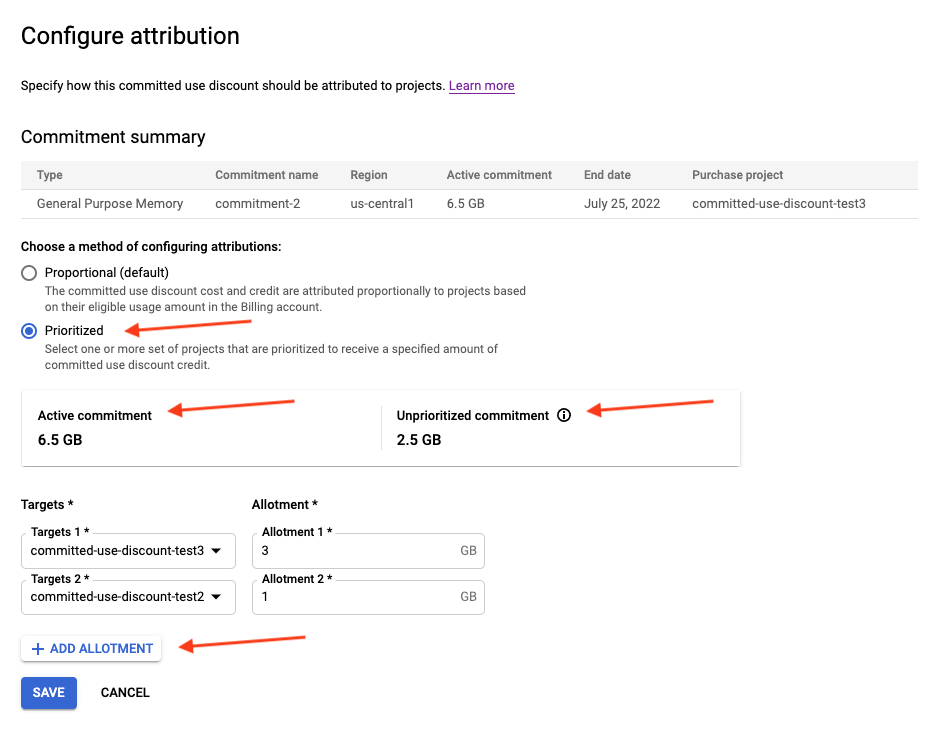
From the Configure Attribution page for your resource-based commitments, you can select prioritized attribution with the following steps:
- From the commitment summary, select Prioritized to view your active commitments.
- Click Add Allotment.
- Click Targets 1to select from your available projects to receive an allotment.
You can select multiple projects for a single allotment. In that case, the allotment is shared proportionately between the projects based on their eligible usage. - In the Allotment 1 field, enter the amount to be prioritized for the selected targets.
To add additional allotments, click Add Allotment. - Click Save to apply your changes.
- For your attribution configuration to take effect, verify that your Cloud Billing account has CUD sharing enabled. If CUD sharing is disabled, then you mustenable CUD sharing.
To switch to proportional attribution after selecting prioritized attribution for your resource-based commitments, follow the instructions atselect proportional attribution.
The following image is an example of configuring prioritized attribution for a resource-based commitment on the configure attribution page.
Select proportional attribution
From the Configure Attribution page for your resource-based commitments, you can select proportional attribution with the following steps:
- From the commitment summary, select Proportional (default).
- Click Save to apply your changes.
- For proportional attribution settings to take effect, verify that your Cloud Billing account has CUD sharing enabled. If CUD sharing is disabled, then you mustenable CUD sharing.
To switch to prioritized attribution after selecting proportional attribution for your resource-based commitments, follow the instructions atselect prioritized attribution.
View attribution in your reports
You can view the allocation of your committed use discount fees and charges for unattributed, proportional, and prioritized attribution in your billing reports.
When you navigate to the reports page, group by Project, and filter bySKU, each project displays the subscription fees specifically attributed to it. Any remaining subscription fees that are not associated with a project are unattributed and assigned to Charges not specific to a project.
To view the Cloud Billing reports for your Cloud Billing account:
- Sign in to your Cloud Billing account in the Google Cloud console.
Sign in to your Cloud Billing account - At the prompt, choose the Cloud Billing accountfor which you'd like to view reports. The Billing Overview page opens for the selected Cloud Billing account.
- In the Billing navigation menu, select Reports.
For more information on viewing your billing reports, seeView your billing reports and cost trends.
View attribution in your exported data
You can view the allocation of your committed use discount fees and charges for unattributed, proportional, and prioritized attribution in the Cloud Billing BigQuery usage cost export.
When viewing your exported data in BigQuery, each project consuming credit has a line item corresponding to its portion of the subscription fee, alongside a line item that represents the usage and credit consumed for that project.
If there is any unconsumed credit, where you didn't consume as much as you committed to, then the remaining subscription fees are assigned toCosts not specific to a project and not attributed to any projects. The total charges for the SKU remain the same, divided between fees that are assigned proportionally to related projects and unattributed fees that are assigned to Costs not specific to a project.
For more information about exporting your cost data to BigQuery, see Export Cloud Billing data to BigQuery.
- Learn about spend-based CUDs program improvements
- Learn more about committed use discounts
- Analyze the effectiveness of your committed use discounts
- View your Cloud Billing reports and cost trends
- View the credits you are receiving in reports
- Understand your savings with cost breakdown reports
- Export Cloud Billing data to BigQuery
- View your cost and payment history