Quick Start for Confluent Platform (original) (raw)
Confluent Platform is a data-streaming platform that completes Kafka with advanced capabilities designed to help accelerate application development and connectivity for enterprise use cases.
This quick start will help you get up and running locally with Confluent Platform and its main components using Docker containers. For other installation methods, see Install Confluent Platform On-Premises. In this quick start, you create Apache Kafka® topics, use Kafka Connect to generate mock data to those topics, and use Confluent Control Center to view your data.
Prerequisites
To run this quick start, you will need Git, Docker and Docker Compose installed on a computer with a supported Operating System. Make sure Docker is running. For full prerequisites, expand the Detailed prerequisites section that follows.
- A connection to the internet.
- Operating System currently supported by Confluent Platform.
- Docker version 1.11 or later is installed and running.
- On Mac: Docker memory is allocated minimally at 6 GB (Mac). When using Docker Desktop for Mac, the default Docker memory allocation is 2 GB. Change the default allocation to 6 GB in the Docker Desktop app by navigating to Preferences > Resources > Advanced.
Step 1: Download and start Confluent Platform
In this step, you start by cloning a GitHub repository. This repository contains a Docker compose file and some required configuration files. The docker-compose.yml file sets ports and Docker environment variables such as the replication factor and listener properties for Confluent Platform and its components. To learn more about the settings in this file, see Docker Image Configuration Reference for Confluent Platform.
- Clone the Confluent Platform all-in-one example repository, for example:
git clone https://github.com/confluentinc/cp-all-in-one.git - Change to the cloned repository’s root directory:
- The default branch may not be the latest. Check out the branch for the version you want to run, for example, 8.1.1-post:
- The
docker-compose.ymlfile is located in a nested directory. Navigate into the following directory: - Start the Confluent Platform stack with the
-doption to run in detached mode:
Note
If you are using Docker Compose V1, you need to use a dash in thedocker composecommands. For example:
To learn more, see Migrate to Compose V2.
Each Confluent Platform component starts in a separate container. Your output should resemble the following. Your output may vary slightly from these examples depending on your operating system.
✔ Network cp-all-in-one_default Created 0.0s
✔ Container flink-jobmanager Started 0.5s
✔ Container broker Started 0.5s
✔ Container prometheus Started 0.5s
✔ Container flink-taskmanager Started 0.5s
✔ Container flink-sql-client Started 0.5s
✔ Container alertmanager Started 0.5s
✔ Container schema-registry Started 0.5s
✔ Container connect Started 0.6s
✔ Container rest-proxy Started 0.6s
✔ Container ksqldb-server Started 0.6s
✔ Container control-center Started 0.7s - Verify that the services are up and running:
Your output should resemble:
NAME IMAGE COMMAND SERVICE CREATED STATUS PORTS
alertmanager confluentinc/cp-enterprise-alertmanager:2.2.1 "alertmanager-start" alertmanager 8 minutes ago Up 8 minutes 0.0.0.0:9093->9093/tcp, [::]:9093->9093/tcp
broker confluentinc/cp-server:8.1.0 "/etc/confluent/dock…" broker 8 minutes ago Up 8 minutes 0.0.0.0:9092->9092/tcp, [::]:9092->9092/tcp, 0.0.0.0:9101->9101/tcp, [::]:9101->9101/tcp
connect cnfldemos/cp-server-connect-datagen:0.6.4-7.6.0 "/etc/confluent/dock…" connect 8 minutes ago Up 8 minutes 0.0.0.0:8083->8083/tcp, [::]:8083->8083/tcp
control-center confluentinc/cp-enterprise-control-center-next-gen:2.2.1 "/etc/confluent/dock…" control-center 8 minutes ago Up 8 minutes 0.0.0.0:9021->9021/tcp, [::]:9021->9021/tcp
flink-jobmanager cnfldemos/flink-kafka:1.19.1-scala_2.12-java17 "/docker-entrypoint.…" flink-jobmanager 8 minutes ago Up 8 minutes 0.0.0.0:9081->9081/tcp, [::]:9081->9081/tcp
flink-sql-client cnfldemos/flink-sql-client-kafka:1.19.1-scala_2.12-java17 "/docker-entrypoint.…" flink-sql-client 8 minutes ago Up 8 minutes 6123/tcp, 8081/tcp
flink-taskmanager cnfldemos/flink-kafka:1.19.1-scala_2.12-java17 "/docker-entrypoint.…" flink-taskmanager 8 minutes ago Up 8 minutes 6123/tcp, 8081/tcp
ksqldb-server confluentinc/cp-ksqldb-server:8.1.0 "/etc/confluent/dock…" ksqldb-server 8 minutes ago Up 8 minutes 0.0.0.0:8088->8088/tcp, [::]:8088->8088/tcp
prometheus confluentinc/cp-enterprise-prometheus:2.2.1 "prometheus-start" prometheus 8 minutes ago Up 8 minutes 0.0.0.0:9090->9090/tcp, [::]:9090->9090/tcp
rest-proxy confluentinc/cp-kafka-rest:8.1.0 "/etc/confluent/dock…" rest-proxy 8 minutes ago Up 8 minutes 0.0.0.0:8082->8082/tcp, [::]:8082->8082/tcp
schema-registry confluentinc/cp-schema-registry:8.1.0 "/etc/confluent/dock…" schema-registry 8 minutes ago Up 8 minutes 0.0.0.0:8081->8081/tcp, [::]:8081->8081/tcp
After a few minutes, if the state of any component isn’t Up, run thedocker compose up -dcommand again, or trydocker compose restart <image-name>, for example:
docker compose restart control-center
Step 2: Create Kafka topics for storing your data
In Confluent Platform, real-time streaming events are stored in a topic, which is an append-only log, and the fundamental unit of organization for Kafka. To learn more about Kafka basics, see Kafka Introduction.
In this step, you create two topics by using Control Center for Confluent Platform. Control Center provides the features for building and monitoring production data pipelines and event streaming applications.
The topics are named pageviews and users. In later steps, you create connectors that produce data to these topics.
Create the pageviews topic
Confluent Control Center enables creating topics in the UI with a few clicks.
- Navigate to Control Center at http://localhost:9021. It takes a few minutes for Control Center to start and load. If needed, refresh your browser until it loads.
- Click the controlcenter.cluster tile.
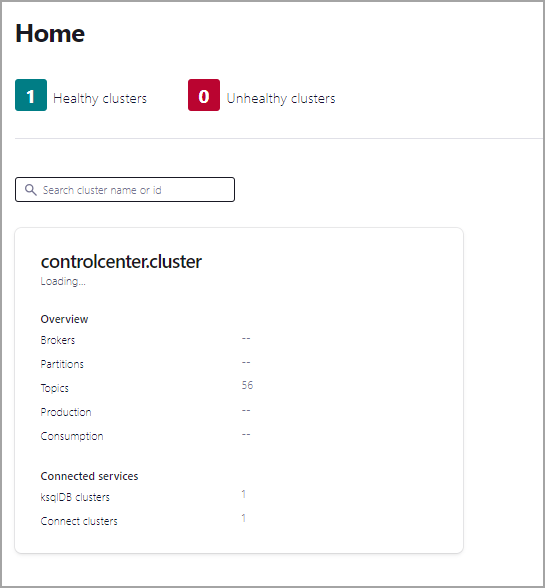
- In the navigation menu, click Topics to open the topics list. Click + Add topic to start creating the
pageviewstopic.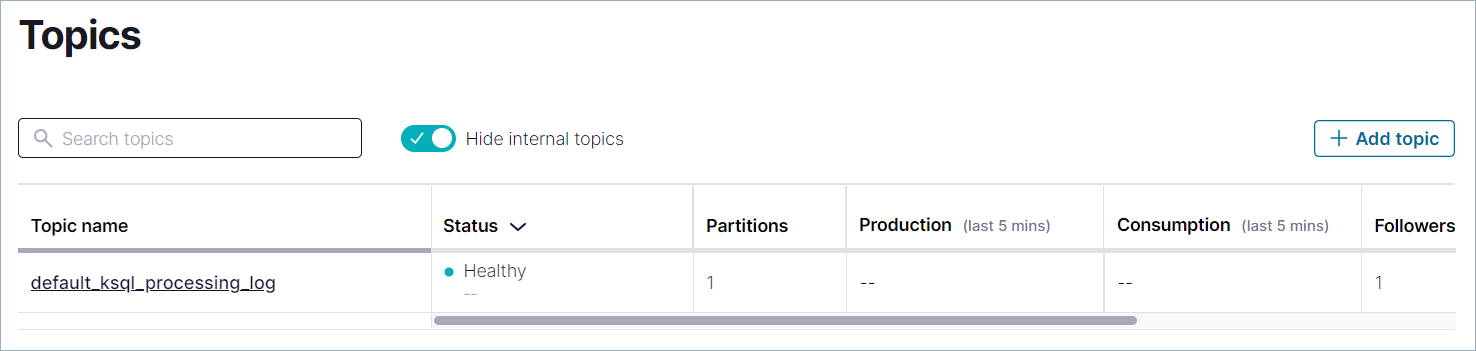
- In the Topic name field, enter
pageviewsand click Create with defaults. Topic names are case-sensitive.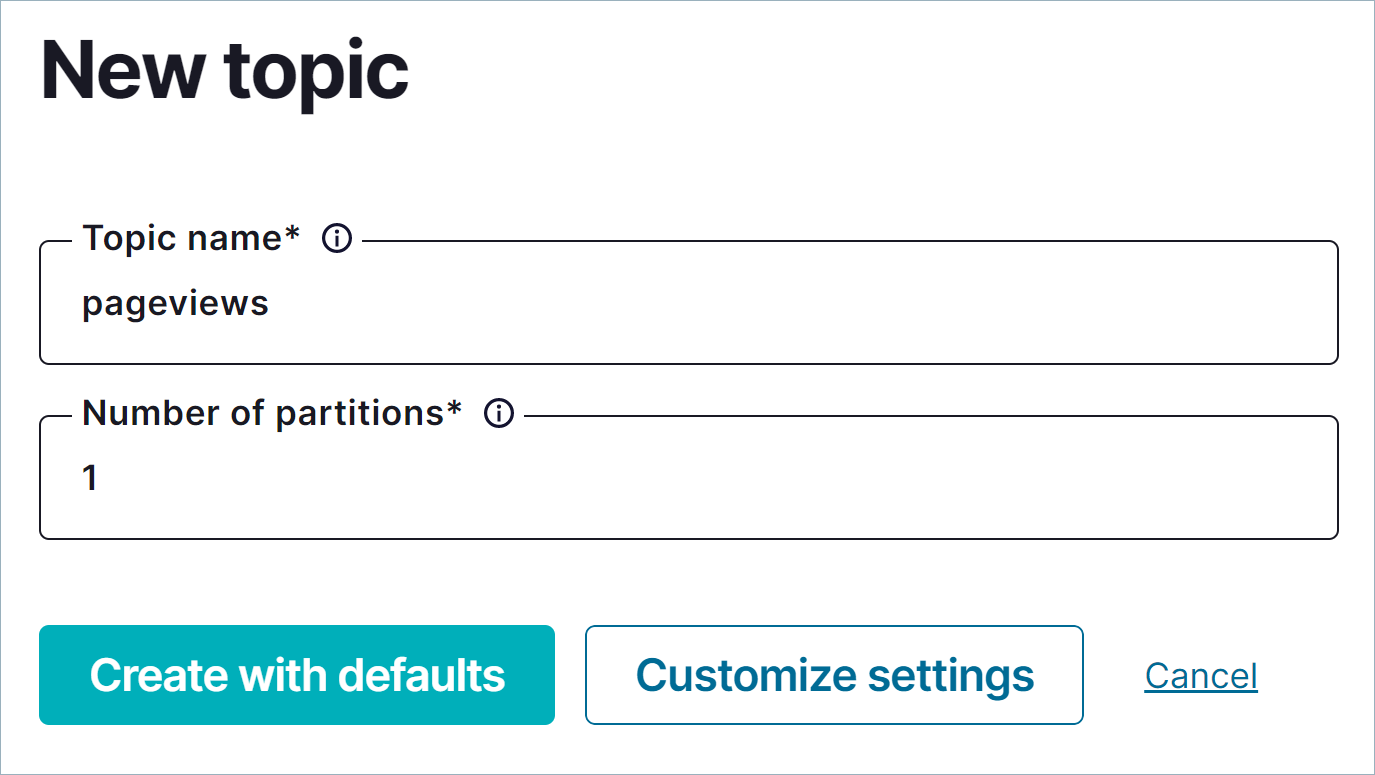


Create the users topic
Repeat the previous steps to create the users topic.
- In the navigation menu, click Topics to open the topics list. Click + Add topic to start creating the
userstopic. - In the Topic name field, enter
usersand click Create with defaults. - You can optionally inspect a topic. On the users page, click Configuration to see details about the
userstopic.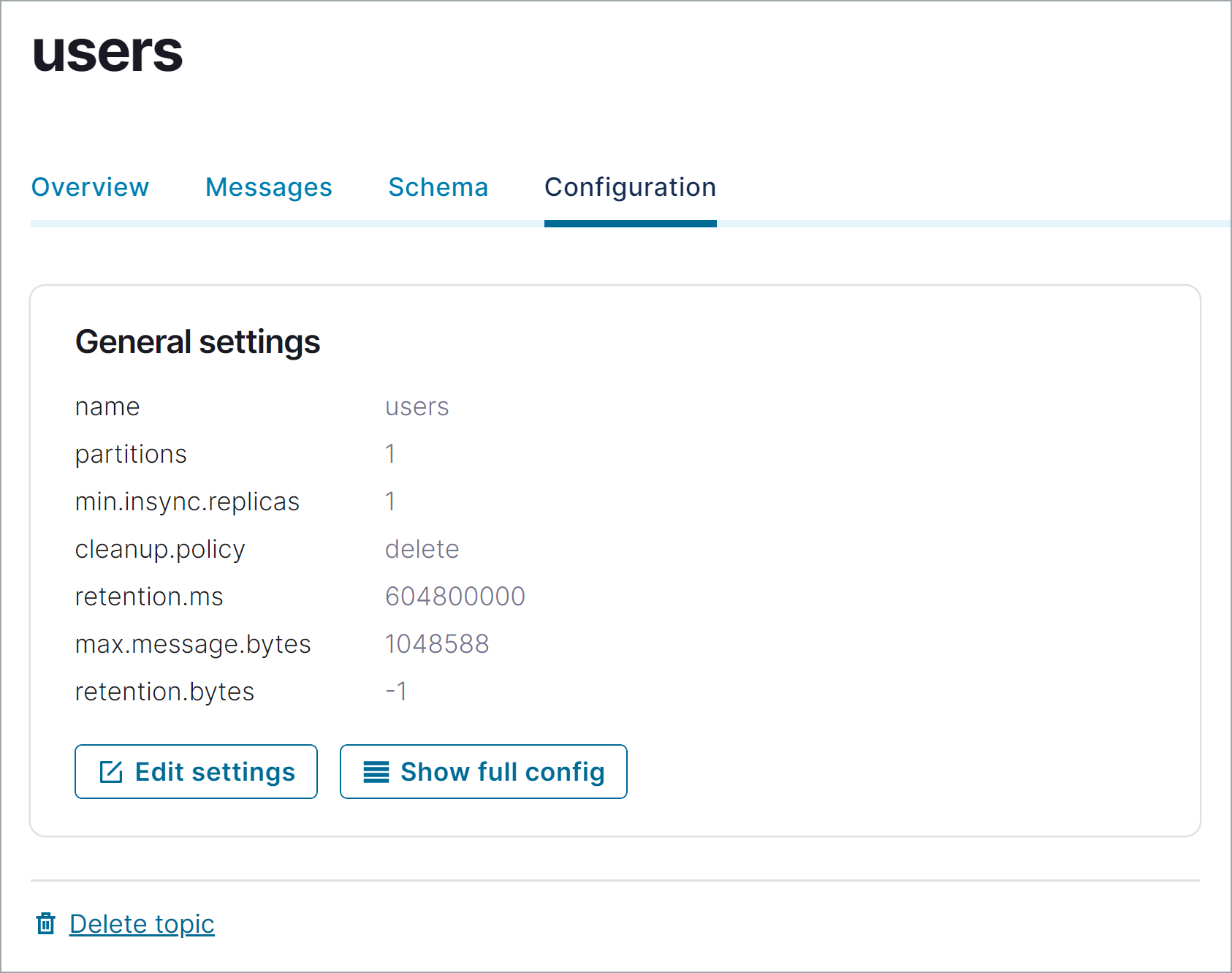

Step 3: Generate mock data
In Confluent Platform, you get events from an external source by using Kafka Connect. Connectors enable you to stream large volumes of data to and from your Kafka cluster. Confluent publishes many connectors for integrating with external systems, like MongoDB and Elasticsearch. For more information, see the Kafka Connect Overview page.
In this step, you run the Datagen Source Connector to generate mock data. The mock data is stored in the pageviews and users topics that you created previously. To learn more about installing connectors, see Install Self-Managed Connectors.
- In the navigation menu, click Connect.
- Click the
connect-defaultcluster in the Connect clusters list. - Click Add connector to start creating a connector for pageviews data.
- Select the
DatagenConnectortile.
Tip
To see source connectors only, click Filter by category and select Sources. - In the Name field, enter
datagen-pageviewsas the name of the connector. - Enter the following configuration values in the following sections:
Common section:- Key converter class:
org.apache.kafka.connect.storage.StringConverter
General section: - kafka.topic: Choose
pageviewsfrom the dropdown menu - max.interval:
100 - quickstart:
pageviews
- Key converter class:
- Click Next to review the connector configuration. When you’re satisfied with the settings, click Launch.
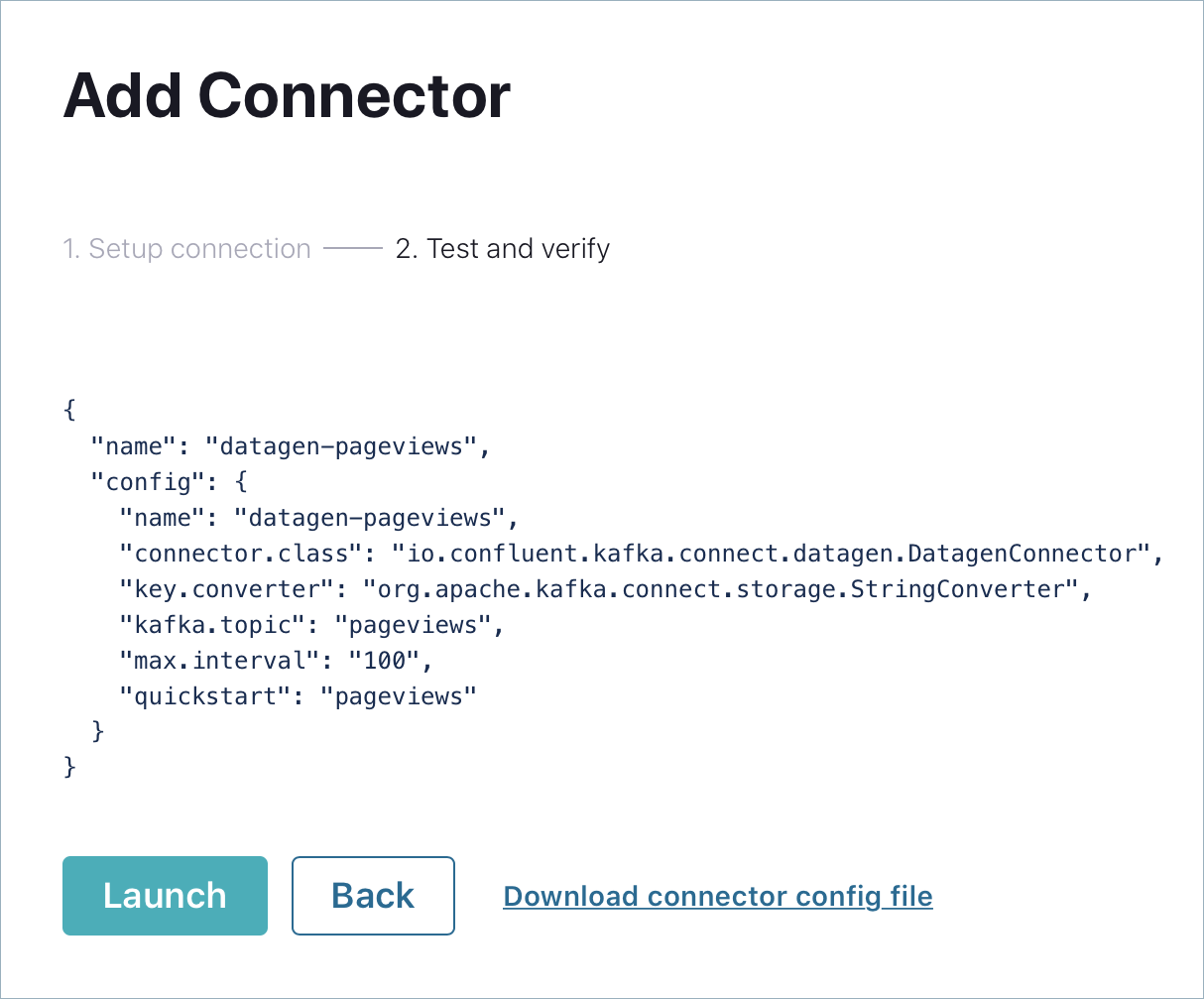

Run a second instance of the Datagen Source connector connector to produce mock data to the users topic.
- In the navigation menu, click Connect.
- In the Connect clusters list, click
connect-default. - Click Add connector.
- Select the
DatagenConnectortile. - In the Name field, enter
datagen-usersas the name of the connector. - Enter the following configuration values:
Common section:- Key converter class:
org.apache.kafka.connect.storage.StringConverter
General section: - kafka.topic: Choose
usersfrom the dropdown menu - max.interval:
1000 - quickstart:
users
- Key converter class:
- Click Next to review the connector configuration. When you’re satisfied with the settings, click Launch.
- In the navigation menu, click Topics and in the list, click users.
- Click Messages to confirm that the
datagen-usersconnector is producing data to theuserstopic.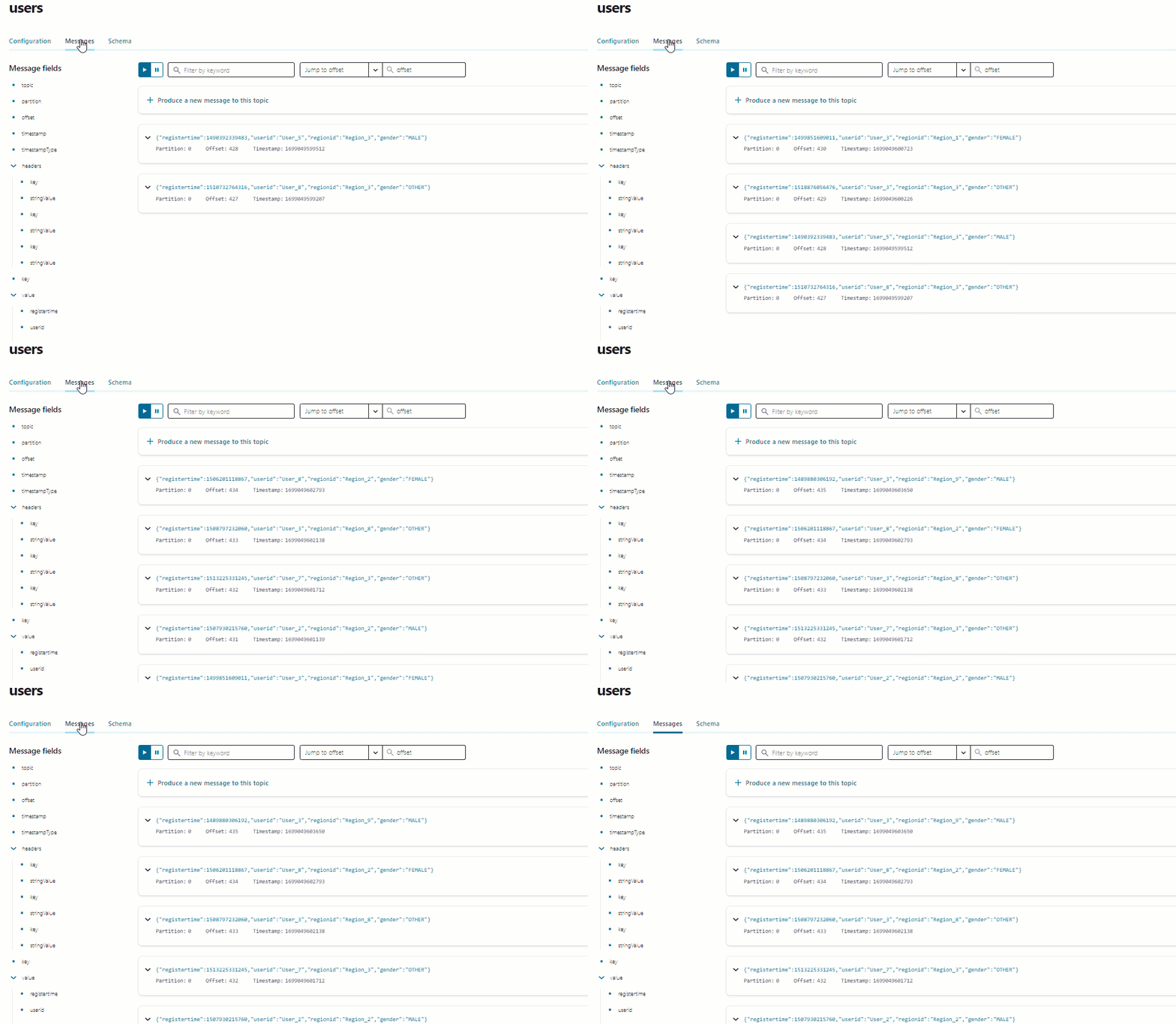

Inspect the schema of a topic
By default, the Datagen Source Connector produces data in Avro format, which defines the schemas of pageviews and users messages.
Schema Registry ensures that messages sent to your cluster have the correct schema. For more information, see Schema Registry Documentation.
- In the navigation menu, click Topics, and in the topic list, click pageviews.
- Click Schema to inspect the Avro schema that applies to
pageviewsmessage values.
Your output should resemble: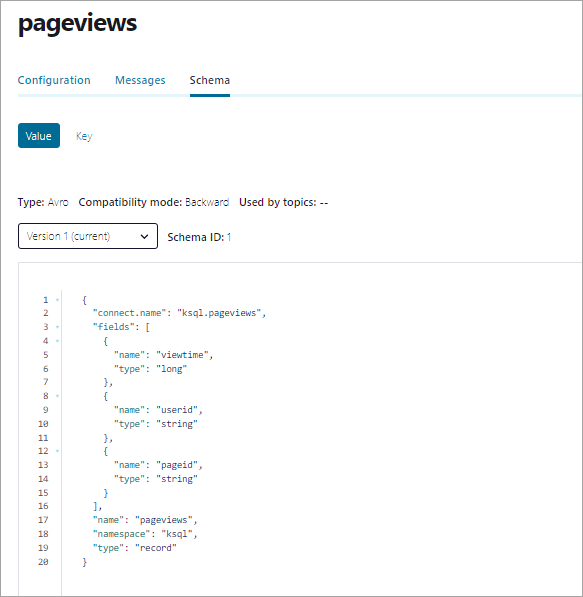

Step 4: Uninstall and clean up
If you’re done working with Confluent Platform, you can stop and remove the Docker containers and images.
- Run the following command to stop the Docker containers for Confluent:
- After stopping the Docker containers, run the following commands to prune the Docker system. Running these commands deletes containers, networks, volumes, and images, freeing up disk space:
docker system prune -a --volumes --filter "label=io.confluent.docker"
For more information, refer to the official Docker documentation.
Related content
- To download an automated version of this quick start, see the Quick Start on GitHub
- To configure and run a multi-broker cluster without Docker, see Tutorial: Set Up a Multi-Broker Kafka Cluster
- For alternative installation methods, you can use a TAR or ZIP archive, or package managers like
systemd, Confluent for Kubernetes, and Ansible - To learn how to develop with Confluent Platform, see Confluent Developer
- To get started with Confluent Platform for Apache Flink in Confluent Control Center, see Use Confluent Control Center with Confluent Manager for Apache Flink
- For training and certification guidance, including resources and access to hands-on training and certification exams, see Confluent Education
- To try out basic Kafka, Kafka Streams, and ksqlDB tutorials with step-by-step instructions, see Kafka Tutorials
- To learn how to build stream processing applications in Java or Scala, see Kafka Streams documentation
- To learn how to read and write data to and from Kafka using programming languages such as Go, Python, .NET, C/C++, see Kafka Clients documentation