Get started with Code Reviews (original) (raw)
Fast-moving development introduces risk. Code may contain logic errors, security flaws, or performance issues that slip through and reach production.
The kluster.ai Code Reviews service integrates directly into your development workflow, scanning code in real-time. It catches potential issues instantly within your IDE, allowing you to ship code confidently.
Prerequisites#
Before getting started, ensure you have:
- A kluster.ai account: Sign up on the kluster.ai platform if you don't have one.
As kluster.ai services work via MCP, the API key is created and configured for you when setting up the relevant extensions.
Setup instructions#
AntigravityCursorVS Code / Codex VS CodeWindsurfClaude CodeCodex CLI
- Click the Add to Antigravity button below.
Add to Antigravity - Antigravity will open and prompt for extension installation.
- Click Install to add the extension into Antigravity.
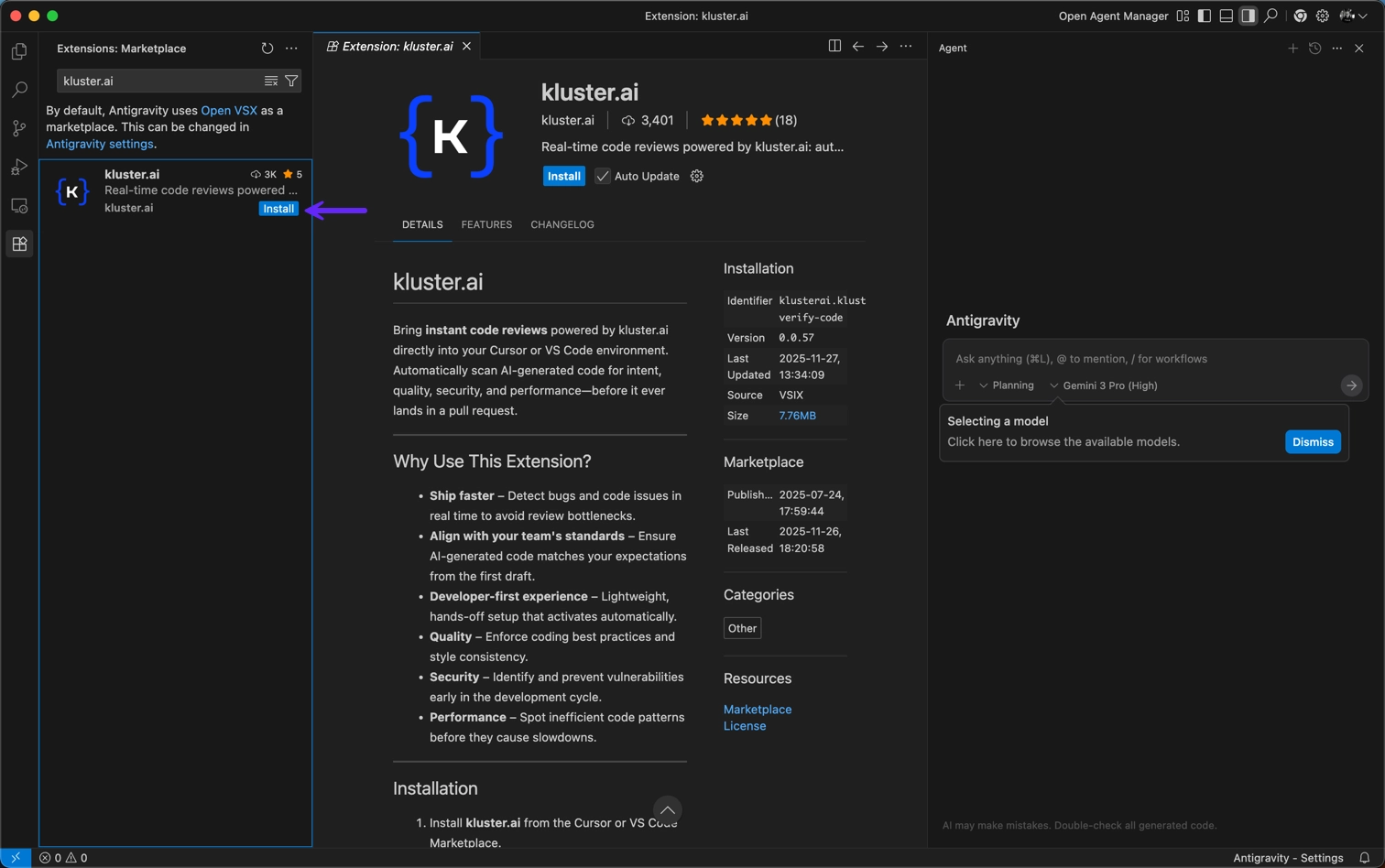

Now that the extension is installed, you need to log in with your kluster.ai account:
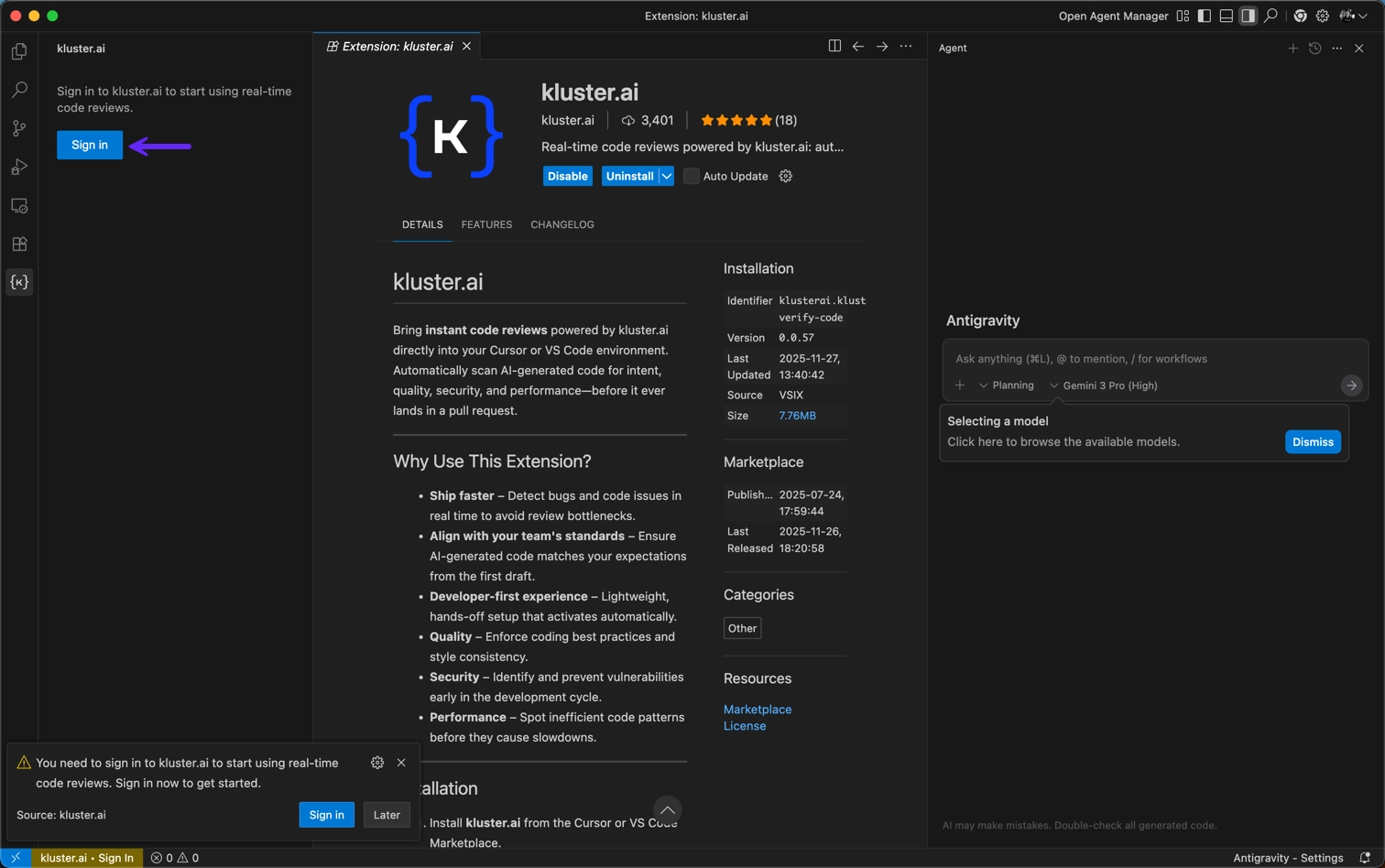
- Click Sign in in the bottom left corner.
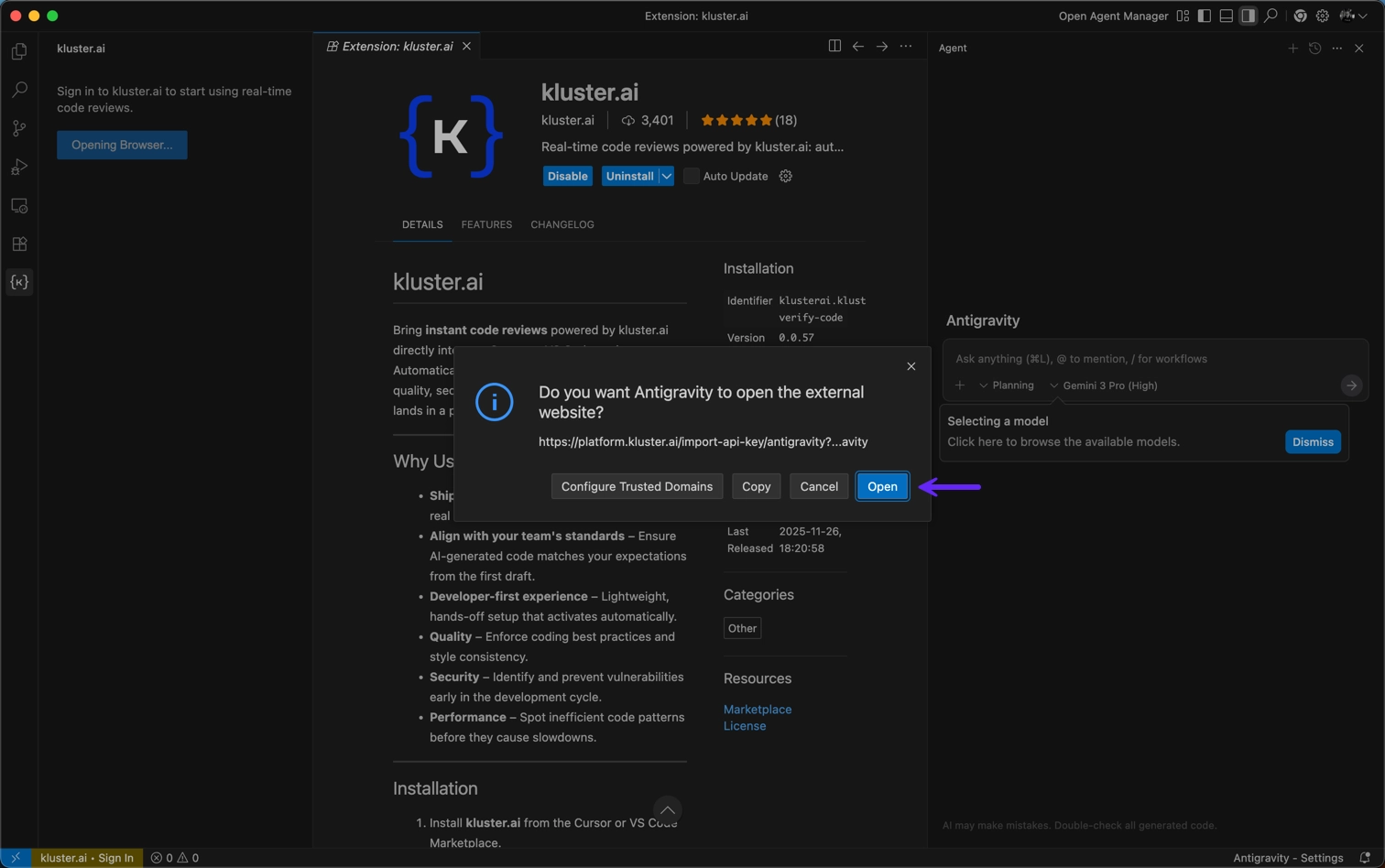
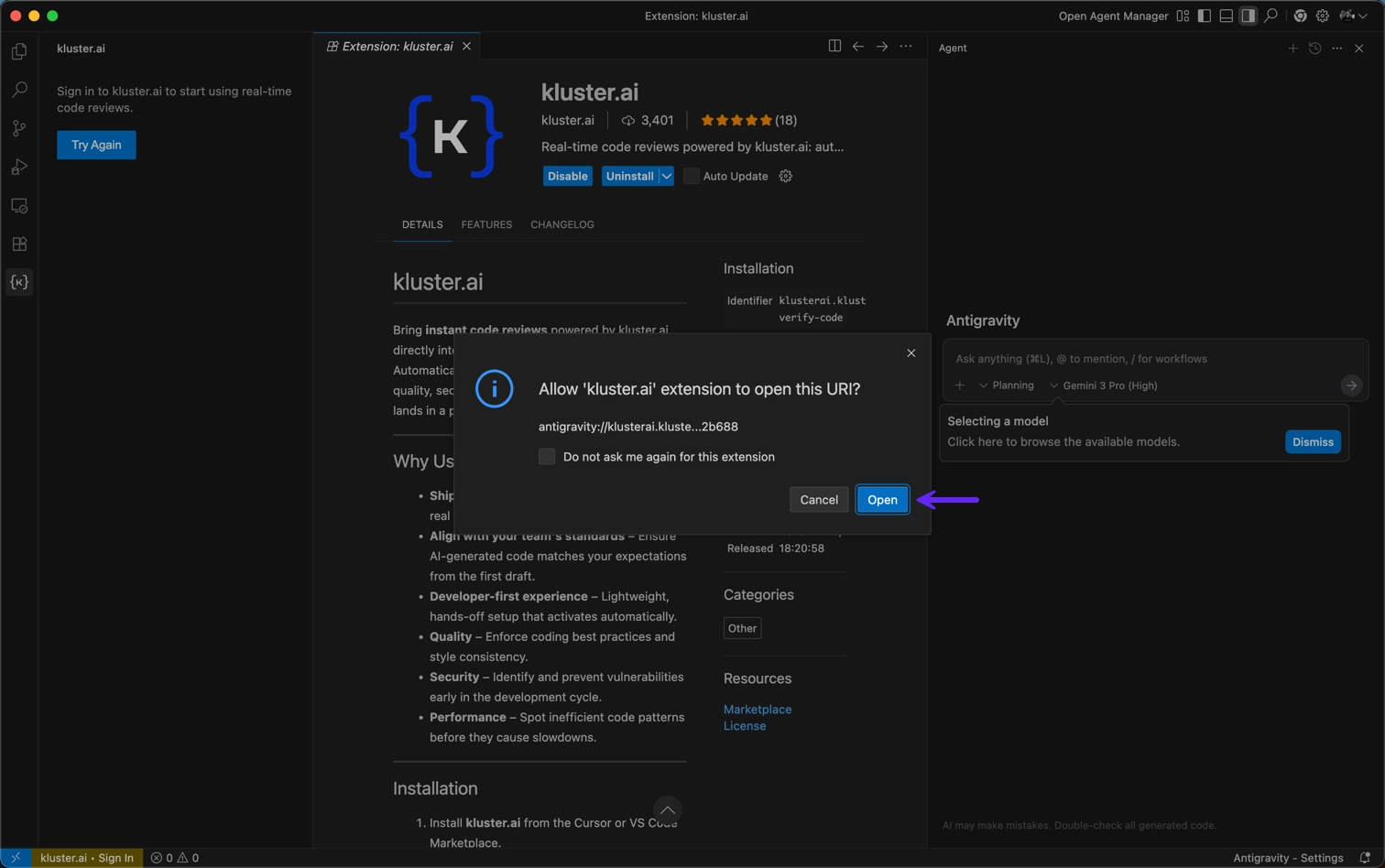
- Choose Open. A browser pop-up window will take you to your kluster.ai account.
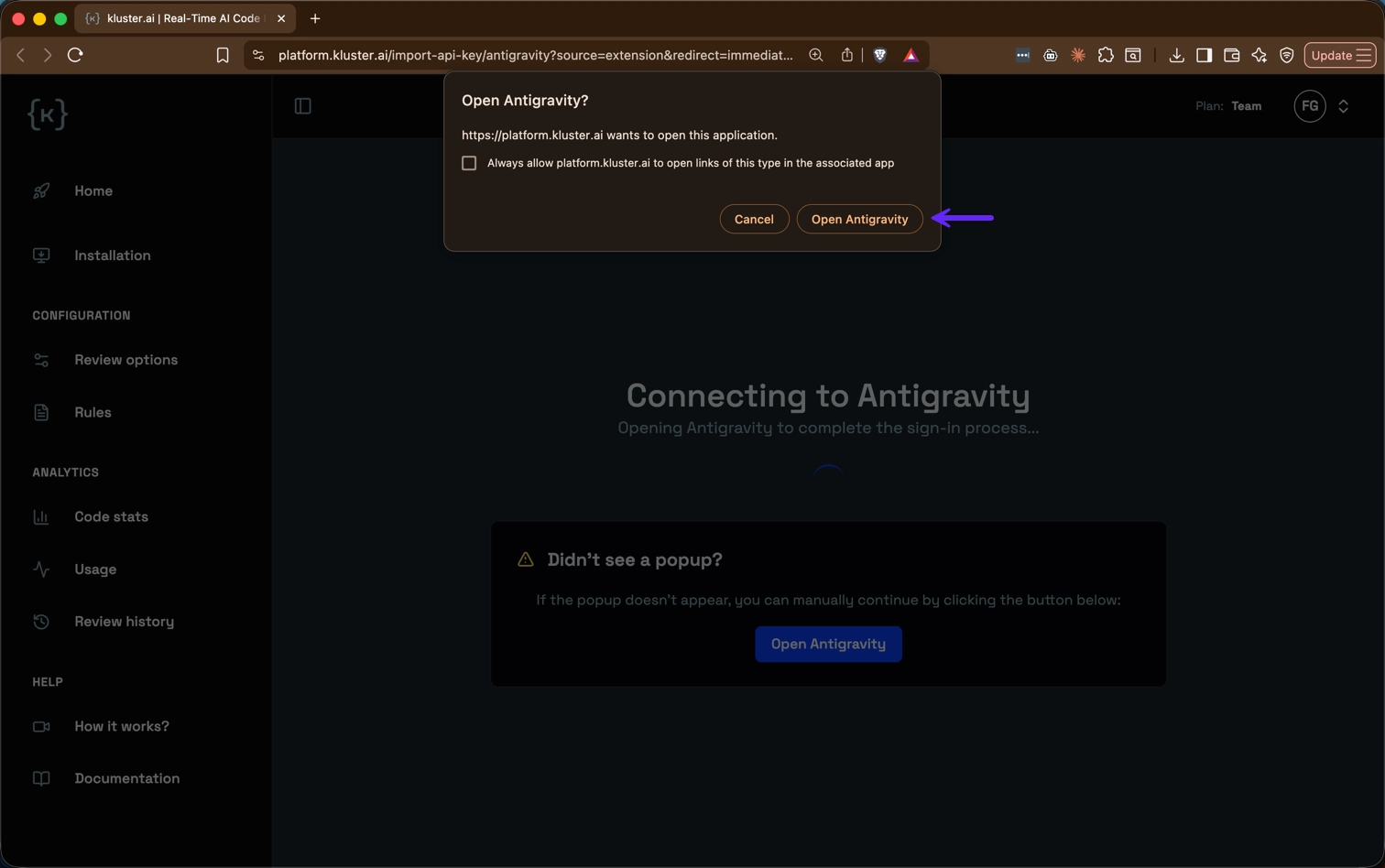
- Click Open Antigravity.
- Click Open to install the MCP with your kluster.ai API key.


Once installed, verify the setup:
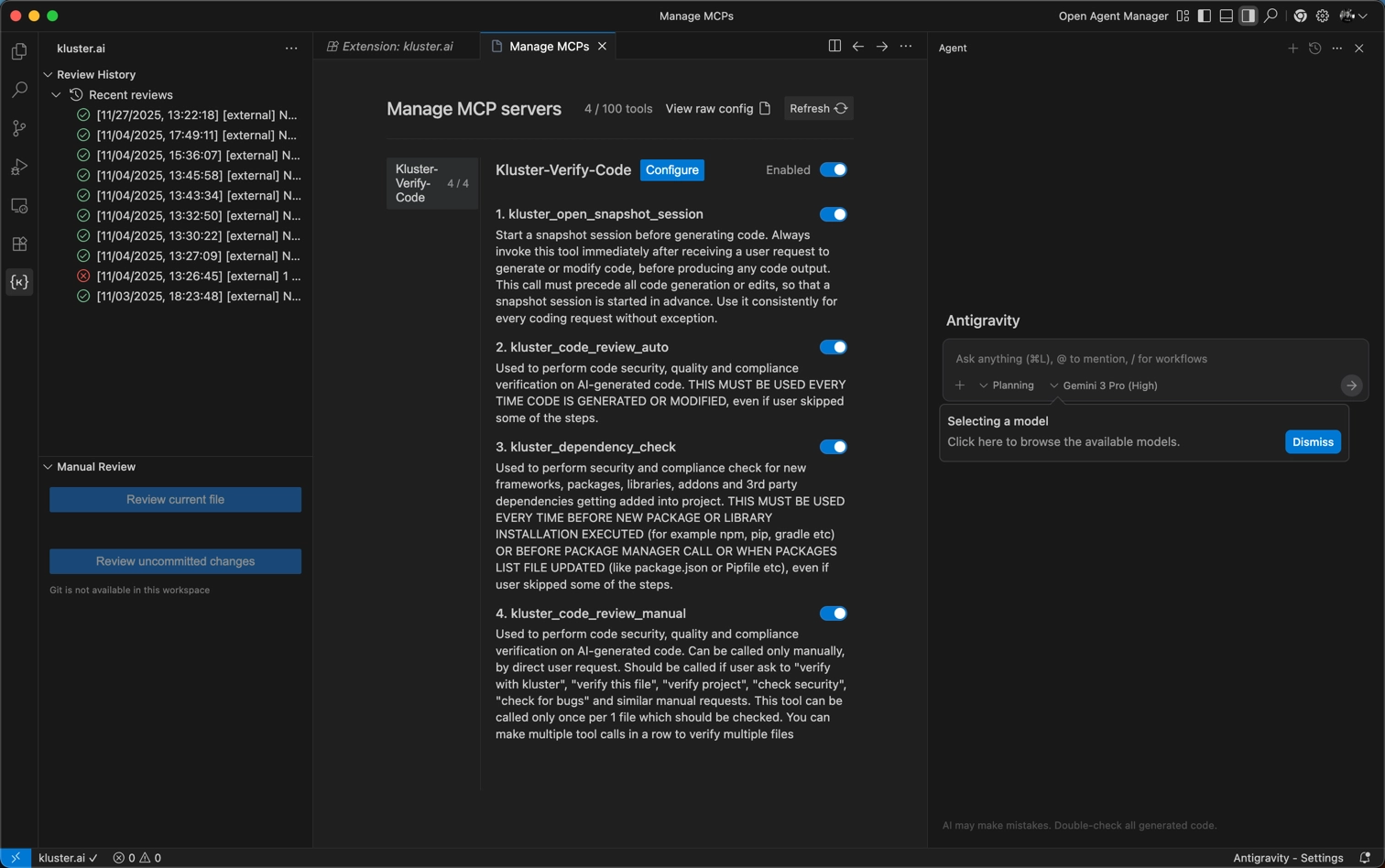
Navigate to Settings → MCP Settings → Manage MCP Servers.
Verify that Kluster-Verify-Code appears with all tools enabled.
Click the Add to Cursor button below.
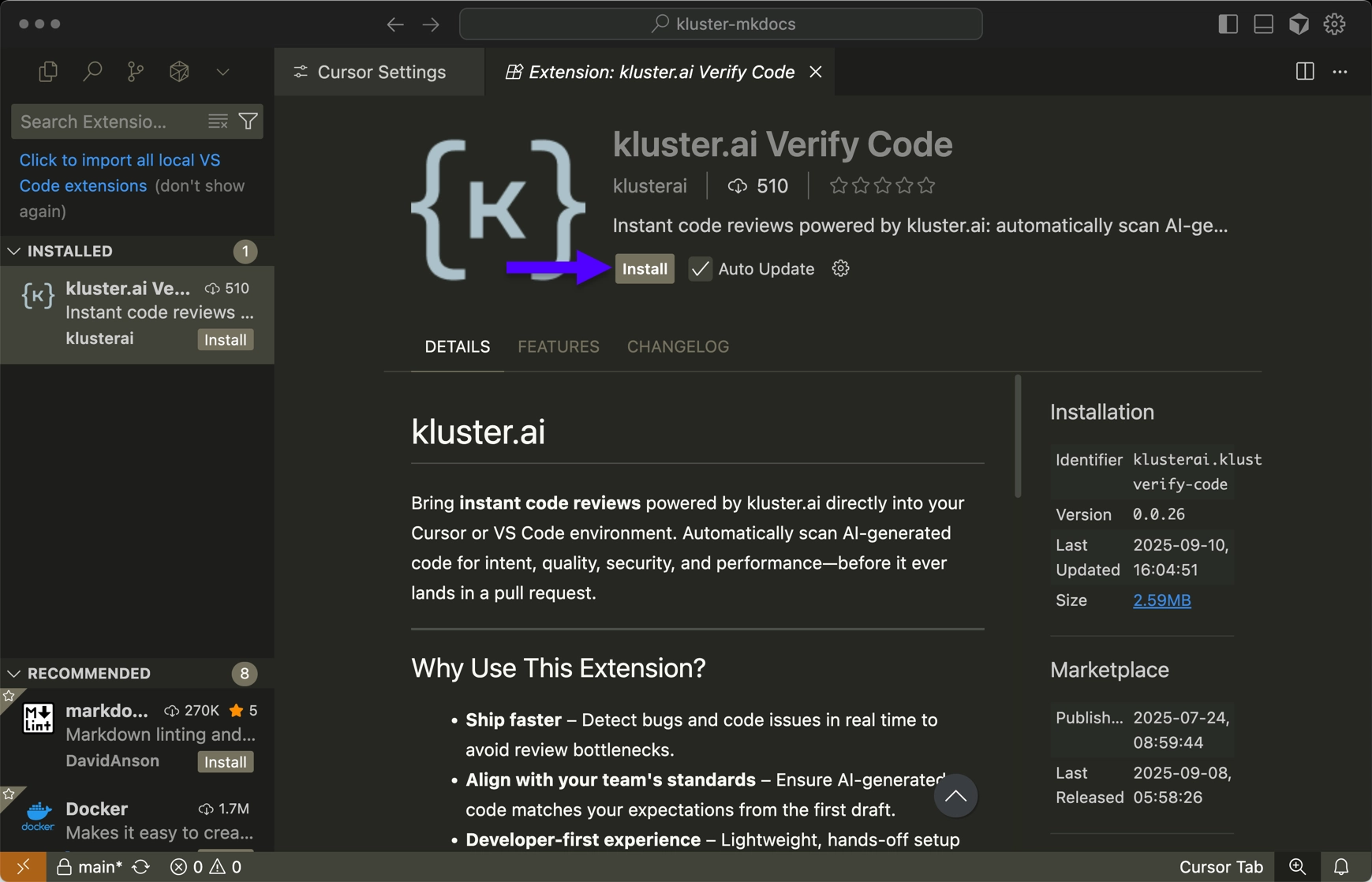
Add to CursorCursor will open and prompt for extension installation.
Click Install to add the extension into Cursor.


Once installed, you can verify the setup:
Open Cursor Settings. You can use the gear icon in the top right corner to do so.
Navigate to Tools & Integrations → MCP Tools.
You should see extension-Kluster-Code-Reviews with all tools enabled:
kluster_code_review_auto: Automatic code security, quality, and compliance verification.kluster_dependency_validator: Dependency health and risk validation.kluster_code_review_manual: On-demand, user-requested per-file verification (security, quality, compliance).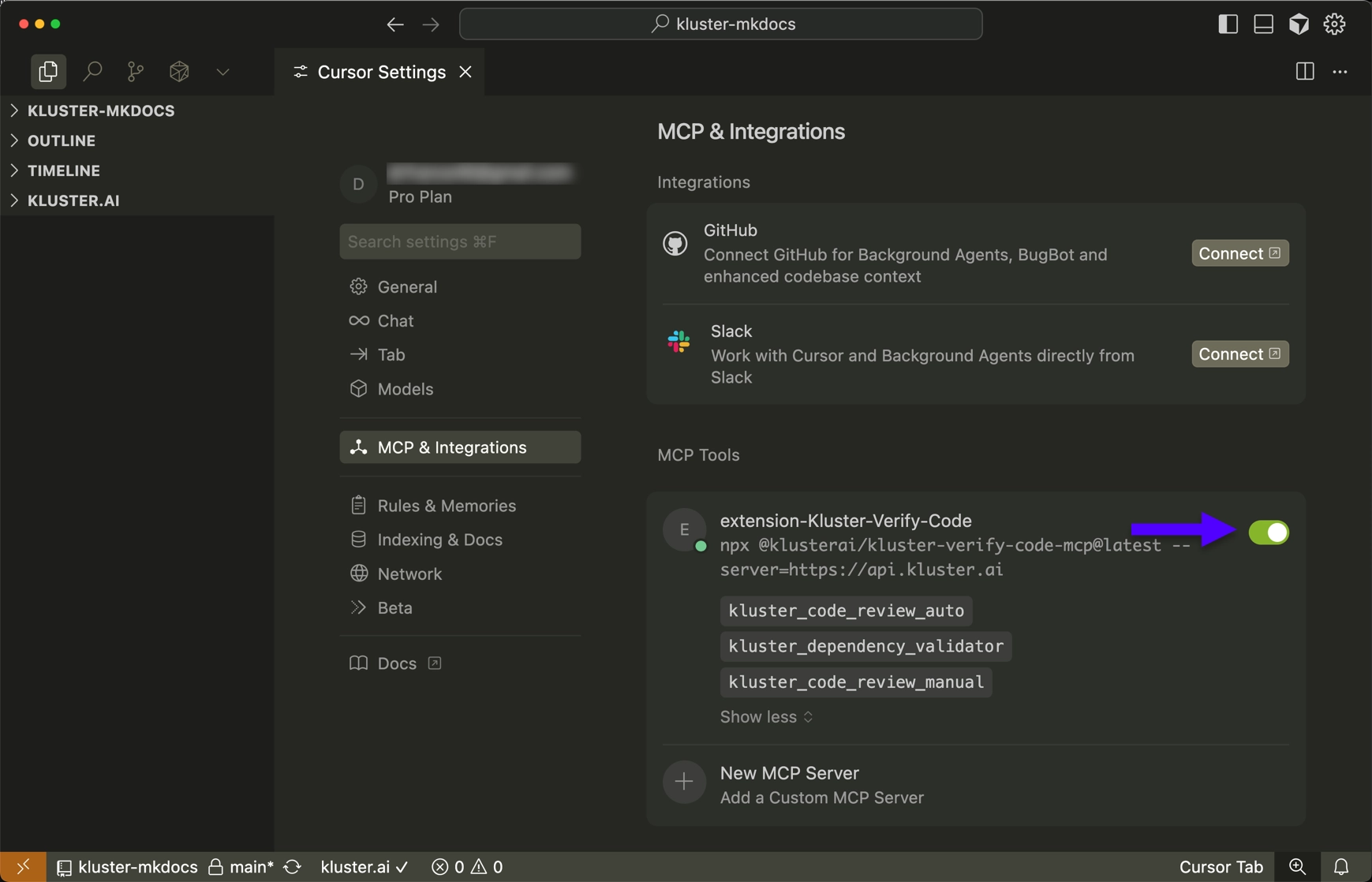
Click the Add to VS Code button below:
Add to VS CodeVS Code will open and display the extension.
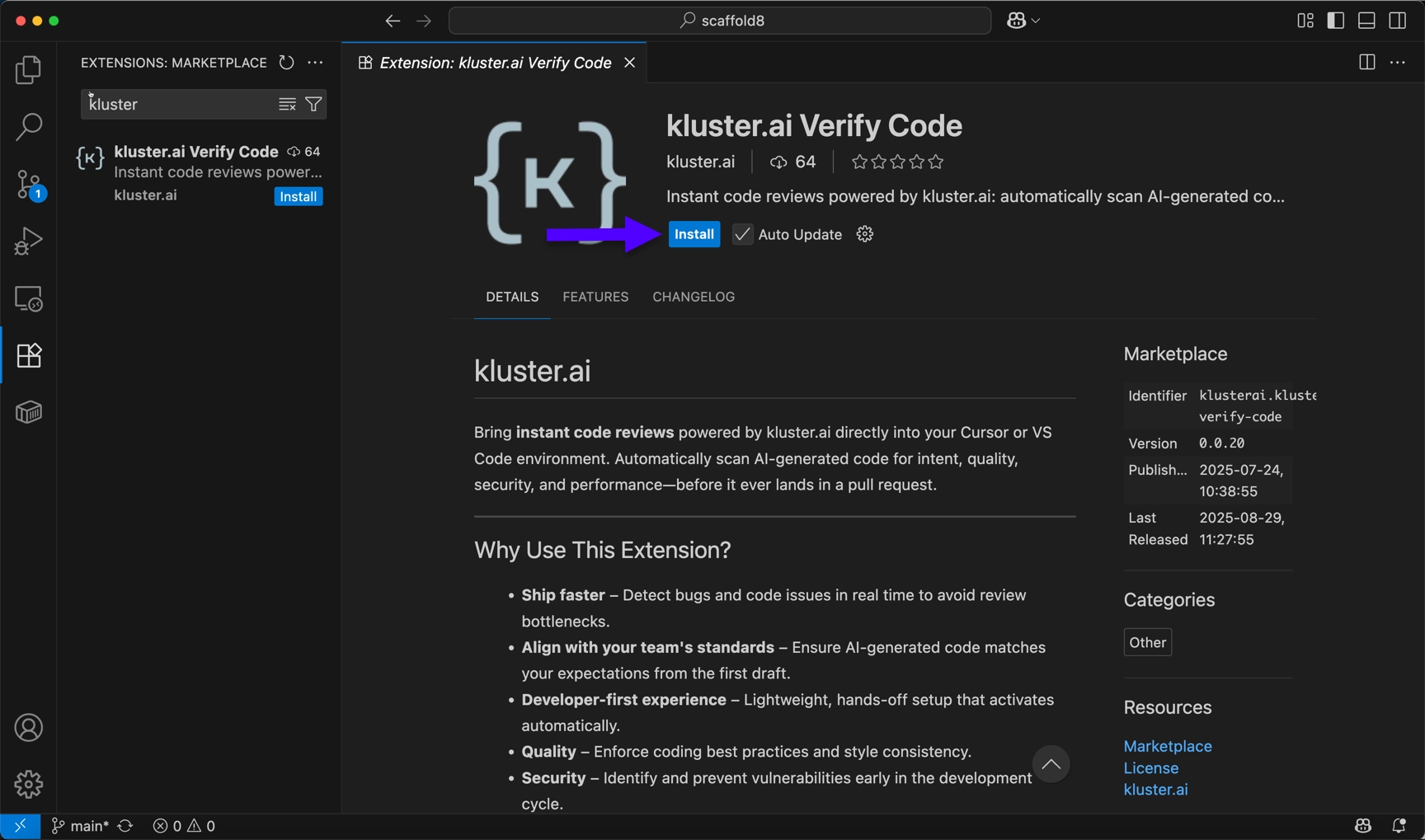
Click Install to get the extension.
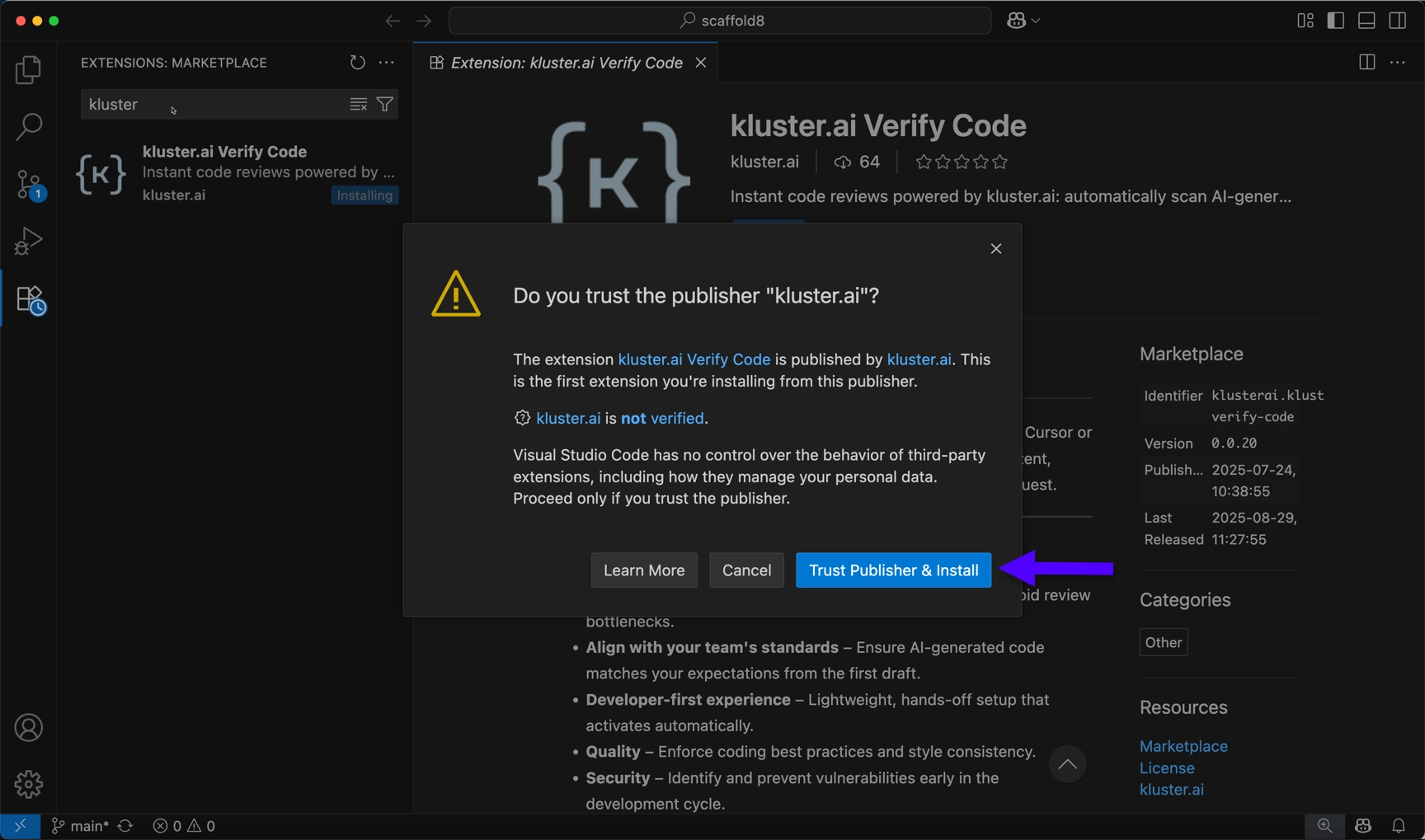
Select Trust Publisher & Install.


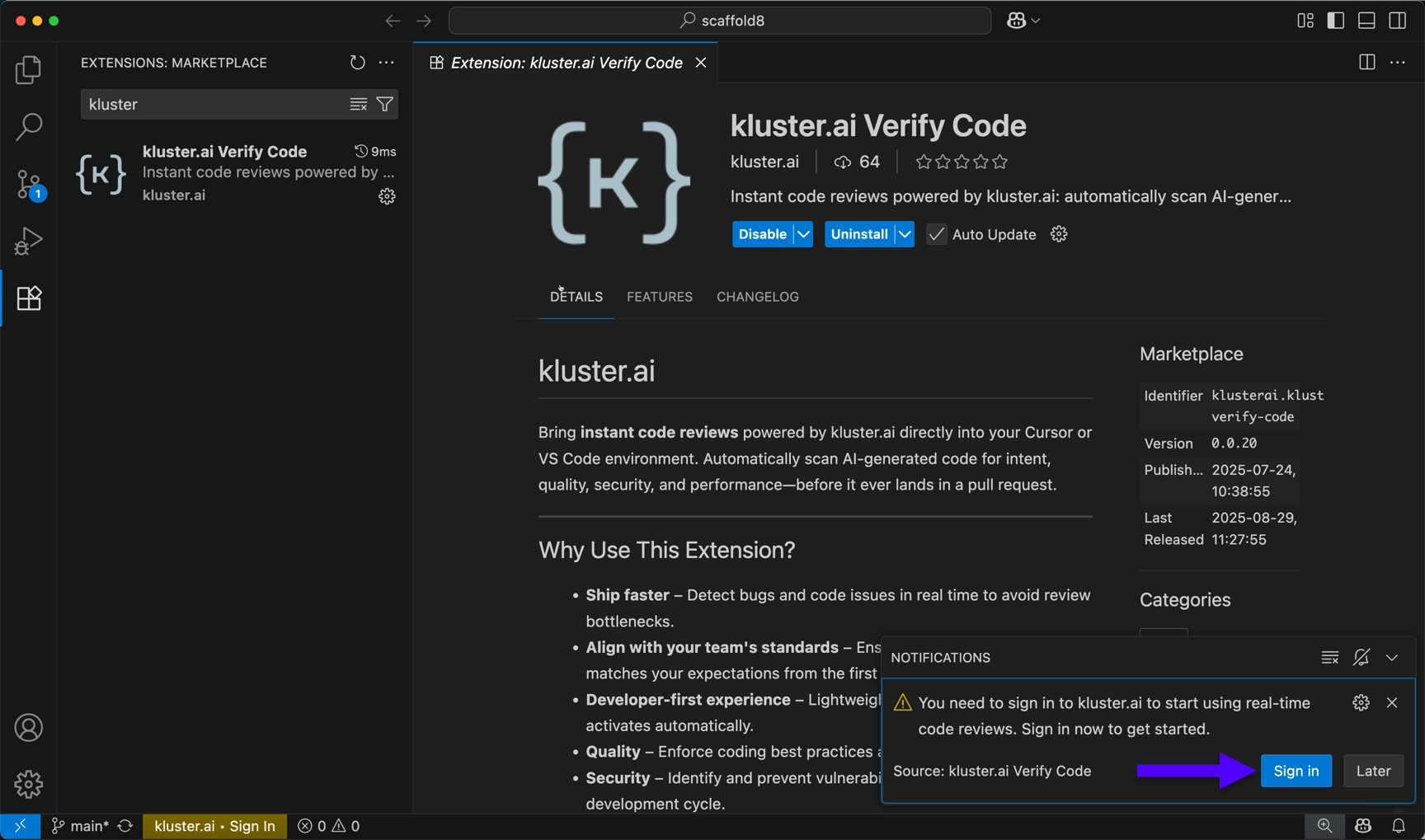
Now that the extension is installed, you need to log in with your kluster.ai account:
- Click on Sign in in the bottom right corner.
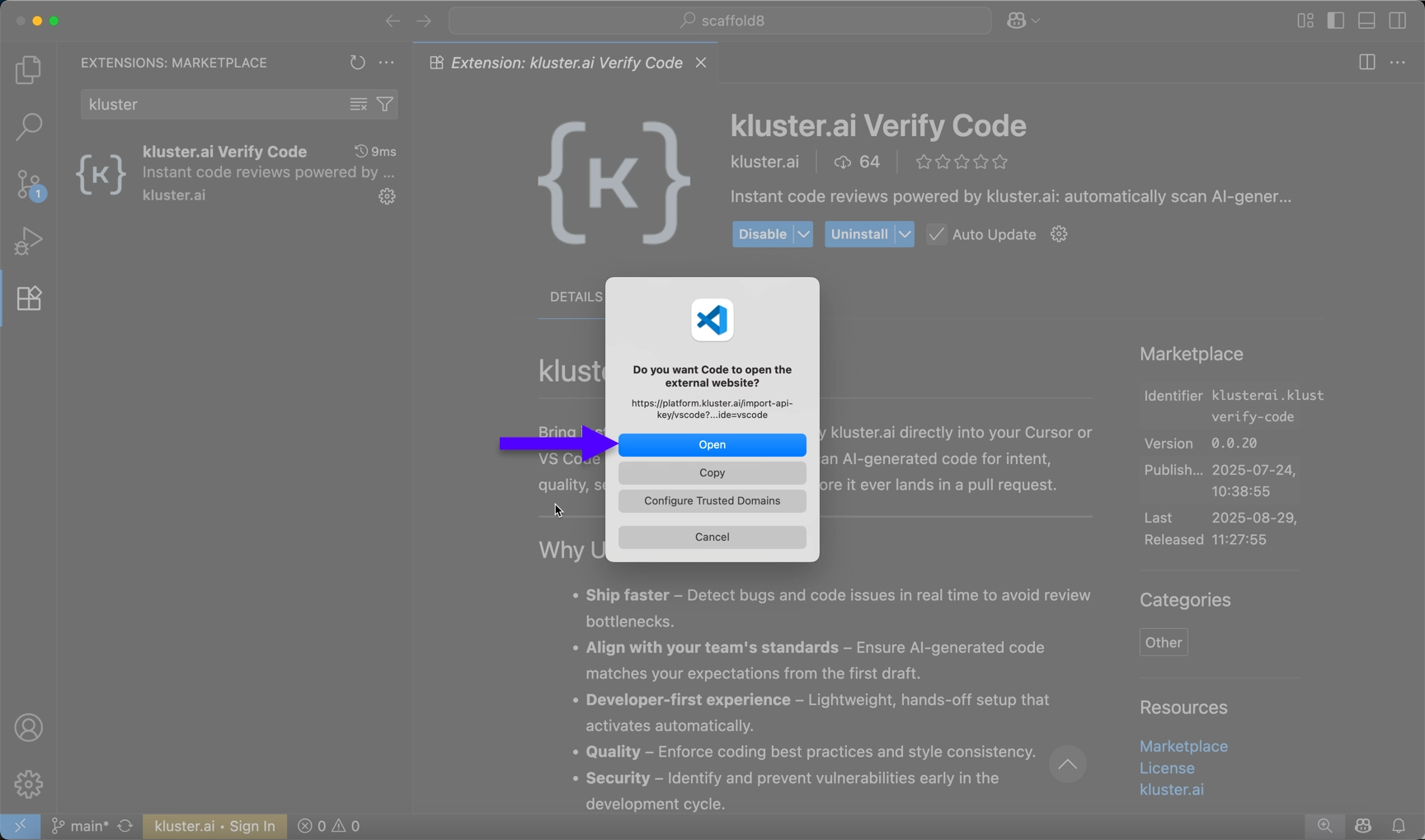
- Choose Open. A browser pop-up window will take you to your kluster.ai account.
- Click Open Visual Studio Code.
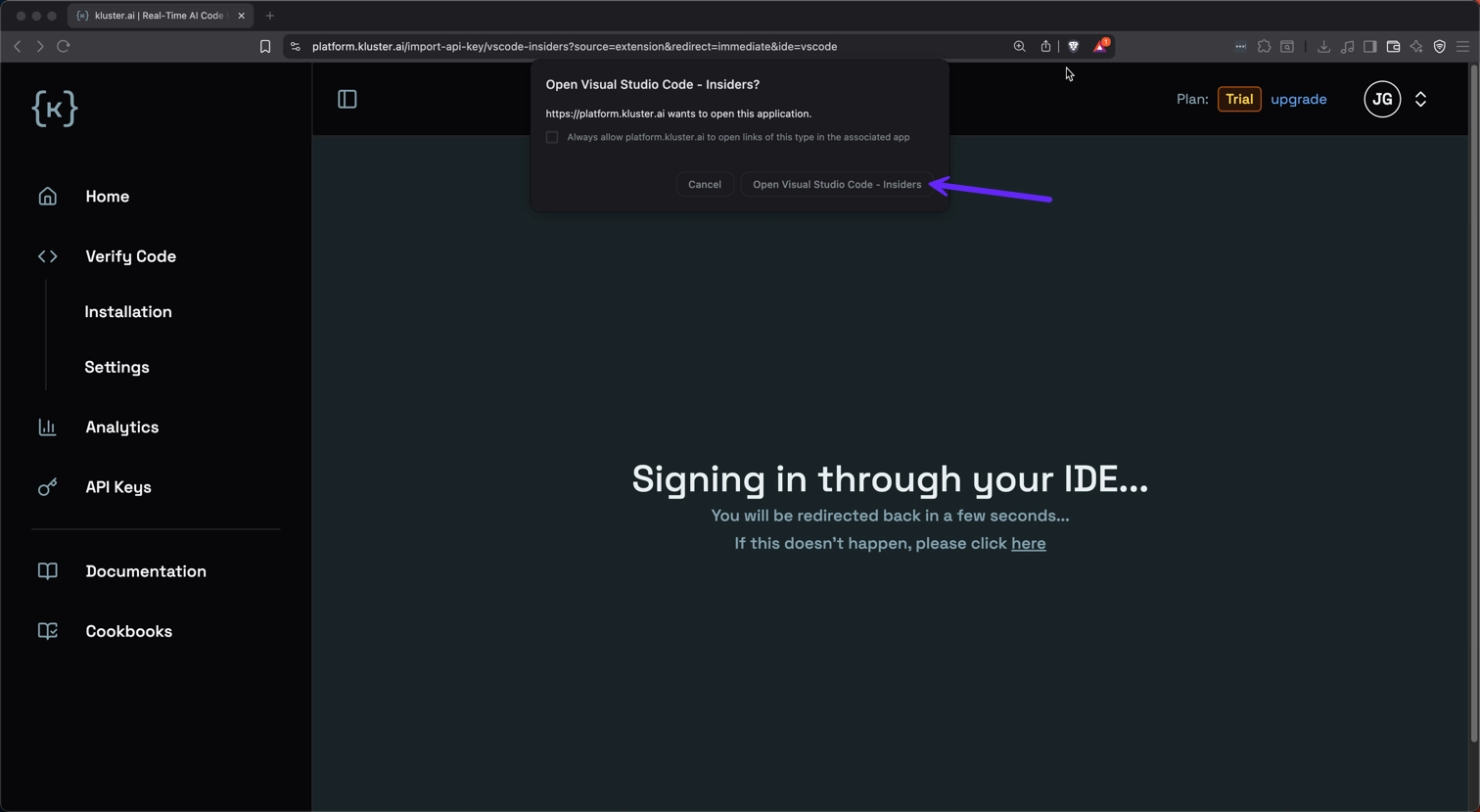
- Click Open to install the MCP with your kluster.ai API key.
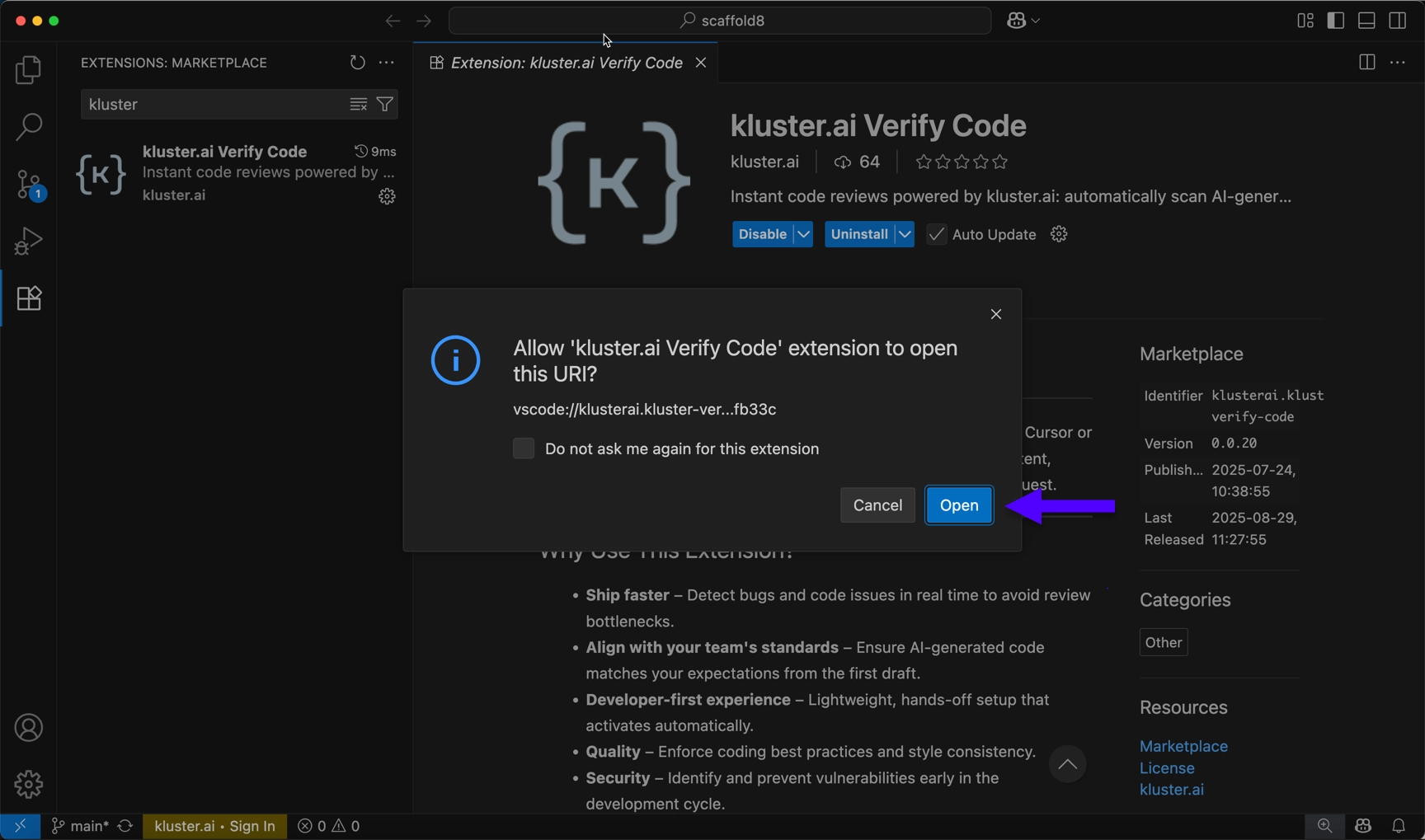
- To complete the setup, click Install to accept the MCP configuration for Code Reviews.
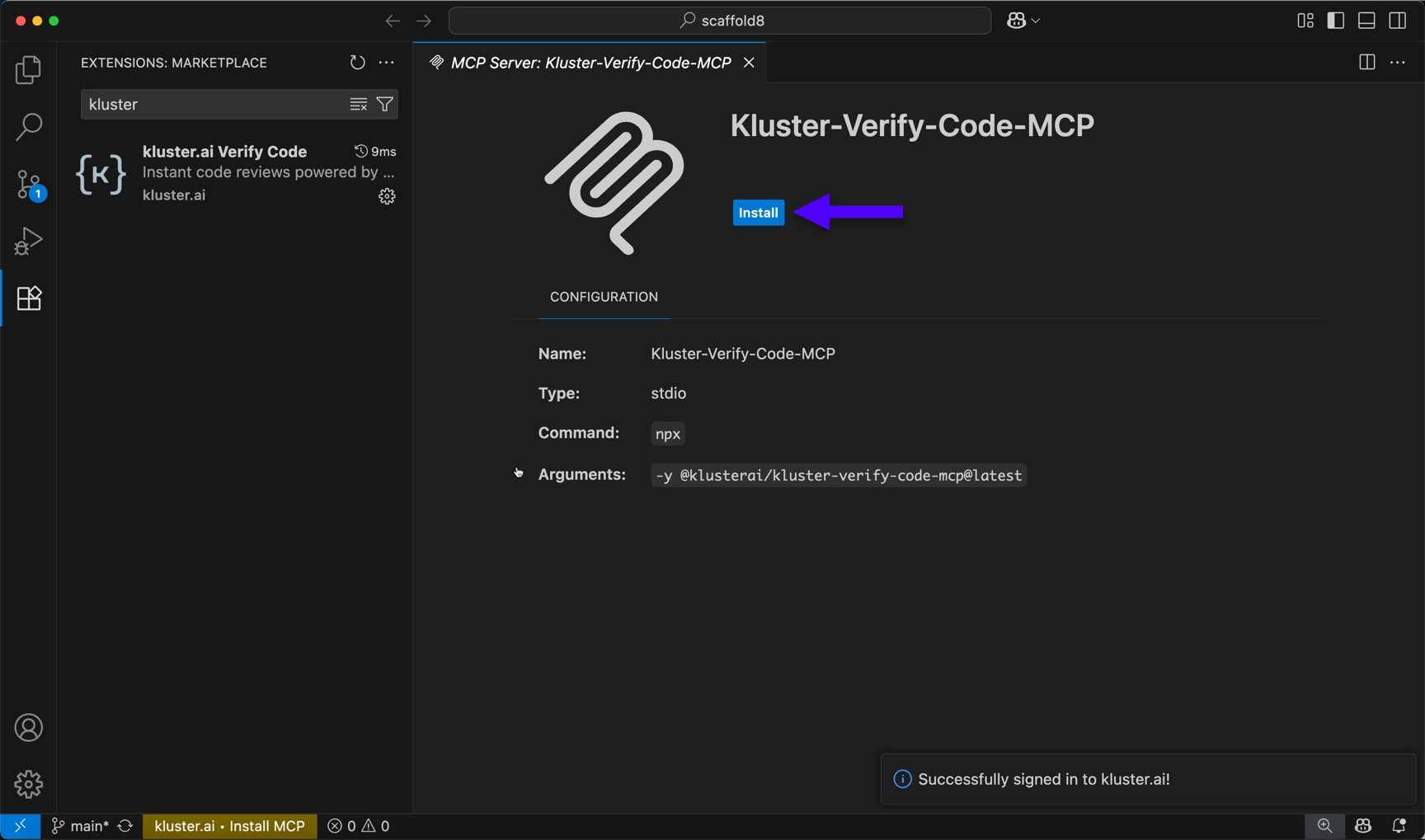
- Press Trust to Install the MCP server.
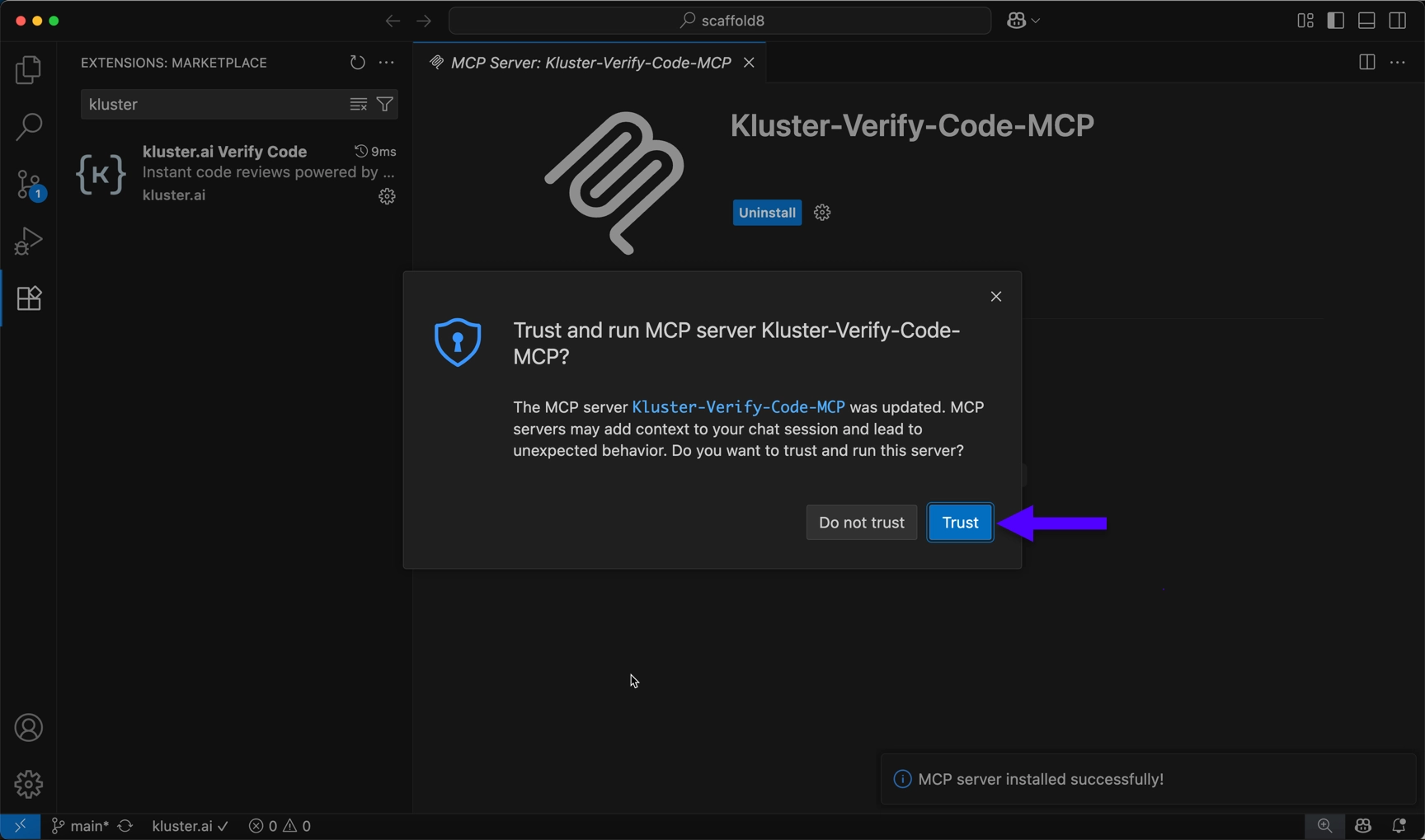


Once installed, verify the setup:
Open a Copilot chat window and select the Tools button on the bottom right corner.
Scroll down the list and Kluster-Code-Reviews-MCP should appear. Make sure all tools are enabled.
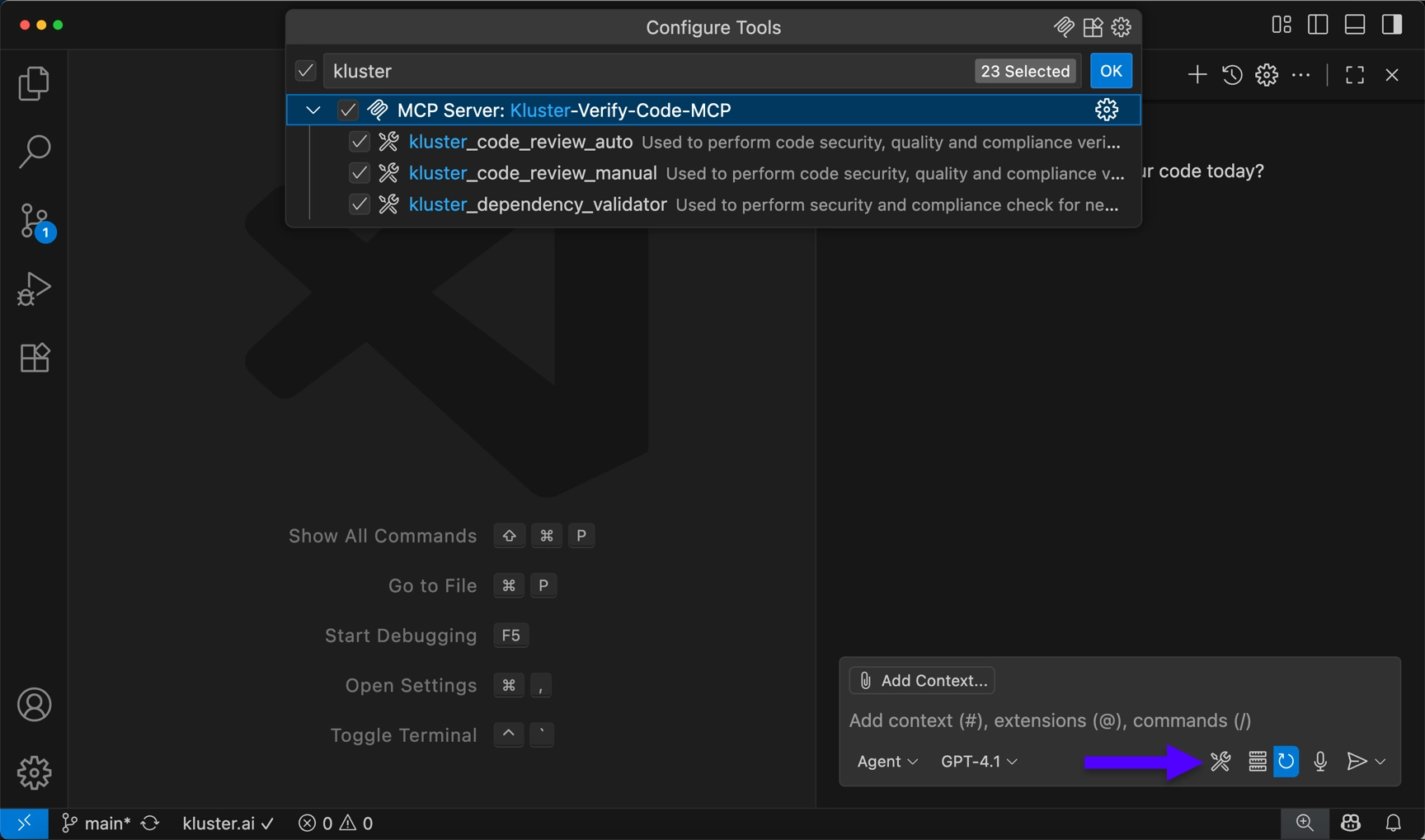
Click the Add to Windsurf button below.
Add to WindsurfWindsurf will open and prompt for extension installation.
Click Install to add the extension into Windsurf.
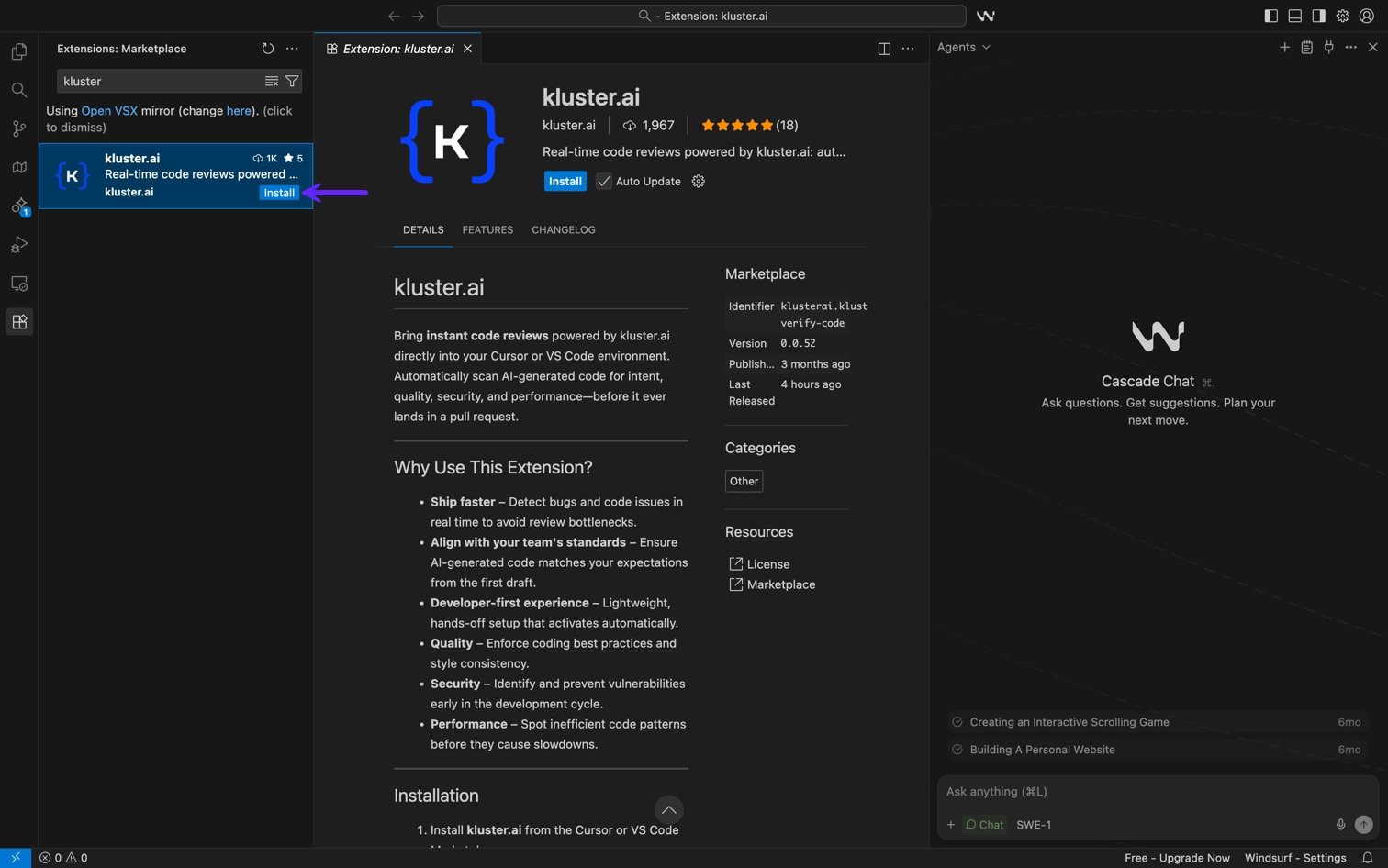
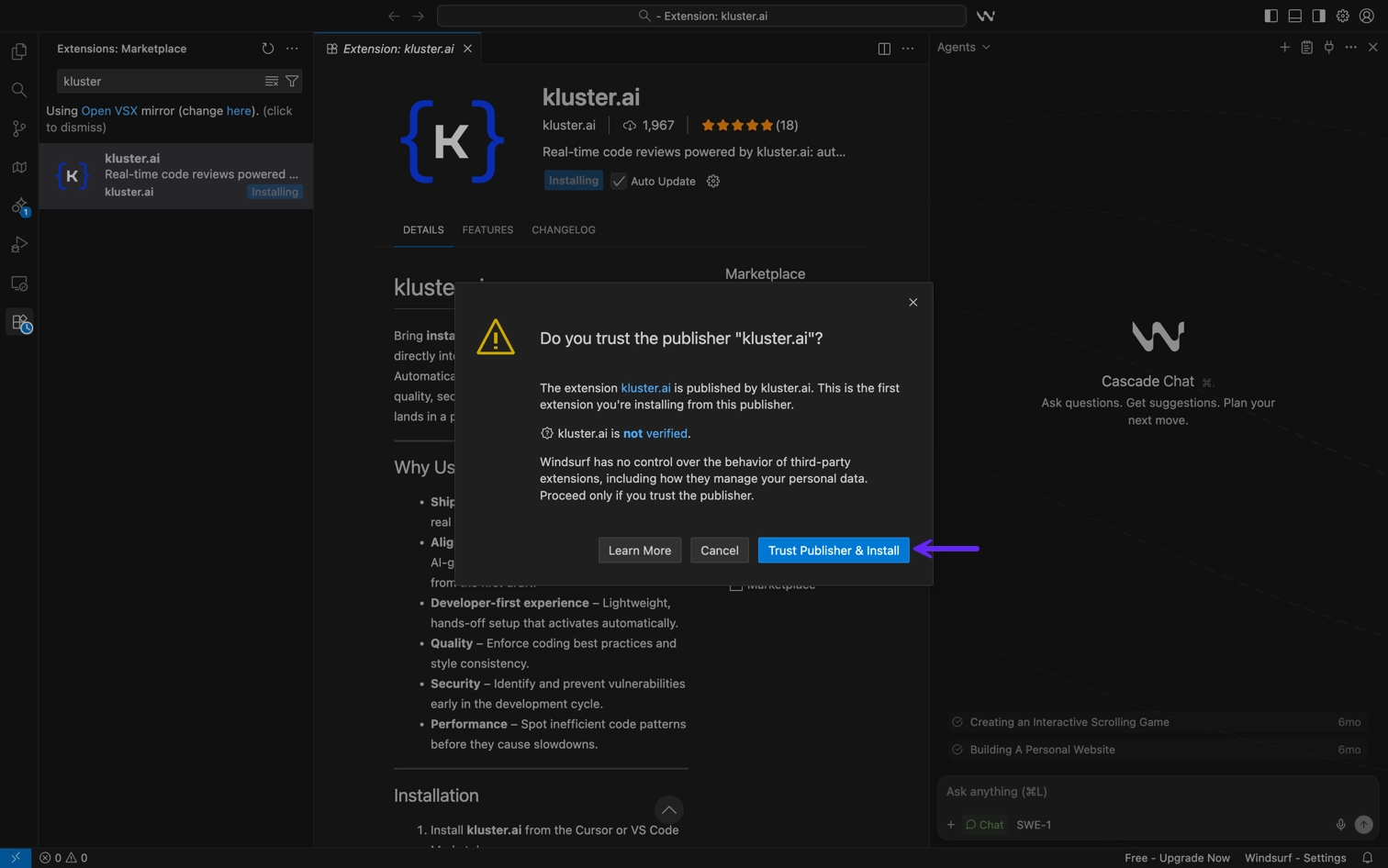
Select Trust Publisher & Install.


Now that the extension is installed, you need to log in with your kluster.ai account:
- Click on Sign in in the bottom left corner.
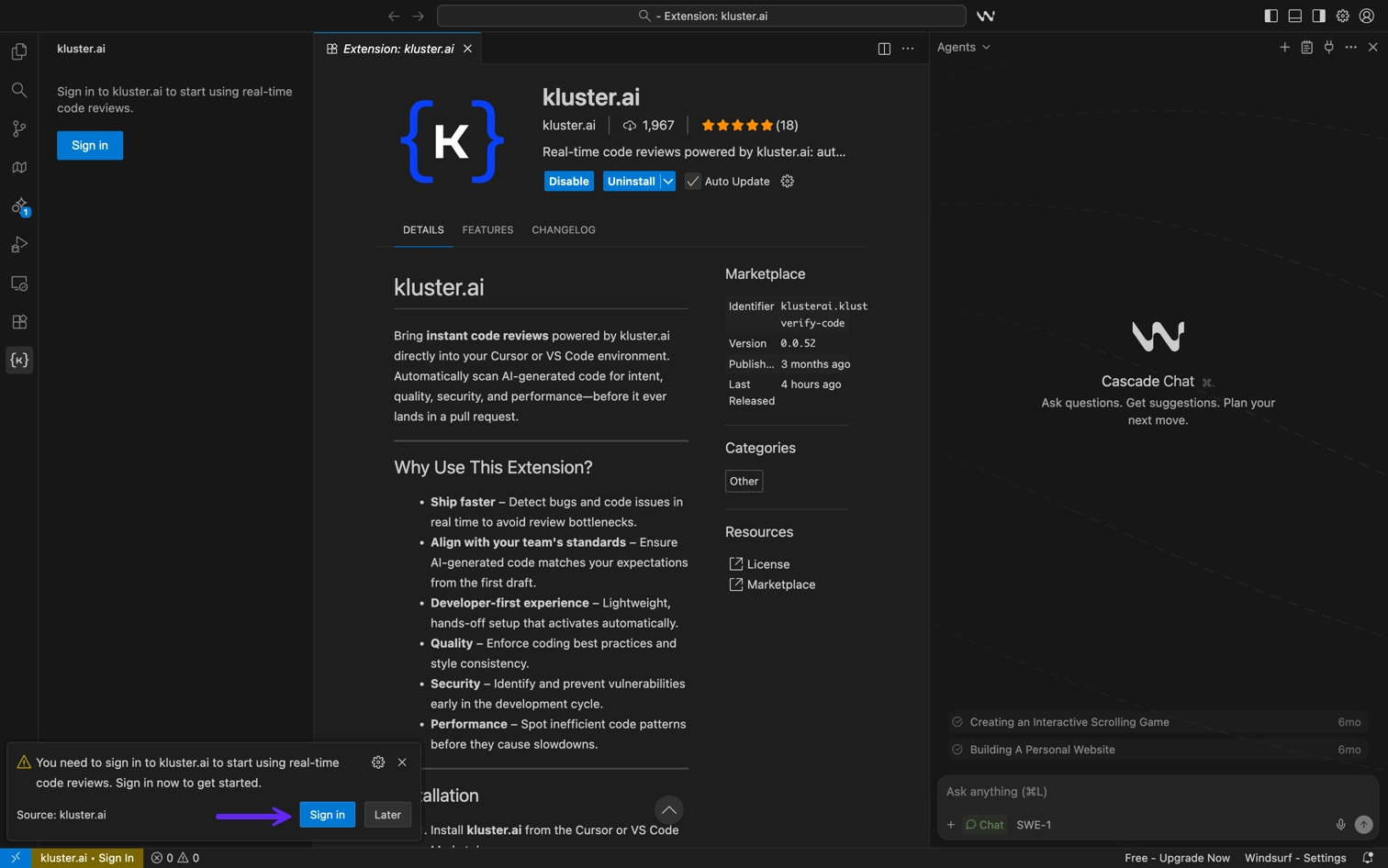
- Choose Open. A browser pop-up window will take you to your kluster.ai account.
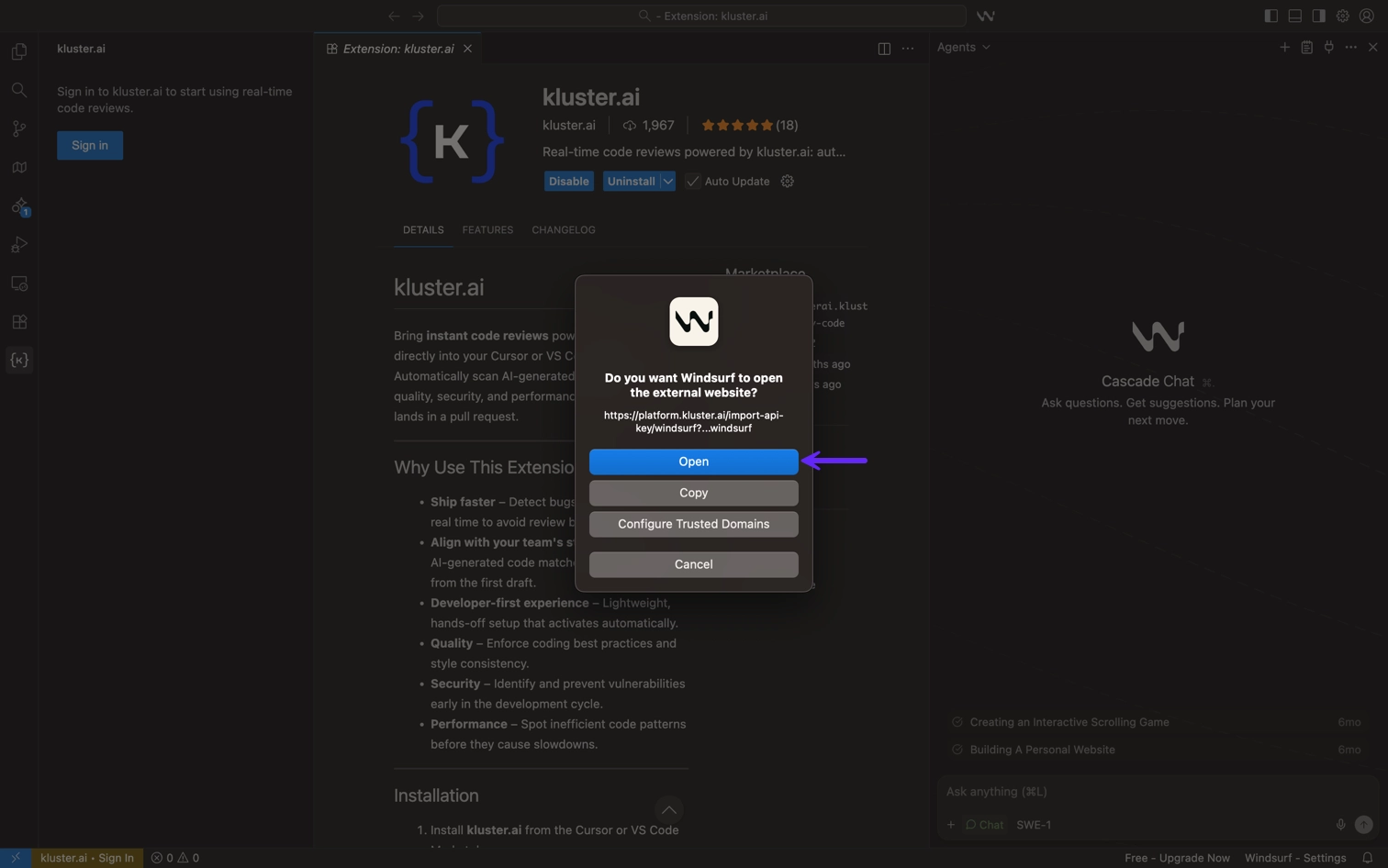
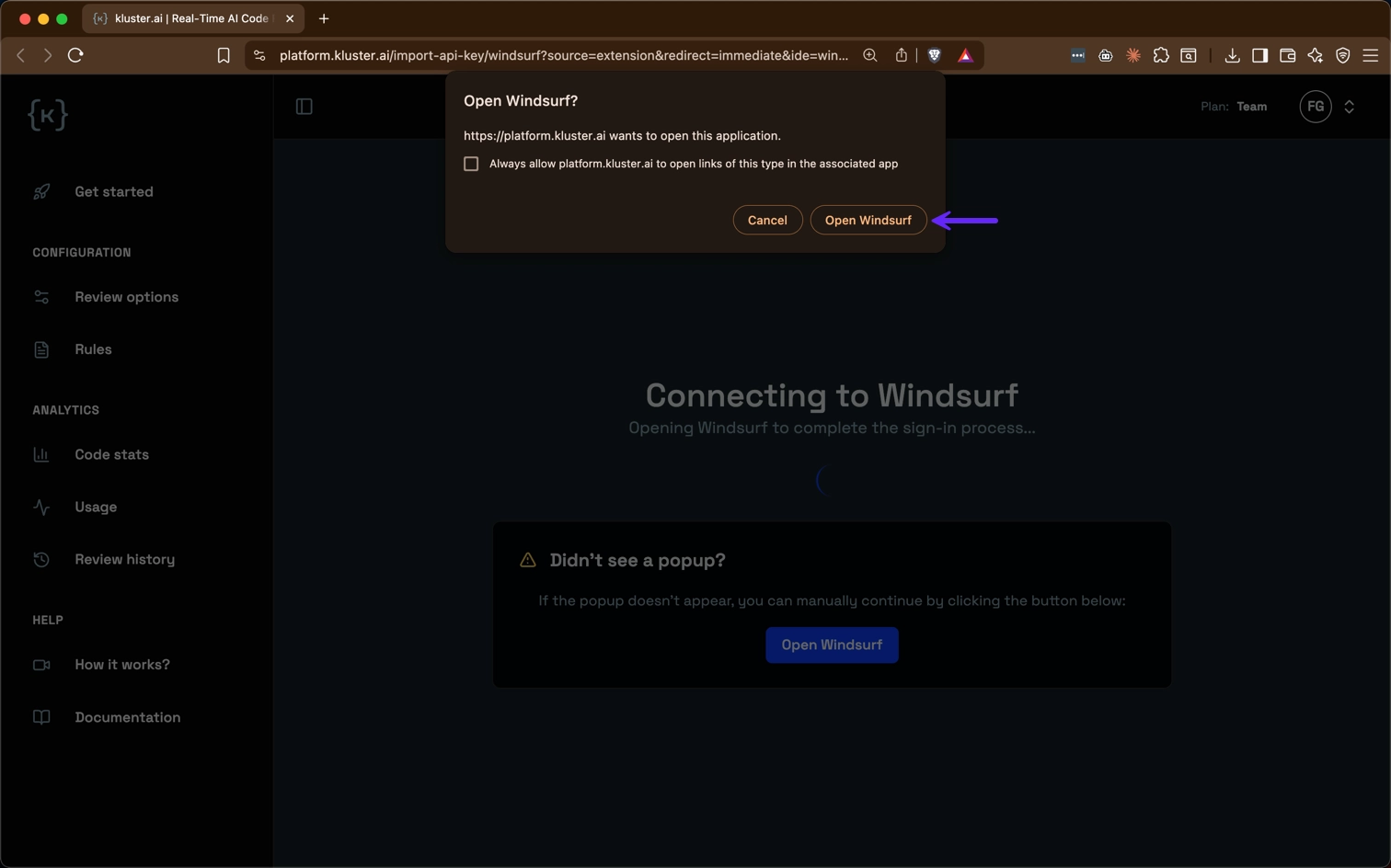
- Click Open Windsurf.
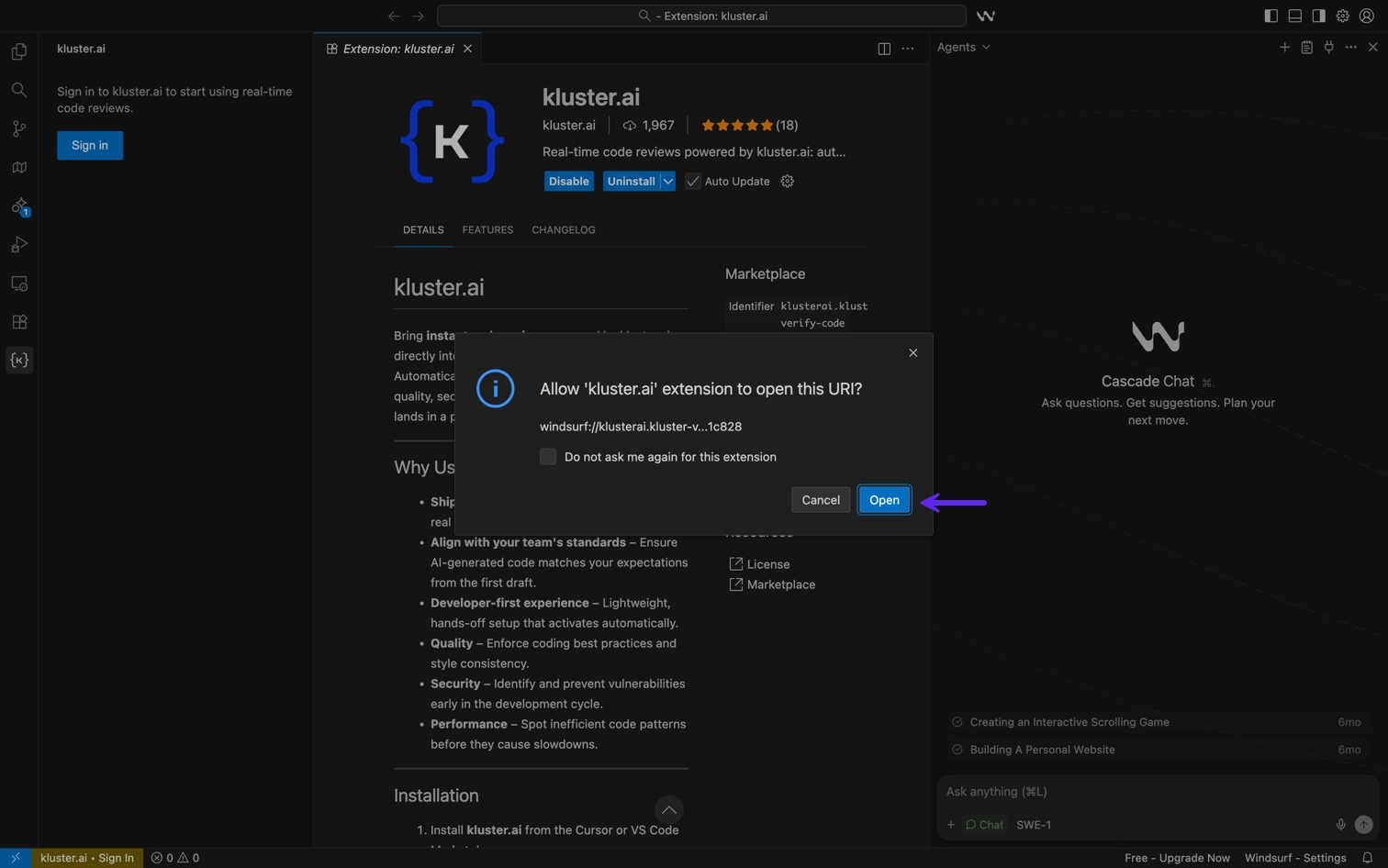
- Click Open to install the MCP with your kluster.ai API key.


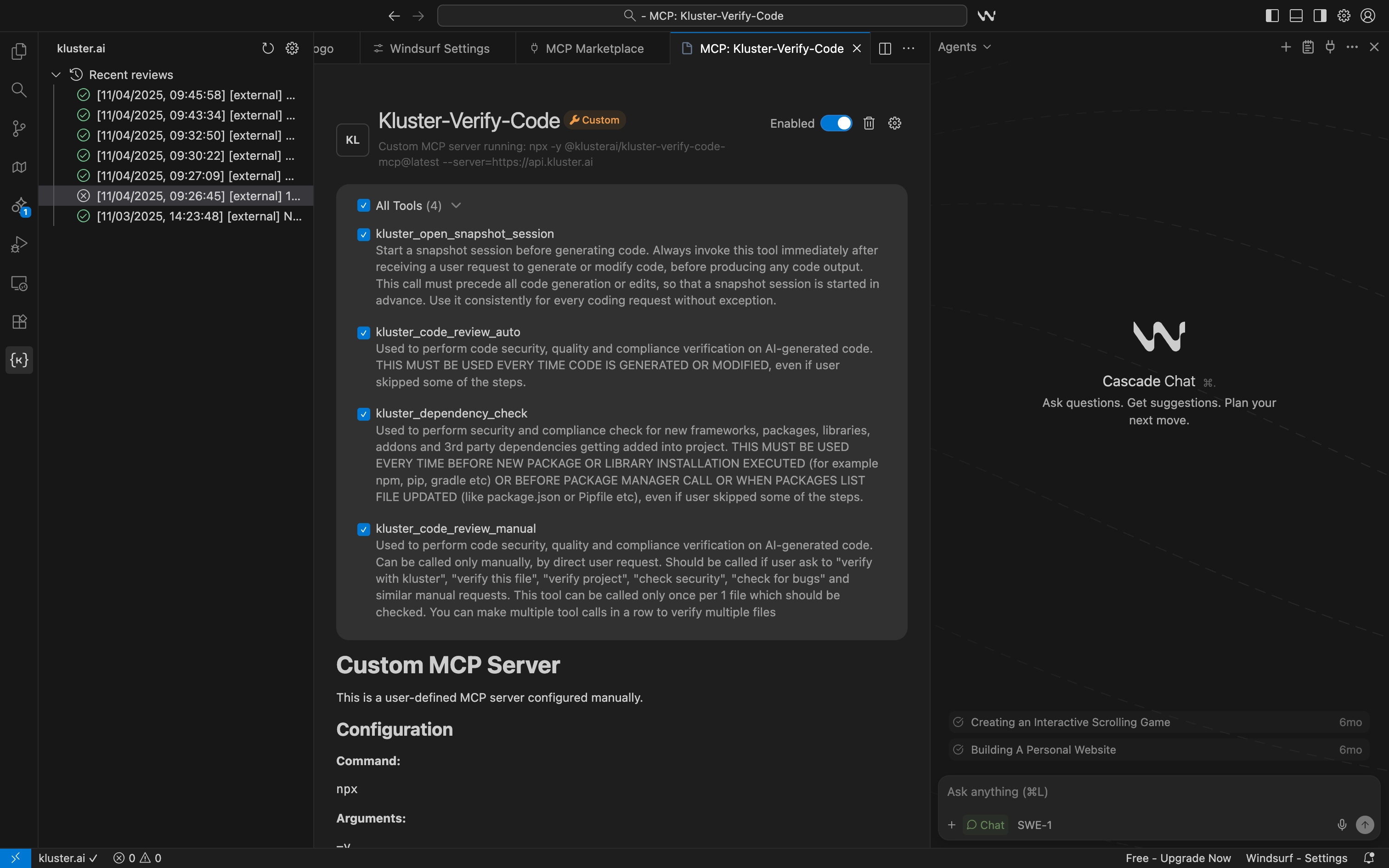
Once installed, verify the setup:
- Navigate to Options → Windsurf Settings → MCP Servers → Open MCP Marketplace.
- You should see Kluster-Verify-Code with all tools enabled.

Terminal installation
Log in to the kluster.ai platform, and copy the Claude Code configuration snippet. This will include your API key.
The command is similar to:
curl -s https://platform.kluster.ai/install-kluster-mcp-claude-code.sh | bash -s YOUR_API_KEY
This command will:
- Download the kluster.ai MCP server.
- Configure Claude Code settings.
- Set up your API key.
- Enable all review tools.
franzuzz@MacBook-Pro-de-Jean mcp-demo % curl -s https://platform.kluster.ai/install-kluster-mcp-claude-code.sh | bash -s YOUR_API_KEY Installing Kluster.ai server... ✅ Installation complete! Restart Claude Code to apply the new rules Happy {K}oding ;)
Once installed, verify the setup:
- Run the
/mcpcommand in Claude Code.
claude /mcp ✨ Welcome to Claude Code! /help for help, /status for your current setup cwd: /Users/franzuzz/code/demos/claude-code/mcp-demo Tips for getting started: Ask Claude to create a new app or clone a repository Use Claude to help with file analysis, editing, bash commands and git Be as specific as you would with another engineer for the best results ✔ Run /terminal-setup to set up terminal integration
/mcp Manage MCP servers 1. kluster-verify ✔ connected • Enter to view details MCP Config locations (by scope): • User config: /Users/franzuzz/.claude.json • Project config (shared via .mcp.json): /Users/franzuzz/code/demos/claude-code/mcp-demo/.mcp.json (file does not exist) • Local config (private to this project): /Users/franzuzz/.claude.json [project: /Users/franzuzz/code/demos/claude-code/mcp-demo] For help configuring MCP servers, see: https://docs.anthropic.com/en/docs/claude-code/mcp - Select kluster-code-reviews in the MCP menu list and press enter to View tools.
Kluster-verify MCP Server Status: ✔ connected Command: npx Args: -y @klusterai/kluster-verify-code-mcp@latest Config location: /Users/franzuzz/.claude.json Capabilities: tools Tools: 3 tools 1. View tools 2. Reconnect - Select View tools to see the tools for kluster-code-reviews listed, including:
kluster_code_review_auto: Automatic code security, quality, and compliance verification.kluster_dependency_validator: Dependency health and risk validation.kluster_code_review_manual: On-demand, user-requested per-file verification (security, quality, compliance).
Tools for kluster-verify (3 tools) 1. kluster_code_review_auto 2. kluster_dependency_validator 3. kluster_code_review_manual

Terminal installation
Log in to the kluster.ai platform, and copy the Codex CLI configuration snippet. This will include your API key.
Run this command to install and configure kluster.ai for Codex CLI:
npx -y @klusterai/ide-installer YOUR_API_KEY codex
This command will:
- Download the kluster.ai MCP server.
- Configure Codex CLI settings.
- Set up your API key.
- Enable all review tools (auto, manual, and dependency check).
npx -y @klusterai/ide-installer YOUR_API_KEY codex 🔧 Installing Kluster.ai server... ✅ Installation complete! Restart Codex CLI to apply the new rules Happy {k}oding ;)
You can verify successful installation with the following command:
codex /tools ╭───────────────────────────────────────────╮ │ >_ OpenAI Codex (v0.50.0) │ │ │ │ model: gpt-5-codex /model to change │ │ directory: ~/workspace/codex │ ╰───────────────────────────────────────────╯
› /tools
• Available tools right now:
- shell: run terminal commands via execvp (use ["bash","-lc", "..."] and set workdir). - list_mcp_resources, list_mcp_resource_templates, read_mcp_resource: browse/ read context shared by MCP servers. - update_plan: maintain a task plan (skip for very simple tasks, never single- step). - apply_patch: edit files via unified diff patches. - view_image: attach a local image into the conversation. - Kluster verification tools (mandatory after any code change): - mcp__kluster-verify__kluster_code_review_auto - mcp__kluster-verify__kluster_code_review_manual (manual review when explicitly requested) - mcp__kluster-verify__kluster_dependency_check (before dependency operations)
Upon successful installation, all kluster review tools will appear in the tools list, including auto, manual, and dependency check.

Next steps#
- Cursor example: See a real-world case study using Cursor.
- VS-Code example: See a real-world case study using VS-Code.