Cloud asset inventory - Microsoft Defender for Cloud (original) (raw)
The asset inventory page of Microsoft Defender for Cloud shows the security posture of your connected resources. It gives you one view of cloud infrastructure across Azure, Amazon Web Services (AWS), and Google Cloud Platform (GCP). It groups assets by workload, criticality, and coverage status. It also combines health data, device actions, and risk signals in one place.
Defender for Cloud periodically analyzes the security state of connected resources. When resources have active security recommendations or security alerts, they appear in the inventory.
Access asset inventory in the Azure portal
In the Azure portal, navigate to Microsoft Defender for Cloud > Inventory.
The Inventory page provides information about:
- Connected resources. Quickly see which resources are connected to Defender for Cloud.
- Overall security state: Get a clear summary about the security state of connected Azure, AWS, and GCP resources, including the total resources connected to Defender for Cloud, resources by environment, and a count of unhealthy resources.
- Recommendations, alerts: Drill down into the state of specific resources to see active security recommendations and security alerts for a resource.
- Risk prioritization: Risk-based recommendations assign risk levels to recommendations, based on factors such as data sensitivity, internet exposure, lateral movement potential, and potential attack paths.
- Risk prioritization is available when the Defender CSPM plan is enabled.
- Software. You can review resources by installed applications. To take advantage of the software inventory, either the Defender Cloud Security Posture Management (CSPM) plan, or a Defender for Servers plan must be enabled.
The Inventory uses Azure Resource Graph (ARG) to query and retrieve data at scale. For deep custom insights, you can use KQL to query the inventory.
Review the inventory
- In Defender for Cloud in the Azure portal, select Inventory. By default the resources are sorted by the number of active security recommendations.
- Review the available settings:
- In Search, you can use a free text search to find resources.
- Total resources displays the number of resources connected to Defender for Cloud.
- Unhealthy resources displays the number of resources with active security recommendations and alerts.
- Resource count by environment: Total of Azure, AWS, and GCP resources.
- Select a resource to drill down for details.
- On the Resource Health page for the resource, review information about the resource.
- The Recommendations tab shows any active security recommendations, in order of risk. You can drill down into each recommendation for more details and remediation options.
- The Alerts tab shows any relevant security alerts.
Review software inventory

To review software inventory details:
- Select Installed application.
- In Value, select the apps to filter on.
- Total resources: The total number of resources connected to Defender for Cloud.
- Unhealthy resources: Resources with active security recommendations that you can implement. For remediation guidance, see Review security recommendations.
- Resource count by environment: The number of resources in each environment.
- Unregistered subscriptions: Any subscription in the selected scope that hasn't yet been connected to Microsoft Defender for Cloud.
- Resources connected to Defender for Cloud that run those apps are displayed. Blank options show machines where Defender for Servers or Defender for Endpoint isn't available.
Filter the inventory
As soon as you apply filters, the summary values are updated to relate to the query results.
Export tools
Download CSV report - Export the results of your selected filter options to a CSV file.
Open query - Export the query itself to Azure Resource Graph (ARG) to further refine, save, or modify the Kusto Query Language (KQL) query.
How does asset inventory work?
In addition to the predefined filters, you can explore the software inventory data from Resource Graph Explorer.
ARG is designed to provide efficient resource exploration with the ability to query at scale.
You can use Kusto Query Language (KQL) in the asset inventory to quickly produce deep insights by cross-referencing Defender for Cloud data with other resource properties.
How to use asset inventory
To work with filters and query options in asset inventory:
- From Defender for Cloud's sidebar, select Inventory.
- Use the Filter by name box to display a specific resource, or use the filters to focus on specific resources.
By default, the resources are sorted by the number of active security recommendations.
Important
The options in each filter are specific to the resources in the currently selected subscriptions and your selections in the other filters.
For example, if you've selected only one subscription, and the subscription has no resources with outstanding security recommendations to remediate (0 unhealthy resources), the Recommendations filter will have no options. - To use the Security findings filter, enter free text from the ID, security check, or CVE name of a vulnerability finding to filter to the affected resources:

Tip
The Security findings and Tags filters only accept a single value. To filter by more than one, use Add filters. - To view the current selected filter options as a query in Resource Graph Explorer, select Open query.
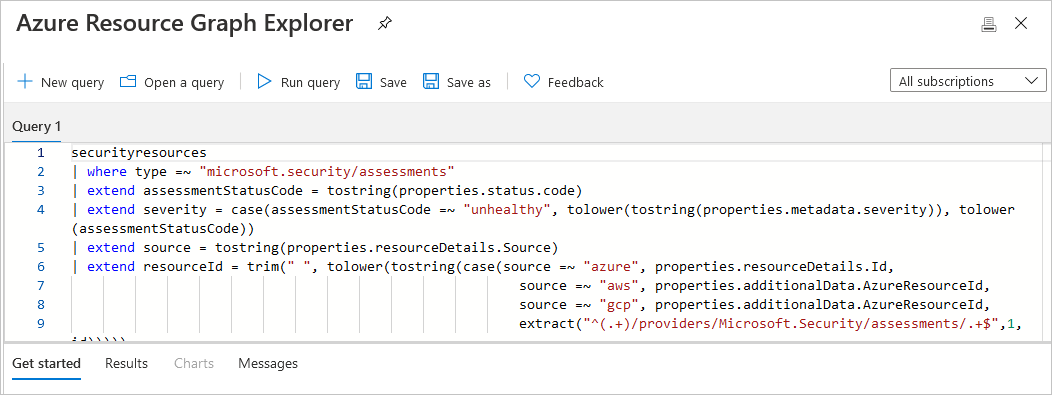
- If you defined some filters and left the page open, Defender for Cloud doesn't update the results automatically. Any changes to resources won't affect the displayed results unless you manually reload the page or select Refresh.


Export the inventory
To export filtered inventory data:
- To save filtered inventory in CSV form, select Download CSV report.
- To save a query in Resource Graph Explorer, select Open a query. When you're ready to save a query, select Save as. In Save query, specify a query name, description, and whether the query is private or shared.
Changes made to resources won't affect the displayed results unless you manually reload the page or select Refresh.
Access a software inventory
To access the software inventory, you need one of the following plans:
- Agentless machine scanning from Defender Cloud Security Posture Management (CSPM).
- Agentless machine scanning from Defender for Servers P2.
- Microsoft Defender for Endpoint integration from Defender for Servers.
Examples using Azure Resource Graph Explorer to access and explore software inventory data
To query software inventory data in Azure Resource Graph Explorer:
- Open Azure Resource Graph Explorer.

- Select the following subscription scope: securityresources/softwareinventories
- Enter any of the following queries (or customize them or write your own!) and select Run query.
Query examples
To generate a basic list of installed software:
securityresources
| where type == "microsoft.security/softwareinventories"
| project id, Vendor=properties.vendor, Software=properties.softwareName, Version=properties.version
To filter by version numbers:
securityresources
| where type == "microsoft.security/softwareinventories"
| project id, Vendor=properties.vendor, Software=properties.softwareName, Version=tostring(properties.    version)
| where Software=="windows_server_2019" and parse_version(Version)<=parse_version("10.0.17763.1999")
To find machines with a combination of software products:
securityresources
| where type == "microsoft.security/softwareinventories"
| extend vmId = properties.azureVmId
| where properties.softwareName == "apache_http_server" or properties.softwareName == "mysql"
| summarize count() by tostring(vmId)
| where count_ > 1
To combine a software product with another security recommendation:
(In this example: machines that have MySQL installed and exposed management ports.)
securityresources
| where type == "microsoft.security/softwareinventories"
| extend vmId = tolower(properties.azureVmId)
| where properties.softwareName == "mysql"
| join (
    securityresources
| where type == "microsoft.security/assessments"
| where properties.displayName == "Management ports should be closed on your virtual machines" and properties.status.code == "Unhealthy"
| extend vmId = tolower(properties.resourceDetails.Id)
) on vmId
Next steps
- Review security recommendations
- Manage and respond to security alerts
- Continuous export - Export security data to SIEM, SOAR, or other tools
- Create custom security dashboards with Azure Workbooks
- Enable Defender for Cloud plans
- Connect AWS accounts
- Connect GCP projects
This article describes how to use the unified cloud asset inventory in Microsoft Defender for Cloud within the Microsoft Defender XDR portal to manage and monitor your multicloud infrastructure.
Overview
The cloud asset inventory gives you one view of cloud infrastructure across Azure, Amazon Web Services (AWS), and Google Cloud Platform (GCP). It groups assets by workload, criticality, and coverage status. It also combines health data, device actions, and risk signals in one interface.

Key capabilities
Unified multicloud visibility
- Comprehensive coverage: View assets across Azure, AWS, GCP, and other supported platforms.
- Consistent interface: Use one interface to manage multicloud assets.
- Real-time synchronization: See current asset data from connected cloud environments.
- Cross-platform relationships: Review dependencies across cloud providers.
Workload-specific insights
The inventory is organized by workload types, each providing tailored visibility and data:
- Virtual Machines: Compute instances across cloud providers with security posture and vulnerability data
- Data Resources: Databases, storage accounts, and data services with compliance and exposure insights
- Containers: Kubernetes clusters, container instances, and container registries with security scanning results
- AI and ML services: Artificial intelligence (AI) and machine learning (ML) resources with governance and security context.
- APIs: Representational State Transfer (REST) application programming interfaces (APIs), serverless functions, and integration services with exposure analysis.
- DevOps resources: Continuous integration and continuous deployment (CI/CD) pipelines, repositories, and development tools with security insights.
- Identity Resources: Service accounts, managed identities, and access control components
- Serverless: Functions, logic apps, and event-driven compute resources
Advanced filtering and scoping
- Persistent scoping: Use cloud scopes for consistent filtering across experiences.
- Multi-dimensional filtering: Filter by environment, workload, risk level, and compliance status.
- Search capabilities: Find assets quickly with built-in search.
- Saved views: Save filtered views for repeated operational tasks.
Asset criticality classification
Assets are automatically classified based on:
- Business impact: Determined by asset type, dependencies, and organizational importance
- Security posture: Based on configuration, vulnerabilities, and compliance status
- Risk factors: Including exposure to internet, data sensitivity, and access patterns
- Custom classifications: User-defined criticality rules and manual overrides
Coverage status indicators
Each asset displays coverage information:
- Protected: Full Defender for Cloud protection enabled
- Partial: Some security features enabled, others available for upgrade
- Unprotected: No Defender for Cloud protection, requires onboarding
- Excluded: Explicitly excluded from monitoring or protection
Health and risk signals
Integrated risk indicators provide comprehensive asset context:
- Security alerts: Active security incidents and threat detections
- Vulnerabilities: Known security weaknesses and required patches
- Compliance status: Regulatory and policy compliance assessment
- Exposure metrics: Internet accessibility, privileged access, and attack surface data
Navigation and filtering
Accessing the cloud inventory
To open the cloud inventory in the Microsoft Defender portal:
- Navigate to the Microsoft Defender portal
- Select Assets > Cloud from the main navigation
- Use workload-specific tabs for focused views:
- All Assets: Comprehensive view across all workload types
- VMs: Virtual machine-specific inventory and insights
- Data: Data resources including databases and storage
- Containers: Container and Kubernetes resources
- AI: Artificial intelligence and machine learning services
- API: APIs and integration services
- DevOps: Development and deployment pipeline resources
- Identity: Identity and access management components
- Serverless: Function and event-driven compute resources
Using filters effectively
- Environment filtering: Select specific cloud providers or view all environments.
- Scope filtering: Apply cloud scopes to match organizational boundaries.
- Risk-based filtering: Focus on high-risk or exposed assets.
- Workload filtering: Narrow results to specific cloud resource types.
- Status filtering: Filter by protection status, compliance state, or health indicators.
Search and discovery
- Text search: Find assets by name, resource ID, or metadata.
- Tag-based search: Locate assets by cloud provider tags and labels.
- Advanced queries: Combine filters for precise asset discovery.
- Export capabilities: Export filtered results for reporting and analysis.
Asset details and insights
Comprehensive asset information
Each asset provides detailed information including:
- Basic metadata: Resource names, IDs, locations, and creation times.
- Configuration details: Current settings, policies, and applied configurations.
- Security posture: Compliance status, vulnerability assessments, and security recommendations.
- Risk assessment: Exposure analysis, threat intelligence, and risk scores.
- Relationships: Dependencies, connections, and related resources.
Security recommendations integration
Assets link directly to relevant security recommendations:
- Configuration improvements: Fix misconfigurations and improve hardening.
- Vulnerability remediation: Prioritize patching and security updates.
- Access control: Improve identity and permissions settings.
- Network security: Improve firewall rules, segmentation, and exposure controls.
Incident response workflows
The inventory supports security operations through:
- Alert correlation: Link alerts to specific assets for faster investigation.
- Response actions: Open remediation workflows directly from asset context.
- Forensics support: Use detailed asset context during incident analysis.
- Automation integration: Use API access for orchestration and automated response.
Integration with Exposure Management
Attack path visualization
Assets in the inventory integrate with attack path analysis:
- Path participation: See which attack paths include specific assets.
- Choke point identification: Highlight assets that are key convergence points.
- Target classification: Identify common attack targets.
- Entry point analysis: Identify assets that can provide initial access paths.
Critical asset management
The inventory supports critical asset workflows:
- Automatic classification: Assets can be marked critical by predefined rules.
- Manual designation: Security teams can manually mark assets as critical.
- Criticality inheritance: Asset relationships can affect criticality classifications.
- Protection prioritization: Critical assets get enhanced monitoring and protection.
Vulnerability management integration
Cloud assets connect seamlessly with vulnerability management:
- Unified vulnerability view: See cloud and endpoint vulnerabilities in one dashboard.
- Risk-based prioritization: Prioritize vulnerabilities by asset context and business impact.
- Remediation tracking: Track remediation progress across cloud environments.
- Compliance reporting: Generate reports that include cloud and endpoint data.
Reporting and analytics
Built-in reporting
- Coverage reports: Assess Defender for Cloud deployment across your cloud estate.
- Risk assessments: Review risk across multicloud environments.
- Compliance dashboards: Track regulatory compliance status across cloud assets.
- Trend analysis: Monitor security posture changes over time.
Custom analytics
- Advanced hunting: Query cloud asset data by using Kusto Query Language (KQL).
- API access: Access inventory data programmatically for custom reports and integrations.
- Export capabilities: Export asset data in multiple formats for external analysis.
- Dashboard integration: Build custom dashboards by using cloud asset inventory data.
Limitations and considerations
Current limitations
- Real-time updates: Some asset changes can take time to appear in inventory.
- Historical data: Historical asset data can be limited during early rollout.
Performance considerations
- Large environments: Filtering and scoping improve performance in environments with many assets.
- Refresh rates: Asset data refreshes periodically. For real-time checks, use the cloud provider console.
- Network dependencies: Inventory features require reliable connectivity to cloud provider application programming interfaces (APIs).
Scoping limitations
Some assets may appear outside defined cloud scopes:
- Cross-scope dependencies: Assets with relationships that span multiple scopes.
- Floating assets: Some asset types don't support fine-grained scoping.
- Inherited permissions: Assets that inherit permissions from parent resources outside the scope.
Best practices
Inventory management
- Regular reviews: Review inventory regularly for accuracy and completeness.
- Tagging strategy: Use consistent tags across cloud environments for better organization.
- Scope configuration: Configure cloud scopes to match your organization.
- Filter optimization: Save useful filter combinations for daily tasks.
Security operations
- Critical asset focus: Prioritize monitoring and protection for business-critical assets.
- Risk-based approach: Use risk indicators to guide security focus and resource allocation.
- Integration workflows: Use inventory data in incident response and vulnerability workflows.
- Automation opportunities: Identify repetitive tasks to automate by using inventory APIs.
Review the inventory
- In the Microsoft Defender portal, navigate to Assets > Cloud.
- Review the unified cloud assets overview:
- Total resources across all connected cloud environments
- Security posture summary showing healthy vs. unhealthy resources
- Coverage metrics indicating Defender for Cloud protection status
- Risk distribution showing assets by risk level
- Use workload-specific tabs to focus on particular asset types:
- Select VMs for virtual machines and compute instances
- Select Data for databases and storage resources
- Select Containers for Kubernetes and container-related assets
- Select AI for AI and machine learning workloads
- Select API for API management and endpoints
- Select DevOps for development pipeline resources
- Select Identity for identity and access management assets
- Select Serverless for functions and serverless compute
- Apply the global scope filter to focus on specific cloud scopes or organizational boundaries
- Select an asset to view detailed information:
- Security recommendations prioritized by risk level
- Security alerts with threat detection insights
- Attack path involvement showing participation in potential attack scenarios
- Compliance status against security standards
- Risk factors including internet exposure and lateral movement potential