How To Use Choice Eliminator for Google Forms™ (original) (raw)
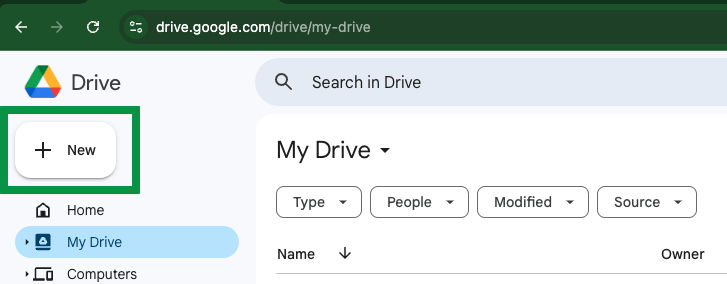
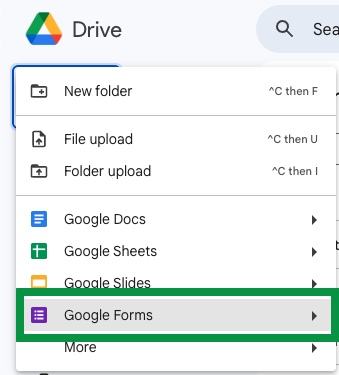
2. Install the Add-on:
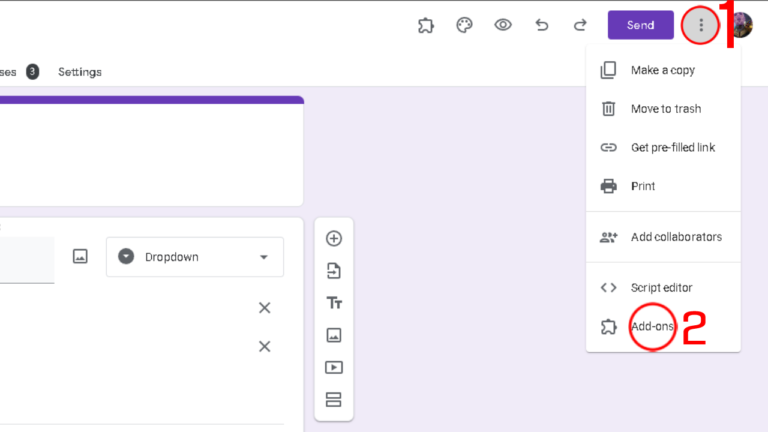
- In your open Google Form, click the three dots (⁝) at the top right corner.
- Select Add-ons from the drop-down menu.
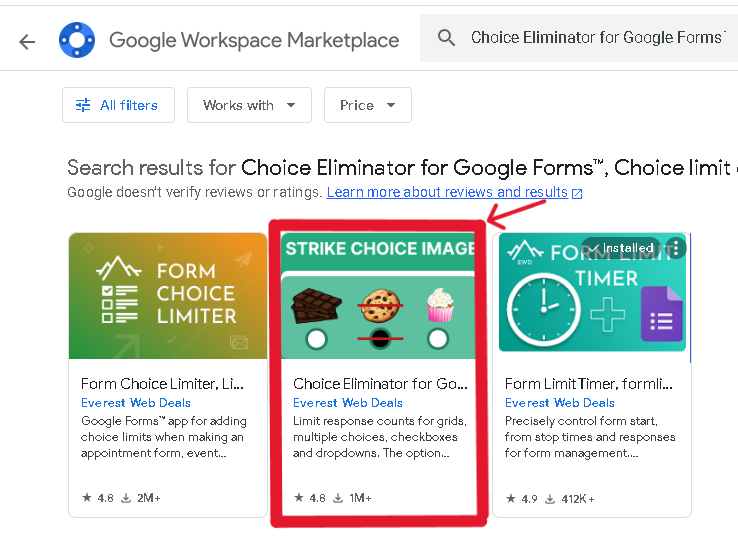
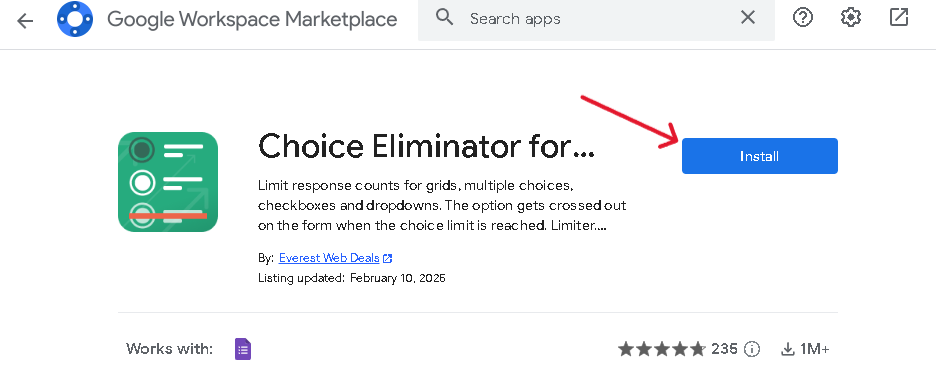
- This will open the Google Workspace Marketplace. In the search bar at the top, type the name of the add-on you want to install (e.g., “Choice Eliminator for Google Forms”).
- Click on the add-on that appears in the search results.
- A window will pop up asking for permission to install the add-on. Click Install.
- If prompted, choose your Google account and grant the necessary permissions for the add-on to work with your Google Form.
3. Launch the Add-on:
- Open your form and launch the add-on from the menu.
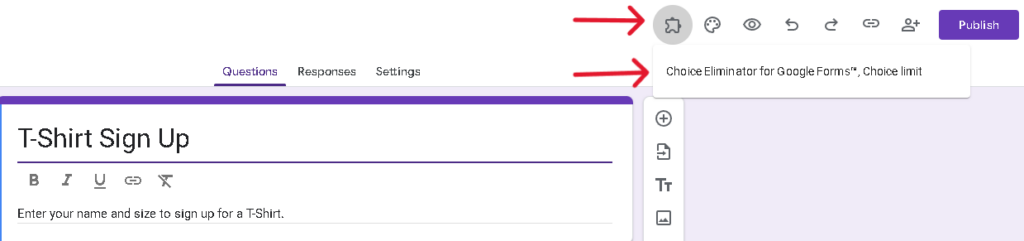
- Note: The add-on uses a special URL (e.g.,
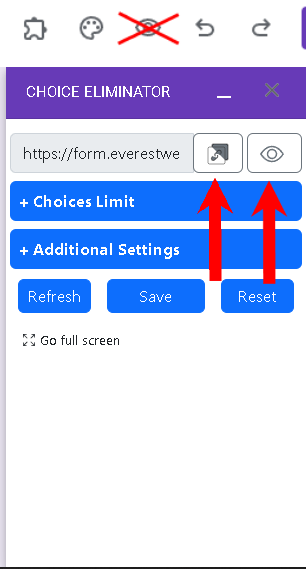
https://form.everestwebdeals.co/?form=your_form_special_id) instead of the standard Google Form URL. - Copy the URL: Click the “copy icon.”
- Preview the Form: Click the “eye icon” to open the form in a new tab.
- Copy the URL: Click the “copy icon.”
4. Configuring the Add-on
Managing Response Counts:
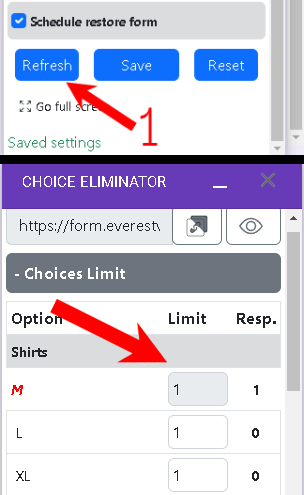
- Refresh: Click the “Refresh” button to update the current response counts for your choices.
- Save: Click the “Save” button to apply any changes and update counts.
5 .Setting Choice Limits:
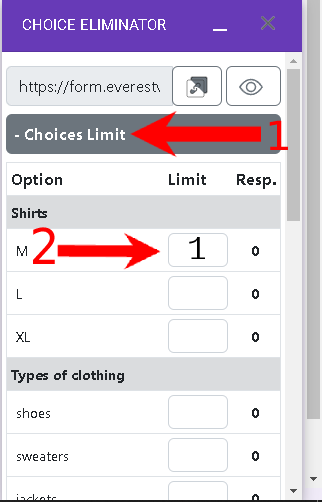
- Individual Limits:
Under the “Choice Limit” section, enter a number next to each option to set its limit.
Tip: Leave an option blank for unlimited responses.
- Uniform Limit:
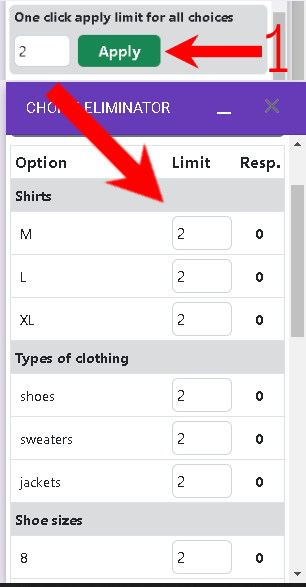
Use the “One-click apply limit for all choices” box to set the same limit for every option. Then, click “Apply” and “Save.”
6.Notification & Sign-In Settings:
- Email Notifications:
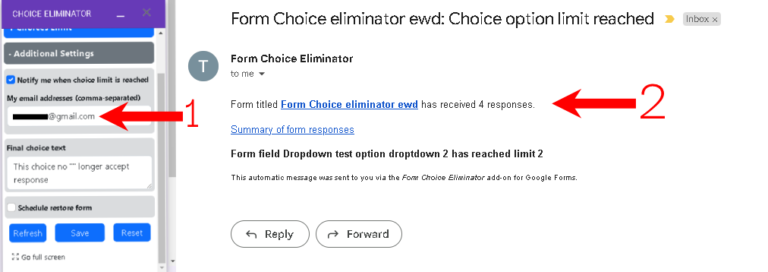
Check “Notify me when choice limit is reached” and enter your email(s) (separated by commas) to receive alerts when an option hits its limit. - Sign-in Requirement:
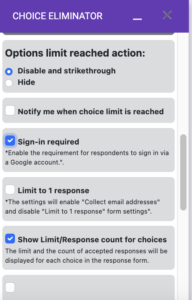
Enable “Sign-in required” if you want respondents to sign in before they can submit the form.
7. Display & Closure Options:
- Options Limit reached action. If choice reached limit you can:
1. Disabled and strikethrough choice option in form
2. Hide – remove choices in form - Notify me when choice limit is reached. The add-on admin user can add an email to notify when the limit is reached.
- Limit to 1 required. The responder can only ones submit the form.
- Show Limit/response count for choices to display the number of responses and the set limit next to each option.
- Options Limit reached action. If choice reached limit you can:
8. Advanced Sharing & QR Code:
- Restrict Access:
Use “Allow external sharing with only trusted domains” to limit access to users from specific email addresses or domains. - QR Code Sharing:
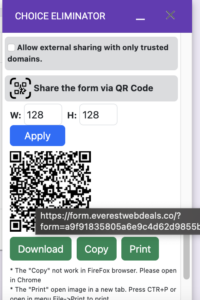
Generate a QR code for your form by clicking the “Share the form via QR code” option. You can download, copy, or print it for easy sharing.
9. Scheduling Resets:
Please be careful, if you click on the “Reset” button all response data will be deleted and you never will recover it.
10. Scheduling Resets**:**
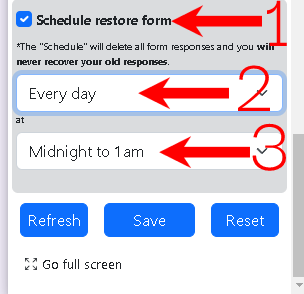
- Please be careful. The “Schedule” will delete all form responses, and you will not be able to recover your old responses.
11. Previewing Your Form:
Important: Do not use the Google Forms’ preview button (top right). Instead, use the preview option provided in the add-on or click the special URL’s preview (“eye icon”). For a full-screen view, click the “Go full screen” button at the bottom.
12. Final Steps & Monitoring
- Saving Your Configuration:
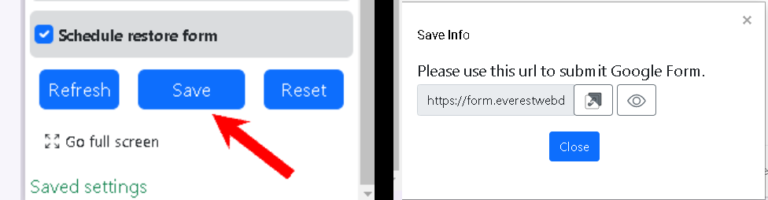
Once you have set up all desired options, click “Save”. A small window will appear, providing the special form link and another preview option.
- Checking Response Counts:
Click “Refresh” periodically to update the response counts and monitor which options are reaching their limits. - Resetting Data (Use with Caution):
If needed, click “Reset” to delete all responses. A confirmation window will appear—confirm only if you are sure, as this action cannot be undone.
Our other Google add-ons:
- Form Choice Limiter, Eliminator, Limit, Removal
- GPT plus Google Docs™, ChatGPT, OpenAI, Chat GPT
- Choice Eliminator for Google Forms™, Choice limit
- GPT Quiz Generator for Forms™, Chat GPT test
- Form Response Limit, FormLimiter, Form Start/Stop
- Form Field Limit
- Document File Generator
- Function By Color