Get started with AdMob in your iOS project | Firebase with Google AdMob (original) (raw)
This quickstart guide is for publishers and developers who want to use AdMobto monetize an app that's built with Firebase. If you don't plan to include Firebase in your app, visit thestandalone AdMobguide instead.
If you haven't yet, learn about all thebenefits of using AdMob, Firebase, and Google Analytics together.
Before you begin
- If you don't already have a Firebase project and a Firebase app, follow the Firebase getting started guide:Add Firebase to your iOS project.
- Make sure that Google Analytics is enabled in your Firebase project:
- If you're creating a new Firebase project, enable Google Analyticsduring the project creation workflow.
- If you have an existing Firebase project that doesn't haveGoogle Analytics enabled, you can enable Google Analytics from theIntegrationstab of your >Project settings.
Step 1: Set up your app in your AdMob account
- Register your app as an AdMob app.
- Sign into orsign up for anAdMob account.
- Register your app withAdMob. This step creates an AdMob app with a unique AdMobApp IDthat you'll need later in this guide.
You'll be asked to add the Mobile Ads SDK to your app. Find detailed instructions for this task later in this guide.
- Link your AdMob app to your Firebase app.
This step is optional but strongly recommended. Learn more about thebenefitsof enabling user metrics and linking your AdMob app to Firebase.
Complete the following two steps in the Apps dashboard of your AdMobaccount:- Enable_User Metrics_to allow AdMob to process and display curated analytics data in yourAdMob account. It's also a required setting for you to link yourAdMob app to Firebase.
- Link yourAdMob appto your existing Firebase project and Firebase app.
Make sure that you enter the same bundle ID as you entered for your Firebase app. Find your Firebase app's bundle ID in the Your apps card of your >Project settings.
Step 2: Add your AdMob App ID to your Info.plist file
In your app's Info.plist file, add a GADApplicationIdentifier key with a string value of yourAdMob App ID.
You can make this change programmatically:
GADApplicationIdentifier ADMOB_APP_ID
Or, edit it in the property list editor:

Step 3: Add and initialize the Mobile Ads SDK
- Add the dependency for the Google Mobile Ads SDK to your project's Podfile:
pod 'Google-Mobile-Ads-SDK' - Before loading ads, call the
startWithCompletionHandler:method on theGADMobileAds.sharedInstance.
This call initializes the SDK and calls back a completion handler once initialization is complete (or after a 30-second timeout). Call this method only once and as early as possible, ideally at app launch but after initializing Firebase.
Here's an example of how to call thestartWithCompletionHandler:method in yourAppDelegate:
Swift
import Firebase
import GoogleMobileAds
...
@UIApplicationMain
class AppDelegate: UIResponder, UIApplicationDelegate {
  var window: UIWindow?
  func application(_ application: UIApplication,
      didFinishLaunchingWithOptions launchOptions: [UIApplicationLaunchOptionsKey: Any]?) -> Bool {
    // Use Firebase library to configure APIs.
    FirebaseApp.configure()
    // Initialize the Google Mobile Ads SDK.
    GADMobileAds.sharedInstance().start(completionHandler: nil)
    return true
  }
}
Objective-C
@import Firebase;
@import GoogleMobileAds;
...
@implementation AppDelegate
- (BOOL)application:(UIApplication *)application
    didFinishLaunchingWithOptions:(NSDictionary *)launchOptions {
  // Use Firebase library to configure APIs.
  [FIRApp configure];
  // Initialize the Google Mobile Ads SDK.
  [[GADMobileAds sharedInstance] startWithCompletionHandler:nil];
  return YES;
}
@end
Step 4: View user metrics and analytics data
After its initialization, the Mobile Ads SDK automatically starts logging analyticsevents anduser propertiesfrom your app. You can view this data without adding any additional code to your app or implementing any ads. Here's where you can see this analytics data:
- In the User metrics card of your AdMob account (Home or _Apps_dashboard), you can view curated user metrics derived from the collected analytics data, like average session duration,ARPU, and retention.
- In the _Analytics_dashboard of the Firebase console, you can view aggregated statistics and summaries of key metrics. If youadd the Firebase SDK for Google Analytics, you can alsomark conversions for ad campaignsandbuild custom audiencesin the Firebase console.
Note that to better representARPU andARPPU metrics, you might want to include data from an analytics custom event calledecommerce_purchasein the revenue calculation for these metrics (learn how).
Step 5: (Optional) Use more features of Google Analytics and Firebase
Take advantage of more opportunities and features to improve app monetization and user engagement:
- Add and use the Firebase SDK for Google Analytics
- Implement custom event loggingin your app.
- Mark conversions for custom ad campaigns.
- Include ecommerce_purchase event data in the revenue calculation forARPU andARPPU metrics.
To learn more, visit the guide for using Google Analytics and Firebase with AdMob apps.
- Use other Firebase products in your app
After you add the Firebase SDK for Google Analytics, use other Firebase products to optimize ads in your app.- Remote Config enables you to change the behavior and appearance of your app without publishing an app update, at no cost, for unlimited daily active users.
- A/B Testing gives you the power to test changes to your app’s UI, features, or engagement campaigns to learn if they make an impact on your key metrics (like revenue and retention) before rolling the changes out widely.
- Optimize ad monetization for your app
Try out different ad formats or configurations with a small subset of users, and then make data driven decisions about implementing the ad for all your users. To learn more, check out the following tutorials:- Test new ad format adoption(overview |implementation).
- Optimize ad frequency(overview |implementation).
AdMob offers a number of different ad formats, so you can choose the format that best fits the user experience of your app. Click a button for an ad format to view detailed implementation instructions in the AdMob documentation.
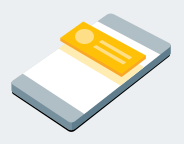
Rectangular ads that appear at the top or bottom of the device screen
Banner ads stay on screen while users are interacting with the app, and can refresh automatically after a certain period of time. If you're new to mobile advertising, they're a great place to start.
Interstitial

Full-screen ads that cover the interface of an app until closed by the user
Interstitial ads are best used at natural pauses in the flow of an app's execution, such as between levels of a game or just after a task is completed.
Native
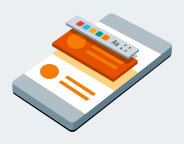
Customizable ads that match the look and feel of your app
Native ads are a component-based ad format. You decide how and where Native ads are placed so that the layout is more consistent with your app's design. By choosing fonts, colors, and other details for yourself, you can create natural, unobtrusive ad presentations that can add to a rich user experience.
Rewarded

Ads that reward users for watching short videos and interacting with playable ads and surveys
Rewarded (or "reward-based") ads can help monetize free-to-play users.