GitHub - X-lab2017/open-digger-mcp-server: MCP server of OpenDigger (original) (raw)
OpenDigger MCP Server
A Model Context Protocol (MCP) server for OpenDigger enabling advanced repository analytics and insights through tools and prompts.
Quick Start
Setup
git clone https://github.com/X-lab2017/open-digger-mcp-server.git
(Optional) Ensure you're on the master branch
git checkout master
cd open-digger-mcp-server && cd mcp-server npm install npm run build
Start server
npm start
Important
Don't forget to configure Cursor (update path in .cursor/mcp.json)
Expected output:
OpenDigger MCP Server running (on stdio)...
Important
If you are using Cursor AI IDE, you should see the MCP server (open-digger-mcp) toast in the bottom-left corner. You should enable it, & now you can start using the tools and prompts provided by the MCP server. To verify, open Cursor Settings and check the MCP Servers section → you should see open-digger-mcp listed there.
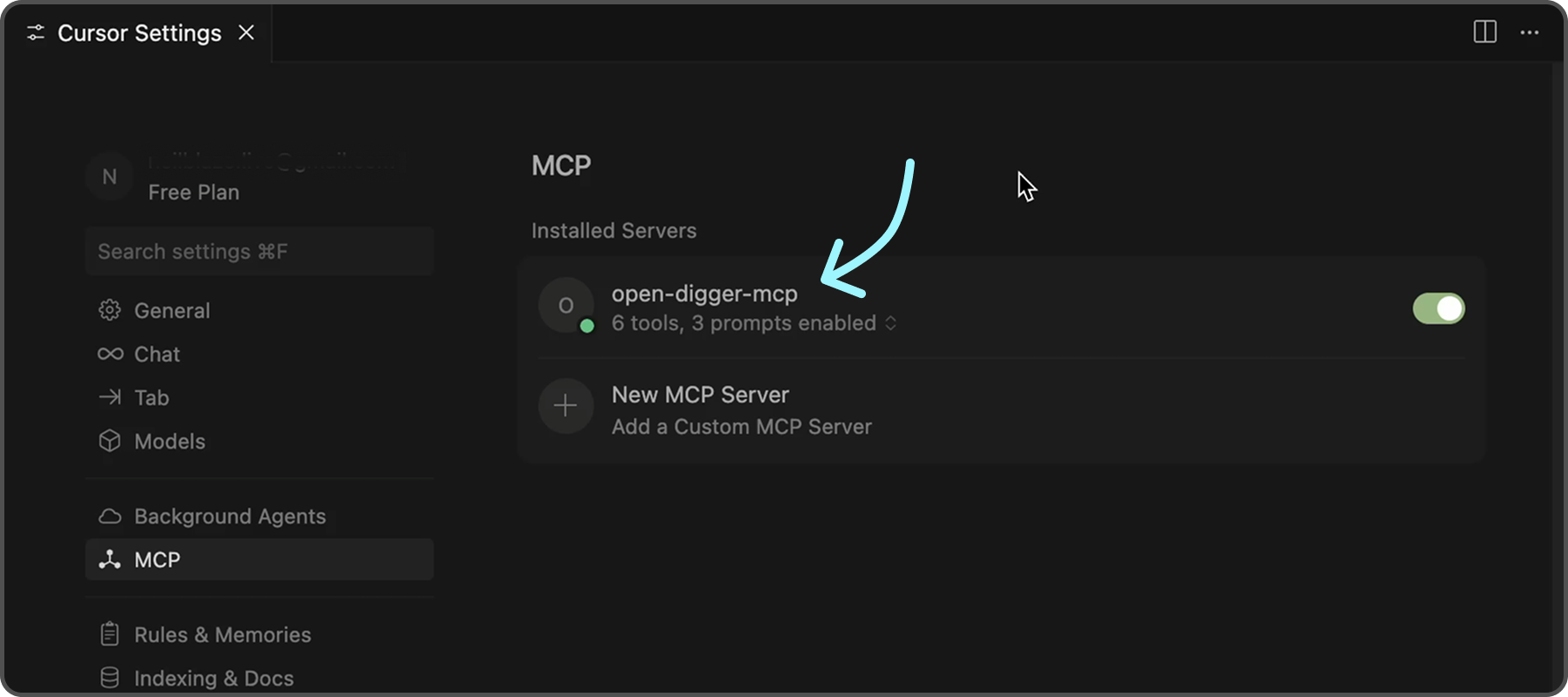
To further confirm that the server is functioning correctly, you can check the following indicators in Cursor:
- ✅ Green dot next to "open-digger-mcp" title
- ✅ "6 tools" displayed in server status
- ✅ "3 prompts" displayed in server status
- ✅ No error messages or red indicators
Tip
Please refer to Installation.md for detailed installation instructions and configuration options for different IDEs.
Features
Tools (6 Available)
| No. | Tool | Description |
|---|---|---|
| 1 | get_open_digger_metric | Fetch single repository metrics |
| 2 | get_open_digger_metrics_batch | Batch operations for multiple metrics |
| 3 | compare_repositories | Multi-repository comparative analysis |
| 4 | analyze_trends | Growth trend analysis over time periods |
| 5 | get_ecosystem_insights | Ecosystem analytics & insights |
| 6 | server_health | System diagnostics and health monitoring (Beta) |
Prompts (3 Available)
repo_health_analysis- Comprehensive repository health reportsrepo_comparison- Competitive repository analysisdeveloper_insights- Developer activity and contribution analysis
Metrics
- Core Metrics:
openrank,stars,forks,contributors,participants,issues_new,issues_closed,pull_requests,commits,activity - Extended Metrics:
technical_fork,bus_factor,releases,inactive_contributors,maintainer_count,community_activity - Additional Metrics:
change_requests,pull_requests_accepted,pull_requests_merged,issue_comments,issue_response_time,code_change_lines,developer_network
💡 Usage Examples
💠 Repository Comparison
Compare microsoft/vscode and facebook/react using the compare_repositories tool
💠 Health Analysis
Generate a health report for microsoft/vscode using the repo_health_analysis prompt
💠 Trend Analysis
Analyze the growth trends for contributors in microsoft/vscode over 2 years
Server Status Check
After starting the server, verify it's working:
In a new terminal
echo '{"jsonrpc":"2.0","id":1,"method":"tools/list","params":{}}' | node dist/index.js
Expected response should list all 6 tools.
Configuration
Environment Variables (.env)
Cache configuration (recommended)
CACHE_TTL_SECONDS=300
Optional SSE server
SSE_PORT=3001 SSE_HOST=127.0.0.1
Cursor MCP (.cursor/mcp.json)
{ "mcpServers": { "open-digger": { "command": "node", "args": ["/full/path/to/dist/index.js"], "cwd": "/full/path/to/project", "env": { "CACHE_TTL_SECONDS": "300" } } } }
Tip
Replace /full/path/to/open-digger-mcp-server with your actual project directory path. Use pwd to get the current directory path.
Development
npm run watch # Development mode npm run build # Compile TypeScript npm run clean # Clean build files npm run sse:test # Test SSE server
Tip
Beside Cursor, you can also use other MCP clients like VS Code, Claude Chat, or the official MCP Inspector.
Troubleshooting
Common Issues
Server not appearing in Cursor:
- Verify absolute paths in
.cursor/mcp.json - Restart Cursor completely (Cmd+Q / Alt+F4)
- Check MCP Settings section for error messages
Permission errors:
Build errors:
npm run clean npm install npm run build
Cache issues:
Clear npm cache
npm cache clean --force
Rebuild
npm run clean && npm run build
Contributing
- Fork the repository
- Create your feature branch (
git checkout -b feature/amazing-feature) - Commit changes (
git commit -m 'Add amazing feature') - Push to branch (
git push origin feature/amazing-feature) - Open a Pull Request
License
Apache-2.0 License - see LICENSE file for details.