GitKraken Desktop GitHub Enterprise Integration (original) (raw)
Last updated: March 2026
This page explains how to connect GitKraken Desktop to GitHub Enterprise Server so you can authenticate, browse repositories, manage remotes, upload SSH keys, and work with pull requests from one interface. Use it when setting up a self-hosted GitHub Enterprise Server connection or switching between enterprise accounts with profiles.
Note: GitHub Enterprise Server integration is available on Advanced, Business, and Enterprise plans.
Requirements and limits
- Integration covered here: GitHub Enterprise Server
- Plan: Advanced, Business, or Enterprise
- Supported server versions: GitHub Enterprise Server releases from the past year
- Authentication: Personal access token required to connect
- Account limit: One GitHub Enterprise Server account per profile
- SSH behavior: GitKraken uses the key set in Preferences > SSH unless a GitHub-specific key or system SSH Agent is configured
| Requirement | Value |
|---|---|
| Plan | Advanced, Business, or Enterprise |
| Supported server versions | GitHub Enterprise Server releases from the past year |
| Authentication | Personal access token |
| Account limit | One GitHub Enterprise Server account per profile |
| SSH behavior | Uses Preferences > SSH unless overridden by a GitHub-specific key or system SSH Agent |
| Hosted variant | Self-hosted GitHub Enterprise Server only |
Quick Start
- Go to Preferences > Integrations in GitKraken Desktop.
- Enter your GitHub Enterprise Server host domain and click the link to generate an access token.
- Log in to your GitHub Enterprise Server, generate the token, and copy it.
- Paste the token into GitKraken Desktop and click Connect.
To configure SSH access after connecting:
- In Preferences > Integrations, click Generate SSH key and add to GitHub Enterprise Server to generate and upload a new key automatically.
- Or click Add key to GitHub Enterprise Server to upload your existing SSH default.
Once connected, you can browse repositories when cloning, add remotes, and create and view pull requests from within GitKraken Desktop. GitKraken Desktop supports one GitHub Enterprise Server account per profile. Use multiple profiles to work with more than one account.
What you can do after connecting
- Create new repositories on GitHub Enterprise Server with options to add a .gitignore and license file.
- Automatically generate and upload an SSH key to GitHub Enterprise Server.
- Fork repositories directly from GitKraken.
- Save GitHub Enterprise Server authentication into profiles.
- Clone repositories using the integrated repo list.
- Add remotes from GitHub Enterprise Server.
- Create and view pull requests within GitKraken.
How to connect GitHub Enterprise Server
Note: GitKraken supports any GitHub Enterprise Server version released within the past year.
Use GitHub Enterprise Server integration when: your repositories live on a self-hosted GitHub Enterprise Server instance and require token-based access. Don’t use the GitHub.com integration when: your environment depends on enterprise host domains, self-hosted server compatibility, or enterprise-specific credentials.
To authenticate with GitHub Enterprise Server:
- Go to Preferences > Integrations in the upper-right corner.
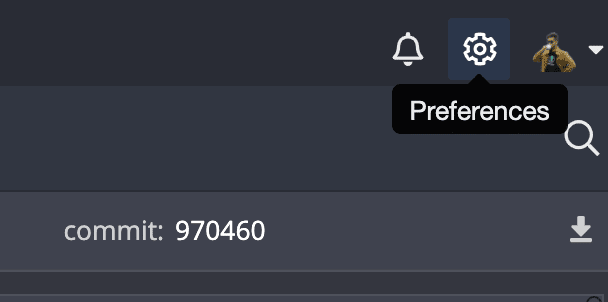
Accessing Preferences and Integrations
- Enter your GitHub Enterprise Server host domain and follow the link to generate an access token.
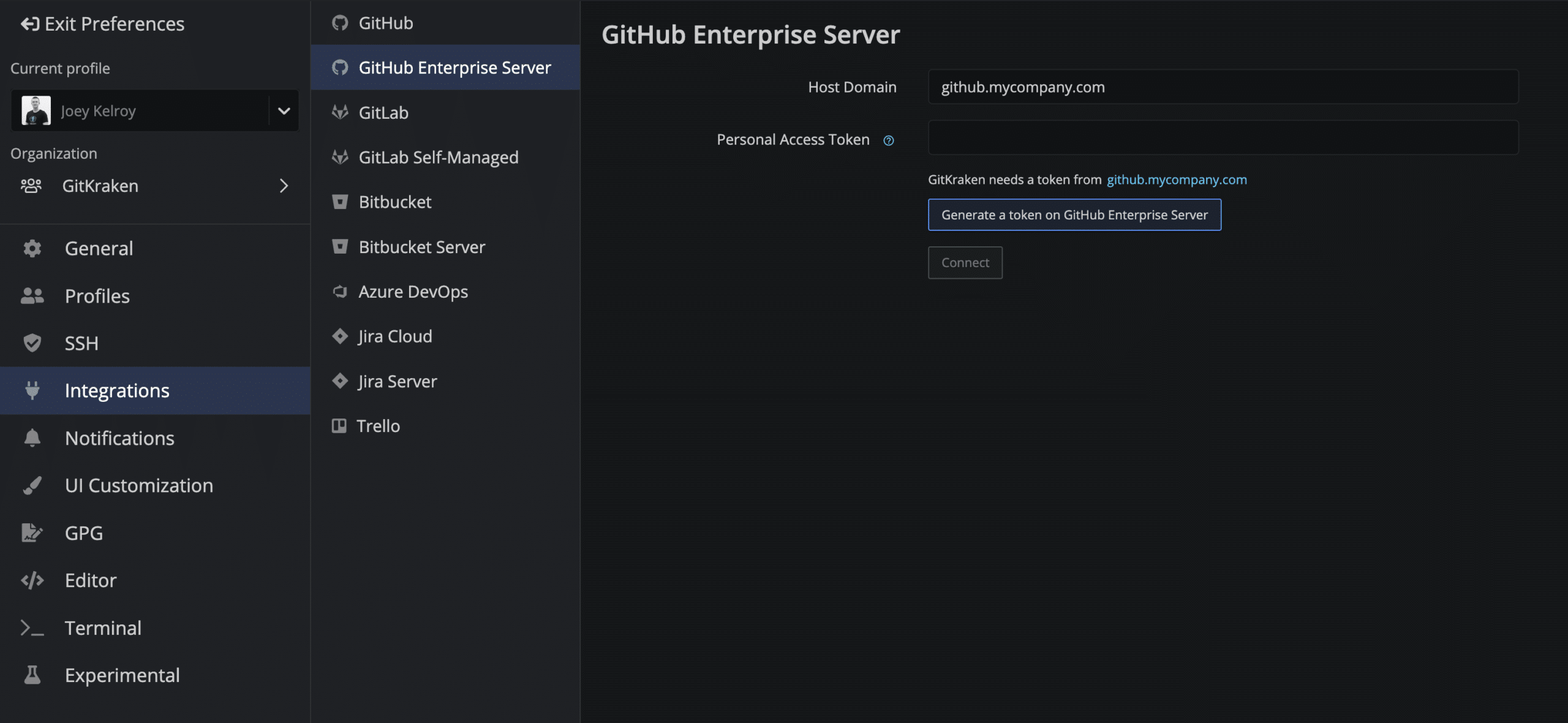
Enter host and generate access token
- Log in using your GitHub Enterprise Server credentials and copy the token. Paste it into GitKraken and click .
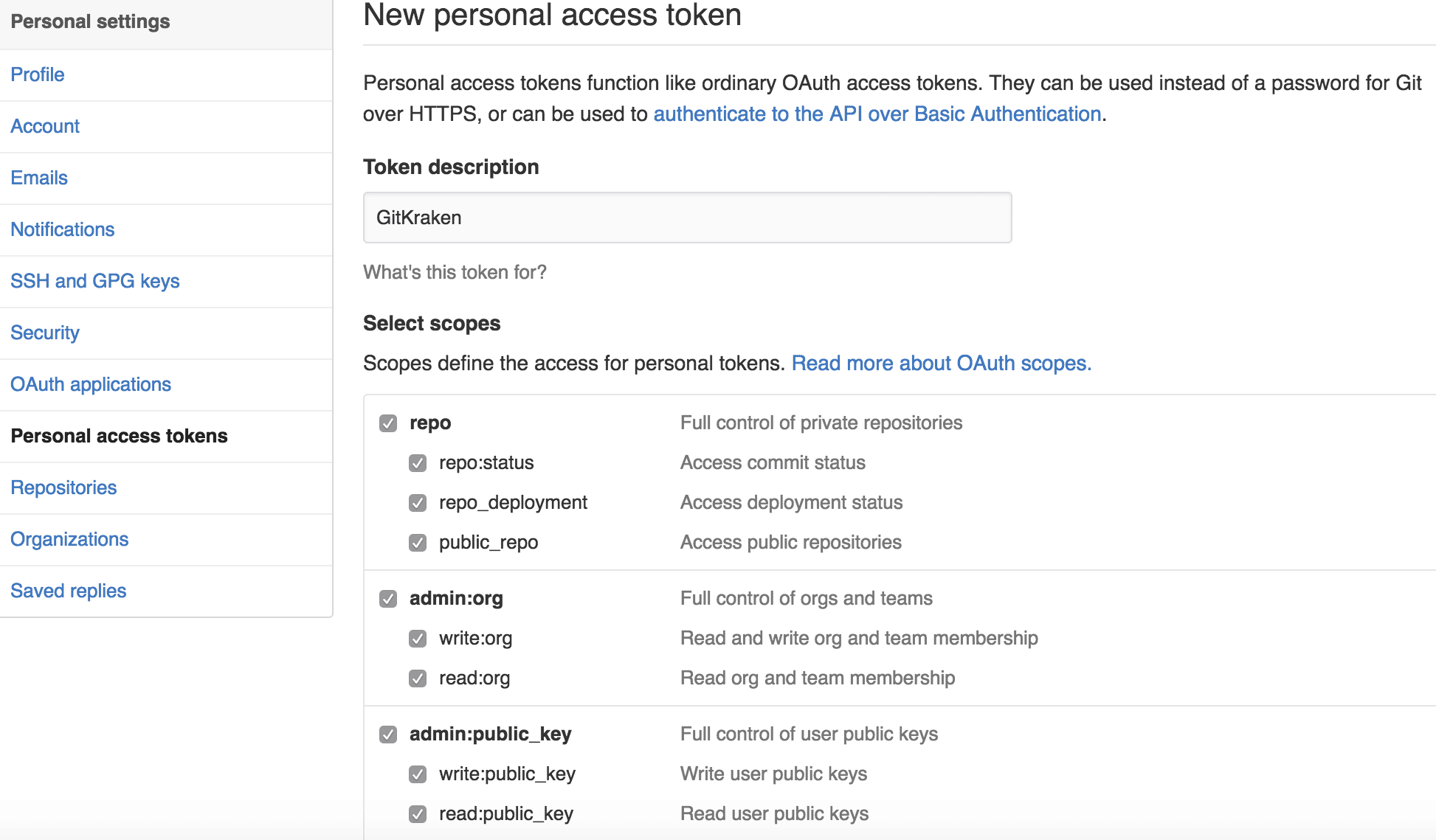
Generate and copy your GitHub Enterprise access token
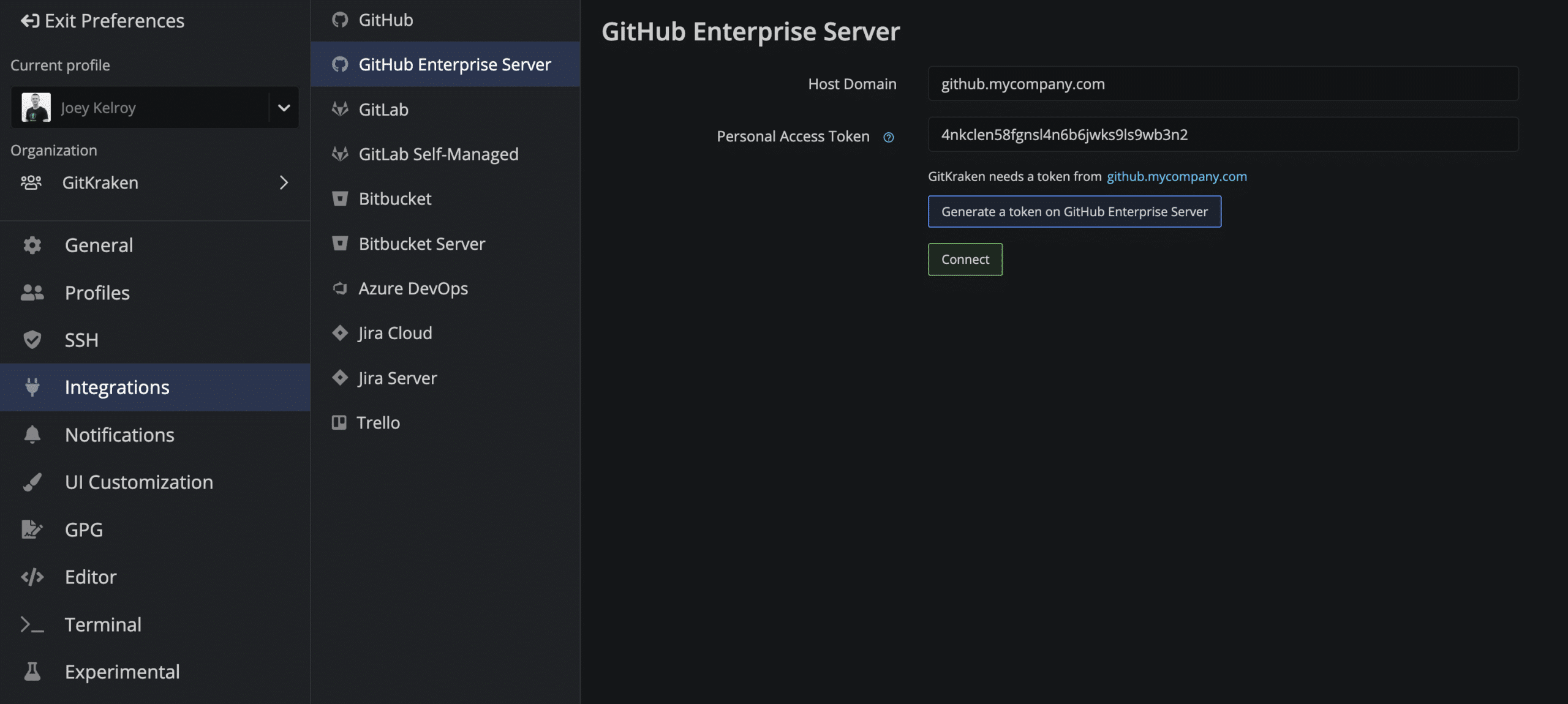
Paste token into GitKraken and connect
How to generate or upload an SSH key for GitHub Enterprise Server
Note: GitKraken uses the SSH key set in Preferences > SSH unless you configure a GitHub-specific key or enable your system’s SSH Agent.
After connecting your GitHub Enterprise Server account, you can generate a new SSH key and upload it directly:
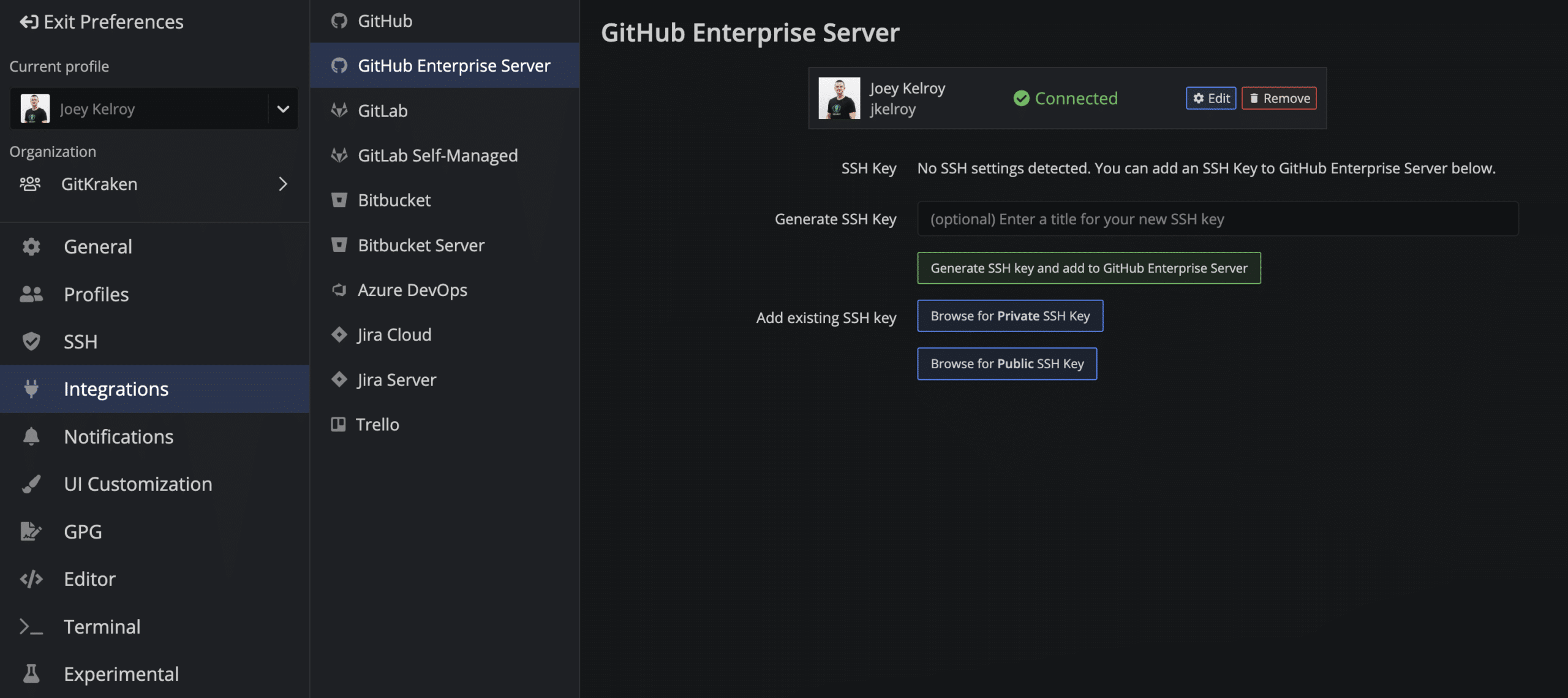
Generate SSH key and upload to GitHub Enterprise
You can:
- Click .
- Use to upload your SSH default.
- Use Add existing SSH key if you have a saved key pair.
How to use multiple GitHub Enterprise Server accounts
GitKraken supports one GitHub Enterprise Server account per profile. Use multiple profiles to switch between accounts.
Use multiple profiles when: you need to switch between separate enterprise servers or distinct enterprise identities. Don’t use multiple profiles when: one enterprise account already covers the repositories you work with.