PythonAnywhere Education (original) (raw)
What's in it for me?
- Zero setup means you can start teaching straight away. Avoid all the hassles of getting Python installed on everyone's laptop, and making sure everyone can pip install all the right packages.
- All your students have the same environment: the same operating system, the same console, the same text editor -- save yourself from having to customise your lessons and instructions for windows/mac/linux, and from having to debug issues in different shells and editors.
- Distributing assignments and monitoring progress is easy. We give you full access to your students' files and folders, so you can ensure that the student has all your exercises and files, ready in their home area when they log in.
- Helping your students, and having them collaborate, is easy. You can view your students' consoles at any time and help them debug, and students can use shared consoles to work together.
- Start work at work or at school, and continue at home. Because PythonAnywhere is web-based, it can follow you around on any PC with a browser, so you or your students can work from wherever you like.
What does it cost?
It's free! Our basic accounts are free, and we only charge for more advanced services (like professional web app hosting, or big number-crunching requirements), none of which are needed for basic "intro to programming" type courses. We're happy to have more people on board; we just hope that every so often one of your students might graduate into becoming a professional software developer, and then maybe they'll decide they want to pay for an account to use for work or on a personal project.
How do I get started?
The first thing to do is to get familiar with your normal account and how plain-old PythonAnywhere works. We've had lots of teachers and students on the site over the years, finding it useful with its current set of features. So if you haven't signed up for an account already, do that now! Start a console, navigate to the Files menu, edit and save a Python file and run it. Your students will be able to do all that.
In the education beta, we're just seeing if we can add a little icing to the cake to make it even more appealing.
Check out our step-by-step tutorial
As an alternative to reading through the worked example on this page, try can try this instead:
 Click here to follow through an education features mini-tutorial from your account
Adding students to your account
Users have the ability to nominate their teacher via the Account page. So one option is to get your students to sign up for PythonAnywhere accounts one by one, and enter your username into the "teacher" field. This can also be a good way to check out the features of the education beta, by signing up for a second account, and using it as a "fake" student account.
Viewing your students' stuff
Once you have some students set up, you'll see a new drop-down at the top of your dashboard. From there you'll be able to click through and view your students' pages.
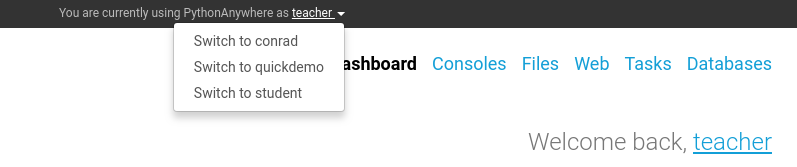
You'll be able to view their Files, Consoles, Database, and Web app config.
While you're in there, you can type into their consoles, see what they're typing, and also view (and modify) their files. Use your newfound power responsibly!
Copying files to and from student accounts
Students' home folders will be mounted into your own account. So just as your home folder lives at /home/yourusername, you'll be able to see /home/yourstudentusername, and access any files in there.
A worked example
Miss Iolanta is preparing for week 3 of her Python class. The assignment consists of a "complete the code" challenge, where Iolanta has prepared a python file with some half-written functions, where the student has to complete the body, something like this, say:
def add(number1, number2): # what should this function return?
def say_hello(name): # adjust the next step so that, if someone calls the function with "Xerxes", the function prints "Hello, Xerxes" message = "?" print(message)
She saves this file as complete_the_code.py in her own file space, maybe in a folder called "assignments". Now she wants to put a copy of it into each student's home directory. She opens up a Bash console and does this:
$ ls /home iolanta bertrand iphigenea clarence
Aha! She thinks, I now see my three students in there, as well as my own home folder! Let's copy the assignment across:
$ mkdir /home/bertrand/week3 $ mkdir /home/iphigenea/week3 $ mkdir /home/clarence/week3 $ cp /home/iolanta/assignments/complete_the_code.py /home/bertrand/week3/complete_the_code.py $ cp /home/iolanta/assignments/complete_the_code.py /home/iphigenea/week3/complete_the_code.py $ cp /home/iolanta/assignments/complete_the_code.py /home/clarence/week3/complete_the_code.py
And now, when any of her students log in to their accounts, they'll see a new folder in the "Files" area called "week3", and they will each get their own copy of "complete_the_code.py" in there.
Later on, Iolanta can use the Bash console to actually run each student's python code and see if it works.
A more advanced example
If you want to copy multiple files to all of your students home directories, you can use a Bash for loop and a wildcard. Here's an example, which assumes that the teacher's username is theteacher -- it would copy the files script.py anddb.sqlite3 from the teacher's home directory into every student's home directory:
shopt -s extglob for homedir in /home/!(theteacher); do cp ~/script.py $homedir cp ~/db.sqlite3 $homedir done
The first line is an iteration over every directory in /home apart from theteacher, and then the contents of the for loop are just normal copy commands.
Some limitations
No graphics :/
PythonAnywhere is a server-side, no-gui sort of environment, so we currently don't support any sort of graphics (unless you count web apps). So things like turtle and pygame are out. Which is a shame because graphics are so great, particularly for the student's first few experiences with programming. You may want to check out https://trinket.io as an alternative for the first few classes.
No young children :/
We're waiting on some legal advice re: data protection, so for now, we have to restrict the service to ages 13 and above.
Console sharing is dynamic, Editor sessions are not (for now)
- In consoles, sharing will be dynamic. You can see each keystroke the student enters into their console, and type your own, and they'll see yours, etc
- In files, it won't be dynamic. You would have to hit "refresh" every so often to see if a student has made changes and saved them. If you both edit the same file, there's a potential for conflict, but the system will warn you if that happens ("this file has changed on disk!"). We're doing some experiments with a dynamic version... Also- note that if you open files using a terminal-based editor (such as vim/emacs) from within your consoles, then you would be able to share dynamically.
IPython Notebook is on paid accounts only
Whilst we support the basic IPython console for all accounts, the "notebook" UI, which is particularly popular in scientific fields, is currently a paid-only feature. But get in touch using the "Send feedback" link on your account page, if you need it for a class, and maybe we can work something out!