Mail Flags | Vivaldi Browser Help (original) (raw)
This post is also available in:
What are Flags?
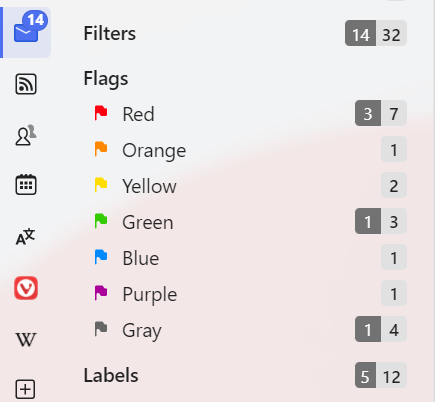
Using Flags is a good way to highlight important messages and make them easy to spot in your mailbox. In Vivaldi Mail you can pick between 7 flag colours – red, orange, yellow, green, blue, purple and grey. You decide what each colour stands for.
Add a Flag to a message
To add the default red flag to a message:
To add a different color flag to a message:
- Open the message, click on the arrow next to the
 Flag button and select the flag color;
 - Right-click on the message in the message list and select Flags > flag color.
The flag will be shown in front of the subject in the message list and after the subject in the opened message. Each message can have only one flag.
To add flags to multiple messages at once:
- Hold down the Shift or Ctrl/Cmd key while clicking on the messages you want to add a flag to;
- Right-click on one of the selected messages and select Add Flag or Flags > flag color.
View flagged messages
To view flagged messages:
- Open the Mail Panel;
- Scroll down to Flags;
- Click on the Flags root folder title to see all flagged messages or click on a specific color to see only messages with that flag color.
Remove a Flag
To remove a flag from a message:
- Open the message and click on Flag on the message toolbar;
- Right-click on the message in the message list and select Remove Flag.
Syncing flags
Flags are synced with other mail clients that also support flags. If the other client has multiple flag colours, like Apple Mail, the different flag colours will be synced. If the client supports only one flag colour (commonly red) or stars, all flags, despite the colour in Vivaldi, will be in a single colour in the other client. When you’ve added a flag or a star to a message in another mail client, it will get a red flag in Vivaldi.
Was this helpful?
Thanks for your feedback!