History | Vivaldi Browser Help (original) (raw)
This post is also available in:
The History tool in Vivaldi is somewhat different than in a typical browser – instead, Vivaldi’s History is a detailed overview backed by statistics and presented in a fresh, visual way. It was built to give users a powerful and useful tool to explore their browsing patterns and to make finding previously visited sites easier than ever.
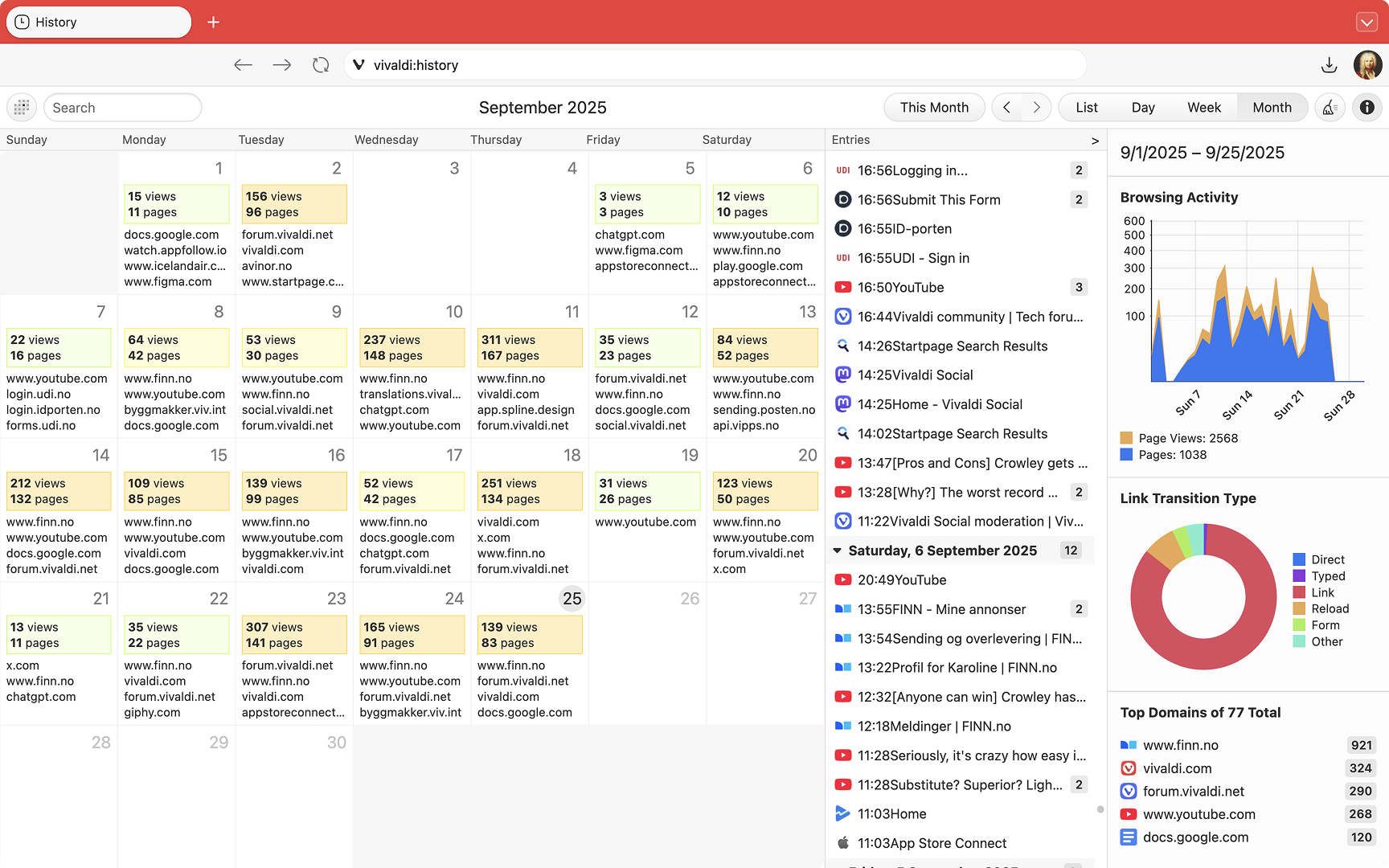
Accessing History
To open the History page:
Searching visited pages
To search specific History entries, enter the page’s title or URL in one of the following places:
- History Manager’s search field in the top left corner of the page.
- History Panel‘s search field at the top of the panel.
- In the Address Field, type “_@history_” followed by a space and your search keyword to see results only from History.
Using History in Vivaldi
History offers a number of different views and ways to filter your browsing history data in Vivaldi. Get an overview and a few examples with the video below:
Delete browsing history
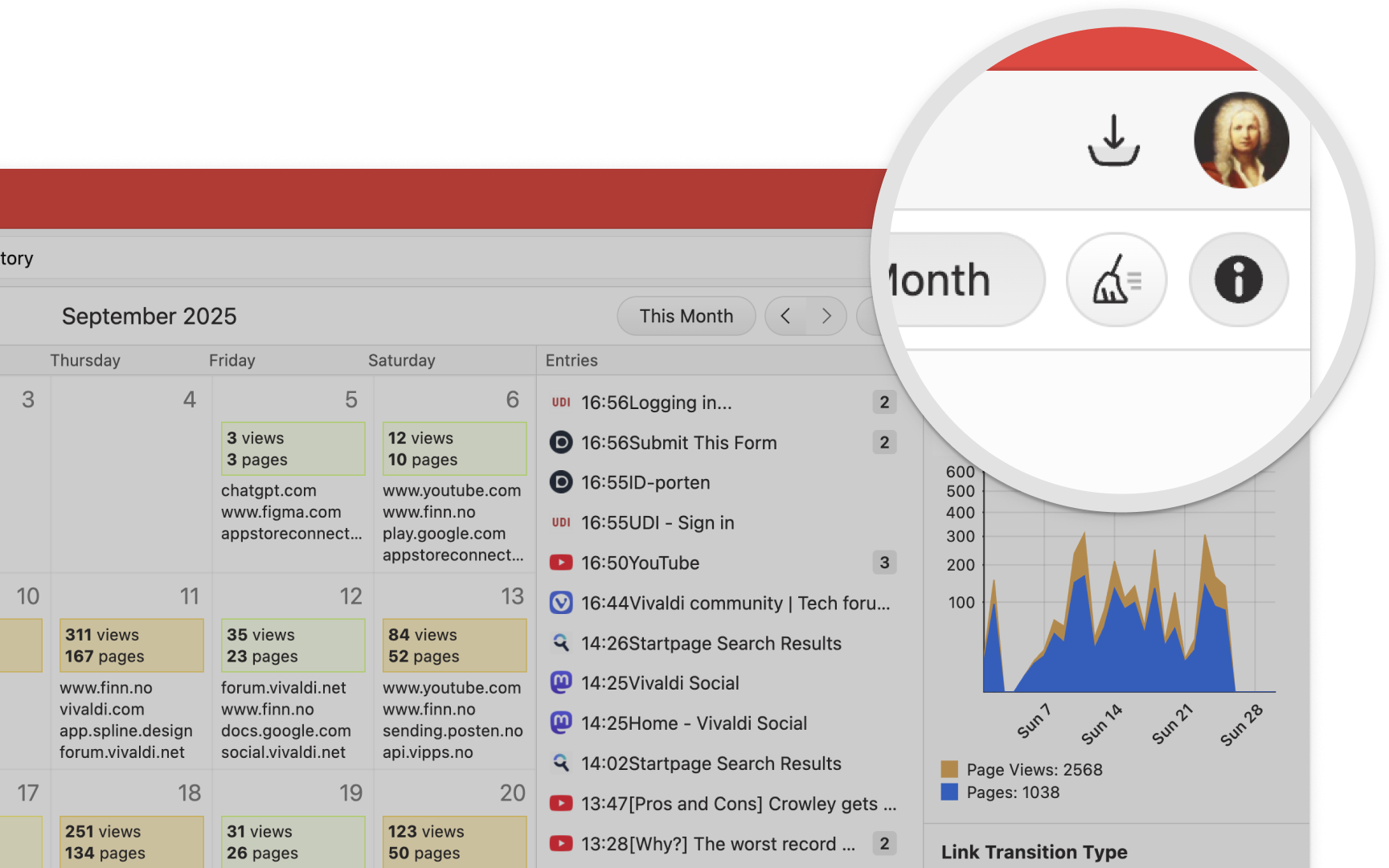
Clearing browsing data can be done from the History page by clicking the  Clear Browsing Data button in the top-right of the History page.
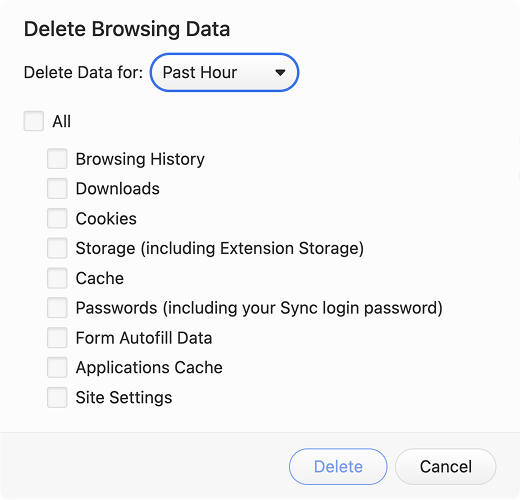
Alternatively, open the Delete Browsing Data window:
Select:
- The time range
- Past Hour
- Past Day
- Past Week
- Past 4 Weeks
- Everything
- Which elements of the stored browsing data to delete
- And confirm by clicking Delete.
History Retention
You can decide for how long your browsing history is saved in Vivaldi.
To review and change the time:
- Go to Settings > Privacy and Security > Privacy > Save Browsing History.
- Choose between:
- Session Only – meaning your history will be deleted every time you exit the browser.
- One Day
- One Week
- One Month
- Three Months (the default)
- Six Months
- One Year
- Forever
- Restart the browser.
Privacy
History data is strictly private and stored locally to individual Vivaldi installations – Vivaldi Technologies does not collect any History data from browser users. Find out more about Vivaldi’s Privacy policies and terms here.
Was this helpful?
Thanks for your feedback!