PHP - PHP Performance - Kinsta® Docs (original) (raw)
When it comes to WordPress performance, more PHP threads do not automatically mean better performance; there are a number of factors that you must consider:
- Caching: Effective caching can reduce the workload on PHP threads by serving cached content instead of dynamically generating it for each request. This can significantly improve performance, especially for frequently accessed resources.
- Hardware: The available hardware resources on the server, such as CPU, memory (RAM), and disk speed, directly impact PHP thread performance. Insufficient resources can lead to slower processing times and degraded performance.
- Web Server Setup: The configuration of the web server and its interaction with PHP can influence thread performance.
- Database Speed: PHP applications often retrieve data from MySQL databases to generate dynamic content. The speed of data retrieval depends on factors such as database organization, query optimization, and the performance of the database server. These elements directly affect the overall performance of PHP applications.
- PHP Version: Newer PHP versions can often result in better PHP thread performance due to performance enhancements, bug fixes, and security updates.
At Kinsta, we value the importance of your site’s performance. That’s why we’ve implemented various technologies aimed at maximizing PHP performance and minimizing PHP requests:
- We offer page caching at both the CDN and server levels, with customizable rules to ensure maximum cache efficiency.
- We use a low-latency global network designed to optimize PHP performance and minimize response times. This network significantly reduces the time required for data to travel between key infrastructure components, such as web servers and MySQL databases, ensuring faster and more efficient site performance.
- Our scalable infrastructure ensures that your WordPress site’s PHP threads have enough CPU resources to operate at peak performance.
- We provide a highly optimized MySQL server hosted locally to reduce network latency and improve data retrieval and processing speeds.
- On the MySQL server, we have InnoDB buffers to help improve database performance by reducing disk I/O operations. Data can be accessed more quickly from memory rather than from disk, enhancing the efficiency of read and write operations and resulting in better overall performance for the MySQL database.
- We ensure the latest version of PHP is always available to incorporate any performance enhancements.
You can view your PHP performance within Sites > sitename > Info.
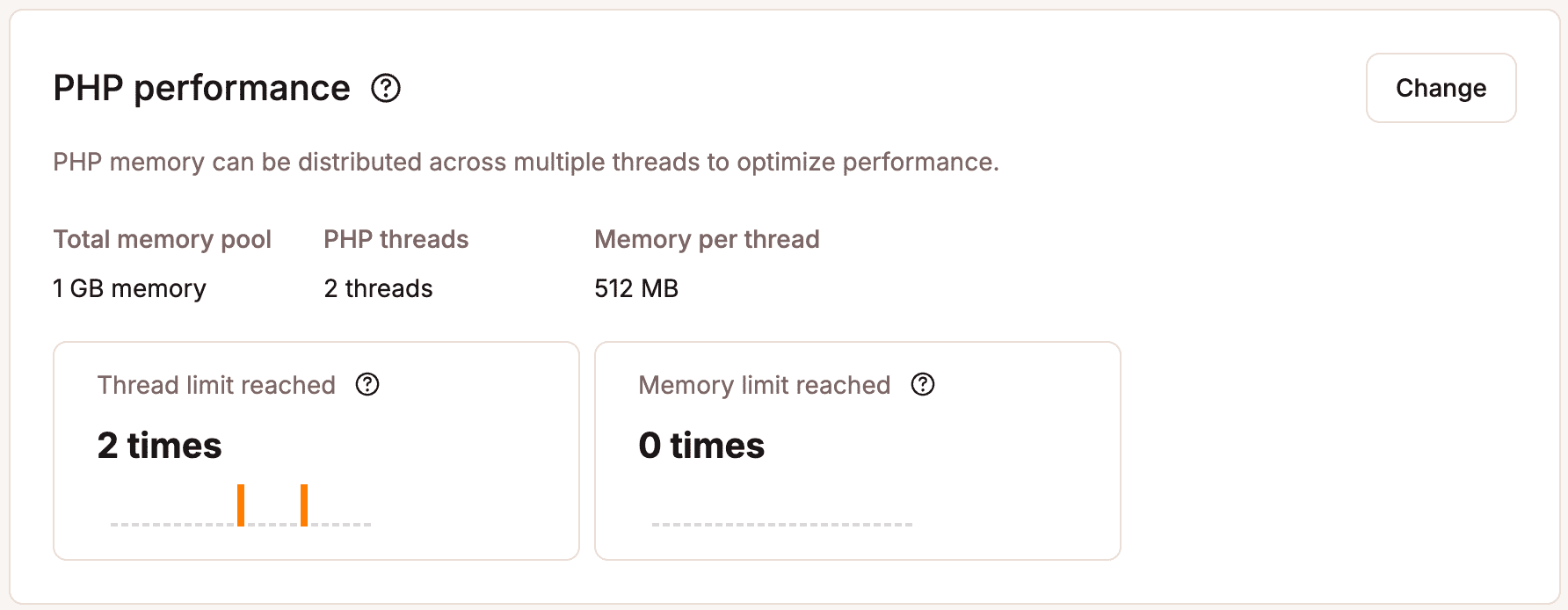
View the PHP performance of your site on MyKinsta.
This shows the following information:
- Total memory pool: The total PHP memory distributed across the PHP threads.
- PHP threads: Previously known as PHP workers. This is the number of PHP threads per site. Each thread is a PHP process that handles one incoming request at a time, so more threads allow for more simultaneous requests. Cached content bypasses PHP threads, which are only needed for database queries or data changes.
- Memory per thread: This is the PHP memory limit per thread, which is the maximum amount of memory (RAM) each PHP thread can use while processing a request.
- Thread limit reached: This indicates how often the PHP thread limit was reached in this environment over the last 24 hours. Each PHP thread processes one request at a time, meaning if you have two threads, only two requests can be processed simultaneously. When a thread finishes processing a request (such as rendering a page or retrieving data from a database), it becomes available to handle the next request. If a thread remains idle for 10 continuous seconds, it automatically terminates but is instantly recreated as soon as it is needed again.
This only shows the instances when the thread limit is reached and not the total duration during which all threads were in use. For example, during a traffic surge, all threads may stay continuously active for an hour without any idle time, which prevents termination. This would count as just one instance of the thread limit being reached, even though the threads were fully occupied for the entire hour.
The more dynamic a website is, the more PHP threads it will likely need. Cached content bypasses the need for PHP threads, as requests are served without requiring a database query. An optimized site handles requests quickly, freeing up PHP threads for the next request in the queue.
Frequently reaching the maximum number of PHP threads may indicate potential performance issues, suggesting that website visitors could experience difficulties accessing the site or slow page load times. However, hitting the thread limit doesn’t necessarily mean the site is performing poorly. If you are concerned about PHP performance, refer to Identifying PHP performance issues. - Memory limit reached: This metric shows the number of “PHP Fatal error: Allowed memory size of xxx bytes exhausted” errors in this environment in the last 24 hours. When this error occurs, it means the site was not served, and visitors to your site only see error 500. The main causes of this error are:
- Large data processing: Scripts that process large datasets, images, or files (e.g., CSV imports, image manipulation) can consume a lot of memory, leading to this error.
- Memory leaks in code: Improper handling of variables, objects, or large arrays that are not released after use can cause a memory leak, leading to high memory consumption.
- Inefficient code or algorithms: Storing huge arrays or objects in memory, especially without optimizing how they are handled, can exhaust memory. Scripts that open files, network connections, or other external resources without closing them properly can gradually increase memory usage.
- Poorly designed plugins or themes: Certain plugins or themes can consume excessive memory due to inefficient code or poor optimization. Even if each plugin individually doesn’t use much memory, having many plugins installed and active can collectively overwhelm your memory limits.
- Background tasks: Cron jobs, scheduled tasks, or background scripts that run for long periods or handle large amounts of data can trigger this error, especially if they aren’t optimized.
Note: The Memory limit reached indicator retrieves errors from the log files from the default log directory/www/site-path/logs/. If WP Debug mode is enabled or WooCommerce is installed, the errors are also retrieved from the log files withinwp-content/debug.logandwp-content/uploads/wc-logs. If you have a custom setup that stores the WP Debug or WooCommerce log files in a different location, the errors will not be identified, and you should disable logging for WP Debug and WooCommerce logs.
Change PHP performance
You can change your PHP performance for each site within Sites > sitename > Info > PHP performance > Change.
The PHP performance add-on costs 10peradditional500MBpermonth.Forexample,ifthetotalPHPmemorypoolinyourplanis1.5GBandyouwanttoincreaseitto3GBforasite,thisisanincreaseof1.5GB,andtherefore,youwillbecharged10 per additional 500MB per month. For example, if the total PHP memory pool in your plan is 1.5GB and you want to increase it to 3GB for a site, this is an increase of 1.5GB, and therefore, you will be charged 10peradditional500MBpermonth.Forexample,ifthetotalPHPmemorypoolinyourplanis1.5GBandyouwanttoincreaseitto3GBforasite,thisisanincreaseof1.5GB,andtherefore,youwillbecharged30 per month for the add-on.
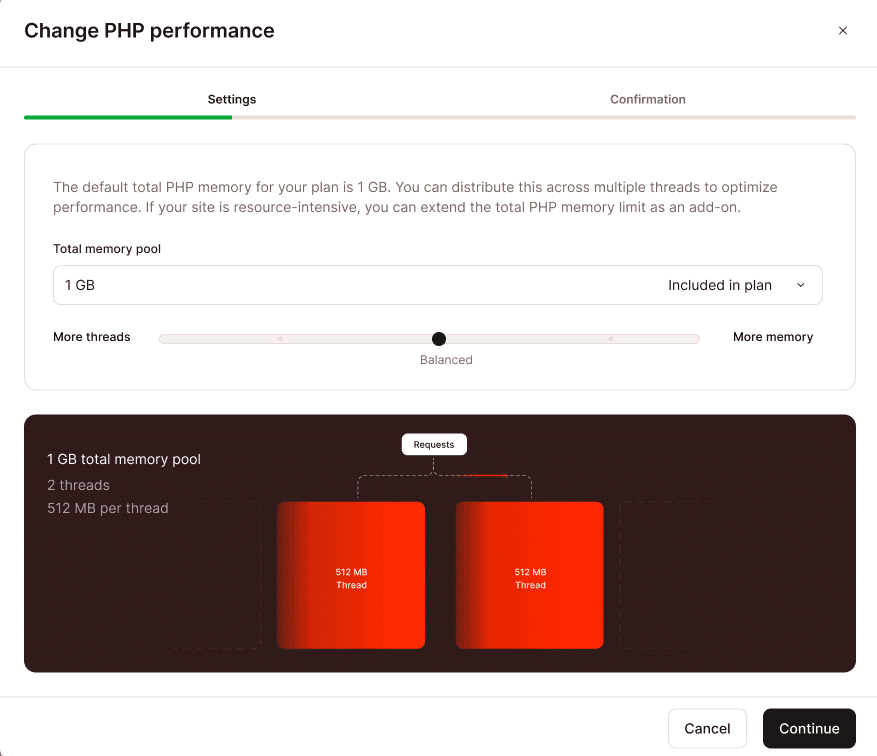
Change your PHP pool size, thread count or memory limit.
This shows your Total memory pool in your current plan. The memory pool is the total PHP memory distributed across your PHP threads. For example, if you have 4 PHP threads and a total memory pool of 2GB, the PHP memory limit for each PHP thread would be 512MB.
You can adjust the Total memory pool to allocate more memory across PHP threads. However, the maximum limit depends on your plan:
- Standard plans with a default memory pool of 4GB or more cannot be increased further.
- Custom plans with a default pool up to 2GB can be increased to a maximum of 4GB.
- Custom plans with a default pool above 2GB can be increased to a maximum of 8GB.
You can use the slider to add:
- More threads: You can move the slider towards this to increase the number of PHP threads for your site. When you increase the number of threads, the PHP memory is automatically distributed across the higher number of threads; this may mean you have less memory per thread. For example, if you have 16 threads with a total memory pool of 2 GB, the PHP memory limit for each thread is 128MB. If you increase the threads to 32 but keep the memory pool the same, the PHP memory limit for each thread will be 64MB.
Note: If you use WooCommerce, you should ensure the memory per thread is at least 128 MB. If it is lower than this, your site may experience downtime and errors.
More threads allow your site to handle multiple incoming requests simultaneously. However, with less memory per thread, memory-intensive tasks like large database queries or media uploads may exceed the available memory, leading to errors. This is important to consider when configuring your site.
Dynamic sites that generate content in real-time, such as e-commerce platforms, CMS-driven websites, or forums, are more likely to benefit from having more threads. Static sites that display fixed content, such as blogs, documentation, or brochure-style websites, generally don’t benefit from additional PHP threads, as their content rarely changes and requires minimal server processing.
You can reduce thread usage by enabling caching and optimizing your code. For more details on minimizing thread usage, refer to Reduce and optimize PHP thread usage. - More memory: You can move the slider towards this to increase the PHP memory limit per thread; however, if you don’t increase the PHP memory pool, the number of PHP threads available will be reduced. The maximum memory limit per thread is 1024MB. For example, if you have 16 threads with a total memory pool of 2 GB, the PHP memory limit for each thread is 128MB. If you increase the memory limit but keep the memory pool the same, this reduces the PHP threads to 2, and the PHP memory limit per thread will be 1024MB.
Allocating more memory per thread enables your site to handle memory-intensive tasks more effectively, such as content uploads. Sites with numerous plugins or those that make extensive database requests may benefit from higher memory per thread to maintain optimal performance. However, if you have fewer threads this reduces the number of incoming requests your site can handle simultaneously.
As you change the values, the image below the slider shows the updated values and how they are distributed between the threads and memory.
When you’re happy with the thread and memory allocation, click Continue. If you have increased the memory pool, this creates a PHP performance add-on; the price details are shown on the next screen. The subscription will appear on your next billing cycle and is automatically prorated for your current billing period.
Note: Since this add-on is prorated, you can temporarily increase the total memory pool, threads, or memory if you’re anticipating high traffic for events like Black Friday or Cyber Monday. After the event, you can revert to the original settings, and you’ll only be charged for the days the add-on was active.
If you reduce the memory pool to remove the PHP performance add-on and you’re in the first 30 days of your WordPress Hosting plan, a prorated fee for the add-on will be added to your next invoice for the time period it was enabled. If your WordPress Hosting plan has been active for more than 30 days, you will receive a prorated credit for the add-on fees to your Account Balance for the remaining days of the current billing period. The credit is automatically used to offset money owed to Kinsta on your next invoice. For more information, refer to our WordPress Hosting Money-Back Guarantee.
Staging environments
You can only change the Total memory pool in the live environment. If you adjust it in the live environment, the new value applies to all standard and premium staging environments.
When you change the memory pool or thread count in the live environment, the memory-per-thread allocation for the standard staging environment adjusts accordingly; however, the maximum number of threads for a standard staging environment is limited to 2. For example, if the live environment has a memory pool of 2GB with 4 PHP threads, each thread would have a memory limit of 512MB. In the standard staging environment, this would be 2 PHP threads, each with a 512MB memory limit.
In premium staging environments, you can independently adjust thread count and memory settings without affecting your live environment. However, the Total memory pool is controlled in the live environment and can only be modified there.
Pool, threads, and memory distribution values
The tables below show the distribution options available for the memory and threads based on the value of the total memory pool:
512MB memory pool
| PHP threads | Memory per thread |
|---|---|
| 2 | 256MB |
| 4 | 128MB |
| 8 | 64MB |
1GB memory pool
| PHP threads | Memory per thread |
|---|---|
| 2 | 512MB |
| 4 | 256MB |
| 8 | 128MB |
| 16 | 64MB |
1.5GB memory pool
| PHP threads | Memory per thread |
|---|---|
| 3 | 512MB |
| 6 | 256MB |
| 12 | 128MB |
| 24 | 64MB |
2GB memory pool
| PHP threads | Memory per thread |
|---|---|
| 2 | 1024MB |
| 4 | 512MB |
| 8 | 256MB |
| 16 | 128MB |
| 32 | 64MB |
2.5GB memory pool
| PHP threads | Memory per thread |
|---|---|
| 2 | 1024MB |
| 5 | 512MB |
| 10 | 256MB |
| 20 | 128MB |
3GB memory pool
| PHP threads | Memory per thread |
|---|---|
| 3 | 1024MB |
| 6 | 512MB |
| 12 | 256MB |
| 24 | 128MB |
3.5GB memory pool
| PHP threads | Memory per thread |
|---|---|
| 7 | 512MB |
| 14 | 256MB |
| 28 | 128MB |
4GB memory pool
| PHP threads | Memory per thread |
|---|---|
| 2 | 2048MB |
| 4 | 1024MB |
| 8 | 512MB |
| 16 | 256MB |
| 32 | 128MB |
5GB memory pool
| PHP threads | Memory per thread |
|---|---|
| 5 | 1024MB |
| 10 | 512MB |
| 20 | 256MB |
6GB memory pool
| PHP threads | Memory per thread |
|---|---|
| 6 | 1024MB |
| 12 | 512MB |
| 24 | 256MB |
7GB memory pool
| PHP threads | Memory per thread |
|---|---|
| 7 | 1024MB |
| 14 | 512MB |
| 28 | 256MB |
8GB memory pool
| PHP threads | Memory per thread |
|---|---|
| 8 | 1024MB |
| 16 | 512MB |
| 32 | 256MB |
Remove the PHP performance add-on
To remove the PHP performance add-on from all sites, from the Dashboard, go to Company settings and then My Plan. Click Remove within PHP performance.

Remove the PHP performance add-on from all sites.
This resets all of the sites back to the original PHP memory and threads included in your plan. The confirmation window shows which sites the add-on will be removed from and what the memory pool will be reset to. To confirm the removal, click Remove PHP performance add-on.
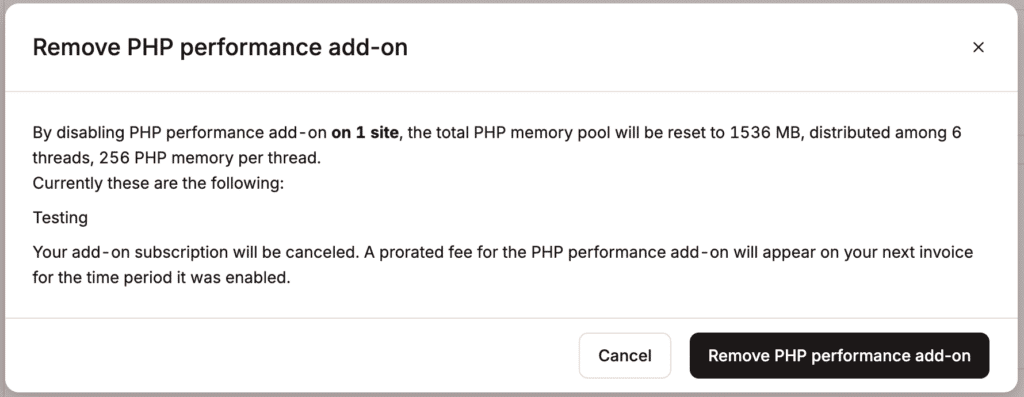
Confirm the removal of the PHP performance add-on from all sites.
To remove the PHP performance add-on for an individual site, you can change the PHP performance and reduce the Total memory pool to the default value included in your plan. You can also remove the add-on for all sites that have it enabled within Company settings, and on the PHP performance section, click Remove.

Remove the PHP performance add-on for all sites.
The confirmation window shows which sites the add-on will be removed from and what the PHP memory pool, thread count, and memory per thread will be reset to. To confirm the removal, click Remove PHP performance add-on.
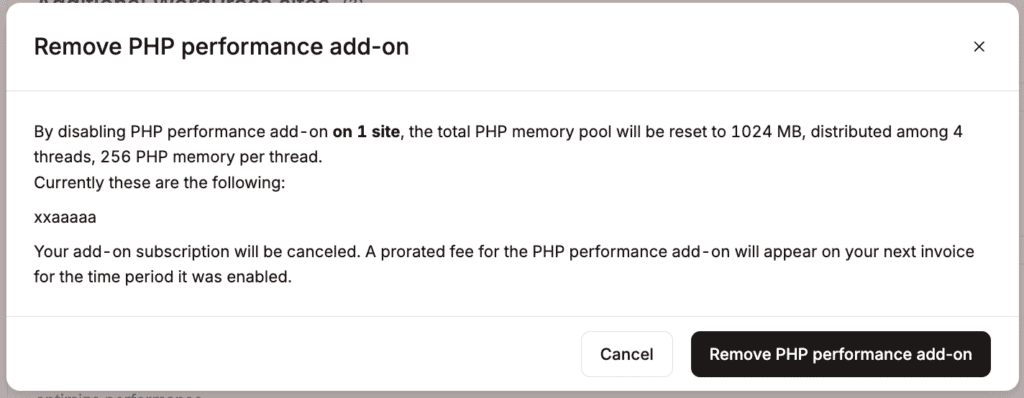
Confirm the removal of the PHP performance add-on.
If you’re in the first 30 days of your WordPress Hosting plan, a prorated fee for the add-on will be added to your next invoice for the time period it was enabled. If your WordPress Hosting plan has been active for more than 30 days, you will receive a prorated credit for the add-on fees to your Account Balance for the remaining days of the current billing period. The credit is automatically used to offset money owed to Kinsta on your next invoice. For more information, refer to our WordPress Hosting Money-Back Guarantee.
Identifying PHP performance issues
Kinsta’s APM tool
Using tools like Kinsta’s APM tool and the Query Monitor plugin can help you identify performance issues and slow queries. We also recommend working with a qualified performance expert to diagnose issues.
PHP thread limit
You can access the PHP thread limit chart in MyKinsta > Sites > sitename > Analytics > Performance > PHP thread limit.
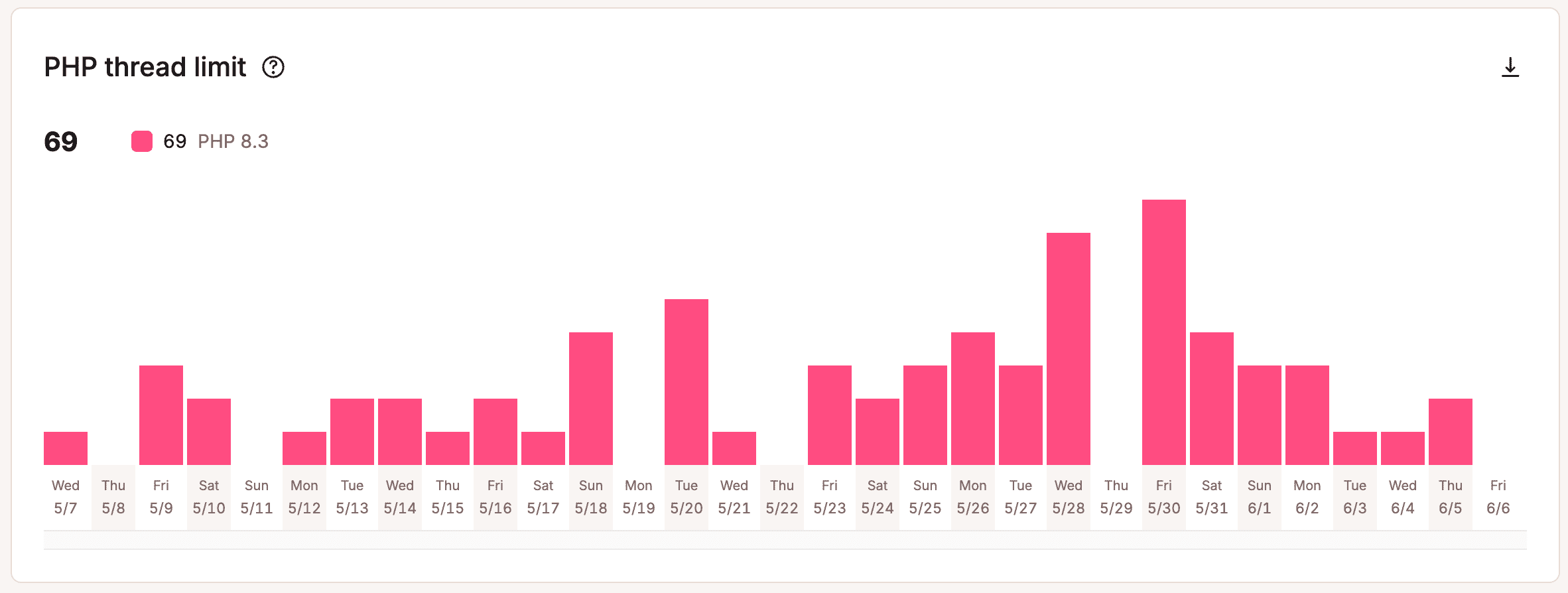
PHP thread limit
If a PHP thread doesn’t have anything to do for 10 continuous seconds, the PHP thread process will automatically terminate. As soon as it is needed again, the thread process will be recreated instantly. This chart shows you how many times the maximum number of allocated threads has been reached on your site.
For example, if you have a WP 5 plan, this allows for a maximum of 4 PHP thread processes. If 3 PHP threads are in use and another request is made to your site that requires a PHP thread, when the PHP thread is created, it reaches the maximum number of 4 PHP threads and is logged as an incident where the PHP thread limit is reached.
This may only give you a partial picture of your PHP thread activity, as this only records the number of times the PHP thread limit is reached and not how long all PHP threads were in use.
For example, if your site experiences a surge in traffic, all PHP threads might remain consistently busy for an entire hour with no idle time and, therefore, do not terminate at all during that hour. This would only record as one instance of the PHP thread limit being reached, and therefore, it may seem like the PHP threads weren’t occupied during that hour when, in fact, they were all active the entire time. After 30 minutes, if there’s a decrease in traffic allowing one PHP thread to be idle for 10 seconds, it will automatically terminate. However, if the PHP thread is needed again in another minute, the maximum number of PHP threads would again be reached, resulting in another PHP thread limit being logged.
If you want to increase the number of PHP threads for your site, you can do this within Sites > sitename > Info > PHP performance > Change.
If you are investigating website performance and determining if your site is continuously using up its PHP threads, you can monitor PHP thread activity using tools in an SSH session. For example, the following custom command monitors the number of active PHP threads every 0.3 seconds:``
watch -n 0.3 "ps aux | awk '\$(NF-2) ~ /php-fpm/ && \$(NF-1) ~ /pool/ && \$8 ~ /R/ { print \$0 }' | wc -l"To exit this command, press CMD + C or CTRL + C then release both keys.
PHP memory limit reached
You can access the PHP memory limit reached chart in MyKinsta > Sites > sitename > Analytics > Performance > PHP memory limit reached.
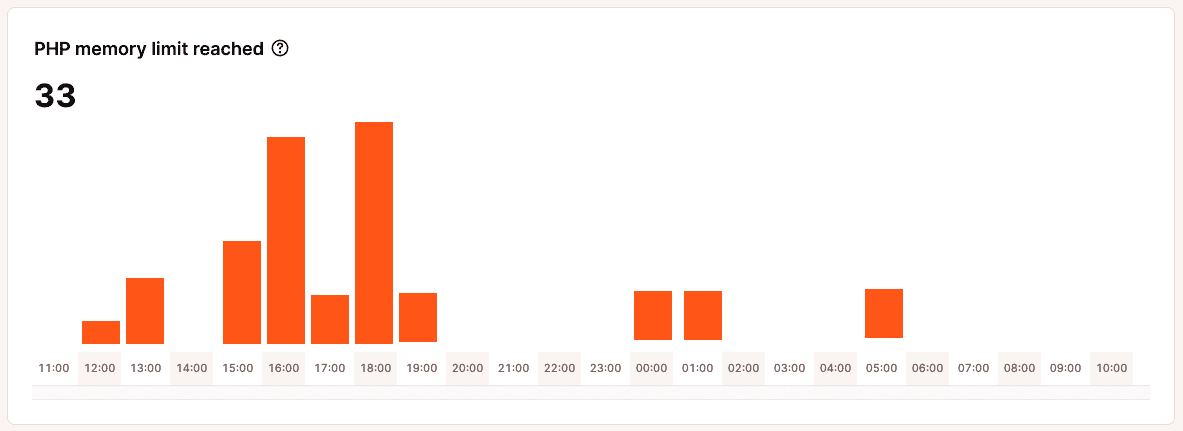
PHP memory limit reached chart.
This chart shows the number of times the PHP memory limit was reached. Kinsta’s default PHP memory limit is 256MB, which is more than enough for most WordPress plugins and sites. This limit exists to prevent PHP scripts from consuming excessive memory. If you set the limit too high, a misconfigured or broken script can cause serious issues by using up too much memory.
This provides only a partial view of your PHP memory usage, as it records the number of times the memory limit is reached, but not the duration of those occurrences.
If your site is set up correctly at Kinsta, you shouldn’t reach the PHP memory limit. If you do, we recommend reducing and optimizing your PHP thread usage.
You can change a site’s PHP memory limit within Sites > sitename > Info > PHP performance > Change.
Cache analysis
The cache analysis section in MyKinsta cache analytics can be used to view your site’s total cached requests and top cache bypasses.
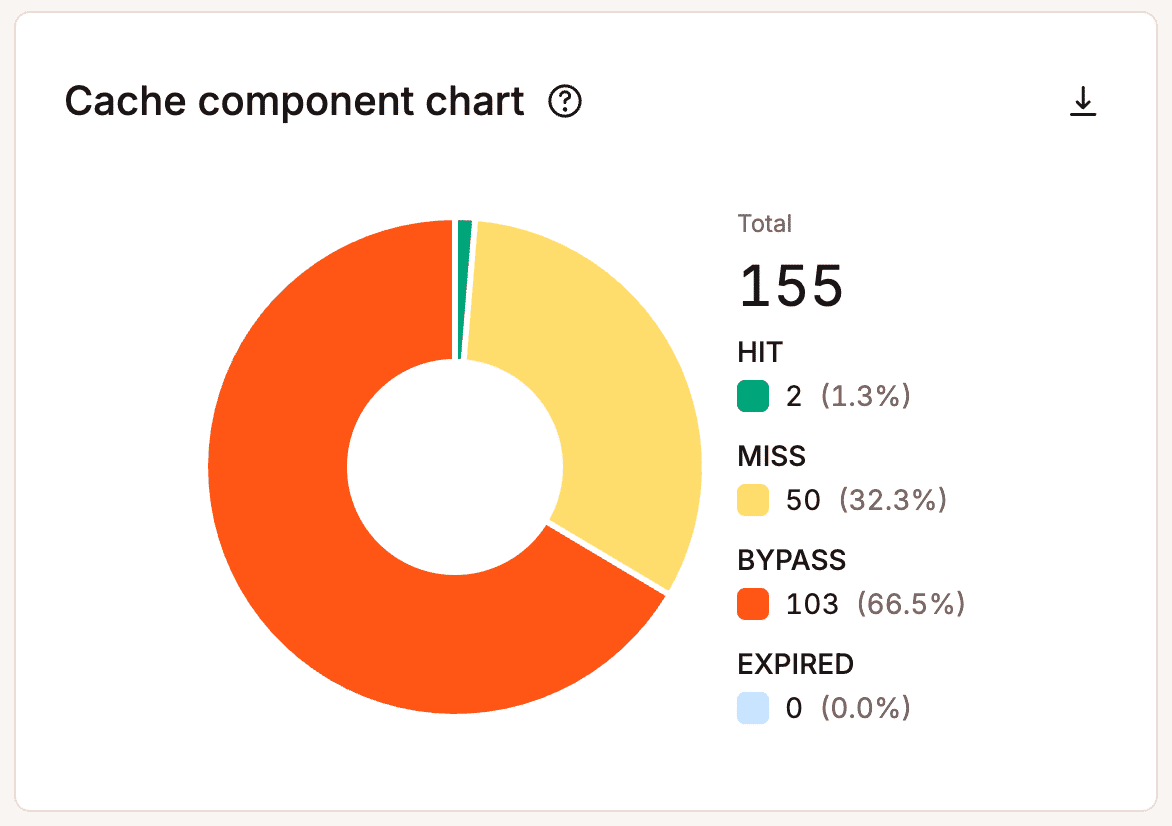
Cache – cache component chart
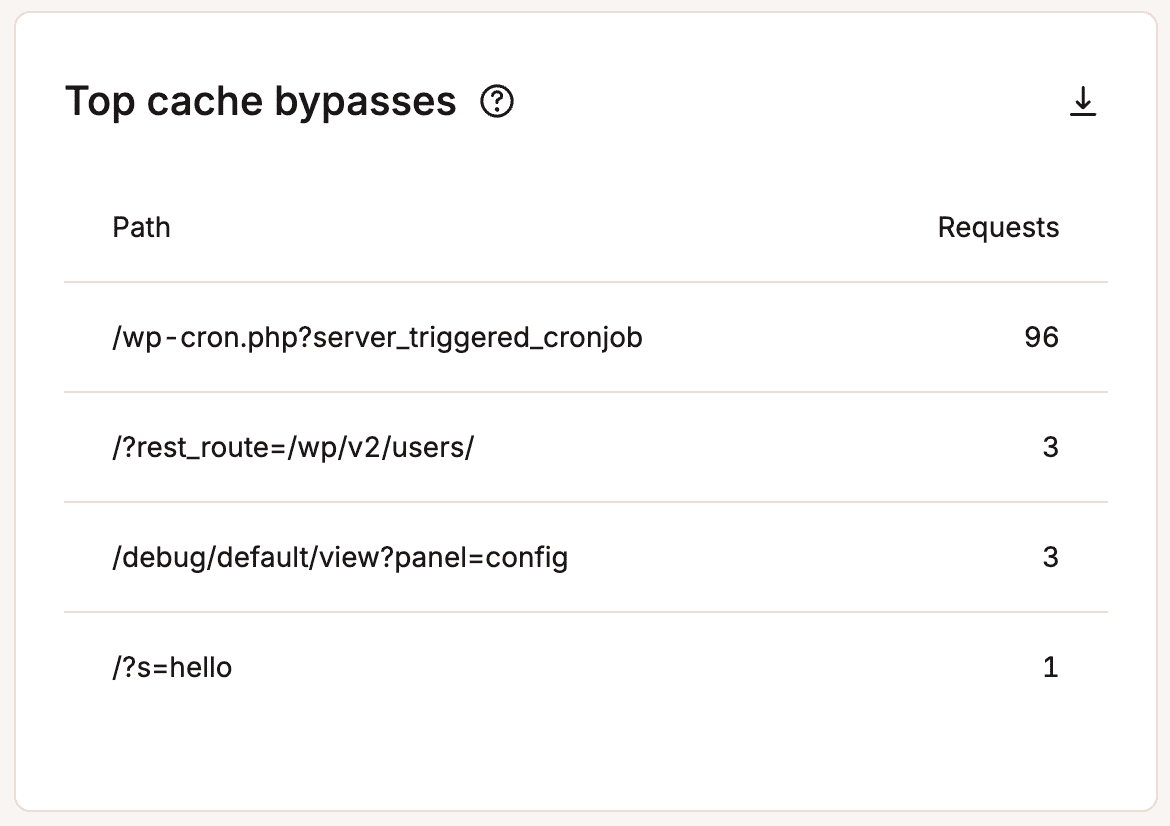
Cache – top cache bypasses
Reduce and optimize PHP thread usage
Caching
Caching is your best friend when it comes to optimizing your site and reducing the number of PHP threads needed. Remember, PHP threads aren’t needed for cached content, so cache everything you can.
Page caching
At Kinsta, we take care of page caching for you; all sites use Nginx’s FastCGI cache module for super-fast performance.
Edge caching
Edge caching stores your Kinsta site or page cache (normally saved only at your site’s data center) across our global network of 27 data centers. When visitors access your site, cached content is served from the nearest location, significantly boosting performance and website speed by up to 40%.
Object caching
Adding a persistent object cache like Redis in front of your database can boost performance and reduce the need for PHP threads. Without object caching, MySQL database queries are executed for each request, even when it’s the same query and results.
Redis stores the results of database queries in RAM so PHP can grab those results without running the query again. Removing the need for repetitive database queries allows PHP threads to conserve resources and fulfill requests more efficiently.
You can add Redis caching to your site with our Redis caching add-on.
Code optimization
Make sure your site’s code is optimized so it is as efficient as possible. This applies to custom code, theme code, and plugin code. If you’re not sure, we recommend asking a developer to review your site’s code.
Custom code
If your website contains any custom code snippets in plugins or your theme, ensure they’re truly necessary and well-written.
Plugins
Take a good look at the plugins used on the site and make sure they’re truly needed, don’t duplicate features, and are the best option for the need they fulfill. If any plugins aren’t compatible with the latest version of WordPress and PHP, it may be time to consider other options. If you have plugins on your site that aren’t being used, removing those is recommended.
Theme
Use a lightweight and performant theme. Avoid themes that contain functionality that’s best implemented via separate plugins (e.g., SEO, search filtering, custom fields, image sliders/slideshows, etc.) or isn’t needed for your site.
Update PHP
Use the latest PHP version for faster performance. PHP benchmarks show that each PHP version is faster than the previous one.
Enable Kinsta’s CDN
Enabling Kinsta’s CDN provides another boost of efficiency and optimization for your site. Kinsta’s CDN is our high-performance HTTP/3 CDN, which is provided to you at no additional cost. With it enabled, your site can serve static assets from locations worldwide.
Consult with a performance expert
If you’re familiar with site optimization, this is an optional step. An expert can help you analyze all aspects of your sites, identify bottlenecks, and implement solutions.