WordPress Hosting - Push Environments - Kinsta® Docs (original) (raw)
When pushing your WordPress environment in MyKinsta, you have the following options:
- Staging to Live: When you’re ready to go live, apply changes from staging to your live site.
- Live to Staging: Refresh your staging environment with the latest data from your live site.
- Between Different Sites: Push a live or staging environment from one site to another. This is especially useful when creating a new site based on an existing site’s configuration. You can also use this option to move a site to a different data center or dedicated server. Simply set up the new site in the desired location and then push the environment from the original site to the new one.
When pushing environments, you can use a selective push for more granular control. You can choose to push:
- Only files
- Only the database
- Specific files and folders
- Specific database tables
- Everything
Pushing an environment is quick and easy, but review the guidelines below before proceeding; they include critical details to avoid issues.
Guidelines
Pushing an environment, especially from staging to live, should be done with caution. Follow these best practices to minimize risks:
Before you push
- Choose low-traffic times: Initiate the push during off-peak hours.
- Resolve any errors: Double-check the environment you are pushing from and resolve any errors before pushing to a live environment.
- Backup automatically created: Before the push, we create a backup of the target environment so you can roll back if needed. Note: On dynamic sites (e.g., eCommerce), data created between the push and a potential rollback may be lost.
- Have a developer available: If you need assistance, consider hiring a developer. Learn how to hire a WordPress developer.
What gets pushed
- Environment settings: Redirects, geolocation, PHP, and Nginx configurations are always included, even during selective pushes. These settings will overwrite the destination environment.
- Files: If you select All files and folders on a selective push, everything will be pushed, including:
- Plugins
- Themes
- wp-content/uploads files
- Database: When you push the Database on a selective push and select Run Search & Replace, the domain name is automatically updated to the domain on the environment you are pushing to.
- Hard-coded URLs: Any hard-coded URLs in themes or plugins must be updated manually.
- Password protection:.htpasswd from the source environment will not transfer; you must re-enable it on the destination environment after the push.
After the push
- Purge any built-in cache (theme or plugin).
- Clear your browser cache.
- Test your site thoroughly.
- If CDN is active, clear the CDN cache in MyKinsta: Sites > sitename > Caching > CDN > Clear CDN cache.
Important considerations
- WooCommerce sites: MyKinsta does not distinguish between new and old orders during staging-to-live pushes. If you push all files and the database, the live site is overwritten exactly as staging is. To work around this, you can either:
- Push only files (leave the live database intact).
- Selectively push database tables, excluding WooCommerce tables.
- Sync live database to staging first, then push staging to live.
For details about what is included in each WooCommerce database table, see the WooCommerce Database Description and consult your developer. If you do not have one or aren’t sure, please check out our article on how to hire a WordPress developer.
- SSH key change: Pushing environments regenerates the SSH key fingerprint. This can cause a mismatch in your local known_hosts file and may cause the error “REMOTE HOST IDENTIFICATION HAS CHANGED!”, if this occurs, refer to SSH and SFTP Connection Errors.
- Multisite networks: Push with caution. Pushing the database may or may not work, depending on how the multisite is set up. If you do use selective push and push All database tables or All database tables and All files and folders, the entire database content will be pushed to live and will affect all sites (the main site and subsites) in your multisite network.
- Custom Nginx configuration: When you push changes between environments, the target environment’s custom Nginx configuration is retained. The source environment Nginx configuration is not transferred to the new environment.
- Non-standard setups (e.g., Bedrock/Trellis): Kinsta may not be able to locate the
DB_PASSWORDvariable and, therefore, is unable to update the database password when you push the environment. To resolve this, you can use theSERVER_SECRET_DB_PASSWORDPHP constant to store your database password.
Other notes
- Staging environments are for development and testing only, not for production use. Kinsta is not responsible for issues caused by using staging as a live site.
- Pushing one environment does not affect the source environment; they remain separate.
Push an environment
Follow the steps below to push your environment to another environment. The selective push allows you to choose what to push.
1. Select your environment
Log in to MyKinsta, click Sites, and click on the environment you want to push from. If you’ve added a Premium Staging Environment, you will have more than one staging environment to choose from.
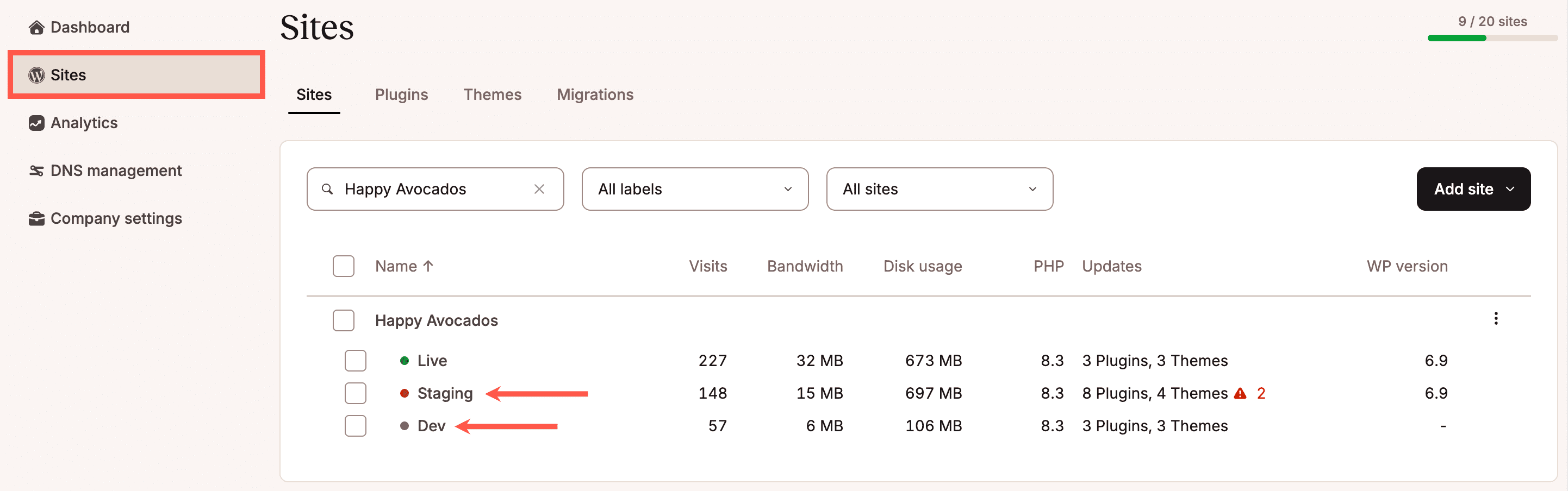
Select a WordPress staging environment in MyKinsta.
2. Push environment
In the environment, click Push Environment and select Push to environment name or Push to site name. If you have more than 10 sites, select Push to other sites, and search for the site you want to push to, and click Continue.

Push an environment in MyKinsta.
3. Select which files and database tables to push
Choose what you want to push from the following:
- Files > All files and folders: Pushes all of the files and folders to the selected environment.
- Files > Specific files and folders: Choose exactly which files and folders you want to push to the selected environment. You can use the text area to define a specific path/folder/file to push. For more information about what each file in WordPress is used for, refer to our Comprehensive Guide on WordPress Files and How to Use Them.
- Database > All database tables: Pushes all of the database tables to the selected environment.
- Database > Specific database tables: Choose exactly which database tables you want to push to the selected environment. For more information about the WordPress database, refer to A Beginner’s Guide to WordPress Database: What It Is and How to Access It.
Enter the site name to confirm and click Push to environment.
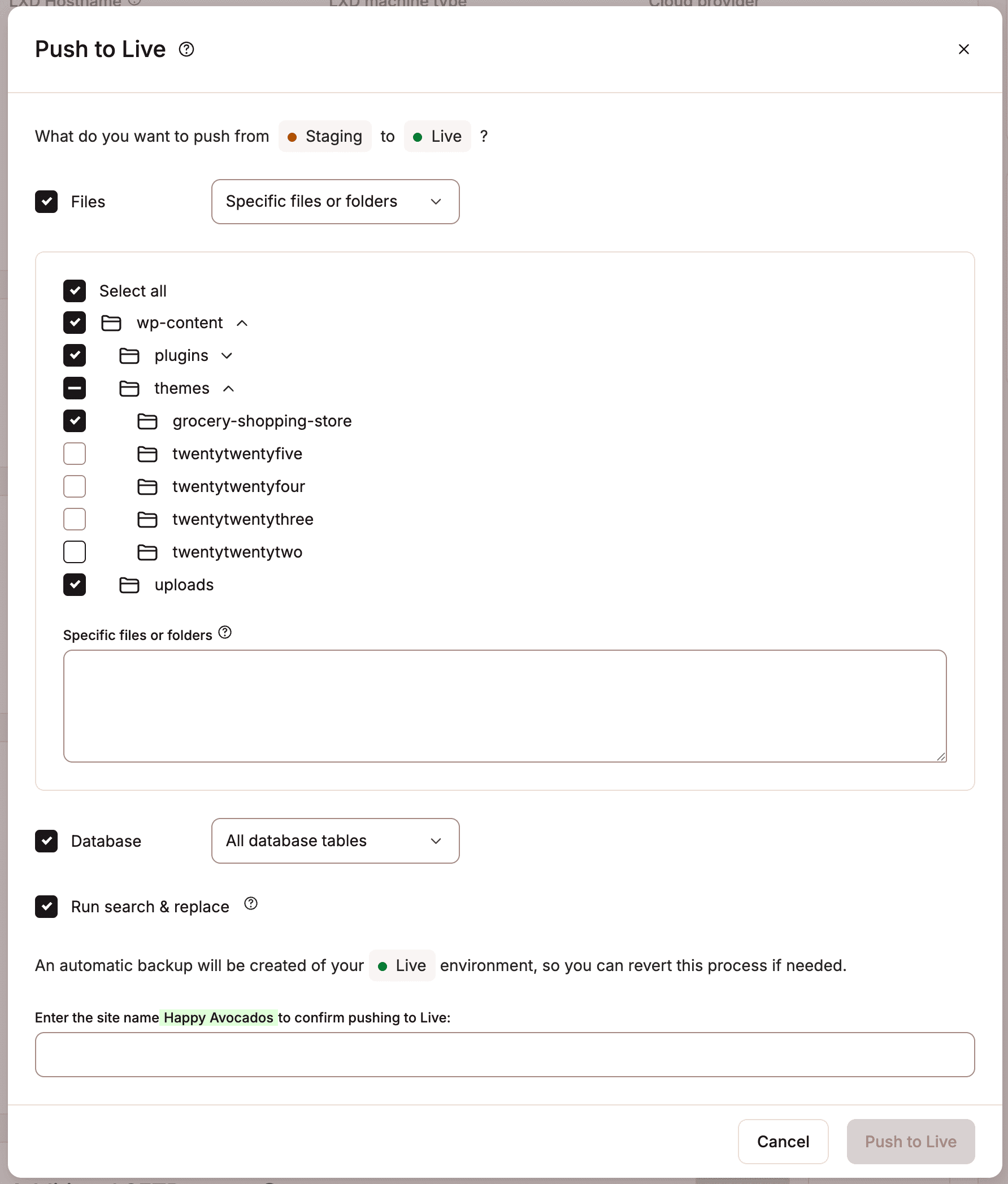
Choose what you want to push from one environment to another.
A few things to keep in mind are:
- The time required for the process to complete depends on the size of your website.
- MyKinsta will notify you when the process is completed.
- When pushing to a live site, your website will experience a couple of seconds of downtime at the final stages of the process.
- Environment settings (redirects, geolocation, PHP and Nginx configuration, etc.) are included in the push (even if only Files or Databases are selected) and will completely overwrite the environment’s settings.
Use cases and example workflows
Below, we’ve outlined some examples of when you might want to push just files, just the database, or both.
Push all files and folders only
- Changes made directly to theme files (including HTML, CSS, or PHP) that don’t save any data to the database.
- Uploading a file that doesn’t need to be included in the WordPress Media Library.
- If you have a custom plugin on your site and make changes to the files that do not affect the database (doesn’t save or alter data in the database).
Push specific files and folders
- If you make changes to a single theme, you can push the specific folder for the theme within the
themesfolder. - If you test a new version of a plugin on staging, you can then push the specific folder for the plugin within the
pluginsfolder. - You can push changes to live for specific settings or configuration files by defining the path/folder/file to push in the text area.
Push database only
Note: Any changes to the live site’s database since the staging site was created will be lost, including but not limited to: comments, new content, purchases on ecommerce sites, sign-ups on membership sites, and forum posts.
- Creating or editing a new post or page that doesn’t include any uploaded media (image, video, or other uploaded files).
- Layout changes to a page or post made through a builder plugin.
- Changing the Site Title or Tagline.
Push specific database tables
- If you test a custom WordPress plugin or theme on staging that requires a specific database table update in your live environment.
- If you reorganize specific data tables or fix issues with the tables in your staging environment and only want to push the new tables to live.
- If you change user-related data or user roles in staging and only want to push the user database tables to live.
Push all
Note: Any changes to the live site’s database since the staging site was created will be lost, including but not limited to: comments, new content, purchases on ecommerce sites, sign-ups on membership sites, and forum posts.
- Creating new content that includes uploaded media (image, video, or other uploaded files).
- Changes to your theme made in both the Customizer and the theme files.
- Installing and testing a new plugin or updated version of a plugin.