Get help with HubSpot (original) (raw)
If you have any questions or technical issues while using HubSpot, there are different ways to get help depending on your subscriptions. If you're having trouble logging into your HubSpot account, you can try these troubleshooting steps.
All HubSpot users have access to helpful resources including:
- HubSpot Knowledge Base: access how-to-guides, reference docs, and troubleshooting steps.
- HubSpot Community: ask questions, find answers, and engage with professionals from around the world.
- HubSpot's developer community: ask questions, interact, and connect with fellow developers from all around the world.
Please note: in accounts created on or after March 5, 2024, users must have an assigned Core, Sales, or Service seat to access chat, email, or phone support. Learn more about HubSpot's new seats-based pricing model.
Learn more about the different support channels available below:
| | HubSpot's Free Tools | Starter | Professional | Enterprise | | | --------------------------- | ----------- | ---------------- | -------------- | - | | Knowledge Base | ✓ | ✓ | ✓ | ✓ | | Community | ✓ | ✓ | ✓ | ✓ | | Chat Support | - | ✓ | ✓ | ✓ | | Email Support | - | ✓ | ✓ | ✓ | | Phone Support | - | - | ✓ | ✓ |
Before you get started
Before getting started, do note the following:
- Currently, phone support is offered in English only. To request a call-back in a specific language, ensure that your individual user settings are configured to that language. Chat, callback, and email support are available in the following languages.
- English
- French
- German
- Japanese
- Portuguese
- Spanish
- When contacting HubSpot’s support team, certain topics may have a limited scope of support. Learn more about HubSpot's scope of support.
- When submitting a ticket, there are several steps you can take to help ensure that your issue is resolved efficiently:
- Be specific: if a ticket reads “my list isn’t working,” support specialists can't investigate the issue until they know which specific list isn’t working, or what you're seeing on your end that's different from the expected behavior.
- Include links: by default, HubSpot employee access is toggled on and support specialists can access most parts of your account. If there's a specific part of the tool you're referring to, you can guide the specialist to the relevant asset by including URLs in your ticket.
- Clarify with visuals and activity logs: it can be hard to describe an issue with words, particularly if it’s only happening on your browser, your device, or your office network. It's helpful to include screenshots, videos, GIFs, or HAR files in your ticket when possible.
- Have your Hub ID ready when contacting HubSpot Support, especially by phone.
HubSpot's free tools
If you're using HubSpot's free tools, you can access the Knowledge Base and community.
- In your HubSpot account, at the top right, click the question help icon in the main navigation bar.
- In the Ask a question field, enter your question or select a question from the dropdown menu.
- If there's an answer available, it'll appear in the dialog box. To display additional resources, click See related results.
- If there's no answer available, a list of help results displaying articles from the Knowledge Base will appear.
Starter
If you have a HubSpot Starter subscription, you can access the Knowledge Base, community, chat, and email support channels.
- In your HubSpot account, at the top right, click the question help icon in the main navigation bar.
- In the Ask a question field, enter your question.
- To display additional resources, click See related results.
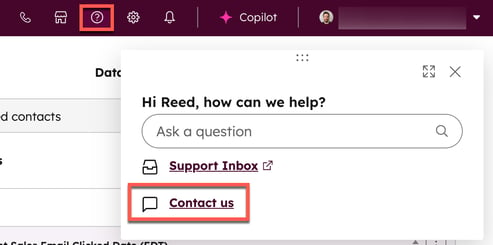
- If you're unable to resolve your issue, contact HubSpot support. At the bottom of the dialog box, click Contact us.
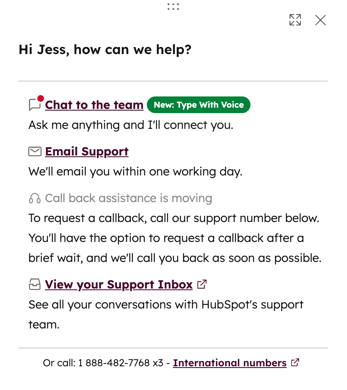
- To chat with a HubSpot Customer Support Specialist in real-time, click Chat to the team.
- To send a help email to a HubSpot Customer Support Specialist, click Email Support. You should receive a reply within one working day.
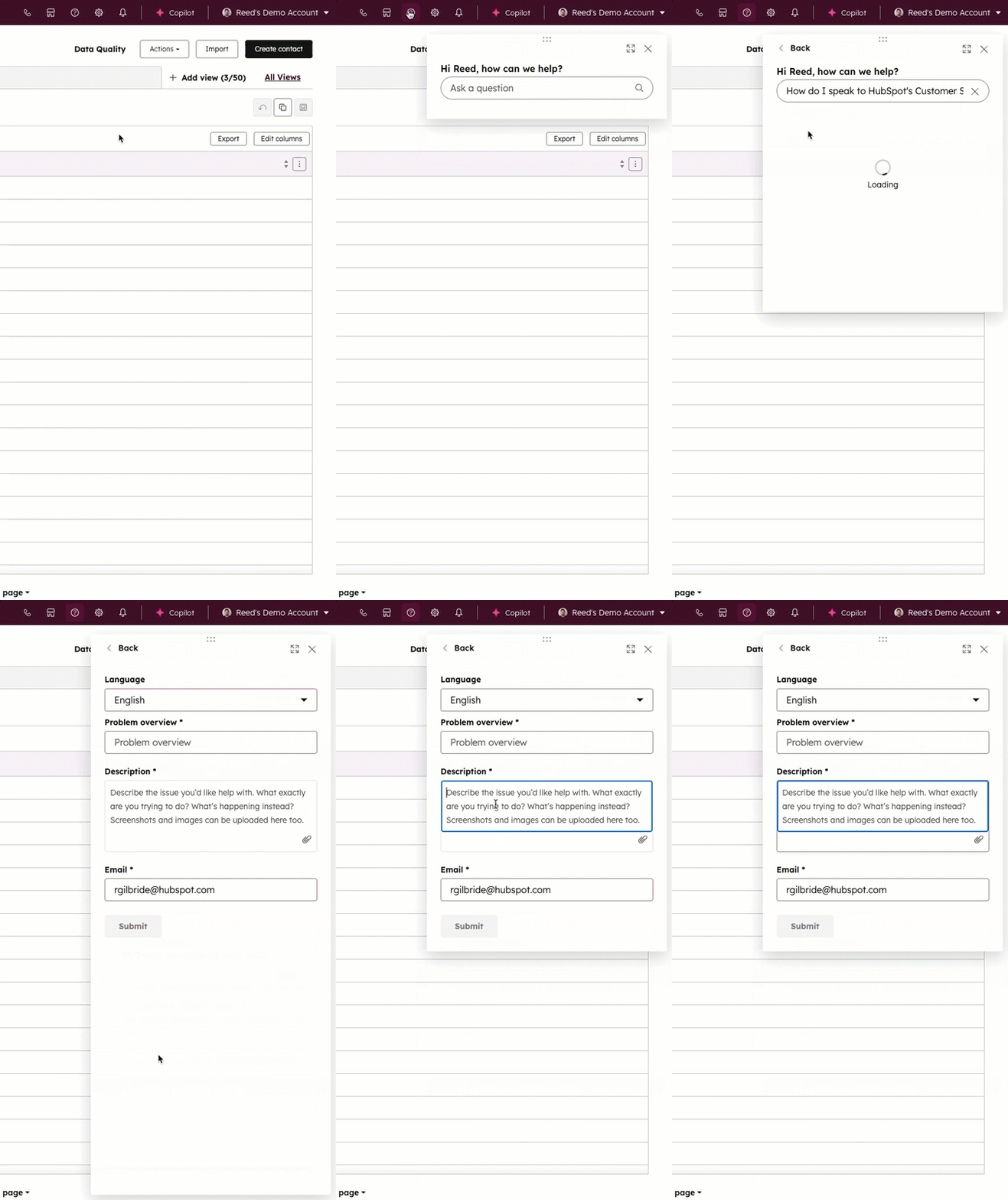
* Language: the language you'd like to communicate in.
* Problem overview: a general description of the roadblock you're facing.
* Description: a detailed description of what you'd like help with.
* Email: the email address that the reply will be sent to. By default, this will be your HubSpot user's email address. - To review your support tickets, click View your Support inbox.
Professional or Enterprise
If you have a HubSpot Enterprise or Professional subscription, you can access the Knowledge Base, community, phone, call-back, chat, and email support channels. For any questions about your HubSpot subscription, please contact your Customer Success Manager.
To submit a ticket with HubSpot support:
- In your HubSpot account, at the top right, click the question help icon in the main navigation bar.
- In the Ask a question field, enter your question.
- If you're unable to resolve your issue, contact HubSpot support. At the bottom of the dialog box, click Contact us.
- Choose from the following support channels:
- Chat to the team: web chat in real-time with a Customer Support Specialist.
- Email support: request email support from a Customer Support Specialist. Generally, you'll receive a reply within one working day.
- Support number: call the HubSpot support number listed in the Help box. If the line is busy, you'll have the option to request a callback after a brief wait.
- Enter your details. Then click Send message or Submit.
Get help on the HubSpot mobile app
If you have a paid HubSpot subscription, you can request help while on the go with the HubSpot mobile app. To submit a support ticket on the HubSpot mobile app:
- Open the HubSpot app on your device.
- In the top left, tap the listView menu icon.
- In theleft panel, tap Help.
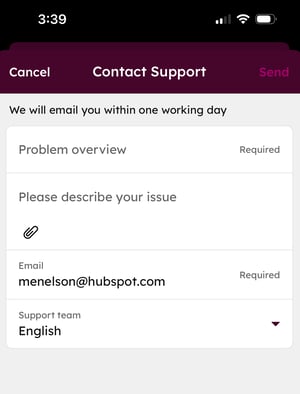
- In the Support section, tap Submit a ticket.
- Depending on your subscription, you can choose from the following support channels:
- Email : users with Starter, Professional, or Enterprise subscriptions can request email support from a Customer Support Specialist. Generally, you'll receive a reply within one working day.
- Call me: users with Professional or Enterprise subscriptions can request a call-back from a Customer Support Specialist. Generally, you'll receive a call within five minutes.
Please note: starting on September 3rd, 2024, the HubSpot mobile app will no longer support the Call me feature. You'll only be able to use the Email support channel on the HubSpot mobile app.
- In the top right, tap Send. After submitting a ticket, you can review any open and prior tickets with HubSpot Support on your desktop.
View your Support inbox
After submitting a ticket, you can review any open and prior tickets with HubSpot Support. You may also need to view your Support inbox if your chat or call needs to continue over email. When you reply to a thread in the Support inbox or Support email, your ticket will stay active. You can also reopen a ticket from the Support inbox.
To access your support inbox:
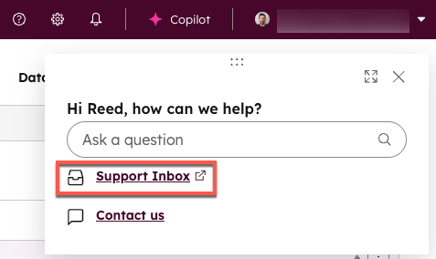
- In your HubSpot account, at the top right, click the question help icon in the main navigation bar.
- To review your support tickets, click Support inbox.
- In the left sidebar of your Support inbox, you can filter your tickets.
- All tickets: all tickets in the support inbox.
- Open tickets: ongoing tickets in the support inbox.
- Closed tickets: closed and completed tickets in the support inbox.
- Favorites: tickets that have been favorited in the support inbox. To add a ticket to your Favorites, click the favoritefavorit star icon at the top of a ticket.
- In an open ticket, you can do the following:
- To send or reply to an email from HubSpot Support, enter text into the message field, then click Send.
- To continue a chat, click Continue this chat.
- To close a ticket, at the bottom of the ticket timeline, click Close this ticket.
- In a closed ticket, you can do the following:
- To submit ticket feedback, at the bottom of the ticket, fill out the survey.
- To reopen and discuss issues covered in the ticket, click Reopen this ticket.
- To create a new ticket for new questions or issues, click Create a new ticket.
Help & Resources