How the organizational structure works (original) (raw)
Initially in your Google Admin console, all your users and devices are placed in a single organizational unit, called the top-level organizational unit. All settings you make in the Admin console apply to this top-level organizational unit and, therefore, to all users and devices in your account.
Apply settings to groups of users or devices
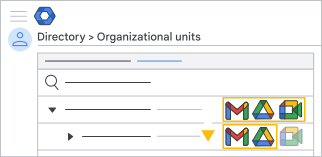 To apply different settings to some users or devices, place them in a child organizational unit, (for example, Finance or Human Resources) below the top level. Users or devices in organizational units get the settings that you apply to them. To keep a child organizational unit from inheriting its parent's settings, apply to the child any settings that are specific to it.
- Example—Gmail, Google Meet, and Google Drive work for users in the top-level organizational unit. Users in the child organizational unit inherit Gmail and Drive, but for them, Meet is off.
- Recommendation—Create separate organizational units for users and devices. That way, you can tailor settings for managed devices and managed users as needed.
Set up your organizational structure
Below the top-level unit, you can add child organizational units—either at the same level or in a hierarchy. When you change a setting at a higher level, the settings for all child organizational units that inherit that setting also change. Custom settings, however, remain unchanged.
To get started:
- Create organizational unitsthat contain users or Chrome devices.
- For each organizational unit, you can:
- Turn services on or off for users
- Change service settings, such as Drive sharing policies
- Set policies for Chrome devices
Apply settings to one user or device
To change settings for a single user or device, create an organizational unit for just that user or device. A user or device belongs to only one organizational unit and inherits that organizational unit's settings.
If you use multiple domains
You can mix and match users from all your domains in an organizational unit. To change settings for users in a particular domain, create an organizational unit for just those users.
Options for large organizations
If you manage a large number of users or sync your LDAP directory, you might want to make exceptions for some groups of users, regardless of their organizational unit.
You have 2 options:
- Configuration groups (to customize service settings)—For example, you might prevent external sharing of Drive files for people in entire departments using organizational units. Then allow sharing externally for selective people within each department by placing those individuals in a_configuration group_.
For steps: Customize service settings using configuration groups - Access groups (to customize service access)—For example, you might turn_off_ YouTube for people in entire departments using organizational units. Then turn on YouTube for selective people within each department by placing them in an access group.
For steps: Customize service access using access groups