Plan a single sign-on deployment - Microsoft Entra ID (original) (raw)
This article provides information that you can use to plan your single sign-on (SSO) deployment in Microsoft Entra ID. When you plan your SSO deployment with your applications in Microsoft Entra ID, you need to consider the following questions:
- What are the administrative roles required for managing the application?
- Does the Security Assertion Markup Language (SAML) application certificate need to be renewed?
- Who needs to be notified of changes related to the implementation of SSO?
- What licenses are needed to ensure effective management of the application?
- Are shared and guest user accounts used to access the application?
- Do I understand the options for SSO deployment?
Administrative roles
Always use the role with the fewest permissions available to accomplish the required task within Microsoft Entra ID. Review the different roles that are available and choose the right one to solve your needs for each persona for the application. Some roles might need to be applied temporarily and removed after the deployment is completed.
| Persona | Roles | Microsoft Entra role (if necessary) |
|---|---|---|
| Help desk admin | Tier 1 support view the sign-in logs to resolve issues. | None |
| Identity admin | Configure and debug when issues involve Microsoft Entra ID | Cloud Application Administrator |
| Application admin | User attestation in application, configuration on users with permissions | None |
| Infrastructure admins | Certificate rollover owner | Cloud Application Administrator |
| Business owner/stakeholder | User attestation in application, configuration on users with permissions | None |
To learn more about Microsoft Entra administrative roles, see Microsoft Entra built-in roles.
Certificates
When you enable federation on SAML application, Microsoft Entra ID creates a certificate that is by default valid for three years. You can customize the expiration date for that certificate if needed. Ensure that you have processes in place to renew certificates before their expiration.
You change that certificate duration in the Microsoft Entra admin center. Make sure to document the expiration and know how to manage your certificate renewal. It’s important to identify the right roles and email distribution lists involved with managing the lifecycle of the signing certificate. The following roles are recommended:
- Owner for updating user properties in the application
- Owner On-Call for application troubleshooting support
- Closely monitored email distribution list for certificate-related change notifications
Set up a process for how to handle a certificate change between Microsoft Entra ID and your application. By having this process in place, you can help prevent or minimize an outage due to a certificate expiring or a forced certificate rollover. For more information, see Manage certificates for federated single sign-on in Microsoft Entra ID.
Communications
Communication is critical to the success of any new service. Proactively communicate to your users about the upcoming experience change. Communicate when change is to take place, and how to gain support if they experience issues. Review the options for how users are to access their SSO-enabled applications, and craft your communications to match your selection.
Implement your communication plan. Make sure you're letting your users know that a change is coming, when it arrives, and what to do now. Also, make sure that you provide information about how to seek assistance.
Licensing
Ensure the application is covered by the following licensing requirements:
- Microsoft Entra ID licensing - SSO for preintegrated enterprise applications is free. However, the number of objects in your directory and the features you wish to deploy might require more licenses. For a full list of license requirements, see Microsoft Entra pricing.
- Application licensing - You need the appropriate licenses for your applications to meet your business needs. Work with the application owner to determine whether the users assigned to the application have the appropriate licenses for their roles within the application. If Microsoft Entra ID manages the automatic provisioning based on roles, the roles assigned in Microsoft Entra ID must align with the number of licenses owned within the application. Improper number of licenses owned in the application might lead to errors during the provisioning or updating of a user account.
From the sign-in perspective, applications with shared accounts aren't different from enterprise applications that use password SSO for individual users. However, there are more steps required when planning and configuring an application meant to use shared accounts.
- Work with users to document the following information:
- The set of users in the organization who are to use the application.
- The existing set of credentials in the application associated with the set of users.
- For each combination of user set and credentials, create a security group in the cloud or on-premises based on your requirements.
- Reset the shared credentials. After the application is deployed in Microsoft Entra ID, individuals don't need the password of the shared account. Microsoft Entra ID stores the password and you should consider setting it to be long and complex.
- Configure automatic rollover of the password if the application supports it. That way, not even the administrator who did the initial setup knows the password of the shared account.
Single sign-on options
There are several ways you can configure an application for SSO. Choosing an SSO method depends on how the application is configured for authentication.
- Cloud applications can use OpenID Connect, OAuth, SAML, password-based, or linked for SSO. Single sign-on can also be disabled.
- On-premises applications can use password-based, Integrated Windows Authentication, header-based, or linked for SSO. The on-premises choices work when applications are configured for Application Proxy.
This flowchart can help you decide which SSO method is best for your situation.
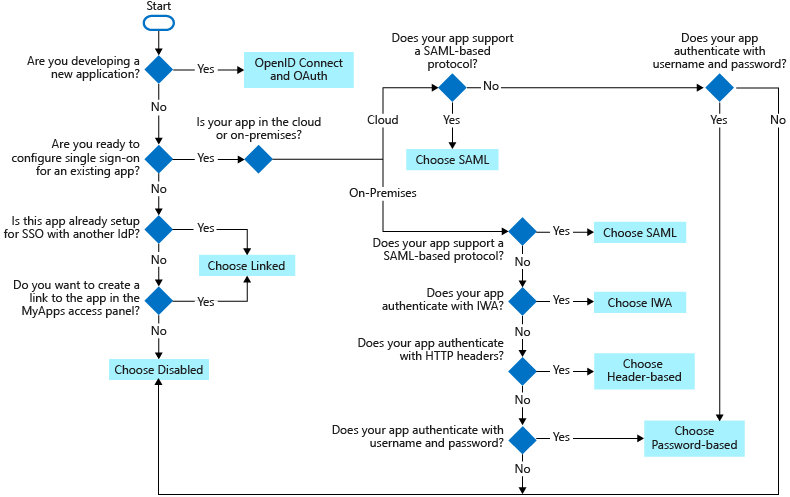
The following SSO protocols are available to use:
- OpenID Connect and OAuth - Choose OpenID Connect and OAuth 2.0 if the application you're connecting to supports it. For more information, see OAuth 2.0 and OpenID Connect protocols on the Microsoft identity platform. For steps to implement OpenID Connect SSO, see Set up OIDC-based single sign-on for an application in Microsoft Entra ID.
- SAML - Choose SAML whenever possible for existing applications that don't use OpenID Connect or OAuth. For more information, see single sign-on SAML protocol.
- Password-based - Choose password-based when the application has an HTML sign-in page. Password-based SSO is also known as password vaulting. Password-based SSO enables you to manage user access and passwords to web applications that don't support identity federation. It's also useful where several users need to share a single account, such as to your organization's social media app accounts.
Password-based SSO supports applications that require multiple sign-in fields for applications that require more than just username and password fields to sign in. You can customize the labels of the username and password fields your users see on My Apps when they enter their credentials. For steps to implement password-based SSO, see Password-based single sign-on. - Linked - Choose linked when the application is configured for SSO in another identity provider service. The linked option lets you configure the target location when a user selects the application in your organization's end user portals. You can add a link to a custom web application that currently uses federation, such as Active Directory Federation Services (ADFS).
You can also add links to specific web pages that you want to appear on your user's access panels and to an app that doesn't require authentication. The Linked option doesn't provide sign-on functionality through Microsoft Entra credentials. For steps to implement linked SSO, see Linked single sign-on. - Disabled - Choose disabled SSO when the application isn't ready to be configured for SSO.
- Integrated Windows Authentication (IWA) - Choose IWA single sign-on for applications that use IWA, or for claims-aware applications. For more information, see Kerberos Constrained Delegation for single sign-on to your applications with Application Proxy.
- Header-based - Choose header-based single sign-on when the application uses headers for authentication. For more information, see Header-based SSO.