Connect your GitLab groups - Microsoft Defender for Cloud (original) (raw)
In this quickstart, you connect your GitLab groups on the Environment settings page in Microsoft Defender for Cloud. This page provides a simple onboarding experience to automatically discover your GitLab resources.
By connecting your GitLab groups to Defender for Cloud, you extend the security capabilities of Defender for Cloud to your GitLab resources. These features include:
- Foundational Cloud Security Posture Management (CSPM) features: You can assess your GitLab security posture through GitLab-specific security recommendations. You can also learn about all the recommendations for DevOps resources.
- Defender CSPM features: Defender CSPM customers receive code to cloud contextualized attack paths, risk assessments, and insights to identify the most critical weaknesses that attackers can use to breach their environment. Connecting your GitLab projects allows you to contextualize DevOps security findings with your cloud workloads and identify the origin and developer for timely remediation. For more information, learn how to identify and analyze risks across your environment.
Prerequisites
To complete this quickstart, you need:
- An Azure account with Defender for Cloud onboarded. If you don't already have an Azure account, create one for free.
- GitLab Ultimate license for your GitLab Group.
Availability
| Aspect | Details |
|---|---|
| Release state: | General availability. |
| Pricing: | For pricing, see the Defender for Cloud pricing page. You can also estimate costs with the Defender for Cloud cost calculator. |
| Required permissions: | Account Administrator with permissions to sign in to the Azure portal. Contributor to create a connector on the Azure subscription. Group Owner on the GitLab Group. |
| Regions and availability: | Refer to the support and prerequisites section for region support and feature availability. |
| Clouds: |  Commercial Commercial  National (Azure Government, Microsoft Azure operated by 21Vianet) National (Azure Government, Microsoft Azure operated by 21Vianet) |
Note
Security Reader role can be applied on the Resource Group/GitLab connector scope to avoid setting highly privileged permissions on a Subscription level for read access of DevOps security posture assessments.
To connect your GitLab Group to Defender for Cloud by using a native connector:
- Sign in to the Azure portal.
- Go to Microsoft Defender for Cloud > Environment settings.
- Select Add environment.
- Select GitLab.
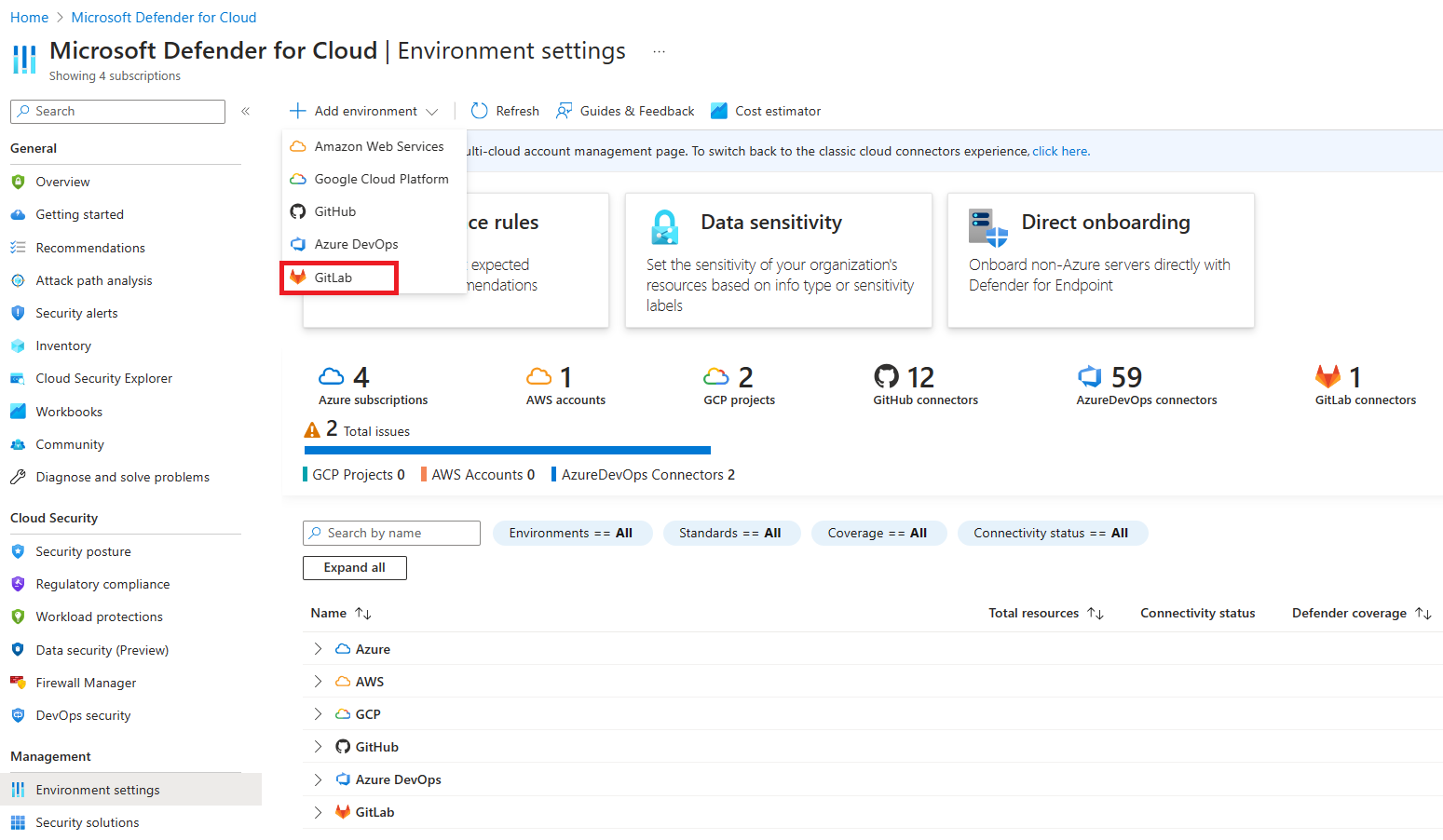
- Enter a name, subscription, resource group, and region.
The subscription is the location where Microsoft Defender for Cloud creates and stores the GitLab connection. - Select Next: Configure access.
- Select Authorize.
- In the popup dialog, read the list of permission requests, and then select Accept.
- For Groups, select one of the following:
- Select all existing groups to autodiscover all subgroups and projects in groups you're currently an Owner in.
- Select all existing and future groups to autodiscover all subgroups and projects in all current and future groups you're an Owner in.

Since GitLab projects are onboarded at no additional cost, autodiscovery is applied across the group to ensure Defender for Cloud can comprehensively assess the security posture and respond to security threats across your entire DevOps ecosystem. Groups can later be manually added and removed through Microsoft Defender for Cloud > Environment settings.
- Select Next: Review and generate.
- Review the information, and then select Create.
Note
To ensure proper functionality of advanced DevOps posture capabilities in Defender for Cloud, only one instance of a GitLab group can be onboarded to the Azure Tenant you are creating a connector in.
The DevOps security pane shows your onboarded repositories by GitLab group. The Recommendations pane shows all security assessments related to GitLab projects.
Next steps
- Learn more about DevOps security in Defender for Cloud.