Review Security Recommendations - Microsoft Defender for Cloud (original) (raw)
In Microsoft Defender for Cloud, resources and workloads are assessed against built-in and custom security policies and regulatory compliance frameworks, which you apply in your cloud environments (Azure, Amazon Web Services (AWS), Google Cloud Platform (GCP), and more). Based on those assessments, security recommendations provide practical steps to remediate security problems and improve your security posture.
For detailed information about security recommendations, including risk factors, prioritization, and classification, see Security recommendations.
Note
In the portal, some recommendations that previously appeared as a single aggregated item now display as multiple individual recommendations. This change reflects a shift from grouping related findings under one recommendation to listing each recommendation separately.
- You might see a longer list of recommendations compared to before. Combined findings (such as vulnerabilities, exposed secrets, or misconfigurations) now appear as individual recommendations rather than nested under a parent recommendation.
- The old grouped recommendations still appear side by side with the new format for now, but they're eventually deprecated.
- These recommendations are marked as Preview. This tag indicates that the recommendation is in an early state and doesn't affect Secure Score yet.
- Secure Score currently applies to the parent recommendation only, not to each individual item.
If you see both formats or recommendations with a Preview tag, this condition is expected during the transition. The goal is to improve clarity and allow you to act on specific recommendations more easily. For more information, see Transition from grouped to individual recommendations.
Prerequisites
Recommendations are included with Defender for Cloud, but you can't see risk prioritization unless you enable Defender CSPM on your environment.
Review the recommendations page
Review recommendations and make sure all the details are correct before you resolve them.
- Sign in to the Azure portal.
- Go to Defender for Cloud > Recommendations.
- Apply filters such as:
- Exposed asset: Filter by assets with exposure to threats.
- Asset risk factors: Filter by specific risk conditions.
- Environment: Filter by Azure, AWS, or GCP.
- Workload: Filter by specific workload types.
- Recommendation maturity: Filter by recommendation readiness level.
- In the left-hand side of the page, you can choose to view recommendations by security category:
- All recommendations: Complete list of security recommendations.
- Misconfigurations: Configuration-related security issues.
- Vulnerabilities: Software vulnerabilities requiring patches.
- Exposed Secrets: Credentials and secrets that might be compromised.
These category tabs can help you focus your view by security category so that you can choose to see everything at once or drill down into specific areas.
Note
When you select a security category filter, both the recommendations list and the summary cards update to reflect only the recommendations in that category.
- Select a recommendation.
Recommendation views
The Azure portal provides three distinct ways to view and interact with recommendations:
Flat list view
This view displays a list of all recommendations organized by individual assets, ordered by risk level. Each row represents a single recommendation affecting a specific resource.

When you select a recommendation row, a side panel opens displaying:
- Overview: General information about the recommendation, including its description, details of the exposed asset, and other relevant recommendation specifics
- Remediation steps: Actionable guidance to resolve the security issue
- Map preview: Displays all related attack paths passing through the asset, aggregated by target node type. You can:
- Select an aggregated path to reveal all associated attack and additional paths
- Select a specific path to view its detailed visualization
- Related initiatives: Security initiatives and compliance frameworks associated with the recommendation
- Additional tabs might appear for specific recommendations with relevant contextual information
Resource views
In addition to Group by title, the Azure portal supports Group by resource. This groups all findings for the same asset in one place, which is helpful when a single owner is responsible for an asset and should receive all of its findings together.

Recommendation title view
This view aggregates recommendations by title, showing a consolidated list ordered by risk level. Each row represents all instances of a particular recommendation across your environment.
- Sign in to the Azure portal.
- Go to Defender for Cloud > Recommendations.
- Select Group by title.
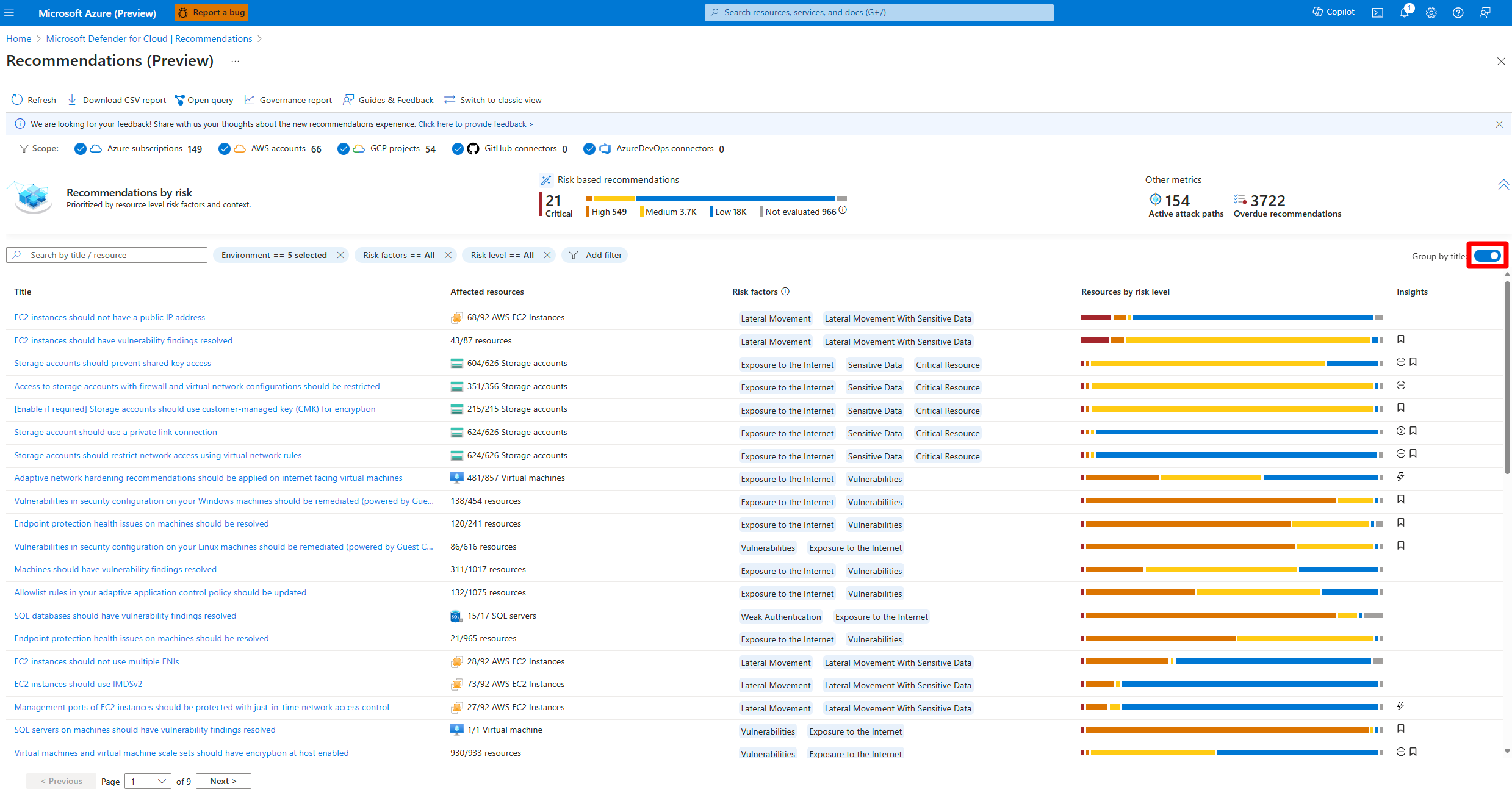

When you select an aggregated recommendation row, a side panel opens displaying:
- Overview: General information including the recommendation description, risk level distribution across affected resources, governance status, and other relevant details
- Remediation steps: Actionable guidance to resolve the security issue
- Exposed assets: A list of all resources affected by this recommendation
- Related initiatives: Security initiatives and compliance frameworks associated with the recommendation
- Additional tabs might appear for specific recommendations with relevant contextual information
The Recommendations page within Exposure Management provides a prioritized list of security actions designed to improve your cloud security posture by addressing vulnerabilities, misconfigurations, and exposed secrets. These recommendations are ranked by effective risk, helping security teams focus on the most critical threats first.
- Sign in to the Microsoft Defender portal.
- Go to Exposure Management > Recommendations > Cloud tab.

- Apply filters such as:
- Exposed asset: Filter by assets with exposure to threats.
- Asset risk factors: Filter by specific risk conditions.
- Environment: Filter by Azure, AWS, or GCP.
- Workload: Filter by specific workload types.
- Recommendation maturity: Filter by recommendation readiness level.
- In the left-hand side of the page, you can choose to view recommendations by security category:
- All recommendations: Complete list of security recommendations.
- Misconfigurations: Configuration-related security issues.
- Vulnerabilities: Software vulnerabilities requiring patches.
- Exposed Secrets: Credentials and secrets that might be compromised.
Note
When you select a security category filter, both the recommendations list and the summary cards update to reflect only the recommendations in that category.

Recommendations summary cards
For each view, the page displays summary cards that provide an at-a-glance overview of your cloud security posture:
- Cloud secure score: Shows your overall cloud security health based on the security recommendations in your environment.
- Score history: Tracks your Secure Score changes over the last seven days, helping you identify trends and measure improvement.
- Recommendations by risk level: Summarizes the number of active security recommendations, categorized by severity (Critical, High, Medium, Low).
- How risk level is calculated: Explains how severity ratings and asset-specific risk factors are combined to determine the overall risk level for each recommendation.
Recommendation views
The Defender portal provides two distinct ways to view and interact with recommendations:
Recommendation per asset view
This view displays a list of all recommendations organized by individual assets, ordered by risk level. Each row represents a single recommendation affecting a specific resource.
When you select a recommendation row, a side panel opens displaying:
- Overview: General information about the recommendation, including its description, details of the exposed asset, and other relevant recommendation specifics
- Remediation steps: Actionable guidance to resolve the security issue
- Map preview: Displays all related attack paths passing through the asset, aggregated by target node type. You can:
- Select an aggregated path to reveal all associated attack and additional paths
- Select a specific path to view its detailed visualization
- Related initiatives: Security initiatives and compliance frameworks associated with the recommendation
- Additional tabs might appear for specific recommendations with relevant contextual information
Recommendation title view
This view aggregates recommendations by title, showing a consolidated list ordered by risk level. Each row represents all instances of a particular recommendation across your environment.
When you select an aggregated recommendation row, a side panel opens displaying:
- Overview: General information including the recommendation description, risk level distribution across affected resources, governance status, and other relevant details
- Remediation steps: Actionable guidance to resolve the security issue
- Exposed assets: A list of all resources affected by this recommendation
- Related initiatives: Security initiatives and compliance frameworks associated with the recommendation
- Additional tabs might appear for specific recommendations with relevant contextual information
Recommendation per resource view
In addition to Group by title, the portal supports Group by resource. This groups all findings for the same asset in one place, which is helpful when a single owner is responsible for an asset and should receive all of its findings together.

Alternative access paths to recommendations:
- Cloud infrastructure > Overview > Security posture > Security recommendations > View recommendations
- Exposure Management > Initiatives > Cloud Security > Open initiative page > Security Recommendations tab
Note
Why you might see different resources between the Azure portal and Defender portal:
- Deleted resources: You might notice deleted resources still showing in the Azure portal. This condition happens because the Azure portal currently shows the last known state of resources. The product team is working to fix this condition so that deleted resources no longer appear.
- Azure Policy resources: Some resources that come from Azure Policy might not show up in the Defender portal. During preview, the portal only displays resources that have security context and contribute to meaningful security insights.
- Resources tied to free subscriptions don't currently appear in the Defender portal.
Explore a recommendation
You can interact with recommendations in multiple ways. If an option isn't available, that option isn't relevant to the recommendation.
- Sign in to the Azure portal.
- Go to Defender for Cloud > Recommendations.
- Select a recommendation.
- In Take action:
- Remediate: A description of the manual steps required to resolve the security problem on the affected resources. For recommendations with the Fix option, you can select View remediation logic before applying the suggested fix to your resources.
- Recommendation owner and set due date: If you enable a governance rule for the recommendation, you can assign an owner and due date.
- Exempt: You can exempt resources from the recommendation. Disable rules, which were previously used to suppress specific findings, are being deprecated. Use exemptions instead. For migration guidance, see Transition from disable rules to exemptions.
- Workflow automation: Set a logic app to trigger with the recommendation.
Note
With the new individual recommendation format, governance works at the finding level. You can assign owners and due dates to specific findings, and you can use governance rules with resource tags (for example, Team: DataPlatform) to automatically route recommendations to the correct owner or queue.

- In Graph, view and investigate all the context that's used for risk prioritization, including attack paths. You can select a node in an attack path to view the details of the selected node.
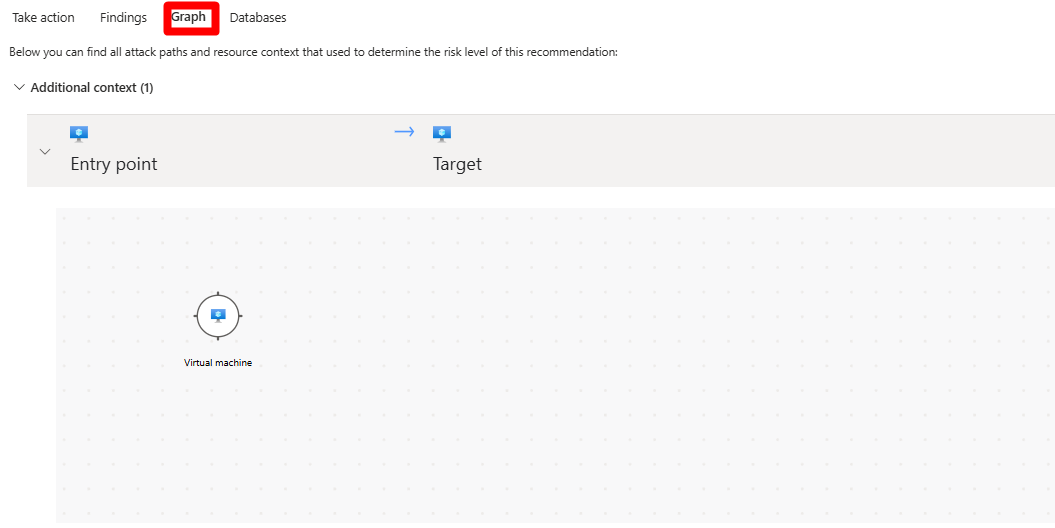
- To view more details, select a node.

- Select Insights.
- To view details, select a vulnerability from the dropdown menu.
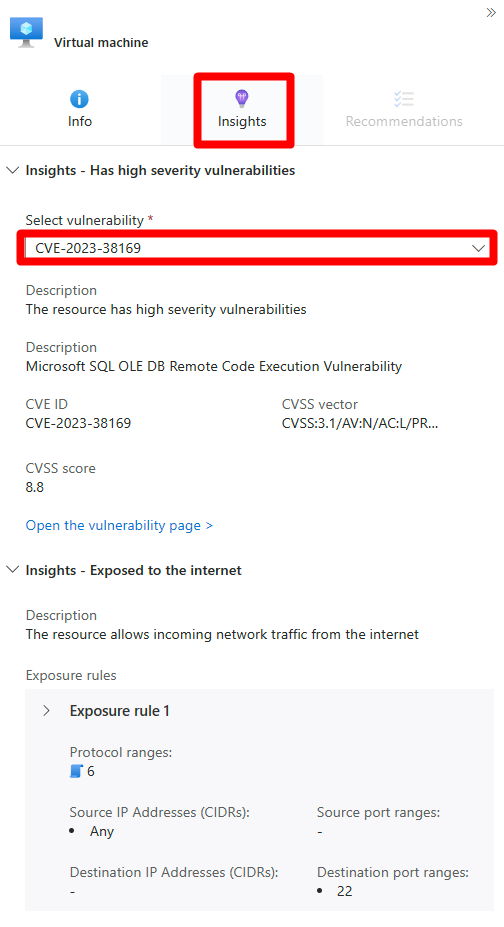
- (Optional) To view the associated recommendation page, select Open the vulnerability page.
- Remediate the recommendation.


Note
During the preview transition, you may see Preview and New version indicators on certain recommendations. These tags distinguish new individual items from grouped ones shown side by side. Use filters to limit the view to one format when needed. 
In the Defender portal, you can interact with recommendations in multiple ways through the Exposure Management experience. Once you select a recommendation from the Exposure Management > Recommendations > Cloud tab, you can explore detailed information and take action.
Apply filters and filter sets such as Exposed asset, Asset risk factors, Environment, Workload, Recommendation maturity, and others.
On the left navigation pane, you can choose to either view all recommendations or view by a specific category.
Separate views exist for issue types:
- Misconfigurations
- Vulnerabilities
- Exposed Secrets
For each view, you see the Cloud Secure Score, Score history, Recommendation by risk level, and how the risk is calculated.
By integrating Defender for Cloud in the Defender portal, you can also access enhanced cloud recommendations through the unified interface.
Key improvements in the cloud recommendations experience include:
- Risk factors per asset: Assess the broader exposure context of each recommendation for informed decisions.
- Risk-based scoring: New scoring that weighs recommendations based on severity, asset context, and potential impact.
- Enhanced data: Core recommendation data from Azure Recommendations enriched with additional fields and capabilities from Exposure Management.
- Prioritized by criticality: Greater emphasis on critical issues that pose the highest risk to your organization.
The unified experience ensures that cloud security recommendations are contextualized within the broader security landscape, enabling more informed decision-making and efficient remediation workflows.
For more information about understanding risk levels, recommendation classification, and detailed explanations of recommendation dashboard fields, see Security recommendations.
Manage your assigned recommendations
Defender for Cloud supports governance rules for recommendations. You can assign a recommendation owner or a due date. You can help ensure accountability by using governance rules, which also support a service-level agreement (SLA) for recommendations.
- Recommendations appear as On time until their due date passes. Then they change to Overdue.
- When a recommendation isn't classified as Overdue, it doesn't affect your Microsoft Secure Score.
- You can also apply a grace period so that overdue recommendations don't affect your Secure Score.
Note
During the preview period, new individual recommendations are marked Preview and do not affect risk based Secure Score until the format reaches GA. Legacy GA items continue to impact score as before.
Learn more about how to configure governance rules.
To see all of your assigned recommendations:
- Sign in to the Azure portal.
- Go to Defender for Cloud > Recommendations.
- Select Add filter > Owner.
- Select your user entry.
- Select Apply.
- In the recommendation results, review the recommendations, including affected resources, risk factors, attack paths, due dates, and status.
- Select a recommendation to review it further.
To make changes to an assignment, complete the following steps:
- Go to Take action > Change owner & due date.
- Select Edit assignment to change the recommendation owner or due date.
- If you select a new remediation date, specify why remediation should be completed by that date in Justification.
- Select Save.
Note
When you change the expected completion date, the due date for the recommendation doesn't change, but security partners can see that you plan to update the resources by the specified date.
By default, the owner of the resource receives a weekly email that shows all the recommendations assigned to them.
Use the Set email notifications option to:
- Override the default weekly email to the owner.
- Notify owners weekly with a list of open or overdue tasks.
- Notify the owner's direct manager with an open task list.
Review recommendations in Azure Resource Graph
You can use Azure Resource Graph to write a Kusto Query Language (KQL) query to query Defender for Cloud security posture data across multiple subscriptions. By using Azure Resource Graph, you can efficiently query at scale across cloud environments by viewing, filtering, grouping, and sorting data.
- Sign in to the Azure portal.
- Go to Defender for Cloud > Recommendations.
- Select a recommendation.
- Select Open query.
- You can open the query in one of two ways:
- Query returning affected resource: Returns a list of all of the resources that the recommendation affects.
- Query returning security findings: Returns a list of all security issues that the recommendation found.
- Select run query.
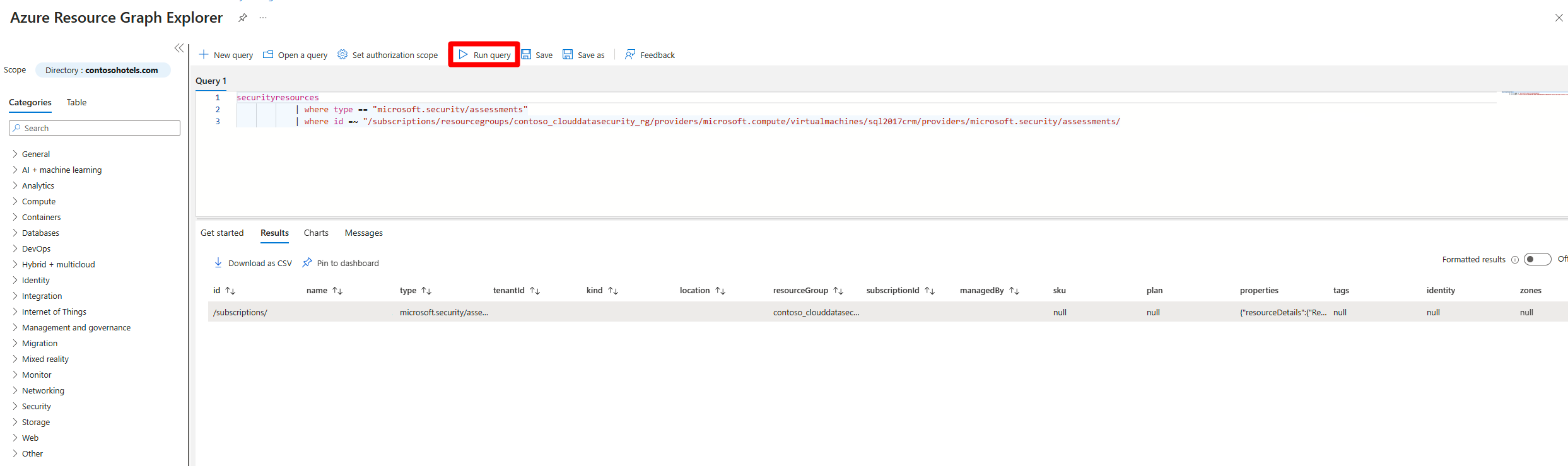
- Review the results.

Note
If your dashboards or automations currently rely on Sub Assessment APIs or queries, plan to migrate to the Assessment APIs / securityFindings equivalents for the individual recommendation format. During the side by side period, you might see duplicate data (legacy grouped + new individual). Use Preview/New version UI tags or API filters to focus on one format and avoid double counting. The Open query entry point can help you generate updated queries from the portal.