Protect your Google Cloud Platform environment - Microsoft Defender for Cloud Apps (original) (raw)
Google Cloud Platform is an IaaS provider that enables your organization to host and manage their entire workloads in the cloud. Along with the benefits of leveraging infrastructure in the cloud, your organization's most critical assets might be exposed to threats. Exposed assets include storage instances with potentially sensitive information, compute resources that operate some of your most critical applications, ports, and virtual private networks that enable access to your organization.
Connecting GCP to Defender for Cloud Apps helps you secure your assets and detect potential threats by monitoring administrative and sign-in activities, notifying on possible brute force attacks, malicious use of a privileged user account, and unusual deletions of virtual machines (VMs).
Main threats
- Abuse of cloud resources
- Compromised accounts and insider threats
- Data leakage
- Resource misconfiguration and insufficient access control
How Defender for Cloud Apps helps to protect your environment
- Detect cloud threats, compromised accounts, and malicious insiders
- Use the audit trail of activities for forensic investigations
Control GCP with built-in policies and policy templates
You can use the following built-in policy templates to detect and notify you about potential threats:
| Type | Name |
|---|---|
| Built-in anomaly detection policy | Activity from anonymous IP addressesActivity from infrequent countryActivity from suspicious IP addressesImpossible travelActivity performed by terminated user (requires Microsoft Entra ID as IdP) |
| Activity policy template | Changes to compute engine resourcesChanges to StackDriver configurationChanges to storage resourcesChanges to Virtual Private NetworkLogon from a risky IP address |
For more information about creating policies, see Create a policy.
Automate governance controls
In addition to monitoring for potential threats, you can apply and automate the following GCP governance actions to remediate detected threats:
| Type | Action |
|---|---|
| User governance | - Require user to reset password to Google (requires connected linked Google Workspace instance)- Suspend user (requires connected linked Google Workspace instance)- Notify user on alert (via Microsoft Entra ID)- Require user to sign in again (via Microsoft Entra ID)- Suspend user (via Microsoft Entra ID) |
For more information about remediating threats from apps, see Governing connected apps.
Protect GCP in real time
Review our best practices for securing and collaborating with external users and blocking and protecting the download of sensitive data to unmanaged or risky devices.
Connect Google Cloud Platform to Microsoft Defender for Cloud Apps
This section provides instructions for connecting Microsoft Defender for Cloud Apps to your existing Google Cloud Platform (GCP) account using the connector APIs. This connection gives you visibility into and control over GCP use. For information about how Defender for Cloud Apps protects GCP, see Protect GCP.
We recommend that you use a dedicated project for the integration and restrict access to the project to maintain stable integration and prevent deletions/modifications of the setup process.
Prerequisites
The integrating GCP user must have the following permissions:
- IAM and Admin edit – Organization level
- Project creation and edit
You can connect GCP Security auditing to your Defender for Cloud Apps connections to gain visibility into and control over GCP app use.
Configure Google Cloud Platform
- Create a dedicated project in GCP under your organization to enable integration isolation and stability.
- Enable the Cloud Logging API and Cloud Pub/Sub API for the dedicated project.
Note
Make sure that you don't select Pub/Sub Lite API.
Create a dedicated service account with required roles
- Create a dedicated service account.
- Copy the Email value, you'll need this later.
- Assign the Pub/Sub Admin role to the service account.
- Assign the Logs Configuration Writer role to the service account at the organization level.
Create a private key for the dedicated service account
- Switch to project level.
- Select Service accounts.
- Generate a JSON private key.
Note
You'll need the JSON file that is downloaded to your device later.
Retrieve your Organization ID
Make a note of your Organization ID, you'll need this later. For more information, see Getting your organization ID.
Connect Google Cloud Platform auditing to Defender for Cloud Apps
This procedure describes how to add the GCP connection details to connect Google Cloud Platform auditing to Defender for Cloud Apps.
- In the Microsoft Defender Portal, select Settings. Then choose Cloud Apps. Under Connected apps, select App Connectors.
- In the App connectors page, to provide the GCP connector credentials, do one of the following:
Note
We recommended that you connect your Google Workspace instance to get unified user management and governance. This is the recommended even if you don't use any Google Workspace products and the GCP users are managed via the Google Workspace user management system.
For a new connector
- Select +Connect an app, followed by Google Cloud Platform.
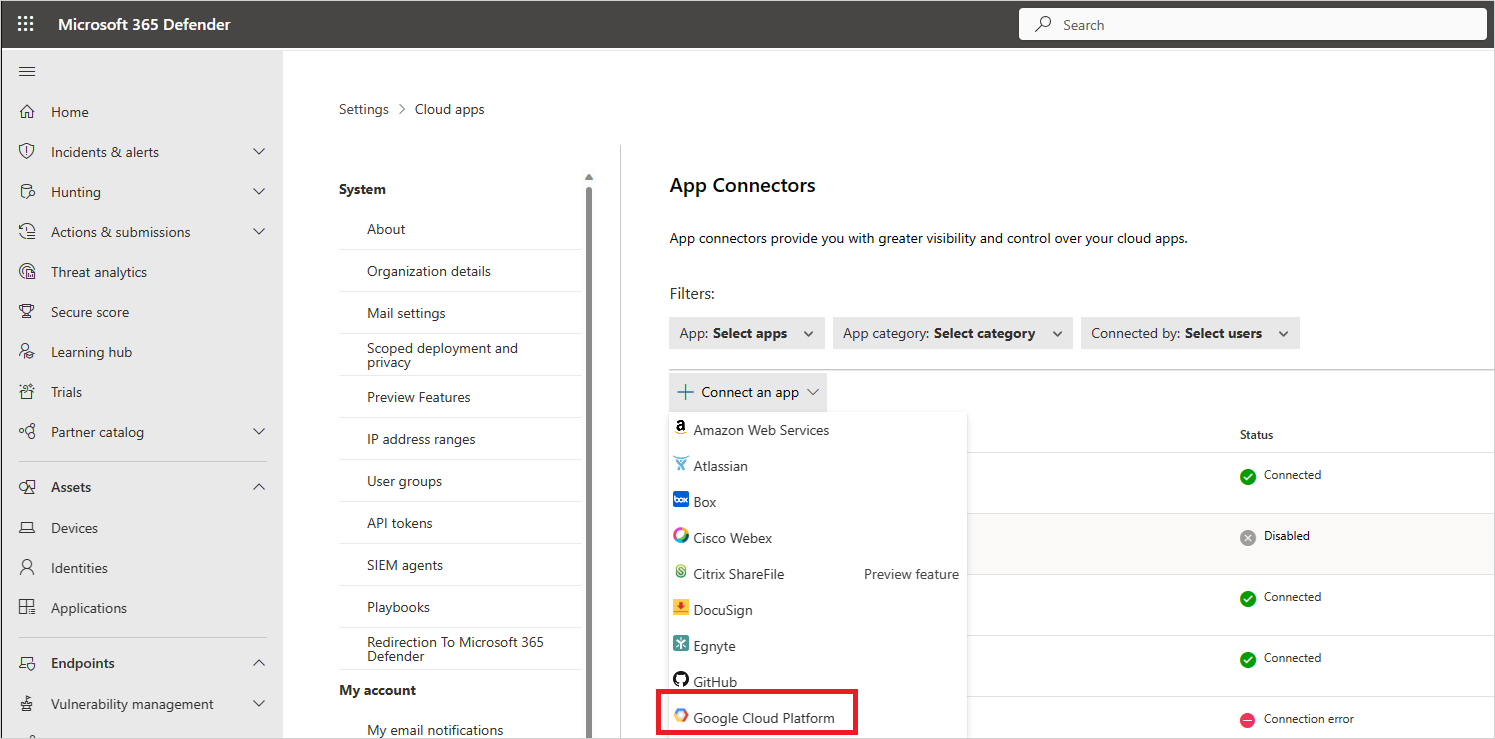
- In the next window, provide a name for the connector, and then select Next.
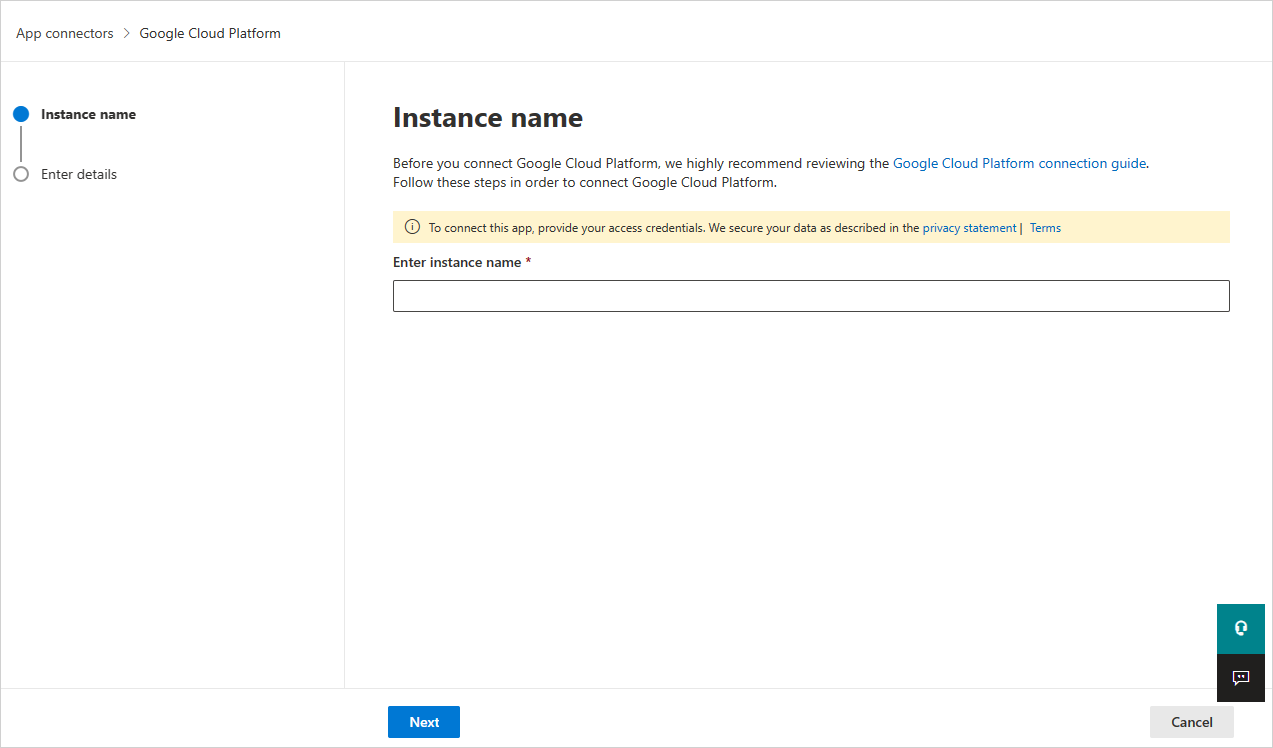
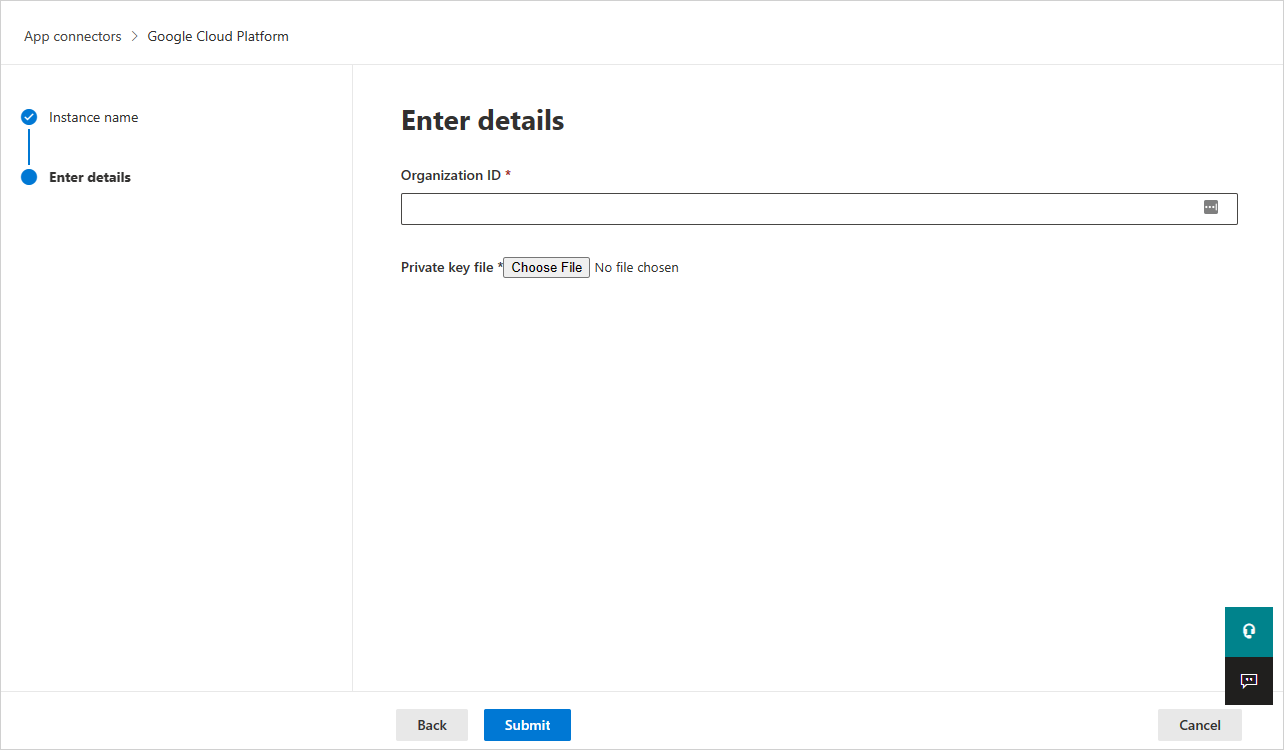
- In the Enter details page, do the following, and then select Submit.
- In the Organization ID box, enter the organization you made a note of earlier.
- In the Private key file box, browse to the JSON file you downloaded earlier.


For an existing connector
- In the list of connectors, on the row in which the GCP connector appears, select Edit settings.
- In the Enter details page, do the following, and then select Submit.
- In the Organization ID box, enter the organization you made a note of earlier.
- In the Private key file box, browse to the JSON file you downloaded earlier.
- In the Microsoft Defender Portal, select Settings. Then choose Cloud Apps. Under Connected apps, select App Connectors. Make sure the status of the connected App Connector is Connected.
Note
Defender for Cloud Apps will create an aggregated export sink (organization level), a Pub/Sub topic, and Pub/Sub subscription using the integration service account in the integration project.
Aggregated export sink is used to aggregate logs across the GCP organization and the Pub/Sub topic created is used as the destination. Defender for Cloud Apps subscribes to this topic through the Pub/Sub subscription created to retrieve the admin activity logs across the GCP organization.
Next steps
- Control cloud apps with policies
- If you have any problems connecting the app, see Troubleshooting App Connectors.