Anti-phishing policies in Microsoft 365 - Microsoft Defender for Office 365 (original) (raw)
Anti-phishing policies protect against phishing attacks by detecting spoofed senders, impersonation attempts, and other deceptive email techniques. Basic anti-phishing features are provided to all Microsoft 365 cloud mailboxes, such as spoof intelligence, first contact safety tip, and unauthenticated sender indicators. In addition, Microsoft Defender for Office 365 provides the following advanced protections:
- Impersonation protection:
- Protection against user, domain, and sender impersonation.
- Ability to define trusted senders and domains to reduce false positives.
- Phishing email thresholds:
- Customizable phishing thresholds to fine-tune detection.
- AI and machine learning-based detection:
- Improved detection of sophisticated phishing attacks through advanced algorithms.
- Additional reporting and insights:
- Advanced reporting features and visibility into phishing attempts beyond basic logging.
In Microsoft Defender, anti-phishing policies are available on the Email & Collaboration > Policies & rules > Threat policies > Anti-phishing page. While a default anti-phishing policy automatically applies to all recipients, you can also create custom policies for specific users, groups, or domains. This article describes the settings that are available in anti-phishing policies for all cloud mailboxes and in anti-phishing policies in Defender for Office 365.
Configure anti-phishing policies
To configure anti-phishing policies, see the following articles:
- Configure anti-phishing policies (basic protection)
- Configure anti-phishing policies in Defender for Office 365
- Recommended settings: See Recommended anti-phishing policy settings.
Comparison of anti-phishing policies for all cloud mailboxes and in Defender for Office 365
The high-level differences between the anti-phishing policies for all cloud mailboxes and anti-phishing policies in Defender for Office 365 are described in the following table:
| Feature | Anti-phishing policiesfor all cloud mailboxes | Anti-phishing policiesin Defender for Office 365 |
|---|---|---|
| Automatically created default policy | ✔ | ✔ |
| Create custom policies | ✔ | ✔ |
| Common policy settings* | ✔ | ✔ |
| Spoof settings | ✔ | ✔ |
| First contact safety tip | ✔ | ✔ |
| Impersonation settings | ✔ | |
| Phishing email thresholds | ✔ |
* In the default policy, the policy name and description are read-only (the description is blank), and you can't specify who the policy applies to (the default policy applies to all recipients).
Common policy settings
The following policy settings are available in anti-phishing policies for all cloud mailboxes and in anti-phishing policies in Defender for Office 365:
- Name: You can't rename the default anti-phishing policy. After you create a custom anti-phishing policy, you can't rename the policy in the Microsoft Defender portal.
- Description You can't add a description to the default anti-phishing policy, but you can add and change the description for custom policies you create.
- Users, groups, and domains and Exclude these users, groups, and domains: Recipient filters to identify the internal recipients that the policy applies to. At least one condition is required in custom policies. Conditions and exceptions aren't available in the default policy (the default policy applies to all recipients). You can use the following recipient filters for conditions and exceptions:
- Users: One or more mailboxes, or mail users in the organization.
- Groups:
* Members of the specified distribution groups or mail-enabled security groups (dynamic distribution groups aren't supported).
* The specified Microsoft 365 Groups (dynamic membership groups in Microsoft Entra ID aren't supported). - Domains: One or more of the configured accepted domains in Microsoft 365. The recipient's primary email address is in the specified domain.
You can use a condition or exception only once, but the condition or exception can contain multiple values: - Multiple values of the same condition or exception use OR logic (for example, or ):
* Conditions: If the recipient matches any of the specified values, the policy is applied to them.
* Exceptions: If the recipient matches any of the specified values, the policy isn't applied to them. - Different types of exceptions use OR logic (for example, or or ). If the recipient matches any of the specified exception values, the policy isn't applied to them.
- Different types of conditions use AND logic. The recipient must match all of the specified conditions for the policy to apply to them. For example, you configure a condition with the following values:
* Users:romain@contoso.com
* Groups: Executives
The policy is applied to
romain@contoso.comonly if he's also a member of the Executives group. Otherwise, the policy isn't applied to him.
Tip
At least one selection in the Users, groups, and domains settings is required in custom anti-phishing policies to identify the message recipients that the policy applies to. Anti-phishing policies in Defender for Office 365 also have impersonation settings where you can specify sender email addresses or sender domains that receive impersonation protection as described later in this article.
Spoof settings
Spoofing is when the From address in an email message (the sender address that email clients show) doesn't match the domain of the email source. For more information about spoofing, see Anti-spoofing protection.
Tip
For a comparison of spoofing versus impersonation, see the Spoofing vs. impersonation section later in this article.
The following spoof settings are available in anti-phishing policies for all cloud mailboxes and in anti-phishing policies in Defender for Office 365:
- Enable spoof intelligence: Turns spoof intelligence on or off. We recommend that you leave it turned on.
When spoof intelligence is enabled, the spoof intelligence insight shows spoofed senders that were automatically detected and allowed or blocked by spoof intelligence. You can manually override the spoof intelligence verdict to allow or block the detected spoofed senders from the insight. But when you do, the spoofed sender disappears from the spoof intelligence insight, and is visible only on the Spoofed senders tab on the Tenant Allow/Block Lists page at https://security.microsoft.com/tenantAllowBlockList?viewid=SpoofItem. Or, you can manually create allow or block entries for spoofed senders in the Tenant Allow/Block List, even if the spoof intelligence insight never detected the messages. For more information, see the following articles:- Spoof intelligence insight
- Spoofed senders in the Tenant Allow/Block List
Note - Anti-spoofing protection is enabled in the Standard and Strict preset security policies. It's enabled by default in the default anti-phishing policy and in new custom anti-phishing policies that you create.
- You don't need to disable anti-spoofing protection if your MX record doesn't point to Microsoft 365; you enable Enhanced Filtering for Connectors instead. For instructions, see Enhanced Filtering for Connectors in Exchange Online.
- Disabling anti-spoofing protection only disables implicit spoofing protection from composite authentication checks. For information about how anti-spoofing protection and the source domains's domain's DMARC policy (
p=quarantineorp=rejectin the DMARC TXT record) affect explicit DMARC checks, see the Spoof protection and sender DMARC policies section.
- Unauthenticated sender indicators: Available in the Safety tips & indicators section only when spoof intelligence is turned on. See the details in the next section.
- Actions: For messages from blocked spoofed senders (automatically blocked by spoof intelligence (composite authentication failure plus malicious intent) or manually blocked in the Tenant Allow/Block list), you can also specify the action to take on the messages:
- Move messages to the recipients' Junk Email folders: The default value. The message is delivered to the mailbox and moved to the Junk Email folder. For more information, see Configure junk email settings on cloud mailboxes.
- Quarantine the message: Sends the message to quarantine instead of the intended recipients. For information about quarantine, see the following articles:
* Quarantine
* Manage quarantined messages and files as an admin
* Find and release quarantined messages as a user
If you select Quarantine the message, you can also select the quarantine policy that applies to messages that were quarantined by spoof intelligence protection. Quarantine policies define what users are able to do to quarantined messages, and whether users receive quarantine notifications. For more information, see Anatomy of a quarantine policy.
Spoof protection and sender DMARC policies
In anti-phishing policies, you can control whether p=quarantine or p=reject values in sender DMARC policies are honored. If a message fails DMARC checks, you can specify separate actions for p=quarantine or p=reject in the sender's DMARC policy. The following settings are involved:
- Honor DMARC record policy when the message is detected as spoof: This setting turns on honoring the sender's DMARC policy for explicit email authentication failures. When this setting is selected, the following settings are available:
- If the message is detected as spoof and DMARC Policy is set as p=quarantine: The available actions are:
* Quarantine the message
* Move the message to the recipients' Junk Email folders - If the message is detected as spoof and DMARC Policy is set as p=reject: The available actions are:
* Quarantine the message
* Reject the message
- If the message is detected as spoof and DMARC Policy is set as p=quarantine: The available actions are:
If you select Quarantine the message as an action, the system uses the quarantine policy selected for spoof intelligence protection.

The relationship between spoof intelligence and whether sender DMARC policies are honored is described in the following table:
Tip
It's important to understand that a composite authentication failure doesn't directly result in a message being blocked. Our system uses a holistic evaluation strategy that considers the overall suspicious nature of a message along with composite authentication results. This method mitigates the risk of incorrectly blocking legitimate email from domains that might not strictly adhere to email authentication protocols. This balanced approach helps distinguish genuinely malicious email from legitimate message senders who fail to conform to standard email authentication practices.
| | Honor DMARC policy On | Honor DMARC policy Off | | | -------------------------- | --------------------------------------------------------------------------------------------------------------------------------------------------------------------------------------------------------------------------------------------------------------------------------------------------------------------------------------------------------------------------------------------------------------------------------------------------------------------------------------------------------------------------------------------------------------------------------------------------------------------------------------------------------------------------------------------------------------------------- | --------------------------------------------------------------------------------------------------------------------------------------------------------------------------------------------------------------------------------------------------------------------------------------------------------------------------------------------------------------------------------------------------------------------------------------- | | Spoof intelligence On | Separate actions for implicit and explicit email authentication failures: Implicit failures: Use the If the message is detected as spoof by spoof intelligence action (AuthenticationFailAction) in the anti-phishing policy.Explicit failures: DMARC policy p=quarantine: Use the If the message is detected as spoof and DMARC policy is set as p=quarantine action in the anti-phishing policy.DMARC policy p=reject: Use the If the message is detected as spoof and DMARC policy is set as p=reject action in the anti-phishing policy.DMARC policy p=none: Microsoft 365 takes no action based on DMARC, but other protection features in the filtering stack are still able to act on the message. | The If the message is detected as spoof by spoof intelligence action (AuthenticationFailAction) in the anti-phishing policy is used for both implicit and explicit email authentication failures. Explicit email authentication failures ignore p=quarantine, p=reject, p=none, or other values in the DMARC policy. | | Spoof intelligence Off | Implicit email authentication checks aren't used. Explicit email authentication failures: DMARC policy p=quarantine: Use the If the message is detected as spoof and DMARC policy is set as p=quarantine action in the anti-phishing policy.DMARC policy p=reject: Use the If the message is detected as spoof and DMARC policy is set as p=reject action in the anti-phishing policy.DMARC policy p=none: The message isn't identified as spoofing by Microsoft 365, but other protection features in the filtering stack are still able to act on the message. | Implicit email authentication checks aren't used. Explicit email authentication failures: DMARC policy p=quarantine, p=reject: Use the If the message is detected as spoof by spoof intelligence action (AuthenticationFailAction) in the anti-phishing policy.DMARC policy p=none: Microsoft 365 takes no action based on DMARC, but other protection features in the filtering stack are still able to act on the message. |
Note
If the MX record for the Microsoft 365 domain points to a non-Microsoft service or device that sits in front of Microsoft 365, the Honor DMARC policy setting is applied only if Enhanced Filtering for Connectors is enabled for the connector that receives inbound messages.
Customers can override the Honor DMARC policy setting for specific email messages and/or senders using the following methods:
- Admins or users can add the senders to the Safe Senders list in the user's mailbox.
- Admins can use the spoof intelligence insight or the Tenant Allow/Block List to allow messages from the spoofed sender.
- Admins create an Exchange mail flow rule (also known as a transport rule) for all users that allows messages for those particular senders.
- Admins create an Exchange mail flow rule for all users for rejected email that fails the organization's DMARC policy.
Unauthenticated sender indicators
Unauthenticated sender indicators are part of the Spoof settings that are available in the Safety tips & indicators section in anti-phishing policies for all cloud mailboxes and in anti-phishing policies in Defender for Office 365. The following settings are available only when spoof intelligence is turned on:
- Show (?) for unauthenticated senders for spoof: Adds a question mark to the sender's photo in the From box if the message doesn't pass SPF or DKIM checks and the message doesn't pass DMARC or composite authentication. When this setting is turned off, the question mark isn't added to the sender's photo.
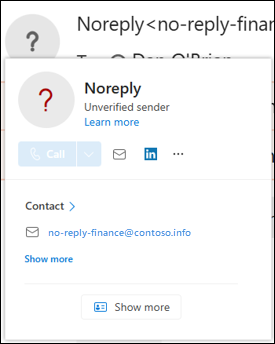
- Show "via" tag: Adds the "via" tag (
chris@contoso.com <u>via</u> fabrikam.com) in the From box if the domain in the From address (the message sender displayed in email clients) is different from the domain in the DKIM signature or the MAIL FROM address. For more information about these addresses, see An overview of email message standards.



To prevent the question mark or "via" tag from being added to messages from specific senders, you have the following options:
- Allow the spoofed sender in the spoof intelligence insight or manually in the Tenant Allow/Block List. Allowing the spoofed sender prevents the "via" tag from appearing in messages from the sender, even if the Show "via" tag setting is turned on in the policy.
- Configure email authentication for the sender domain.
- For the question mark in the sender's photo, SPF or DKIM are the most important.
- For the "via" tag, confirm the domain in the DKIM signature or the MAIL FROM address matches (or is a subdomain of) the domain in the From address.
For more information, see Identify suspicious messages in Outlook.com and Outlook on the web
The Show first contact safety tip setting is available in anti-phishing policies for all cloud mailboxes and in anti-phishing policies in Defender for Office 365, and has no dependency on spoof intelligence or impersonation protection settings. The safety tip is shown to recipients in the following scenarios:
- The first time they get a message from a sender
- They don't often get messages from the sender.
This capability adds an extra layer of protection against potential impersonation attacks, so we recommend that you turn it on.
The first contact safety tip is controlled by the value 9.25 of the SFTY field in the X-Forefront-Antispam-Report header of the message. This functionality replaces the need to create mail flow rules (also known as transport rules) that add a header named X-MS-Exchange-EnableFirstContactSafetyTip with the value Enable to messages, although this capability is still available.
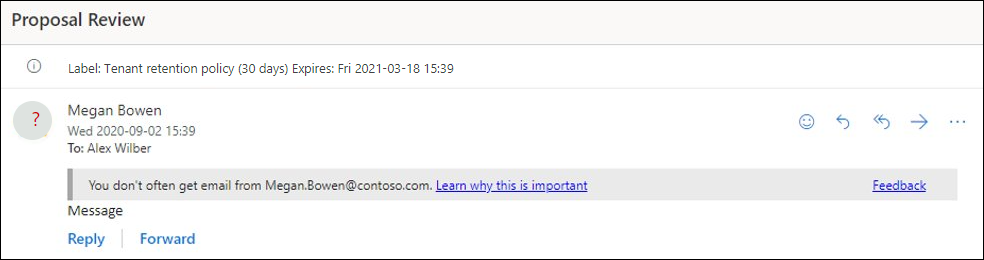
Depending on the number of recipients in the message, the first contact safety tip can be either of the following values:
- Single recipient:
You don't often get email from .
- Multiple recipients:
Some people who received this message don't often get email from .



Note
If the message has multiple recipients, whether the tip is shown and to whom is based on a majority model. If most recipients have never or don't often receive messages from the sender, the affected recipients receive the Some people who received this message... tip. If you're concerned that this behavior exposes the communication habits of one recipient to another, you shouldn't enable the first contact safety tip and continue to use mail flow rules and the X-MS-Exchange-EnableFirstContactSafetyTip header instead.
The first contact safety tip isn't stamped in S/MIME signed messages.
This section describes the policy settings that are only available in anti-phishing policies in Defender for Office 365.
Note
The default anti-phishing policy in Defender for Office 365 provides spoof protection and mailbox intelligence for all recipients. However, the other available impersonation protection features and phishing email thresholds aren't configured in the default policy. To enable all protection features, modify the default anti-phishing policy or create other anti-phishing policies.
Impersonation settings in anti-phishing policies in Microsoft Defender for Office 365
Impersonation is where the sender or the sender's email domain in a message looks similar to a real sender or domain:
- An example impersonation of the domain
contoso.comisćóntoso.com. - User impersonation is the combination of the user's display name and email address. For example, Valeria Barrios (vbarrios@contoso.com) might be impersonated as Valeria Barrios, but with a different email address.
Note
Impersonation protection looks for domains that are similar. For example, if your domain is contoso.com, we check for different top-level domains (.com, .biz, etc.), but also domains that are even slightly similar. For example, contosososo.com or contoabcdef.com might be seen as impersonation attempts of contoso.com.
An impersonated domain might otherwise be considered legitimate (the domain is registered, email authentication DNS records are configured, etc.), except the intent of the domain is to deceive recipients.
The impersonation settings described in the following sections are available only in anti-phishing policies in Defender for Office 365.
Tip
Details about detected impersonation attempts are available in the impersonation insight. For more information, see Impersonation insight in Defender for Office 365.
For a comparison of impersonation versus spoofing, see the Spoofing vs. impersonation section later in this article.
User impersonation protection
User impersonation protection prevents specific internal or external email addresses from being impersonated as message senders. For example, you receive an email message from the Vice President of your company asking you to send her some internal company information. Would you do it? Many people would send the reply without thinking.
You can use protected users to add internal and external sender email addresses to protect from impersonation. This list of senders that are protected from user impersonation is different from the list of recipients that the policy applies to (all recipients for the default policy; specific recipients as configured in the Users, groups, and domains setting in the Common policy settings section).
Note
You can specify a maximum of 350 users for user impersonation protection in each anti-phishing policy.
When both Enable mailbox intelligence and Enable intelligence for impersonation protection are turned on, User impersonation protection doesn't work if the sender and recipient previously communicated via email. If the sender and recipient never communicated via email, the message can be identified as an impersonation attempt.
If a user is already included in impersonation protection in an anti-phishing policy, you might get the following error if you try to add the user to impersonation protection in another anti-phishing policy: "The email address already exists." This error occurs only in the Defender portal. You don't get the error if you use the corresponding TargetedUsersToProtect parameter in the New-AntiPhishPolicy or Set-AntiPhishPolicy cmdlets in Exchange Online PowerShell.
By default, no sender email addresses are configured for impersonation protection, either in the default policy or in custom policies.
When you add internal or external email addresses to the Users to protect list, messages from those senders are subject to impersonation protection checks. The message is checked for impersonation if the message is sent to a recipient that the policy applies to (all recipients for the default policy; Users, groups, and domains recipients in custom policies). If impersonation is detected in the sender's email address, the action for impersonated users is applied to the message.
For detected user impersonation attempts, the following actions are available:
- Don't apply any action: The default action.
- Redirect the message to other email addresses: Sends the message to the specified recipients instead of the intended recipients.
- Move messages to the recipients' Junk Email folders: The message is delivered to the mailbox and moved to the Junk Email folder. For more information, see Configure junk email settings on cloud mailboxes.
- Quarantine the message: Sends the message to quarantine instead of the intended recipients. For information about quarantine, see the following articles:
- Quarantine
- Manage quarantined messages and files as an admin
- Find and release quarantined messages as a user
If you select Quarantine the message, you can also select the quarantine policy that applies to messages that are quarantined by user impersonation protection. Quarantine policies define what users are able to do to quarantined messages. For more information, see Anatomy of a quarantine policy.
- Deliver the message and add other addresses to the Bcc line: Deliver the message to the intended recipients and silently deliver the message to the specified recipients.
- Delete the message before it's delivered: Silently delete the entire message, including all attachments.
Domain impersonation protection
Domain impersonation protection prevents specific domains in the sender's email address from being impersonated. For example, all domains that you own (accepted domains) or specific custom domains (domains you own or partner domains). Sender domains that are protected from impersonation is different from the list of recipients that the policy applies to (all recipients for the default policy; specific recipients as configured in the Users, groups, and domains setting in the Common policy settings section).
Note
You can specify a maximum of 50 custom domains for domain impersonation protection in each anti-phishing policy.
When both Enable mailbox intelligence and Enable intelligence for impersonation protection are turned on, domain impersonation protection doesn't work if the sender and recipient previously communicated via email. If the sender and recipient never communicated via email, the message can be identified as an impersonation attempt.
Messages from senders in the specified domains are subject to impersonation protection checks. The message is checked for impersonation if the message is sent to a recipient that the policy applies to (all recipients for the default policy; Users, groups, and domains recipients in custom policies). If impersonation is detected in the domain of the sender's email address, the action for domain impersonation is applied to the message.
By default, no sender domains are configured for impersonation protection, either in the default policy or in custom policies.
For detected domain impersonation attempts, the following actions are available:
- Don't apply any action: The default value.
- Redirect the message to other email addresses: Sends the message to the specified recipients instead of the intended recipients.
- Move messages to the recipients' Junk Email folders: The message is delivered to the mailbox and moved to the Junk Email folder. For more information, see Configure junk email settings on cloud mailboxes.
- Quarantine the message: Sends the message to quarantine instead of the intended recipients. For information about quarantine, see the following articles:
- Quarantine
- Manage quarantined messages and files as an admin
- Find and release quarantined messages as a user
If you select Quarantine the message, you can also select the quarantine policy that applies to messages that are quarantined by domain impersonation protection. Quarantine policies define what users are able to do to quarantined messages. For more information, see Anatomy of a quarantine policy.
- Deliver the message and add other addresses to the Bcc line: Deliver the message to the intended recipients and silently deliver the message to the specified recipients.
- Delete the message before it's delivered: Silently deletes the entire message, including all attachments.
Mailbox intelligence impersonation protection
Mailbox intelligence uses artificial intelligence (AI) to determine user email patterns with their frequent contacts.
For example, Gabriela Laureano (glaureano@contoso.com) is the CEO of your company, so you add her as a protected sender in the Enable users to protect settings of the policy. But, some of the recipients in the policy communicate regularly with a vendor who is also named Gabriela Laureano (glaureano@fabrikam.com). Because those recipients have a communication history with glaureano@fabrikam.com, mailbox intelligence doesn't identify messages from glaureano@fabrikam.com as an impersonation attempt of glaureano@contoso.com for those recipients.
Note
Mailbox intelligence protection doesn't work if the sender and recipient previously communicated via email. If the sender and recipient never communicated via email, the message can be identified as an impersonation attempt by mailbox intelligence.
Mailbox intelligence has two specific settings:
- Enable mailbox intelligence: Turn mailbox intelligence on or off. This setting helps the AI distinguish between messages from legitimate and impersonated senders. By default, this setting is turned on.
- Enable intelligence for impersonation protection: By default, this setting is turned off. To help protect users from impersonation attacks, use the contact history learned from mailbox intelligence (both frequent contacts and no contact). For mailbox intelligence to take action on detected messages, this setting and the Enable mailbox intelligence setting both need to be turned on.
For impersonation attempts detected by mailbox intelligence, the following actions are available:
- Don't apply any action: The default value. This action has the same result as when Enable mailbox intelligence is turned on but Enable intelligence impersonation protection is turned off.
- Redirect the message to other email addresses
- Move the message to the recipients' Junk Email folders
- Quarantine the message: If you select this action, you can also select the quarantine policy that applies to messages quarantined by mailbox intelligence protection. Quarantine policies define what users are able to do to quarantined messages, and whether users receive quarantine notifications. For more information, see Anatomy of a quarantine policy.
- Deliver the message and add other addresses to the Bcc line
- Delete the message before it's delivered
Impersonation safety tips
Impersonation safety tips appear to users when messages are identified as impersonation attempts. The following safety tips are available:
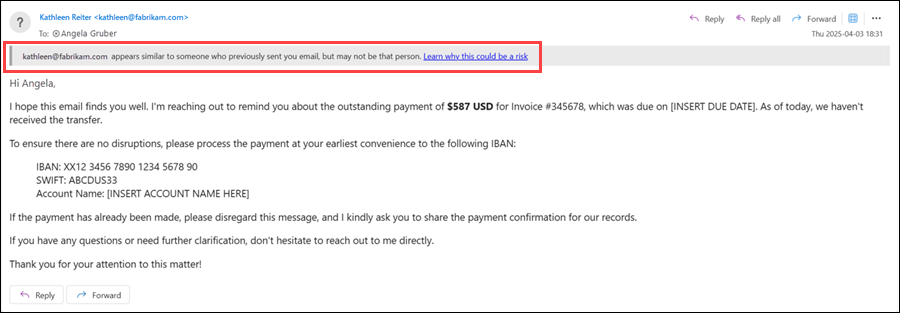
- Show user impersonation safety tip: The From address contains a user specified in user impersonation protection. Available only if Enable users to protect is turned on and configured.
This safety tip is controlled by the value 9.20 of theSFTYfield in the X-Forefront-Antispam-Report header of the message. The text says:appears similar to someone who previously sent you email, but may not be that person.
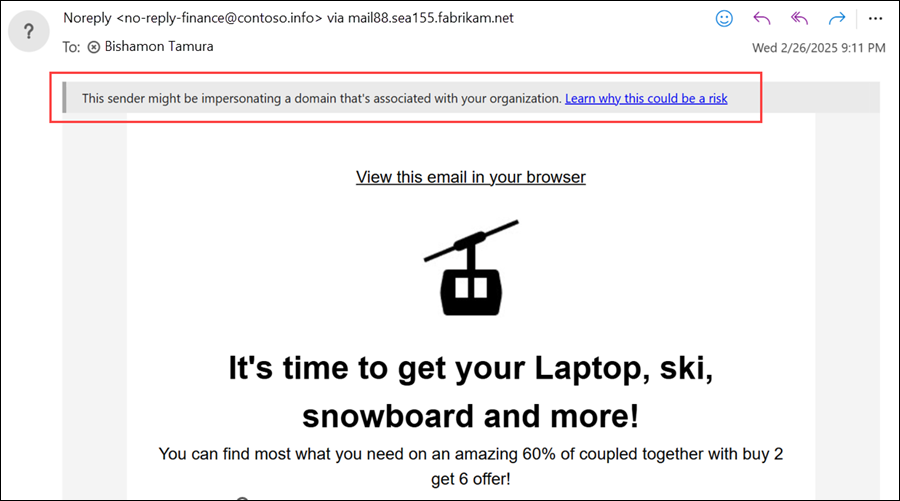
- Show domain impersonation safety tip: The From address contains a domain specified in domain impersonation protection. Available only if Enable domains to protect is turned on and configured.
This safety tip is controlled by the value 9.19 of theSFTYfield in the X-Forefront-Antispam-Report header of the message. The text says:This sender might be impersonating a domain that's associated with your organization.
- Show user impersonation unusual characters safety tip: The From address contains unusual character sets (for example, mathematical symbols and text or a mix of uppercase and lowercase letters) in a sender specified in user impersonation protection. Available only if Enable users to protect is turned on and configured. The text says:
The email address
<email address>includes unexpected letters or numbers. We recommend you don't interact with this message.


Note
Safety tips aren't stamped in the following messages:
- S/MIME signed messages.
- Messages allowed by your organizational settings.
Trusted senders and domains
Trusted senders and domain are exceptions to the impersonation protection settings. Messages from the specified senders and sender domains are never classified as impersonation-based attacks by the policy. In other words, the action for protected senders, protected domains, or mailbox intelligence protection aren't applied to these trusted senders or sender domains. The maximum limit for these lists is 1,024 entries.
Note
Trusted domain entries don't include subdomains of the specified domain. You need to add an entry for each subdomain.
If Microsoft 365 system messages from the following senders are identified as impersonation attempts, you can add the senders to the trusted senders list:
noreply@email.teams.microsoft.comnoreply@emeaemail.teams.microsoft.comno-reply@sharepointonline.com
Phishing email thresholds in anti-phishing policies in Microsoft Defender for Office 365
The following phishing email thresholds are available only in anti-phishing policies in Defender for Office 365. These thresholds control the sensitivity for applying machine learning models to messages for phishing verdicts:
- 1 - Standard: The default value. The severity of the action taken on the message depends on the degree of confidence that the message is phishing (low, medium, high, or very high confidence). For example, messages identified with a very high degree of confidence have the most severe actions applied. Messages identified with a low degree of confidence have less severe actions applied.
- 2 - Aggressive: Messages identified as phishing with a high degree of confidence are treated as if they were identified with a very high degree of confidence.
- 3 - More aggressive: Messages identified as phishing with a medium or high degree of confidence are treated as if they were identified with a very high degree of confidence.
- 4 - Most aggressive: Messages identified as phishing with a low, medium, or high degree of confidence are treated as if they were identified with a very high degree of confidence.
The chance of false positives (good messages marked as bad) increases as you increase this setting. For information about the recommended settings, see Phishing email thresholds in anti-phishing policies in Microsoft Defender for Office 365.
Spoofing vs. impersonation
Spoofing is an attacker forging the sender's email address or domain to make it look like a trusted source. The attacker manipulates the sender's email address in the message header (also known as the From address, 5322.From address, or P2 sender) to deceive the recipient.
- Anti-phishing protection for all cloud mailboxes includes basic spoofing detection via SPF, DKIM, and DMARC validation.
- Defender for Office 365 includes enhanced spoof intelligence for better detection and mitigation of sophisticated spoofing attacks.
Impersonation is an attacker mimicking a trusted user, domain, or brand to trick the recipient into believing the email is genuine. The attacker often uses subtle variations of the actual user or domain name (for example, mithun@ćóntoso.com instead of mithun@contoso.com).
- Anti-phishing protection for all cloud mailboxes doesn't include impersonation protection.
- Defender for Office 365 includes impersonation protection for users, domains, and brands, allowing admins to define trusted entities and thresholds for detection.
Impersonation can pass email authentication checks (SPF, DKIM, and DMARC) if the attacker created a lookalike domain and published valid DNS records. Despite passing authentication, the attacker is still impersonating a trusted domain or user to deceive recipients. This behavior highlights the importance of the advanced impersonation protection provided by Defender for Office 365.
To understand the order of processing for the email protection types and the priority order of policies, see Order and precedence of email protection.