Learn about retention policies & labels to retain or delete (original) (raw)
Note
If you're seeing messages about retention policies in Teams or have questions about retention labels in your apps, contact your IT department for information about how they have been configured for you. In the meantime, you might find the following articles helpful:
The information on this page is for IT administrators who can create retention policies and retention labels for compliance reasons.
For most organizations, the volume and complexity of their data is increasing daily—email, documents, instant messages, and more. Effectively managing or governing this information is important because you need to:
- Comply proactively with industry regulations and internal policies that require you to retain content for a minimum period of time—for example, the Sarbanes-Oxley Act might require you to retain certain types of content for seven years.
- Reduce your risk in the event of litigation or a security breach by permanently deleting old content that you're no longer required to keep.
- Help your organization to share knowledge effectively and be more agile by ensuring that your users work only with content that's current and relevant to them.
Retention settings that you configure can help you achieve these goals. Managing content commonly requires two actions:
| Action | Purpose |
|---|---|
| Retain content | Prevent permanent deletion and remain available for eDiscovery |
| Delete content | Permanently delete content from your organization |
With these two retention actions, you can configure retention settings for the following outcomes:
- Retain-only: Retain content forever or for a specified period of time.
- Delete-only: Permanently delete content after a specified period of time.
- Retain and then delete: Retain content for a specified period of time and then permanently delete it.
These retention settings work with content in place that saves you the additional overheads of creating and configuring additional storage when you need to retain content for compliance reasons. In addition, you don't need to implement customized processes to copy and synchronize this data.
Use the following sections to learn more about how retention policies and retention labels work, when to use them, and how they supplement each other. But if you're ready to get started and deploy retention settings for some common scenarios, see Get started with data lifecycle management.
How retention settings work with content in place
When content has retention settings assigned to it, that content remains in its original location. Most of the time, people continue to work with their documents or mail as if nothing's changed. But if they edit or delete content that's included in the retention policy, a copy of the content is automatically retained.
- For SharePoint and OneDrive sites: The copy is retained in the Preservation Hold library.
- For Exchange mailboxes: The copy is retained in the Recoverable Items folder.
- For Teams, Viva Engage messages, Copilot and AI apps: The copy is retained in a hidden folder named SubstrateHolds as a subfolder in the Exchange Recoverable Items folder.
Note
Because the Preservation Hold library is included in the site's storage quota, you might need to increase your storage when you use retention settings for SharePoint, OneDrive, and Microsoft 365 groups.
These secure locations and the retained content aren't visible to most people. In most cases, people don't even need to know that their content is subject to retention settings.
For more detailed information about how retention settings work for different workloads, see the following articles:
- Learn about retention for SharePoint and OneDrive
- Learn about retention for Teams
- Learn about retention for Viva Engage
- Learn about retention for Exchange
- Learn about retention for Copilot
Retention policies and retention labels
To assign your retention settings to content, use retention policies and retention labels with label policies. You can use just one of these methods, or combine them.
Use a retention policy to assign the same retention settings for content at a site or mailbox level, and use a retention label to assign retention settings at an item level (folder, document, email).
For example, if all documents in a SharePoint site should be retained for five years, it's more efficient to do this with a retention policy than apply the same retention label to all documents in that site. However, if some documents in that site should be retained for five years and others retained for 10 years, a retention policy wouldn't be able to do this. When you need to specify retention settings at the item level, use retention labels.
Unlike retention policies, retention settings from retention labels travel with the content if it's moved to a different location within your Microsoft 365 tenant. In addition, retention labels have the following capabilities that retention policies don't support:
- Options to start the retention period from when the content was labeled or based on an event, in addition to the age of the content or when it was last modified.
- Use trainable classifiers to identify content to label.
- Apply a default label for SharePoint items or Exchange messages.
- Supported actions at the end retention period:
- Disposition review to review the content before it's permanently deleted.
- Automatically apply another retention label
- Mark the content as a record as part of the label settings, and always have proof of disposition when content is deleted at the end of its retention period.
Retention policies
Retention policies can be applied to the following locations:
- Exchange mailboxes
- SharePoint classic and communication sites
- OneDrive accounts
- Microsoft 365 Group mailboxes & sites
- Skype for Business
- Exchange public folders
- Teams channel messages (standard channels, shared channels, and private channels post-migration)
- Teams chats
- Teams private channel messages (pre-migration only)
- Teams call logs
- Microsoft Copilot experiences
- Enterprise AI apps
- Other AI apps
- Viva Engage community messages
- Viva Engage user messages
Note
If you have existing retention policies for Teams chats and Copilot interactions, they continue to be supported, although they can't be edited when your tenant supports the separate locations. At this point, any new retention policies must use the new locations.
You can efficiently apply a single policy to multiple locations, or to specific locations or users.
For the start of the retention period, you can choose when the content was created or, supported only for files and the SharePoint, OneDrive, and Microsoft 365 Groups locations, when the content was last modified.
Items inherit the retention settings from their container specified in the retention policy. If they are, then moved outside that container when the policy is configured to retain content, a copy of that item is retained in the workload's secured location. However, the retention settings don't travel with the content in its new location. If that's required, use retention labels instead of retention policies.
Retention labels
Use retention labels for different types of content that require different retention settings. For example:
- Tax forms that need to be retained for a minimum period of time.
- Press materials that need to be permanently deleted when they reach a specific age.
- Competitive research that needs to be retained for a specific period and then permanently deleted.
- Work visas that must be marked as a record so that they can't be edited or deleted.
In all these cases, retention labels let you apply retention settings for governance control at the item level (document or email).
With retention labels, you can:
- Enable people in your organization to apply a retention label manually to content in Outlook and Outlook on the web, OneDrive, SharePoint, and Microsoft 365 groups. Users often know best what type of content they're working with, so they can classify it and have the appropriate retention settings applied.
- Apply retention labels to content automatically if it matches specific conditions, that includes cloud attachments that are shared in email or Teams, or when the content contains:
- Specific types of sensitive information.
- Specific keywords that match a query you create.
- Pattern matches for a trainable classifier.
- Start the retention period from when the content was labeled for documents in SharePoint sites and OneDrive accounts, and for email items.
- Start the retention period when an event occurs, such as employees leave the organization, or contracts expire.
- Apply a default retention label to a document library, folder, or document set in SharePoint, so that all documents that are stored in that location inherit the default retention label.
- Mark items as a record as part of your records management strategy. When this labeled content remains in Microsoft 365, further restrictions are placed on the content that might be needed for regulatory reasons. For more information, see Compare restrictions for what actions are allowed or blocked.
Retention labels, unlike sensitivity labels, don't persist if the content is moved outside Microsoft 365.
Dynamically mitigate the risk of accidental or malicious deletes
In preview, you can use this solution with Insider Risk Management so that retention labels are automatically applied with Adaptive Protection.
When you enable Adaptive Protection for your tenant, retention labels are automatically applied to unlabeled content if it's deleted by users who have been identified as an elevated risk. If these users delete content from SharePoint, OneDrive, or Exchange, a retention label is automatically applied to that content to retain it for 120 days. As a result, that content remains accessible for search and eDiscovery from the secured locations used by the workload.
Note
If you enabled and configured Adaptive Protection before this integration with data lifecycle management released, you'll need to opt-in to create this auto-labeling policy. See the instructions at the end of this section.
When these items are retained with Adaptive Protection, the following auditing events are generated and identify the user and item:
- For SharePoint and OneDrive: Retained file proactively
- For Exchange: Retained email item proactively
After the 120 days expire, the items then become eligible for permanent deletion. To learn more about when permanent deletion occurs, see How retention works for SharePoint and OneDrive and How retention works for Exchange.
Unlike other labeling scenarios, users don't see the retention label, and you don't need to create or manage the retention label or auto-labeling retention policy. At this time, you can't change the retention period or assign different policies based on the different risk levels, or for different locations. The single retention label and auto-labeling retention policy for your tenant aren't visible in the Microsoft Purview portal.
If you're using Adaptive Protection but don't want to automatically retain content in this way, you can turn off the auto-labeling policy without affecting other Adaptive Protection policies. Use the same control if you need to turn on the auto-labeling retention policy for Adaptive Protection, and confirm the status.
- Sign in to the Microsoft Purview portal > Solutions > Settings > Solution settings> Data lifecycle management > Adaptive protection.
- For Adaptive protection in Data Lifecycle Management, turn the setting off, confirm your choice, and select Save.
Any retention labels that were applied as a result of Adaptive Protection are removed so that the items can then become eligible for permanent deletion.
You won't be able to turn on this setting unless Adaptive Protection is turned on for your tenant. If your account has the required permissions, you'll see an option to take you to the insider risk management solution where you can turn on and configure Adaptive Protection.
Override holds to reclaim disk space or permanently delete sensitive information
Also like adaptive protection, priority cleanup for files or mailbox items similarly applies retention labels under the covers. The labels are automatically configured and applied when you create a priority cleanup policy that identifies items with a query that you specify. This policy can override existing holds for retention and eDiscovery.
Priority cleanup is specific to data lifecycle management and isn't supported for labeled items that are marked as records. Typical uses depend on the workload:
- For SharePoint and OneDrive, you can use priority cleanup to periodically delete large files, such as Teams meeting recordings and transcripts. These files are regularly created if you're using the popular Copilot in Teams recap feature, and might be automatically retained with a retention policy that retains all items for many years. However, these specific files typically have little business value after 1-3 months, and you want to regularly delete them to save disk space. You can also use priroty cleanup to delete files in the Preservation Hold library that can prevent OneDrive accounts from being deleted after a user leaves the organization.
- For Exchange, you can use priority cleanup to delete items when this action is required for security or privacy. For example, after a data spillage incident.
For more information and configuration instructions, see the following articles:
- Override holds to clean up files for Copilot and reclaim storage
- Expedite the permanent deletion of sensitive information from mailboxes.
Classifying content without applying any actions
Although the main purpose of retention labels is to retain or delete content, you can also use retention labels without turning on any retention or other actions. In this case, you can use a retention label simply as a text label, without enforcing any actions.
For example, you can create and apply a retention label named "Review later" with no actions, and then use that label to find that content later.

Using a retention label as a condition in a DLP policy
You can specify a retention label as a condition in a Microsoft Purview Data Loss Prevention (DLP) policy for documents in SharePoint. For example, configure a DLP policy to prevent documents from being shared outside the organization if they have a specified retention label applied to it.
For more information, see Create and Deploy data loss prevention policies.
Retention labels and policies that apply them
When you publish retention labels, they're included in a retention label policy that makes them available for admins and users to apply to content. As the following diagram shows:
- A single retention label can be included in multiple retention label policies.
- Retention label policies specify the locations to publish the retention labels. A single label retention policy can include multiple locations.
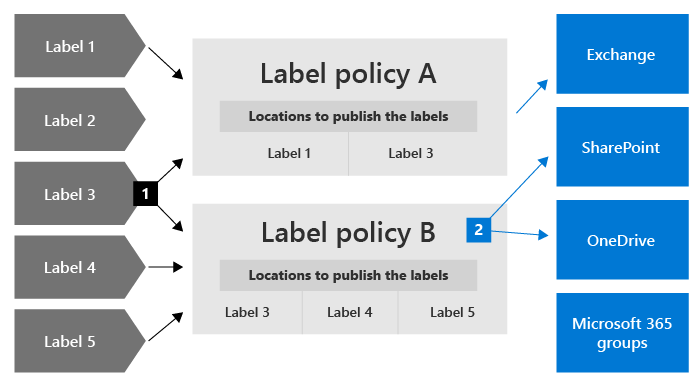
You can also create one or more auto-apply retention label policies, each with a single retention label. With this policy, a retention label is automatically applied when conditions that you specify in the policy are met.
Retention label policies and locations
Retention labels can be published to different locations, depending on what the retention label does.
| If the retention label is... | Then the label policy can be applied to... |
|---|---|
| Published to admins and end users | Exchange, SharePoint, OneDrive, Microsoft 365 Groups |
| Auto-applied based on sensitive information types, keywords or a query, or trainable classifiers | Exchange, SharePoint, OneDrive, Microsoft 365 Groups |
| Auto-applied to cloud attachments | SharePoint, OneDrive, Microsoft 365 Groups |
Exchange public folders, Skype, Teams and Viva Engage messages don't support retention labels. To retain and delete content from these locations, use retention policies instead.
Only one retention label at a time
Unlike sensitivity labels, you can't configure priorities for retention labels. Use the following information to understand label behavior for retention labels.
As with sensitivity labels, an item such as an email or document can have only a single retention label applied to it at a time. A retention label can be applied manually by an end user or admin, or automatically by using any of the following methods:
- Auto-apply retention label policy
- A Microsoft Syntex model
- Default retention label for SharePoint or Outlook
- Outlook rules
- Power Automate compliance action of Apply a retention label on the item
If there are multiple auto-apply retention label policies that could apply a retention label, and the content meets the conditions of more than one of these policies, you can't control which retention label will be selected. However, in some cases, the retention label for the oldest auto-apply retention label policy (by date created) is selected. This happens only when the matching policies don't include multiple instances of the same type of condition (sensitive information types, specific keywords or searchable properties, or trainable classifiers).
For standard retention labels (they don't mark items as a record or regulatory record):
- Admins and end users can manually change or remove an existing retention label that's applied on content.
- When items already have a retention label applied, the existing label won't be automatically removed or replaced by another retention label with the following exceptions:
- At the end of the retention period, the existing label is configured to automatically apply a different retention label, or the existing label is configured to run a Power Automate flow with the compliance action of Relabel an item at the end of retention.
- You use the Power Automate compliance action of Apply a retention label on the item. If the item already has a retention label applied, it will be replaced.
- The existing label was applied as a default label. When you use a default label, there are some scenarios when it can be replaced by another default label, or automatically removed. For more information, see Default labels for SharePoint and Outlook.
For retention labels that mark items as a record or a regulatory record:
- These retention labels are never automatically changed during their configured retention period, even if the existing label was applied as a default label, or identified for priority cleanup.
- Only admins for the container can manually change or remove retention labels that mark items as a record, but can't manually change or remove retention labels that mark items as a regulatory record. For more information, see Compare restrictions for what actions are allowed or blocked.
- At the end of the retention period, an existing label can be replaced if it's configured to mark items as a record and automatically apply a different retention label or to run a Power Automate flow with the compliance action of Relabel an item at the end of retention. You can't use these relabeling methods if the existing label is configured to mark items as a regulatory record.
Will an existing label be overridden or removed?
Use the following tables to help you quickly identify whether an existing retention label on items can be overridden by another retention label, or removed so that it's no longer labeled.
Note
Unless a labeled item is marked as a record or regulatory record, it can always be overridden by priority cleanup that under the covers, applies a retention label to delete the item.
A standard retention label refers to a retention label that isn't configured to mark items as records or regulatory records.
| New label application method | Standard retention label | Marks items as records | Marks items as regulatory records |
|---|---|---|---|
| Manually applied | Yes | Yes 1 if admin for the container | No |
| Applied with Power Automate actions | Yes | Yes 1 | Not applicable |
| Applied with the Change label label setting | Yes | Yes | Not applicable |
| Applied with the Relabel disposition review action | Yes | Yes | No |
| Applied with auto-apply retention label policy | No | No | Not applicable |
| Applied with Microsoft Syntex model | No | No | No |
| Outlook rules | No | No | No |
| Inherited from default label for SharePoint | Yes if originally applied by another default label 2 | No | No |
| Inherited from default label for Outlook | Yes if originally applied by another default label | No | No |
Footnotes:
1The record must be locked.
2An exception is if you move the item to another location with a different default label, then the original label isn't overwritten. Only if you then change the default label for this new location will the original default label be overwritten.
Monitoring retention labels
Use the Microsoft Purview portal to monitor how retention labels are being used in your tenant, and identify where your labeled items are located:
- Sign in to the Microsoft Purview portal > Solutions > Data Lifecycle Management > Overview
You can then drill down to see details by selecting View details that loads content explorer and activity explorer.
For more information, including important prerequisites, see Learn about data classification.
Tip
Consider using some of the other data classification insights, such as trainable classifiers and sensitive info types, to help you identify content that you might need to retain or delete, or manage as records.
Using Content Search to find all content with a specific retention label
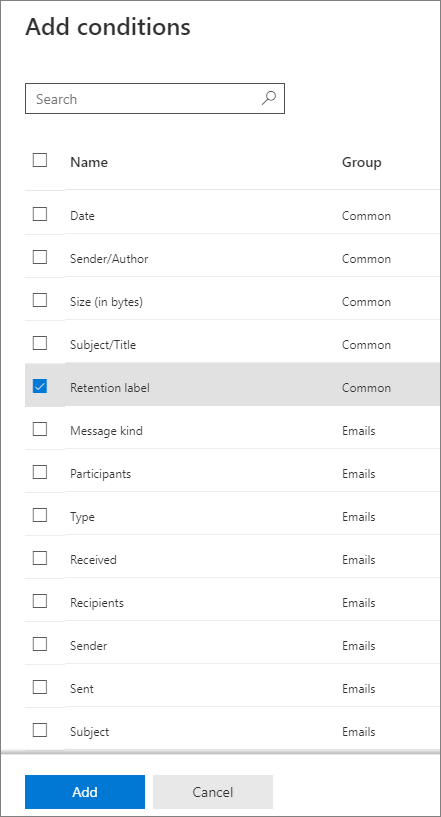
After retention labels are applied to content, either by users or auto-applied, you can use content search to find all items that have a specific retention label applied.
When you create a content search, choose the Retention label condition, and then enter the complete retention label name or part of the label name and use a wildcard. For more information, see Keyword queries and search conditions for Content Search.
Compare capabilities for retention policies and retention labels
Use the following table to help you identify whether to use a retention policy or retention label, based on capabilities.
| Capability | Retention policy | Retention label |
|---|---|---|
| Retention settings that can retain and then delete, retain-only, or delete-only | Yes | Yes |
| Workloads supported: - Exchange - SharePoint - OneDrive - Microsoft 365 groups - Skype for Business - Teams - Copilot and AI apps - Viva Engage | Yes Yes Yes Yes Yes Yes Yes | Yes, except public folders Yes Yes Yes No No No |
| Retention applied automatically | Yes | Yes |
| Automatically apply different retention settings at the end of the retention period | No | Yes |
| Retention applied based on conditions - sensitive info types, KeyQL queries and keywords, trainable classifiers, cloud attachments | No | Yes |
| Retention settings applied manually | No | Yes |
| End-user interaction | No | Yes |
| Persists if the content is moved | No | Yes, within your Microsoft 365 tenant |
| Declare item as a record | No | Yes |
| Start the retention period when labeled or based on an event | No | Yes |
| Run a Power Automate flow at the end of the retention period | No | Yes |
| Disposition review | No | Yes |
| Proof of disposition for up to seven years | No | Yes, when you use disposition review or item is marked as a record |
| Audit admin activities | Yes | Yes |
| Audit retention actions | No | Yes * |
| Identify items subject to retention: - Content Search - Data classification page, content explorer, activity explorer | No No | Yes Yes |
Footnote:
*For retention labels that don't mark the content as a record or regulatory record, auditing events are limited to when an item in SharePoint or OneDrive has a label applied, changed, or removed. Or, when a retention label is used with . For auditing details for retention labels, see the Auditing retention actions section on this page.
Combining retention policies and retention labels
You don't have to choose between using retention policies only or retention labels only. Both methods can be used together and in fact, complementary each other for a more comprehensive solution.
The following examples are just some of the ways in which you can combine retention policies and retention labels for the same location.
For more information about how retention policies and retention labels work together and how to determine their combined outcome, see the section on this page that explains the principles of retention and what takes precedence.
Example for users to override automatic deletion
Scenario: By default, content in users' OneDrive accounts is automatically deleted after five years but users must have the option to override this for specific documents.
- You create and configure a retention policy that automatically deletes content five years after it's last modified, and apply the policy to all OneDrive accounts.
- You create and configure a retention label that keeps content forever and add this to a label policy that you publish to all OneDrive accounts. You explain to users how to manually apply this label to specific documents that should be excluded from automatic deletion if not modified after five years.
Example to retain items for longer
Scenario: By default, SharePoint items are automatically retained and then deleted after five years, but documents in specific libraries must be retained for 10 years.
- You create and configure a retention policy that automatically retains and then deletes content after five years, and apply the policy to all SharePoint and Microsoft 365 Groups instances.
- You create and configure a retention label that automatically retains content for 10 years. You add this label to a label policy that you publish to all SharePoint and Microsoft 365 Groups instances so that SharePoint admins can then apply it as a default label to be inherited by all items in specific document libraries.
Example to delete items in a shorter time period
Scenario: By default, emails aren't retained but are automatically deleted after 10 years. However, emails related to a specific project that has a prerelease code name must be automatically deleted after one year.
- You create and configure a retention policy that automatically deletes content after 10 years, and apply the policy to all Exchange recipients.
- You create and configure a retention label that automatically deletes content after one year. Options for applying this label to relevant emails include:
- You create an auto-labeling policy that identifies content by using the project code name as the keyword, and apply the policy to all Exchange recipients
- You publish the label and instruct users involved in the project how to create an automatic rule in Outlook that applies this label
- You publish the label and instruct users to create a folder in Outlook for all emails related to the project and they apply the published label to the folder, and then create an Outlook rule to move all project-related emails to this folder
How long it takes for retention settings to apply
When you submit retention policies for workloads and label policies to automatically apply a retention label, allow up to seven days for the retention settings to be applied to content:
- How long it takes for retention policies to take effect
- How long it takes for retention labels to take effect
Similarly, allow up to seven days for retention labels to be visible in apps after you publish the labels:
Often, the policies take effect and labels are visible quicker than seven days. But with many potential variables that can impact this process, it's best to plan for the maximum of seven days.
Adaptive or static policy scopes for retention
When you create a retention policy or retention label policy, you must choose between adaptive and static to define the scope of the policy.
- An adaptive scope uses a query that you specify, so the membership isn't static but dynamic by running daily against the attributes or properties that you specify for the selected locations. You can use multiple adaptive scopes with a single policy.
Example: Emails and OneDrive documents for executives require a longer retention period than standard users. You create a retention policy with an adaptive scope that uses the Microsoft Entra attribute job title of "Executive," and then select the Exchange email and OneDrive accounts locations for the policy. There's no need to specify email addresses or OneDrive URLs for these users because the adaptive scope automatically retrieves these values. For new executives, there's no need to reconfigure the retention policy because these new users with their corresponding values for email and OneDrive are automatically picked up. - A static scope doesn't use queries and is limited in configuration in that it can apply to all instances for a specified location, or use inclusion and exclusions for specific instances for that location. These three choices are sometimes referred to as "org-wide," "includes," and "excludes" respectively.
Example: Emails and OneDrive documents for executives require a longer retention period than standard users. You create a retention policy with a static scope that selects the Exchange email and OneDrive accounts locations for the policy. For the Exchange email location, you're able to identify a group that contains just the executives, so you specify this group for the retention policy, and the group membership with the respective email addresses is retrieved when the policy is created. For the OneDrive accounts location, you must identify and then specify individual OneDrive URLs for each executive. For new executives, you must reconfigure the retention policy to add the new email addresses and OneDrive URLs. You must also update the OneDrive URLs anytime there is a change in an executive's UPN.
OneDrive URLs are particularly challenging to reliably specify because by default, these URLs aren't created until the user accesses their OneDrive for the first time. And if a user's UPN changes, which you might not know about, their OneDrive URL automatically changes.
Advantages of using adaptive scopes over static scopes:
- No limits on the number of items per policy. Although adaptive policies are still subject to the maximum number of policies per tenant limitations, the more flexible configuration will likely result in far fewer policies.
- You can apply specific retention settings to just inactive mailboxes. This configuration isn't possible with a static scope because at the time the policy is assigned, static scopes don't support the specific inclusion of recipients with inactive mailboxes.
For more advantages of using adaptive scopes, see Adaptive scopes.
Advantages of using static scopes over adaptive scopes:
- Simpler configuration if you want all instances automatically selected for a workload.
For "includes" and "excludes," this choice can be a simpler configuration initially if the numbers of instances that you have to specify are low and don't change. However, when these number of instances start to increase and you have frequent changes in your organization that require you to reconfigure your policies, adaptive scopes can be simpler to configure and easier to maintain. - The Skype for Business and Exchange public folders locations don't support adaptive scopes. For those locations, you must use a static scope.
For configuration information, see Configuring adaptive scopes.
Currently, adaptive scopes don't support Preservation Lock to restrict changes to retention policies and retention label policies.
Policy lookup
You can configure multiple retention policies for Microsoft 365 locations, as well as multiple retention label policies that you publish or auto-apply. To find the policies for retention that are assigned to specific users, sites, and Microsoft 365 groups, use Policy lookup from the Data lifecycle management or Records management solutions in the Microsoft Purview portal.
For example, from the Microsoft Purview portal:
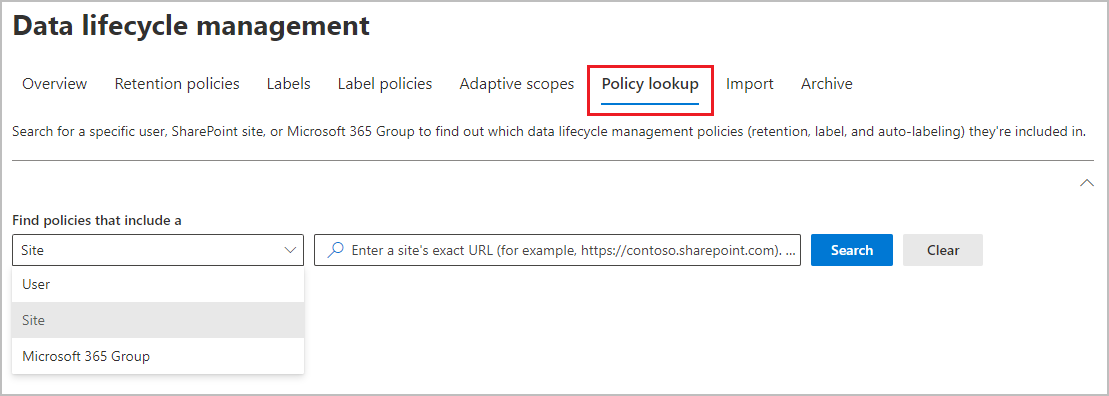
You must specify the exact email address for a user, exact URL for a site, or exact email address for a Microsoft 365 group. You can't use wildcards, or partial matches, for example.
The option for sites includes OneDrive accounts. For information how to specify the URL for a user's OneDrive account, see Get a list of all user OneDrive URLs in your organization.
The principles of retention, or what takes precedence?
Unlike retention labels, you can apply more than one retention policy to the same content. Each retention policy can result in a retain action and a delete action. Additionally, that item could also be subject to these actions from a retention label.
In this scenario, when items can be subject to multiple retention settings that could conflict with one another, what takes precedence to determine the outcome?
The outcome isn't which single retention policy or single retention label wins, but how long an item is retained (if applicable) and when an item is deleted (if applicable). These two actions are calculated independently from each other, from all the retention settings applied to an item.
For example, an item might be subject to one retention policy that is configured for a delete-only action, and another retention policy that is configured to retain and then delete. Consequently, this item has just one retain action but two delete actions. The retention and deletion actions could be in conflict with one another and the two deletion actions might have a conflicting date. The principles of retention explain the outcome.
By default, retention always takes precedence over permanent deletion, and the longest retention period wins. These two simple rules always decide how long an item is retained unless it's subject to priority cleanup that might be needed to expedite permanent deletion for exceptional circumstances.
If you're not using priority cleanup, there are a few more factors that determine when an item is permanently deleted, which include the delete action from a retention label always takes precedence over the delete action from a retention policy.
Use the following flow to understand the retention and deletion outcomes for a single item that isn't subject to priority cleanup, where each level acts as a tie-breaker for conflicts, from top to bottom. If the outcome is determined by the first level because there are no further conflicts, there's no need to progress to the next level, and so on.
Important
If you are using retention labels: Before applying the principles to determine the outcome of multiple retention settings on the same item, make sure you know which retention label is applied.
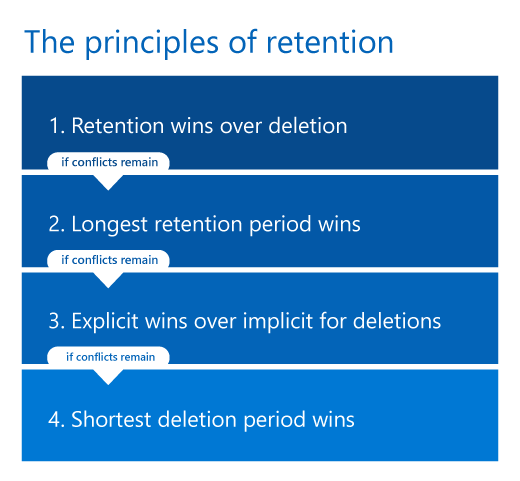
Before explaining each principle in more detail, it's important to understand the difference between the retention period for the item vs. the specified retention period in the retention policy or retention label. That's because although the default configuration is to start the retention period when an item is created, so that the end of the retention period is fixed for the item, files also support the configuration to start the retention period from when the file is last modified. With this alternative configuration, every time the file is modified, the start of the retention period is reset, which extends the end of the retention period for the item. Retention labels also support starting the retention period when labeled and at the start of an event.
To apply the principles in action with a series of Yes and No questions, you can also use the retention flowchart.
Explanation for the four different principles:
- Retention wins over deletion. Content won't be permanently deleted when it also has retention settings to retain it. While this principle ensures that content is preserved for compliance reasons, the delete process can still be initiated (user-initiated or system-initiated) and consequently, might remove the content from users' main view. However, permanent deletion is suspended. For more information about how and where content is retained, use the following links for each workload:
- How retention works for SharePoint and OneDrive
- How retention works with Microsoft Teams
- How retention works with Viva Engage
- How retention works for Exchange
- How retention works with Copilot & AI apps
Example for this first principle: An email message is subject to a retention policy for Exchange that is configured to delete items three years after they are created, and it also has a retention label applied that is configured to retain items five years after they are created.
The email message is retained for five years because this retention action takes precedence over deletion. The email message is permanently deleted at the end of the five years because of the delete action that was suspended while the retention action was in effect.
- The longest retention period wins. If content is subject to multiple retention settings that retain content for different periods of time, the content is retained until the end of the longest retention period for the item.
Note
It's possible for a retention period of five years in a retention policy or label wins over a retention period of seven years in a retention policy or label, because the 5-year period is configured to start based on when the file is last modified, and the seven year period is configured to start from when the file is created.
Example for this second principle: Documents in the Marketing SharePoint site are subject to two retention policies. The first retention policy is configured for all SharePoint sites to retain items for five years after they are created. The second retention policy is configured for specific SharePoint sites to retain items for 10 years after they are created.
Documents in this Marketing SharePoint site are retained for 10 years because that's the longest retention period for the item. - Explicit wins over implicit for deletions. With conflicts now resolved for retention, only conflicts for deletions remain:
- A retention label (however it was applied) provides explicit retention in comparison with retention policies, because the retention settings are applied to an individual item rather than implicitly assigned from a container. This means that a delete action from a retention label always takes precedence over a delete action from any retention policy.
Example 1 for this third principle (label): A document is subject to two retention policies that have a delete action of five years and 10 years respectively, and also a retention label that has a delete action of seven years.
The document is permanently deleted after seven years because the delete action from the retention label takes precedence.
Example 2 for this third principle (label): A document in the Marketing SharePoint site is subject to both a retention policy and a retention label. The retention policy is configured to retain items in all SharePoint sites for 10 years after creation, while the retention label specifies a delete action after seven years.
In this case, the document is retained for 10 years, which is the longest retention period. Because the retention label’s delete action takes precedence, the document is permanently deleted after 10 years. The item is not moved to the Preservation Hold Library (PHL).
Example 3 for this third principle (label): An email message is subject to one retention policy and a retention label. The retention policy is configured for all Exchange mailboxes to retain items for 10 years after they are creation, and the retention label specifies a delete action after seven years.
The email message is retained for 10 years, which is the longest retention period. After seven years, the retention label causes the item to be moved to the Recoverable Items folder. The item remains there until the 10 year retention period expires, after which it is permanently deleted. - When you have retention policies only: If a retention policy for a location uses an adaptive scope or a static scope that includes specific instances (such as specific users for Exchange email) that retention policy takes precedence over a static scope that is configured for all instances for the same location.
A static scope that is configured for all instances for a location is sometimes referred to as an "org-wide policy". For example, Exchange mailboxes and the default setting of All mailboxes. Or, SharePoint classic and communication sites and the default setting of All sites. When retention policies aren't org-wide but have been configured with an adaptive scope or a static scope that includes specific instances, they have equal precedence at this level.
Example 1 for this third principle (policies): An email message is subject to two retention policies. The first retention policy is unscoped and deletes items after 10 years. The second retention policy is scoped to specific mailboxes and deletes items after five years.
The email message is permanently deleted after five years because the deletion action from the scoped retention policy takes precedence over the org-wide retention policy.
Example 2 for this third principle (policies): A document in a user's OneDrive account is subject to two retention policies. The first retention policy is scoped to include this user's OneDrive account and has a delete action after 10 years. The second retention policy is scoped to include this user's OneDrive account and has a delete action after seven years.
When this document will be permanently deleted can't be determined at this level because both retention policies are scoped to include specific instances.
- A retention label (however it was applied) provides explicit retention in comparison with retention policies, because the retention settings are applied to an individual item rather than implicitly assigned from a container. This means that a delete action from a retention label always takes precedence over a delete action from any retention policy.
- The shortest deletion period wins. Applicable to determine when items will be deleted from retention policies and the outcome couldn't be resolved from the previous level: Content is permanently deleted at the end of the shortest retention period for the item.
Note
It's possible that a retention policy that has a retention period of seven years wins over a retention policy of five years because the first policy is configured to start the retention period based on when the file is created, and the second retention policy from when the file is last modified.
Example for this fourth principle: A document in a user's OneDrive account is subject to two retention policies. The first retention policy is scoped to include this user's OneDrive account and has a delete action of 10 years after the file is created. The second retention policy is scoped to include this user's OneDrive account and has a delete action of seven years after the file is created.
This document will be permanently deleted after seven years because that's the shortest retention period for the item from these two scoped retention policies.
Items subject to eDiscovery hold also fall under the first principle of retention; they cannot be permanently deleted by any retention policy or retention label. When that hold is released, the principles of retention continue to apply to them. For example, they could then be subject to an unexpired retention period or a delete action.
Principles of retention examples that combine retain and delete actions
The following examples are more complex to illustrate the principles of retention when different retain and delete actions are combined. To make the examples easier to follow, all retention policies and labels use the default setting of starting the retention period when the item is created so the end of the retention period is the same for the item.
- An item has the following retention settings applied to it:
- A retention policy for delete-only after five years
- A retention policy that retains for three years and then deletes
- A retention label that retains-only for seven years
Outcome: The item is retained for seven years because retention takes precedence over deletion and seven years is the longest retention period for the item. At the end of this retention period, the item is permanently deleted because of the delete action from the retention policies.
Although the two retention policies have different dates for the delete actions, the earliest that the item can be permanently deleted is at the end of the longest retention period, which is longer than both deletion dates.
- An item has the following retention settings applied to it:
- An org-wide retention policy that deletes-only after 10 years
- A retention policy scoped with specific instances that retains for five years and then deletes
- A retention label that retains for three years and then deletes
Outcome: The item is retained for five years because that's the longest retention period for the item. At the end of that retention period, the item is permanently deleted because of the delete action of three years from the retention label. Deletion from retention labels takes precedence over deletion from all retention policies. In this example, all conflicts are resolved by the third level.
Use Preservation Lock to restrict changes to policies
Some organizations might need to comply with rules defined by regulatory bodies such as the Securities and Exchange Commission (SEC) Rule 17a-4, which requires that after a policy for retention is turned on, it cannot be turned off or made less restrictive.
Preservation Lock ensures your organization can meet such regulatory requirements because it locks a retention policy or retention label policy so that no one—including an administrator—can turn off the policy, delete the policy, or make it less restrictive.
You apply Preservation Lock after the retention policy or retention label policy is created. For more information and instructions, see Use Preservation Lock to restrict changes to retention policies and retention label policies.
Releasing a policy for retention
Providing your policies for retention don't have a Preservation Lock, you can delete your policies at any time, which effectively turns off the retention settings for a retention policy, and retention labels can no longer be applied from retention label policies. Any previously applied retention labels remain with their configured retention settings and for these labels, you can still update the retention period when it's not based on when items were labeled.
You can also keep a policy, but change the location status to off, or disable the policy. Another option is to reconfigure the policy so it no longer includes specific users, sites, groups, and so on.
Additional information for specific locations:
- SharePoint sites and OneDrive accounts:
When you release a retention policy for SharePoint sites and OneDrive accounts, any content that's subject to retention from the policy continues to be retained for 30 days to prevent inadvertent data loss. During this 30-day grace period deleted files are still retained (files continue to be added to the Preservation Hold library), but the timer job that periodically cleans up the Preservation Hold library is suspended for these files so you can restore them if necessary.
An exception to this 30-day grace period is when you update the policy to exclude one or more sites for SharePoint or accounts for OneDrive; in this case, the timer job deletes files for these locations in the Preservation Hold library without the 30-day delay.
For more information about the Preservation Hold library, see How retention works for SharePoint and OneDrive.
Because of the behavior during the grace period, if you re-enable the policy or change the location status back to on within 30 days, the policy resumes without any permanent data loss during this time. - Exchange email and Microsoft 365 Groups
When you release a retention policy for mailboxes that are inactive at the time the policy is released:- If the retention policy is explicitly applied to a mailbox, the retention settings no longer apply. With no retention settings applied, an inactive mailbox becomes eligible for automatic deletion in the usual way.
An explicit retention policy requires either an adaptive policy scope, or a static policy scope with an include configuration that specified an active mailbox at the time the policy was applied and later became inactive - If the retention policy is implicitly applied to a mailbox and the configured retention action is to retain, the retention policy continues to apply and an inactive mailbox never becomes eligible for automatic deletion. When the retain action no longer applies because the retention period has expired, the Exchange admin can now manually delete the inactive mailbox
An implicit retention policy requires a static policy scope with the All mailboxes (for Exchange email) or All groups (for Microsoft 365 Groups) configuration.
For more information about inactive mailboxes that have retention policies applied, see Inactive mailboxes and Microsoft 365 retention.
- If the retention policy is explicitly applied to a mailbox, the retention settings no longer apply. With no retention settings applied, an inactive mailbox becomes eligible for automatic deletion in the usual way.
Auditing retention configuration and actions
When auditing is enabled, auditing events for retention are supported for both administration configuration (retention policies and retention labels) and retention actions (retention labels only).
Auditing retention configuration
Administrator configuration for retention policies and retention labels is logged as auditing events when a retention policy or label is created, reconfigured, or deleted.
For the full list of auditing events, see Retention policy and retention label activities.
Auditing retention actions
Retention actions that are logged as auditing events are available only for retention labels and not for retention policies:
- Specific to priority cleanup, use the Cleanup ID assigned to the priority cleanup policy as a keyword search term in the auditing log to find related activities.
- Specific to Adaptive Protection when a retention label is applied to an item:
- For SharePoint and OneDrive, from Retention policy and retention label activities, select Retained file proactively
- For Exchange, from Retention policy and retention label activities, select Retained email item proactively
- When a retention label is applied, changed, or removed from an item in SharePoint or OneDrive:
- From File and page activities, select Changed retention label for a file
- When a labeled item in SharePoint is marked as a record, and it is unlocked or locked by a user:
- From File and page activities, select Changed record status to unlocked and Changed record status to locked
- When a retention label that marks content as a record or regulatory record is applied to an item in Exchange:
- From Exchange mailbox activities, select Labeled message as a record
- When a labeled item in SharePoint, OneDrive, or Exchange is marked as a record or regulatory record, and it is permanently deleted:
- From File and page activities, select Deleted file marked as a record
- When a disposition reviewer takes action for an item that's reached the end of its retention period:
- From Disposition review activities, select Approved disposal, Extended retention period, Relabeled item, or Added reviewers
PowerShell cmdlets for retention policies and retention labels
Use Security & Compliance PowerShell for Purview retention cmdlets that support configuration at scale, scripting for automation, or might be necessary for advanced configuration scenarios.
For a list of available cmdlets, and to identify which ones are supported for the different locations, see PowerShell cmdlets for retention policies and retention labels.
When to use retention policies and retention labels or eDiscovery holds
Although retention settings and holds that you create with an eDiscovery case can both prevent data from being permanently deleted, they are designed for different scenarios. To help you understand the differences and decide which to use, use the following guidance:
- Retention settings that you specify in retention policies and retention labels are designed for a long-term data lifecycle management strategy to retain or delete data for compliance requirements. The scope is usually broad with the main focus being the location and content rather than individual users. The start and end of the retention period is configurable, with the option to automatically delete content without additional administrator intervention.
- Holds for eDiscovery cases are designed for a limited duration to preserve data for a legal investigation. The scope is specific with the focus being content owned by identified users. The start and end of the preservation period isn't configurable but dependent on individual administrator actions, without an option to automatically delete content when the hold is released.
Summary to compare retention with holds:
| Consideration | Retention | eDiscovery holds |
|---|---|---|
| Business need: | Compliance | Legal |
| Time scope: | Long-term | Short-term |
| Focus: | Broad, content-based | Specific, user-based |
| Start and end date configurable: | Yes | No |
| Content deletion: | Yes (optional) | No |
| Administrative overheads: | Low | High |
If content is subject to both retention settings and an eDiscovery hold, preserving content for the eDiscovery hold always takes precedence. In this way, the principles of retention expand to eDiscovery holds because they preserve data until an administrator manually releases the hold. However, despite this precedence, don't use eDiscovery holds for long-term data lifecycle management. If you are concerned about automatic deletion of data, you can configure retention settings to retain items forever, or use disposition review with retention labels.
If you are using older eDiscovery tools to preserve data, see the following resources:
- Exchange:
- SharePoint and OneDrive:
- Retirement of legacy eDiscovery tools
Use retention policies and retention labels instead of older features
If you need to retain or delete content in Microsoft 365 for data lifecycle management, we recommend you use Microsoft 365 retention policies and retention labels instead of the following older features.
If you currently use these older features, they'll usually work side by side with Microsoft 365 retention policies and retention labels. Check their specific documentation for any restrictions. However, we recommend that going forward, you use Microsoft 365 retention policies and retention labels to benefit from a single solution to manage both retention and deletion of content across multiple workloads in Microsoft 365.
Older features from Exchange Online:
- Retention tags and retention policies, also known as messaging records management (MRM) (deletion only)
However, if you use the following MRM features, be aware that they aren't currently supported by Microsoft 365 retention policies:- An archive policy for archive mailboxes to automatically move emails from a user's primary mailbox to their archive mailbox after a specified period of time. An archive policy (with any settings) can be used in conjunction with a Microsoft 365 retention policy that applies to a user's primary and archive mailbox.
- Retention policies applied by an admin to specific folders within a mailbox. A Microsoft 365 retention policy applies to all folders in the mailbox. However, an admin can configure different retention settings by using retention labels that a user can apply to folders in Outlook as a default retention label.
- Journaling (retention and archive)
Might be required to integrate with third-party solutions and copies of email messages and their data communication are stored outside Exchange Online. Because you're moving data outside Microsoft 365, you must take extra precautions to secure it and also resolve any duplications that might result from this solution. It is your responsibility to monitor and follow up on any nondelivery receipts to the journaling mailbox that can occur because of external and dependent services. You don't have these additional administrative overheads when you use Microsoft 365 retention and other Microsoft Purview compliance solutions that also aren't limited to just email messages. - Litigation hold (retention only)
Although Litigation holds are still supported, we recommend you use Microsoft 365 retention or eDiscovery holds, as appropriate.
Older features from SharePoint and OneDrive:
- Document deletion policies (deletion only)
- Configuring in place records management (retention only)
- Use policies for site closure and deletion (deletion only)
- Information management policies (deletion only)
If you have configured SharePoint sites for content type policies or information management policies to retain content for a list or library, those policies are ignored while a retention policy or retention label policy is in effect.
- SharePoint Online Limits
- Limits and specifications for Microsoft Teams
- Resources to help you meet regulatory requirements for data lifecycle management and records management
Configuration guidance
See Get started with data lifecycle management. This article has information about subscriptions, permissions, and links to end-to-end configuration guidance for retention scenarios.